
How do you prevent tracking scripts from setting cookies before your visitors give consent? WPConsent automatically detects and blocks known third-party scripts so they don’t run until the appropriate cookie category is accepted. Automatic script blocking is one of the most important features for GDPR and CCPA compliance.
Table of contents
- Prerequisites
- Understanding how script blocking works
- Enabling script blocking
- Reviewing automatically detected services
- Enabling content blocking for iframes
- Understanding the consent lifecycle
- Using Google Consent Mode as an alternative
- Using Microsoft Clarity Consent Mode
- Using default allow (opt-out) mode
- Verifying your setup
- FAQ
- Conclusion
Prerequisites
Before you begin, make sure you have:
- WPConsent installed and activated (see our guide on installing WPConsent)
- The consent banner enabled in WPConsent >> Settings
- The Enable Script Blocking toggle turned on in WPConsent >> Settings (see enabling script blocking below)
- Administrator access to your WordPress site
Understanding how script blocking works
WPConsent uses a 3-step process for every page request on your site.
1. Capturing the page output
When a visitor loads a page, WPConsent starts PHP output buffering at the template_redirect hook. This captures the full HTML before the browser receives it. Output buffering is skipped for admin pages, feeds, AJAX requests, REST API calls, and non-HTML responses.
2. Detecting and modifying scripts
WPConsent parses the buffered HTML and compares every script and iframe tag against its database of known services.
For each matching script:
- The
typeattribute changes fromtext/javascripttotext/plain, which prevents the browser from running it. - The original
srcmoves to adata-wpconsent-srcattribute. data-wpconsent-categoryanddata-wpconsent-nameattributes are added so the frontend knows how to handle them.
For each matching iframe:
- The
srcattribute is removed and stored indata-wpconsent-src. - A visual placeholder with a consent button replaces the iframe.
3. Unblocking after consent
When the visitor interacts with the banner and accepts a cookie category, the frontend JavaScript finds all blocked elements tagged with that category. It restores script src attributes, creates new executable elements, and restores src on iframes so they load normally.
Enabling script blocking
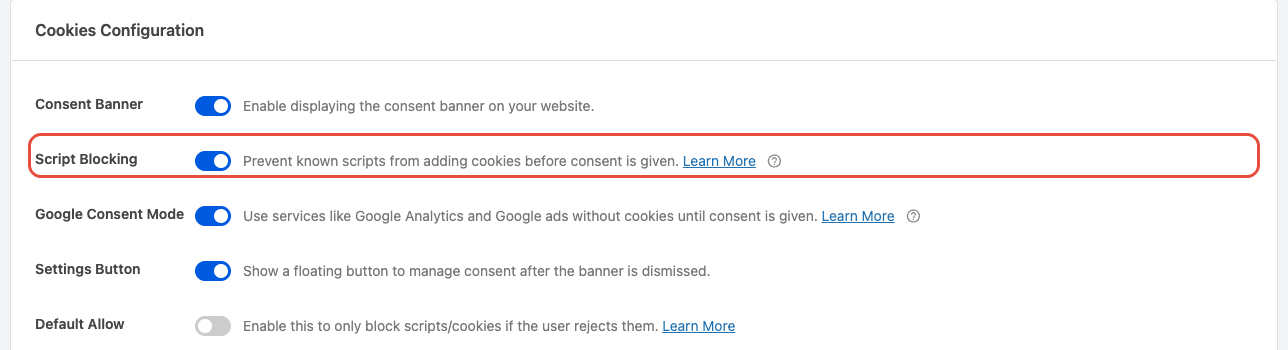
To get started:
- Navigate to WPConsent >> Settings in your WordPress admin.
- Find the Enable Script Blocking toggle.
- Turn the toggle on to activate blocking, or off to disable it.
- Click Save Changes.
Script blocking requires the consent banner to be enabled. If you disable the banner, script blocking turns off automatically as well.
Reviewing automatically detected services
WPConsent maintains a remotely updated list of known scripts that covers popular analytics, marketing, and advertising services. The list is fetched from the WPConsent server and cached locally for 24 hours, so new services can be added without shipping a plugin update. The WPConsent team is continuously expanding the block list.
Pro Feature: With the paid version, you can add custom script and iframe blocking rules for any service directly from the admin. The paid version also adds automatic blocking of WooCommerce Sourcebuster tracking scripts. See custom script blocking rules for details.
Enabling content blocking for iframes
Beyond script blocking, WPConsent can block iframes and embedded content from services like YouTube, Vimeo, DailyMotion, Google Maps, and reCAPTCHA. You can control content blocking separately from script blocking.
To enable it:
- Navigate to WPConsent >> Settings in your WordPress admin.
- Turn on the Content Blocking toggle.
- Select which services to block from the multi-select list that appears.
- Click Save Changes.
When content blocking is active:
- Iframes have their
srcremoved so they don’t load. - A visual placeholder with a thumbnail image and a consent button replaces each iframe.
- Thumbnail images are fetched from the WPConsent API and stored locally on your server.
- When the visitor clicks the placeholder button or accepts the relevant category from the banner, the content loads immediately.
For more details on customizing placeholders, see our guide on content blocking and placeholders.
Understanding the consent lifecycle
When a visitor gives consent
When a visitor clicks Accept All or saves specific preferences from the banner:
- WPConsent saves the visitor’s choices to a
wpconsent_preferencescookie. - The banner hides.
- All blocked scripts matching the accepted categories are restored and executed.
- All blocked iframes matching the accepted categories have their source restored.
- Content placeholders are removed for accepted categories.
- Google Consent Mode signals are updated (if applicable).
- Microsoft Clarity consent signals are updated (if applicable).
- A
wpconsent_consent_savedevent fires on thewindowobject. - A
wpconsent_consent_processedevent fires on thedocumentobject. - A
wpconsent_consent_processedevent is pushed to the Google Tag ManagerdataLayer.
When a visitor revokes consent
When a visitor opens the preferences panel and changes their choices:
- WPConsent compares the new preferences to the saved ones.
- If any previously accepted category is now denied, all cookies are cleared.
- The updated preferences are saved to the
wpconsent_preferencescookie. - The page reloads so that scripts for revoked categories are blocked again on the fresh page load.
The page reload ensures a clean state. Scripts that already executed can’t be “un-executed” in the browser, so a reload is the only reliable way to stop revoked scripts from running.
Using Google Consent Mode as an alternative
When you use Google services (Google Analytics, Google Ads, or Google Tag Manager), WPConsent supports Google Consent Mode v2 as an alternative to full script blocking. With Google Consent Mode enabled, Google scripts load but operate in a restricted, cookieless mode until the visitor accepts cookies.
WPConsent automatically outputs a consent default script early in the that sets all Google consent signals (ad_storage, analytics_storage, ad_user_data, ad_personalization) to denied. When the visitor accepts the relevant cookie category, WPConsent sends a consent update call to switch those signals to granted.
To toggle this behavior, navigate to WPConsent >> Settings and find the Google Consent Mode setting. When Google Consent Mode is on, Google Analytics, Google Tag Manager, and Google Ads scripts run in restricted mode instead of being fully blocked.
For a full walkthrough, see our guide on Google Consent Mode v2.
Using Microsoft Clarity Consent Mode
Similar to Google Consent Mode, WPConsent supports Clarity Consent Mode for Microsoft Clarity. When enabled, Clarity scripts aren’t blocked. Instead, they receive consent signals through the Clarity API. When a visitor saves their preferences, WPConsent sends the appropriate ad_Storage and analytics_Storage values to the Clarity consentv2 function.
To toggle this behavior, navigate to WPConsent >> Settings and find the Clarity Consent Mode setting.
For more details, see our guide on Microsoft Clarity Consent Mode.
Using default allow (opt-out) mode
WPConsent also supports an opt-out model where scripts run by default and are only blocked after a visitor explicitly rejects a category. This is useful for regions where opt-out consent is sufficient (such as under CCPA).
When Default Allow is enabled, all scripts are unblocked on page load, even before the visitor interacts with the banner. If the visitor then rejects a category, cookies are cleared and the page reloads with those scripts blocked.
You can configure this in general settings.
Verifying your setup
After enabling script blocking, test your site to confirm everything works correctly:
- Open your website in a private/incognito browser window.
- Open the browser developer tools (press F12).
- Check the Elements tab to confirm that tracking scripts have
type="text/plain"instead oftype="text/javascript". - Accept all cookies from the banner.
- Check the Network tab to confirm tracking requests fire only after you accept.
- Open the preferences panel, revoke a category, and verify the page reloads.
FAQ
Do I need to change how I add tracking scripts to my site?
No. WPConsent intercepts scripts automatically, regardless of how they were added. You can keep using plugins like MonsterInsights, WPCode, or even manually pasted code in your theme.
Why is my Google Analytics script still loading after I enabled script blocking?
If you have Google Consent Mode enabled, Google scripts are allowed to load in restricted mode instead of being blocked. This is expected behavior. To fully block them, turn off the Google Consent Mode toggle in WPConsent >> Settings.
Can I block scripts that aren’t in the automatically detected list?
Yes, but only in the paid version. The paid version lets you add custom script and iframe blocking rules for any service. See custom script blocking rules for instructions.
Why does the page reload when I revoke consent?
Scripts that already ran can’t be stopped from within the browser. The only reliable way to ensure revoked scripts don’t continue running is to reload the page, which lets WPConsent block them again from scratch.
Does script blocking affect my site’s performance?
WPConsent uses PHP output buffering to process the HTML before it reaches the browser. The performance impact is minimal. The script detection list is fetched remotely and cached for 24 hours, so there’s no extra API call on every page load.
Conclusion
Automatic script blocking is the foundation of WPConsent’s compliance features. Once enabled, it intercepts known tracking scripts and prevents them from running until visitors grant consent. Combined with content blocking for iframes and Google Consent Mode for Google services, it gives you full control over third-party scripts on your site.
To learn how to customize which embedded content is blocked and how placeholders appear, read our guide on content blocking and placeholders.