
Would you like the videos and maps on your pages to wait for consent before they load? WPConsent replaces each of those embeds with a placeholder until a visitor agrees to the cookies behind it. All you need is WPConsent on your WordPress site.
This guide covers the Content Blocking settings and the placeholder that stands in for a blocked embed.

Table of contents
- Turning On Content Blocking
- Choosing Which Providers to Block
- Changing the Placeholder Button Text
- Saving Your Settings
- Seeing a Blocked Embed as a Visitor
- Frequently Asked Questions
Before you get started, make sure WPConsent is installed and activated on your WordPress site.
Turning On Content Blocking
To get started, we’ll open the screen that holds every content blocking setting.
From your WordPress admin sidebar, go to WPConsent » Settings.
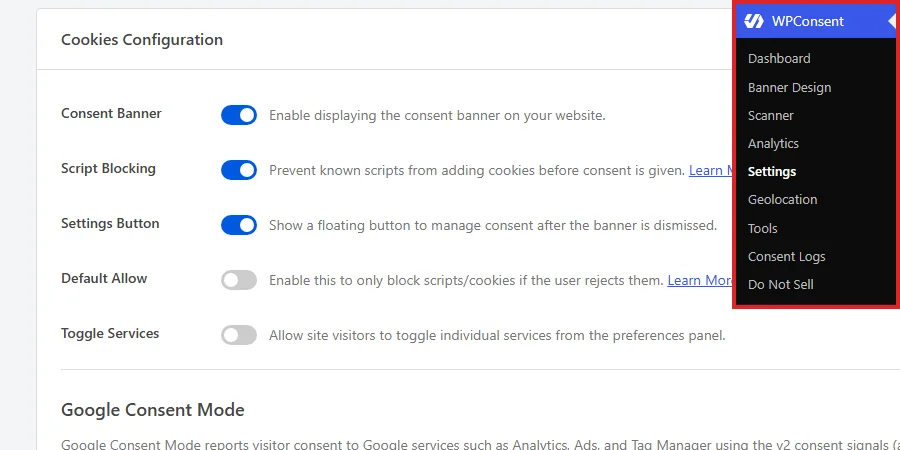
An embedded video or map sets cookies of its own the moment the page loads, before your visitor has had any say in it. Content Blocking holds those embeds back until a choice is made. The setting starts off, so nothing is held back until you switch it on.
The page opens on the Settings tab. Below the cookie policy rows in the Cookies Configuration panel, turn on Content Blocking.
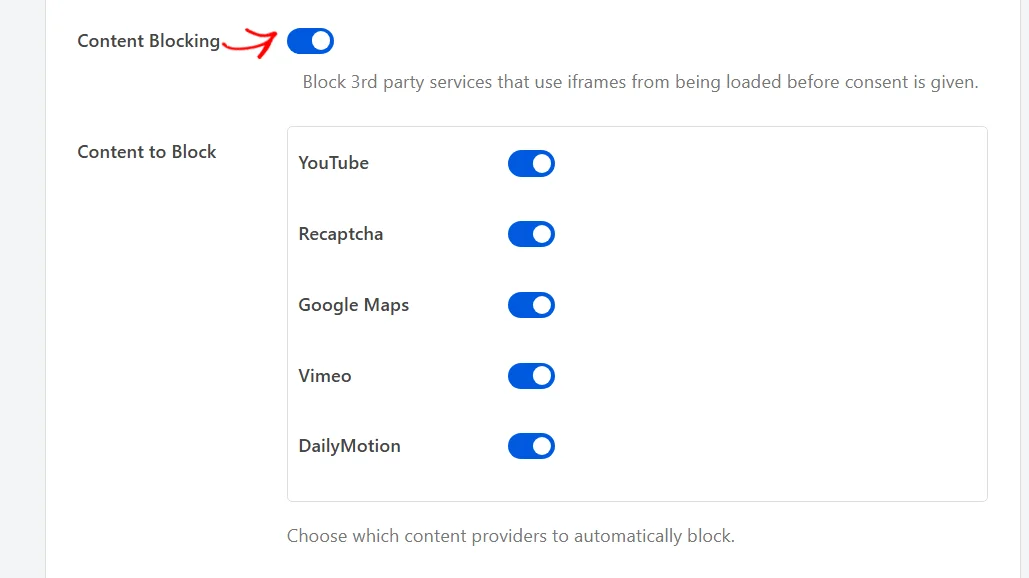
Turning the switch on reveals two more rows: a Content to Block list, and a Placeholder Button field. Both are covered in the sections below.
With Content Blocking on, WPConsent examines each page as WordPress builds it. Any embed from a provider it recognizes has its web address removed before the page reaches the browser, so nothing is requested from the provider.
In its place goes a placeholder. It carries a preview image of what the embed would have shown, plus a button the visitor presses to load it.
With Content Blocking off, every embed loads as soon as the page does, whatever a visitor has agreed to.
Note: Content Blocking runs through the same page inspection that Script Blocking switches on, so keep Script Blocking on as well. Our guide on blocking scripts and embedded content before consent covers that setting.
Choosing Which Providers to Block
WPConsent blocks the embeds it recognizes, and the Content to Block list is where you decide which of those it acts on.
In that list, turn off any provider whose embeds you want to keep loading as normal.
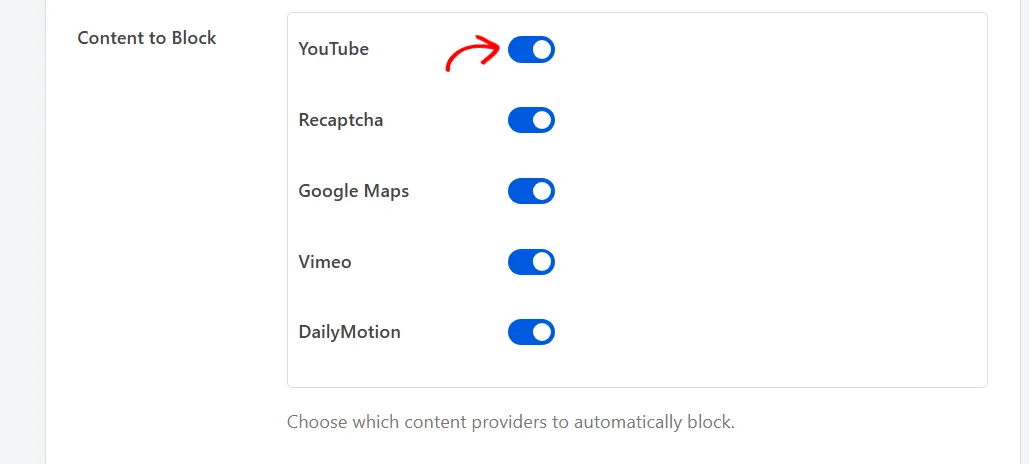
Five providers are recognized out of the box. All five are filed under the Marketing cookie category, so marketing consent is what releases them.
- YouTube covers videos embedded from youtube.com, including its privacy-enhanced domain.
- Recaptcha covers Google’s reCAPTCHA form protection widget, the one entry on this list that is not an embedded frame.
- Google Maps covers embedded maps.
- Vimeo covers videos embedded from Vimeo’s player.
- DailyMotion covers videos embedded from DailyMotion’s player.
Every provider starts switched on. Leaving one on costs nothing on pages that carry no embed from it, because WPConsent only acts on the embeds it actually finds. Turning one off lets its embeds load the way they did before, with no placeholder and no wait.
If you are not sure, leave all five on. That is the state WPConsent ships with, and it is the safe one.
reCAPTCHA is worth a second look, because WPConsent recognizes it by its script rather than by an embedded frame. That makes its switch here the only thing deciding whether the reCAPTCHA script waits for consent at all.
The list is not fixed. WPConsent keeps its catalog of recognized services on its own servers, and your site holds a copy for 24 hours. A new provider can therefore reach your site without a plugin update.
Rules you write yourself join the same list. Any custom embed rule you create gets a switch here alongside the five above, and its matches get the same placeholder treatment.
Our guide on blocking custom scripts and iFrames covers writing one, which is available in a paid version of WPConsent.
To see which services are already recorded on your site, take a look at our guide on managing services.
Changing the Placeholder Button Text
Every placeholder carries the same button, and its wording is yours to set.
In the Placeholder Button field, replace the default sentence with your own.

The default reads Click here to accept {category} cookies and load this content. The {category} tag is replaced with the name of the cookie category the embed belongs to, so a blocked YouTube video renders it as Marketing.
If you prefer wording that never names a category, leave the tag out and write something like Load this content.
Because the tag resolves to the category’s name rather than its slug, renaming a category renames it on every placeholder too. Our guide on managing cookie categories covers those names.
This field holds a separate wording per language, alongside the rest of your banner copy. On a site running in more than one language, each visitor gets the button in their own.
Our guide on multilanguage support covers setting those languages up.
Saving Your Settings
One button stores every row in the Cookies Configuration panel, so the toggle, the provider list, and the button wording are all saved together.
At the bottom of the panel, click Save Changes.
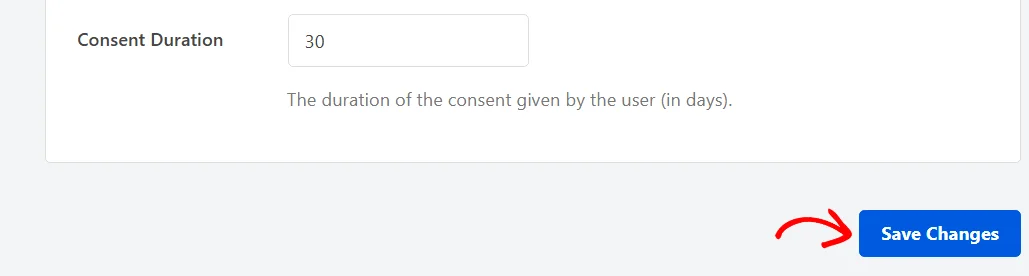
Your content blocking settings are stored alongside everything else in the panel, including the Consent Duration field that sits just above the button.
Our guide on configuring WPConsent general settings covers the rest of that panel.
Seeing a Blocked Embed as a Visitor
What your visitors get is easiest to judge from one of your own pages, opened in a browser that has never seen your site.
On a first visit, the consent banner asks for a choice and the embed behind it has already been replaced.
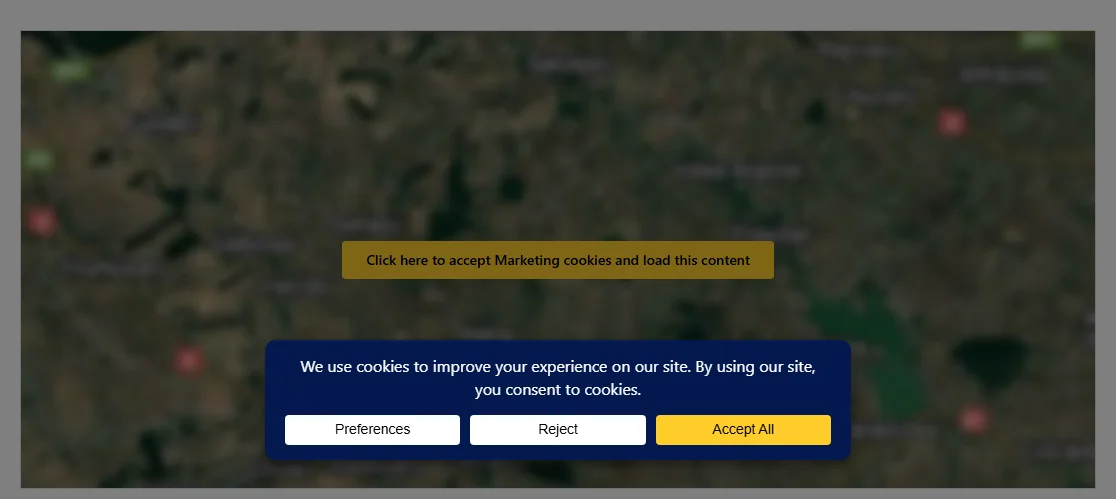
Nothing was requested from the provider to build that page, and none of its cookies exist yet. With the banner out of the way, the placeholder itself is what fills the space the embed would have taken.
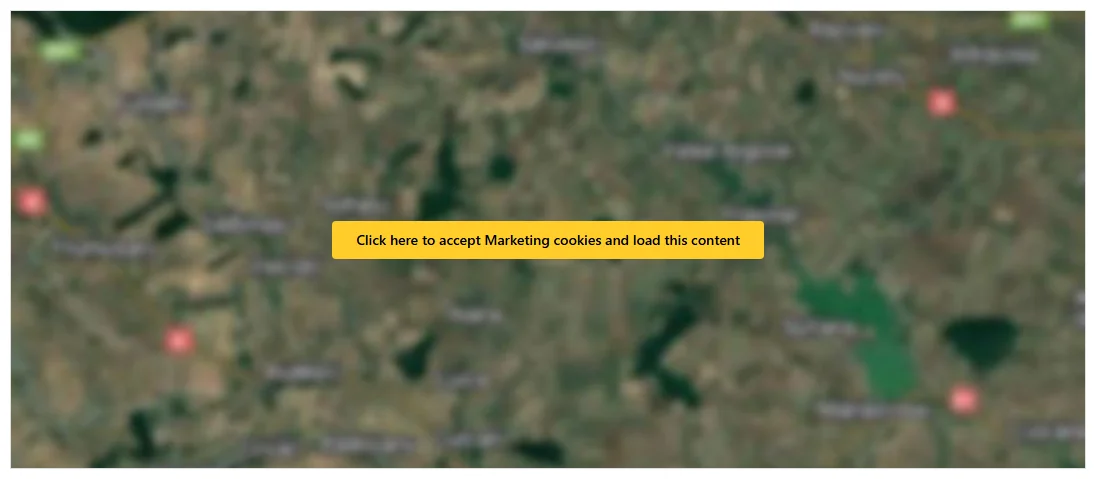
A placeholder holds two things: a preview image, and the button centered on top of it. The image is sized to fill the space the embed would have taken.
WPConsent requests that preview image once, per embed address, and keeps its own copy in a folder inside your uploads directory. Every visitor after the first is served the local copy, so the provider is never contacted again for it.
The button takes its colors from the banner’s Accept button. Our guide on banner styling covers those colors.
Pressing that button is a consent choice in its own right. It records agreement to the category the embed belongs to, loads the embed in place, and puts the banner away.
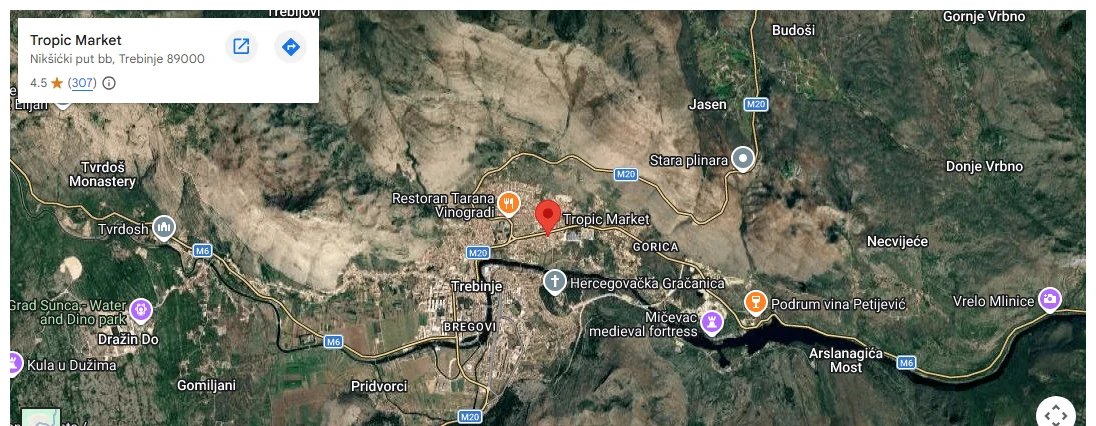
Every other embed in that same category loads at the same moment. A page with three videos on it needs one press rather than three. Categories the visitor has not agreed to stay exactly as they were, placeholders and all.
That’s it! Your videos, maps, and other embeds now wait for a visitor’s agreement before they load anything.
Next, take a look at our guide on understanding the preferences panel to see how visitors accept some categories and decline others.
Frequently Asked Questions
Below, we’ve answered some of the most common questions about content blocking and placeholders.
What do I need to turn on for content blocking to run?
Both Content Blocking and Script Blocking. Content Blocking uses the same page inspection that Script Blocking switches on. With Script Blocking off, no embed is examined whatever Content Blocking is set to. The provider also needs its own switch on in the Content to Block list.
Does the button on a placeholder accept all of my categories?
No. It records agreement to the essential category, to the category that embed belongs to, and to that one service. Every other category keeps the state it already had, so scripts and embeds filed elsewhere stay held back.
Why does a placeholder on my site show a plain image?
WPConsent asks its own service for a preview of that exact embed address. Where a preview exists, as it does for a YouTube video or a Google Map, that image is what you see. Where none exists for the address, a plain image is used instead, and the button sits on top of it either way.
Why is my reCAPTCHA waiting for consent?
reCAPTCHA is one of the five providers on the Content to Block list, and it is filed under Marketing. It waits for marketing consent like any other entry on that list. Turning reCAPTCHA off in that list leaves it running on every page.
What happens if I leave every provider switched on?
Nothing changes on pages that carry no matching embed. WPConsent looks for the embeds each provider is known by, so a page without one is passed through untouched.
Can I block a provider that is not on the list?
Yes, by writing your own embed rule, which is available in a paid version of WPConsent. Once the rule exists, it gets its own switch in the Content to Block list. Our guide on blocking custom scripts and iFrames covers it.
Can I use different settings for visitors in different countries?
Yes. A geolocation rule carries its own Content Blocking switch, its own Content to Block list, and its own Placeholder Button wording. Those apply to the visitors that rule matches. Our guide on setting up geolocation rules covers building them.