
Would you like your consent banner to name the tools that set each cookie instead of listing raw cookie names?
In this guide, we’ll walk you through WPConsent’s services and how to add them. All you need is WPConsent on your site and a few minutes on the Cookies tab.
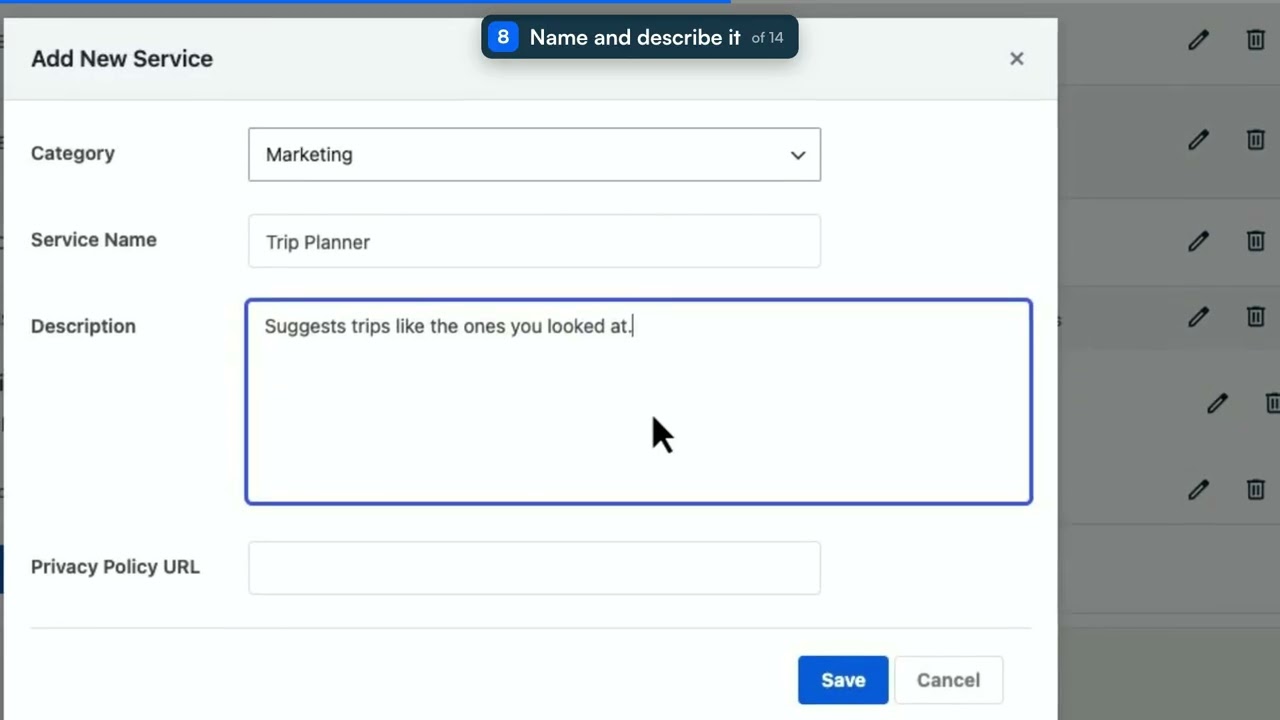
Table of contents
- How Do Services Work?
- Reviewing the Services on Your Site
- Adding a Service From the Library
- Adding a Service Manually
- Editing a Service
- Moving a Service to Another Category
- Deleting a Service
- Letting Visitors Toggle Services
- Verifying Your Setup
- Frequently Asked Questions
Before you get started, make sure WPConsent is installed and activated on your WordPress site.
Requirements: Importing a service from the library requires a Basic license level or higher.
How Do Services Work?
A service is the tool that sets a cookie. Google Analytics, Facebook Pixel, YouTube, and WooCommerce are all services. Each one sets several cookies of its own.
WPConsent files each cookie under the service that owns it. It then files that service inside a cookie category. The result is three levels: the category, the services in it, and the cookies each service sets.
Every site starts with three categories: Essential, Statistics, and Marketing. Our guide on cookie categories covers renaming them and adding your own.
Your visitors see the middle level. A panel listing raw cookie names tells them very little. One listing Google Analytics tells them exactly who is being trusted with what.
Every service carries four pieces of information.
- Category decides which group the service belongs to, and therefore which consent choice controls it.
- Service Name is the label your visitors read in the preferences panel and on your cookie policy page.
- Description explains what the service does, in those same two places.
- Privacy Policy URL becomes a link out to the provider’s own policy, so visitors can read the terms themselves.
A service sits in one category at a time. Its cookies travel with it. That is why moving a service is a single change rather than a cookie-by-cookie edit.
Reviewing the Services on Your Site
To get started, we’ll take stock of the services already filed on your site.
Most of them arrive on their own. WPConsent’s scanner reads your pages and recognizes the tools it finds. It then files each one with its cookies already filled in.
If your categories look emptier than the ones here, a scan is what fills them. Our guide on scanning your website covers running one.
From your WordPress admin sidebar, go to WPConsent » Settings.
At the top of the page, select the Cookies tab.
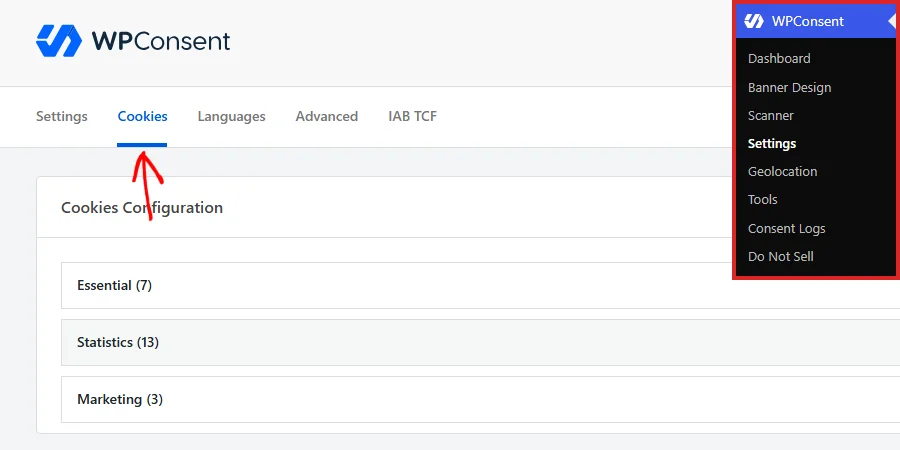
Your categories are listed as expandable rows. The number after each name is how many cookies that category holds. That count includes the cookies filed under the category’s services.
On the category you want to look inside, click the arrow at the right of its row.
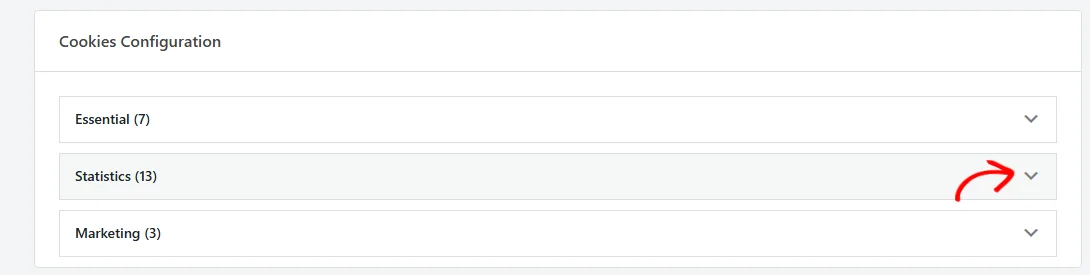
The category opens to show its description first. Each service filed under it follows.
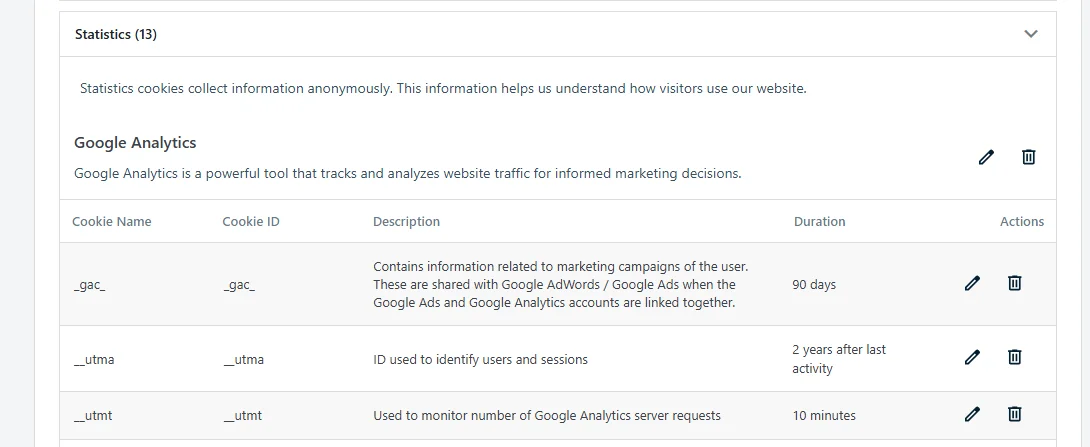
Every service block gives you its name and description on top. Its own cookie table sits underneath. Each row in that table is one cookie, with its name, ID, description, and duration.
Opening one category closes the others, so you read one group at a time.
The pencil and trash icons beside a service block belong to the service itself. The icons inside the table belong to the individual cookies.
Our guide on managing cookies covers those.
Adding a Service From the Library
When the scanner misses something, the library is the fastest way to add it. WPConsent keeps a catalog of well known services. Importing one brings its description, its provider’s privacy policy link, and its known cookies with it.
First, expand the category the service belongs in.
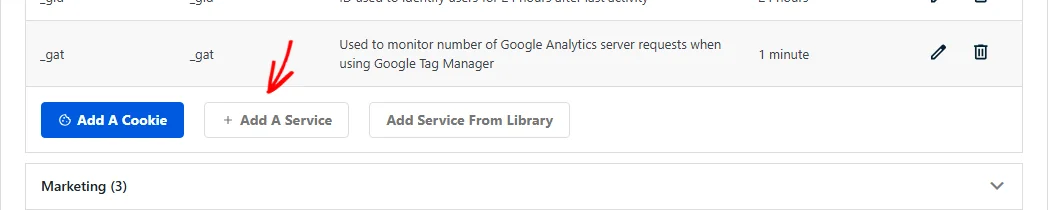
At the bottom of the open category, click Add Service From Library.

The library opens with a search box above it. Each entry shows the service name, a short description, and the category WPConsent suggests for it.
An entry already filed on your site carries a check beside the name, whether the scanner created it or you imported it yourself. The check tells you that tool is already covered, so you can move on to the next one.
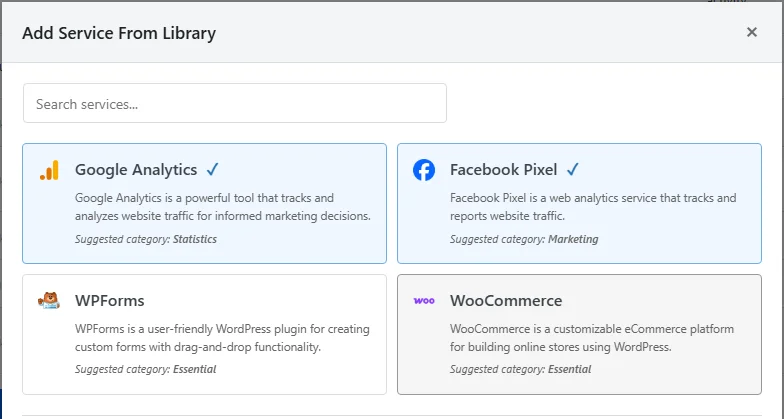
In the search box, type part of the service name to narrow the list down.
Once the entry you want is in the list, click it.
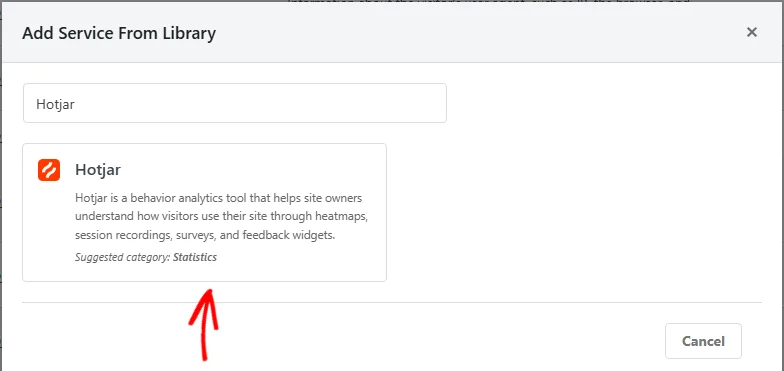
WPConsent imports the service and its cookies straight away. The overlay closes on its own. The new block appears in the category you expanded, already filled in.
Note: The suggested category is a recommendation, not a destination. The service lands in whichever category you opened the library from.
Expanding the right category before you open the library saves moving the service afterward.
Adding a Service Manually
Anything the scanner and the library both miss can be added by hand. A regional tool, an in-house script, or a widget your developer wrote all fall into this group.
Again, start by expanding the category the service belongs in.
In the same row of buttons, click Add A Service.
An overlay opens with the four service fields. Category is already set to the category you expanded. Change it only if you opened the wrong one.
In Service Name, enter the provider’s own product name, which is what your visitors will recognize. In Description, write what the service does in plain language. If the provider publishes a privacy policy, paste its address into Privacy Policy URL.
With the fields filled in, click Save.
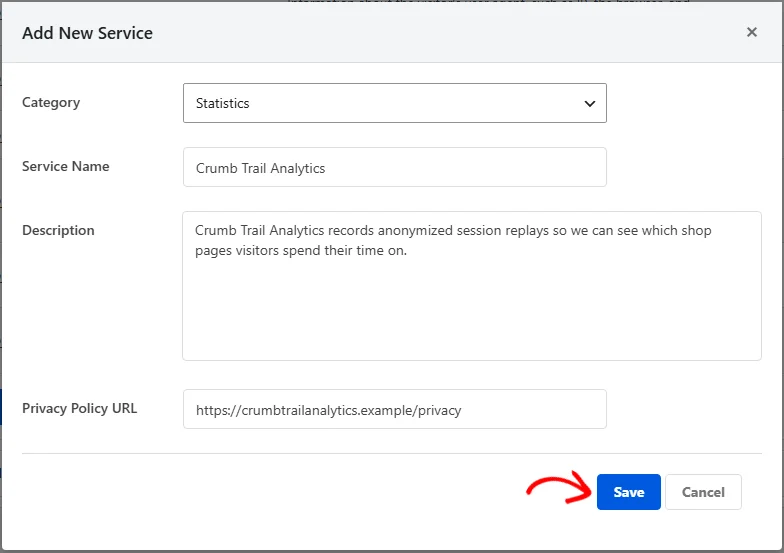
The overlay closes and your service appears in the category.

That Save button stores the service on its own. The Save Changes button on the Settings tab covers the settings on that tab.
A service added this way starts out with no cookies, since only you know which ones it sets.
Our guide on managing cookies walks through adding each cookie and attaching it to a service.
Editing a Service
The wording on a service is worth revisiting, particularly on the ones the scanner added for you. Those descriptions are written for every site rather than yours.
On the service block you want to change, click the pencil icon.

The same overlay opens with the service’s current details already in it. Its heading reads Edit Service.
Once the wording reads the way you want, click Save.
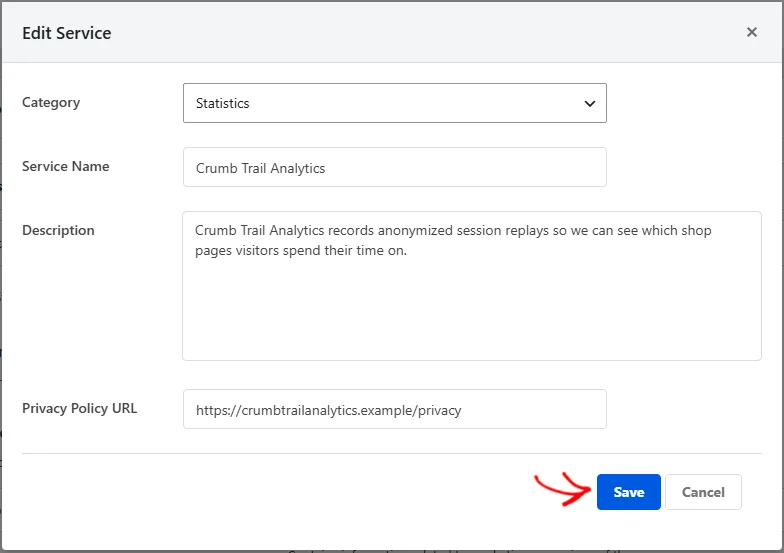
The block updates in place with your new wording. Your visitors see it on their next visit.
Keep the name recognizable when you change it. WPConsent uses the service name as the label your visitors read. A visitor deciding whether to accept a tool needs to know which tool it is.
Moving a Service to Another Category
Sometimes a service ends up in the wrong group. An analytics tool that also builds advertising audiences belongs under Marketing rather than Statistics.
To move one, start by opening the service for editing.
From the Category dropdown, select the group it belongs in.
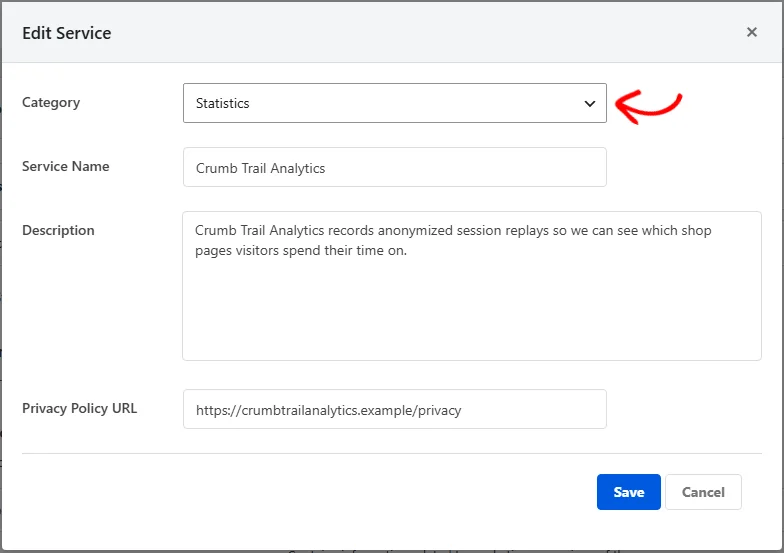
The dropdown lists every category on your site, including any you added yourself.
Saving the overlay moves the service. Its cookies move with it.
From then on, the consent choice for the new category controls that service. Move a tool to Marketing and a visitor who accepts statistics but rejects marketing stops loading it.
Deleting a Service
A service for a tool you have removed from your site can go with it.
On that service’s block, click the trash icon.

Your browser asks you to confirm first. Once you confirm, the block disappears from the category straight away. The cookies that were grouped under it leave your cookie list with it.
For a service the scanner recognizes, running a new scan brings it back with its cookies filled in again.
Our guide on scanning your website covers that.
Letting Visitors Toggle Services
By default, your preferences panel lists services for information and puts one switch on each category. A visitor who accepts statistics accepts every statistics service in one go.
Turning services into individual choices is a single setting. It suits sites running several tools in the same category. A visitor may be happy with one of them and not the other.
At the top of the page, select the Settings tab.

In the Cookies Configuration panel, switch Toggle Services on.

At the bottom of the panel, click Save Changes.
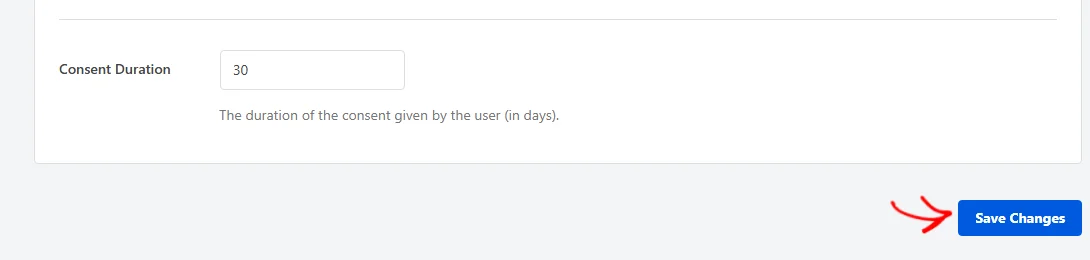
Each service in your preferences panel now gets a switch of its own, alongside the switch on its category.
Services in the Essential category stay switched on, because your site needs them to work.
Whether the new switches start on or off follows your Default Allow setting.
Our guide on WPConsent’s general settings covers that setting alongside the rest of the panel.
Verifying Your Setup
Two checks confirm your services are set up the way you intended.
On the Cookies tab, confirm that every tool setting cookies on your site has a service block of its own. Each block wants a name your visitors will recognize and a description that says what the tool does.
Then visit your cookie policy page. It lists every service under its category, with the description you wrote and a table of that service’s cookies. A Learn more link appears wherever you gave a privacy policy address.
Anything reading oddly there is worth fixing on the Cookies tab. It is the same wording your visitors read in the preferences panel.
That’s it! You now know how to review, add, edit, and remove WPConsent services. You also know how to let visitors accept them one at a time.
To fill a new service with the cookies it sets, see our guide on managing cookies.
Frequently Asked Questions
Below, we’ve answered some of the most common questions about WPConsent’s services.
Where did the services already on my site come from?
The scanner put them there. It reads your pages and matches what it finds against the services it knows. Its Automatically Configure Cookies step then creates each one in the right category, with its cookies attached.
A later scan adds anything new and leaves your existing services alone. Wording you have edited yourself stays edited.
Do I need to add cookies before visitors see a service?
No. A service appears in the preferences panel as soon as it exists, with or without cookies under it.
Categories work differently. An empty category with no cookies and no services in it stays out of the panel. Essential is the exception, and it is always shown.
Can I put one service in two categories?
No. A service belongs to exactly one category, which is what lets a single consent choice control it and everything filed under it.
If a tool genuinely spans two purposes, pick the category that reflects the more sensitive one. A visitor who rejects that category then loads none of it.
What does the suggested category in the library tell me?
It is WPConsent’s recommendation for the group that service belongs in. The import itself puts the service into the category you opened the library from.
If the two disagree, close the overlay and open the library again from the category the suggestion names. Importing first and moving the service afterward with the Category dropdown works too.
Do I need to click Save Changes after adding a service?
No. Adding, editing, and deleting a service all take effect when you save the overlay or confirm the deletion.
Save Changes on the Settings tab covers the settings on that tab, Toggle Services among them. That is the one place in this guide where you need it.
Can I get a service back after deleting it?
For anything the scanner recognizes, yes. Run a new scan and WPConsent creates the service again with its cookies, since a scan adds whatever is missing.
The library import brings a catalog service back in a click. A service you wrote by hand needs its four fields filled in again.
Why can’t my visitors switch off a service under Essential?
Because your site needs those cookies to work. With Toggle Services on, services in the Essential category are shown switched on and locked.
If a service under Essential is not needed for your site to function, move it to Statistics or Marketing. Visitors then get a choice about it.