
Would you like the cookie table on your consent banner to name every cookie your site actually sets?
In this guide, we’ll walk you through adding a cookie entry by hand, editing one, and removing one you no longer need. All you need is WPConsent on your site and the details of the cookie you want to list.
Table of contents
- How Do Cookie Entries Work?
- Adding a Cookie by Hand
- Filling In the Cookie Details
- Reading the Cookie List
- Editing a Cookie Entry
- Deleting a Cookie Entry
- Verifying Your Setup
- Frequently Asked Questions
Before you get started, make sure WPConsent is installed and activated on your WordPress site.
How Do Cookie Entries Work?
A cookie entry is a description of a cookie rather than the cookie itself. WPConsent keeps one entry per cookie. Those entries are what fill the cookie tables your visitors read.
Each entry carries four pieces of information, and each one is used somewhere. All four start out blank on a new entry.
- Cookie Name is the plain-language label. Your banner’s preferences panel lists this.
- Cookie ID is the key the browser stores the cookie under, such as
wpconsent_preferences. Your cookie policy page lists this instead. - Description is the one or two sentences explaining what the cookie is for. Both the preferences panel and the cookie policy page use it.
- Duration is how long the cookie lives, written however you like: “6 months”, “session”, “2 years”.
Every entry also belongs to a category, which is the group your visitors switch on or off.
For more on those groups, see our guide on managing cookie categories.
Most entries arrive on their own. WPConsent’s scanner reads your pages, recognizes the services it finds, and files their cookies into the matching category for you.
Adding an entry by hand covers a cookie the scanner has not picked up. A cookie your own theme or code sets is the usual example.
Adding a Cookie by Hand
To get started, we’ll open the list WPConsent keeps of the cookies on your site.
From your WordPress admin sidebar, go to WPConsent » Settings. Then select the Cookies tab.
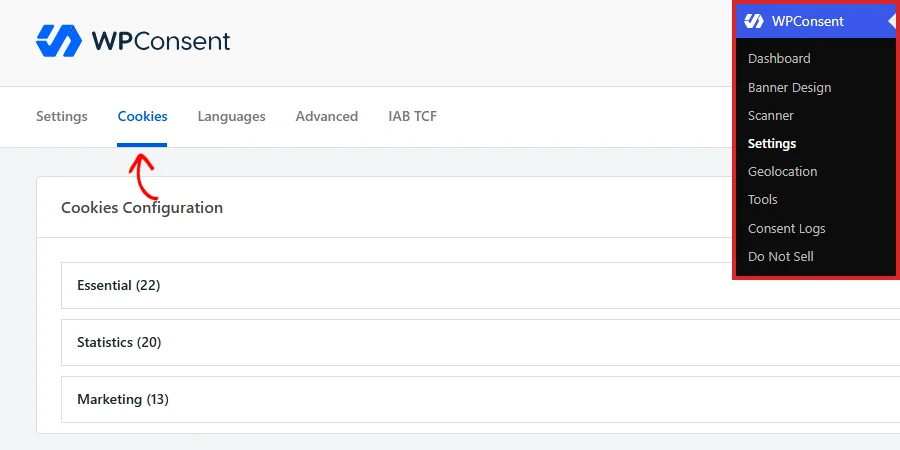
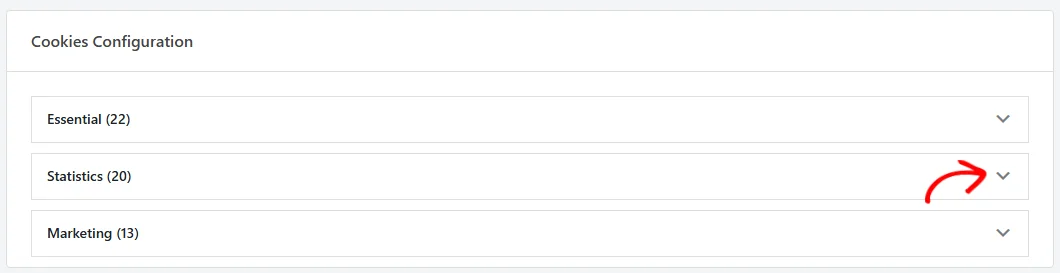
Each of your categories appears as its own expandable row, with the number of entries it holds in brackets after the name. On the category the cookie belongs in, click the arrow at the right of the row.
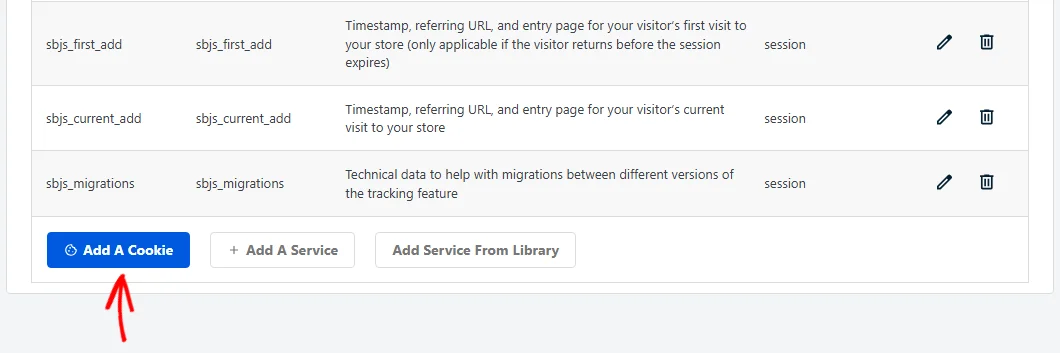
The category opens to show its description, everything already filed under it, and a row of buttons at the bottom. At the bottom of the open category, click Add A Cookie.
An overlay opens over the page, ready for the new entry’s details.
Filling In the Cookie Details
The overlay carries five fields. Only Cookie Name has to be filled in, and the rest can be added later.
Start at the top with Service. Leave it on No service when the cookie belongs to the category itself. That is the usual choice for a cookie your own site sets.
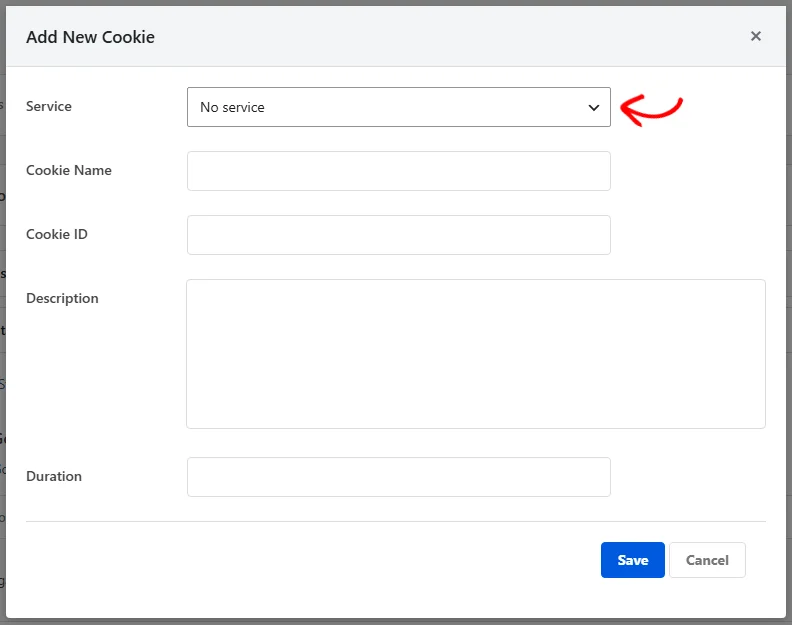
The dropdown also lists the services already filed in that category. Picking one of those files the entry under that service instead. That is what you want when the cookie comes from a third-party tool.
Work down the remaining four fields from there.
- Cookie Name: the label your visitors see, so keep it recognizable.
- Cookie ID: the cookie’s actual key, copied exactly as the browser stores it.
- Description: one or two sentences on what the cookie does and what it collects, in plain language rather than technical terms.
- Duration: how long the cookie lasts, in whatever wording suits you.
With the fields filled in, click Save.
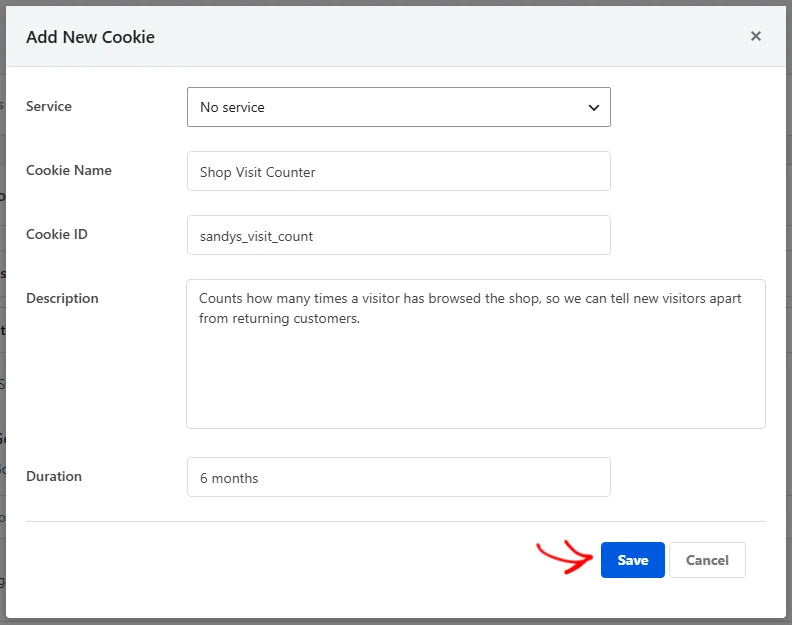
The overlay closes and the entry appears in the category straight away. This Save button stores the entry on its own, so the change takes effect the moment you press it.
Note: An entry describes a cookie for your visitors. Which scripts wait for consent is decided separately, by the services on your site.
Reading the Cookie List
With a category open, everything filed under it is laid out in five columns.
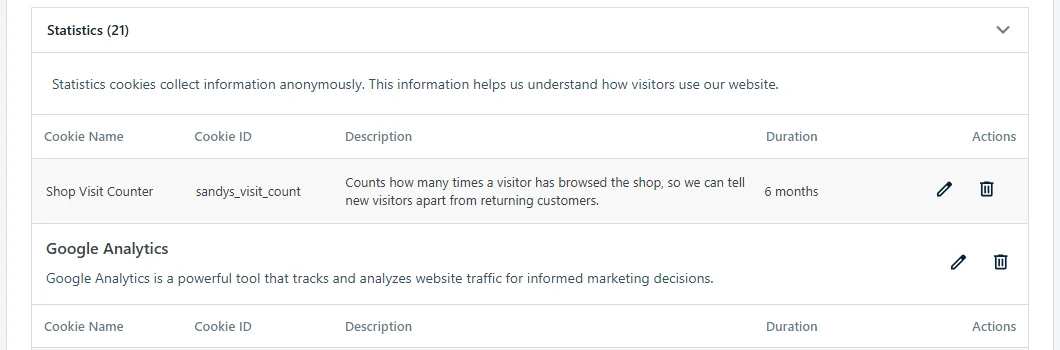
The first four columns are the fields you filled in. The fifth, Actions, holds a pencil icon and a trash icon for that entry.
Entries appear in one of two places inside a category. A cookie belonging to the category sits at the top of the list, directly under the column headings.
A cookie belonging to a service sits inside that service’s own block. That block carries the service name, its description, and a fresh set of column headings.
The pencil and trash icons work the same way wherever an entry sits.
The count in brackets beside the category name covers both places. Reload the tab after a change and the count reflects it.
That makes the count a quick way to confirm a new cookie landed where you meant it to.
Editing a Cookie Entry
Wording that arrived from a scan is written for a general audience. Rewriting a description in your own voice is the first change worth making.
A duration that has changed on the service’s side is the other common reason to come back.
On the entry’s row, click the pencil icon.

The same overlay opens with that entry’s current values already in place. Every field can be changed, including the service the entry is filed under.
Once the details read the way you want, click Save.
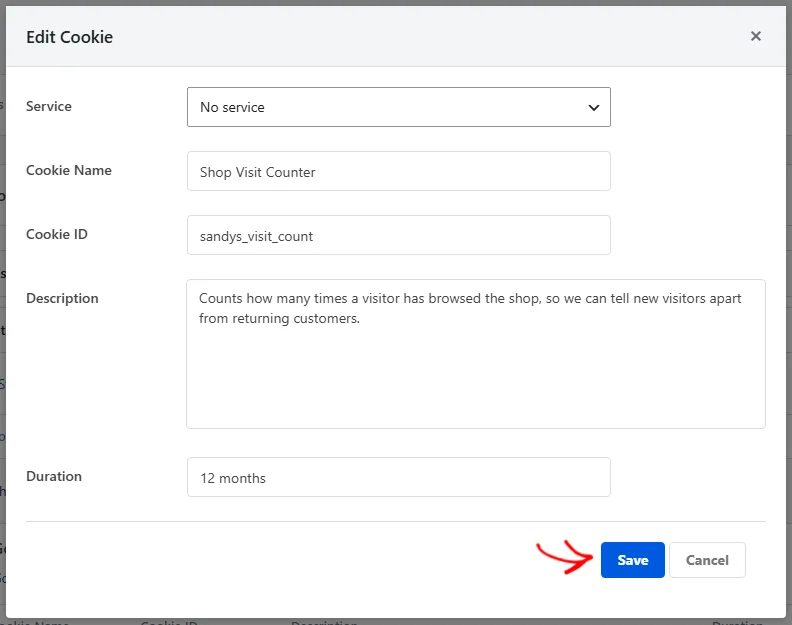
The row updates with your new values as the overlay closes. As with adding an entry, the change is stored on its own.
Deleting a Cookie Entry
An entry can be removed once the cookie it describes is no longer set on your site.
On the entry’s row, click the trash icon.

Your browser asks you to confirm before anything is removed. Once you confirm, the row leaves the list straight away.
Removal is permanent. Typing the entry in again is one way to bring it back.
For a cookie the scanner recognizes, a fresh website scan restores it too.
Verifying Your Setup
Three checks confirm your entries are set up the way you intended.
First, every value in the Cookie ID column needs to match a cookie your site really sets, spelled exactly as the browser stores it.
Second, any blank in the Duration column is worth filling. An entry with no duration still appears to your visitors, and the gap leaves them guessing.
Third, your cookie policy page is built from these entries. Anything you added, edited, or removed shows up there.
That’s it! You now know how to add a cookie entry by hand, edit one that is already there, and remove one you no longer need.
To group your entries differently or add a group of your own, see our guide on managing cookie categories.
Frequently Asked Questions
Below, we’ve answered some of the most common questions about managing cookies in WPConsent.
What’s the difference between the Cookie Name and the Cookie ID?
The Cookie Name is the readable label, and the Cookie ID is the key the browser stores. WPConsent’s own consent cookie is a good illustration: its name reads “Cookie Preferences” while its ID is wpconsent_preferences.
The two surface in different places. Your banner’s preferences panel lists the Cookie Name, and your cookie policy page lists the Cookie ID. Filling in both means each table reads the way its audience expects.
Which fields do I have to fill in?
Only the Cookie Name. WPConsent accepts an entry with the Cookie ID, Description, and Duration all left blank. The category comes from whichever Add A Cookie button you clicked.
A complete entry is still worth the extra minute, since those three fields are exactly what your visitors read.
Do I need to save changes after adding a cookie?
No. The overlay’s Save button stores the entry by itself, and the row appears in the list as soon as the overlay closes.
That is what separates the Cookies tab from the Settings tab beside it, where a single Save Changes button commits the whole page at once.
Can I get back a cookie entry I deleted?
Removal is permanent, so bringing an entry back means adding it again. Typing the four fields in by hand takes a moment.
For a cookie that belongs to a service WPConsent recognizes, running a fresh scan is quicker. The scan finds the service again and refiles its cookies for you.
Why does my cookie sit under a service name instead of directly in the category?
Because that is how it was filed. Choosing a service in the Service dropdown puts the entry inside that service’s block, and the scanner does the same for the cookies it recognizes.
Grouping cookies under the service that sets them is what lets your banner name the service, describe it, and link out to it. Our guide on managing services covers that side of it.
Can my cookie descriptions appear in other languages?
Yes. WPConsent stores cookie names, descriptions, and durations per language, so each language you enable holds its own wording.
You can write that wording yourself from the Languages tab, or have WPConsent produce it for you. Our guide on automatic translation walks through the second option.