
Would you like WPConsent to keep watching your site for new tracking services without you having to remember to check?
In this guide, we’ll walk you through putting the WPConsent scanner on a schedule and deciding what it does with whatever it finds.
All you need is a few minutes on the Scanner page.
Table of contents
- Turning On Auto Scanning
- Choosing How Often to Scan
- Adding New Services Automatically
- Getting Emailed About New Services
- Setting How Long History Is Kept
- Saving Your Scanner Settings
- Checking When the Next Scan Runs
- Frequently Asked Questions
Before you get started, make sure WPConsent is installed and activated on your WordPress site.
Requirements: Auto Scanning needs a Basic license level or higher.
Turning On Auto Scanning
To get started, we’ll find the scheduling controls and switch them on.
A scheduled scan does exactly what a scan you start yourself does. It fetches the pages on your scan list, matches the scripts on them against WPConsent’s service library, and records the result. The difference is that WPConsent starts it instead of you.
The controls live with the scanner rather than in your general settings.
From your WordPress admin sidebar, go to WPConsent » Scanner. Then select the Auto Scanning tab.
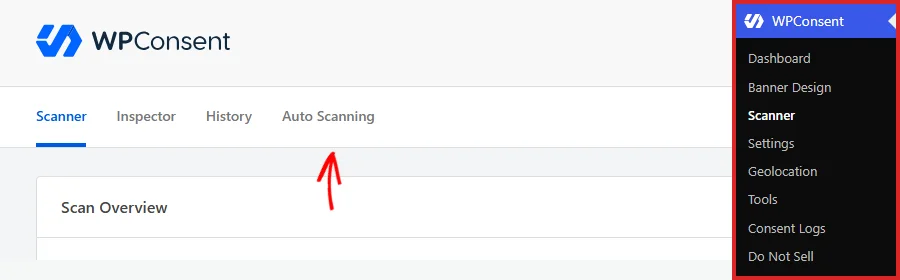
The tab opens on a panel called Scanner Settings.
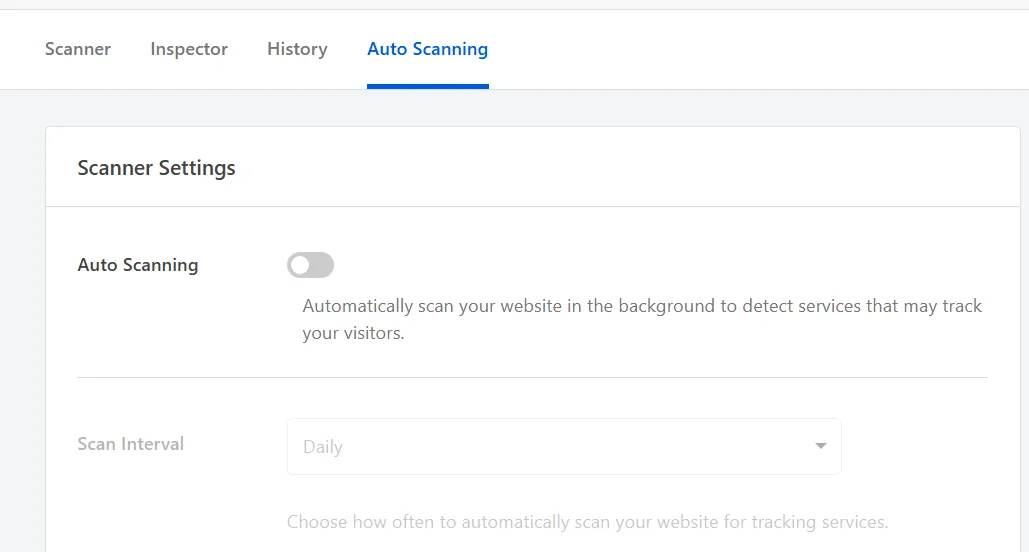
Auto Scanning arrives switched off. Nothing runs on its own until you say so. Everything below that first row starts out greyed out, because those settings have nothing to act on while there is no schedule.
To start the schedule, switch Auto Scanning on.

WPConsent now registers a background task with WordPress. The greyed-out rows come to life at the same moment.
Choosing How Often to Scan
Your cookie footprint changes when your site changes. The right frequency follows how often you add plugins, embeds, and marketing scripts.
Under Auto Scanning, open the Scan Interval dropdown. It is set to Daily to begin with, which catches a new script within a day of it appearing.

The dropdown offers a choice of intervals.
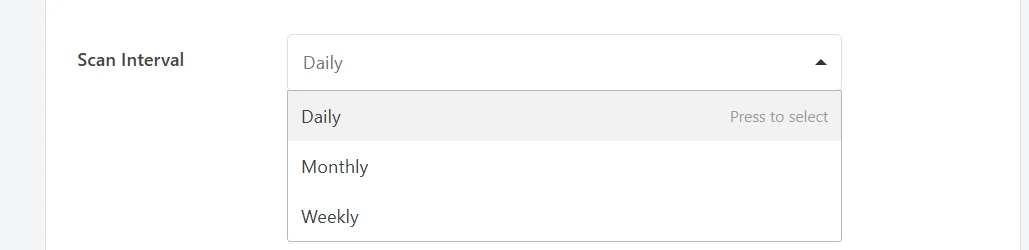
- Daily runs a scan every day. Choose this if your site changes often, or if several people are able to add scripts to it.
- Weekly runs a scan every 7 days. Choose this if a new service turns up every few weeks at most, which covers most sites.
- Monthly runs a scan every 30 days. Choose this if your site is settled and rarely gains anything new.
WPConsent decides whether a scan is due by counting days since the last automatic scan. That is 1 day for Daily, 7 for Weekly, and 30 for Monthly. A longer interval means fewer scans, not a fixed day of the week.
Note: A scheduled scan reads the same page list as a scan you start yourself. That list lives on the Scanner tab, covered in scanning your website.
With the frequency settled, the next decision is what WPConsent does with each set of results.
Adding New Services Automatically
A scheduled scan records what it finds, but on its own it stops there. Your cookie settings stay as they are until you open the report and apply it. Auto-Update Services closes that gap.
To have new detections applied for you, switch Auto-Update Services on. It arrives off, which keeps every change under your own review until you decide otherwise.

WPConsent then compares each scan against the one before it and sets up anything new. It is the same one-way merge the Automatically Configure Cookies button performs after a manual scan.
Your services and cookies gain entries for each newly detected service.
The note in this row is worth reading twice. The scanner only ever adds, which means nothing you have already set up is overwritten or deleted. That includes descriptions you have edited yourself.
It also means a service that disappears from a scan stays in your settings. That is deliberate, since a service can load only on a page outside your scan list.
Removing a service you have genuinely retired stays a manual step on the Cookies tab, covered in managing services.
Leaving this toggle off gives you the final say on every entry, at the cost of reviewing each report by hand.
Getting Emailed About New Services
A scan that runs in the background is easy to forget about. WPConsent can tell you when one turns up something new.
To get those alerts, switch Email Notifications on. It also arrives off, which leaves a new schedule silent until you ask for the mail.

Only scheduled scans send email, and only when the scan found a service that was not in the previous one. A scan with nothing new to report stays quiet.
Scans you start yourself never email, because their results are already on screen in front of you.
Switching this on reveals a field for the recipients.
In Notification Email Addresses, enter the addresses that receive the alert, separated by commas.

If you leave the field empty, WPConsent falls back to your WordPress admin email address.
To confirm an address works before you rely on it, click Send Test Email.

A confirmation appears beside the button naming the address it went to. The test only ever goes to the first address in the field, so the address you most want to check belongs at the front.
Note: These alerts go out through WordPress’s own mail function. Our email delivery plugin, WP Mail SMTP, makes that delivery far more reliable.
With the alerts arranged, a single setting is left. It governs the record each scan leaves behind.
Setting How Long History Is Kept
Every scan is recorded, so a schedule quietly builds a log of when each service first appeared on your site. History Retention decides how much of that log is kept.
In History Retention (Days), enter how many days of records you want to keep. Entering 0 keeps every record forever.

WPConsent starts you at 90 days, which is long enough to cover a quarterly privacy review while keeping the table a manageable size. The highest value the field takes is 365.
WPConsent prunes anything older than your setting once a week. This row is never greyed out with the others, because that weekly tidy-up runs whether or not a schedule is active.
Longer retention gives you a fuller picture of when a service arrived, which is useful evidence for a privacy review. A shorter one keeps the History tab short.
Saving Your Scanner Settings
None of these settings take effect while they sit unsaved on screen.
At the bottom of the panel, click Save Settings.
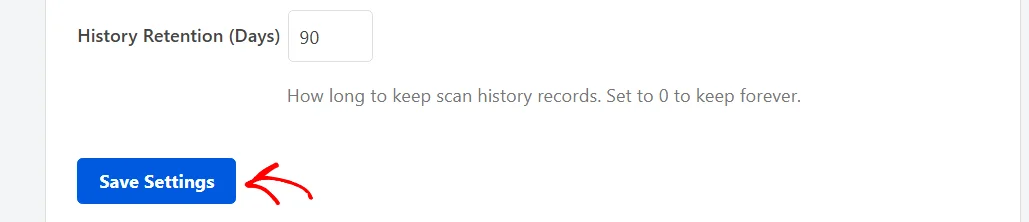
The page reloads with your choices in place. Your schedule is live from that moment.
Switching Auto Scanning off later and saving again removes the background task. No further automatic scans are queued after that. Your scan history and your cookie settings stay exactly as they were.
Checking When the Next Scan Runs
Your schedule reports back on the Scanner tab.
To look in on it, select the Scanner tab. The Scan Overview sits at the top of that tab.
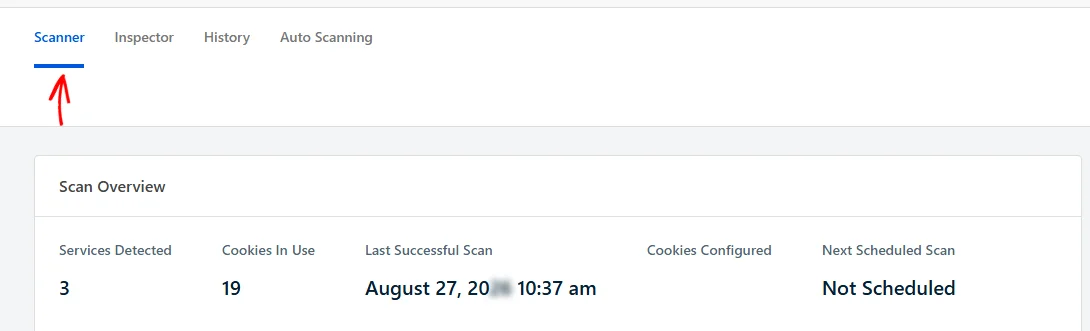
The Next Scheduled Scan cell reads Not Scheduled while Auto Scanning is off. Once a schedule is running and has completed a scan, it gives the date the following one is due.
Last Successful Scan beside it covers both kinds of scan. It moves whether WPConsent ran the scan or you did.
Note: Background tasks in WordPress are triggered by traffic rather than by a clock. A scan on a very quiet site can therefore land a little after its due date, on the first visit after that point.
For the full record of past scans and what changed in each one, the History tab is covered in scanning your website.
That’s it! You now know how to put the WPConsent scanner on a schedule and control what it does with its findings. Next, take a look at managing cookie categories so anything a scheduled scan brings in lands in the category you want.
Frequently Asked Questions
Below, we’ve answered some of the most common questions about scheduling automatic scans.
When exactly does my scheduled scan run?
WPConsent adds a daily background task when you switch Auto Scanning on. Each time that task runs, it checks how long it has been since the last automatic scan. It starts a scan if your interval has passed.
WordPress runs background tasks on site visits rather than to a fixed clock. The exact moment therefore depends on your traffic.
See How to View and Control WordPress Cron Jobs for a way to see what is queued on your own site.
Which pages does my scheduled scan check?
The same list a manual scan uses: your home page, plus any pages you added under “Select content to scan” on the Scanner tab. Scheduled scans and scans you start yourself share that one list.
Will a scheduled scan remove a service I stopped using?
No. Auto-Update Services only adds services that are not set up yet. It never deletes one.
A service can load on a page outside your scan list. A missing detection is therefore not proof it has gone. A service you have retired is removed by hand on the Cookies tab, as covered in managing services.
Can I still run a scan myself while a schedule is on?
Yes. Both kinds of scan read the same page list, write the same report, and add a row to the same history. Running one by hand is the quickest way to check your setup right after a site change.
Why does my Next Scheduled Scan say Not Scheduled?
Because Auto Scanning is switched off. Once you switch it on and save, the cell fills in with a date after the first automatic scan has run.
Does turning Auto Scanning off delete my scan history?
No. Switching the toggle off only stops future automatic scans from being queued. Your existing records stay until they pass the number of days set in History Retention.
Why have I not received a notification email?
An alert only goes out after a scheduled scan that detected a service the previous scan did not have. A scan with nothing new to report sends nothing at all.
The Send Test Email button checks the address itself. If the test does not arrive either, delivery is the thing to look at rather than the setting.