
Would you like the cookie groups on your consent banner to use your own wording instead of WPConsent’s defaults?
In this guide, we’ll walk you through editing WPConsent’s cookie categories, adding a category of your own, and removing one you no longer need. All you need is WPConsent on your site and a few minutes in your settings.
Table of contents
- How Do Cookie Categories Work?
- Editing a Cookie Category
- Adding a Custom Cookie Category
- Deleting a Custom Cookie Category
- Reviewing What Sits in Each Category
- Verifying Your Setup
- Frequently Asked Questions
Before you get started, make sure WPConsent is installed and activated on your WordPress site.
How Do Cookie Categories Work?
A cookie category is the group a cookie belongs to. It is also what your visitors actually respond to.
Your banner’s preferences panel shows one toggle per category rather than one toggle per cookie. The categories therefore decide how much choice a visitor gets, and how that choice is worded.
Every site starts with the same three categories.
- Essential covers the cookies your site needs to work. Visitors see it switched on and cannot turn it off. WPConsent files its own consent cookie here, which is how it remembers a visitor’s answer.
- Statistics covers analytics cookies, the ones that measure how people move around your site.
- Marketing covers advertising and retargeting cookies, the ones used to follow visitors between sites.
WPConsent’s automatic script blocking is built around these three. It matches a known script to one of the groups and holds it until the visitor accepts that group. That is why every site keeps all three.
Their names and descriptions are yours to change. Any category you add sits alongside them.
Editing a Cookie Category
To get started, we’ll rewrite the name and description on one of the categories WPConsent created for you.
The wording WPConsent ships with is generic on purpose. Rewriting it in your own voice is the first change worth making. The description is what your visitors read before deciding whether to accept a group.
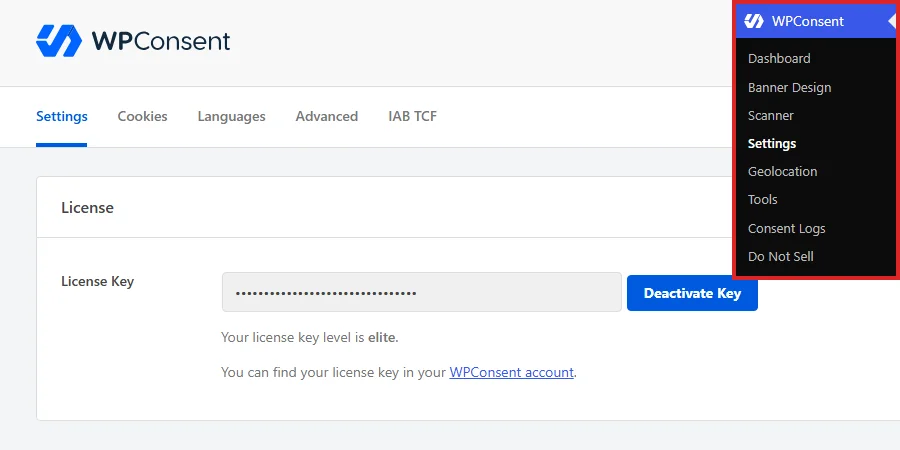
From your WordPress admin sidebar, go to WPConsent » Settings.
On the Settings tab, scroll down to the Cookie Categories section. It lists every category with its description. An Action column on the right holds the controls for each one.
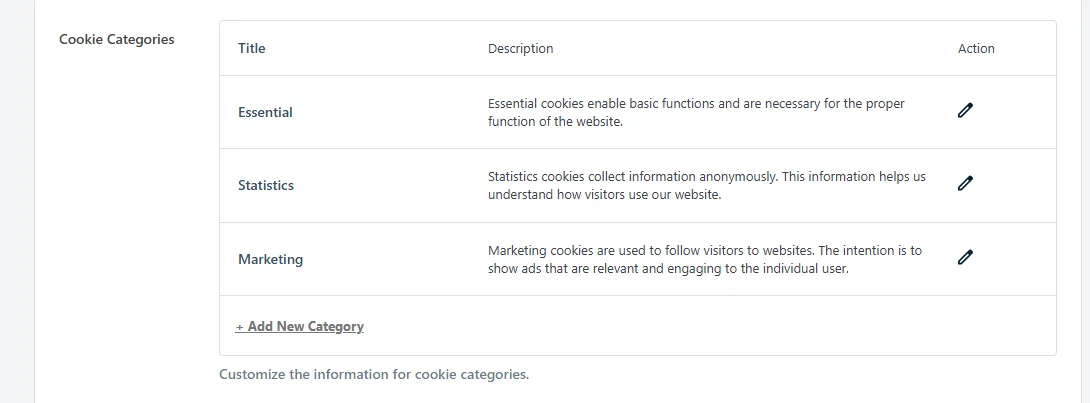
On the row you want to change, click the pencil icon.

An overlay opens holding that category’s Category Name and its description. Both are plain text fields with no formatting to work around.
Once the wording reads the way you want, click Save.
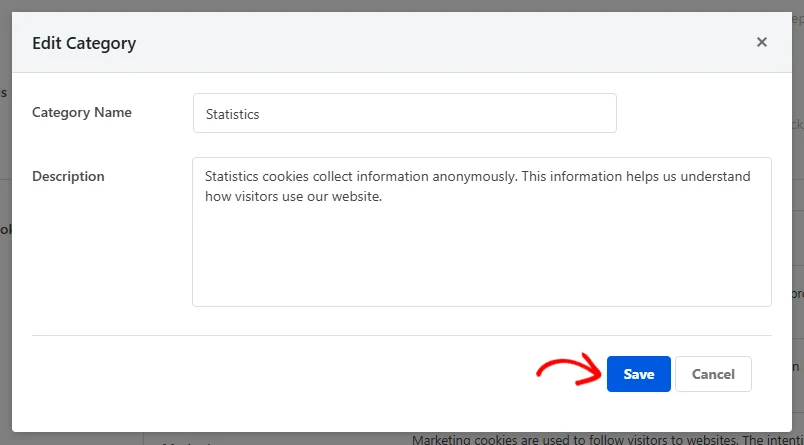
The overlay closes and the row updates with your new wording. This Save button stores the category on its own. The tab’s Save Changes button is there for the other settings on the page.
Note: With IAB TCF enabled, WPConsent manages the Essential category and the IAB purpose categories for you. Those rows carry no edit or delete controls, while categories you add stay editable.
Renaming a category is safe to do at any point. WPConsent tracks each of the three default categories by an internal name that renaming leaves alone. Your script blocking keeps working under whatever label you give it.
Adding a Custom Cookie Category
Three groups cover most sites. An extra one is worth adding when you have cookies that genuinely do not belong in any of them.
Preference cookies that remember a language or a currency are the usual example, since they are neither analytics nor advertising.
At the bottom of the Cookie Categories list, click + Add New Category.
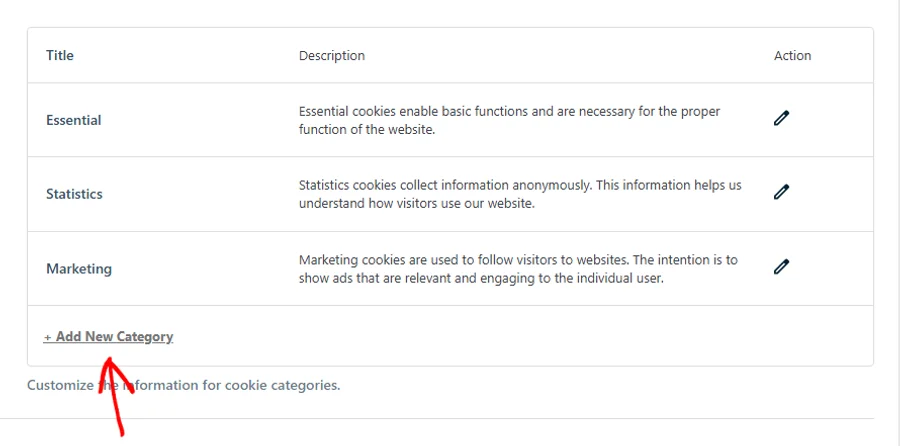
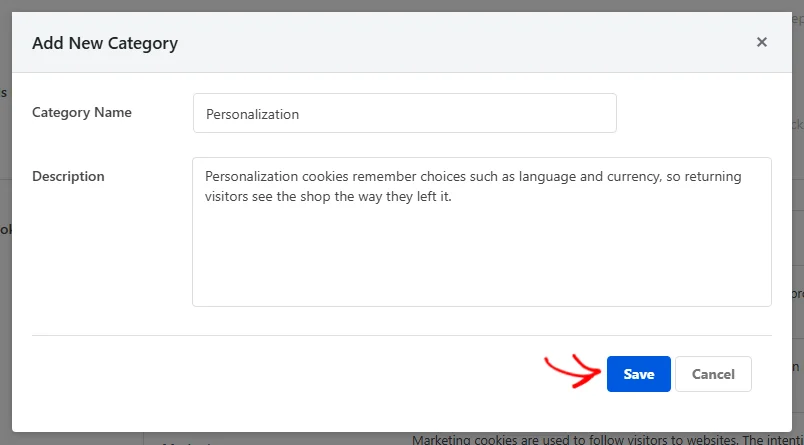
The same overlay opens with both fields empty. Give the category a name your visitors will recognize. Then write a description that says what the cookies in it are for.
With both fields filled in, click Save.
Your new category appears at the bottom of the list, below the three defaults.
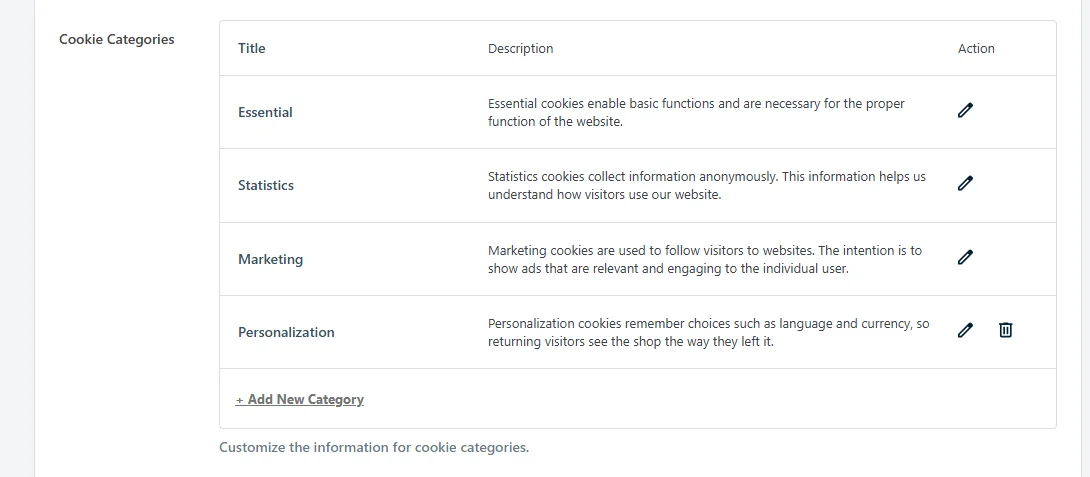
Notice that this row has two icons where the defaults have one. Categories you create carry a trash icon as well as a pencil, because they are yours to remove.
A new category starts out empty. An empty category stays out of your banner, so filling it is the next step. From the Cookies tab covered below, add a cookie or a service to it.
For the full detail on both, see our guides on managing cookies and managing services.
Visitors can switch a category you add on or off, the way they can with Statistics and Marketing. Essential is the only group that stays locked on.
Deleting a Custom Cookie Category
A category you added can be removed once you no longer need it.
On that category’s row, click the trash icon.

Your browser asks you to confirm before anything is removed. Once you confirm, the row disappears from the list straight away.
Removing a category also clears the cookies and services filed under it. Those entries leave your cookie list along with the group. Neither the category nor its entries come back afterward.
Moving anything you want to keep into another category first is worth the extra minute. You can also add entries again by hand from the Cookies tab.
Reviewing What Sits in Each Category
The Settings tab shows your categories and their wording. To see what each one actually holds, you need the Cookies tab.
At the top of the page, select the Cookies tab.

Every category appears as its own expandable row, with the number of entries it holds in brackets after the name. The first row opens by default. Opening a different one closes it.
On the category you want to look at, click the arrow at the right of its row.
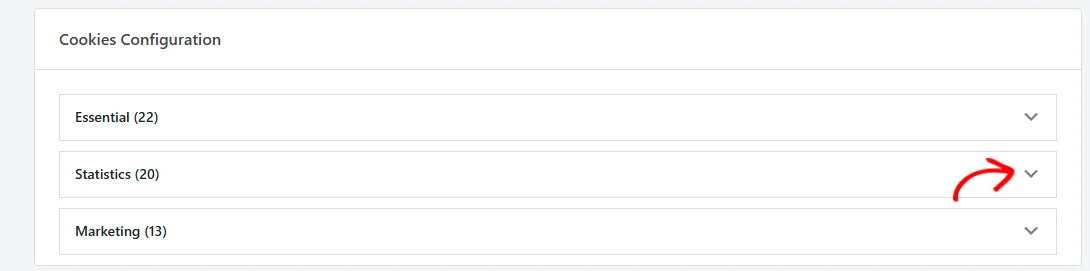
The category opens to show its description first. Everything grouped under it follows.
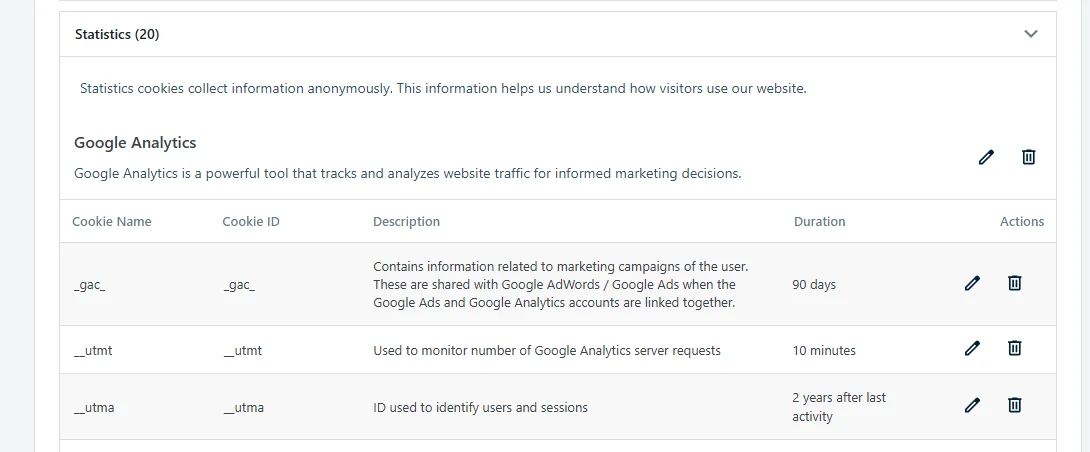
Services come with their own cookies nested underneath. Each entry lists its cookie name, cookie ID, description, and duration.
Whether visitors can switch those services one by one depends on the Toggle Services setting on the Settings tab. With it off, a service is listed inside its category but carries no toggle of its own. A visitor’s choice then applies to the whole category.
This view is the quickest way to tell whether a category is doing any work. A count of zero means nothing is filed there yet. A category in that state is left out of your banner until something is added to it.
Most of what appears here arrives on its own. WPConsent’s scanner reads your pages, identifies the services it recognizes, and files their cookies into the matching category. That is why Statistics and Marketing already hold entries once you have run a scan.
Our guide on scanning your website covers that side of it.
Verifying Your Setup
Two checks confirm your categories are set up the way you intended.
On the Settings tab, confirm the Cookie Categories list holds every category you expect, each with the wording you wrote.
The categories you added carry a trash icon alongside the pencil. That is how you tell them apart from the three defaults.
On the Cookies tab, confirm the count beside each category name. A category with entries is one your visitors see on the banner. A category showing zero needs a cookie or a service before it appears.
That’s it! You now know how to rename WPConsent’s cookie categories, add a category of your own, and remove one you no longer need.
To fill a category with the right entries, see our guide on managing cookies.
Frequently Asked Questions
Below, we’ve answered some of the most common questions about WPConsent’s cookie categories.
Why doesn’t the category I added show up on my banner?
Because it is still empty. WPConsent leaves a category out of the preferences panel while it holds no cookies and no services. Visitors are never shown a group with nothing in it.
Add at least one entry to it and it appears. Essential is the exception, and it is always shown whatever it holds.
Can I delete the Essential, Statistics, or Marketing categories?
No, and that is why those three rows have a pencil icon but no trash icon. WPConsent’s automatic script blocking sorts the scripts it recognizes into these three groups. All three therefore stay in place on every site.
Renaming them and rewriting their descriptions is fine, and neither affects the blocking.
Will renaming a category stop my script blocking from working?
No. WPConsent identifies the three default categories by an internal name of its own, separate from the label you see. Renaming a category leaves that internal name untouched.
Scripts filed under Statistics stay filed there even if you call the category something else entirely. Our guide on automatic script blocking covers how that matching works in more detail.
What happens to the cookies in a category I delete?
They are removed with it. WPConsent clears the cookies and services filed under a category as it deletes the category itself. Neither comes back afterward.
If some of those entries still apply to your site, move them to another category before you delete. You can also add them again from the Cookies tab.
Can I put the default names and descriptions back?
Yes. The Advanced tab has a Reset Content to Defaults button that returns the three default categories to their original English names and descriptions.
It resets your banner text and button labels at the same time. That makes it a broader reset than the categories alone.
Our guide on advanced settings covers the rest of that tab.
Can my category names appear in other languages?
Yes. WPConsent stores category names and descriptions per language. Each language you enable holds its own wording.
You can write that wording yourself, or have WPConsent produce it for you. Our guide on automatic translation walks through the second option.