
Would you like to give visitors one page that lists every cookie your site sets? A cookie policy page does exactly that, and WPConsent builds the list for you from the cookies it already knows about.
This guide walks through creating that page, pointing WPConsent at it, and reading the tables it produces.
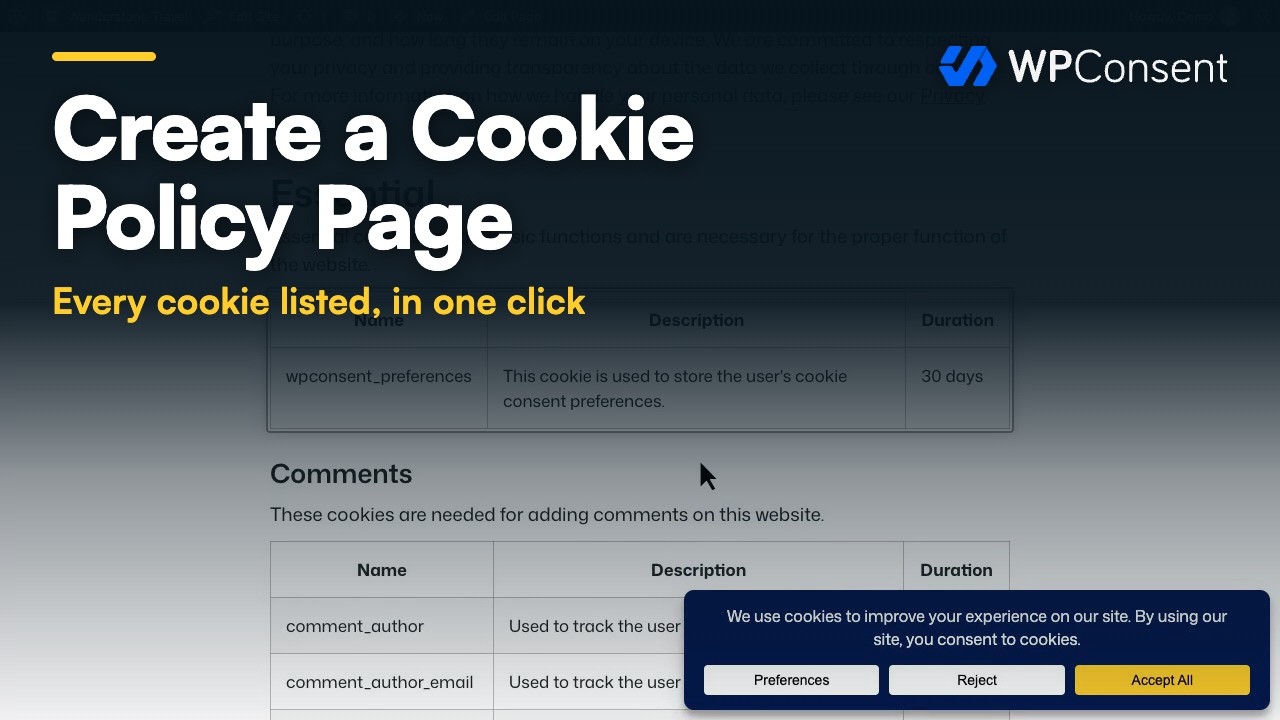
Table of contents
- Generating a Cookie Policy Page
- Choosing a Page You Already Have
- Setting the Page from WordPress Privacy Settings
- Adding the Shortcode to Your Page
- Reading Your Cookie Policy Page
- Frequently Asked Questions
Before you get started, make sure WPConsent is installed and activated on your WordPress site.
Generating a Cookie Policy Page
To get started, we’ll let WPConsent create the page and fill it in for us.
From your WordPress admin sidebar, go to WPConsent » Settings.
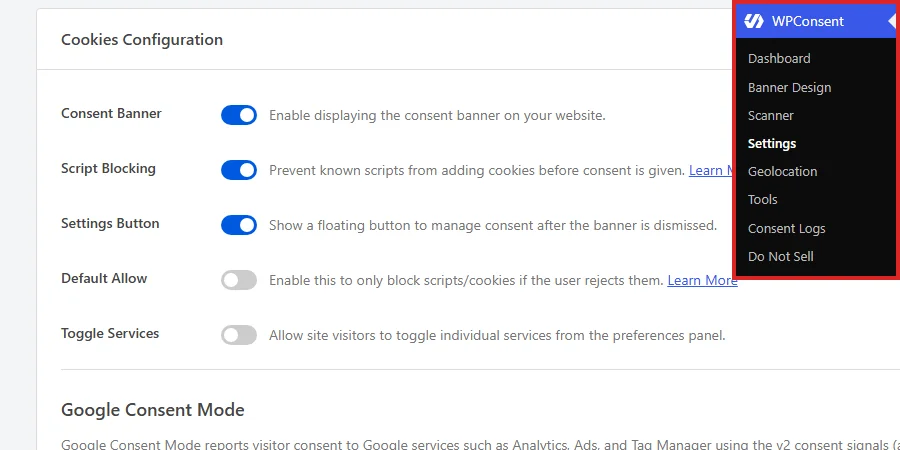
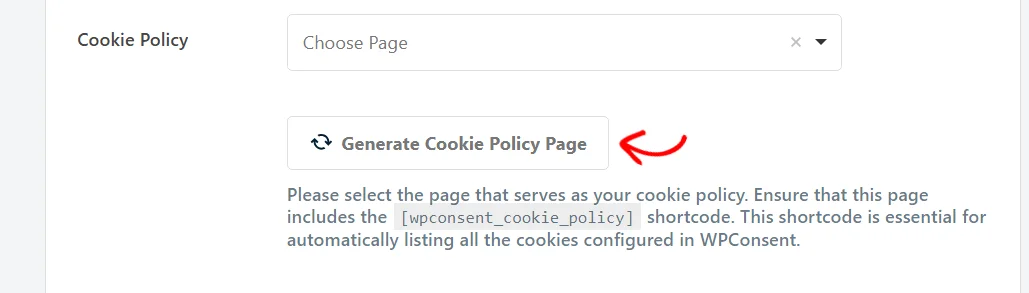
Next, scroll the Cookies Configuration panel down to the Cookie Policy row. The row holds a page selector, and while no page has been chosen yet, a Generate Cookie Policy Page button sits underneath it.
Underneath the selector, click Generate Cookie Policy Page.
WPConsent creates a page titled Cookie Policy and writes a short introduction into it that links to your privacy policy. Below that introduction it adds the cookie policy shortcode.
It then selects the new page in the Cookie Policy field and confirms that the page is ready, with a link for viewing it.
Note: The generated page is published straight away, so it goes live on your site the moment you create it.
A generated page is saved as it is created, so there is nothing to save on the Settings page afterwards. Choosing a page by hand does need saving, which the next section covers.
Choosing a Page You Already Have
Not every site needs a brand-new page for this. If you already have one set aside, the Cookie Policy field takes that page instead.
Note: Choosing a page here does not put the cookie list on it. Your own page also needs the [wpconsent_cookie_policy] shortcode, which Adding the Shortcode to Your Page covers.
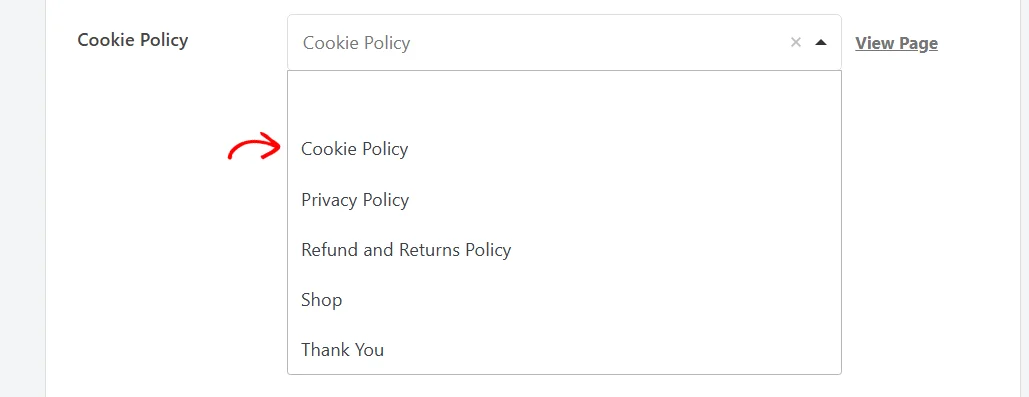
In that row, click the Cookie Policy field to open the list of pages. Once a page is chosen, a View Page link appears beside the field so you can check the result quickly.
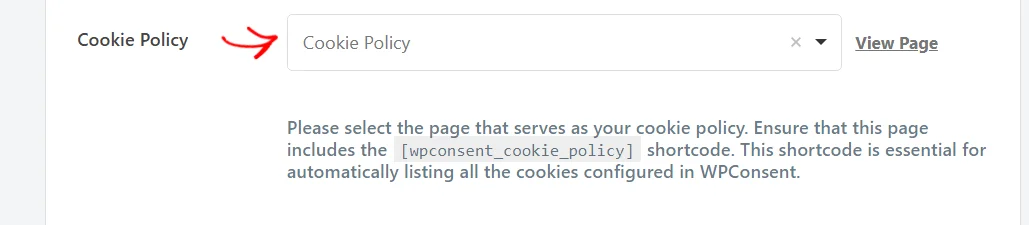
Then pick your page from the list. The field searches your pages as you type, which saves scrolling on a site with a lot of them.
At the bottom of the panel, click Save Changes.
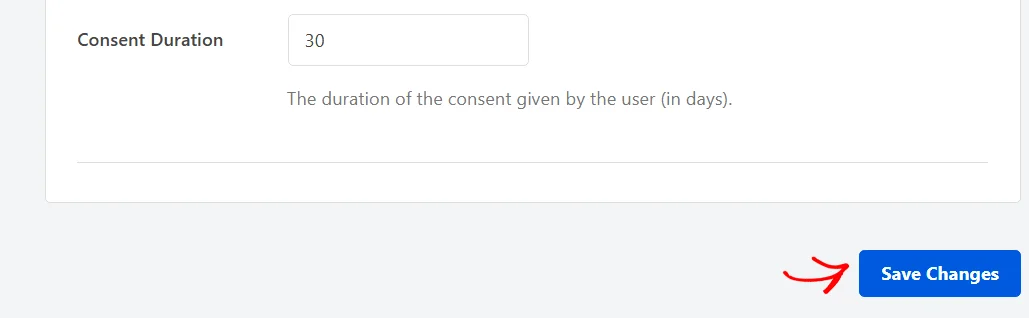
Your choice is stored as soon as the page reloads. The page you picked is now the one WPConsent treats as your cookie policy.
Setting the Page from WordPress Privacy Settings
WPConsent also adds a Cookie Policy Page row to the WordPress privacy screen, which is handy when you are already there setting up your privacy policy.
From your WordPress admin sidebar, go to Settings » Privacy.
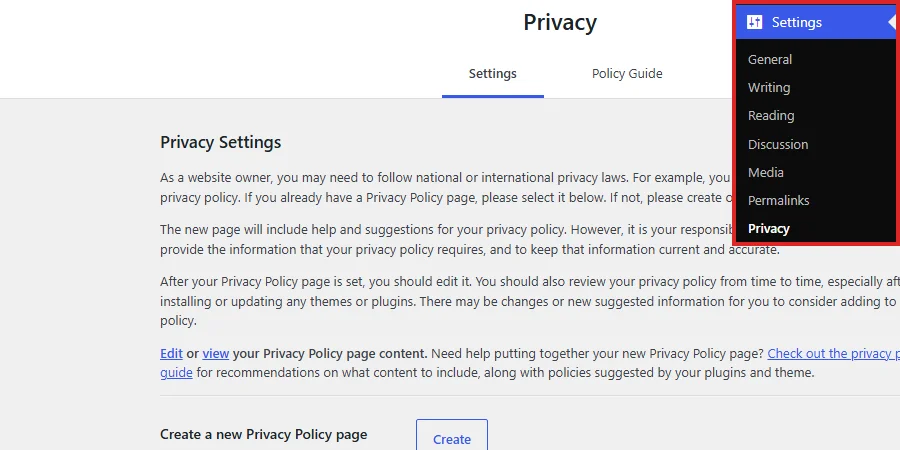
The Cookie Policy Page row sits directly below the row where WordPress stores your privacy policy page. It holds the same setting as the Cookie Policy field. In that row, choose your page. Then click Use This Page.
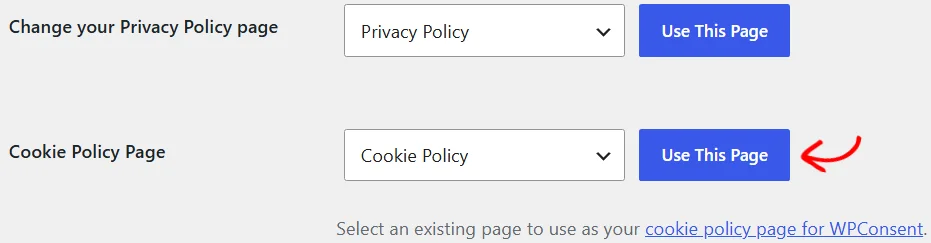
Either route writes the same setting, so use whichever screen you happen to be on.
Adding the Shortcode to Your Page
Any page can act as your cookie policy page, as long as it holds the WPConsent cookie policy shortcode. A generated page already has it, so this section is the extra step for a page you chose yourself.
Start by opening that page in the WordPress editor.
Where you want the cookie tables to appear, add a Shortcode block. Then enter [wpconsent_cookie_policy] into it.
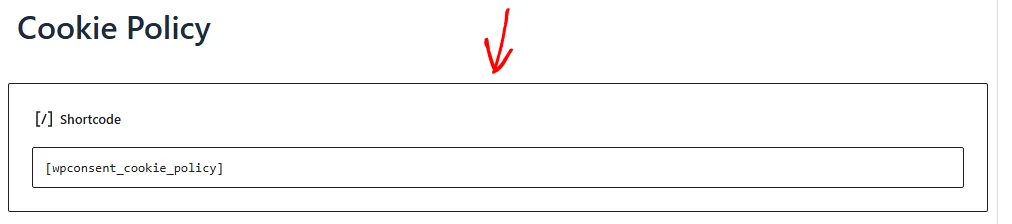
The tables appear on the page as soon as it is saved. If you have not placed a shortcode before, WPBeginner covers the block in their guide on how to add a shortcode in WordPress.
Everything else on the page stays exactly as you wrote it. WPConsent replaces the shortcode alone, so your own headings, introduction, and images all remain in place around it.
Reading Your Cookie Policy Page
With the shortcode in place, the page lists your cookie inventory as soon as a visitor loads it. Each cookie category becomes a heading, with the category description underneath it.
Under the description comes a table of the cookies filed straight into that category.
Note: Your theme supplies the fonts, colors, and spacing here, so the tables pick up your own site’s styling rather than a fixed WPConsent look.
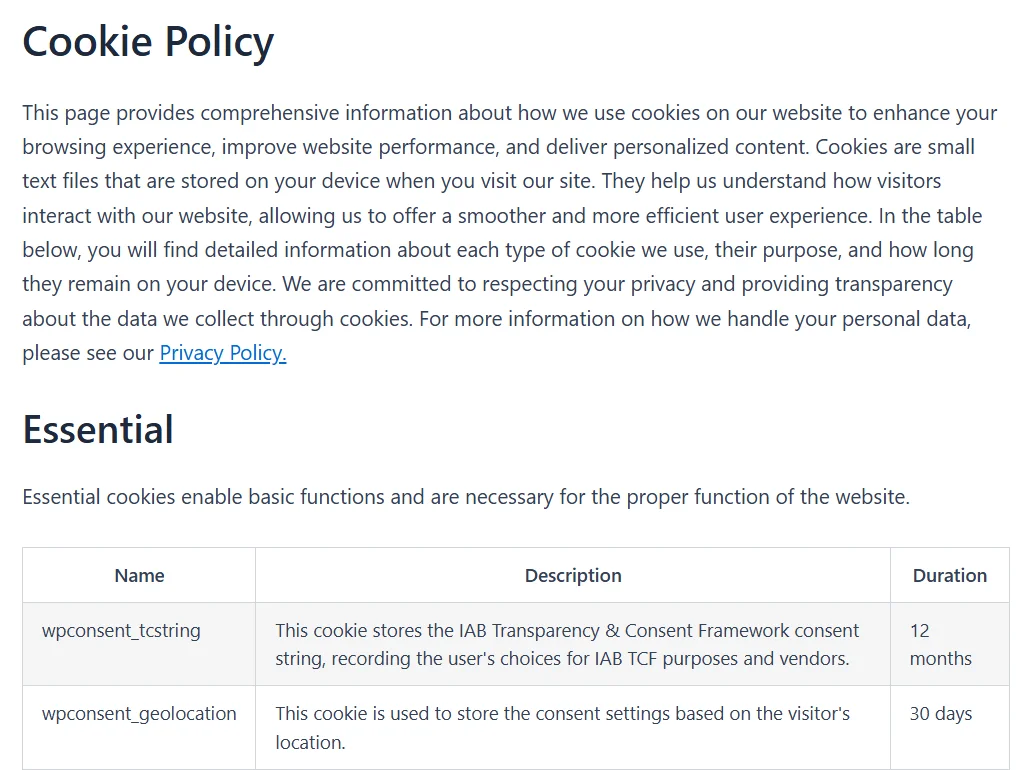
Every table has the same three columns. The first lists the Cookie ID of each entry, the second its description, and the third its duration.
The headings read Name, Description, and Duration by default. All three can be renamed.
Below the category table, each service inside that category gets its own heading, its own description, and its own table of cookies.
When a service has a privacy policy URL saved against it, a Learn more link appears above that table. The link points visitors at the service’s own policy.
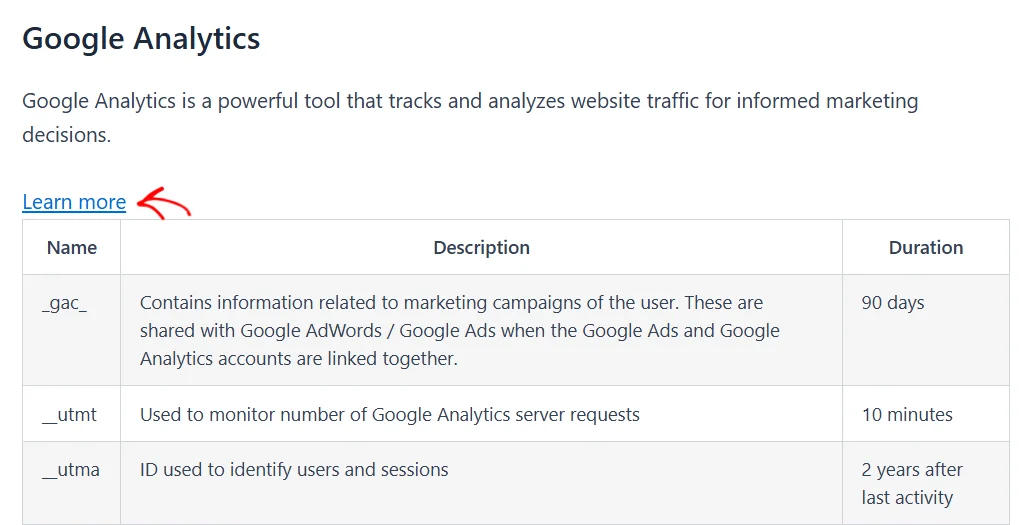
A category gets a table of its own only when a cookie is filed directly into the category rather than under one of its services. A category made up entirely of services shows service tables and nothing else.
A category with no cookies anywhere inside it is left off the page completely.
That’s it! Your cookie policy page now lists every cookie WPConsent knows about. It rebuilds that list from your current settings each time the page loads.
Next, take a look at our guide on managing cookies to add or edit the entries these tables are built from.
Frequently Asked Questions
Below, we’ve answered some of the most common questions about the cookie policy page.
Can I rename the three table columns?
Yes. The three headings come from the Cookie Table Headers section under Banner Design » Content. They apply to the consent banner’s preferences panel as well as to the cookie policy page, so a rename shows up in both places.
Our guide on banner content and text covers that section.
Why is one of my categories missing from the page?
A category appears only when it holds at least one cookie, counting both cookies filed directly into it and cookies belonging to its services. An empty category is skipped.
Our guide on managing cookie categories covers how categories are set up.
Can I change the heading levels the shortcode outputs?
Yes. Category headings default to h2 and service headings to h3. Both accept h2 through h6, div, or span.
Both settings go inside the shortcode itself, like [wpconsent_cookie_policy category_heading="h3" service_heading="h4"].
Can I use the shortcode on more than one page?
Yes. The shortcode renders wherever you place it, so a second page holding it shows the same tables. The Cookie Policy setting decides which single page WPConsent treats as your cookie policy.
That is the page the consent banner links to when your banner text includes the cookie policy link.
Do I have to add every cookie by hand?
No. The tables are built from the categories, services, and cookie entries stored in WPConsent, and the built-in scanner can find most of them for you.
Our guide on scanning your website walks through a scan.