
Would you like the wording on your cookie banner to sound like the rest of your site? Every piece of text WPConsent shows a visitor is editable, from the sentence on the banner itself to the column headings inside the preferences panel.
This guide walks through the Content tab of the banner designer, field by field, so you know which setting changes which piece of text.
Table of contents
- Editing the Banner Message
- Customizing the Banner Buttons
- Disabling the Close Button
- Editing the Preferences Panel Text
- Renaming the Cookie Table Columns
- Editing the Global Privacy Control Messages
- Adding a Logo and Hiding the WPConsent Link
- Saving Your Changes
- Frequently Asked Questions
Before you get started, make sure WPConsent is installed and activated on your WordPress site.
Editing the Banner Message
To get started, we’ll open the tab that holds all of the banner’s text.
From your WordPress admin sidebar, go to WPConsent » Banner Design.
Then click Content in the row of tabs across the top.
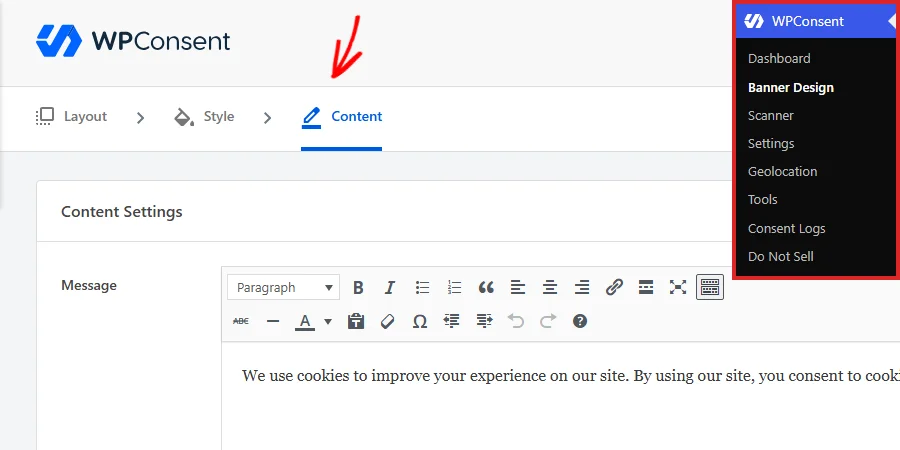
The Layout and Style tabs beside it hold the banner’s shape and its colors, which our guides on banner layout options and banner styling cover.
The first row of the Content Settings panel is Message, which holds the sentence visitors read on the banner. It opens as a full editor rather than a plain text box, which means bold text, links, and a second paragraph are all available.
To change what visitors read, type your own wording into the Message field.
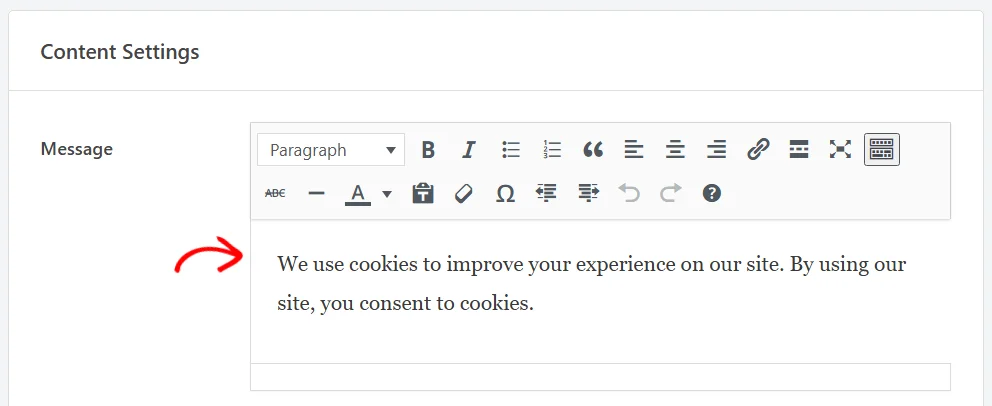
WPConsent ships a short, neutral sentence about cookies so your banner reads sensibly from the moment you switch it on. Replacing it with your own wording is the single change that does the most to make the banner feel like part of your site.
Note: Nothing on this tab is stored until you save, so you can work through every field below and save once at the end.
Customizing the Banner Buttons
Below the message, the Buttons row lists the three buttons the banner can show. Those are the Accept button, the Reject button, and the Settings button that opens the preferences panel.
To change what a button says, type your wording into its field in the Button Text column.
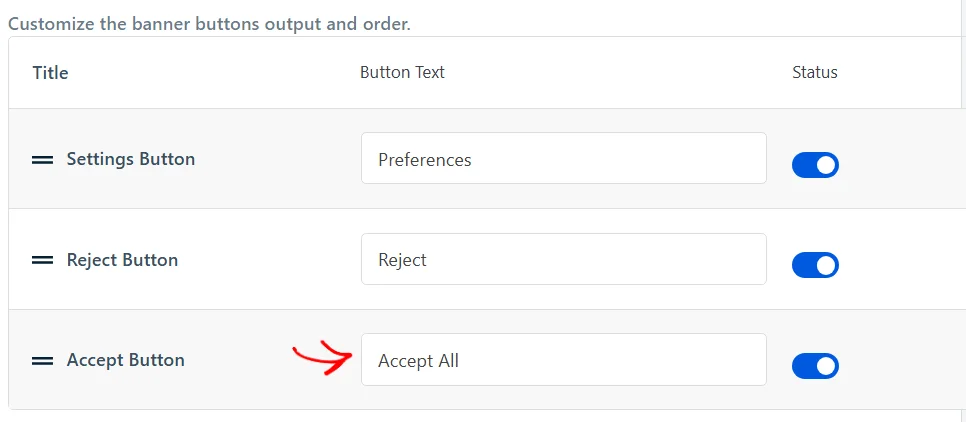
Short, plain labels work best here, because all three buttons sit side by side and long labels crowd each other on a phone.
Each row also has a switch in the Status column, which controls whether that button appears at all. To leave one off the banner, switch its Status toggle off.
That is how you show visitors a two-button banner instead of three.
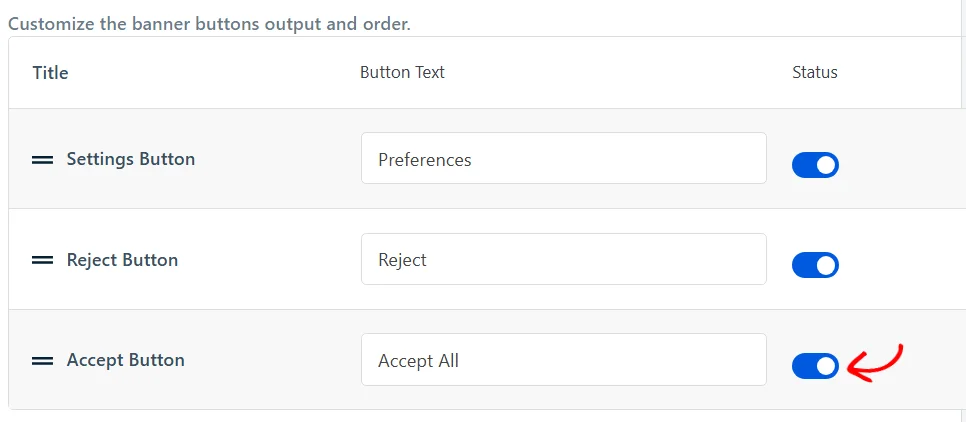
The buttons appear on the banner in the order they are listed here. To move one, drag the handle at the left of its row up or down.
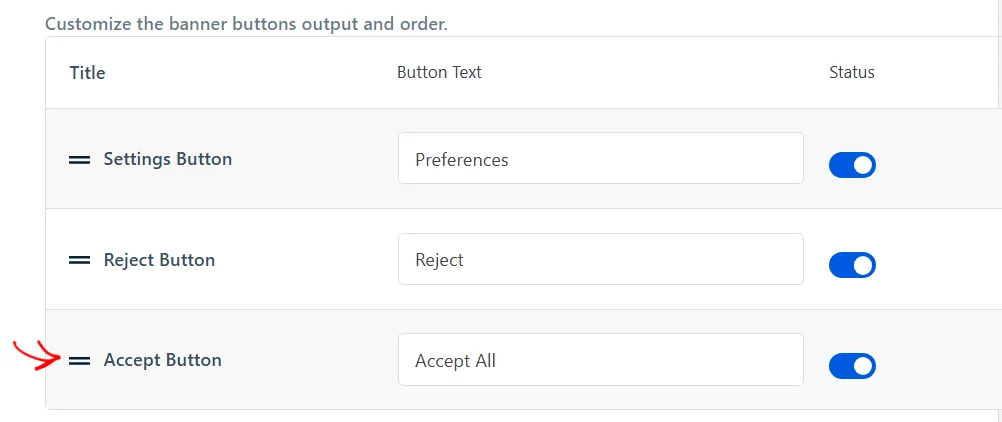
Ordering matters more than it looks. Whichever button sits first is the one a visitor’s eye lands on, so it is worth deciding deliberately rather than leaving it to the default.
Disabling the Close Button
WPConsent shows a small close icon in the corner of the banner by default, which lets a visitor dismiss the banner without choosing anything. To take that icon away, switch on Disable Close Button.

With the icon gone, the banner stays until a visitor uses one of the buttons, so every visitor makes an explicit choice. Which behavior you want depends on the consent rules you are working to.
Editing the Preferences Panel Text
Further down the page, a Preferences Panel Settings heading marks the start of the panel’s wording. That panel is what opens when a visitor clicks your Settings button.
The Preferences Panel section underneath the heading is open by default.
Our guide on understanding the preferences panel covers what visitors can do inside it.
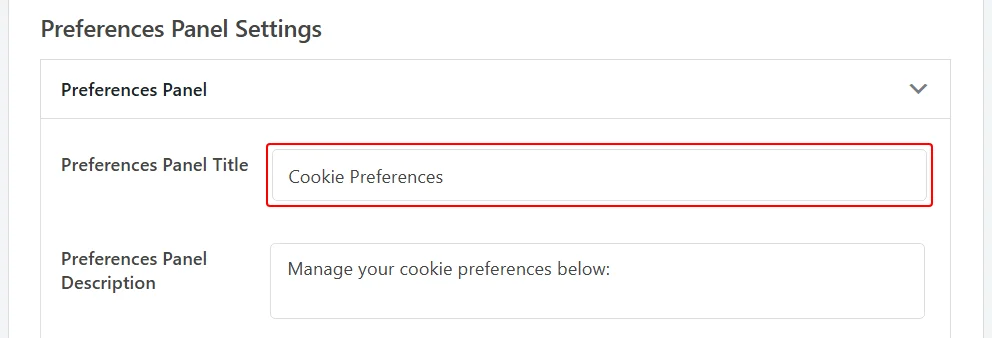
The first field is the heading at the top of that panel, which starts out as Cookie Preferences. To rename it, type your own heading into the Preferences Panel Title field.
The Preferences Panel Description field below it is the short paragraph that introduces the categories, and it starts out as “Manage your cookie preferences below:”.
The next two fields control a collapsible section at the bottom of the panel. Cookie Policy Title is the label on that section, and it starts out as Cookie Policy.
To reword the sentence inside that section, type your own wording into the Cookie Policy Text field.
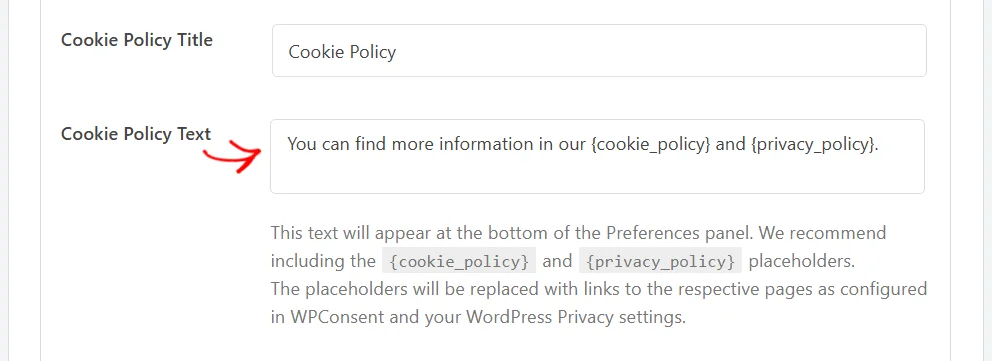
The text field accepts two placeholders, {cookie_policy} and {privacy_policy}. WPConsent swaps each one for a link to the matching page, using that page’s title as the link text. That means the wording keeps working if you ever rename either page.
The cookie policy link points at the page chosen in your WPConsent settings. The privacy policy link points at the page set under Settings » Privacy in WordPress.
Note: That section appears in the panel once a cookie policy page has been chosen in your WPConsent settings.
The panel has buttons of its own, and the next two fields name them. Their defaults are Save and Close for the first and Close for the second.
To rename the button that stores a visitor’s category choices, type your own label into the Save Preferences Button Text field. The Close Button Text field below it names the button that shuts the panel again.

The panel’s third button reuses whatever you typed as your Accept button label further up the page, so those two always match.
Renaming the Cookie Table Columns
Inside the preferences panel, each category and service lists its cookies in a small table. Four settings name the parts of that table, and the first of them is the last field in the Preferences Panel section by default.
To rename it, type your own wording into the Service URL Label field.

That label prefixes the link to a service’s own privacy policy, so a visitor reads the label followed by the service’s domain. It starts out as Service URL, and it appears only for services that have a privacy policy URL saved against them.
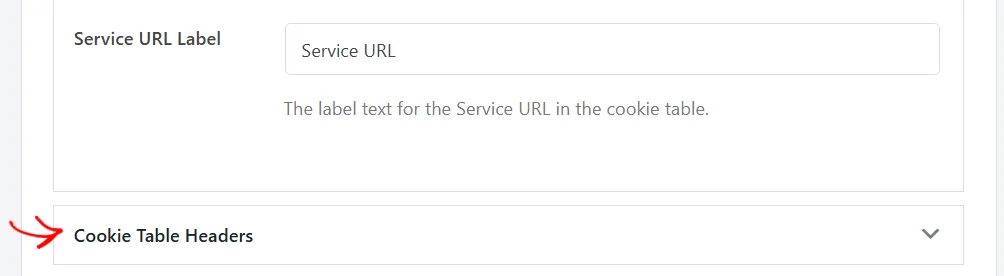
The other three live in their own section. To reach them, click the Cookie Table Headers heading.
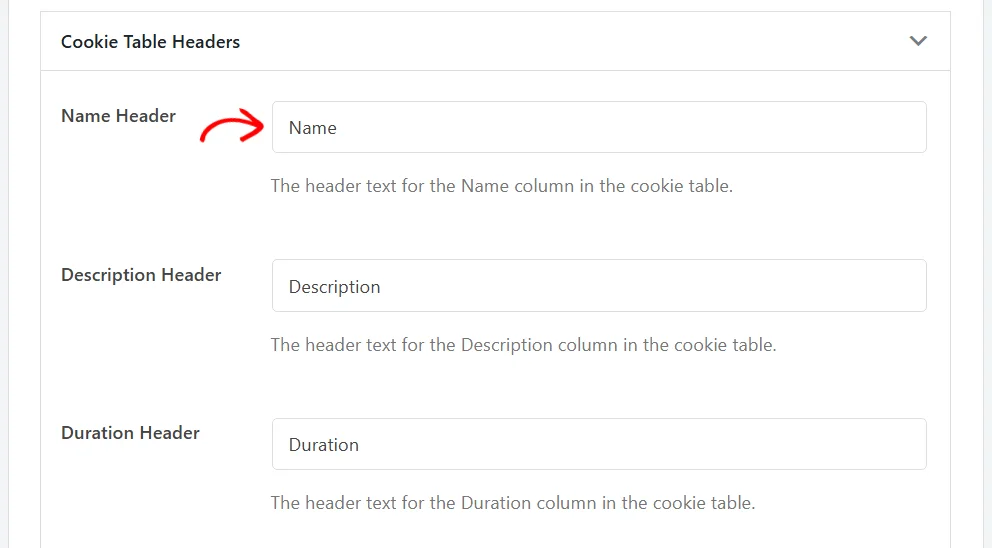
The section opens to reveal three fields, which hold the three column headings above every cookie table. They start out as Name, Description, and Duration.
To rename the first column, type your own heading into the Name Header field. The Description Header and Duration Header fields below it work the same way for the other two columns.
These three names travel further than the banner. They also head the tables on your cookie policy page, where the first column lists each cookie’s ID rather than its name.
Wording that reads correctly in both places is therefore the safest choice.
Our guide on managing cookies covers where the entries inside those tables come from.
Editing the Global Privacy Control Messages
Back in the Preferences Panel section, two further rows can sit at the foot of the list, below Service URL Label. They hold the wording WPConsent uses for visitors whose browser sends a Global Privacy Control signal, which is a browser-level request not to be tracked.
Both rows appear once Respect Global Privacy Controls is switched on. That setting lives in the Advanced Settings panel on the Advanced tab, at WPConsent » Settings » Advanced, and our Advanced Settings guide walks through it. Until it is on, the section here ends at Service URL Label.
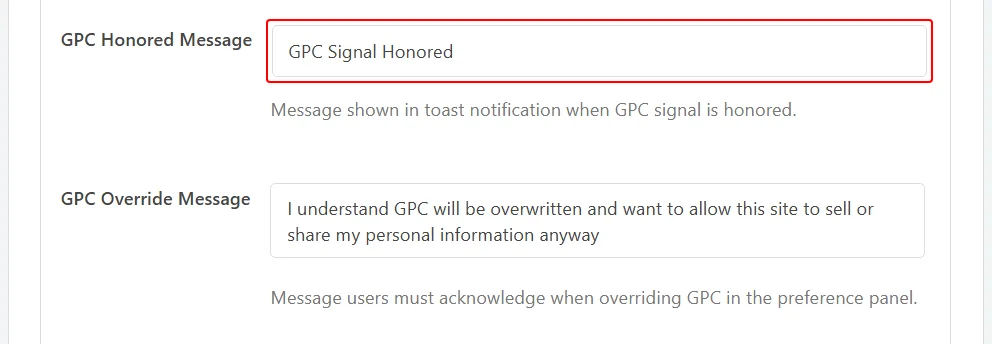
The first row is GPC Honored Message. It holds the short confirmation those visitors read in the corner of the page. It starts out as “GPC Signal Honored”.
To reword that confirmation, type your own wording into the GPC Honored Message field.
Note: In the paid version of WPConsent 1.1.8, that confirmation carries WPConsent’s own default wording. This field’s text reaches visitors on the free version only. The GPC Override Message below it applies to both.
Your banner never appears for those visitors. That confirmation is the only message WPConsent shows them.
The second row is GPC Override Message. It holds the sentence a visitor acknowledges if they open the preferences panel and decide to accept a category after all. It appears as one extra row below the categories, beside a toggle the visitor switches on.
To reword that sentence, type your own wording into the GPC Override Message field.
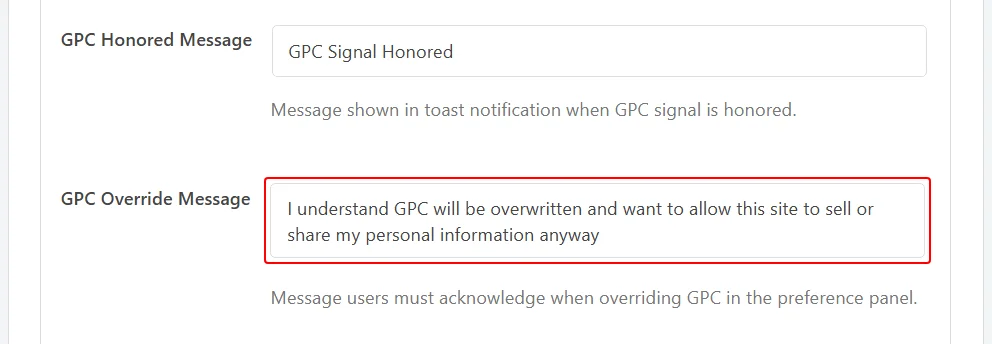
Wording that spells out plainly what the visitor is agreeing to works best here, as the default does. This is the one sentence standing between a browser-level choice and a category being switched back on.
Our guide on Global Privacy Control covers the setting that reveals these two rows. It also covers what a visitor who sends the signal sees on your pages.
Adding a Logo and Hiding the WPConsent Link
Two rows at the bottom of the panel finish off the banner’s appearance. The first is Logo/Icon, which puts an image above your banner message and beside the preferences panel heading, and it starts out empty.
To pick an image, click Choose File.
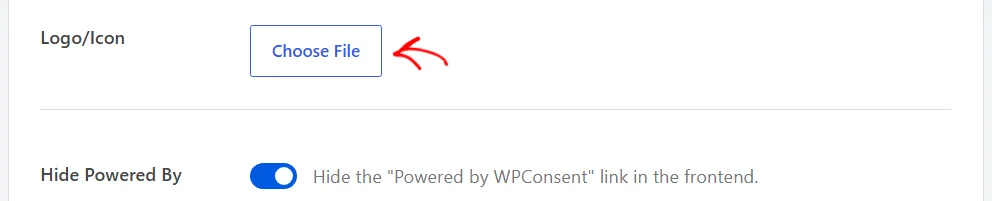
The WordPress media library opens, and whichever image you choose there becomes your banner logo.
WPConsent scales the image to a fixed height, so a wide logo with plenty of clear space around it reads better than a tall one.
The last row removes the small “Powered by WPConsent” credit from the bottom of the banner and the preferences panel. It starts out off, so that credit shows in both places.
To take it off both, switch on Hide Powered By.
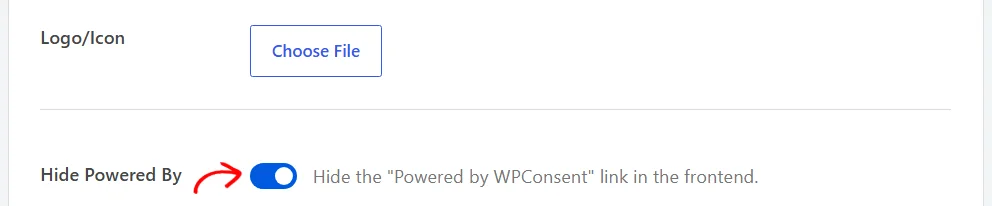
That is the last field on the tab, so with those two set you have been through every piece of banner text.
Saving Your Changes
Everything on this tab belongs to one form, so a single save stores the whole set. At the top right of the page, click Save.
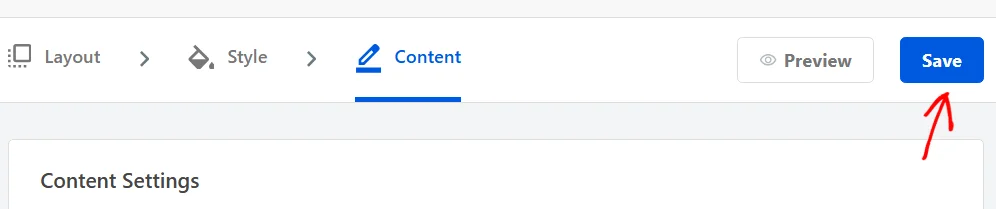
The page reloads with your wording in place, which is how you know the save went through. A second Save button sits at the bottom of the panel and does exactly the same thing.
Beside that second button, a Show Banner on Frontend checkbox keeps the banner switched on for visitors.
The Preview button beside Save is worth knowing about too. It draws your saved banner over the admin page, which is a quicker way to check your wording than loading the front end.
That’s it! Your banner, its buttons, and the preferences panel now use your own wording.
Next, take a look at our guide on banner styling to bring the colors and button shapes in line with your theme.
Frequently Asked Questions
Below, we’ve answered some of the most common questions about banner content and text.
Can I use bold text or a link in the banner message?
Yes. The Message field is a full WordPress editor, and WPConsent keeps the formatting you apply. Bold text, italics, and links all carry through to the banner.
Why does a button row say Settings Button when my banner says Preferences?
The name in the Title column describes what the button does, and the Button Text field holds what visitors actually read. The Settings button ships with Preferences as its label, and changing the label does not change the row name.
What happens when I switch a button’s Status off?
WPConsent leaves that button out of the banner, and the remaining buttons close up the gap. Turning the switch back on brings it straight back.
Does the Close Button Text field change the close icon on my banner?
No. Close Button Text names a button inside the preferences panel. The small close icon on the banner itself is controlled by the Disable Close Button switch instead.
Do these fields cover every language on my site?
Each language keeps its own copy of this text, and the fields on this tab hold one language at a time. Which language depends on the picker at the top right of the WPConsent header.
Our guides on automatic translation and multilanguage support cover translating and editing the other languages.
Why can’t I edit some of the content fields?
With IAB TCF turned on, WPConsent locks some of these fields to TCF-compliant wording. The locked ones are the banner message and the three button labels.
It also locks the preferences panel description and the Save Preferences button text. A notice at the top of the tab says so.
Our guide on IAB TCF support covers that setting.
Can I put the original wording back?
Yes. The Advanced tab under WPConsent » Settings carries a Reset Content to Defaults button that restores the default English banner content.
It also returns the default cookie categories to their original names and descriptions, so exporting your settings first is worth the minute it takes.
Our guide on advanced settings covers that button.