
Would you like visitors to be able to change their cookie choices long after your banner has gone? WPConsent’s floating settings button is a small, permanent control that sits in the corner of every page and reopens the preferences panel on demand.
This guide walks through turning the button on, choosing the icon it shows, and checking the result on your site. All you need is the consent banner already switched on.
Table of contents
- Turning On the Settings Button
- Choosing an Icon for the Button
- Seeing the Button on Your Site
- Frequently Asked Questions
Before you get started, make sure WPConsent is installed and activated on your WordPress site.
Turning On the Settings Button
To get started, we’ll switch on the setting that puts the button on your site.
Your cookie banner asks once and then gets out of the way. That leaves a gap for a visitor who accepted everything in a hurry, or who later changed their mind. The floating settings button fills it, staying on every page and reopening the preferences panel whenever it is clicked.
WPConsent calls it the Settings Button, and its switch lives with the rest of your consent settings.
From your WordPress admin sidebar, go to WPConsent » Settings.
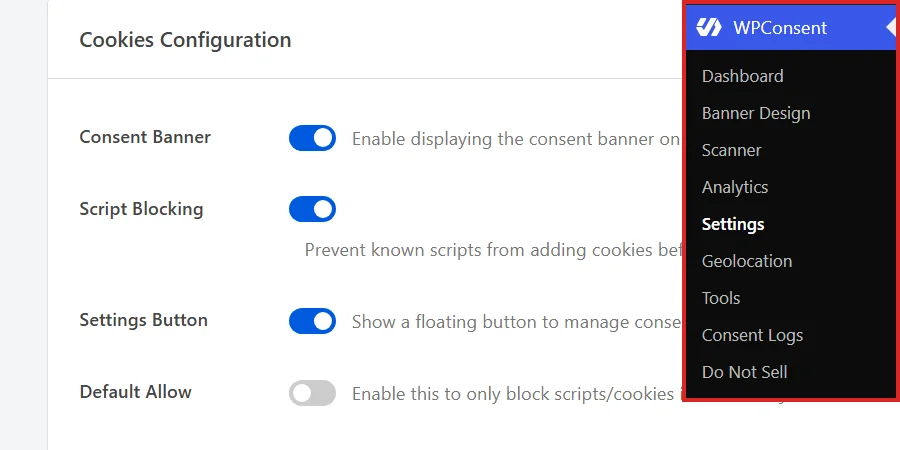
The page opens on the Settings tab. From there, scroll to the Cookies Configuration panel, where the first three rows decide what visitors see.
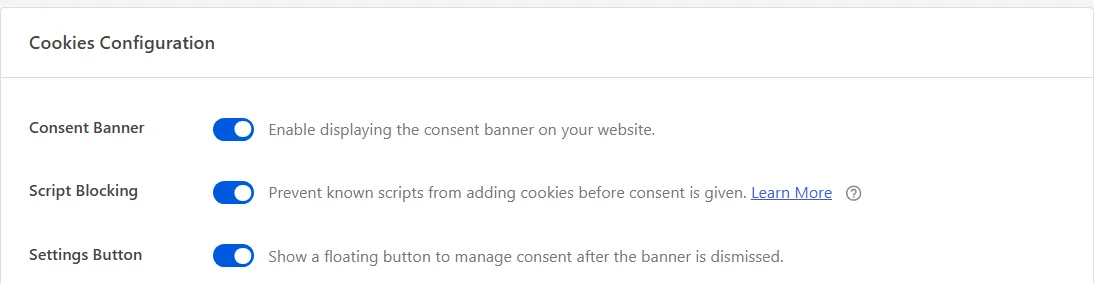
Consent Banner, the first row in that list, is the master switch for the whole consent interface. The settings button is part of that interface, so keep Consent Banner on.
Our guide on general settings covers every other row in the panel.
To put the button on your site, turn on Settings Button.

Its description sums up the behavior neatly: show a floating button to manage consent after the banner is dismissed.
Nothing on this tab saves as you go. At the bottom of the panel, click Save Changes.
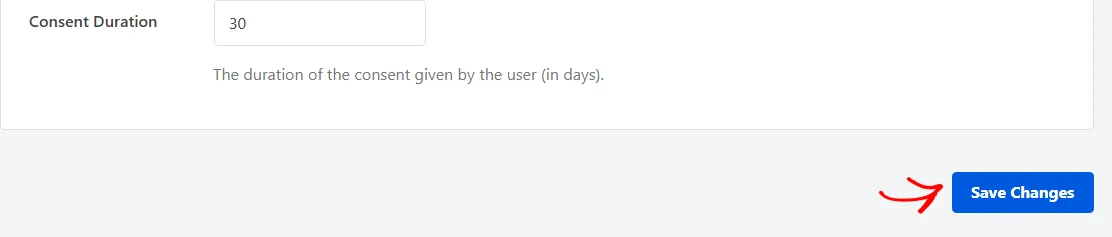
With that saved, the button is part of your site’s consent interface and ready for an icon.
Note: Turning on IAB TCF switches this row on for you and holds it there, because the framework asks for a way to revisit consent. Our guide on IAB TCF support covers that setting.
Choosing an Icon for the Button
The button carries a single icon and no words, so the icon is the whole message. WPConsent offers 12 choices, and the picker for them appears only once the Settings Button row is on.
From your WordPress admin sidebar, go to WPConsent » Banner Design. When the page loads, click the Style tab.
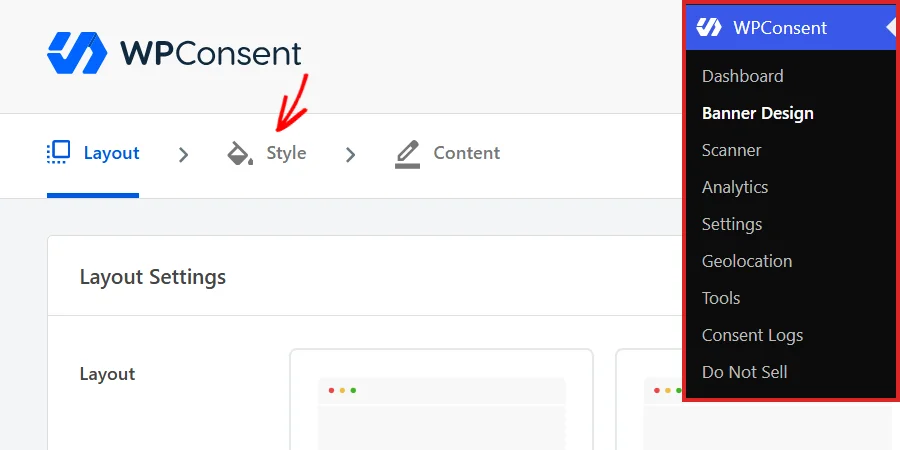
From there, scroll past the banner and button colors to the Floating Settings Button Design section at the foot of the panel.
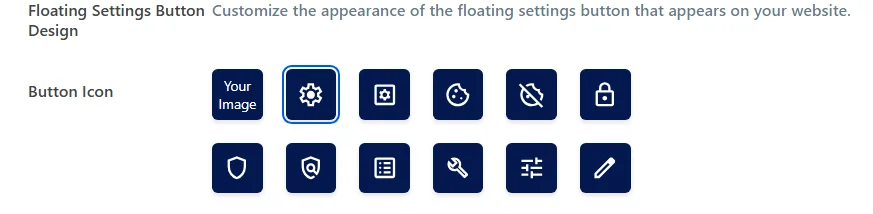
Of the 12 tiles in the Button Icon row, 11 hold icons that ship with WPConsent. They include a gear, a padlock, two cookie icons, a shield, a set of sliders, and a pencil. WPConsent starts on the gear, which is the tile sitting directly after Your Image.
A padlock reads as privacy at a glance, so we’ll use that one. In the top row of tiles, click the padlock.

An outline marks whichever tile is selected, which is how you confirm the choice landed.
The remaining tile works differently. Marked Your Image, it opens your WordPress media library so your own graphic becomes the icon instead. WPConsent draws that graphic at 24 by 24 pixels, so a small square logo works far better than a wide one.
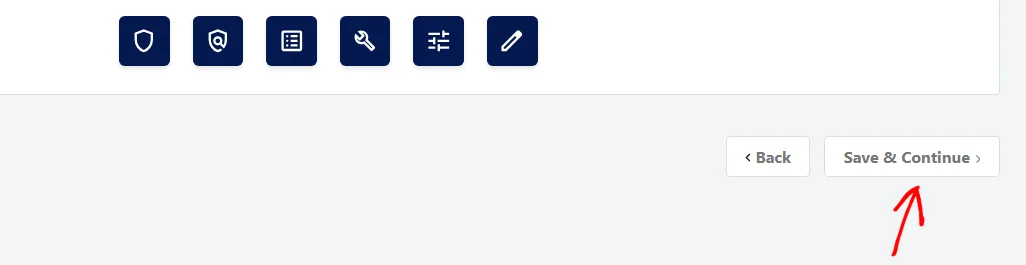
Once your icon is picked, click Save & Continue at the bottom right of the panel.
The tiles in that grid are drawn in your own banner colors, which is a preview rather than a coincidence. The button takes its background from Background Color and its icon color from Text Color, both in the Banner section higher up the same tab. Change either one and the button follows.
Our guide on banner styling covers those colors in full.
Seeing the Button on Your Site
With both settings saved, the last thing to do is watch the button appear the way a visitor sees it.
To do that, open your site in a private browsing window so you arrive as a first-time visitor. Your banner appears, and the settings button is nowhere to be seen. That is the intended order, because a second control asking the same thing while the banner is still up only adds noise.
Next, make a choice on the banner, whether that is Accept All, Reject, or Save and Close inside the preferences panel. The button appears the moment the choice is stored, in the bottom-left corner of the page.
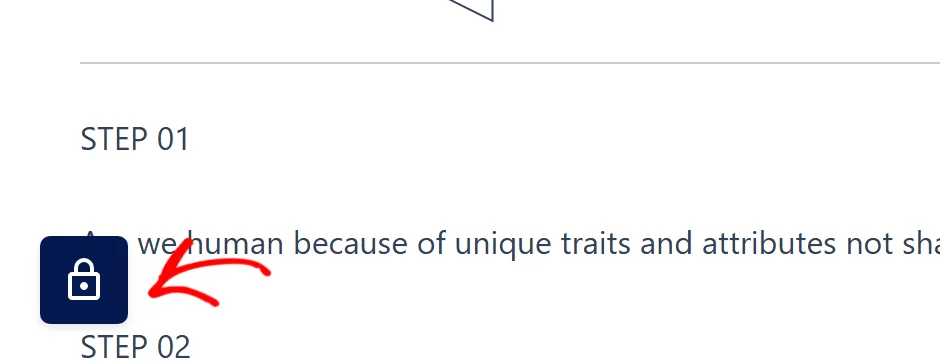
It stays in that corner as visitors move around your site. It also comes back on their next visit, because WPConsent remembers the choice in a cookie.
Clicking it opens the preferences panel, the same panel the banner’s own Preferences button opens.
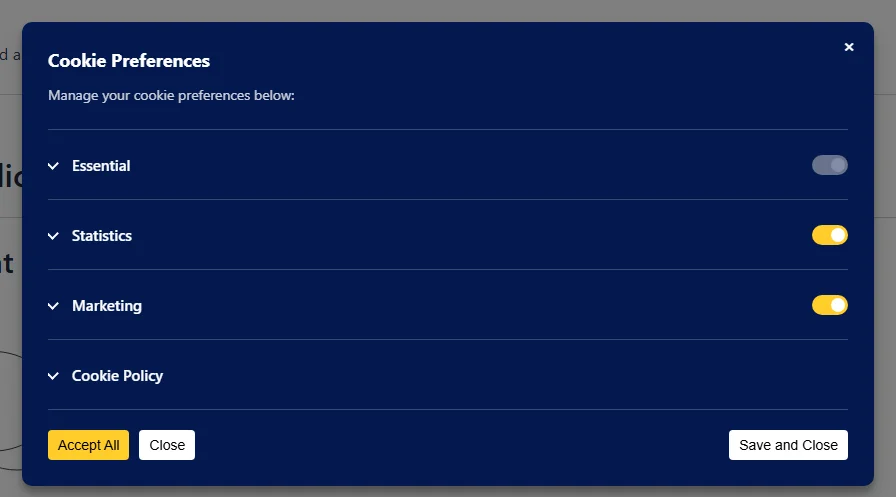
From here a visitor switches a category on or off and saves, and their new choice replaces the old one.
Our guide on the preferences panel walks through everything in it.
If you run different consent rules by country, each geolocation rule group carries its own Show Settings Button toggle. That lets the button appear for visitors in one region and stay out of the way in another.
Our guide on setting up geolocation rules covers those groups.
That’s it! Your site now carries a permanent control that lets visitors revisit their cookie choices whenever they like.
Next, take a look at our guide on the preferences panel to shape what visitors find when they open it.
Frequently Asked Questions
Below, we’ve answered some of the most common questions about the floating settings button.
When does the button appear on my site?
As soon as a visitor’s consent choice is stored. That happens when they use Accept All or Reject on the banner, or Save and Close in the preferences panel. On every page they load afterwards, WPConsent reads the stored choice and shows the button straight away.
Can I move the button to another corner?
The button is fixed to the bottom-left corner, and a few lines of custom CSS move it anywhere you like. WPConsent exposes it to your theme’s stylesheet as a named part, so this rule sends it to the bottom right instead.
#wpconsent-container::part(wpconsent-settings-button) { left: auto; right: 30px; bottom: 40px; }
Our guide on customizing the banner with CSS covers where to put rules like this one.
Can I use my own image instead of an icon?
Yes. The Your Image tile at the start of the Button Icon grid opens your WordPress media library, and the image you pick becomes the button’s icon. It renders at 24 by 24 pixels, so pick something square and simple.
Can I give the button its own colors?
It reuses Background Color and Text Color from the Banner section of the Style tab, so it always matches the banner it belongs to. The tiles in the Button Icon grid are drawn in those same colors, which lets you judge the result before saving.
Is the settings button the same as the Floating Banner layout?
No. The Floating Banner is the consent banner itself, drawn as a compact card in a corner instead of a bar across the page. The settings button is a separate control that appears only after the banner has been dismissed. Our guide on banner layout options covers the layouts.
Can I open the preferences panel from a link instead?
Yes. Adding the wpconsent-open-preferences class to any link or button on your site makes it open the panel, which is handy for a footer menu item alongside the floating button. Our guide on opening the preferences panel with a custom link covers it in full.
Will the button appear for my logged-in users?
It follows the same Hide Banner Rules as the banner. If a rule hides the consent interface from logged-in users, from particular roles, or on particular pages, the settings button stays out of the way on those pages too. Our guide on advanced settings covers those rules.