
Would you like your cookie banner along the foot of the page, tucked into a corner, or right in front of visitors until they choose? WPConsent gives you three banner layouts. Each one carries its own set of position options.
This guide walks through all three, shows what each looks like, and covers the preview button that compares them before you save.
Table of contents
- Choosing Your Banner Layout
- Using the Long Banner Layout
- Using the Floating Banner Layout
- Using the Modal Banner Layout
- Saving Your Layout
- Frequently Asked Questions
Before you get started, make sure WPConsent is installed and activated on your WordPress site.
Requirements: The Modal Banner layout requires a Basic license level or higher.
Choosing Your Banner Layout
To get started, we’ll open the tab that sets the banner’s shape and position.
From your WordPress admin sidebar, go to WPConsent » Banner Design.
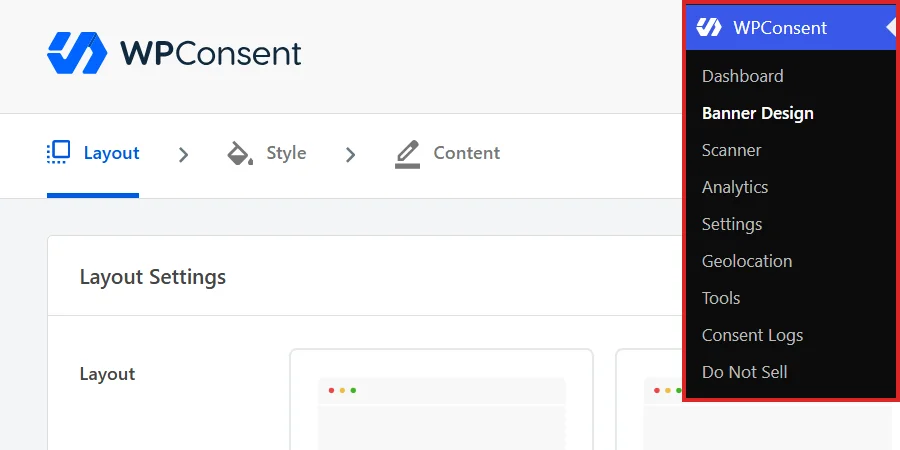
The page opens on the Layout tab, which is the first of the three tabs across the top. Style and Content follow it. The chevrons between them show the order the designer walks you through.
Our guides on banner styling and banner content and text cover those other two tabs. This guide stays on the layout.
The Layout Settings panel below holds a single row named Layout. That row offers three choices. Each card is a small diagram of where the banner sits on a page.
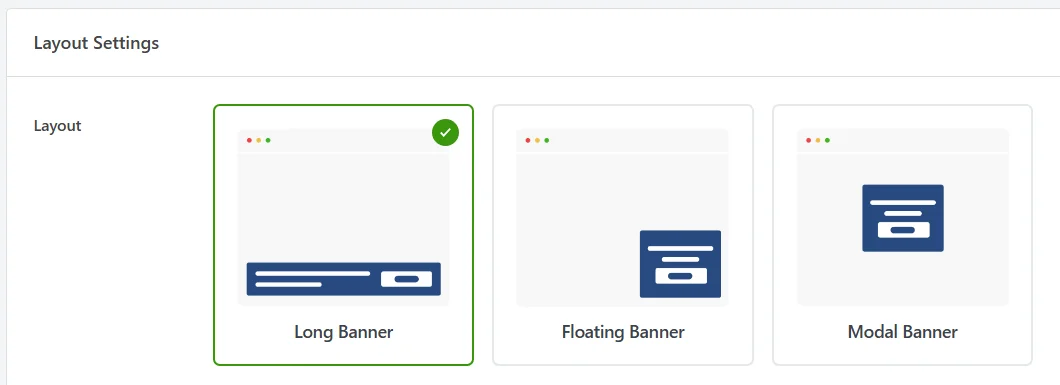
A green check marks whichever card is selected. A new install starts on Long Banner.
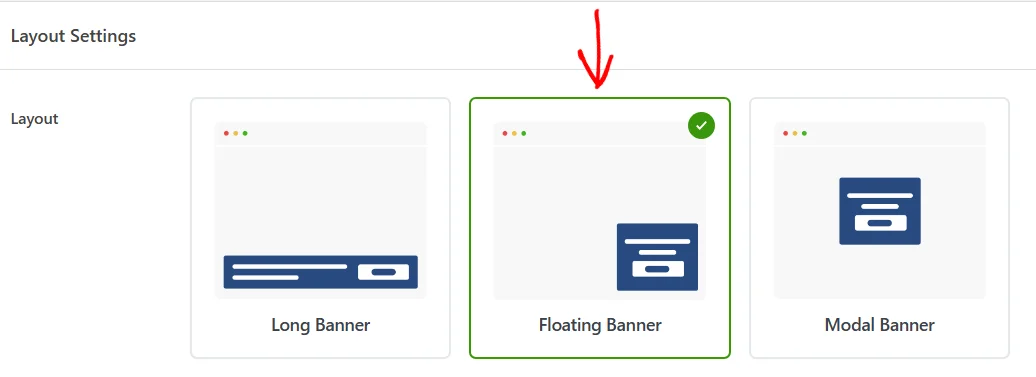
Long Banner is a bar across the full width of the screen. Floating Banner is a compact card in a corner. Modal Banner is a card in the middle of the screen with the page dimmed behind it.
If you are not sure which to pick, Long Banner is the safest place to start. A bar along one edge covers the least of your page.
Before working through them, it is worth knowing about the button that shows your work. At the top right of the page, click Preview.

WPConsent draws your banner over the admin page at full size. That makes it possible to judge a layout without loading the front end.
The preview follows the choices currently on screen, including ones you have not saved yet. That makes it a quick way to compare two layouts side by side.
It draws the banner over your admin screen rather than over your theme. That means it answers where the banner sits and how much room it takes, not how it looks against your own design.
Clicking Preview a second time closes it again, as does the small close icon in the top right corner of the screen.
Using the Long Banner Layout
The Long Banner is a bar that stretches the full width of the screen. Because it hugs one edge, it leaves the middle of the page clear.
To use it, click the Long Banner card.
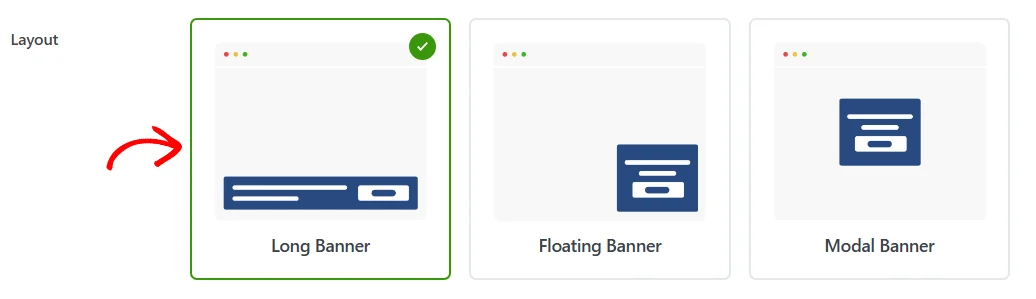
A Position row appears underneath with two choices, Top and Bottom. To run the bar along the foot of the screen, click Bottom.
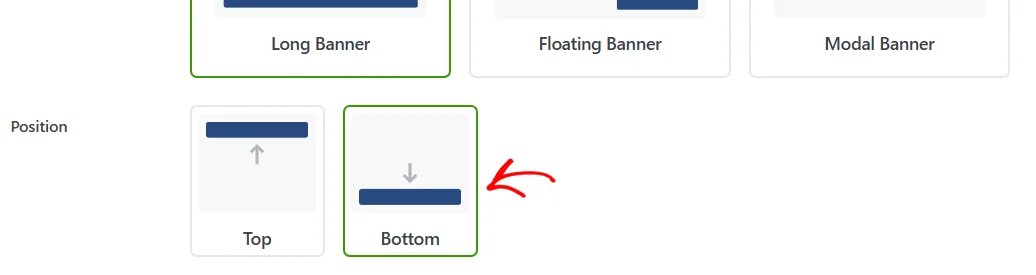
Bottom is the quieter of the two, because it leaves your header and any hero image untouched. Top puts the same bar above your header instead, which makes it the first thing a visitor sees.
In the preview, the bar runs edge to edge across the foot of the screen. The message sits on the left and the buttons on the right.
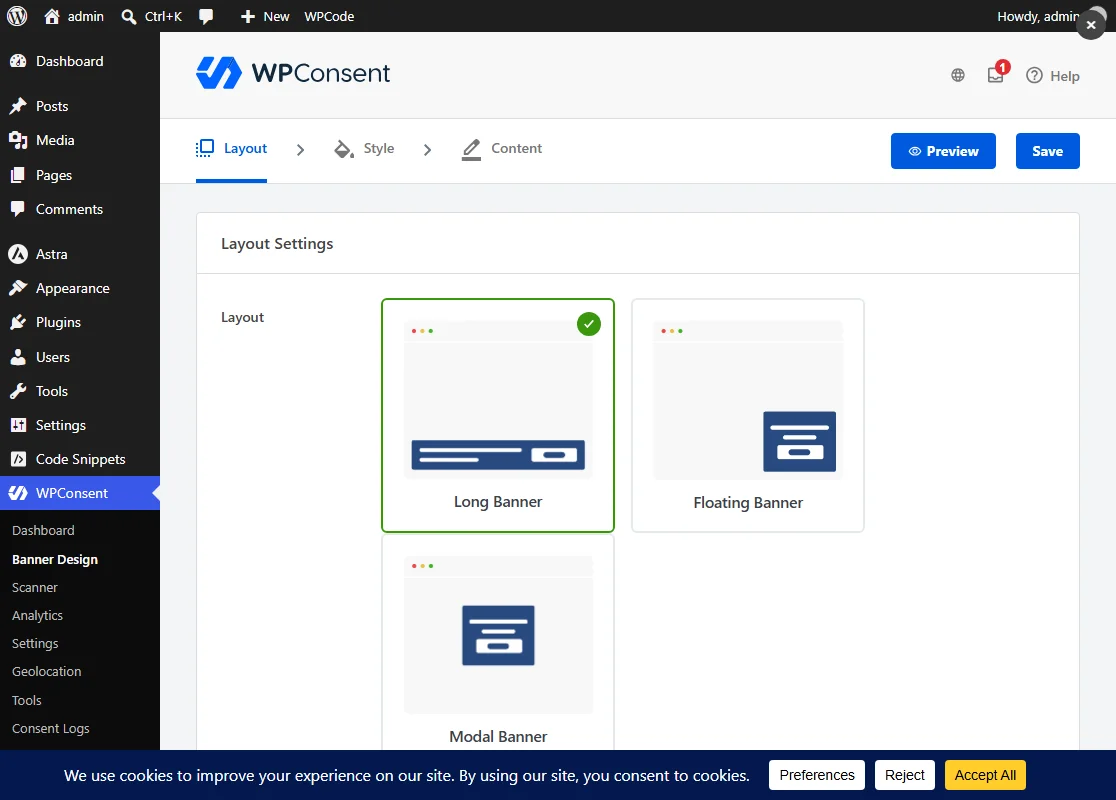
Running the full width gives the bar room to put the message and the buttons on one line. On a narrow screen, such as a phone, they stack instead, with the message above the buttons.
Using the Floating Banner Layout
The Floating Banner is a compact card that sits in one corner and leaves the rest of the page in view. It takes up the least room of the three.
To use it, click the Floating Banner card.
The Position row now offers four corners instead of two edges. Those are Left Top, Right Top, Left Bottom, and Right Bottom. To put the card in the lower right, click Right Bottom.
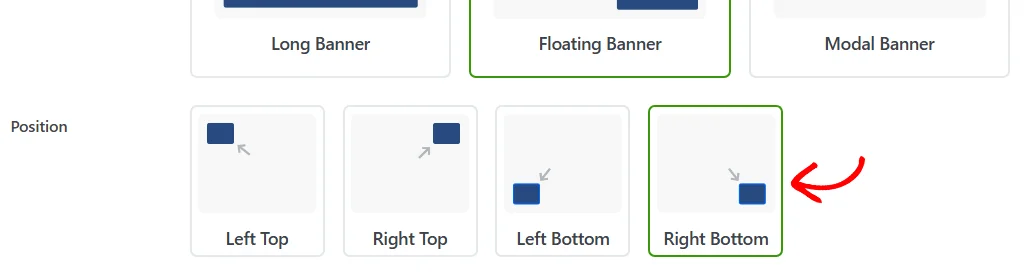
In the preview, the card sits just inside the bottom right corner and the rest of the page stays visible. The small gap it keeps from both edges is what makes it read as floating rather than pinned.
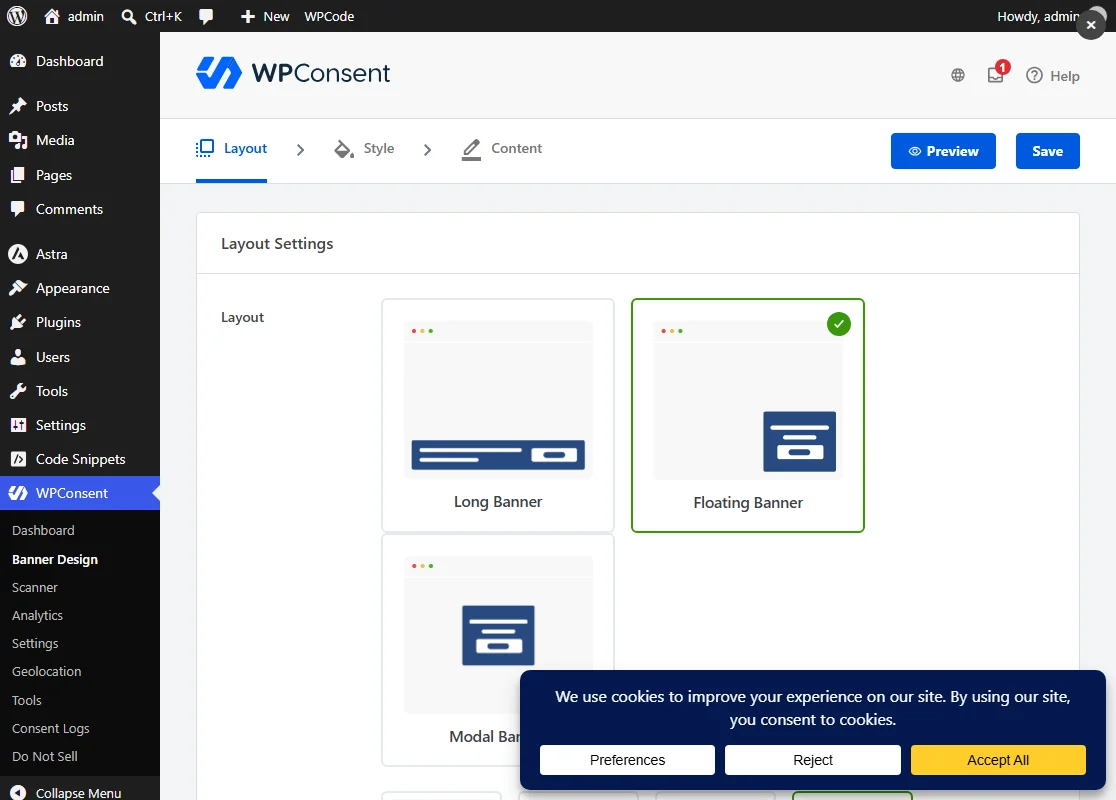
Corner choice is worth a moment’s thought. Whichever corner you pick is the corner your banner shares with anything else floating there, such as a chat widget.
On a narrow screen, the card widens to the full width and moves flush into its corner. That keeps the buttons a comfortable size on a phone.
Using the Modal Banner Layout
The Modal Banner puts the card in the middle of the screen and dims the page behind it. That puts the choice directly in front of a visitor, with nothing else on the page competing for attention.
To use it, click the Modal Banner card.
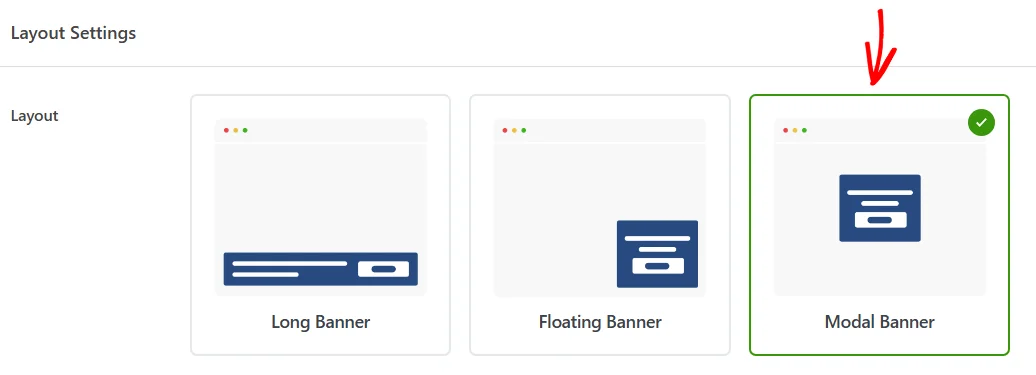
No Position row appears for this layout, because the card centers itself on the screen.
In the preview, the card sits in the middle of the screen and the page behind it is greyed out.
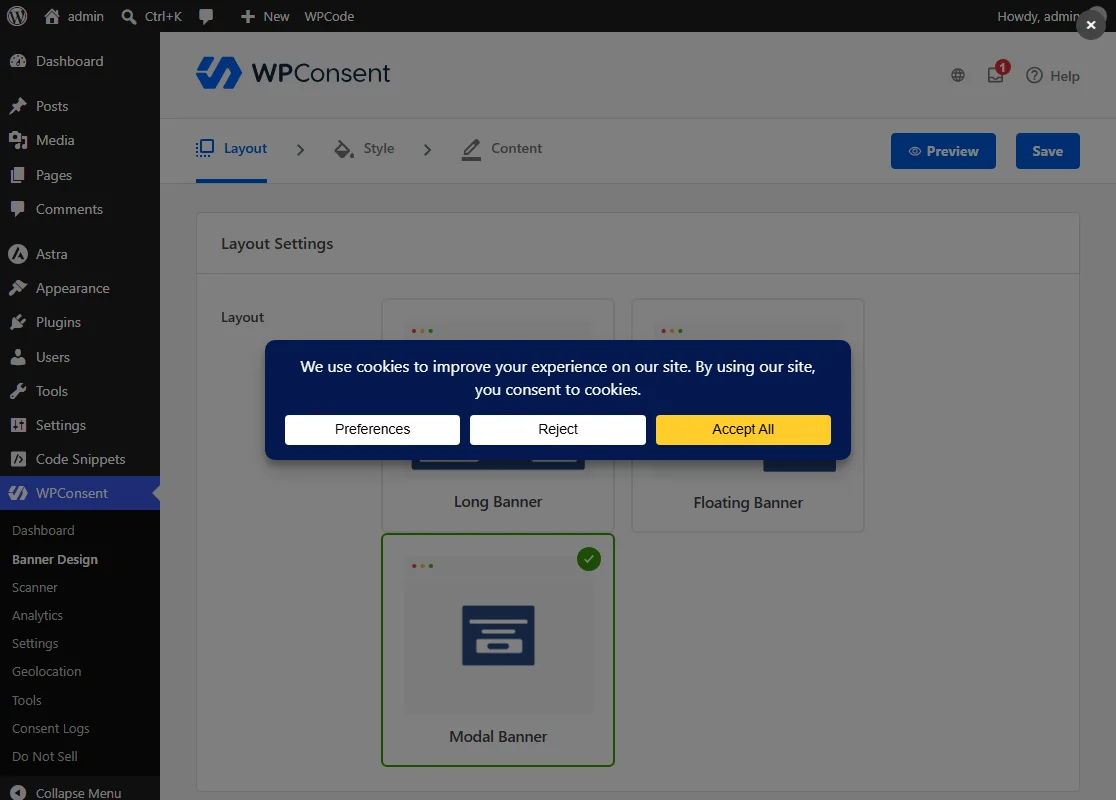
The card carries the same message and the same buttons as the other two layouts. Switching to it changes where visitors read your wording, not what it says.
Saving Your Layout
Your layout and its position are stored together when you save. At the bottom right of the panel, click Save & Continue.

That stores both settings. It then moves you on to the Style tab, which is the next step in the designer. That move is how you know the save went through.
The Save button at the top right of the page stores the same pair of settings and leaves you on the Layout tab. That is the one to use when the layout is the only thing you came here to change.
That’s it! Your consent banner now uses the layout and the position you picked.
Next, take a look at our guide on banner styling to bring the banner’s colors, fonts, and button shapes in line with your theme.
Frequently Asked Questions
Below, we’ve answered some of the most common questions about banner layouts.
Which layout is selected before I change anything?
Long Banner. That is where the Layout row starts until you choose another one.
Why can’t I select the Modal Banner card?
The Modal Banner layout comes with a paid version of WPConsent. In the free version, its card is dimmed and carries a Pro badge in the corner. Clicking it opens an upgrade note instead of selecting the layout.
Is the Floating Banner the same as the Settings Button?
No. The Floating Banner is the consent banner itself, drawn in a corner rather than across the page. The Settings Button is a separate control that stays on your site after the banner is dismissed. Visitors use it to reopen their choices. It has its own toggle under WPConsent » Settings. Our guide on the floating consent button covers it.
Does changing the layout affect my colors or wording?
No. The Layout tab saves your layout and its position and nothing else. Colors, fonts, and button shapes live on the Style tab. Every piece of text lives on the Content tab. Both survive a layout change.
Why don’t I see a Position row for the Modal Banner?
The Modal Banner centers itself, so WPConsent hides the Position row while that layout is selected. If you save with Modal Banner and later switch back to Long or Floating, pick the position you want again before saving.
How will my banner look on a phone?
All three layouts fit themselves to the screen. The long bar stacks its message above its buttons. The floating card widens to the full screen width and sits flush in its corner. The Modal Banner card fills most of the screen while staying centered.
Can I use a different layout on different pages?
No. One layout applies across your whole site. If you need the banner to stay away from particular pages or from logged-in users, Hide Banner Rules do that instead. Our guide on advanced settings covers them.
Why can’t I change the layout?
Turning on IAB TCF holds the layout at Modal Banner, because that is the shape TCF asks for. A notice above the row says so and links back to the TCF settings. Our guide on IAB TCF support covers that setting.