
Would you like your cookie banner to look like it belongs to your site rather than bolted onto it? The Style tab under Banner Design controls the banner’s colors, its text size, and the shape and color of its three buttons. All you need is WPConsent installed and activated.
This guide walks through every setting on that tab and shows how to check your work in the live preview before you save.
Table of contents
- Setting the Banner Colors and Text Size
- Shaping the Buttons
- Coloring the Three Buttons
- Previewing the Banner
- Saving Your Styles
- Frequently Asked Questions
Before you get started, make sure WPConsent is installed and activated on your WordPress site.
Setting the Banner Colors and Text Size
To get started, we’ll open the tab that holds the banner’s colors and text size.
From your WordPress admin sidebar, go to WPConsent » Banner Design.
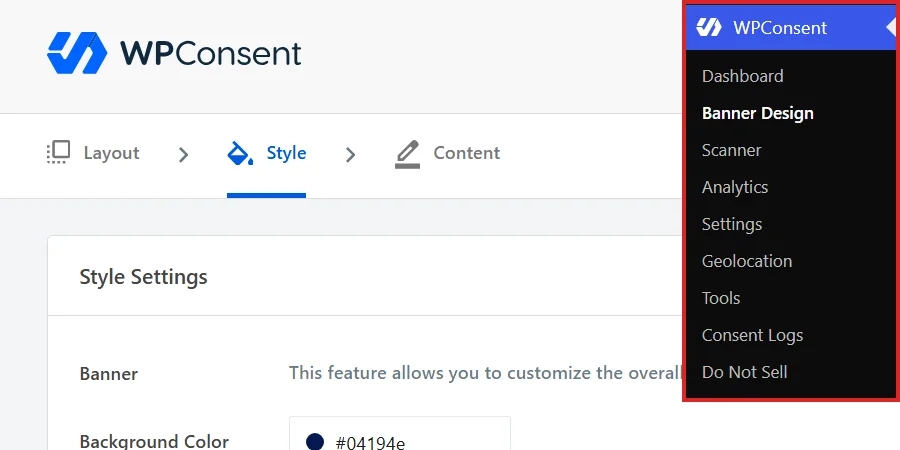
Banner Design opens on the Layout tab. Across the top of the page sit three tabs in order: Layout, then Style, then Content. To reach the styling settings, click Style.

The three tabs split the banner into three jobs. Layout decides the banner’s shape and where it sits, and our guide on banner layout options covers it. Content holds every word the banner says, covered in our guide on banner content and text. Style, the tab we are on, handles how all of it looks.
Every setting on this tab feeds a live preview that opens from a button in the page header. You can try a color or a button shape and see the result before you commit to it.
The first section of the panel is named Banner, and it holds the three settings that shape the banner itself.
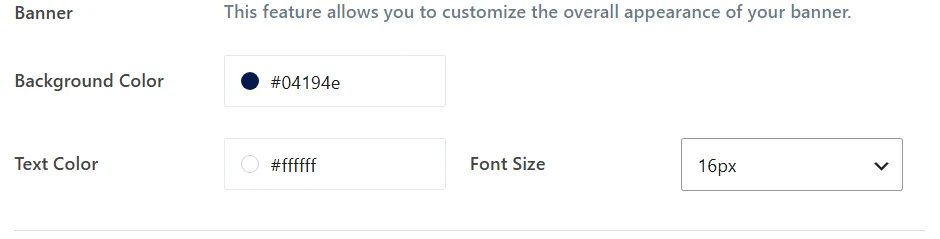
Background Color fills the banner panel, and Text Color applies to the banner’s message. The pair also colors the floating settings button, if you have that turned on. Font Size sets the size of the message text.
WPConsent draws the banner inside its own isolated container, so the colors you pick here are the colors visitors see whatever your theme’s stylesheet does.
To change a color, click the Background Color field.
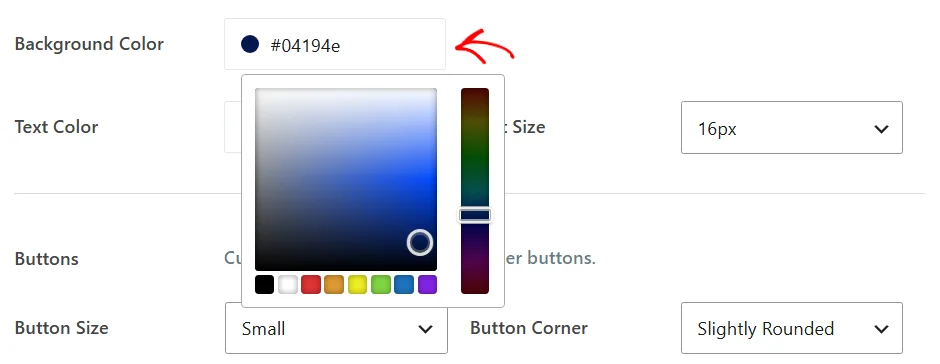
The picker gives you a gradient area for the shade, a vertical slider for the hue, and a row of presets along the bottom. You can also type a hex value straight into the field, which is the quicker route when you already know your brand color. Text Color and the six button colors further down all open the same picker.
Clicking anywhere outside the picker closes it, and the small square beside the field keeps showing the color you landed on.
For the message text, open the Font Size dropdown.
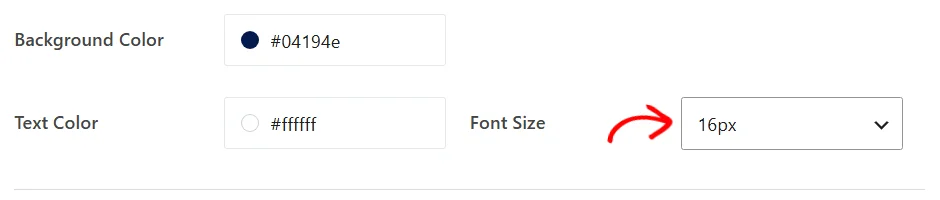
The list runs from 12px to 30px in 2px steps. This setting governs the banner’s message text. Button text is sized by Button Size instead, which the next section covers.
Shaping the Buttons
One group of settings shapes every button on the banner at once, so size and shape are set once rather than button by button.
Below a divider, the Buttons section holds three dropdowns. Start with Button Size.
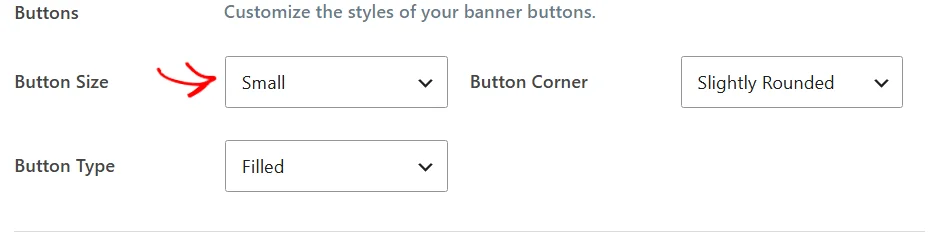
Button Size sets the height and the text size together. Small gives a 30px button with 14px text, Regular gives 45px and 15px, and Large gives 60px and 18px.
Small suits a banner you want to stay out of the way, and Large suits one you want visitors to act on straight away.
Button Corner sets how rounded the corners are. Square gives sharp corners, and Slightly Rounded a small 4px radius. Rounded gives a 20px radius, which reads as a pill on the smaller button sizes.
The one to pick is whichever matches the buttons your theme already uses. Square suits a sharp, editorial design and Rounded a softer one, with Slightly Rounded sitting between the two.
Button Type is the one worth previewing. To see it, open Button Type and choose Outlined.
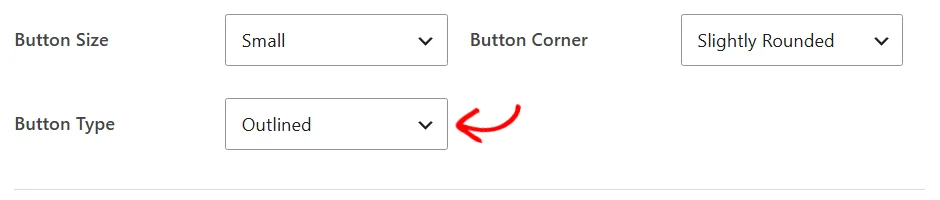
Filled gives each button a solid fill. Outlined makes the button interior transparent and draws a 2px border in the color Filled uses as the fill.
Outlined buttons sit more quietly on a busy page, and filled buttons read as more clearly clickable.
All three of these settings reach the buttons in the preferences panel too. The buttons visitors see after opening their cookie settings match the ones on the banner. Our guide on the preferences panel covers that screen.
Coloring the Three Buttons
Below another divider, the Button Color section pairs a background and a font color for each of the banner’s three buttons. Begin with Accept Background.
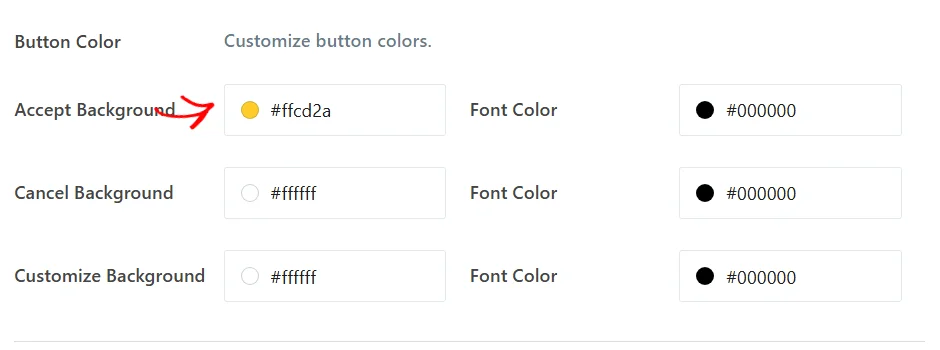
The three rows follow the banner’s three buttons. Accept Background and its Font Color style the accept button. Cancel Background and its Font Color style the reject button. Customize Background and its Font Color style the preferences button.
Giving the accept button the strongest color and leaving the other two quieter is a common choice. It keeps the banner readable at a glance.
Note: With Button Type set to Outlined, each background color becomes that button’s border color instead. An outlined button has no fill behind its text, so each Font Color needs to read against your banner background rather than against the button.
If you have turned on the floating settings button, a Floating Settings Button Design section follows this one with an icon picker in it. Our guide on the floating consent button covers that setting.
Previewing the Banner
WPConsent can draw your banner over the admin page at full size. That is the quickest way to judge a color choice before it goes live.
At the top right of the page, click Preview.

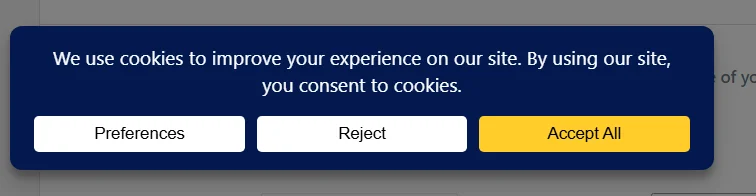
The overlay uses the settings currently on screen rather than the ones last saved, so unsaved changes show up in it. With Button Type set to Filled, each button carries a solid background.
With Button Type set to Outlined, the same three buttons keep a border and lose their fill.
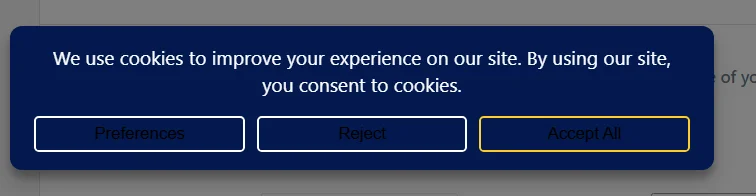
That preview also shows why Font Color matters more once the fill is gone. Each button keeps the font color it was given for the filled style, and with the fill removed that color now sits on the banner background instead. Switching to Outlined is therefore a good moment to check the three Font Color fields.
The preview stays open while you keep working, and it follows every change you make on the tab. The same button hides it again.
Saving Your Styles
Nothing on this tab is stored until you save, so the last step is committing what you set up.
When your banner looks the way you want it, scroll to the bottom of the panel. Then click Save & Continue.
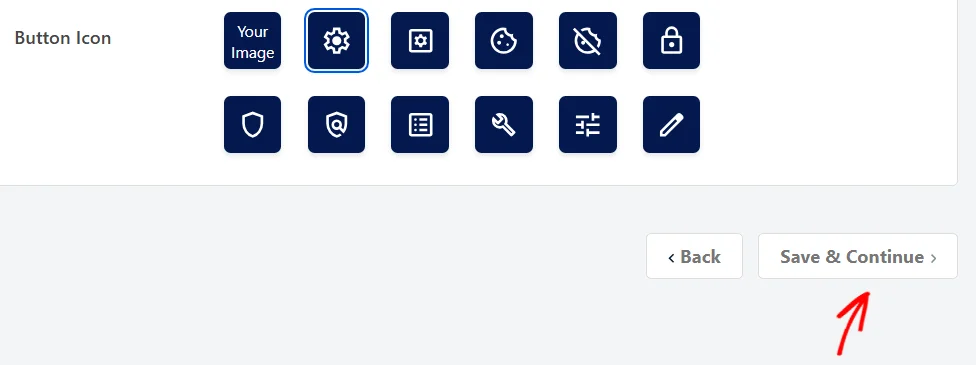
That button stores your styles and moves you on to the Content tab, which is the next step in the three-tab sequence. The Back link beside it returns to Layout without saving.
The Save button at the top right of the page stores the same settings and leaves you on the Style tab. That is the one to use when styling is the only thing you came here to change.
That’s it! Your consent banner now carries your own colors, text size, and button shapes.
Next, take a look at our guide on banner content and text to set the message and the button labels your banner shows.
Frequently Asked Questions
My new colors aren’t showing on my site
Clear your caches and load the site again. Banner styles are part of the page WPConsent renders. A caching plugin or a host-level page cache can keep serving the version from before your change. Our guide on database and cache management covers the caches WPConsent keeps itself.
Why does my outlined button text look invisible?
An outlined button has a transparent interior, so its text sits directly on the banner background and keeps whichever Font Color you gave it. White text on a white banner is the usual cause. Give each button a Font Color that contrasts with your Background Color, or set Button Type back to Filled.
Does Font Size change the button text too?
No. Font Size applies to the banner’s message. Button text is sized by Button Size, which pairs 14px text with Small, 15px with Regular, and 18px with Large.
Do these styles apply to the preferences panel?
In part. Background Color, Text Color, and the three button color pairs carry into the preferences panel, and so do Button Size, Button Corner, and Button Type. Font Size applies to the banner message.
Will my theme override the banner styles?
No. WPConsent renders the banner inside a shadow root, which keeps your theme’s CSS and the banner’s CSS apart from each other. That is also why a banner style needs changing here rather than in your theme’s stylesheet.
Can I style something the Style tab doesn’t cover?
Yes. WPConsent exposes the banner’s colors and sizes as CSS variables you can set yourself, and it accepts your own CSS for anything finer. Our guides on customizing the banner with CSS variables and customizing the banner with CSS cover both routes.
Does the preview save anything?
No. The preview reads the settings currently on screen, so it shows unsaved changes as well as saved ones. Leaving the page without saving discards whatever you were trying.
Can I use different styles on different pages?
The Style tab sets one appearance for the whole site, so every page shows the same banner. For finer control than the tab offers, our guide on customizing the banner with CSS covers the hand-written route.