
Would you like to keep your consent records to a manageable size, and make sure your banner is reading your current cookie list?
In this guide, we’ll walk you through clearing the cookies cache and trimming your stored records on the WPConsent Tools Database tab.
All you need is a few minutes in your WordPress admin.
Table of contents
- Clearing the Cookies Cache
- Trimming Your Consent Logs
- Trimming Your Do Not Sell Requests
- Frequently Asked Questions
Before you get started, make sure WPConsent is installed and activated on your WordPress site.
Requirements: Trimming consent logs needs a Basic license level or higher. The Do Not Sell section also needs the Do Not Sell addon, which is available on a Plus license level or higher.
Clearing the Cookies Cache
To get started, we’ll open the Database tab and throw away the cached copy of your cookie data.
WPConsent keeps a cached copy of the cookie information your banner needs. That way a visitor’s first page view does not wait on a fresh database lookup.
From your WordPress admin sidebar, go to WPConsent » Tools. The page opens on the Import tab. From there, select the Database tab.
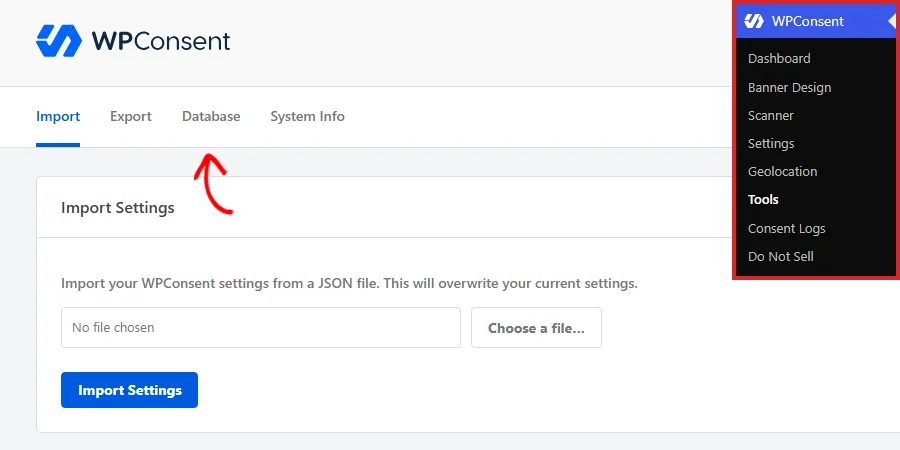
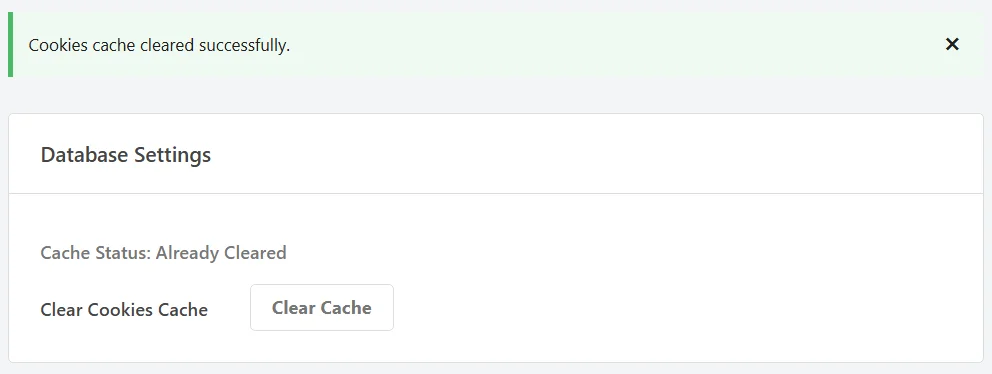
The tab opens on a panel called Database Settings.
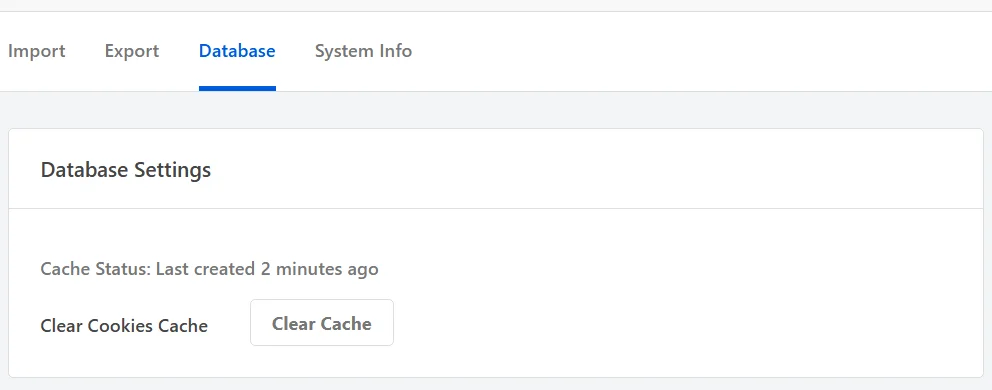
The Cache Status line above the button tells you how old the current cached copy is. It reads Already Cleared when nothing is cached at the moment. That is what a brand new install shows, and what you see again right after a clear.
In the Clear Cookies Cache row, click Clear Cache.
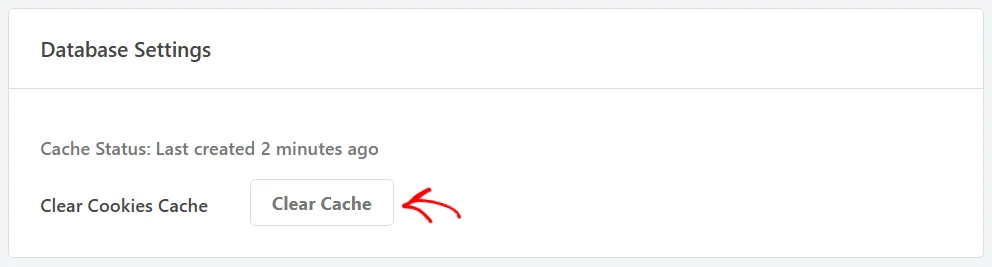
The page reloads and confirms the clear at the top of the tab. Cache Status changes to Already Cleared at the same moment.
The next visitor to your site rebuilds the copy from your live settings. Cache Status starts counting again from there.
What Does the Cache Hold?
That cached copy holds:
- Whether your site has any services that need Google Consent Mode signals.
- The cookies and services your preferences panel lists, grouped by category.
- The list of category and service names your script blocking matches against.
- Your translated banner text, on a paid license with more than one language enabled.
None of that is a record of anyone’s consent. It is a processed copy of your own cookie settings, which is why clearing it leaves every stored consent record untouched.
Each cached copy also expires by itself after 24 hours. It can never drift far from your settings on its own.
When Does WPConsent Clear It for You?
Most of the time you never need this button. WPConsent throws the cached copy away for you whenever the underlying data changes. That covers any change to your cookies, services, or categories.
It also covers a custom script, a saved geolocation rule, and resetting your banner content to defaults.
The Clear Cache button is there for the cases those triggers do not cover:
- A change was made directly in the database, by a migration or by another tool, rather than through a WPConsent screen.
- Your banner is showing a cookie list you have already edited. The cached copy is the first thing to rule out.
Note: A page caching plugin or a CDN holds its own copy of your pages, separate from this one. Clearing here refreshes what WPConsent hands to the banner. If a change still is not showing, clear your page cache as well.
That covers the cache. The panels below it manage the records WPConsent has collected from your visitors.
Trimming Your Consent Logs
With consent logs turned on, WPConsent writes a row every time a visitor answers your banner. On a busy site that table grows steadily.
Older rows stop earning their space long before they reach the age your retention policy names. The second panel on this tab removes them by age.
Next, scroll to the Clear Consent Logs panel.
From the Clear logs older than dropdown, pick how far back you want to keep.
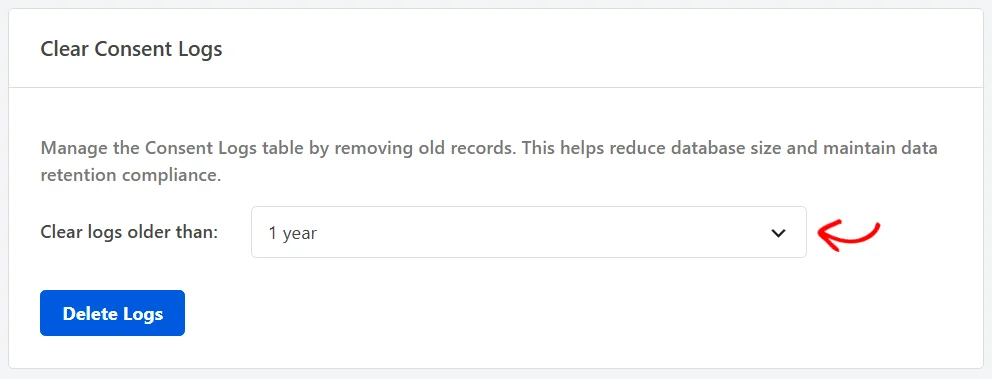
The dropdown offers these choices:
- 3 months and 6 months keep only recent history. Choose one of these if your retention policy is measured in months.
- 1 year is where the dropdown starts. Choose this if you want a full year of records on hand for an annual privacy review.
- 2 years keeps the longer trail some regulators and auditors ask for. Choose this if your policy names a two-year period.
- All time removes every row in the table rather than filtering by age. Choose this if you are clearing out test data before a site goes live.
If your privacy policy names a retention period, match it here. If it does not, the 1 year default keeps a full year on hand while clearing out the oldest rows.
Your choice sets an age, not a date. Picking 6 months always removes rows written more than 6 months before the moment you run it.
Once you have picked a period, click Delete Logs.

WPConsent asks you to confirm first, and names the period you chose so you can check it. To go ahead, click Delete Consent Logs.
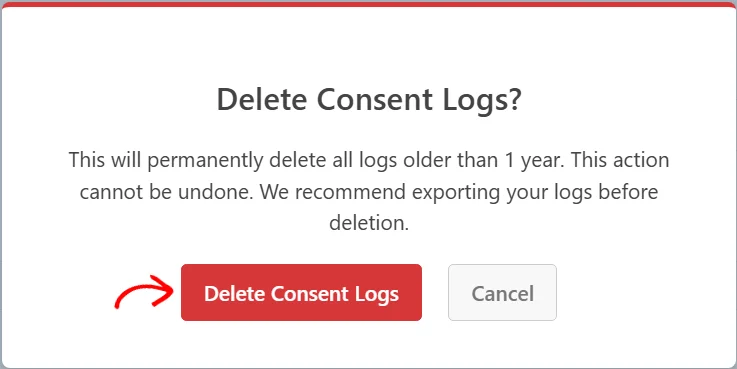
The Cancel button beside it closes the overlay and leaves the table as it is.
Removal runs in batches of 1,000 rows with a progress readout, which keeps a large table well inside your server’s time limit. WPConsent finishes with a Deletion Complete message naming how many records it removed. Clicking OK reloads the page.
If nothing in the table is older than the period you picked, WPConsent reports that no records were found and removes nothing.
Note: Removal here is permanent, which is why the confirmation names the period. The Export tab carries an Export Consent Logs button if you want a copy first.
To keep the table trimmed without returning to this tab, the Consent Logs section of your general settings has an Automatic Cleanup option. Turning it on sets a retention period and has WordPress apply it once a week. The trimming you are doing by hand here then happens on its own.
Trimming Your Do Not Sell Requests
The Do Not Sell addon keeps its own table, holding one row per “Do Not Sell My Personal Information” request a visitor submits. The third panel on the Database tab trims that table by age, exactly as the consent logs panel does.
In the Clear Do Not Sell Logs panel, pick a period. With that set, click Delete Logs.
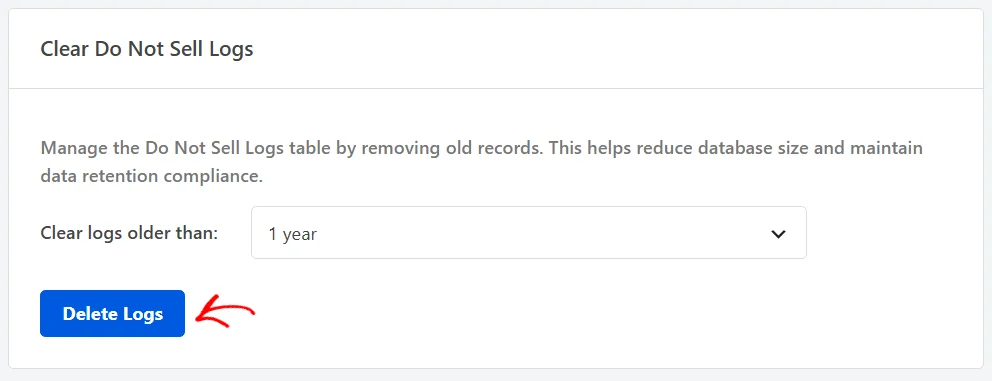
The same periods are on offer. The confirmation appears with Delete Do Not Sell Logs as its title, and removal runs in the same 1,000 row batches.
That’s it! You now know how to clear the WPConsent cookies cache and trim both of your log tables. Next, take a look at consent logs to see what each of those rows records.
Frequently Asked Questions
Below, we’ve answered some of the most common questions about the Database tab.
Do I need to clear the cache after every cookie change?
No. WPConsent clears the cached copy itself whenever you add, edit, or delete a cookie, service, category, or custom script. The button is for the times something changed outside those screens.
The full list of triggers is in the When Does WPConsent Clear It for You? section above.
Does clearing the cache delete my visitors’ consent choices?
No. The cache holds a processed copy of your own cookie settings, not consent records. Your consent logs table and each visitor’s stored choice are both left alone.
The What Does the Cache Hold? section above lists everything in it.
Why does my banner still show the old cookie list after clearing?
Your page cache is the next thing to check. A caching plugin, a host-level cache, or a CDN serves a saved copy of the whole page. The page a visitor gets can therefore predate your change even after WPConsent has rebuilt its own copy.
Clearing those layers, or loading the page in a private window, tells you which one is holding the old version.
See How to Clear Your Cache in WordPress for the steps for each common caching plugin and host.
Can I recover logs I have deleted?
No. The rows are removed from the table rather than moved to a holding area. Recovering them means restoring a database backup.
Exporting your logs first gives you a copy to keep. The Export tab carries an Export Consent Logs button, and consent logs covers the export screen it opens.
Which of my tables do these tools touch?
Clear Consent Logs works on WPConsent’s consent logs table. Clear Do Not Sell Logs works on the Do Not Sell requests table.
Nothing on this tab touches your cookies, services, categories, banner design, scan history, or settings, all of which WPConsent stores separately.
Why did my deletion report no records found?
Because nothing in the table is older than the period you picked. A site that has been collecting consent for two months has no rows older than a year to remove. Picking a shorter period, or All time, reaches the rows that are there.
Why don’t I see the Clear Do Not Sell Logs panel?
Because the Do Not Sell addon is not active yet. Without it, that panel shows a preview of the controls and a button to install the addon. The addon is available on a Plus license level or higher.
Can I trim my consent logs automatically?
Yes. The Consent Logs section of your general settings has an Automatic Cleanup toggle and a retention period beneath it. With those saved, WordPress applies the same trimming once a week without you opening this tab.