
Would you like to hand our support team everything they need to look into a problem on your site, in a single paste?
In this guide, we’ll walk you through finding the System Info report, copying it, and using the connection test below it.
All you need is a few minutes in your WordPress admin.
Table of contents
- Copying Your System Info Report
- What Does the Report Include?
- Testing Your Server’s SSL Connection
- Frequently Asked Questions
Before you get started, make sure WPConsent is installed and activated on your WordPress site.
Copying Your System Info Report
To get started, we’ll open the report and get it onto your clipboard.
When you open a support ticket, the first thing we need is a picture of the site itself. That means the WordPress version it runs, which plugins are active, and how the server is set up.
System Info gathers all of that into one block of text, ready to paste.
To find it, go to WPConsent » Tools in your WordPress admin sidebar. The page opens on the Import tab. From there, select the System Info tab.
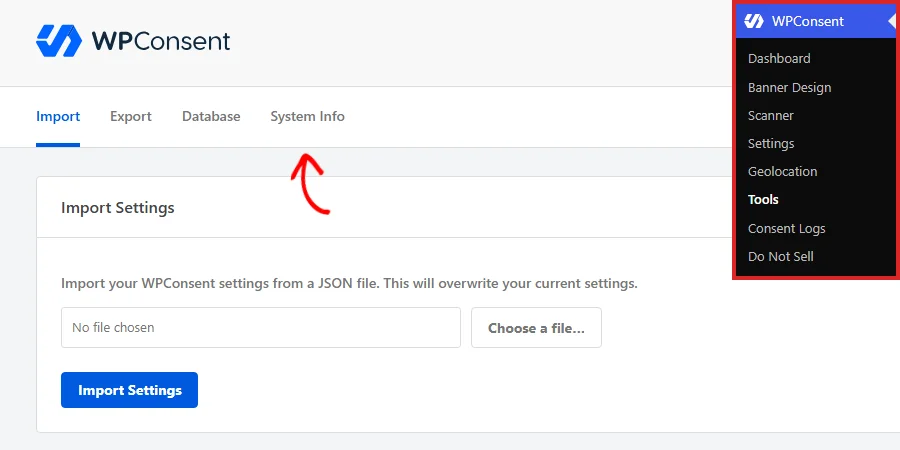
The tab opens on a panel called System Information, with the whole report inside a single text box.
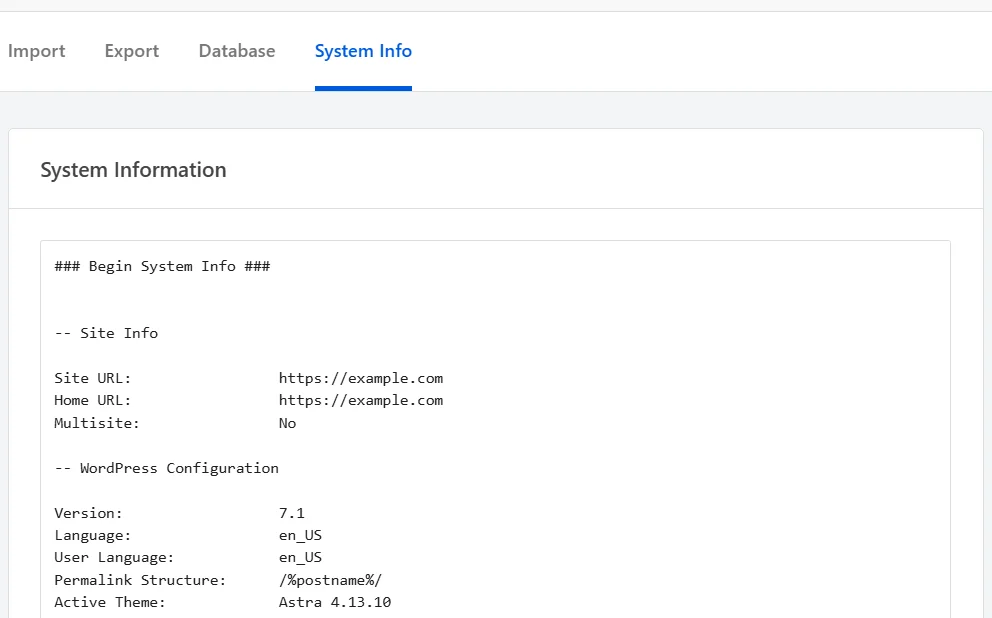
The report is longer than the box, so scroll inside it to read the rest. The box itself is read-only, so nothing you do inside it changes a setting.
WPConsent builds the report fresh every time the tab loads. What you see is your site as it stands right now.
Copying it takes two keystrokes. First, click anywhere inside the box to put your cursor in it. Then press Ctrl+A (Cmd+A on a Mac) to select every line.
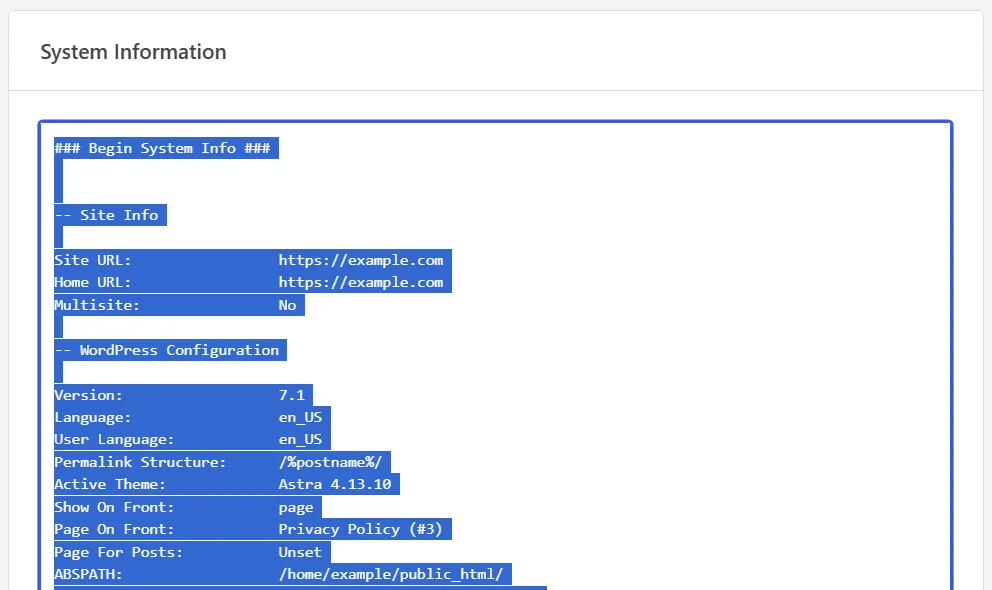
With the whole report highlighted, press Ctrl+C (Cmd+C on a Mac) to copy it. Then paste it straight into your support ticket.
Send the whole thing rather than the part that looks relevant. The lines that explain a problem are often the ones nobody expected to matter, and a complete report saves a round of follow-up questions.
What Does the Report Include?
The report is divided into labeled sections, between a Begin System Info line and an End System Info line. Knowing what each one covers makes it easier to read your own report, and to see what you are sharing.
- Site Info lists your site URL, your home URL, and whether the site is part of a multisite network.
- WordPress Configuration covers your WordPress version, your site and user languages, permalink structure, active theme, front page settings, install path, table prefix length, debug status, memory limit, post statuses, and revisions.
- WordPress Uploads/Constants lists the content directory and URL, the uploads constant, and the paths and URLs WordPress currently uses for uploads.
- WordPress Active Plugins and WordPress Inactive Plugins each list plugin names with version numbers, and mark any plugin that has an update waiting. A Must-Use Plugins section appears above them on sites that have any, and a Network Active Plugins section is added on a multisite network.
- Webserver Configuration gives your PHP version, your MySQL version, and the web server software.
- PHP Configuration covers the PHP memory limit, upload and post size limits, the execution time limit, the maximum input variables, and whether PHP errors are displayed.
- PHP Extensions reports whether cURL, fsockopen, SOAP Client, and Suhosin are available.
- Session Configuration says whether PHP sessions are enabled, and adds the session name and paths when they are.
Two of those lines are worth a closer look. The plugin sections are the fastest way to spot a conflict, because they show every plugin and version on the site at once.
The table prefix line is the other one. It reports how many characters your prefix is rather than the prefix itself, and flags anything longer than 16 characters.
Note: The report carries no passwords, no license key, and no record of any visitor’s consent. It does name your site URL and your server’s file paths. That is why it belongs in a support ticket rather than a public forum post.
With the report copied, there is one more control on this tab worth knowing about.
Testing Your Server’s SSL Connection
Below the report sits a second panel, called Test SSL Connections. It asks your server to make one secure request out to wpconsent.com and reports whether it went through.
That is a useful first check when license activation or a plugin update is not working. Both rely on the same kind of outbound secure connection, so the test tells you whether your server can make one at all.
In the Test SSL Connections row, click Test Connection.
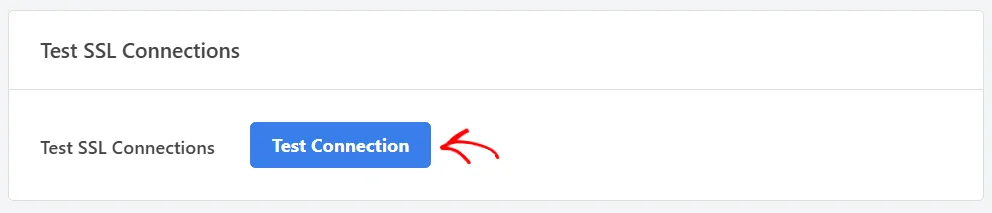
The button reads Testing while the request runs. A green message then appears above the row.
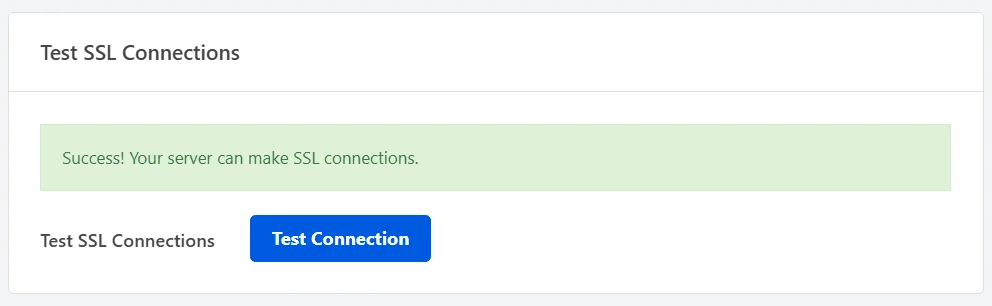
That message is the answer you want. The request left your server and came back, so a blocked connection is not what stands between you and an activated license.
Note: If the connection does not complete, WPConsent prints the technical details of the attempt underneath the message. Send those to your hosting support along with your system info.
That’s it! You now know where your WPConsent system info lives, what it contains, and how to test your server’s secure connection. Next, take a look at importing and exporting your settings to see the other tools that share this page.
Frequently Asked Questions
Below, we’ve answered some of the most common questions about System Info.
Is it safe to paste my system info into a support ticket?
Yes. The report is built from your WordPress and server settings. It contains no passwords, no license key, and no consent records for any of your visitors.
Your site URL and your server’s file paths are in there. That is why the report is meant for a support ticket rather than a public thread.
Can I edit the report?
No, and there is nothing to edit. The box is read-only, and WPConsent regenerates the report from scratch each time you open the tab.
Does the report include my license key?
No. WPConsent stores your license key separately, and nothing that builds this report reads it. The same is true of the export file on the Export tab.
Why does my plugin list show plugins I am not using?
Because the report lists installed plugins in two sections. Anything you have installed but not activated appears under WordPress Inactive Plugins, and everything currently running appears under WordPress Active Plugins.
That split is deliberate. Knowing what is installed alongside a plugin often explains behavior that the active list on its own does not.
What happens when I click Test Connection?
WPConsent makes a single secure request from your server to wpconsent.com and reports the result. Nothing on your site is changed, and no data about your site is sent.
A success message means your server completed that request. A failure means something between your server and the internet stopped it. That is usually a firewall rule or an outdated certificate bundle at your host.
What should I look at first in my own report?
Start with the plugin sections and your PHP version. A recently added plugin or an out-of-date PHP version is worth ruling out before anything else.
See How to Update Your PHP Version in WordPress for the steps at each of the major hosts.
From there, the PHP Configuration section is worth a look if something times out or a large file will not upload. The time limit and the upload size limits both live there.