
Would you like to reuse the consent setup you built on one site, or keep a copy before you change it?
In this guide, we’ll walk you through exporting your WPConsent settings to a file and importing that file back on any site.
All you need is a few minutes in your WordPress admin.
Table of contents
- Exporting Your WPConsent Settings
- Exporting Your Consent and Do Not Sell Records
- Importing Settings From a File
- Frequently Asked Questions
Before you get started, make sure WPConsent is installed and activated on your WordPress site.
Requirements: Exporting your custom scripts or your consent logs needs a Basic license level or higher. Exporting your Do Not Sell records needs a Plus license level or higher.
Exporting Your WPConsent Settings
To get started, we’ll open the Export tab and write your current setup out to a file.
An export puts your WPConsent setup into a single JSON file you download and keep. Importing that file on another site gives it the same setup without you retyping any of it. Keeping the file also gives you a copy of how things looked on the day you made it.
From your WordPress admin sidebar, go to WPConsent » Tools. The page opens on the Import tab. From there, select the Export tab.
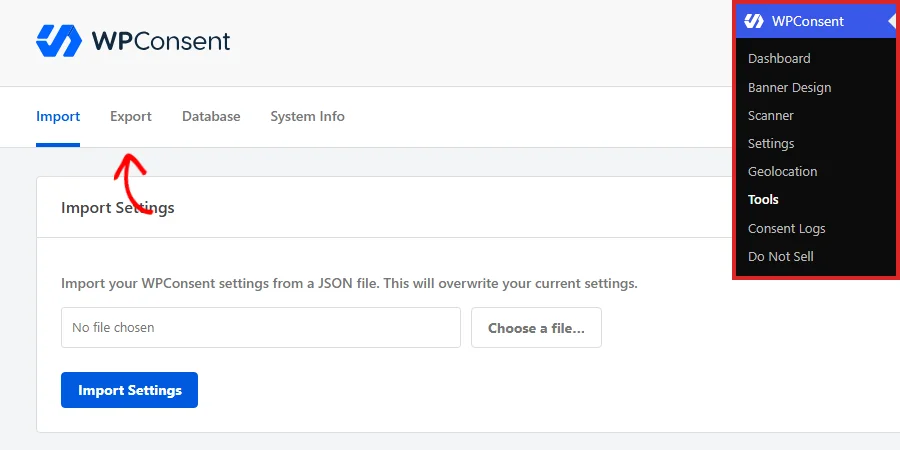
The tab opens on a panel called Export Settings.
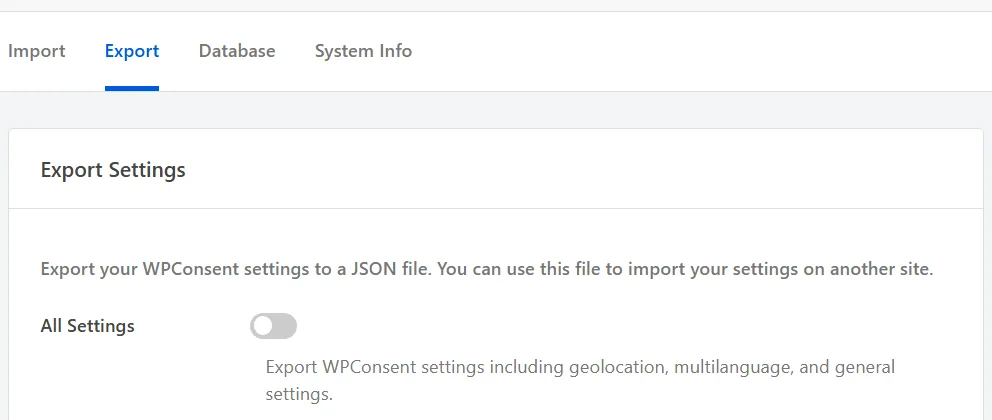
Choosing What the File Includes
Four toggles decide what goes into the file. All four start switched off, which means the file carries only what you deliberately ask for. Each one adds its own section to the export, which is what lets you take your whole setup or just one piece of it.
In the Export Settings panel, switch on All Settings, plus any of the other three you want in the file.
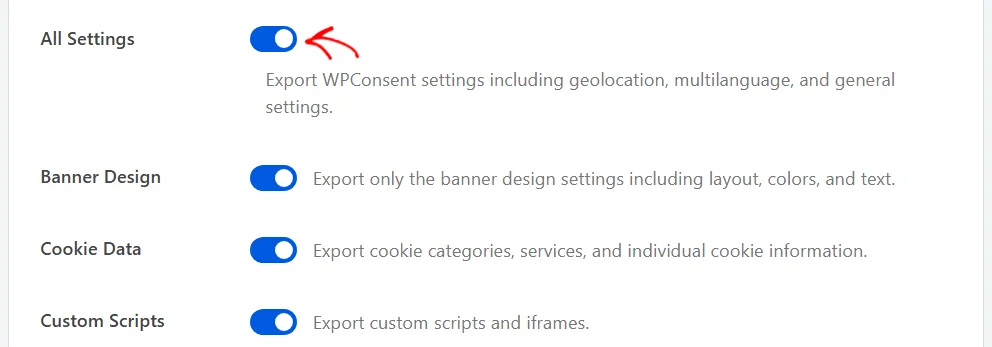
Here is what each one covers:
- All Settings covers your general settings, your geolocation rules, and your language settings. Pick this one when you want your whole setup in a single file.
- Banner Design covers your banner layout, position, colors, font size, button styling, and every piece of banner and preferences panel text. On a paid license with more than one language enabled, your translated text travels with it. Pick this one on its own to copy a styled banner somewhere else without carrying any other setting.
- Cookie Data covers your cookie categories, the services inside them, the individual cookie entries, and any translations you have written for them. Pick this one when you want the new site to list the same cookies without running a fresh scan.
- Custom Scripts covers the scripts and iframes you have added by hand for script blocking. Pick this one when the site you are setting up runs the same third-party embeds as this one.
Turning on more than one option is the normal case. Each section lands in the same file.
Note: At least one option must be on for the file to hold anything. With all four left off, the export still downloads as an empty file.
Once you have picked what to include, click Export Settings at the bottom of the panel.

Your browser downloads the file straight away. WPConsent names the file after itself, plus the date and UTC time of the export. The name therefore takes the form wpconsent-export-YYYY-MM-DD-HH-MM.json.
Exporting twice inside the same minute produces two files with the same name. Renaming one of them keeps both.
The file is plain text. It opens in any text editor if you ever want to read what is inside it. Each option you switched on becomes a labeled section, which is how an import knows what it is being handed.
Exporting Your Consent and Do Not Sell Records
WPConsent keeps your visitors’ consent records apart from your settings. They have an export of their own. Below the Export Settings panel, an Export Logs panel carries one button for each record type.
In the Export Logs panel, click Export Consent Logs.
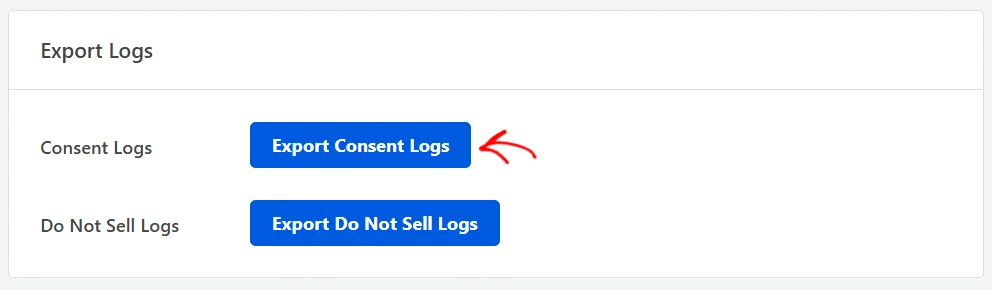
Each button opens that record type’s own export screen rather than downloading anything from this tab. On that screen you pick a date range and a format for the file. Export Do Not Sell Logs works the same way for the Do Not Sell requests your visitors have submitted.
Consent logs walks through that screen and what every stored field means.
Importing Settings From a File
An import reads a WPConsent export file and applies what is inside it to the site you are on. This is how a second site, a staging copy, or a rebuild picks up a setup you have already finished elsewhere.
Still on the Tools page, select the Import tab.

The tab opens on a panel called Import Settings, with an empty file field reading No file chosen.
In the file row, click Choose a file.
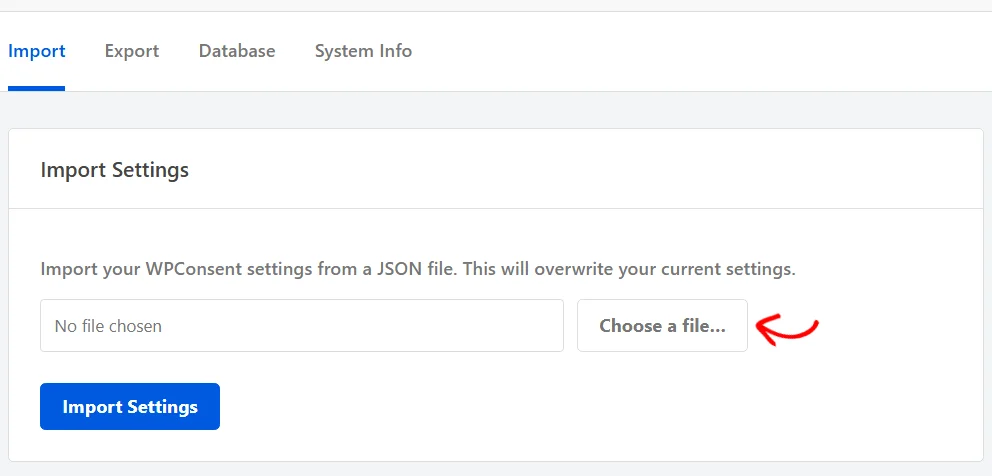
Your computer’s file browser opens, filtered to JSON files. From there, select the file you exported earlier. Its name then replaces No file chosen in the field.
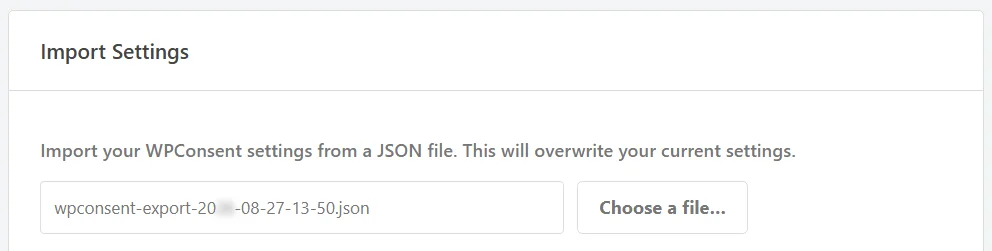
If you pick something other than a JSON export, WPConsent tells you the file is not valid JSON and stops there. Your settings stay exactly as they were.
The import runs as soon as you click. It puts the settings from the file in place of the ones on the site.
Note: Exporting your current setup first, using the steps above, gives you a copy of it to keep.
With your file in the field, click Import Settings.

The page reloads and confirms the import with a success message at the top of the tab. Your settings, banner, and cookie list are then whatever the file described.
What Does an Import Replace?
An import works through the file section by section. Each section behaves a little differently:
- Settings and banner design values from the file take the place of the ones on the site.
- Geolocation rules become the rules in the file. A file exported from a site with no rules leaves the destination site with none.
- Cookie categories are matched up by name. A category the site already has keeps its place and picks up the name, description, and required setting from the file. Any category the site does not have yet is created.
- Cookies and services listed in the file are added under those categories, alongside anything already there.
One extra thing happens when the file came from a site that had a cookie policy page. WPConsent creates a fresh page titled Cookie Policy on the destination site, publishes it, and points the cookie policy setting at it.
Setting up your cookie policy page covers what that page holds and how to point the setting somewhere else.
Your consent records are not part of this. An import brings settings and cookie information across. It leaves every stored consent record on the site alone.
That’s it! You now know how to export your WPConsent settings to a file and import them back on any site. Next, take a look at general settings to see what each of the values in that file actually controls.
Frequently Asked Questions
Below, we’ve answered some of the most common questions about importing and exporting WPConsent settings.
What will I find inside the export file?
One labeled section for each option you switched on. A file made with all four options on arrives with four sections in it.
The Choosing What the File Includes section above lists what each option contributes.
Does the export include my license key?
No. WPConsent keeps your license key apart from the settings the export reads. It is never written into the file. Each site you import the file on keeps its own license.
Do I have to pick an option before exporting?
Yes. Every option starts switched off. A file exported with all four off arrives with nothing in it. Switching on All Settings is the usual starting point.
What files can I import?
JSON files that WPConsent exported. The file browser filters to .json. WPConsent then checks the extension, the file type, and the contents before it applies anything.
Does importing remove cookies I already have on the site?
No. Categories are matched up by name and updated. The cookies and services in the file are added alongside what the site already lists.
If you want the new site to list only what the file describes, tidy the extra entries yourself on the Cookies tab.
Can I use one file on several sites?
Yes, and that is what the file is for. The same export imports on as many sites as you like. That is the quickest way to give a group of sites one shared consent setup.
Why did a new Cookie Policy page appear after my import?
Because the file came from a site that had a cookie policy page. WPConsent creates and publishes a matching page on the destination site. The setting then has somewhere to point.
The What Does an Import Replace section above covers the rest of what an import applies.
Do I need a paid license for any of these options?
Custom Scripts export and Export Consent Logs need a Basic license level or higher. Export Do Not Sell Logs needs a Plus license level or higher.