
Would you like to know how many of your visitors actually accept your cookie banner?
In this guide, we’ll walk you through every report on the Analytics screen, what each figure counts, and the settings that decide what gets recorded.
All you need is a paid version of WPConsent on your WordPress site.
Table of contents
- Opening Your Banner Analytics
- Reading the Consent Funnel
- Watching the Acceptance Rate Over Time
- Checking Your Measurement Coverage
- Comparing Locations
- Choosing What Gets Recorded
- Reviewing What Has Been Collected
- Frequently Asked Questions
Before you get started, make sure WPConsent is installed and activated on your WordPress site.
Opening Your Banner Analytics
Your consent banner already knows how many people saw it and what they chose. Banner Analytics is where those counts are gathered up and turned into a picture of how your banner is doing.
From your WordPress admin sidebar, go to WPConsent » Analytics.
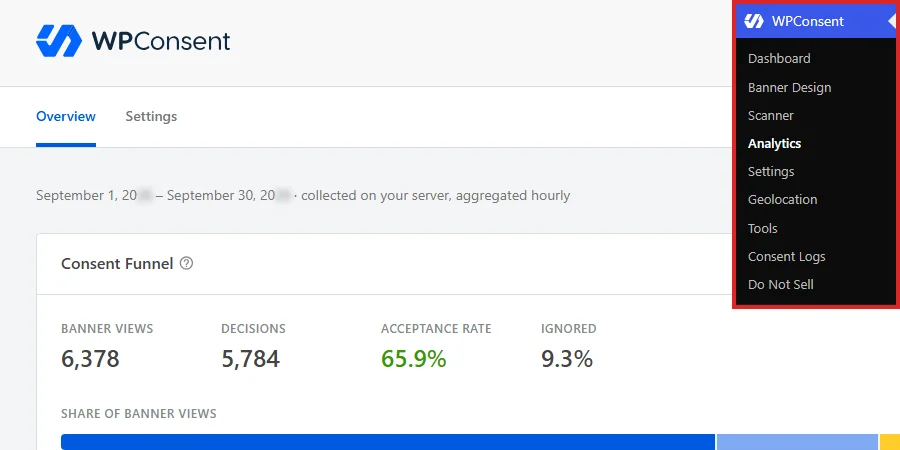
The screen opens on the Overview tab, which holds four reports stacked down the page. Everything on it is counted on your own server, so no visitor data is sent anywhere for these numbers to exist.
One control sits above all four reports and decides the period they cover.
At the top right of the page, set the date range to the period you want to look at.

You can choose the last 7, 30, or 90 days. The line beside it spells out the exact dates the current choice covers, and confirms that the figures are collected on your server and aggregated hourly.
Note: Figures are gathered together once an hour rather than the moment a visitor answers, so a banner view from a few minutes ago may not be counted yet.
Reading the Consent Funnel
The first report is the one to read before any of the others, because every figure below it is a share of what this one counts.
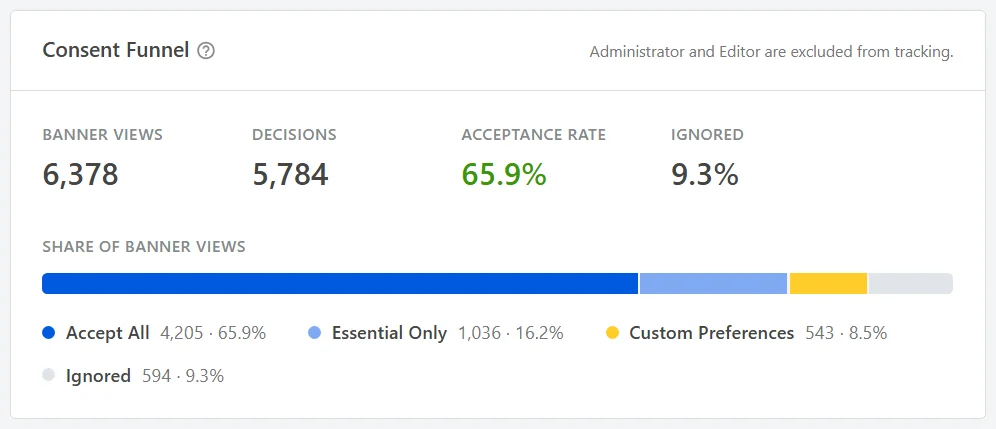
Four figures run across the top:
- Banner Views is how many times your banner was shown.
- Decisions is how many of those views produced an answer.
- Acceptance Rate is the share of views that ended in Accept All.
- Ignored is the share of views that never produced an answer at all.
The bar underneath splits the same views four ways, so you can see a straight Accept All apart from Essential Only and from a custom set chosen in the preferences panel. Our guide on understanding the preferences panel covers the panel those custom choices come from.
Reading Ignored beside Acceptance Rate is what makes the card useful. A large Ignored share points at a banner people are scrolling past rather than one they are declining, which is a question about layout and wording rather than about consent. Our guides on banner layout options and banner content and text cover both.
The line at the top right of the card names the roles left out of the count, so you know your own visits are not in these figures.
Watching the Acceptance Rate Over Time
A single acceptance rate tells you where you are. The next report tells you which way you are heading, and whether something you changed is the reason.
Requirements: this report and the two below it need a pro license level or higher, as does the date range selector. The Consent Funnel above is on every paid version.
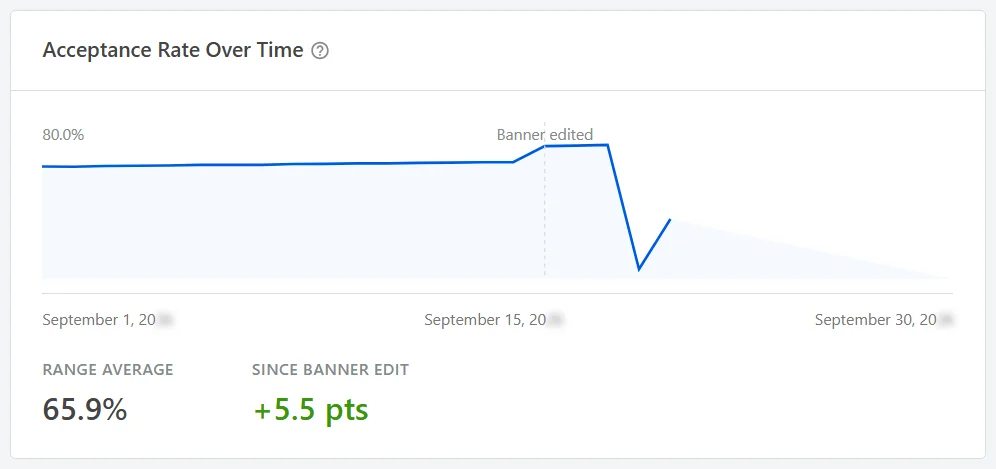
The chart plots Accept All decisions as a share of banner views, one point per day across the range you chose.
A dotted line marked Banner edited appears wherever you changed your banner, which is what makes the chart worth more than the single figure above it. The two numbers underneath give you Range Average for the whole period, and Since Banner Edit as the change measured from that marker.
That pairing answers the question people usually have after redesigning a banner, which is whether the redesign helped.
Checking Your Measurement Coverage
Acceptance rate is about your banner. The next report is about your other tools, and how much of your audience they are allowed to see.
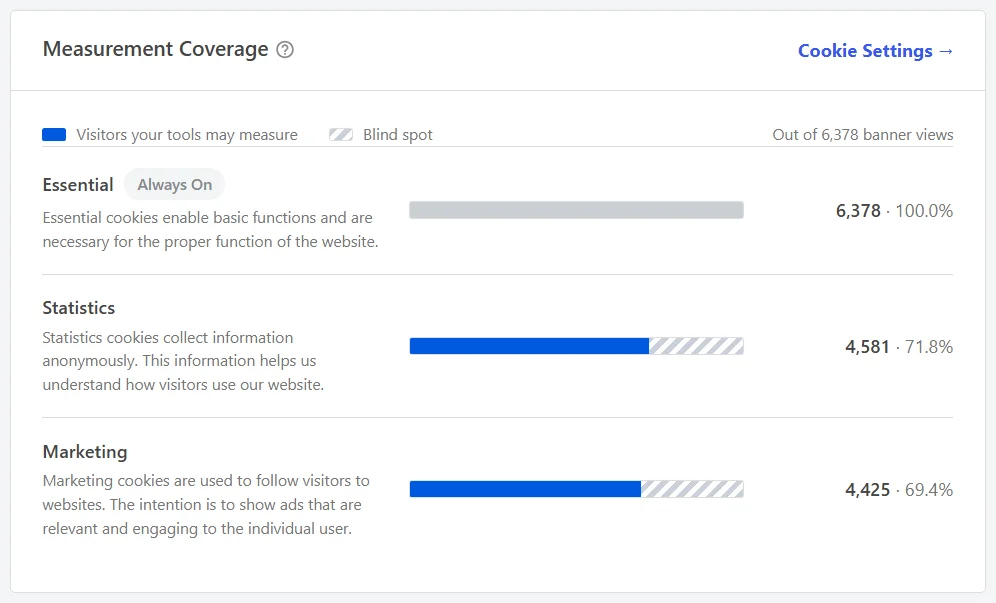
Each of your cookie categories gets a row, with a bar showing how many of your banner views that category is allowed to measure. The shaded part of each bar is the blind spot, meaning the visitors your tools in that category cannot see.
Everything is counted against all banner views rather than against decisions, so visitors who ignored the banner count toward the blind spot. That is deliberate, because a tool cannot measure someone who never answered either.
The category names and descriptions are your own. They come from your cookie settings, and the Cookie Settings link in the corner of the card opens them. Our guide on managing cookie categories covers editing them.
The Statistics row is the one to read when a reporting tool shows fewer visitors than you expect. Our guide on understanding GA4 traffic drops covers that comparison in full.
Comparing Locations
The last report on the Overview breaks the same views down by where your visitors were.
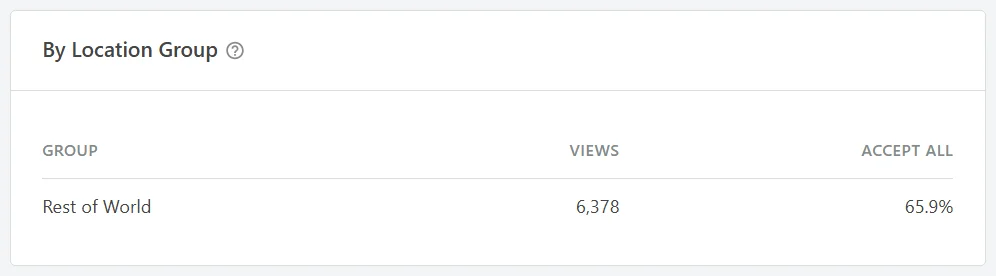
The table groups visitors by your geolocation rules, and gives each group its own view count and acceptance rate. It appears once geolocation is switched on, so a site that does not use it sees the Overview end at the previous card.
On a site with no geolocation rules, every visitor falls into a single Rest of World group and the table has one row, as above. Each rule you add gives its matching visitors a row of their own, which is what makes the table worth reading. Our guide on setting up geolocation rules covers building them.
Comparing acceptance rates between groups is the quickest way to see whether a region-specific banner is landing differently from your default one.
Choosing What Gets Recorded
Everything above is produced from counts your site keeps itself, and a second tab decides what those counts include.
At the top of the Analytics screen, click Settings.

Turning Collection On
The first row decides whether anything is counted at all.
In the Banner Analytics panel, turn on Enable Analytics.

With this on, each banner view and each decision is recorded on your own server. With it off, the reports on the Overview stop gaining new figures.
Setting How Long Totals Are Kept
The next row decides how far back your reports can reach.
In the Retention Window field, choose how long daily totals are kept.

You can choose 30 days, 90 days, 180 days, or 1 year, and it starts at 90 days. Individual events are gathered into daily totals every hour, and it is those daily totals the window applies to.
Leaving Your Own Team Out
The last row keeps your own team from counting as visitors.
In the Exclude Roles list, tick every role whose visits should not be counted.
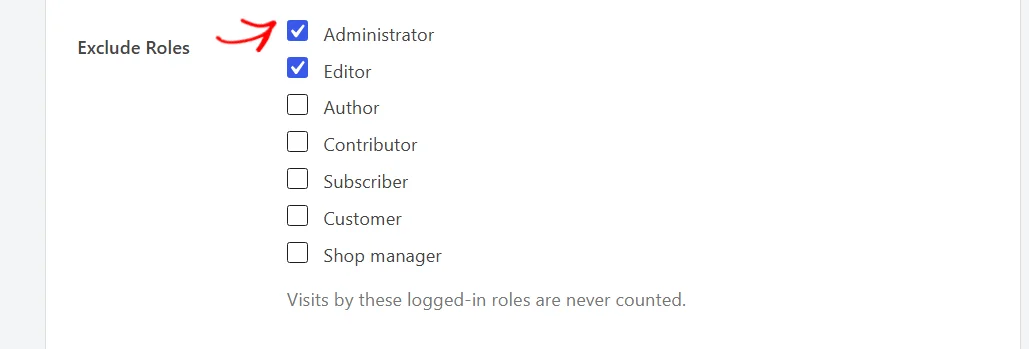
Administrator and Editor start ticked, which is why your own visits while building the site do not move your acceptance rate. The list holds every role on your site, so a store with customer roles can leave those in or out as you prefer.
Whichever roles you tick are named on the Consent Funnel card, so anyone reading the reports can see what was left out.
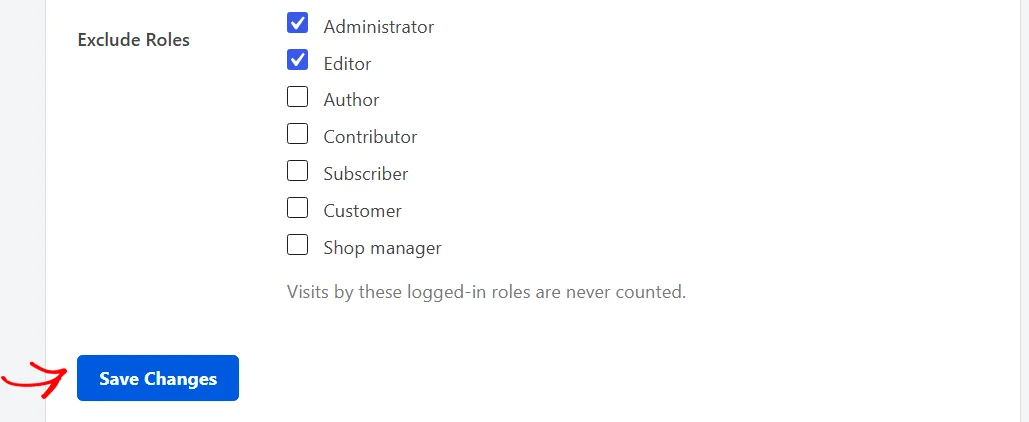
At the bottom of the panel, click Save Changes.
Reviewing What Has Been Collected
Below the settings, a second panel tells you what your site is currently holding.
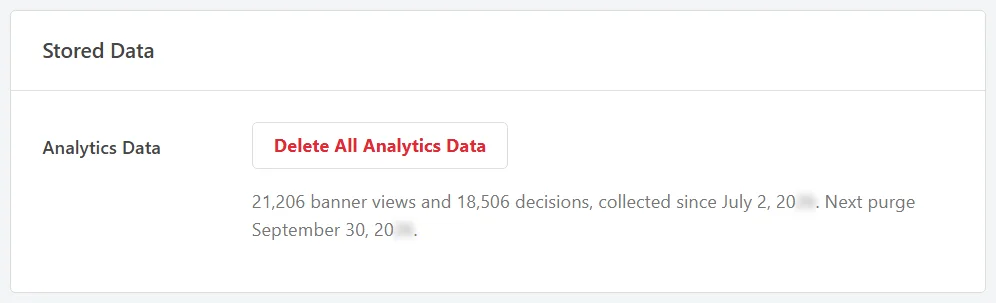
The line under the button gives you the running totals, the date collection started, and the date of the next purge, so you can see at a glance how much history your reports have to draw on.
The button beside it clears those stored figures whenever you want a fresh start, which is useful after a round of testing that you would rather keep out of your real numbers. Your banner settings and your cookie list are untouched by it, and collection carries on afterwards as long as Enable Analytics is still on.
That’s it! You can now read how your consent banner is performing and decide what your site records to measure it.
Next, take a look at our guide on consent logs to see the individual records behind these totals.
Frequently Asked Questions
Below, we’ve answered some of the most common questions about Banner Analytics.
Which license level do I need for this?
Every paid version gives you the Consent Funnel with your own figures, headed by the date collection started. A pro license level or higher adds the date range selector and the three reports below the funnel. The free version shows a preview of the screen with sample figures rather than your own.
I just turned analytics on and the Overview is empty. Is something wrong?
No. The screen shows a No Data Yet heading with a Collecting label beside it while it waits. Events are gathered into totals once an hour, so your first figures appear within the hour rather than immediately.
Is any of this sent to WPConsent or anywhere else?
No. Banner views and decisions are recorded on your own server, and the page says so beside the date range. Nothing about these counts leaves your site.
Why is my acceptance rate different from the numbers in my analytics tool?
They count different things. Acceptance Rate is the share of banner views that ended in Accept All, while a reporting tool counts only the visitors it was allowed to measure. The Measurement Coverage card is the one that lines up with a reporting tool, because it shows how many visitors each category may measure.
Do my own visits count toward these figures?
Not if your role is ticked in Exclude Roles, and Administrator and Editor are ticked from the start. The roles being left out are named on the Consent Funnel card so the exclusion is never a surprise.
What happens to my figures when the retention window passes?
Daily totals older than the window are purged, and the Stored Data panel names the date of the next purge. Choosing a longer window keeps more history available to the date range selector.
Does page caching affect the counts?
No. Views are counted in the browser rather than when the page is built, so a cached page is still counted. The Consent Funnel card states this directly.