
Would you like your visitors to be able to reopen their cookie choices from anywhere on your site? WPConsent comes with a shortcode, a CSS class, and a JavaScript method that all open the same preferences panel.
This guide walks through each route, from a ready-made button you drop into a page to a line of code of your own. All you need is your cookie banner already switched on.
Table of contents
- Adding the Cookie Preferences Button
- Changing the Button Label
- Turning an Existing Link Into a Trigger
- Opening the Panel From Your Own Code
- Frequently Asked Questions
Before you get started, make sure WPConsent is installed and activated on your WordPress site.
The panel travels with your cookie banner, so keep the banner switched on. WPConsent puts both on the page together, and every route below opens the panel that is already there.
Adding the Cookie Preferences Button
To get started, we’ll put a ready-made button on one of your pages.
WPConsent registers a shortcode that prints a Cookie Preferences button wherever you place it. The button arrives with the class WPConsent watches for, so it opens the panel with no setup of its own.
In the page or post where the button belongs, add a Shortcode block. The shortcode itself goes in the block’s field:
[wpconsent_preferences_button]
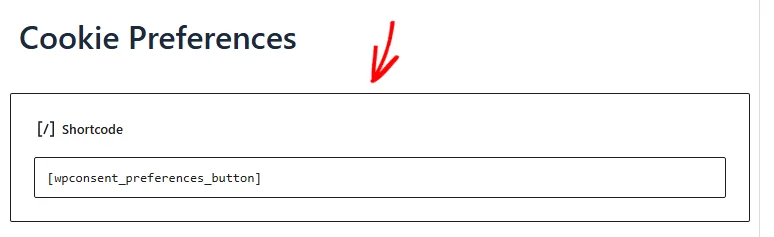
Once the page is published, the shortcode is replaced by a button in your theme’s own styling.

Clicking that button opens the preferences panel over the page. WPConsent fills the panel in from the visitor’s stored answer, so the categories they already allowed are switched on when it opens.
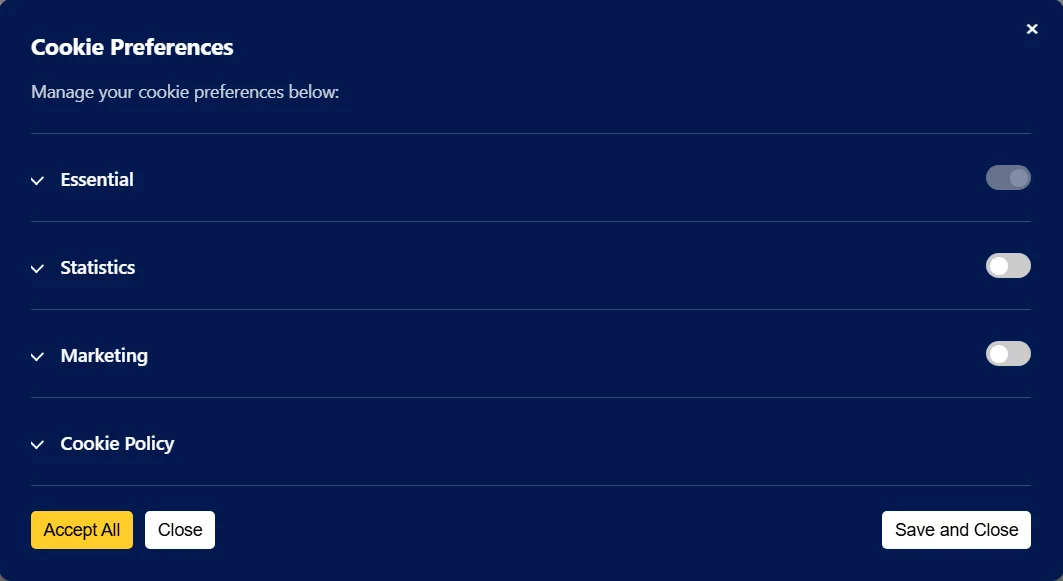
Our guide on the preferences panel covers what a visitor does inside it.
Note: The panel in these screenshots uses WPConsent’s own default colors and wording. Yours shows whatever you have set on the banner designer’s Style and Content tabs.
The wording on the button is yours to change, and that is what the shortcode’s attributes are for.
Changing the Button Label
Left to itself, the shortcode prints Cookie Preferences on the button. Two attributes change that wording and add CSS classes of your own.
The label is the only part of the button a visitor reads. Wording that matches the rest of your page keeps it from looking bolted on.
The text attribute replaces the label:
[wpconsent_preferences_button text="Manage Cookies"]
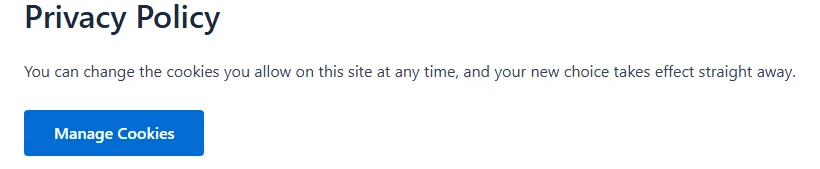
The class attribute adds your own CSS classes alongside WPConsent’s, which gives your stylesheet something to target:
[wpconsent_preferences_button text="Manage Cookies" class="footer-cta"]
- text sets the wording on the button. Left out, the button reads Cookie Preferences. Wording with spaces in it needs the quotation marks around it.
- class adds CSS classes to the button, separated by spaces. Left out, the button carries only WPConsent’s own classes. WordPress cleans each value, so keep to letters, numbers, hyphens, and underscores.
For a link or button that already exists on your site, a single class does the same job.
Turning an Existing Link Into a Trigger
A footer link, a menu item, or a button you have already built can open the panel too. WPConsent watches for clicks on anything carrying the class wpconsent-open-preferences, so adding that class is the whole job.
In a link of your own, the class sits in the opening tag:
<a href="#" class="wpconsent-open-preferences">Cookie Preferences</a>The link then opens the panel instead of following its own address.

The class works on an element wrapping the link as well, which is what makes menu items and blocks straightforward.
A WordPress menu item keeps its class on the list item around the link. In the block editor, the Additional CSS class(es) field puts it on a block’s outer element. Both open the panel.
Nothing else about the link changes. It keeps your theme’s styling and whatever wording you gave it.
For a control that other code draws on the page, WPConsent has a method of its own.
Opening the Panel From Your Own Code
Some controls are built by another plugin, or drawn by JavaScript after the page loads. For those, WPConsent exposes the panel as a method on its front-end object, WPConsent.showPreferences().
Called from a click handler, it opens the panel exactly as the banner’s Preferences button does:
document.getElementById('cookie-preferences-link').addEventListener('click', function (e) {
    e.preventDefault();
    WPConsent.showPreferences();
});
WPConsent loads its script in your page footer. The method therefore belongs inside a click handler, not in code that runs as the page loads. WPConsent.closePreferences() closes the panel again from the same place.
Note: The class and the method do the same thing. WPConsent’s own click listener calls this method for you.
That’s it! You now know how to open the WPConsent preferences panel from a shortcode button, from a link of your own, and from your own JavaScript.
Next, take a look at our guide on the floating consent button. It puts a permanent control in the corner of every page that opens the same panel.
Frequently Asked Questions
Below, we’ve answered some of the most common questions about opening the preferences panel from a link of your own.
Which route should I use?
The shortcode is the quickest, since it prints a working button with nothing else to set up. The class suits a link or menu item you already have. The method is for controls that other code puts on the page.
Where can I use the shortcode?
Anywhere WordPress runs shortcodes. That covers your pages and posts, and any widget area or template part that takes a Shortcode block. The button appears in place of the shortcode.
See How to Add a Shortcode in WordPress for a walkthrough of each of those places.
Can I add the class to a navigation menu item?
Yes, and it is a popular place for it. WordPress gives every menu item a CSS Classes field on the Appearance » Menus screen, and the class opens the panel from there. If that field is not showing, Screen Options at the top of the screen turns it on.
Does opening the panel record consent?
No. Opening the panel only shows a visitor the answer they gave before. Their choice is stored when they use Accept All or Save and Close inside the panel.
Will my link work on every page?
It works on every page where WPConsent puts the banner. Hide Banner Rules that keep the banner off certain pages, or away from logged-in users, keep the panel off those pages as well.
Our guide on advanced settings covers those rules.
Can I use the shortcode and the floating button together?
Yes. They are separate settings, and both open the same panel. A common setup keeps the floating button on every page and adds a Cookie Preferences link in the footer as well.
How do I style the button the shortcode adds?
The shortcode’s button carries the classes wpconsent-open-preferences and button, which most themes already style like their own buttons. For anything more specific, the class attribute gives your stylesheet a class of its own to target.