
Would you like your cookie banner and cookie details to read in every language your visitors use?
In this guide, we’ll walk you through WPConsent’s multilanguage support, from enabling languages to writing the wording for each language yourself. All you need to get started is a list of the languages your visitors read.
Requirements: Multilanguage support requires a Basic license level or higher.
Table of contents
- Enabling the Languages You Need
- Turning On the Banner Language Picker
- Managing Your Selected Languages
- Adding Content for a Language by Hand
- Verifying Your Setup
- How Does WPConsent Choose a Visitor’s Language?
- Frequently Asked Questions
Before you get started, make sure WPConsent is installed and activated on your WordPress site.
Enabling the Languages You Need
To get started, we’ll tell WPConsent which languages your site needs.
WPConsent keeps a separate copy of your banner and cookie wording for every language you enable. This list is what decides how many copies it holds.
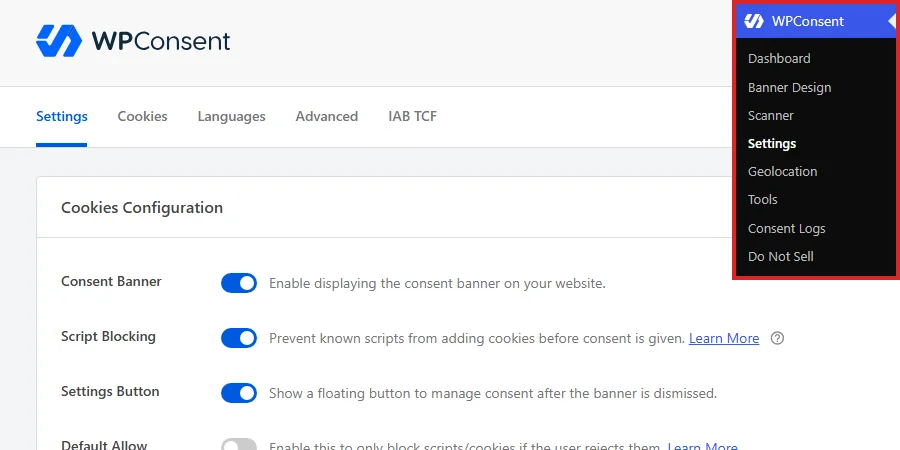
From your WordPress admin sidebar, go to WPConsent » Settings.
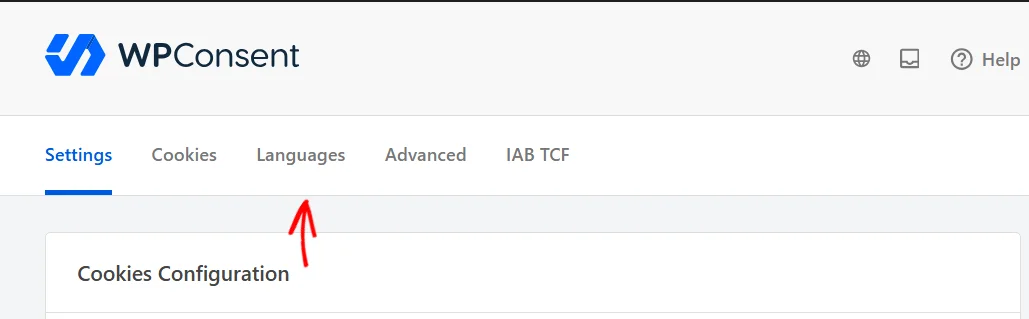
At the top of the page, select the Languages tab.
The Language Settings panel opens with your site’s default language already listed under Selected Languages, and every other language below it under Available Languages.
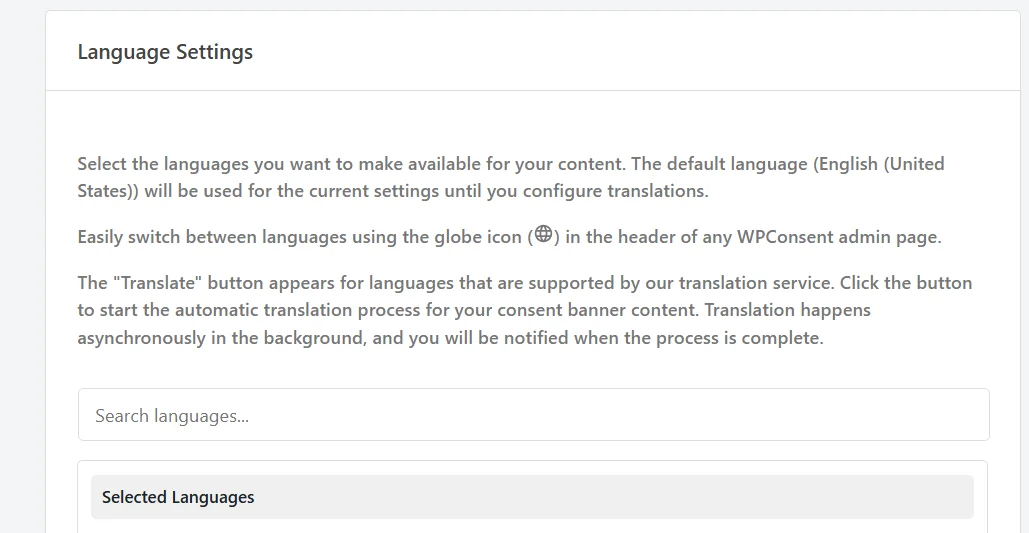
The Available Languages list comes from WordPress’s own translation catalog, so it runs to well over a hundred entries. Instead of scrolling, type your language into the Search languages field. Searching matches the English name, the native name, and the locale code, so any of those will find it.
Then select the checkbox beside your language. Our example uses French (France).
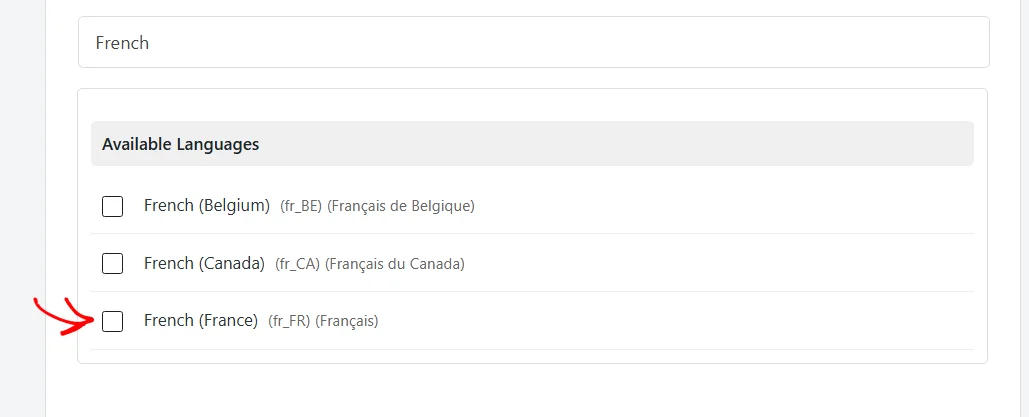
Regional variants are listed separately, and each keeps its own wording. French (France) and French (Canada) are separate languages as far as WPConsent is concerned, so pick the variant your visitors actually use.
Your list can be as long as you like. Each extra language needs the same pass through the search field and its checkbox.
Leave saving until the end, because the switch below the list belongs to the same form and saves at the same time.
Turning On the Banner Language Picker
Your banner can carry a language switcher of its own, so visitors pick their language on the spot.
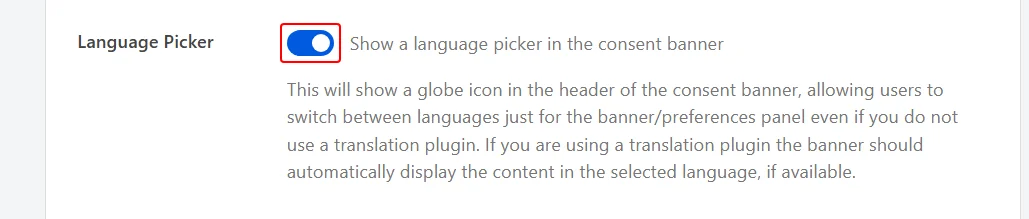
Below the language list, turn on the Language Picker switch. This puts a globe icon in your consent banner.
WPConsent leaves this switch off to begin with, because a site serving a single language has nothing to switch between. With it off, the banner carries no globe icon.
This is the part of multilanguage support that works without a translation plugin. That makes it worth turning on as soon as a second language exists.
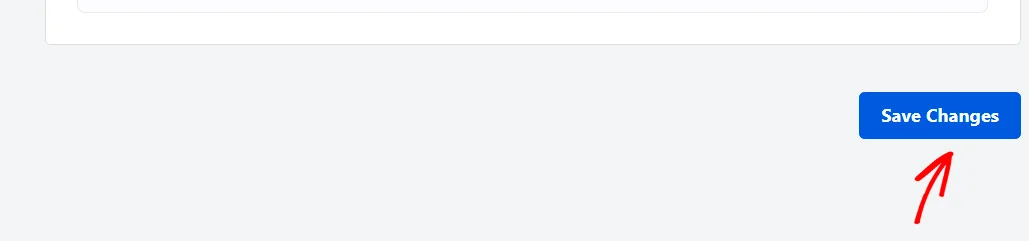
When both the languages and the switch are set, click Save Changes at the bottom of the page.
Your visitors now see a globe icon in the banner. Selecting it opens a list of your enabled languages by their native names. Choosing a language swaps the banner and preferences panel text straight away, with no page reload.
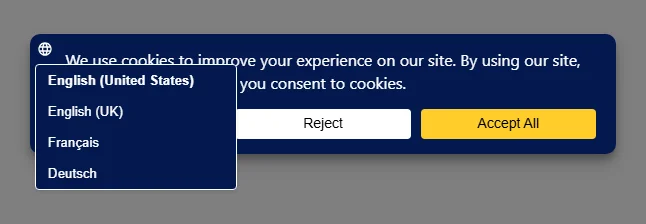
The picker reaches the banner and the preferences panel only. It leaves the rest of your pages in whatever language your site is already serving.
Managing Your Selected Languages
Everything you enabled now sits in the Selected Languages section at the top of the list, and each row carries its own controls.
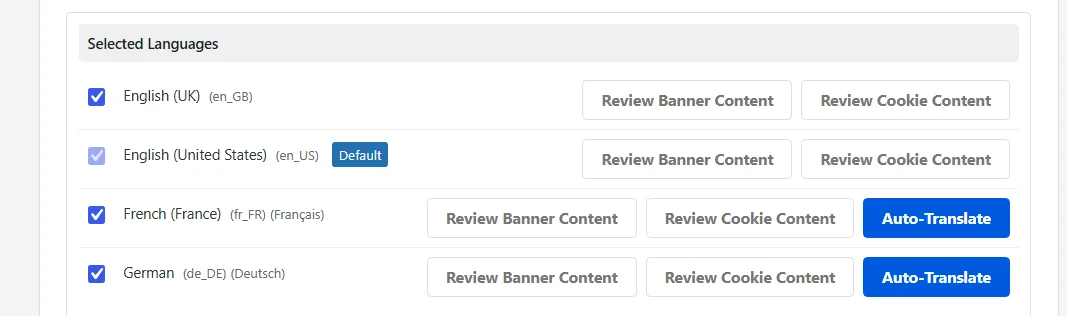
Your site’s default language carries a Default badge, and its checkbox is fixed on. It is the wording every other language falls back to, so WPConsent keeps it enabled for you.
If a translation plugin added a language, that row carries an Added by badge naming the plugin, such as Added by WPML. Those rows are managed in the translation plugin, so their checkboxes are fixed on here too.
Languages that the translation service covers also carry an Auto-Translate button, which fills that language’s wording in for you. The button appears on a Plus license level or higher.
For that route, see our guide on automatic translation.
Every enabled row also carries Review Banner Content and Review Cookie Content. Both switch your editing language to that row’s language and then open the matching page in a new tab. That makes them the quickest route into a single language’s wording.

Review Banner Content opens your banner content, and Review Cookie Content opens your cookie categories, services, and cookies.
Adding Content for a Language by Hand
Enabling a language gives it somewhere to store wording. Filling that wording in is the next step, and you type all of it yourself.
Switching Your Editing Language
WPConsent edits a single language at a time, so the first move is choosing which one.
In the WPConsent header, select the globe icon. The list that opens shows your enabled languages by their native names.
From that list, choose the language you want to work in. Our example uses Français. The list also carries a Manage Languages link, which takes you back to the Languages tab from any WPConsent screen.
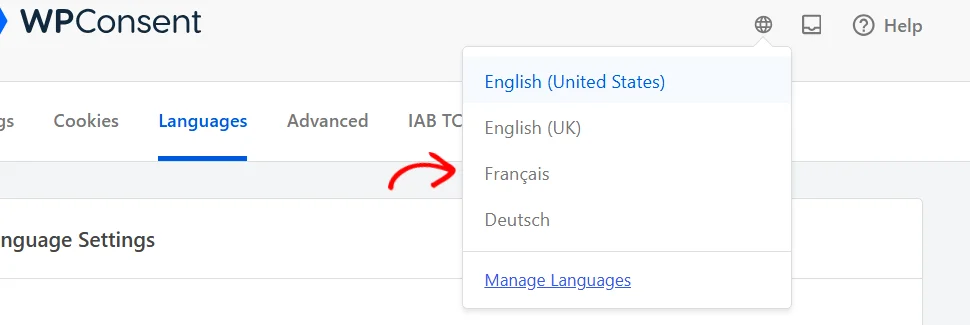
The page reloads, and a notice at the top names the language you are editing.
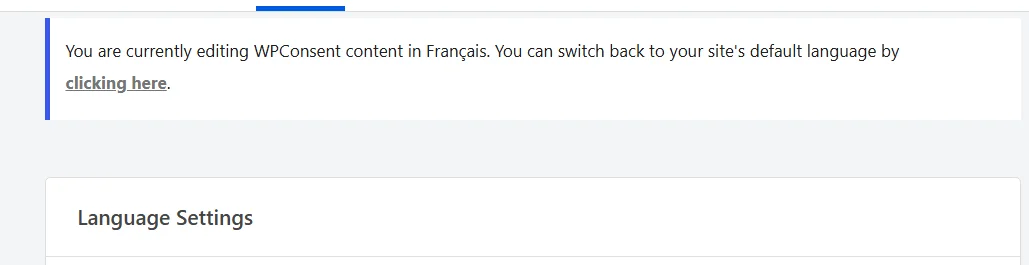
That notice travels with you across every WPConsent screen for as long as the language is selected. Its link takes you back to your site’s default language whenever you are finished, and the globe icon does the same job.
While a language other than your default one is selected, the globe icon carries a small dot as a reminder.
Writing the Banner Text
With your language selected, every field on the banner content page holds that language’s wording rather than your default wording.
Review Banner Content on that language’s row opens this page directly. It is the same Content tab of your Banner Design settings that the WPConsent menu leads to.
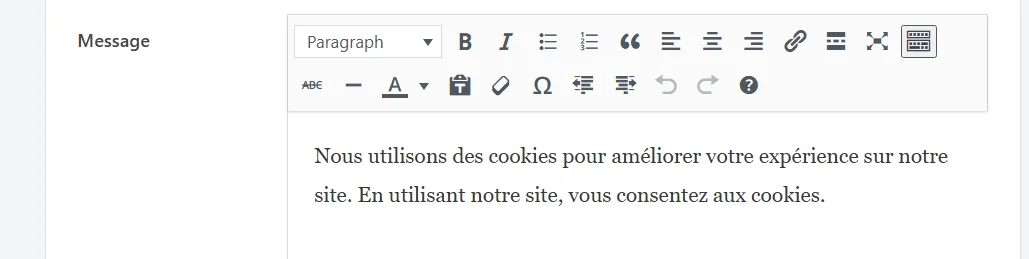
Working down the panel, type your own wording into each field. The Message field at the top of Content Settings is the sentence visitors read first.
The same page carries every other string your banner and preferences panel use, from your button labels through to your cookie table headers. Each one has its own field.
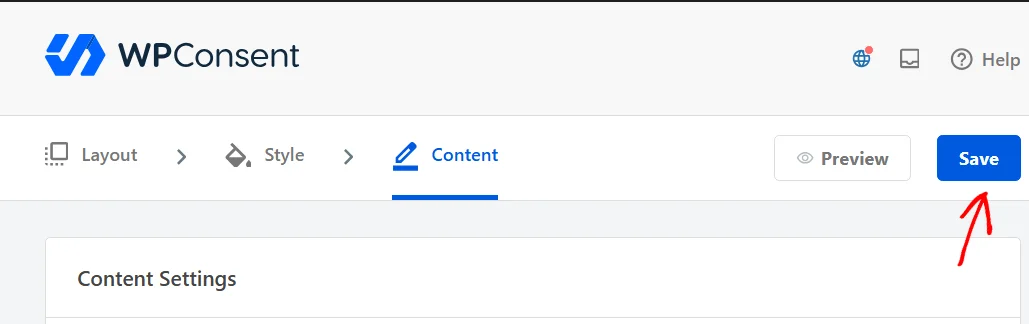
Once your wording is in, click Save at the top of the page. This page uses Save rather than the Save Changes button you used on the Languages tab.
Anything you leave empty falls back to your default language’s wording, so a partly filled language still shows a complete banner.
Editing Cookie Categories, Services, and Cookies
Your cookie categories, services, and individual cookies hold per-language wording as well.
While your language is selected, each of their editors holds that language’s name and description, ready for your own wording.
Each of those items saves from its own editor rather than from a single page button. A change is saved from wherever it was made.
Everything you type applies to the selected language alone. Your other languages, including your default one, are left exactly as they were.
Verifying Your Setup
Confirming your languages are in place is quick.
On the Languages tab, confirm each language you added sits in the Selected Languages section with its own Review buttons. Those buttons appear only on enabled rows, so seeing them tells you WPConsent is holding wording for that language.
The second check happens on your site. The banner’s globe icon lists your languages, and choosing one brings up the wording you typed.
How Does WPConsent Choose a Visitor’s Language?
This is the part worth being clear about, because enabling a language and serving it are not the same thing.
Enabling a language creates a place for that language’s wording. What a visitor actually sees depends on the language your site is serving them.
WPConsent reads that language from WPML, Polylang, or TranslatePress when one of them is active. When none is active, it reads your WordPress site language, which is a WordPress core setting at Settings » General » Site Language.
So on a site with a translation plugin, a visitor browsing your French pages gets your French banner wording automatically.
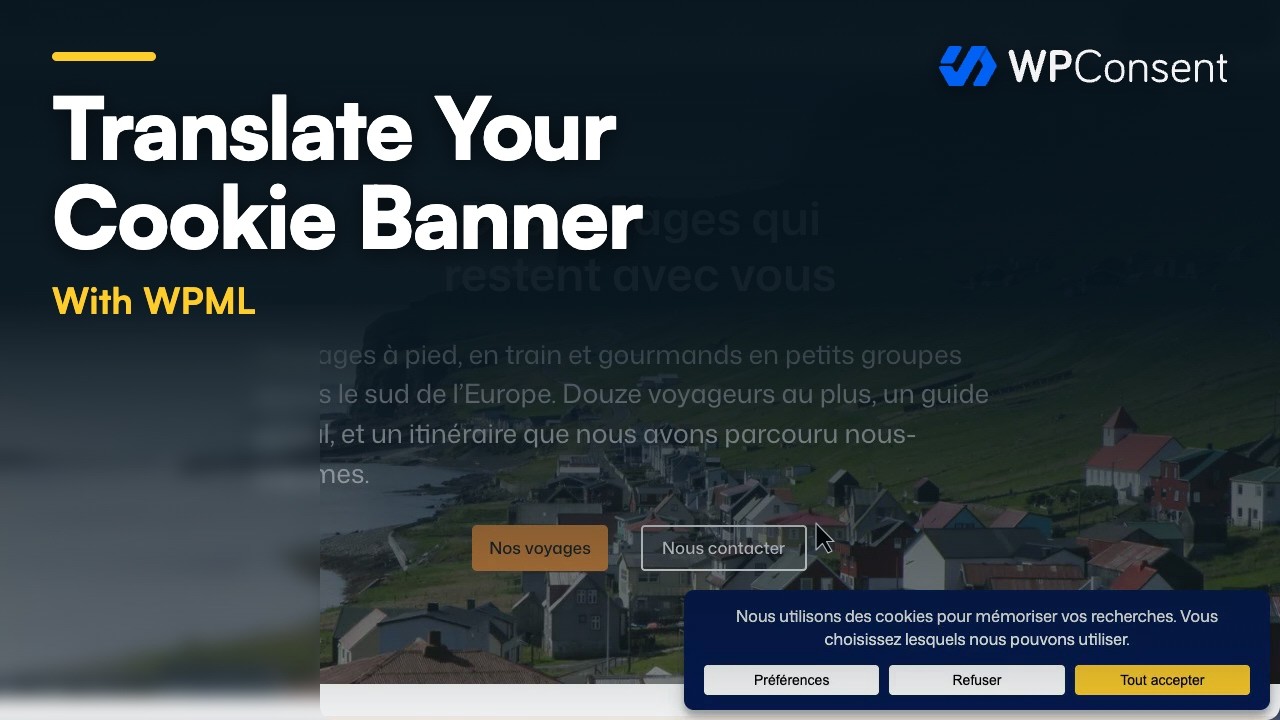
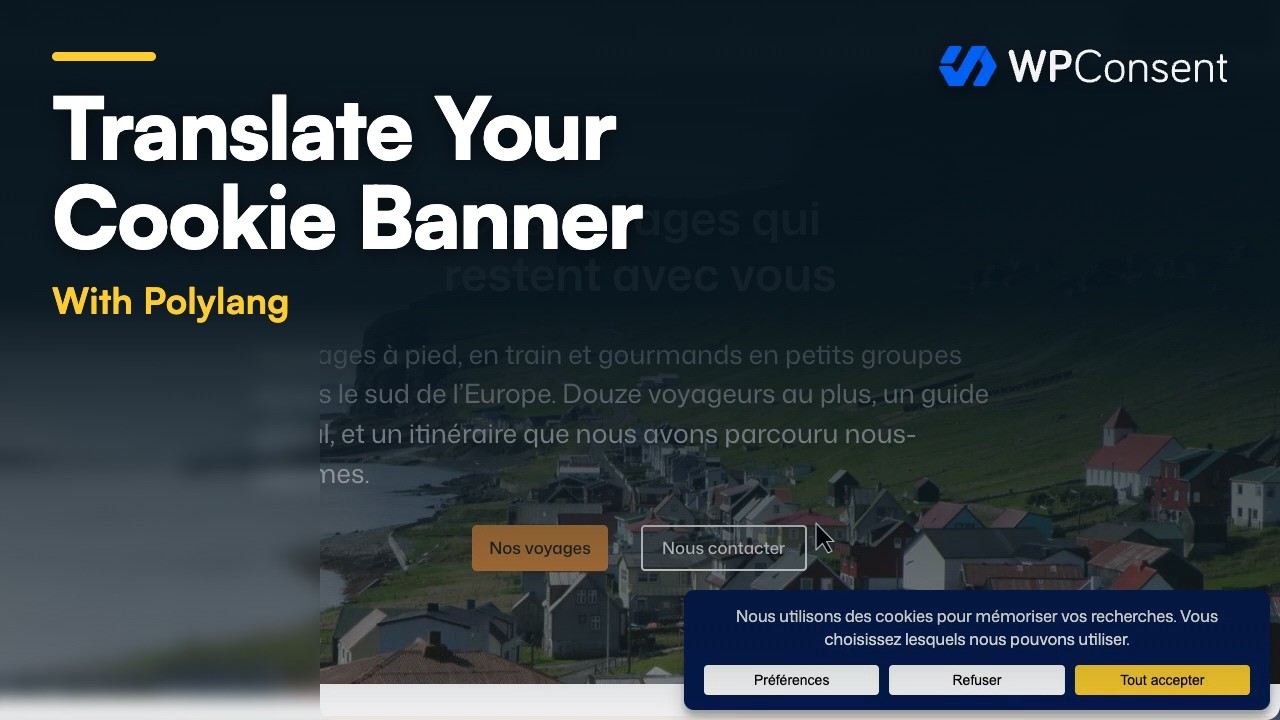
These videos show the whole task with each plugin, from switching the editing language to the French banner on the French pages. With WPML:
With Polylang:
On a single-language site, every visitor gets your site language’s wording, and the banner’s own language picker is what lets them choose something else.
Either way, the wording you type for a language is only ever used for that language. Nothing you enter replaces your default wording.
That’s it! Your banner and cookie content are now available in every language you enabled, ready for your visitors to read in their own.
For filling a language in automatically instead of typing it yourself, see our guide on automatic translation.
Frequently Asked Questions
Below, we’ve answered some of the most common questions about WPConsent’s multilanguage support.
Do I need WPML or Polylang to use this?
No. WPConsent stores its own wording per language, so you can enable languages and fill them in on a site with no translation plugin installed.
A translation plugin changes which language reaches each visitor automatically. Without one, the banner’s language picker is what lets a visitor switch, and your WordPress site language decides what they see first.
Why can’t I clear the checkbox for a language?
Both your site’s default language and any language a translation plugin added have fixed checkboxes. The default stays on because it is the wording everything else falls back to. A translation plugin’s languages stay on because that plugin manages them instead.
Both are easy to spot in the list. The first carries a Default badge, and the second carries an Added by badge naming the plugin.
What happens to a field I leave empty for a language?
It falls back to your default language’s wording. WPConsent looks for that language’s version of a field first and uses your default text when there isn’t one. A partly filled language therefore still shows a complete banner.
Does editing another language change my default wording?
No. WPConsent saves each field you change as the selected language’s wording and leaves your default text untouched. Fields you don’t change are left alone in both languages.
Does the banner language picker translate the rest of my site?
No. It reaches the banner and the preferences panel, and it swaps their text in place with no page reload. Translating your pages, posts, and theme text is a job for a translation plugin.
How do I get back to my default language?
To switch back, select the globe icon in the WPConsent header and choose your default language. The link in the notice at the top of the page does the same thing. Either way, the wording you already saved stays in place.