I know how important it is to stay compliant with privacy laws, but I also know that user experience is everything. You want your visitors to feel welcome, not overwhelmed.
Sometimes, the consent banner just doesn’t need to be there.
That’s why I am thrilled to introduce NEW advanced display rules for your cookie consent banner in WPConsent 1.1.2!
With this new feature, you have the flexibility to decide exactly who sees your banner and where it appears.
Here’s a breakdown of this new feature…
Cookie Consent Banner Display Rules
A cookie consent banner is an essential tool for meeting requirements set by different privacy laws like GDPR and CCPA, preventing fines, and building user trust through transparency.
But it can interrupt the user experience of your WordPress site by appearing at the wrong moment or for the wrong users.
With WPConsent 1.12, you can ensure that this doesn’t happen on your website.
Now, you get complete control over exactly where or for who your consent banner appears using powerful display rules. No complicated code or expensive developers required.
By heading to the WPConsent Settings in the WordPress dashboard, simply switch to the ‘Advanced’ tab and view the Hide Banner Rules section. Here, you’ll see different options for showing the cookie consent banner on your site.
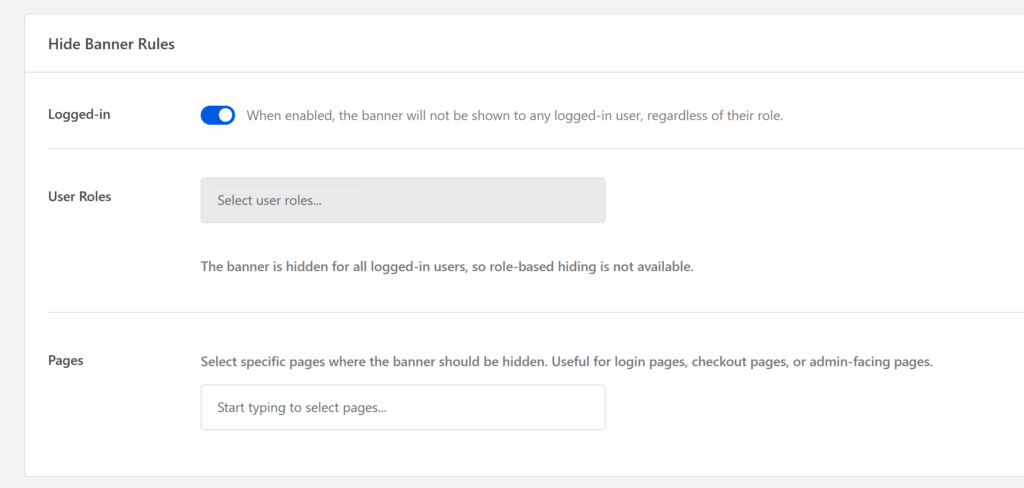
For instance, you can enable the Logged-in option and hide the banner for anyone logged-in, irrespective of their user role.
This is really helpful if you’re an administrator or editor, and constantly navigating your site to make changes. Clicking “Accept” repeatedly or having the banner cover your admin bar while testing the frontend can be frustrating.
On the other hand, WPConsent also lets you hide the cookie banner based on User Roles. Simply click the dropdown menu and select the user roles.

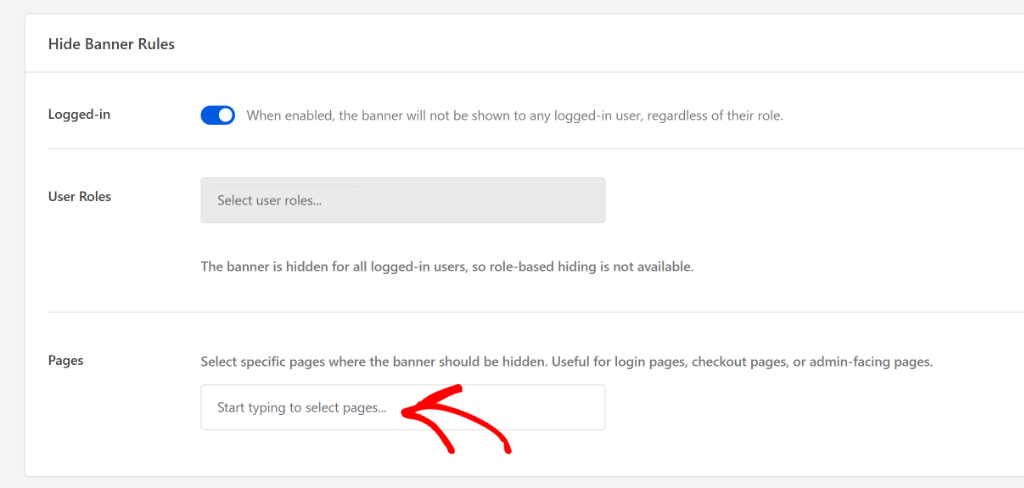
Another powerful display rule WPConsent offers is the Pages rule for hiding the consent banner. You can specify specific pages on your website, so the cookie consent banner doesn’t appear and interrupts the user experience.
For example, if you run an e-commerce store, the last thing you want is a popup distracting a customer right when they are ready to pay. With WPConsent, you can hide the banner specifically on your “Checkout” or “Cart” pages.
In addition to this new feature, our team has also made several improvements to ensure WPConsent runs perfectly with WordPress 6.9. We are committed to keeping your site stable and future-proof.
That’s it! The new display rules feature for cookie banner is now live for WPConsent Pro and higher users.
So, update to the latest version of WPConsent today to take full control of your banner visibility!
Stop losing conversions to poorly timed consent popups. Start showing the right message to the right visitor at the right time.
If you have any questions or feedback, then don’t hesitate to reach out. Our team is always here to assist you.