When I embedded my first Dailymotion video on my WordPress site, I thought I was just adding helpful content for my visitors. A few weeks later, I discovered that the video was dropping cookies on my visitors’ browsers the moment they landed on my page – before they even clicked play or gave consent.
This was a problem. Privacy laws like GDPR and CCPA require websites to get user consent before placing non-essential cookies on their devices. I was potentially breaking the law without even knowing it.
The issue isn’t unique to me. Every WordPress site owner who embeds Dailymotion videos faces this same challenge. These videos automatically load tracking cookies, which can lead to hefty fines and damage your visitors’ trust.
I solved this problem using WPConsent, a plugin that blocks cookies from loading until visitors give their consent. In this guide, I’ll walk you through the exact steps I took to make my Dailymotion embeds compliant with privacy regulations.
Why Block Dailymotion Cookies Before Consent?
Privacy laws exist to protect your visitors, but they also protect you from legal trouble. GDPR in Europe can fine websites up to €20 million or 4% of annual revenue for cookie violations. Even if you’re not in Europe, your European visitors still have these rights.
Here’s the thing about Dailymotion embeds: they start tracking visitors the second your page loads. The video player drops cookies to collect viewing data, track user behavior, and serve targeted ads. Your visitors never agreed to this tracking.
I learned this the hard way when I ran a cookie scan on my site. I found multiple Dailymotion tracking cookies active on pages where visitors hadn’t interacted with anything yet. They were just reading my content.
Blocking these cookies until you get consent does two important things. First, it keeps you compliant with privacy laws across different countries. Second, it shows your visitors that you respect their privacy, which builds trust in your brand.
The technical challenge is that you can’t just delete the video embed. You need a system that blocks the cookies, shows visitors a placeholder, and then loads the actual video only after they give consent. That’s exactly what WPConsent does.
Block Dailymotion Cookies Before Consent
The simplest way to stop Dailymotion from dropping cookies before consent is by using WPConsent. It’s the best WordPress cookie consent plugin that helps you scan scripts, create professional cookie banners, geolocation rules, and other powerful features.
Created by the same team behind WPBeginner, WPConsent is trusted by over 100,000 websites. It is also IAB TCF verified and a complete self-hosted cookie management solution for your WordPress site.
What makes WPConsent so helpful is its content blocking feature that handles video platform cookies. It works with YouTube, Dailymotion, and Vimeo right out of the box. The plugin automatically prevents content using iframes from these services from loading until visitors accept your cookie policy.
Beyond video services, WPConsent also manages Google Maps and reCAPTCHA embeds. Any iframe content from these platforms stays blocked until your visitors give the go ahead.
Note: I’m using WPConsent Pro for this tutorial because it includes helpful features like consent logs, Do Not Sell addon, automatic detection for Cloudflare, WooCommerce, and WPForms, modal banner templates, and more. That said, WPConsent Lite is available for free and still includes the content blocking feature.
Now, let’s look at the steps you can follow to prevent Dailymotion from adding cookies before consent.
Step 1: Install and Activate WPConsent
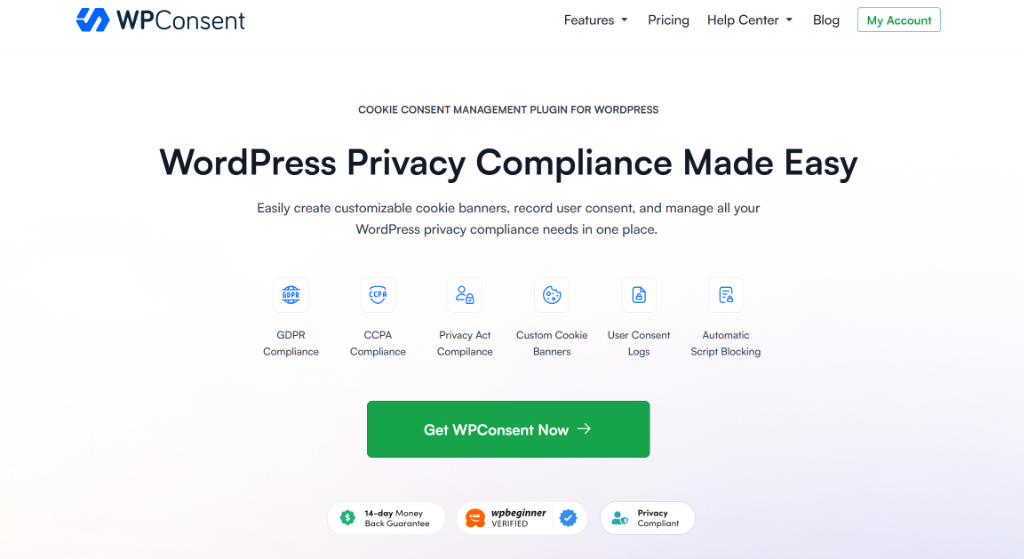
First, you’ll need to install and activate the WPConsent plugin. To start, you can visit the WPConsent website and create a new account.
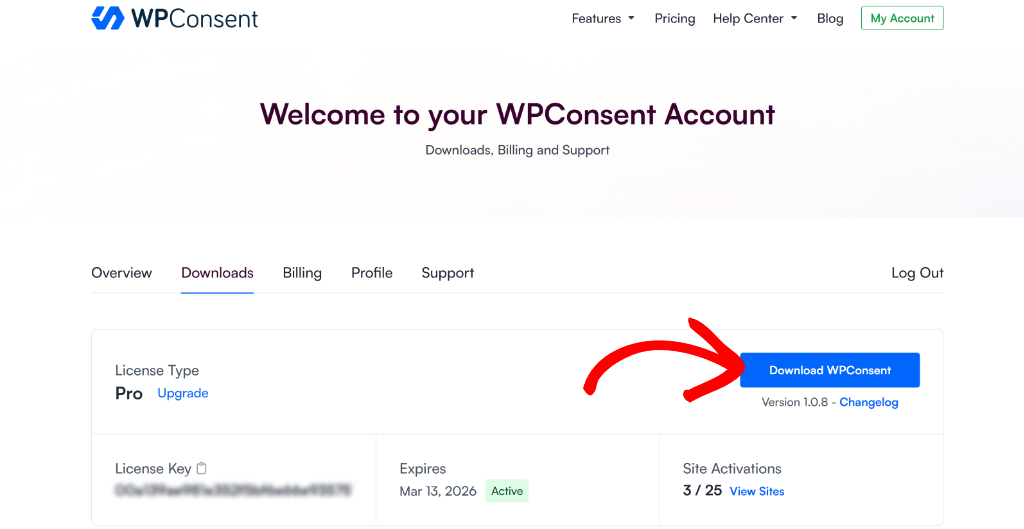
Next, you can head to your WPConsent account area and go to the ‘Downloads’ tab.
Go ahead and click the Download WPConsent button and save the plugin ZIP files on your computer.
From here, you can upload the plugin to your WordPress website. For detailed instructions, check out this guide on how to install a WordPress plugin.
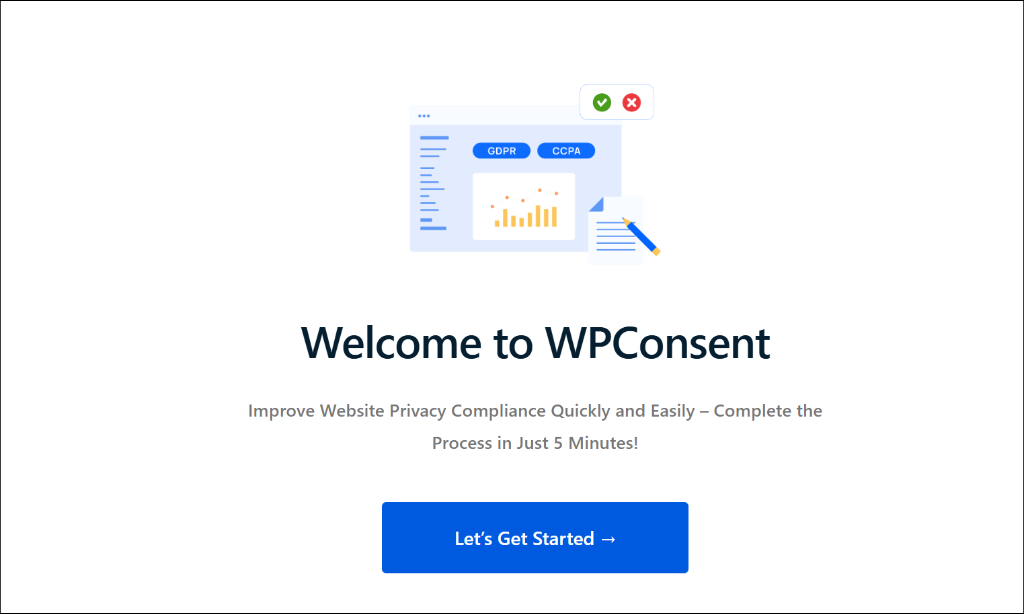
After activation, you’ll see the WPConsent setup wizard appear on your screen. Simply click the ‘Let’s Get Started’ button and work through the steps in the wizard.
Step 2: Enable Content Blocking for Dailymotion
Once the initial setup is complete, navigate to WPConsent » Settings in your WordPress dashboard.
Now, scroll down until you reach the ‘Content Blocking’ section on the settings page. From here, simply click the toggle switch to enable this feature.

You’ll now see a list of different content providers. This includes YouTube, Vimeo, Dailymotion, Google Maps, and reCAPTCHA.
All services are enabled by default, but you can pick which ones to block on your site. Make sure Dailymotion is enabled in the ‘Content to Block’ list.
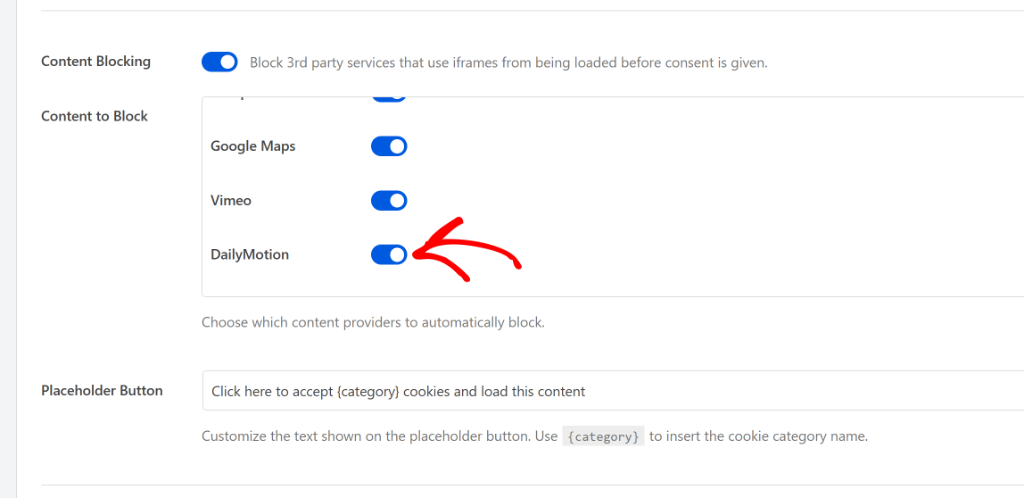
WPConsent also lets you customize the Placeholder Button text. This is the message that appears on your blocked Dailymotion videos before visitors give consent.
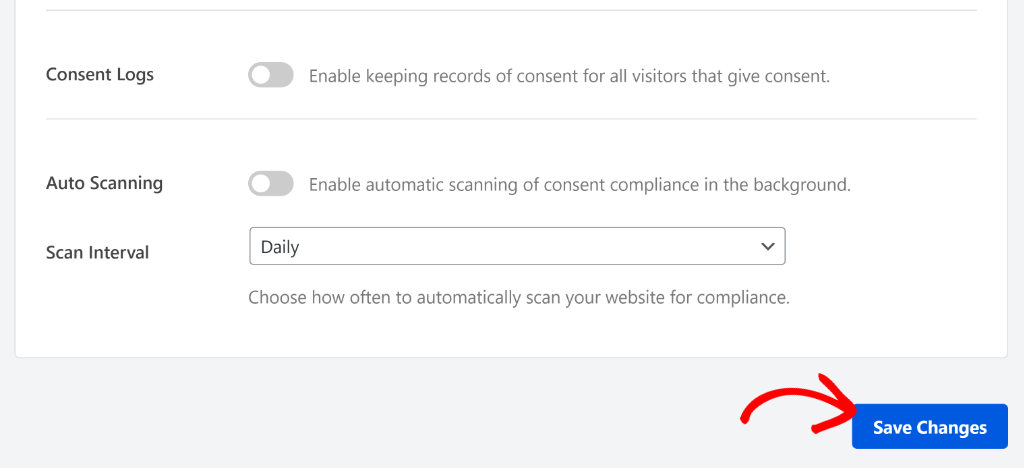
After making your changes, go ahead and click the ‘Save Changes’ button at the bottom of the page.
Step 3: Test Dailymotion Content Blocking
Now, the next step is to check if your embedded Dailymotion videos are blocked before user consent.
To start, you can visit your website to see Content Blocking in action.
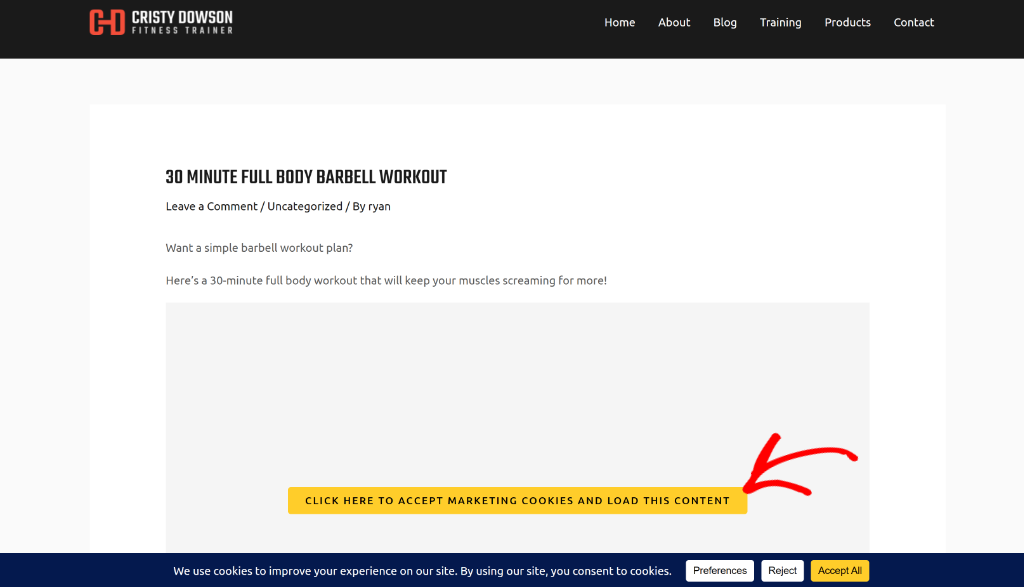
When a visitor lands on a page, WPConsent will block Dailymotion cookies, and they’ll see a placeholder instead of the video player.
They need to click on the placeholder to accept cookies and load the video. Alternatively, they can click the ‘Accept’ button in the cookie consent banner to load all blocked content.
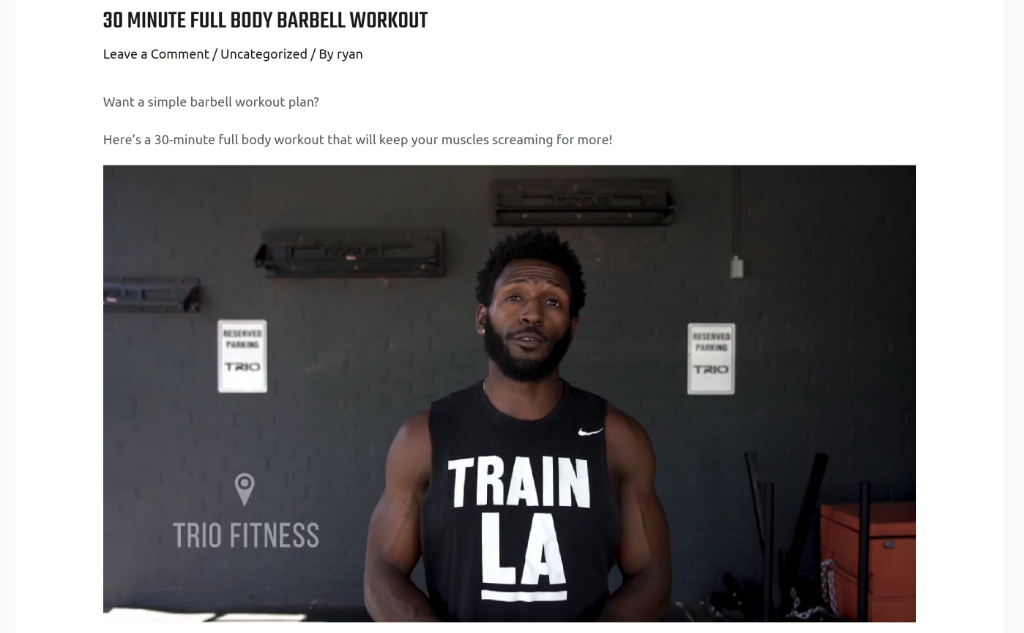
That’s it! You’ve successfully blocked Dailymotion cookies until visitors give their consent.
FAQs about Blocking Dailymotion Cookies
1. Do I need to block Dailymotion cookies if I only have a few videos on my site?
Yes, you still need to block cookies regardless of how many videos you have. Privacy laws like GDPR don’t care about the number of cookies, they care about user consent. Even a single Dailymotion video can drop multiple tracking cookies, which puts you at risk of non-compliance. It’s better to protect yourself and your visitors from the start.
2. What happens if a visitor doesn’t accept cookies, can they still watch my videos?
This depends on your cookie banner settings. Most consent plugins let you configure whether videos load with essential cookies only or require full consent. I recommend setting up your Dailymotion videos to load after visitors accept marketing or analytics cookies, since that’s typically where video tracking falls. If they decline, they simply won’t see the video content, but your site remains compliant.
3. Does WPConsent work with Dailymotion videos embedded in page builders?
WPConsent works smoothly with Dailymotion embeds, but if it is added dynamically, then detecting it automatically can be tricky at times. However, whether you’re using Elementor, Divi, Gutenberg blocks, or just pasting the embed code directly, WPConsent will detect the iframe and block it properly.
I hope this article helped you learn how to block Dailymotion cookies before consent in WordPress. You may also want to see our guide on how to implement IAB TCF in WordPress and how to block third-party cookies on your WordPress site.
If you liked this article, then please follow us on X (formerly known as Twitter). You can also leave a comment below if you need any assistance.