I faced an unexpected compliance nightmare on my WordPress site that caught me completely off guard.
My contact forms were loading Google reCAPTCHA tracking scripts automatically, setting cookies before anyone could accept my privacy terms. This was happening without any visible warning, creating possible legal exposure for my website.
I experimented with different approaches to fix this, but they either disabled my form protection entirely or made the user experience frustrating. This is where WPConsent came in handy, as it properly manages reCAPTCHA loading while keeping your forms functional and user-friendly.
In this guide, I’ll show you how to stop reCAPTCHA before consent on your WordPress website. The best part is that you don’t have to touch a single line of code.
Why Stop reCAPTCHA Before Consent?
Google reCAPTCHA creates a privacy challenge that many site owners overlook completely. When you install reCAPTCHA on your WordPress site, whether it is for a contact form or comment form, it doesn’t just verify that users are human.
It also initiates tracking mechanisms and places cookies on visitor devices before they’ve interacted with your consent banner. These tracking elements gather information about user behavior, device characteristics, and browsing patterns.
Various privacy laws like GDPR require that you obtain clear permission before collecting this kind of personal information. Allowing these scripts to run immediately violates these data protection rules. As a result, the financial consequences can be substantial and worth taking seriously.
For example, GDPR violations can result in penalties reaching 4% of yearly turnover or €20 million, whichever amount is greater. Even reduced fines can create significant financial strain and erode customer confidence in your brand.
Beyond avoiding legal trouble, managing cookies properly demonstrates respect for your audience. When people notice you honor their privacy preferences, they’re more inclined to trust your content and become repeat visitors.
Now, let’s look at how you can easily prevent reCAPTCHA from loading on your WordPress site before a user provides consent.
Stop reCAPTCHA Before Consent in WordPress
The simplest approach to stop Google reCAPTCHA from automatically running and placing cookies on your WordPress website is through WPConsent. This powerful cookie consent solution for WordPress combines ease of use with advanced functionality.
WPConsent offers a Content Blocking feature that prevents reCAPTCHA scripts from executing until visitors provide consent. This powerful feature also lets you block Vimeo, YouTube, Dailymotion, and Google Maps from loading scripts before consent.
Besides that, WPConsent lets you set up cookie consent banners, automatically scan for scripts and cookies, block custom scripts, AI-powered translations, and other features.
Note: This tutorial uses WPConsent Pro because it provides advanced features, such as consent record viewing, modal banner design, Do Not Sell addon, multiple language support, and additional features. WPConsent also offers a Lite edition available at no cost that includes the content blocking functionality.
To get started, here are all the steps you can follow:
Step 1: Install and Activate WPConsent
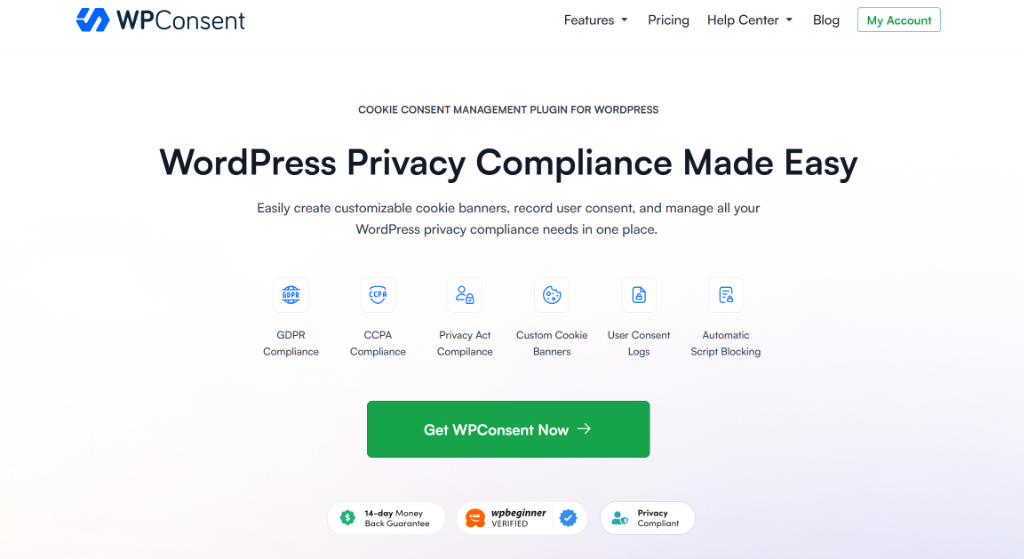
First, you need to install and activate the WPConsent plugin on your site. Simply head over to the WPConsent website and sign up for an account.
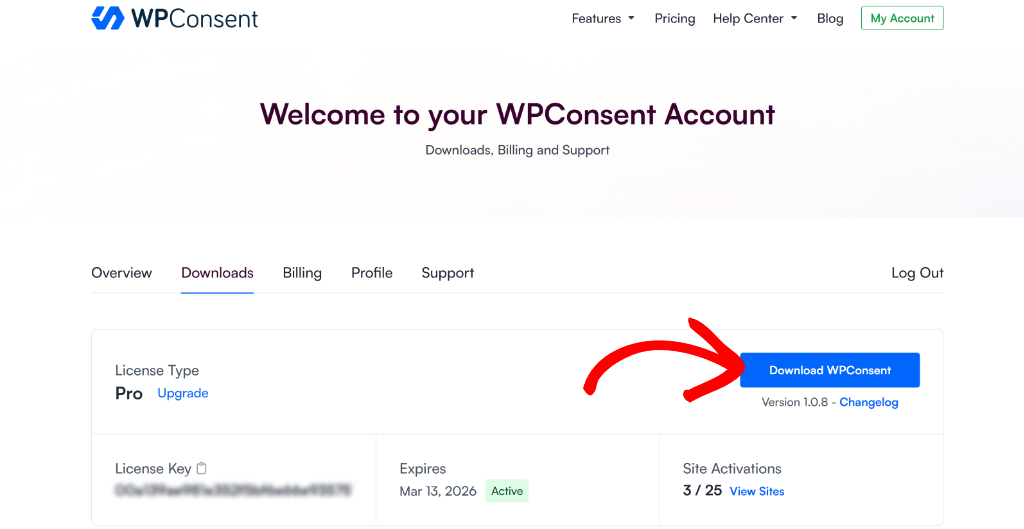
After that, you can go to your WPConsent account and switch to the ‘Downloads’ tab.
Go ahead and click the Download WPConsent button. This will save the plugin ZIP file to your computer.
Next, you’ll upload the plugin file and then install and activate WPConsent on your WordPress site. If you need help with this step, see this guide on how to install a WordPress plugin.
Once you’ve done that, WPConsent will show you a setup wizard. Simply click the ‘Let’s Get Started’ button and follow the instructions on your screen.
Step 2: Enable Content Blocking in WPConsent
Next, you will need to go to WPConsent » Settings from your WordPress dashboard.
Here, you can scroll down until you see the ‘Content Blocking’ section.

Now, simply click the toggle to turn on Content Blocking.
After you do that, WPConsent will automatically enable reCAPTCHA along with other supported services like Vimeo, YouTube, Dailymotion, and Google Maps.
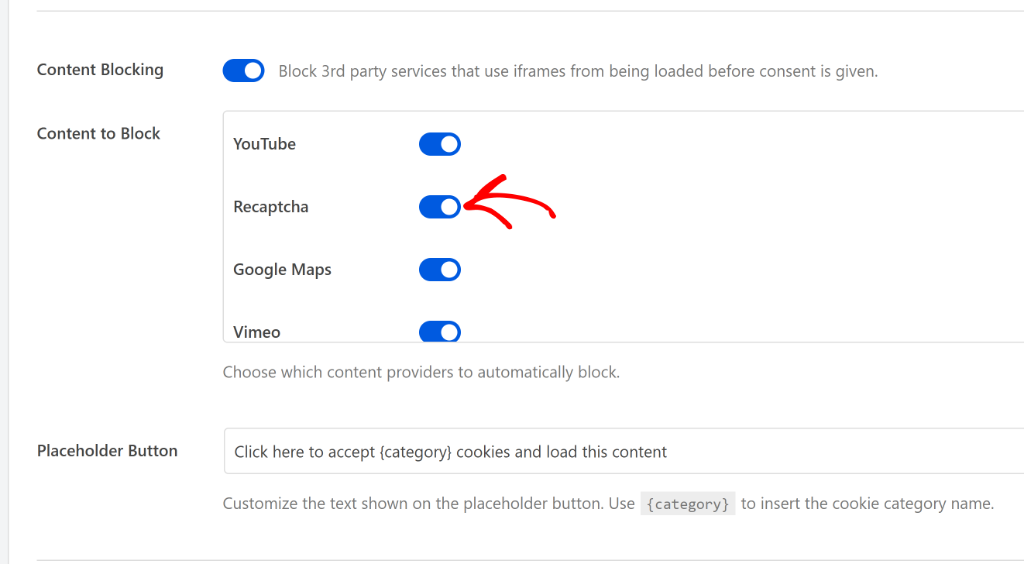
WPConsent also lets you customize the ‘Placeholder Button’ text. This is the message that visitors will see on your forms before they accept cookies.
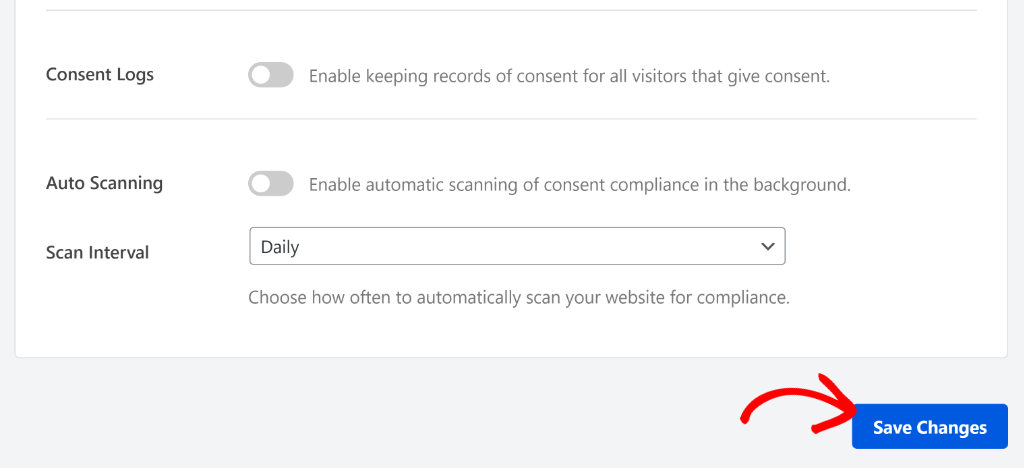
Once you’ve enabled Content Blocking and selected reCAPTCHA, make sure to click the ‘Save Changes’ button to store your settings.
Step 3: Test reCAPTCHA Content Blocking in WordPress
Next, you can visit your website to check if everything is working properly.
For example, when you go to a page with a form that uses reCAPTCHA, you’ll see the placeholder message instead of the reCAPTCHA badge. Users will need to click on it to accept marketing cookies before the form protection loads.
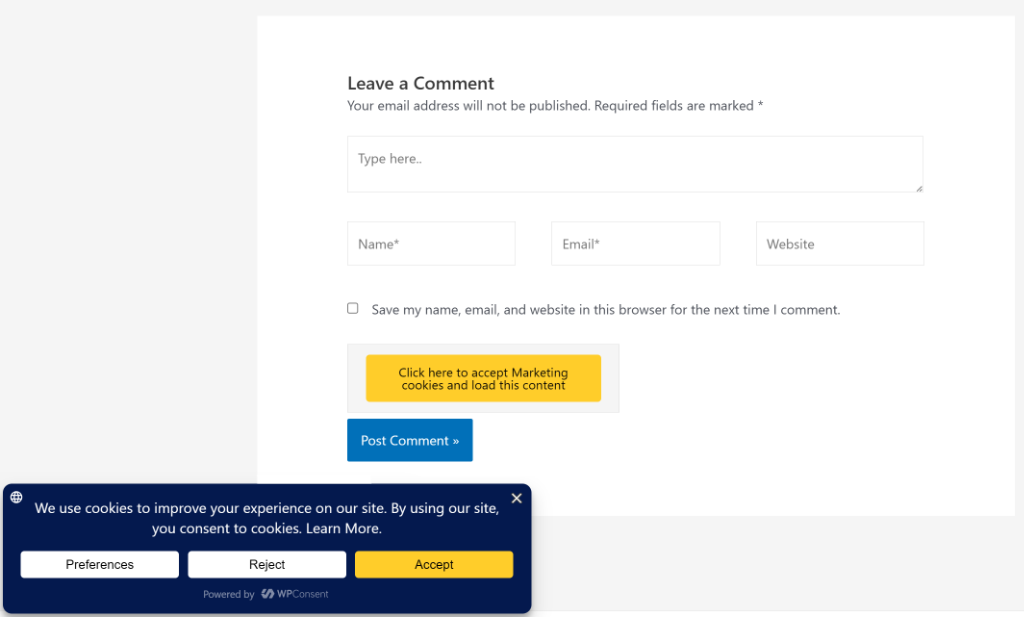
Alternatively, your visitors can also click the ‘Accept’ button on the cookie consent banner to activate reCAPTCHA on your forms.
Once they give consent, the reCAPTCHA verification will appear and people can submit the form normally.
That’s it! You’ve successfully stopped reCAPTCHA from loading cookies before consent in WordPress.
FAQs About Blocking reCAPTCHA Before Consent
1. Why is it important to stop reCAPTCHA from loading before user consent?
It is important to stop reCAPTCHA from loading before user consent because reCAPTCHA initiates tracking mechanisms and places cookies on visitor devices, which can violate privacy laws such as GDPR if done without explicit permission.
2. How does WPConsent help in managing reCAPTCHA loading on WordPress sites?
WPConsent offers a content blocking feature that prevents reCAPTCHA scripts from executing until visitors give their consent, ensuring compliance with privacy regulations and maintaining a user-friendly experience.
3. Can I block other services like YouTube and Google Maps with WPConsent?
Yes, WPConsent allows you to block not only reCAPTCHA but also other services such as Vimeo, YouTube, Dailymotion, and Google Maps from loading scripts before user consent.
I hope this article helped you learn how to stop reCAPTCHA before consent in WordPress without coding. You may also want to see our guide on how to create a cookie policy page for free and how to block custom scripts and iframes in WordPress.
If you liked this article, then please follow us on X (formerly known as Twitter). You can also leave a comment below if you need any assistance.