
Would you like your cookie banner to greet every visitor in their own language without translating each field by hand?
In this guide, we’ll walk you through WPConsent’s automatic translation. It sends your banner and cookie content to a translation service and writes the results back into your site. All you need to get started is a target language.
Requirements: Automatic translation requires a plus license level or higher.
Table of contents
- Enabling a Target Language
- Starting an Automatic Translation
- Following the Translation Progress
- Reviewing the Translated Content
- Making Manual Corrections
- Verifying Your Setup
- How Does Automatic Translation Work?
- Why the Auto-Translate Button May Be Missing
- Frequently Asked Questions
Before you get started, make sure WPConsent is installed and activated on your WordPress site.
Enabling a Target Language
Automatic translation works on one target language at a time, so the language has to be enabled before it can be translated.
The run translates the banner and cookie content you already have, so it helps to fill that in first. Fields left empty are skipped.
From your WordPress admin sidebar, go to WPConsent » Settings.
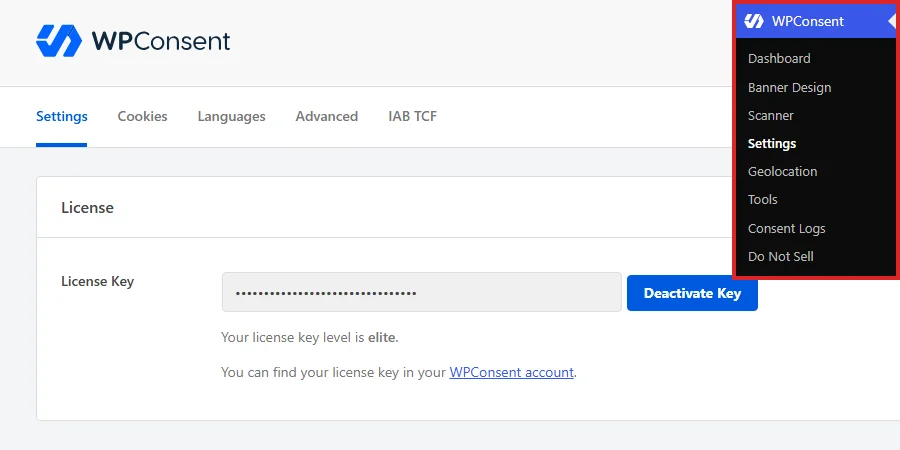
At the top of the page, select the Languages tab.

Next, type your language into the Search languages field to filter the Available Languages list. Then select the checkbox beside it. Our example uses Spanish (Spain).
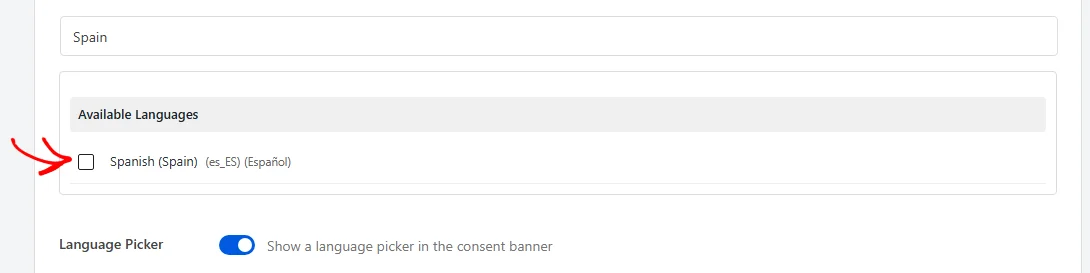
Searching matters here, because the list is long and carries regional variants as separate entries. Each variant holds its own content, so pick the one your visitors actually use.
Not every variant can be translated automatically. Spanish (Spain) can, while some other Spanish variants cannot, so check for the Auto-Translate button once you have saved.
Then click Save Changes.

The language now appears in the Selected Languages section at the top of the language list, ready to translate.
Enabled languages also feed the banner’s own language picker, so visitors can switch languages themselves. Its Language Picker switch sits below the language list on this same tab, and saves with the same Save Changes button.
Starting an Automatic Translation
In the Selected Languages section, find the language you just enabled and click Auto-Translate.
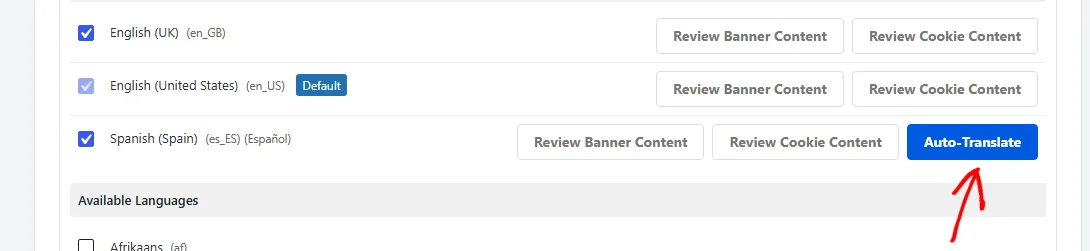
The English rows have no Auto-Translate button. That is expected behavior, and we explain why further down.
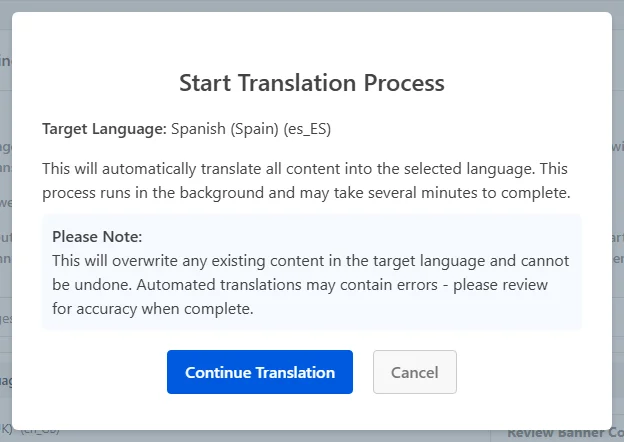
A confirmation overlay opens before anything is sent. It names your target language and carries a note worth reading.
The note makes three points. Translating overwrites any content already stored for that language, the change cannot be undone, and machine translation can contain errors.
The overwrite matters most if you have already written content for that language by hand. Before you continue, copy anything you want to keep.
Once you have read the note, click Continue Translation.
Following the Translation Progress
The page reloads and a progress notice appears at the top. It reports a percentage and refreshes itself every ten seconds.
The notice also carries a Cancel link. It clears the run WPConsent is tracking rather than stopping the translation itself, which we cover in the FAQ below.

How long the run takes depends on how much content you have, since WPConsent works through it in batches.
The work happens on your server rather than in the browser, so you can leave the page or carry on with other tasks.
Reviewing the Translated Content
When the run finishes, the notice turns green to confirm the translation is complete.

The notice also carries a link back to the Languages tab, so you can check the wording straight away.
Machine translation can misread context, so it is worth reading the result before your visitors do.
On the Languages tab, click Review Banner Content on the translated language’s row.

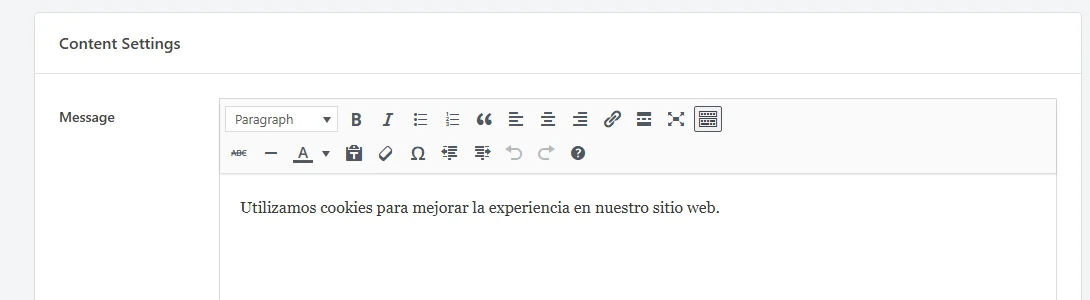
The button opens your banner content in a new tab, already switched to that language. The Content Settings panel holds the translated text, starting with your banner Message.
Review Cookie Content does the same for your cookie categories, services, and individual cookies.
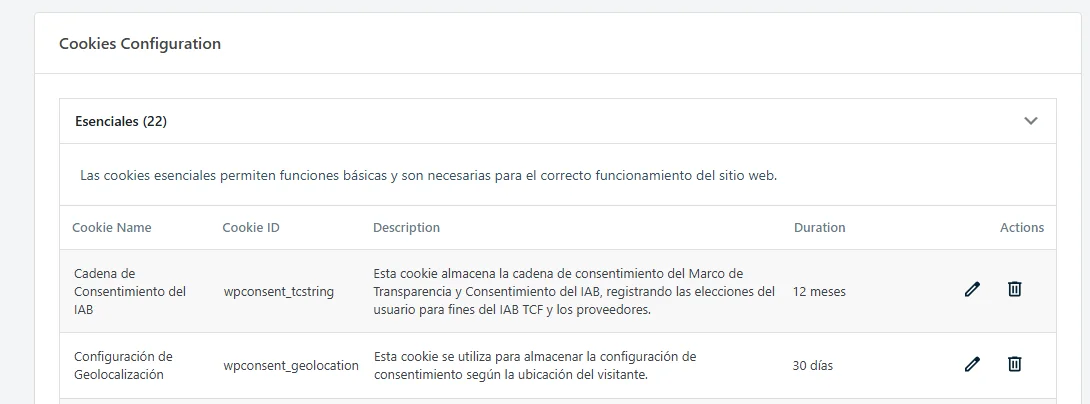
Category names, descriptions, cookie descriptions, and durations all carry their own translated text.
Making Manual Corrections
Anything the translation gets wrong can be edited by hand.
From the WPConsent header, open the globe icon and select your target language.
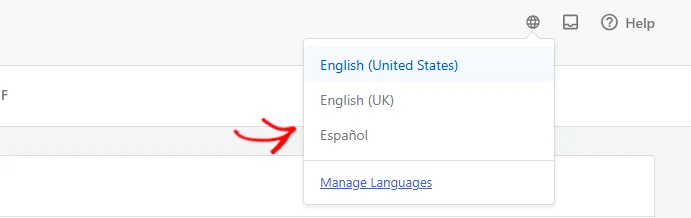
WPConsent’s fields then hold that language’s content, and a confirmation notice names the language you are editing.
Change the wording you want. Then click Save.

Cookie categories and individual cookies save from their own editors rather than this button, so save each one where you made the change. Corrections apply to that language alone, leaving your other languages untouched.
That notice stays while the language is selected, and it carries its own link back to your site’s default language. The globe icon does the same job. Switching back leaves the corrections you saved in place.
Keep the overwrite note in mind here. Running automatic translation again on the same language replaces the stored content for that language, including corrections you typed yourself.
Verifying Your Setup
Two checks confirm the translation landed.
On the Languages tab, confirm your target language sits in the Selected Languages section with its own Review buttons. Those buttons appear only for enabled languages, so seeing them tells you WPConsent is holding content for that language.
Then open Review Cookie Content for that language and confirm the category names read in your target language rather than your default one.
How Does Automatic Translation Work?
What Gets Translated
The run covers the text WPConsent owns: your banner fields, cookie category names and descriptions, service details, and individual cookie entries. It does not touch your posts, pages, or theme text.
Each run is a snapshot of the content you have at the time. Text you add or change afterward has no translation stored for that language yet. WPConsent falls back to your default-language wording for those fields until you translate the language again.
Content Is Sent in Batches
WPConsent groups your content into batches of 30 strings and sends them one batch at a time. The percentage in the progress notice tracks completed batches, which is why it moves in steps rather than smoothly.
The Run Happens in the Background
The whole run is queued as a single scheduled task on your site, with WP-Cron as a fallback. Closing the tab does not stop it, and the progress notice picks the run back up when you return.
The notice travels with you across WPConsent admin pages, so you can keep working while the run continues. If it finishes while you are away, the completion notice is waiting the next time you open a WPConsent screen.
Where the Supported Language List Comes From
The Available Languages list is WordPress’s own translation list, so it is longer than the set the translation service can handle. The service publishes its own list of more than 70 supported languages, and the Auto-Translate button appears only for languages on it.
WPConsent fetches that list and caches it for a day, so a newly supported language can take up to 24 hours before its button appears.
Why the Auto-Translate Button May Be Missing
The Auto-Translate button is deliberately left out or disabled in some situations. That is usually what has happened when you cannot find it or cannot click it.
- The language is an English variant while your site’s default language is also English. Translating English into English serves no purpose, so the button is left out.
- The language is not enabled yet. Auto-Translate sits alongside the two Review buttons, and all three appear only on rows in the Selected Languages section.
- The translation service does not support that language. The service does the translating, so WPConsent only offers the button for languages on its list.
- Your license level does not include automatic translation. Below the plus license level the button is dimmed or absent, and selecting it opens an upgrade prompt rather than starting a run.
If your site’s default language is not English, English variants can be translated too, and the button appears for them.
That’s it! Your banner and cookie content are now translated into your target language, ready for you to review and correct.
For enabling several languages, setting up the picker, and adding content per language by hand, see our guide on multilanguage support.
Frequently Asked Questions
Below, we’ve answered some of the most common questions about WPConsent’s automatic translation.
Do I need a translation plugin such as WPML or Polylang?
Not to run the translation. WPConsent keeps its own per-language content, so a run works on a site with no translation plugin installed.
Serving that language to visitors is a separate matter. WPConsent shows the content for whichever language your site is currently serving. It reads that language from WPML, Polylang, or TranslatePress when one is active, and from your WordPress site language otherwise.
Does translating again overwrite my manual edits?
Yes. A second run replaces everything stored for that language, including any wording you fixed by hand in the Making Manual Corrections step above. Before running it a second time, save a copy of any wording you care about.
Can I translate two languages at once?
No. WPConsent handles one translation at a time. While a run is active, choosing another language opens a Translation In Progress overlay asking you to wait.
Can I stop a translation that is already running?
Not once your server has started working through the content. In the progress notice, click Cancel, then choose Yes, Cancel Translation in the overlay that opens. No, Keep Running leaves it alone.
A green notice then confirms the run is no longer tracked and that you can start a new one. WPConsent stops following the run, and it finishes on its own, so everything it translates stays translated. Review that language afterward.
Which of my visitors see the translated banner?
Visitors browsing your site in that language see it. WPConsent matches its stored content to the language your site is serving, so a single-language site keeps showing your WordPress language until something changes it.
That means translating a language stores the content, and your multilingual setup is what puts it in front of visitors. Reviewing the wording first is still worthwhile, because machine translation can miss context.