If your visitors are sending a privacy signal from their browser, your WordPress site should be listening.
Global Privacy Control (GPC) is a browser-level setting that automatically signals to websites that a visitor wants to opt out of data sales and sharing. When someone enables it, they set a universal preference once and expect every site they visit to respect it.
Here’s the problem: most WordPress sites don’t honor it at all. If your site ignores GPC, you could be out of compliance without even knowing it.
The good news is that WPConsent makes this easy to fix. With a single toggle in the plugin settings, your site will automatically detect GPC signals, block non-essential cookies for those visitors, and confirm their preference with a brief notification, no coding required.
In this guide, I’ll walk you through how to enable and configure GPC support on your WordPress site using WPConsent.
What Is Global Privacy Control (GPC)?
Global Privacy Control is a browser signal that automatically communicates a visitor’s privacy preferences to every website they visit.
When a visitor enables GPC, their browser sends a simple signal (navigator.globalPrivacyControl: true) to each site they land on. The site is then expected to treat that signal as a formal opt-out of data sales and sharing.
Think of it as a “Do Not Call” registry for your browsing data. Instead of opting out site by site, visitors set their preference once at the browser level and move on.
It’s also worth understanding how GPC differs from a standard cookie banner rejection. When a visitor clicks “Reject” on your consent banner, they’re responding to a prompt your site initiated.
GPC is different. It’s a proactive, browser-level preference that the visitor sets independently, before they ever reach your site.
Do You Actually Need to Honor GPC?
The short answer is: if you have visitors from California, yes.
Under the CCPA and CPRA, businesses are legally required to treat a GPC signal as a valid opt-out request, the same as if a visitor had manually submitted a “Do Not Sell or Share My Personal Information” request.
California isn’t alone, either. Colorado and Connecticut have passed similar privacy laws that explicitly require businesses to honor GPC signals, and more states are expected to follow.
The penalties for ignoring GPC aren’t trivial. Under the CCPA, fines run up to $2,500 per unintentional violation and $7,500 per intentional one, with each affected visitor counted as a separate violation.
Honoring GPC is one of the easier compliance wins available to WordPress site owners. Let’s look at how WPConsent handles it.
That said, let’s see how you can implement GPC support on your WordPress site.
Implementing GPC Support in WordPress
The easiest way to add GPC support to your WordPress site is with WPConsent.
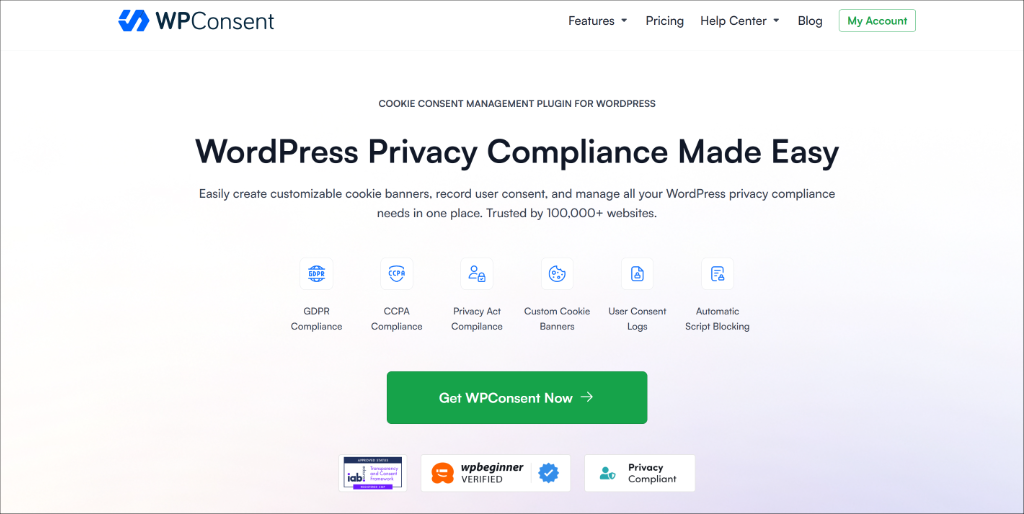
It is the best cookie consent management plugin for WordPress and is trusted by over 100,000 websites. Built by the same team behind WPBeginner, it is IAB TCF verified and fully self-hosted, meaning all consent data stays on your own server rather than being sent to third-party services.
Beyond GPC, WPConsent handles everything you need for privacy compliance in one place. It includes an automatic script blocker, a customizable cookie consent banner, a built-in scanner, automatic AI-powered translations, and geolocation rules.
When it comes to GPC specifically, WPConsent automatically detects the signal on every page load. If a visitor’s browser is sending that signal, WPConsent declines all non-essential cookies, suppresses the consent banner, and displays a brief toast notification confirming their preference was honored.
It also protects against accidental overrides by requiring visitors to explicitly acknowledge when they are changing a GPC-backed preference. Best of all, GPC support is available in both the free and paid versions of WPConsent.
That said, let’s look at the steps you can follow to enable Global Privacy Control.
Step 1: Install and Activate WPConsent
First, you’ll need to install the WPConsent plugin on your WordPress website. For this tutorial, I am using the WPConsent Lite version since it includes the GPC option. There are also premium versions that unlock more advanced features like IAB TCF verification, Do Not Sell addon, AI-powered translations, custom script and iframe blocking, and more.
Simply go to your WordPress dashboard and navigate to Plugins » Add New Plugin. In the search box, you can type ‘WPConsent’ and look for the plugin.
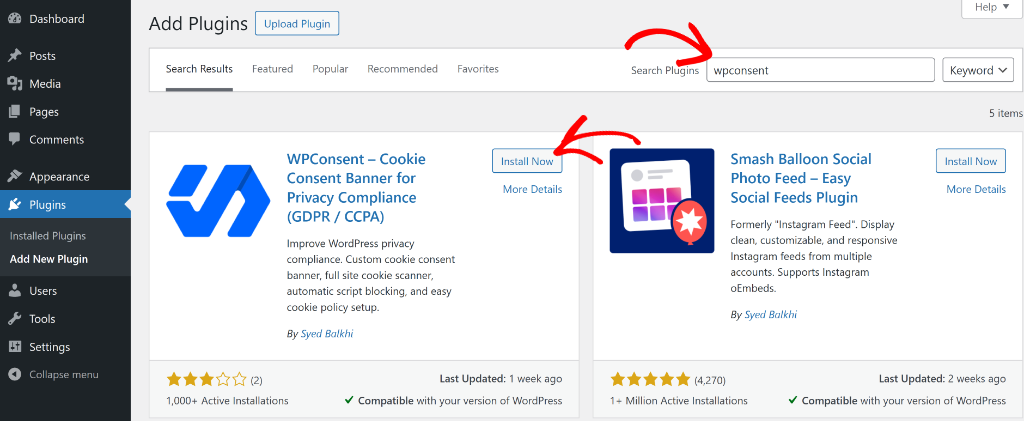
Next, you can click the ‘Install Now’ button and then activate the plugin. If you need help with this, then simply follow this guide on how to install a WordPress plugin.
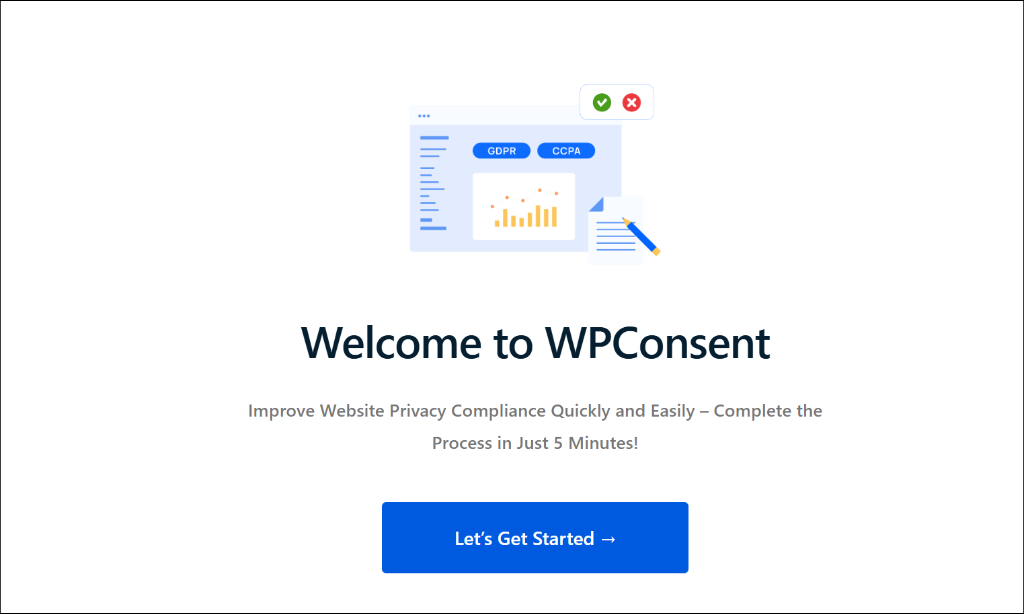
Upon activation, you will see the WPConsent setup wizard. You can follow the onscreen instructions to set up the plugin.
Step 2: Enable GPC Option in WPConsent
Once the plugin is up and running on your site, the next step is to enable the Global Privacy Control option.
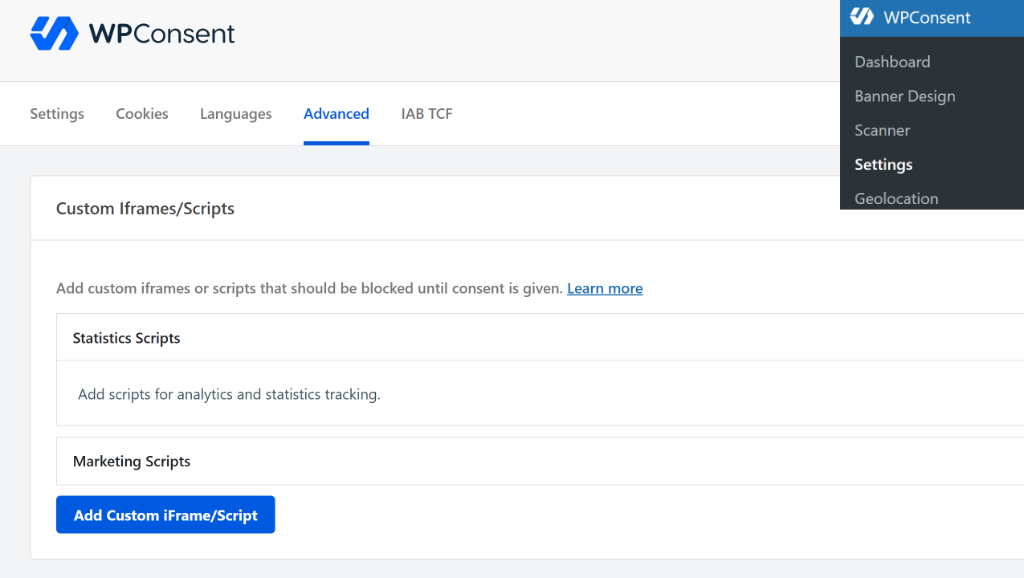
To get started, head over to WPConsent » Settings in your WordPress admin panel and click the Advanced tab.
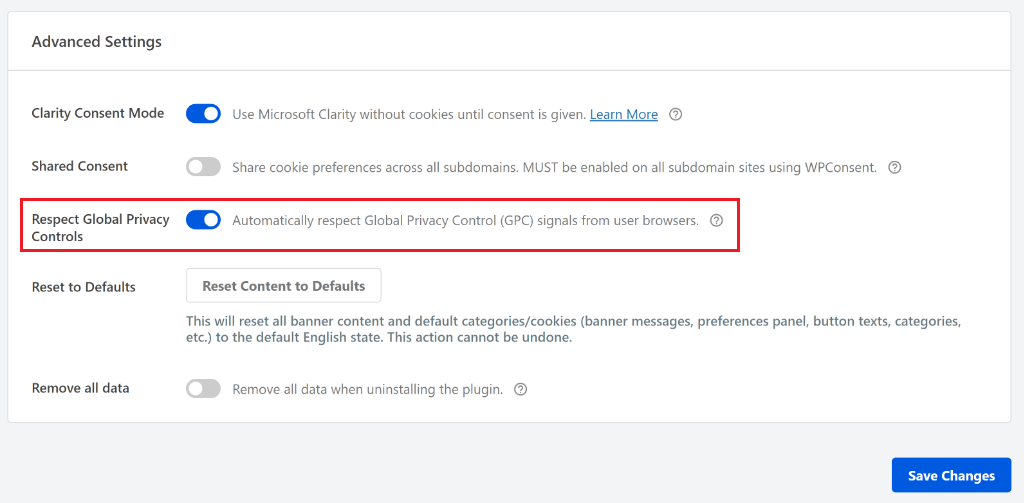
After that, you can scroll down to the Advanced Settings section and look for the Respect Global Privacy Controls toggle.
Go ahead and click the toggle to turn it on. When you’re done, click Save Changes to store your settings.
Step 3: Customize the Banner Notification
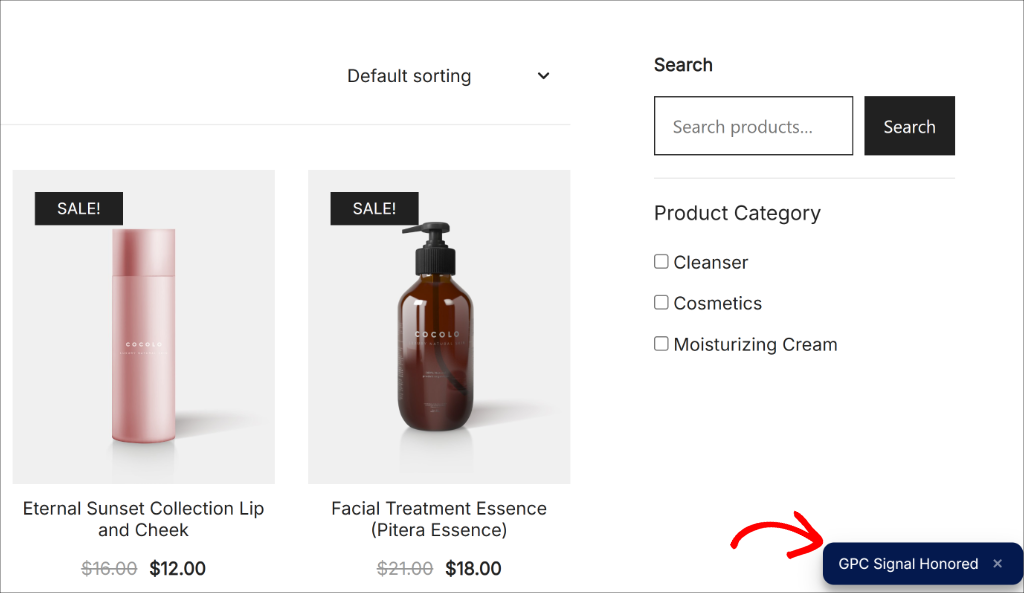
When WPConsent honors a GPC signal, it displays a brief notification at the bottom of the page to let the visitor know their preference was respected.
The default message is “GPC Signal Honored,” which works great for most websites. But WPConsent allows you to customize it to match your site’s voice.
To do this, simply go to WPConsent » Banner Design from your WordPress dashboard.
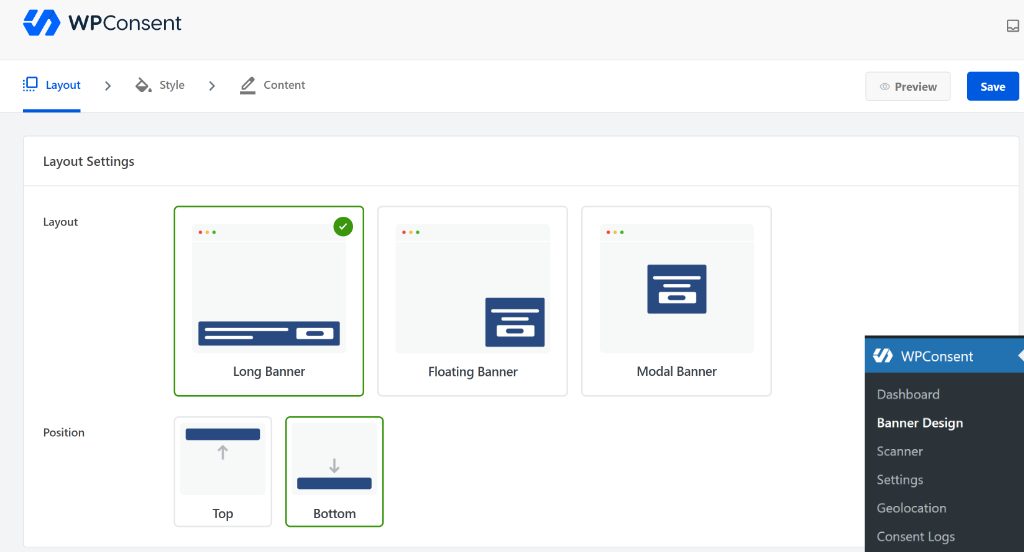
Here, you can make changes to the cookie consent banner that appears on your site. For instance, you can choose from prebuilt layouts, select their position, edit the style, and more.
Next, you will need to switch to the Content tab.
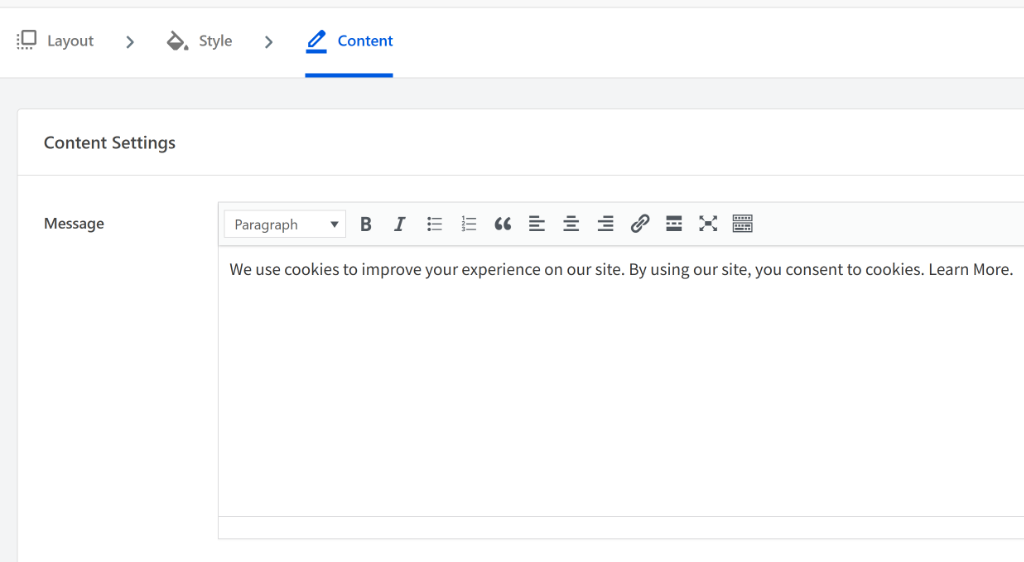
Now, scroll down to find the GPC Honored Message and GPC Override Message fields.
From here, you can simply edit the text that appears in these fields to match your site’s style and tone.
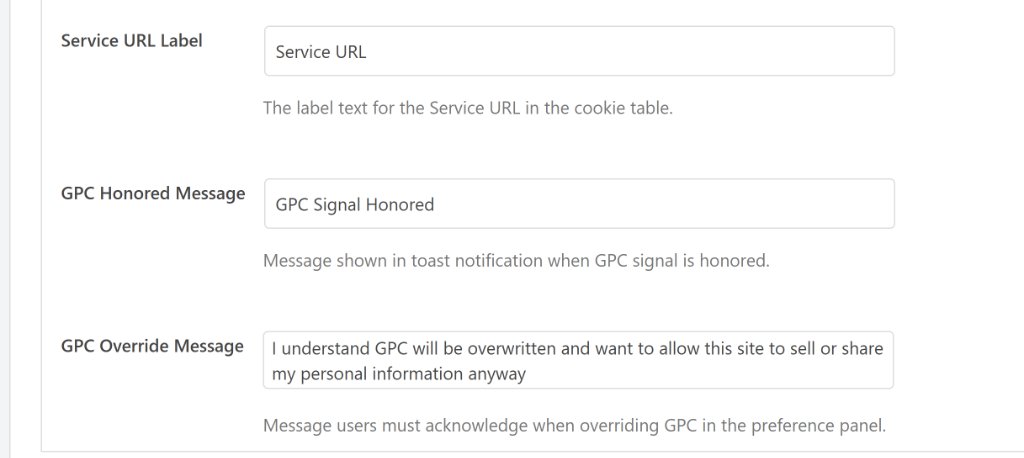
The GPC Honored Message is the text that is shown when the toast notification appears at the bottom of the page for 10 seconds and includes a close button that visitors can use to dismiss it early.
On the other hand, if a visitor with an active GPC signal opens the preference panel and tries to enable a non-essential cookie category, WPConsent shows an override message before saving their changes. This prevents visitors from accidentally undoing their own browser-level privacy settings.
When you’ve made these changes, simply Save your settings.
Now, you can visit your website and see the new GPC toast notification. When a visitor arrives on your site with the GPC signal enabled (often via a browser extension or privacy-focused browser), they will see a specific message in the bottom corner stating ‘GPC Signal Honored.’
FAQs About Global Privacy Control in WordPress
1. Does honoring GPC mean I don’t need a cookie consent banner anymore?
No. GPC and your cookie consent banner serve different purposes. The consent banner handles visitors who haven’t set a GPC signal, which is still the majority of your traffic. GPC simply means those specific visitors won’t see the banner because their preference is already known. You still need the banner for everyone else.
2. Does GPC replace a Do Not Sell page?
Not entirely. GPC handles the automatic, browser-level opt-out for visitors whose browsers support it. A Do Not Sell page handles manual opt-out requests from visitors who want to submit a formal request. Under the CCPA, you need both. Not all browsers support GPC, and some visitors simply prefer to submit a request manually.
3. Can I use GPC support with the free version of WPConsent?
Yes. GPC support is available in both the free and paid versions of WPConsent. You don’t need a premium plan to enable it.
4. What happens if a visitor with GPC wants to allow cookies?
They can still do that. If a visitor opens the preference panel and wants to enable non-essential cookies, WPConsent will ask them to acknowledge an override message first. Once they confirm, their manual preference takes over, and WPConsent will respect that going forward instead of the GPC signal.
5. Why are non-essential scripts still loading even though GPC is enabled?
There are a couple of things to check. First, make sure script blocking is enabled under WPConsent » Settings. Second, confirm the Respect Global Privacy Controls toggle is turned on in the Advanced tab. If both are enabled and scripts are still loading, try clearing your site cache and testing again in a private browser window.
Honoring Global Privacy Control signals is one of the simplest compliance steps you can take for your WordPress site, and with WPConsent, it comes down to a single toggle.
I hope this guide helped you set up Global Privacy Control support on your WordPress site. You may also want to check out our guide on how to create a Do Not Sell page in WordPress and our ultimate guide to WordPress and GDPR compliance.
If you liked this article, please follow us on X (formerly known as Twitter). You can also leave a comment below if you need any assistance.