Your cookie banner is set up. For a lot of sites, the Privacy Policy is still the draft WordPress created, or a page written once and never opened again.
A new plugin, a new form, or visitors from a new region can change what your Privacy Policy needs to cover.
Today we’re releasing WPConsent 1.2.1 with Legal Documents.
WPConsent now builds your Privacy Policy and Cookie Policy from your answers and what its site scan already found. Nothing goes live until you publish it.
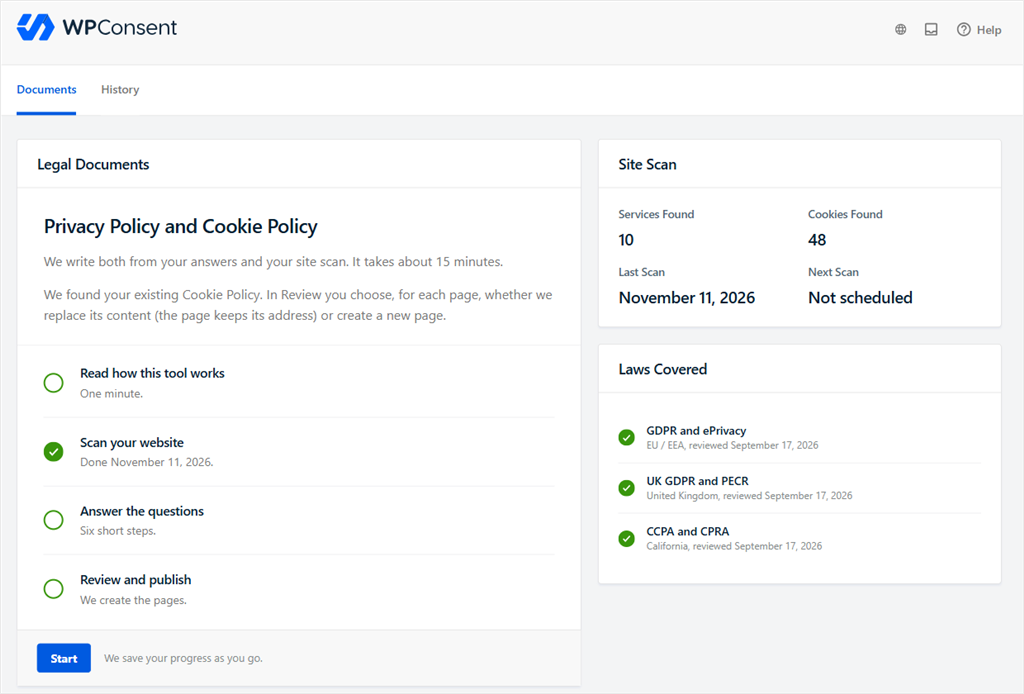
Legal Documents is in the paid version of WPConsent, on the Plus plan and up.
On WordPress 6.9 or later, you can also connect your own AI assistant or automation tool to manage WPConsent through WordPress’s Abilities API. That part is in the free plugin and every paid plan.
Everyone also gets a Google Consent Mode debug report and suggested banner wording.
To get the new features, update WPConsent from your WordPress dashboard. On a paid plan, you can also download the latest version from your WPConsent account.
Updating doesn’t touch your policy pages or your banner text. And you need to connect your AI tool before it can read or make any changes.
What Is Legal Documents?
Legal Documents builds your Privacy Policy and Cookie Policy from pre-written templates, not AI.
It fills them in with your answers and with what WPConsent already identified about your site after the scan.
Until now, WPConsent made a Cookie Policy page with a short intro and your live cookie table, and left the Privacy Policy to you.
Legal Documents writes both in full, and the Cookie Policy keeps the live cookie table.
How to Set Up Legal Documents in WPConsent
Once you update to WPConsent 1.2.1, go to WPConsent » Legal Documents in your WordPress dashboard and click “Start.”
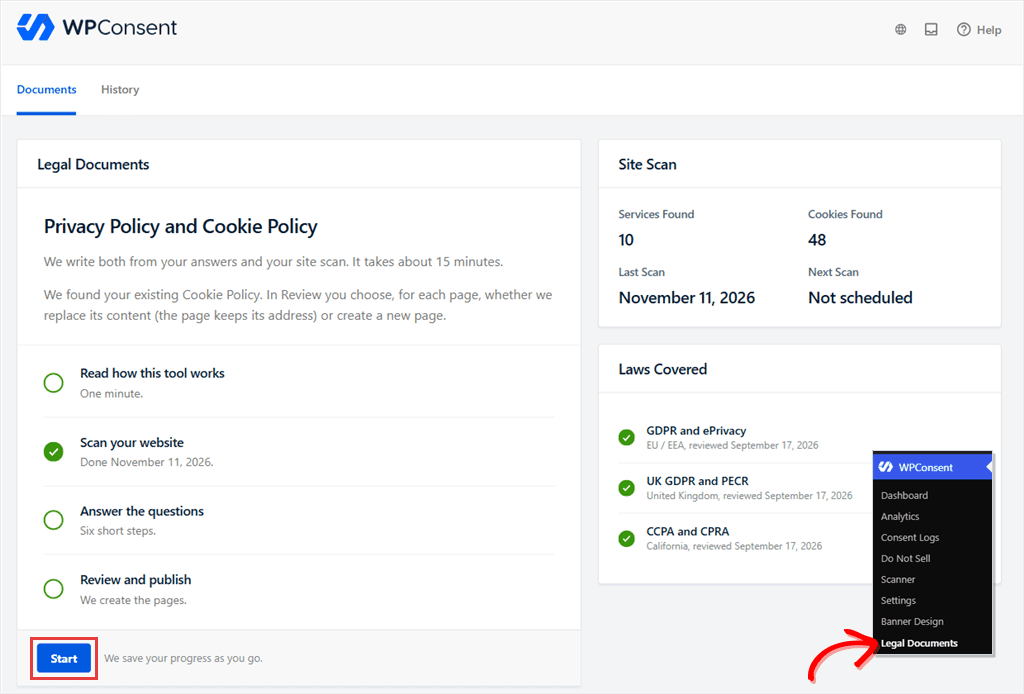
On the next screen, you get an explanation that it only assembles templates from your answers, and asks you to tick “I understand. This is not legal advice.”
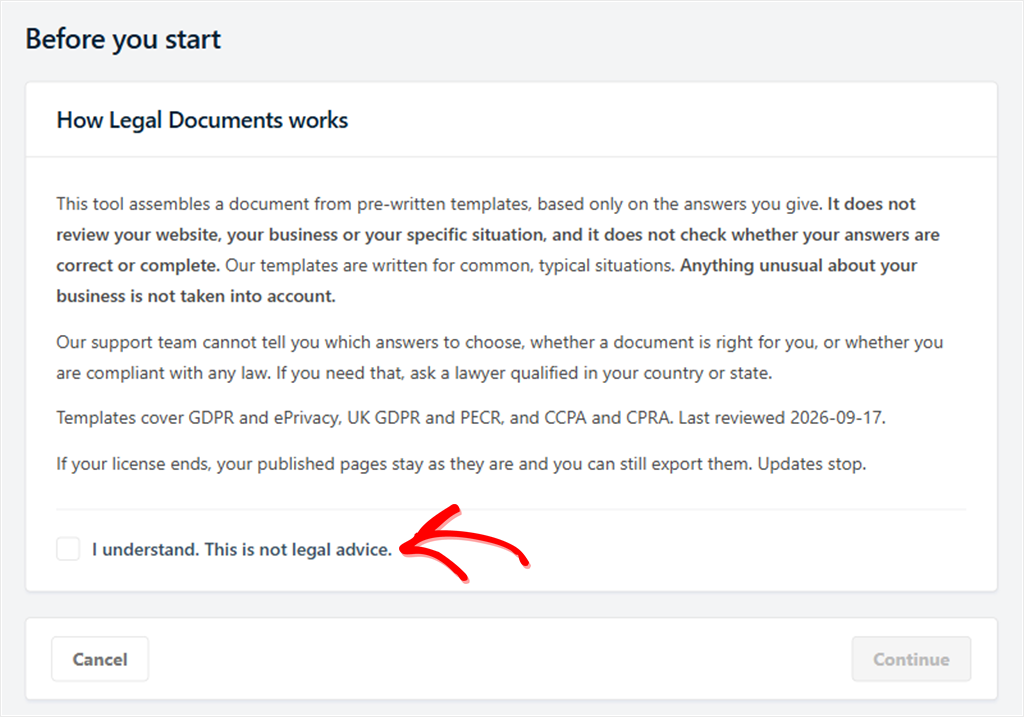
We won’t tell you which answers to choose or whether a document fits your business, because that’s legal advice. For that, ask a lawyer qualified in your country or state.
Legal Documents Shaped by Your Answers and Your Visitors’ Laws
Every site collects different information, for different reasons.
So Legal Documents starts from templates written for a typical website or shop, and your answers turn them into documents about your site.
A few kinds of sites need more than a typical template can cover.
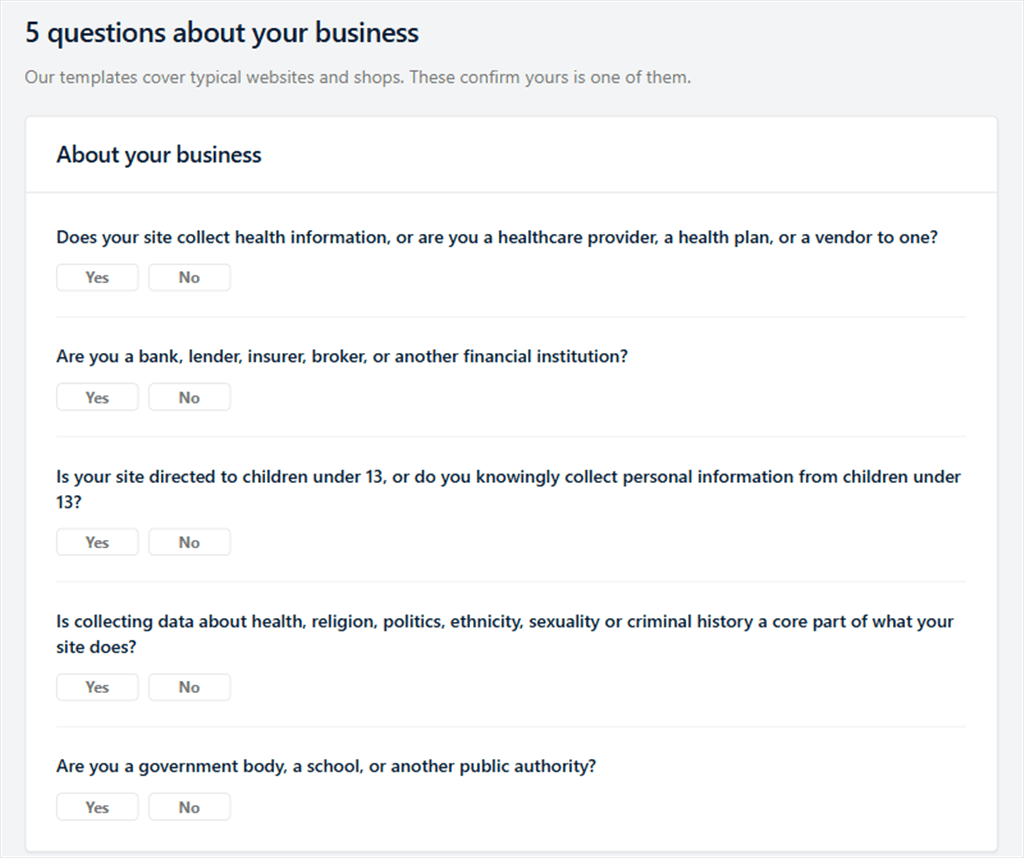
The five screening questions check for those first: health services, financial services, sites for children under 13, sensitive data as a core part of the business, and public bodies.
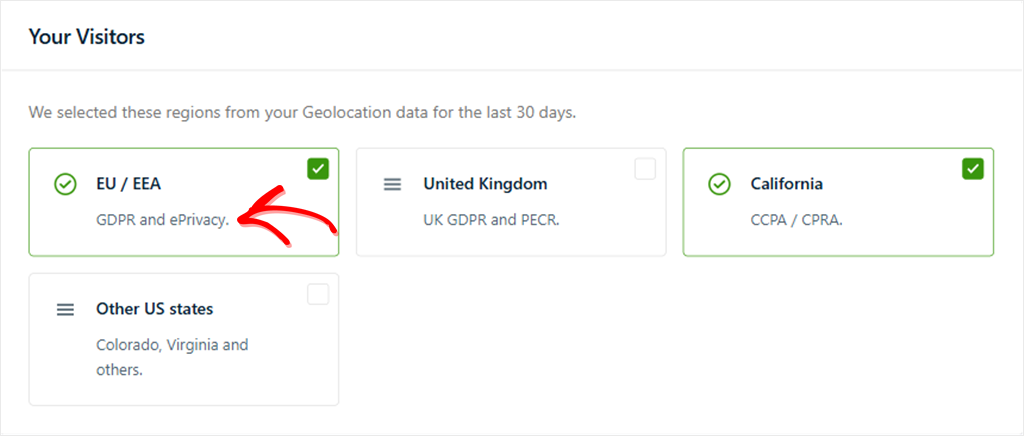
Privacy laws differ by region, so Legal Documents also asks where your visitors come from.
It pre-selects regions from your WPConsent Geolocation data for the last 30 days, and you can change them.
Each region matches the laws its templates are written for:
- EU and EEA: GDPR and ePrivacy. Legal Documents groups them as one choice.
- United Kingdom: UK GDPR and PECR, its own versions of those laws.
- California: CCPA and CPRA.
- Other US states: grouped together, with no state law named.
The Laws Covered card in Legal Documents shows when each set of templates was last reviewed.
The Do Not Sell or Share page and the Limit the Use of My Sensitive Personal Information page only appear when your answers call for them.
That way, your site only publishes the pages that apply to it.
Not sure what each page has to cover? Our Cookie Policy vs Privacy Policy guide explains the difference.
Six Steps That Describe How Your Site Uses Data
Your documents need to describe how your site handles personal data.
These six steps gather exactly that:
- Who runs the site.
- Where your visitors come from.
- What your site does.
- Which services it uses.
- What data you collect and why.
- How long you keep it, and a few final facts, like whether you sell or share data.
So that you don’t start from a blank page, WPConsent fills in what it already knows from WordPress and your site scan.
Your job is to check it.
On our demo store, for example, the scan had already ticked contact forms, customer accounts and online sales, and comments came from your WordPress settings.
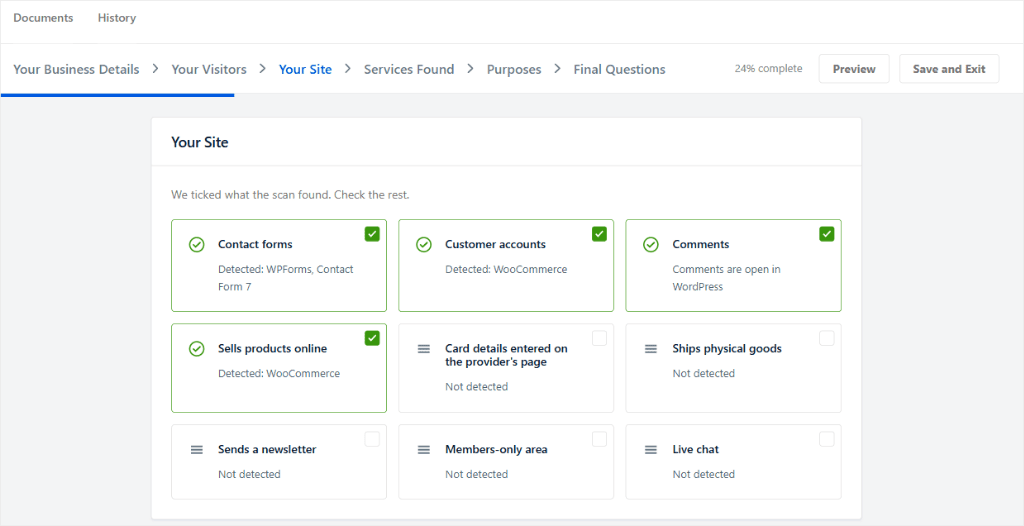
A few answers have no default on purpose.
How long you keep each kind of data is a decision only you can make, so WPConsent doesn’t pre-fill this.
The whole process takes about 15 minutes, and your progress is saved as you go.
Review Everything Before It Goes Live
You can publish before every question is answered.
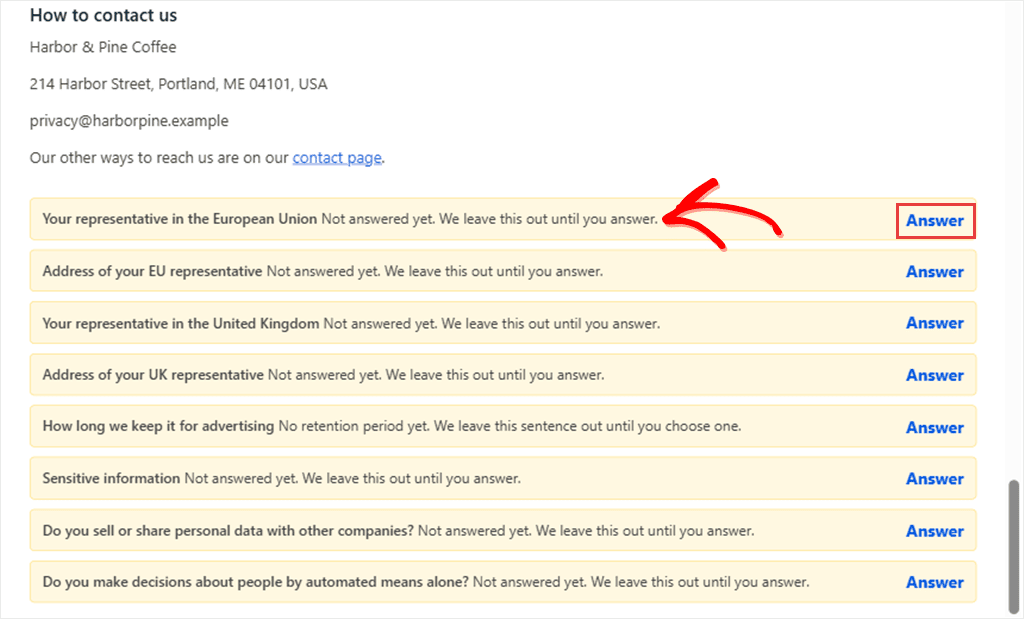
If you haven’t appointed an EU representative, for example, leave it empty and the sentence about it stays out until you add one.
Each question you leave open shows up with an Answer link.
The review screen says: “You can publish now. Each open question leaves one sentence out.”
Your current policy pages are likely linked from your footer, your menus, and your banner already.
By default, WPConsent replaces the content of your existing page, so it keeps its URL address, and the old text stays in WordPress revisions.
You can create new pages instead. A new Privacy Policy page becomes your WordPress privacy page.
A new Cookie Policy page sends your old one back to draft and out of your menus once the new one is live.
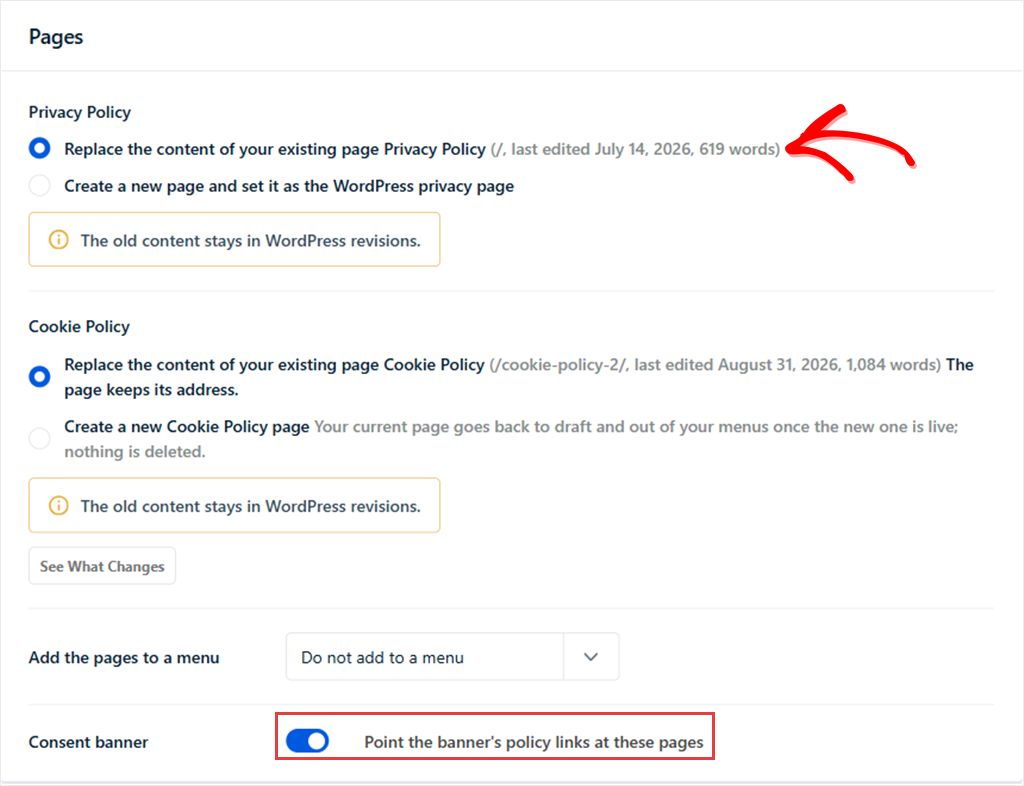
The same screen has a “Point the banner’s policy links at these pages” setting, and it’s on by default. Leave it on.
If you create a new Cookie Policy page and turn this off, your banner keeps linking to the old page, which is now a draft.
Keep Your Policies Up to Date
A privacy policy goes out of date quietly. Add a new plugin or tracking service, and the page no longer matches your site.
When a scan finds or drops a service, or our templates change, WPConsent tells you and shows what would change in each page.
Nothing goes live until you publish it.
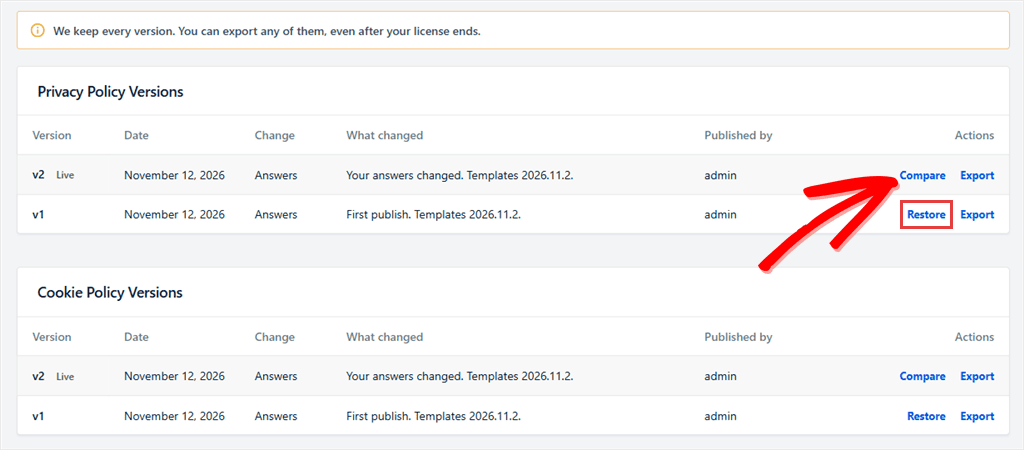
Every published version is kept in the History tab. So if an update isn’t what you wanted, you can go back.
You can compare the live version with the one before it, restore an older one, or export any version as HTML, Markdown, or PDF.
Where Your Answers Go
Your answers and the facts from your site scan go to WPConsent’s documents service, which builds the documents.
The published copy is stored on your site, and WPConsent shows it on your policy pages.
What happens if your license ends?
Your pages stay as they are, and you can still export them. Updates stop until you renew.
You can also unpublish a document and your answers stay as they are.
Manage WPConsent From Your AI Tools
If you manage your WordPress site with an AI tool, it couldn’t reach your consent settings until now.
You still clicked through every WPConsent screen yourself.
WordPress 6.9 added the Abilities API, a standard way for AI tools to work with plugins.
WPConsent 1.2.1 uses it, so you can ask your AI tool to run a scan, shorten your banner message, or export your settings.
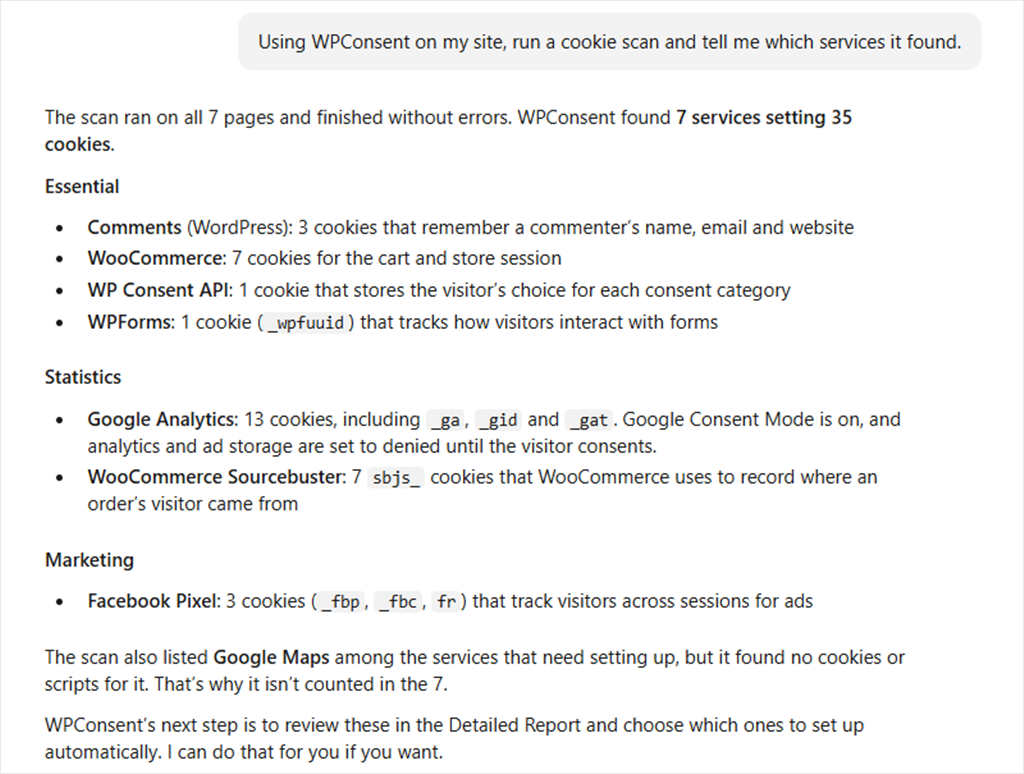
The free plugin adds 27 abilities, covering settings, banner text and design, cookies, categories, services, the scanner, and import and export.
The paid version adds 21 more, including geolocation rules, banner languages, banner analytics, consent logs, custom blocking scripts, and scan history.
For added protection, only administrators can use WPConsent’s abilities.
An AI tool connected with an administrator account can read and change the WPConsent settings those abilities cover.
WPConsent refuses to delete anything, import settings, or reset to defaults until your AI tool sends a confirmation.
Instead, your AI tool gets a warning back explaining what would be lost, and is told to check with you first.

There’s nothing to turn on in WPConsent.
On WordPress 6.9 or later, the abilities are available as soon as you update; you just need to connect your AI tool.
To connect, you need an AI tool that supports the Abilities API or MCP (Model Context Protocol, the way many AI assistants connect to other software).
WPConsent doesn’t include its own AI, and none of its abilities create your Legal Documents.
You choose which AI tool to connect and which administrator account it uses.
If you haven’t set one up yet, WPVibe connects Claude, ChatGPT, and other AI tools to your WordPress site, and it’s free to start.
Developers can also use the official WordPress MCP Adapter.
Also in WPConsent 1.2.1
Everyone on WPConsent gets these, free plugin included.
A Google Consent Mode Debug Report
Google Consent Mode only works if your consent defaults are set before any Google tag loads. Nothing on the page tells you whether that happened.
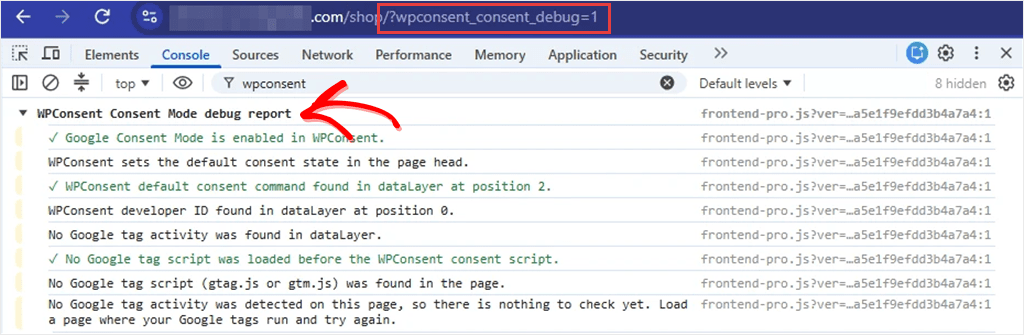
The new debug report checks it for you. Add ?wpconsent_consent_debug=1 to any page on your site, or run WPConsent.debug() in your browser console.
It shows whether WPConsent sets the default consent state and whether any Google tags load before it. It prints in the browser console, not on the page.
To see it, open your browser’s developer tools (F12 in Chrome, Edge and Firefox) and go to the Console tab.
If you haven’t set up Google Consent Mode yet, start with our Google Consent Mode v2 guide.
Suggested Banner Wording for Google Consent Mode
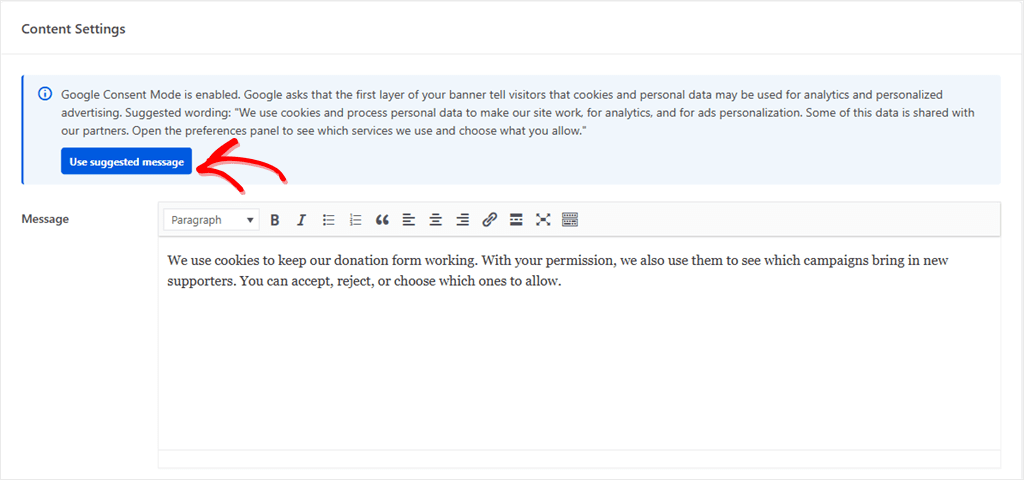
Google asks that the first layer of your banner tell visitors that cookies and personal data may be used for analytics and personalized advertising.
Turning that into banner text is guesswork for most site owners.
So when Google Consent Mode is on, Banner Design can suggest a first-layer message based on Google’s guidance.
If you use it, it replaces your current banner message after you confirm, and you can still edit it afterwards.
Getting Started
Have WPConsent Plus or higher? Create your policies:
- ✅ Update the paid version of WPConsent to 1.2.1
- ✅ Go to WPConsent → Legal Documents and click Start
- ✅ Answer the six steps, then preview your documents
- ✅ Choose replace or new for each page, and publish
- ✅ Open your site and check your policy links
Want your AI tool to manage WPConsent?
- ✅ Check that you’re on WordPress 6.9 or later
- ✅ Connect an AI tool that supports the Abilities API or MCP. If it uses MCP, install an MCP server plugin such as the WordPress MCP Adapter.
- ✅ Ask it to run a WPConsent scan
We are always working on improving WPConsent for our users. Your feedback helps shape our next updates, and we love hearing about your experiences.
Reach us through our contact page if you would like to share anything.
On the free plugin or Basic and want Legal Documents?
Upgrade to WPConsent Plus →
Already on Plus or higher?
Update the paid version of WPConsent to 1.2.1 and create your policies →