
Want to comply with the IAB Transparency & Consent Framework for digital advertising? WPConsent is a registered Consent Management Platform (CMP) with the IAB and includes full TCF v2.3 support. This guide walks you through enabling and configuring IAB TCF v2.3 in WPConsent.
Pro Feature: This feature requires WPConsent Pro.
Table of contents
- Prerequisites
- Understanding when to use IAB TCF mode
- Enabling TCF mode
- Configuring global vendor restrictions
- Configuring publisher declarations
- Selecting vendors
- Saving TCF settings
- Testing the frontend banner
- Reviewing the preferences modal
- How IAB TCF changes WPConsent
- Verifying your setup
- Troubleshooting
- FAQ
- Conclusion
Prerequisites
Before you begin, make sure you have:
- WPConsent Pro installed and activated
- A basic understanding of IAB TCF concepts (purposes, vendors, legitimate interest)
- A list of which IAB-registered vendors you work with
- Familiarity with IAB TCF v2.3 policy requirements
Understanding when to use IAB TCF mode
You’ll want to enable IAB TCF v2.3 if you:
- Work with IAB-registered advertising vendors (Google AdSense, Criteo, etc.)
- Serve audiences in the EU/EEA requiring GDPR compliance
- Need to generate IAB-compliant TC strings for programmatic advertising
- Want to use the standardized
__tcfapi()interface
You don’t need TCF mode if you only use non-IAB vendors or general analytics tools. Standard WPConsent cookie categories work better for simpler setups. For the non-TCF approach, see managing cookie categories.
Enabling TCF mode
First, navigate to WPConsent >> Settings in your WordPress dashboard. Then click the IAB TCF tab at the top of the page.
In the TCF Activation metabox, toggle the Enable TCF switch to the ON position. A note below the toggle explains that this setting forces certain banner behaviors.
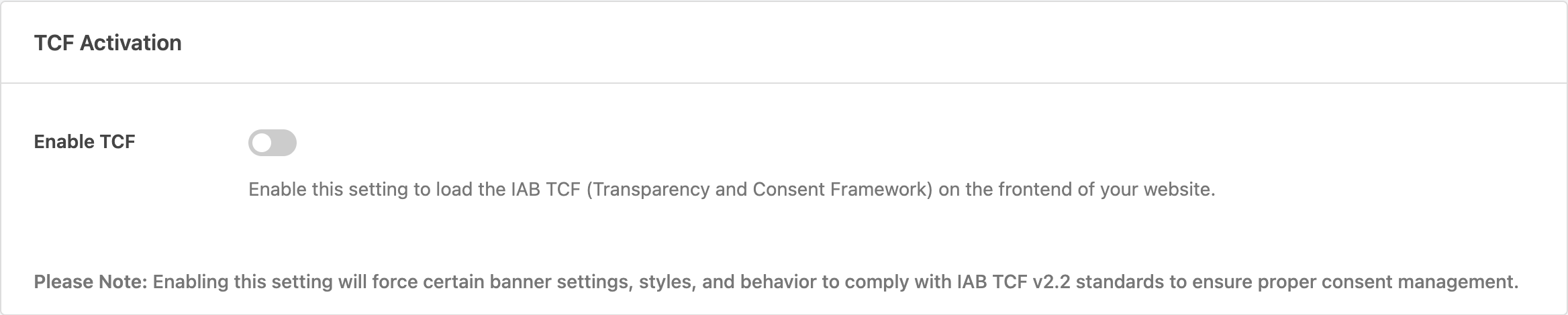
Important: Enabling TCF mode forces specific banner behaviors to ensure compliance:
- The banner layout changes to modal style (fullscreen overlay). Bar and corner layouts aren’t available.
- Button texts change to IAB-required labels: “Accept All,” “Reject All,” “Manage Settings,” and “Save Settings.”
- The banner message is replaced with an IAB-compliant version. It includes data processing purposes, vendor counts, and legitimate interest disclosure.
- The floating “Cookie Preferences” button is enabled automatically for consent resurfacing.
- Standard cookie categories (Essential, Marketing, Statistics, etc.) are preserved as “Non-IAB TCF Categories” and displayed separately from IAB purposes.
- IAB purposes become the primary consent mechanism. You can’t edit or delete them.
- The manual toggle for individual services is forced ON.
These changes are required by IAB TCF v2.3 policy. They revert to your original settings when you disable TCF mode.
Configuring global vendor restrictions
The Global Vendor Restrictions metabox lets you apply publisher-wide restrictions to all vendors at once.
The key setting is Legitimate Interest:
- Allow Legitimate Interest (Default): Vendors can use legitimate interest as a legal basis for certain purposes.
- Disallow Legitimate Interest for All Purposes: Forces all purposes to require explicit user consent. The legitimate interest column is hidden from the vendors tab in the preferences modal.
- Disallow Legitimate Interest for Specific Purposes: Lets you choose individual purposes that require consent instead of legitimate interest.
Most publishers leave this at the default setting unless legal counsel advises otherwise. Disallowing legitimate interest globally is a stricter approach that some privacy-focused sites prefer.
Configuring publisher declarations
The Publisher Declarations metabox lets you declare which purposes you (the publisher) process data for directly, separate from your vendors.
For each purpose, you can declare:
- Consent: You process data for this purpose and request user consent.
- Legitimate Interest Transparency: You process data for this purpose under legitimate interest.
These declarations populate the publisher section of the TC string. Leave these settings unchanged unless you directly process user data for specific purposes beyond what your vendors handle.
Selecting vendors
Scroll down to the vendor list section. You’ll see a searchable, sortable list of all IAB-registered vendors from the Global Vendor List.
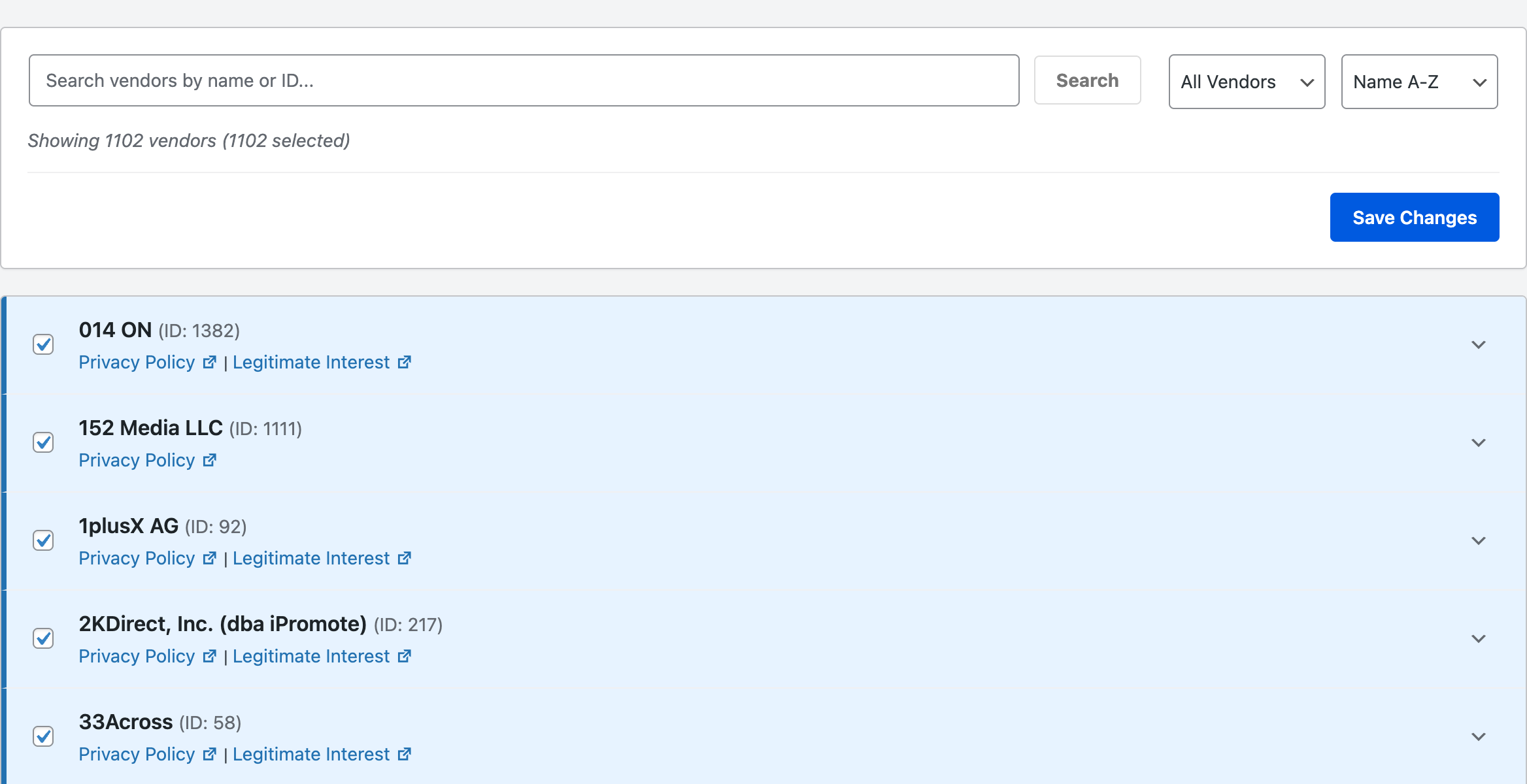
To manage vendors:
- Use the search bar to find specific vendors by name or vendor ID.
- Use the status filter to show all vendors, only selected, or only unselected.
- Use the sort dropdown to organize by name or vendor ID in ascending or descending order.
- Check or uncheck the box next to each vendor. You can also click anywhere on the vendor row header to toggle selection.
- Click the arrow button on a vendor row to expand its details. This shows purposes, legitimate interest purposes, special purposes, and policy links.
By default, all vendors are selected the first time you visit this page. You’ll want to uncheck vendors you don’t use to reduce the length of your consent prompt and improve transparency for your visitors.
Each vendor entry shows:
- Vendor name and ID: The IAB-registered name and numeric identifier.
- Privacy Policy link: Opens the vendor’s privacy policy in a new tab.
- Legitimate Interest Claim link: Opens the vendor’s legitimate interest claim (if available).
- Per-vendor restrictions: Expand the vendor details to configure per-vendor purpose restrictions and require consent for specific legitimate interest purposes.
Saving TCF settings
To apply your changes, click Save Changes at the bottom of the IAB TCF page. The plugin saves your selected vendors, publisher restrictions, publisher declarations, and the TCF enabled state. It also clears the preference slugs cache so the frontend reflects your changes immediately.
Testing the frontend banner
Open your website in an incognito or private browser window. You’ll see a TCF-compliant modal banner.

The modal banner includes:
- A standardized message describing data processing and vendor partnerships, showing your actual selected vendor count.
- A Data Processing Purposes section listing each IAB purpose with vendor counts (e.g., “3 seeking consent, 2 using legitimate interest”).
- A Special Features section if any of your selected vendors use special features like precise geolocation.
- A legitimate interest notice (if any selected vendors use legitimate interest).
- Consent scope and withdrawal information.
- A View list of vendors link that opens the preferences modal directly on the vendors tab.
- 3 buttons: Accept All, Reject All, and Manage Settings.
Reviewing the preferences modal
Click Manage Settings to open the preferences modal. It contains 3 tabs:
Purposes tab:
- Non-IAB TCF Categories section (Essential, Marketing, Statistics, etc.) with their standard toggles.
- IAB TCF Purposes section with each purpose showing its description, illustrations, vendor counts, and a “View Vendors list” link.
- Special Purposes section showing processing activities that don’t require consent (security, fraud prevention, technical delivery).
- A TC String storage disclosure explaining that consent choices are saved in localStorage and a cookie for up to 12 months.

Features tab:
- Features section listing technical capabilities that vendors use to support data processing. These don’t require separate consent.
- Special Features section with toggles for features that require explicit consent, such as “Use precise geolocation data” and “Actively scan device characteristics for identification.”
Vendors tab:
- A search bar with a filter button. The filter dropdown lets you narrow vendors by purpose, special purpose, or special feature.
- Master toggles for Consent and Legitimate Interest at the top of the list.
- Each vendor row shows the vendor name with consent and legitimate interest toggles.
- Expanding a vendor shows detailed information: purposes, legitimate interest purposes, special purposes, features, data categories, data retention periods, cookie storage duration, privacy policy link, and legitimate interest disclosure link.
- Active filter chips show the currently selected filter criteria.
A Reject All button appears alongside Save Settings in the preferences modal footer for TCF compliance.
How IAB TCF changes WPConsent
When TCF mode is enabled, several core behaviors change. Understanding these changes helps you troubleshoot issues and set expectations.
Cookie categories replaced by purposes
Standard cookie categories (Marketing, Statistics, etc.) are preserved as “Non-IAB TCF Categories” and displayed in a separate section. IAB purposes become the primary consent mechanism. The edit and delete buttons are hidden for both IAB purpose categories and the Essential category. For how categories work in non-TCF mode, see managing cookie categories.
Banner layout forced to modal
The banner layout is forced to modal style regardless of your banner layout settings. Bar and corner layouts aren’t permitted under IAB TCF v2.3 policy because the consent prompt must be prominent and unambiguous.
Button texts and messages enforced
Button labels and banner messages are overridden to IAB-compliant text. Your custom button labels and banner message are restored when you disable TCF mode. The enforced texts are:
| Element | Enforced text |
|---|---|
| Accept button | Accept All |
| Reject button | Reject All |
| Preferences button | Manage Settings |
| Save preferences button | Save Settings |
Floating button always enabled
The floating “Cookie Preferences” button is forced ON when TCF is active. IAB TCF Policy C(f) requires easy resurfacing of the consent UI so users can review and change their preferences at any time.
Consent data structure
WPConsent saves 2 consent records when TCF is active:
- Standard WPConsent preferences: Stored in the
wpconsent_preferencescookie (for non-TCF categories like Essential, Marketing, Statistics). - TC String: Stored in both the
wpconsent_tcstringcookie andlocalStorage(for IAB vendors and purposes). The TC String encodes all consent and legitimate interest choices in a standardized format that IAB vendors can read.
CMP API integration
The __tcfapi() function becomes available globally on your website. A stub version loads early in the section of every page so it’s available before any vendor scripts execute. The full CMP API initializes after the banner loads.
Third-party scripts use __tcfapi() to:
- Query consent status for specific purposes and vendors.
- Listen for consent changes via event callbacks.
- Retrieve the encoded TC String.
WPConsent is registered with CMP ID 482. The CMP API uses version 2 of the IAB TCF specification.
Example: Checking consent status from JavaScript:
__tcfapi('getTCData', 2, function(tcData, success) {
    if (success) {
        console.log('TC String:', tcData.tcString);
        console.log('Purpose 1 consent:', tcData.purpose.consents[1]);
        console.log('Vendor 755 consent:', tcData.vendor.consents[755]);
    }
});
Legitimate interest handling
Some IAB purposes support legitimate interest as a legal basis. These are purposes where vendors can process data without explicit consent, unless the user objects. In the preferences modal:
- The Purposes tab shows vendor counts for both “seeking consent” and “using legitimate interest” per purpose.
- The Vendors tab shows separate Consent and Legitimate Interest toggles for each vendor.
- Legitimate interest toggles default to ON (checked). Vendors process data under legitimate interest unless the user actively objects.
- Master toggles at the top of the vendors list let users accept or reject all consent or legitimate interest choices at once.
You can restrict legitimate interest globally or per-vendor using the Global Vendor Restrictions and individual vendor restriction settings in the admin panel.
GVL loading and caching
The plugin downloads the Global Vendor List (GVL) from the IAB Europe server at https://vendor-list.consensu.org/v3/vendor-list.json. The GVL contains all registered vendors, their purposes, features, and data processing details.
The GVL is cached locally in the /wp-content/uploads/wpconsent/cache/ directory. The cache duration follows HTTP cache headers from the IAB server (typically 24 hours). If the server is unavailable, WPConsent uses the previously cached version as a fallback. If no cached version exists, the vendor list shows an error state and retries after 1 hour.
On the frontend, the GVL base URL points to the local cache so vendor data loads from your own server. The frontend JavaScript uses the @iabtechlabtcf/core library’s GVL class to parse vendor data and narrow it to only your selected vendors.
Publisher restrictions in the TC string
Publisher restrictions are encoded directly into the TC String using the PurposeRestriction class from @iabtechlabtcf/core. 2 restriction types are supported:
- NOT_ALLOWED (0): The purpose isn’t allowed for a specific vendor. The vendor can’t process data for this purpose regardless of user consent.
- REQUIRE_CONSENT (1): The purpose requires explicit consent instead of legitimate interest. The vendor can’t rely on legitimate interest for this purpose.
These restrictions communicate your data processing policies to vendors when they decode the TC String.
Verifying your setup
After enabling IAB TCF v2.3, confirm it’s working correctly.
Checking TC string generation
- Open your browser’s developer console (F12).
- Type
__tcfapi('getTCData', 2, console.log)and press Enter. - Look for
tcStringin the logged output. - The string contains encoded consent data.
- Verify
cmpIdis482in the output.
Checking CMP API availability
The __tcfapi() function is available immediately on page load, before any other scripts execute. To verify this, check typeof __tcfapi in the console. It returns "function".
Checking consent storage
- Open DevTools and go to the Application tab.
- Look for
wpconsent_tcstringin both Local Storage and Cookies. - After accepting or rejecting consent, the TC String updates in both locations.
Validating with IAB validator
Use the IAB TCF Validator Tool to check compliance:
- Visit the validator website.
- Enter your site URL.
- Review the validation report for any policy violations.
Troubleshooting
Purposes not appearing
Symptom: The Settings page shows no IAB purposes after enabling TCF mode.
Solution: The Global Vendor List (GVL) hasn’t loaded yet. Verify that:
- Your server can make outbound HTTPS requests to
vendor-list.consensu.org. - The
/wp-content/uploads/wpconsent/cache/directory is writable by your web server. - Try refreshing the IAB TCF page to trigger a new GVL download.
TC string not saving
Symptom: Users see the banner on every page visit despite giving consent.
Solution: Check browser storage:
- Open DevTools, go to Application, then Local Storage, and look for a
wpconsent_tcstringentry. - Check DevTools, then Application, then Cookies for a
wpconsent_tcstringcookie. - If missing, verify that cookies and localStorage aren’t blocked by browser settings, ad blockers, or privacy extensions.
Vendor scripts not loading after consent
Symptom: IAB vendors don’t load after consent is granted.
Solution: IAB TCF mode generates the TC String and exposes the __tcfapi() interface, but it doesn’t automatically load vendor scripts or tags. You need to integrate vendor scripts separately using their documentation. Vendor scripts typically call __tcfapi('addEventListener', 2, callback) to listen for consent changes and activate based on the TC String.
Banner style conflicts
Symptom: The modal banner doesn’t display correctly or overlaps content.
Solution: TCF mode enforces modal layout for policy compliance. If CSS conflicts occur:
- The WPConsent banner renders inside a Shadow DOM, which isolates its styles from your theme and other plugins by design. External CSS rules targeting
.wpconsent-bannercan’t reach elements inside the Shadow DOM. To customize banner styles, use the banner style settings in WPConsent or add CSS variables that the Shadow DOM inherits. - Verify no JavaScript is interfering with modal display.
- The TCF modal layout can’t be changed to bar or corner style while TCF is active.
Preferences modal tabs not loading
Symptom: The Features or Vendors tab in the preferences modal shows empty content.
Solution: These tabs populate dynamically using GVL data loaded via JavaScript. Verify that:
- The
iab-tcf.jsscript loads correctly (check the Network tab in DevTools for errors). - The GVL cache file is accessible at
/wp-content/uploads/wpconsent/cache/vendor-list.json. - No JavaScript errors appear in the console related to GVL loading.
FAQ
Do I need IAB TCF if I only use Google Analytics?
No. If you only use non-IAB vendors or general analytics tools, standard WPConsent cookie categories are a better fit. TCF mode is designed for publishers working with IAB-registered advertising vendors.
Will my custom banner settings be lost when I enable TCF?
No. Your custom button labels, banner message, and layout settings are preserved. TCF mode overrides them temporarily while active. When you disable TCF mode, your original settings are restored.
Can I change the banner layout while TCF is active?
No. IAB TCF v2.3 policy requires the banner to display as a fullscreen modal overlay. Bar and corner layouts aren’t permitted. The layout returns to your preferred setting when you disable TCF.
Why are all vendors selected by default?
All vendors are selected the first time you visit the IAB TCF page to ensure nothing is missed. We recommend unchecking vendors you don’t use to shorten your consent prompt and improve transparency.
What is the CMP ID for WPConsent?
WPConsent is registered with CMP ID 482 in the IAB TCF system.
Conclusion
You’ve now configured IAB TCF v2.3 support in WPConsent. Your site generates compliant TC strings and provides visitors with granular consent controls for IAB-registered vendors. Remember to verify your setup using the IAB TCF Validator Tool and review your vendor selection periodically as your advertising partnerships change.
To learn more about banner display options that apply outside of TCF mode, see banner layout options.