Managing cookie compliance on your WordPress site just got a whole lot more powerful.
We’ve been listening to your feedback, and with every release, we aim to give you more visibility, more control, and a smoother experience right inside your WordPress admin.
That’s why I’m excited to introduce WPConsent 1.1.5!
This release brings some of the most exciting additions yet: a brand-new Cookie Inspector tool that gives you full visibility over every cookie your site sets, a redesigned dashboard with a site consent health score, a built-in docs overlay accessible from any screen, improved multilanguage handling, and more.
Let’s dive into the details!
Cookie Inspector: See Every Cookie Your Site Sets
Have you ever wondered exactly which cookies are loading on your site and which script is responsible for each one?
That question is now easy to answer with the new Cookie Inspector tool.
It walks you through your site in a fresh-visitor session, just like a first-time visitor would experience it. As you browse, it traces every cookie back to the specific script that set it, so there are no more guessing games.
From the same guided wizard, you can document the cookie and even create a custom script blocking rule for it. If the responsible script is an inline snippet, you’ll see a clickable code view that makes identifying the source fast and intuitive.
This is one of those features that, once you use it, you’ll wonder how you managed without it. And to start, simply head to WPConsent » Scanner from the dashboard and switch to the ‘Inspector’ tab.
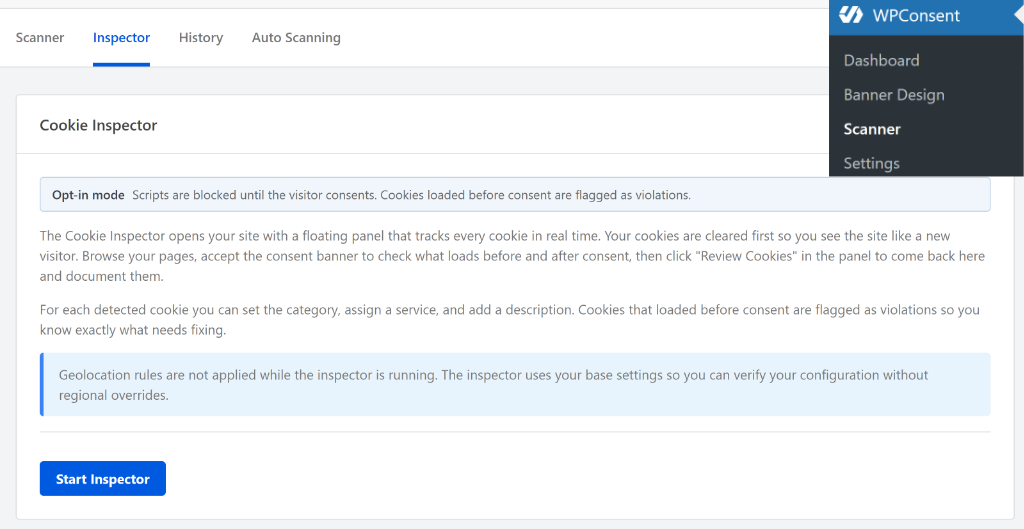
From here, you can click the Start Inspector button, and it will take you to your site.
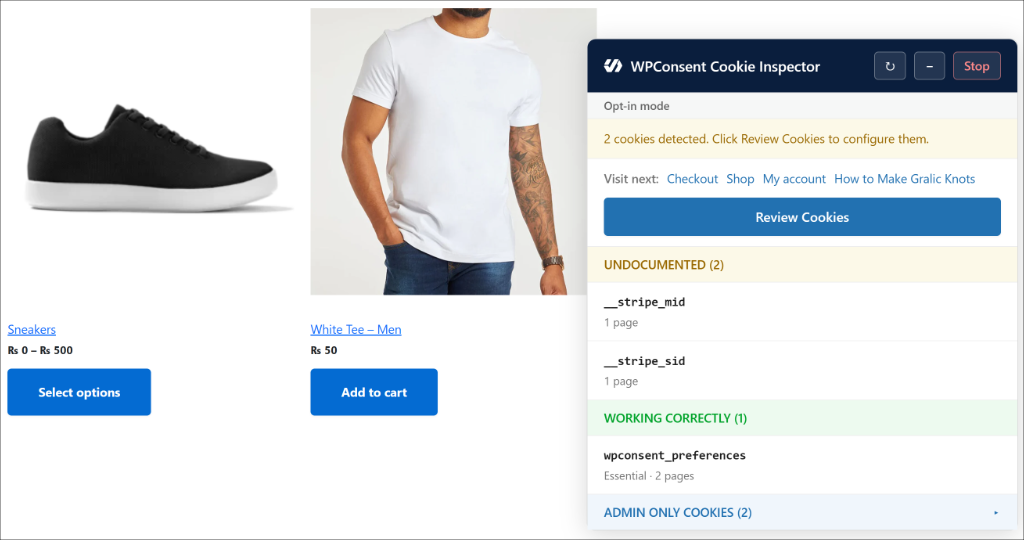
You will then see the Cookie Inspector popup, where it will detect cookies that need configuration. Go ahead and click the Review Cookies button to continue.
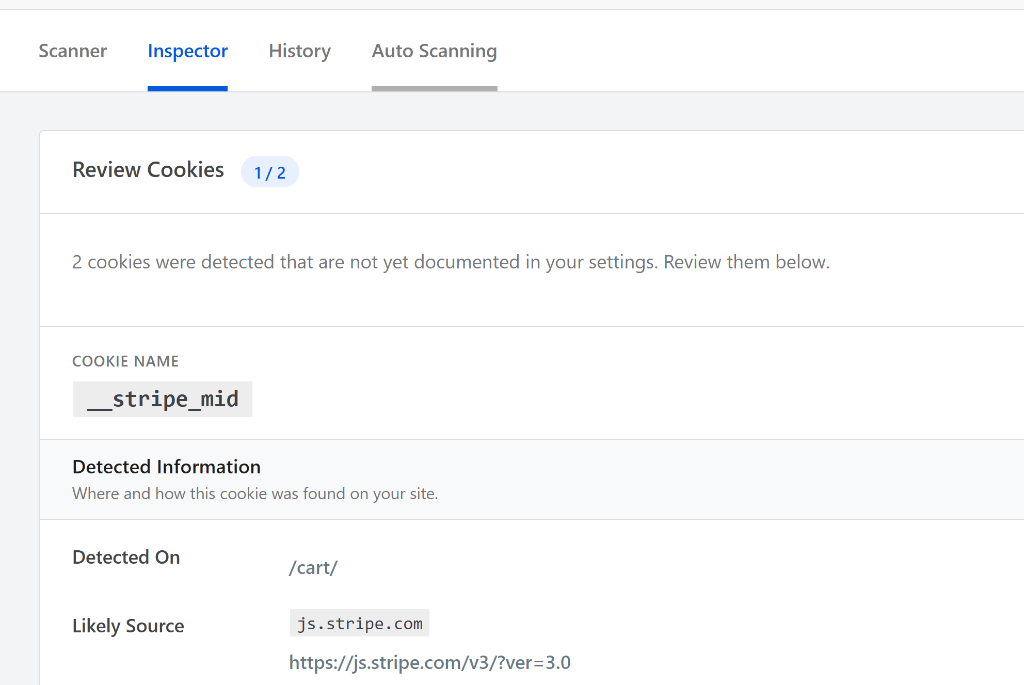
Next, this new tool lets you review the cookies it detected.
You can see its name, the page it was detected on, and the likely source.
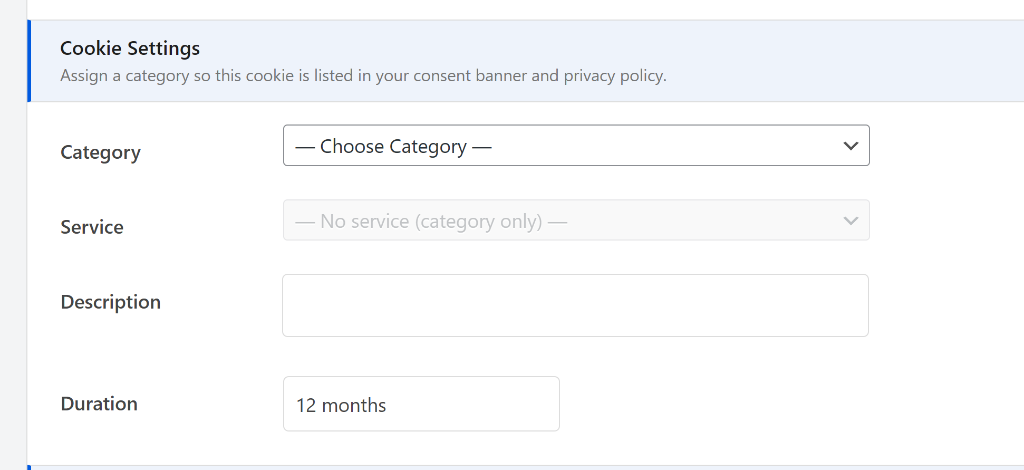
From here, you can simply enter the cookie settings details to configure them.
For instance, you can choose a category, service, add a description, and duration for the cookie.
Lastly, you get to block the script that was found by the Cookie Inspector tool.
By default, the ‘Block Script’ option will be enabled, along with the Script Tag. There is an optional setting to enter Script Keywords as well.
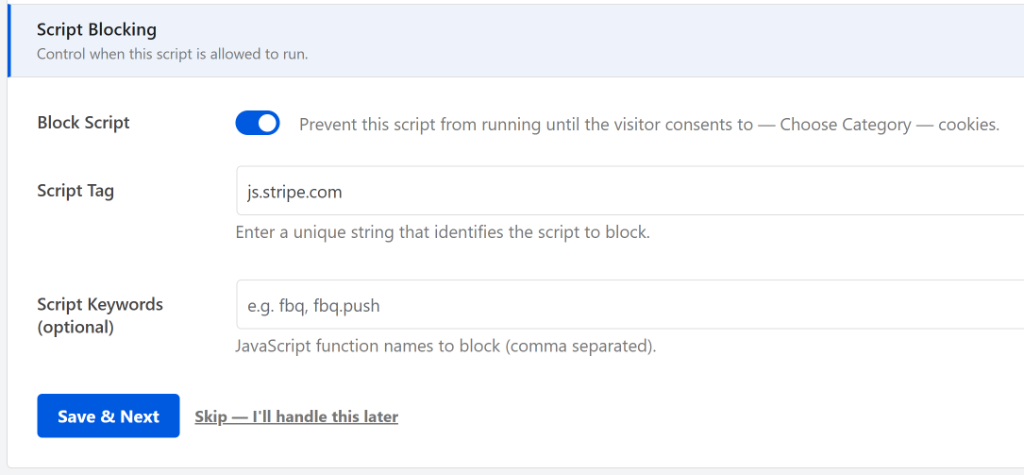
When you’re done, simply hit the ‘Save & Next’ button and move on to configuring the other scripts.
Redesigned Dashboard: Your Consent Health Score at a Glance
We’ve completely redesigned the WPConsent dashboard to make it easier than ever to understand where your site stands and what to do next.
The centerpiece of the new dashboard is the Site Consent Health score. At a glance, you can see how your site is tracking across all the key compliance areas, such as your cookie banner, cookie policy, consent logging, auto-scanning, and more.
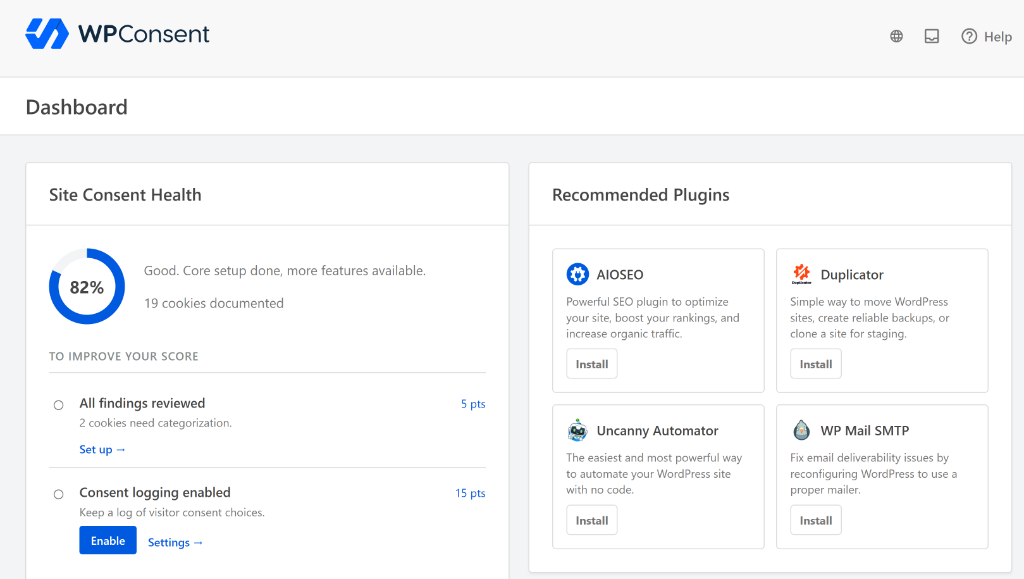
The widget also shows other suggestions (like setting up geolocation rules, enabling IAB TCF, or adding a Do Not Sell option).
The best part is that we wanted it to be seamless for users to enable these options. And with the revamped look, you use these features without ever leaving the dashboard.
No more hunting through settings pages to figure out what’s missing.
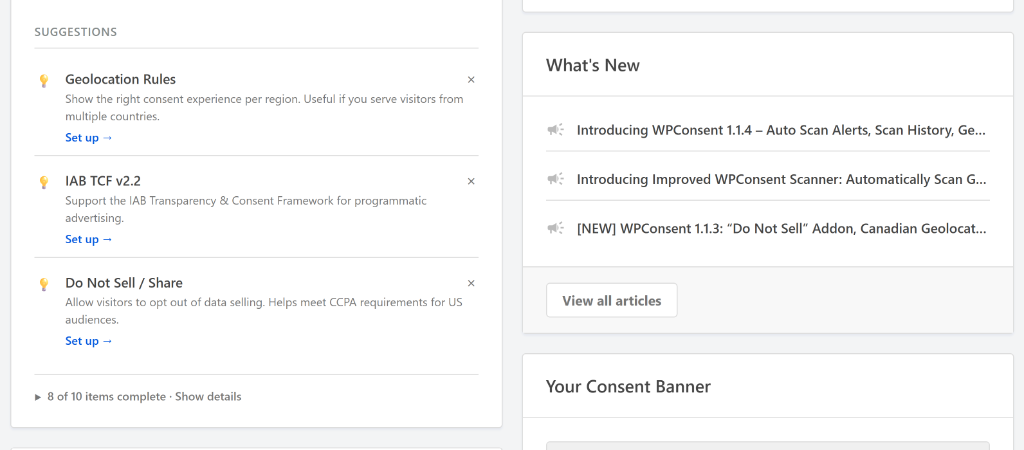
The new dashboard also includes a What’s New widget that pulls in the latest announcements from the WPConsent blog, so you’re always up to date on new features and improvements.
And a Help & Documentation widget that shows recommended documentation articles based on your current settings. It’s exactly the help you need, right when you need it.
Docs Overlay: Help Is Now Just One Click Away
Getting help shouldn’t require you to leave your WordPress admin and open a new browser tab.
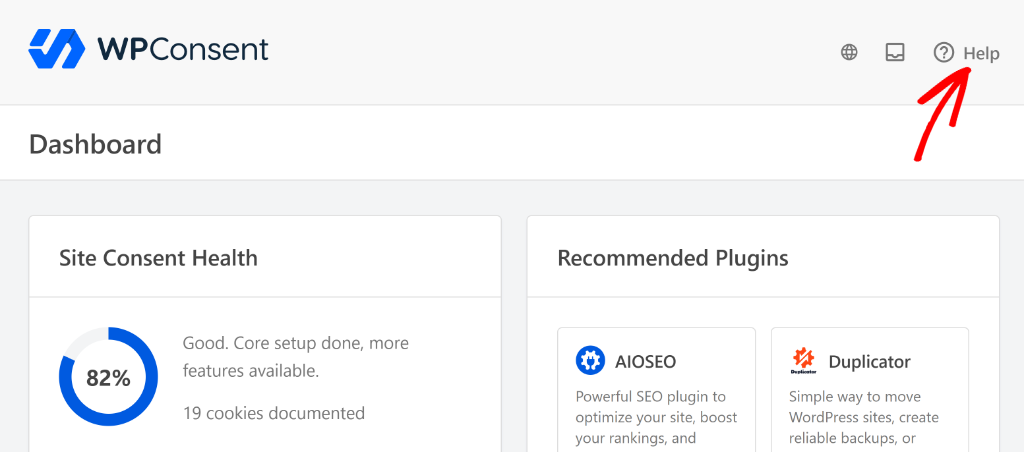
WPConsent now includes a Help button in the header of every admin screen.
Click it, and a searchable documentation overlay opens right there, without ever taking you away from what you were doing.
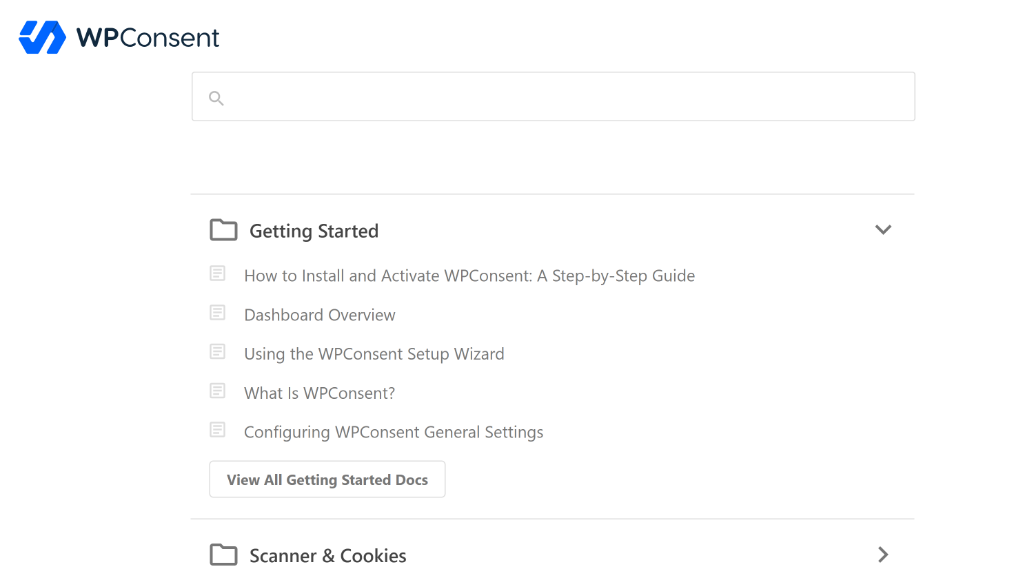
This way, you can quickly access the documents to learn about a feature or change a setting.
Improved Multilanguage Handling
If you’re running a multilingual WordPress site, managing banner translations just got a lot smoother.
WPConsent now follows the language you select in your translation plugin’s admin toolbar.
Whether you’re using WPML, Polylang, or TranslatePress, simply switch the language in the toolbar, and WPConsent will automatically update to reflect that language. No separate WPConsent language switch needed.
This makes the whole workflow of reviewing and editing your banner translations feel much more natural and integrated.
With that, these new features and improvements are now live for both WPConsent Lite and Pro users.
Simply update WPConsent to version 1.1.5, and you’ll have everything ready to go. Head to the new dashboard first, and see the consent health score, as it is a great place to start if you want to make sure everything is set up correctly.
After that, give the new Cookie Inspector tool a try and see which cookies are being added to your site.
If you have any questions or run into anything, don’t hesitate to reach out. Our team is always happy to help.