
Want to control where your consent banner appears and how it’s structured? WPConsent gives you 3 layout types with flexible positioning. This guide covers the Layout tab on the Banner Design page.
Table of contents
- Prerequisites
- Navigating to the layout settings
- Choosing a layout type
- Setting the banner position
- Saving and continuing to the next tab
- Previewing the banner
- Verifying your setup
- FAQ
- Conclusion
Prerequisites
- WPConsent is installed and activated on your WordPress site.
- You have administrator access to the WordPress dashboard.
Navigating to the layout settings
To get started, go to WPConsent >> Banner Design. The Layout tab is the first view and is selected by default.
Choosing a layout type
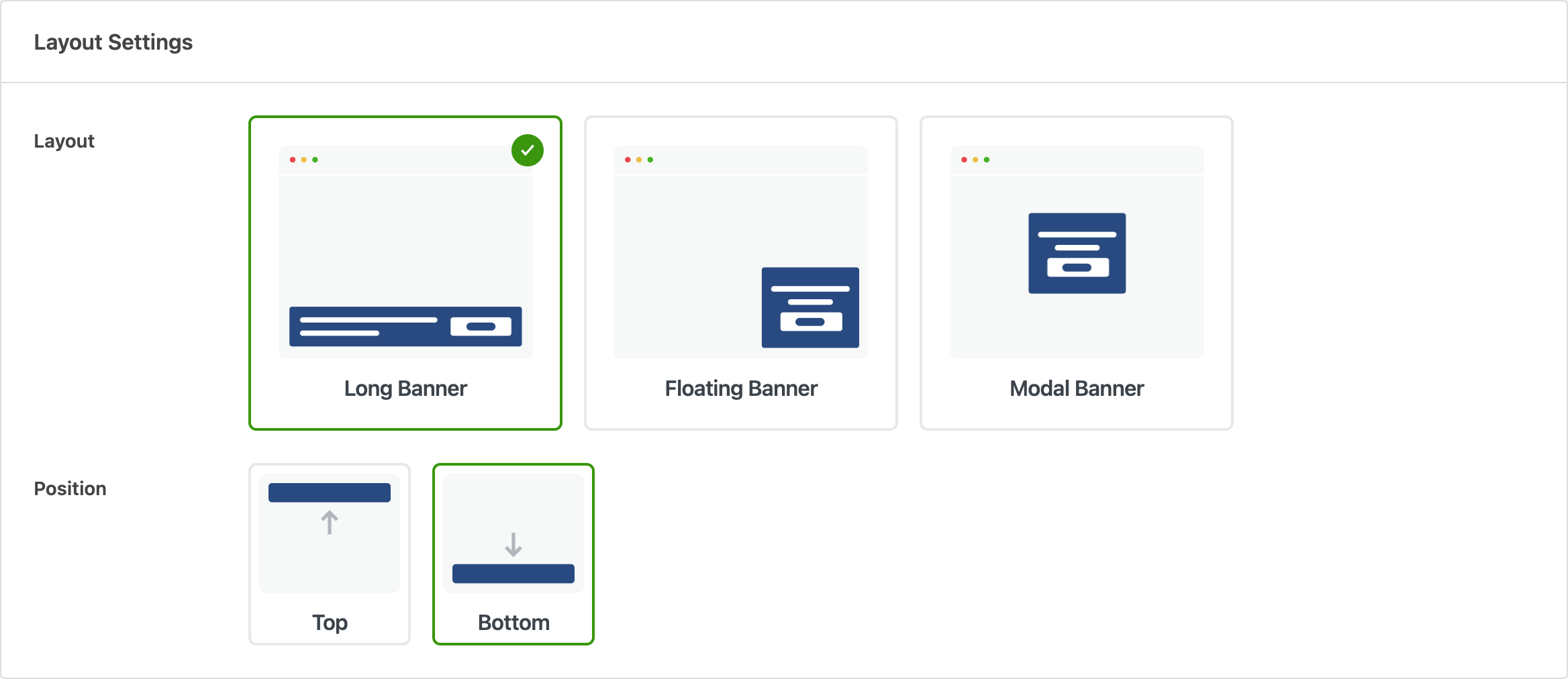
Under the Layout heading you’ll see 3 visual options. Select the one that fits your site best.
| Layout | Description |
|---|---|
| Long Banner | A full-width bar that stretches across the top or bottom of the viewport. This is the default layout. |
| Floating Banner | A compact card that sits in 1 of the 4 corners of the screen. |
| Modal Banner | A centered overlay that dims the rest of the page, prompting visitors to choose before continuing. |
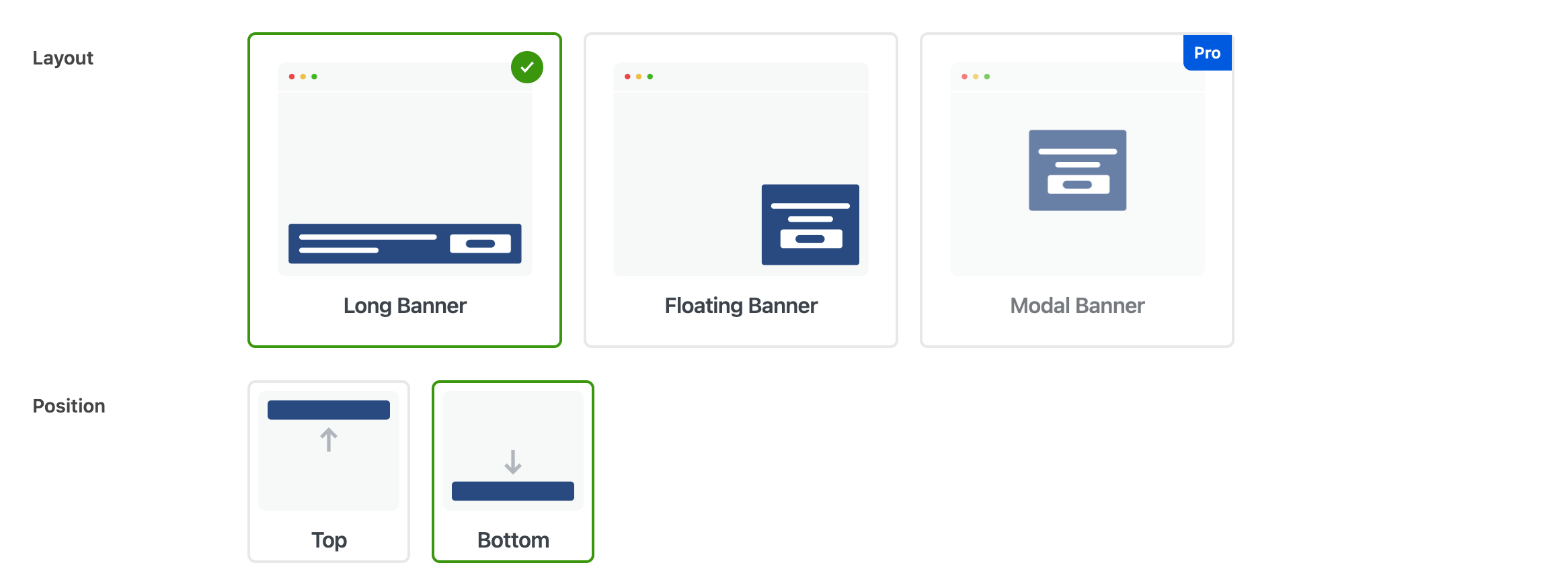
Pro Feature: The Modal Banner layout requires the paid version of WPConsent.
Setting the banner position
The available position options change based on the layout you selected.
Long Banner positions:
- Top: the banner appears at the top of the viewport.
- Bottom: the banner appears at the bottom of the viewport. This is the default.
Floating Banner positions:
- Left Top
- Right Top
- Left Bottom
- Right Bottom
The Modal Banner layout doesn’t have a position setting because it always appears centered on the screen.

Saving and continuing to the next tab
After selecting your layout and position, click Save & Continue to save your choices and move to the Style tab. You can also click the Save button in the top-right corner to save without navigating away.
Previewing the banner
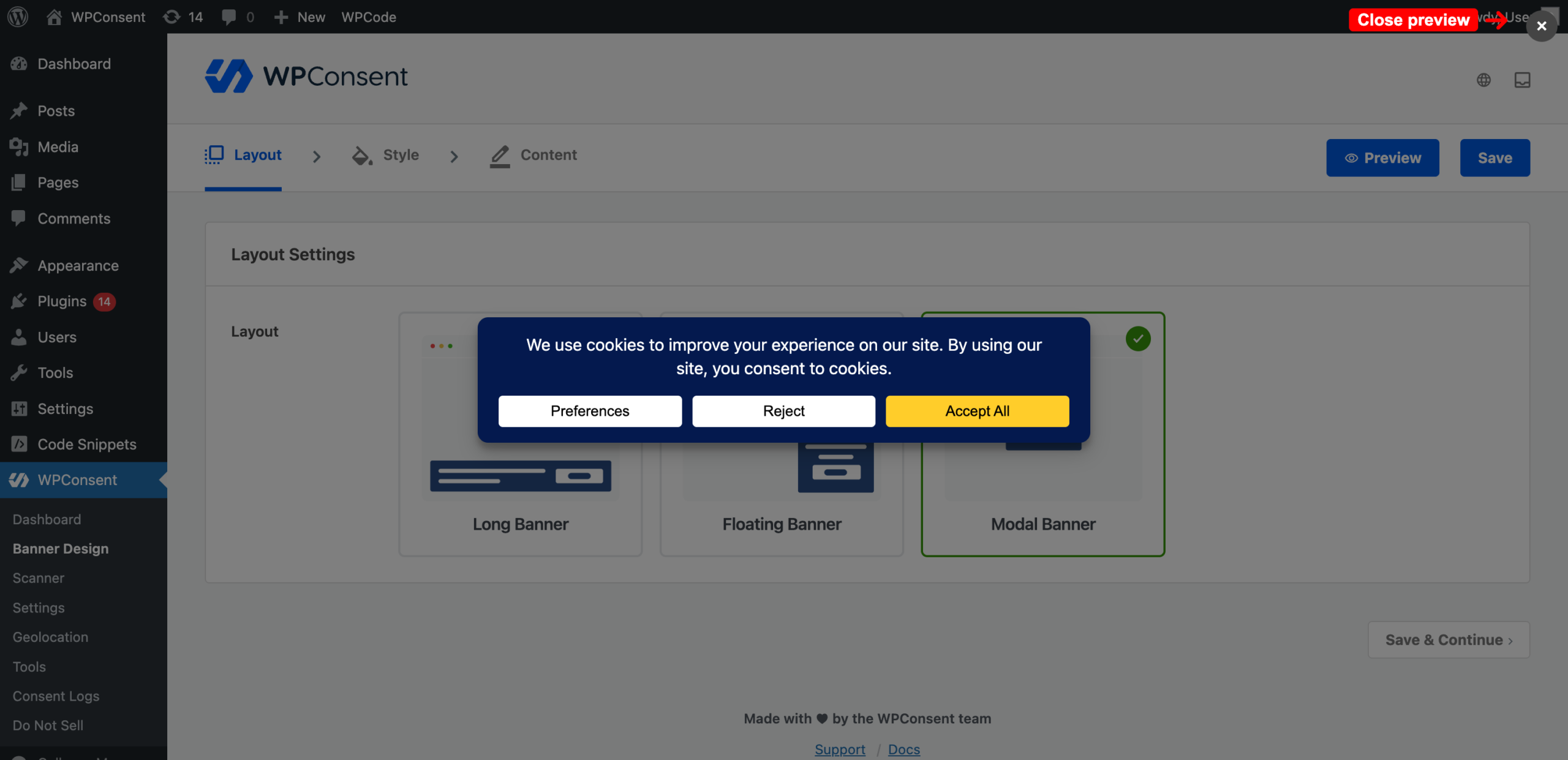
You don’t need to leave the admin to see how your banner looks. On any tab of the Banner Design page, click the Preview button in the top-right corner. This opens a full-page overlay that renders your banner with its current layout, style, and content settings.
The preview reflects unsaved changes, so you can experiment with different layouts and see the result right away. When you’re done, click the Close preview button in the top-right corner of the overlay to return to the settings.
Here’s an example of the Modal Banner layout in the admin preview:
Verifying your setup
- Open your site in a new incognito or private browser window.
- Confirm the banner appears in the layout and position you chose.
FAQ
Why is the Modal Banner option greyed out?
The Modal Banner layout requires the paid version of WPConsent.
Will I lose my style and content settings if I change the layout?
No. Switching between layouts preserves all your other settings, including colors, fonts, button text, and message content. Only the layout and position values change.
How does the banner look on mobile devices?
All 3 layouts are responsive. The Long Banner adapts to narrower screens by stacking the message and buttons vertically. The Floating Banner scales down to fit smaller viewports. The Modal Banner remains centered and adjusts its width to the screen.
Can I use different layouts for different pages?
No. The banner layout applies to your entire site. There’s no way to show a different layout on specific pages.
Why does my floating banner overlap important content?
Try switching to a different corner position. For example, if your site has a chat widget in the bottom-right corner, move the floating banner to the bottom-left. You can also switch to the Long Banner layout, which doesn’t overlap page content.
Conclusion
You’ve now configured your banner’s layout and position. To customize the banner’s colors, fonts, and button styles, continue to customizing your banner style. To configure the banner message, buttons, and other content, see the banner content and text guide.