
Need to clear stale cookie data or clean up old consent records? WPConsent provides cache and log management tools on the Database tab. This guide covers database and cache management for your consent setup.
Table of contents
- Prerequisites
- Clearing the cookies cache
- How the cache works
- Deleting consent logs
- Deleting Do Not Sell requests
- Understanding the deletion process
- Troubleshooting
- FAQ
- Conclusion
Prerequisites
- WordPress administrator access
- Paid version required for consent log deletion
- Do Not Sell addon required for Do Not Sell log deletion (Plus license or higher)
Clearing the cookies cache
Opening the Database tab
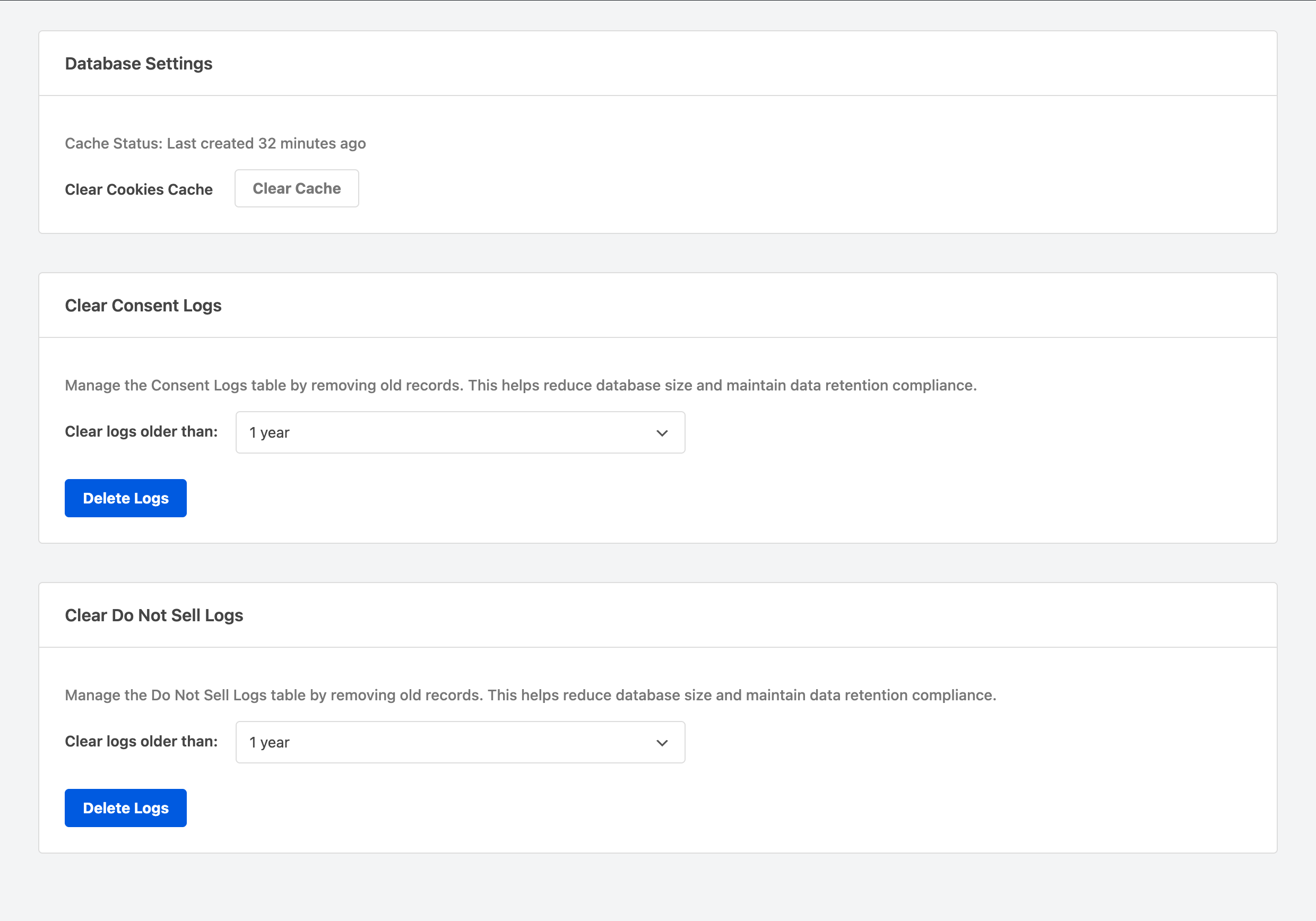
To get started, navigate to WPConsent >> Tools and click the Database tab.
Checking cache status
The Cache Status line shows when the cached data was last created. If it reads “Already Cleared,” no cached transients exist.

Clearing the cache
Next, click Clear Cache. The page reloads and displays a success message. The cache status updates to “Already Cleared.”
Verifying your setup
Visit your site’s frontend in an incognito window to confirm the banner still loads correctly. WPConsent rebuilds the cache automatically on the next page load.
How the cache works
WPConsent caches cookie data to improve performance. The cache is cleared automatically whenever you make changes to your cookies, categories, or services. The Clear Cache button on the Database tab is provided as a convenience for troubleshooting.
The cache stores:
- Google Consent Mode configuration
- Cookie and service data for the preferences panel
- Service slugs for quick lookups
Deleting consent logs
Pro Feature: Consent log management requires the paid version of WPConsent.
Accessing log deletion controls
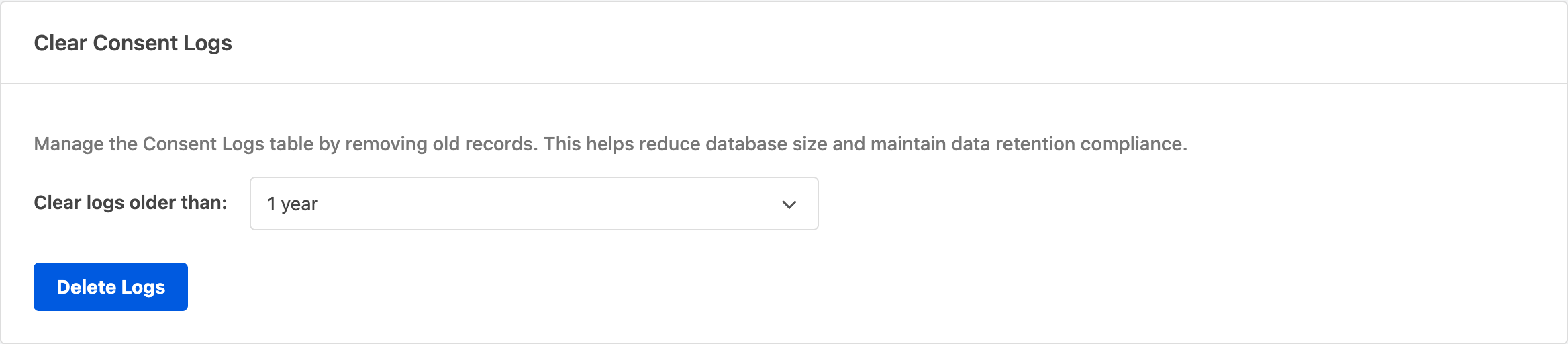
Scroll down to the Clear Consent Logs section on the Database tab.
Selecting the deletion period
Choose how far back to delete from the Clear logs older than dropdown:
- 3 months: Removes logs older than 90 days
- 6 months: Removes logs older than 180 days
- 1 year: Removes logs older than 365 days (default)
- 2 years: Removes logs older than 730 days
- All time: Removes all consent logs
Running the deletion
Then, click Delete Logs. The process runs in batches of 1,000 records to prevent timeouts. A progress indicator updates after each batch completes. When finished, you see a success message with the total number of deleted records.
Verifying your setup
Check your consent log reports or database size to confirm old records are removed.
Deleting Do Not Sell requests
Pro Feature: Do Not Sell log management requires WPConsent with the Do Not Sell addon (Plus license or higher).
The Clear Do Not Sell Logs section works the same way as consent log deletion. Select a time period and click Delete Logs to remove old Do Not Sell requests.
This feature helps manage database size when your site receives many Do Not Sell requests. It also supports data retention compliance by removing records beyond your chosen threshold.
Understanding the deletion process
Log deletion is permanent. You can’t recover deleted records. Export your logs before deletion if you need to retain the data for compliance or analysis.
Troubleshooting
Cache clear doesn’t take effect
Your browser may be serving a cached version of the page. Clear your browser cache or test in an incognito window. Also verify that no other caching plugins are storing WPConsent’s output.
Cache status still shows an old timestamp
A caching plugin or CDN may be serving stale admin pages. Clear all caching layers, including page cache, object cache, and CDN cache.
Deletion appears stuck
Large datasets take time to process. Wait for the progress indicator to complete all batches. If it stalls, refresh the page and try again with a shorter time period.
No records deleted
No logs exist in the selected time range. Try selecting All time to verify that logs exist in your database.
Do Not Sell section not available
The Do Not Sell addon must be installed and activated. You need a Plus plan or higher.
FAQ
Do I need to clear the cache after every change to my cookies?
No. WPConsent clears the cache automatically whenever you save changes to your cookies, categories, or services. The manual Clear Cache button is only needed for troubleshooting.
Will clearing the cache affect my visitors’ consent choices?
No. The cache stores processed cookie data for performance. It doesn’t store individual visitor consent records. Your visitors’ consent choices remain intact.
Can I recover deleted consent logs?
No. Log deletion is permanent. Always export your logs before running a deletion if you need the data for compliance or auditing purposes.
Why don’t I see the Do Not Sell section on my Database tab?
The Do Not Sell log management requires the Do Not Sell addon, which is available on a Plus plan or higher.
Conclusion
You now know how to clear the cookies cache and manage consent logs from the Database tab. These tools help you keep your database lean and your cookie data fresh.
For information about exporting your settings before making changes, see the guide on importing and exporting WPConsent configuration.