
Need to copy your WPConsent configuration to another site? The Import and Export tools let you save your settings as a JSON file and apply them to any WordPress installation. This guide walks you through importing and exporting WPConsent settings.
Table of contents
- Prerequisites
- Exporting your settings
- Importing your settings
- Understanding import behavior
- Reviewing the export file structure
- Troubleshooting
- FAQ
- Conclusion
Prerequisites
Before you begin, make sure you have the following:
- Administrator access to your WordPress site
- For imports: a valid
.jsonexport file from WPConsent
Exporting your settings
Navigating to the Export tab
To get started, go to WPConsent >> Tools and click the Export tab.

Selecting export options
Next, choose what to include in your export by enabling the relevant checkboxes.
All Settings exports your general configuration. This includes geolocation rules, multilanguage setup, and plugin-wide options like consent mode and cookie policy page.
Banner Design exports layout, colors, fonts, button styles, and all text content. This includes button labels, panel descriptions, and multilanguage translations.
Cookie Data exports your complete cookie structure. This covers categories, services, and individual cookie information.
Pro Feature: Custom Scripts exports scripts and iframes configured for consent-based blocking.
You must select at least 1 option before exporting.
Generating the export file
Finally, click Export Settings. Your browser downloads a JSON file named wpconsent-export-YYYY-MM-DD-HH-ii.json.
Importing your settings
Navigating to the Import tab
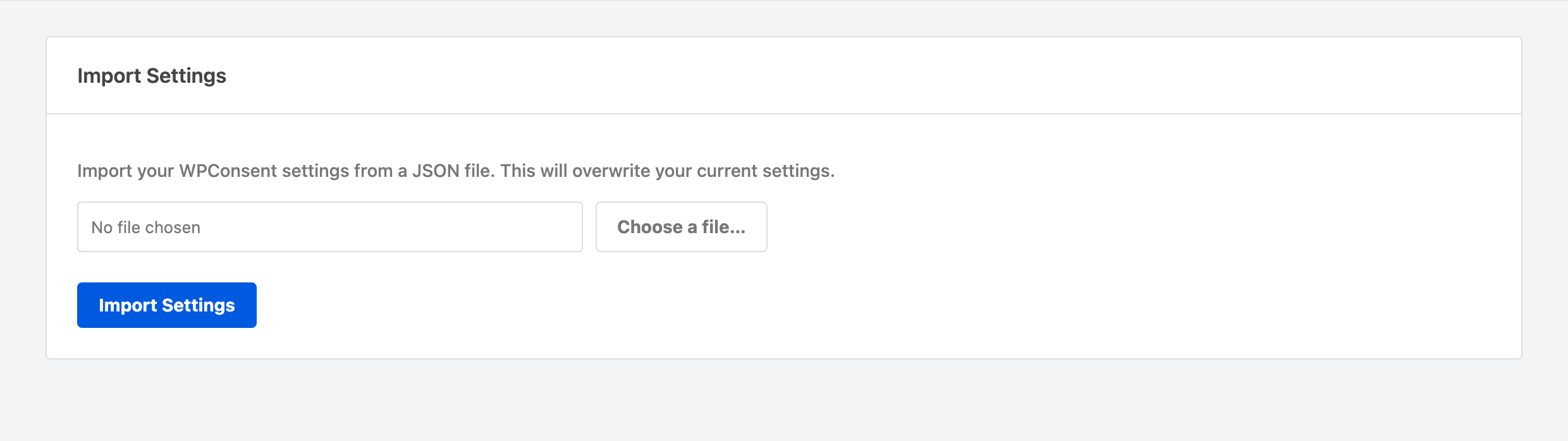
To get started, go to WPConsent >> Tools and click the Import tab.
Selecting your import file
Next, click Choose a file and select your WPConsent JSON export file. Only files with a .json extension are accepted.
Running the import
Then, click Import Settings. The import runs and overwrites existing settings with data from the file.
Verifying your setup
After the import completes, you’ll see a success message. Review your settings in each relevant area to confirm everything imported correctly. Check the following:
- WPConsent >> Settings for general configuration
- WPConsent >> Cookies for categories, services, and cookie data
- WPConsent >> Banner for design, layout, and text content
- Your site’s frontend to verify the banner displays as expected
Understanding import behavior
The import handles different data types in different ways:
- Settings and Banner Design are fully overwritten. They replace your current configuration completely.
- Cookie Data uses a merge approach. The import creates any categories or services that don’t already exist on the target site. It also updates existing ones that match by slug. It does not delete categories or services that are present on the target site but absent from the export file.
- Cookie policy pages are created fresh during import if the export includes one. The original page ID is not preserved because post IDs are unique to each WordPress installation.
- Geolocation groups are replaced entirely if present in the export. Individual groups are not merged.
- Custom scripts use category and service slugs to match items between sites. If a category or service doesn’t exist on the target site, that script is skipped.
- Multilanguage translations are included when you export banner design. Enabled languages must match between sites for translations to apply correctly.
Reviewing the export file structure
The JSON export file contains these data sections:
settings— general plugin configurationgeolocation_groups— location-based rule groupsbanner_design— visual customization and text contentcookies— category and service structure with cookie definitionscustom_scripts— script blocking configuration (paid version)
Each section is optional. Only selected export options appear in the file.
Troubleshooting
Missing categories after import
Make sure your export included the Cookie Data option. Categories are only transferred when that option is selected.
Custom scripts not imported
Custom Scripts export requires a paid version. Additionally, scripts require matching category and service slugs on the target site. If a category or service doesn’t exist, that script is skipped.
FAQ
Can I use an export file on a site running a different WPConsent version?
We recommend using the same version of WPConsent on both sites. The file format can change between versions, and older files aren’t guaranteed to work with newer releases.
Will importing delete my existing cookies?
No. Cookie data uses a merge approach. The import adds new items and updates matching ones, but it won’t remove anything already on your site.
Can I edit the JSON file before importing?
We don’t recommend editing export files manually. Invalid changes can cause JSON syntax errors and prevent the import from completing.
How do I transfer custom scripts between sites?
First, make sure the matching cookie categories and services exist on the target site. Then include the Custom Scripts option in your export. The import uses slugs to link scripts to their categories and services.
Conclusion
You now know how to export your WPConsent settings from one site and import them into another. This workflow saves time when you manage multiple WordPress installations with similar consent requirements. For managing your plugin’s database and cache, see our guide on database and cache management.