
Would you like to keep the consent banner away from your own logged-in team, or have a visitor’s choice follow them across your subdomains?
In this guide, we’ll walk you through every option on the Advanced tab of your WPConsent settings. All you need is WPConsent on your WordPress site.
Requirements: The Custom Iframes/Scripts and Hide Banner Rules panels require a paid version of WPConsent.
Table of contents
- Blocking Your Own Scripts and Iframes
- Hiding the Banner From Your Own Team
- Hiding the Banner on Specific Pages
- Running Microsoft Clarity Without Cookies
- Sharing Consent Across Your Subdomains
- Respecting Global Privacy Control Signals
- Resetting Your Banner Content
- Choosing What Happens When You Uninstall
- Saving Your Changes
- Frequently Asked Questions
Before you get started, make sure WPConsent is installed and activated on your WordPress site.
Blocking Your Own Scripts and Iframes
To get started, we’ll open the Advanced tab, which is where WPConsent keeps the options that sit outside its everyday banner setup.
From your WordPress admin sidebar, go to WPConsent » Settings. Then click the Advanced tab.
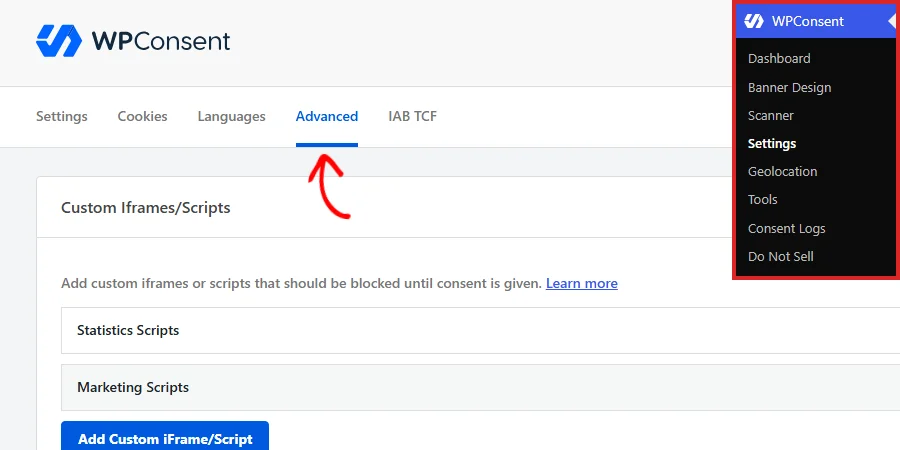
The tab opens on the Custom Iframes/Scripts panel. WPConsent keeps its own library of third-party services it already knows how to block. This panel is where you add anything that library doesn’t cover, such as an in-house tracking script or an embed from a niche provider.
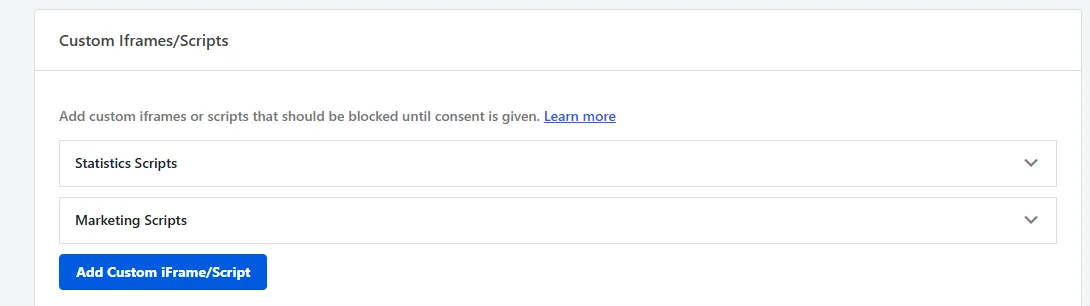
Your entries are grouped under Statistics Scripts and Marketing Scripts, the two consent categories a custom script can belong to. The Add Custom iFrame/Script button at the bottom of the panel opens a form for a new entry. It asks for the category, the service, and either the script tag or the CSS selector of the element to hold back.
For a full walkthrough of that panel, see our guide on custom scripts and iframes.
Hiding the Banner From Your Own Team
Below it sits the Hide Banner Rules panel, which controls who gets shown the banner in the first place. Nothing in it is set to begin with, so every visitor sees the banner until you add a rule.
Turn on Logged-in so nobody who is signed in to your site sees it.

This is the setting most site owners want while they are still building. Your editors and administrators are working in the site all day, and the banner has nothing left to ask them.
If you’d rather be more selective, leave that switch off and use the User Roles picker instead. The roles you pick there skip the banner, and everyone else still sees it.

Every role on your site is listed, including any your other plugins add. A WooCommerce store therefore gets Customer and Shop manager here as well. A visitor with several roles skips the banner as soon as any of them is on the list.
For a refresher on what each role can do, see WPBeginner’s Beginner’s Guide to WordPress User Roles and Permissions.
Note: While Logged-in is turned on, the User Roles picker is greyed out and its description changes to say so. Role-based hiding has nothing left to do once the banner is hidden for every signed-in user.
Hiding the Banner on Specific Pages
The last row in the panel is Pages. Start typing to search your published pages, then pick the ones you want the banner kept off.

Checkout and login pages are the usual candidates. A banner over a payment form costs you sales, and a visitor reaching checkout has usually answered it already.
WPConsent applies this rule while a visitor is viewing that page on its own. A page in this list still shows the banner where it appears inside an archive or a search result.
Running Microsoft Clarity Without Cookies
The third panel, Advanced Settings, is available on every version of WPConsent. Its first row is Clarity Consent Mode, and it arrives already turned on.

Microsoft Clarity records session replays and heatmaps, and normally it sets cookies to do it. With this setting on, WPConsent starts Clarity in a cookieless mode instead.
You keep collecting behavior data from the moment a visitor lands, and Clarity only switches to cookies once they accept. Turn it off and Clarity waits for consent like any other blocked script.
For more on how that mode works, see our guide on Microsoft Clarity consent mode.
Sharing Consent Across Your Subdomains
If you run several WordPress sites on the same domain, turn on Shared Consent so a choice made once applies everywhere. It starts off, because most sites run on a single host.

WPConsent normally stores each visitor’s preferences against the exact host they are on. That means shop.example.com knows nothing about the answer they gave on example.com. With this setting saved, WPConsent stores the preferences cookie against your root domain instead, so every subdomain reads the same answer.
Every subdomain running WPConsent needs this setting turned on and saved for the sharing to work in both directions.
Respecting Global Privacy Control Signals
Some browsers and privacy extensions send a Global Privacy Control signal, which is a standing request to opt out of tracking. It starts off, so turn on Respect Global Privacy Controls to act on the signal automatically.
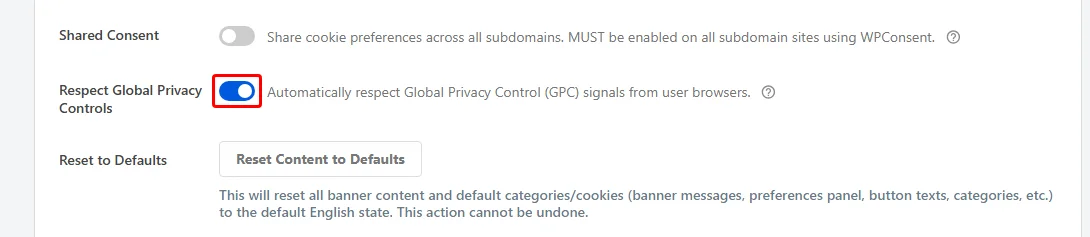
When a visitor arrives with that signal set, WPConsent declines every non-essential category for them and skips the banner entirely. A short confirmation then tells them the signal was honored.
Several privacy laws treat the signal as a valid opt-out, so honoring it saves you from asking a question the browser has already answered.
Turning this on also adds two message fields to your Banner Design page. One holds the confirmation a visitor sees when the signal is honored. The other holds the text they acknowledge if they later change their preferences by hand.
For the full picture, see our guide on Global Privacy Control.
Resetting Your Banner Content
Further down the panel, the Reset Content to Defaults button puts all of your banner wording back to how WPConsent shipped it.

This is the quickest way back to a clean slate after a lot of editing. It restores every banner message, preferences panel label, and button text to the default English version. It also renames your Essential, Statistics, and Marketing categories and their descriptions to match.
WPConsent asks you to confirm before anything changes.
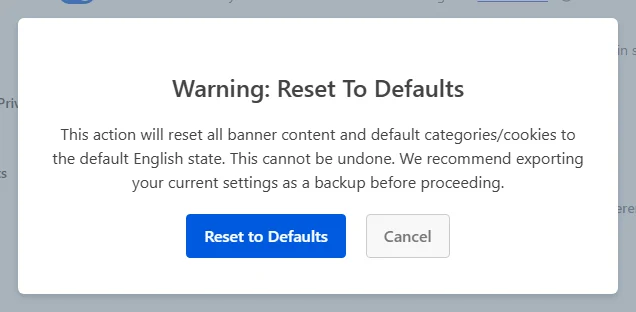
Confirming applies the reset straight away, so keep a copy of the wording you want before you start. Your cookies and services are left exactly as they are, along with every other setting on this tab.
Note: WPConsent recommends exporting your settings before you reset, which gives you a file to import if you want your wording back. Our guide on importing and exporting your settings shows how.
Choosing What Happens When You Uninstall
The last row is Remove all data, and it arrives turned off.

Off is the setting to keep while you’re using the plugin. Everything you have configured stays in your database. Deactivating WPConsent and activating it again later brings your categories, cookies, banner wording, and consent logs back exactly as they were.
Turn it on when you’re deliberately finished with the plugin and want a clean database. WPConsent then clears its own options, cookie records, and log tables at the point you delete it from your Plugins page. Deactivating on its own never removes anything either way.
Saving Your Changes
Nothing on this tab takes effect until you store it, and one button covers the whole page.
At the bottom of the page, click Save Changes.
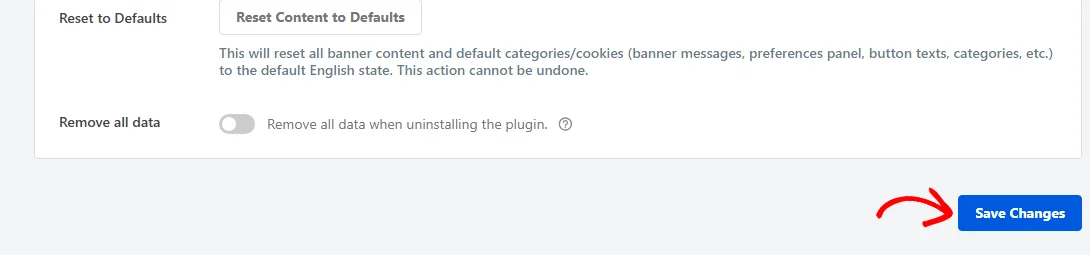
All three panels on this tab save together, so one click stores every change you made above.
That’s it! Your advanced options are configured, and the banner now appears only for the visitors you want it to.
Next, review the rest of your configuration. Our guide on configuring WPConsent general settings covers the Settings tab beside this one.
Frequently Asked Questions
Below, we’ve answered some of the most common questions about WPConsent’s advanced settings.
Why is my User Roles picker greyed out?
Because the Logged-in switch above it is turned on. That switch hides the banner from every signed-in user whatever their role, which leaves the role picker with nothing to add. Turn Logged-in off and the picker becomes available again.
Do I need to turn on Shared Consent on every subdomain?
Yes. Each WordPress site writes its own preferences cookie. A site with the setting off keeps storing preferences against its own host, and it neither reads nor updates the shared one. Turn it on and save it on every subdomain running WPConsent.
Where do I change the message shown when a privacy signal is honored?
On the Banner Design page. Two extra rows appear there once Respect Global Privacy Controls is turned on and saved. GPC Honored Message holds the confirmation a visitor sees. GPC Override Message holds the text they acknowledge if they change their preferences by hand.
Does deactivating WPConsent delete my settings?
No. Deactivating leaves everything in your database whatever Remove all data is set to. That setting only applies when you delete the plugin from your Plugins page, and only if it was turned on and saved beforehand.
Which categories can I add a custom script to?
Statistics and Marketing. Those are the two groups the Custom Iframes/Scripts panel offers, because a script you have to block by hand is a tracking or advertising script. Anything in your Essential category loads regardless of consent, so it needs no rule.
Does resetting to defaults remove my cookies and services?
No. Reset Content to Defaults rewrites your banner wording and the names and descriptions of the three default categories, and it stops there. Your scanned cookies, your services, your custom categories, and every switch on this tab are all left as they are.