
Would you like to be able to prove that your visitors agreed before you processed their data?
In this guide, we’ll walk you through WPConsent’s consent logs, which record who consented, to what, and when. All you need is WPConsent with a paid license and consent logging switched on.
Requirements: Consent logs require a Basic license level or higher.
Table of contents
- Enabling Consent Logging
- Reading What Each Consent Record Stores
- Viewing Consent Logs
- Filtering and Searching Logs
- Exporting Logs to CSV
- Scheduling Automatic Log Cleanup
- Clearing Logs by Date Range
- Verifying Your Setup
- Frequently Asked Questions
Before you get started, make sure WPConsent is installed and activated on your WordPress site, with your consent banner already set up.
Enabling Consent Logging
To get started, we’ll switch consent logging on. WPConsent keeps this off until you ask for it. Until then, nothing about your visitors’ choices is written to your database.
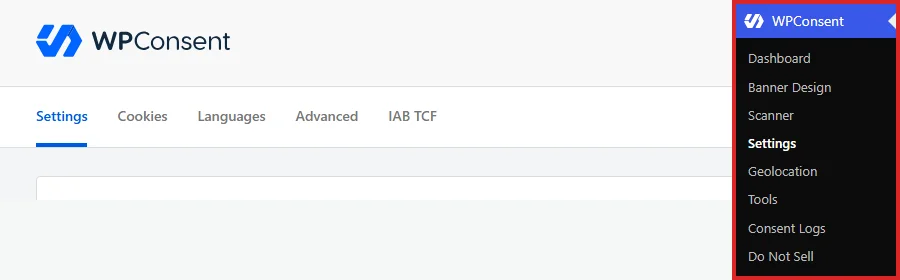
From your WordPress admin sidebar, go to WPConsent » Settings. The default Settings tab loads on its own.
Next, scroll down to the Consent Logs toggle and switch it on. Its description explains what it does: it keeps records of consent for every visitor who gives it.

An Automatic Cleanup row appears directly beneath it once logging is on. That row is a retention setting rather than part of switching logging on, so leave it as it is for now. We come back to it in Scheduling Automatic Log Cleanup below.
At the bottom of the page, click Save Changes.

From this point on, WPConsent records each consent interaction as it happens.
Reading What Each Consent Record Stores
Each entry is stored in the wpconsent_consent_logs database table. A single record holds the WordPress user ID for logged-in visitors, or 0 for guests. It also holds an anonymized IP address, a two-letter country code, the consent choices themselves as JSON, and a timestamp.
The country code is worth knowing about. WPConsent writes XX when it stores the entry and resolves the real country afterwards in the background. A flag can therefore be absent on a very recent record and appear later.
IP Anonymization
WPConsent anonymizes IP addresses before storing them, so no full address is ever written to your database.
WPConsent uses WordPress’s own anonymization for this. An IPv4 address loses its last number, so 192.168.1.45 is stored as 192.168.1.0. An IPv6 address is reduced to its network portion, so 2001:0db8:85a3:1234:5678:8a2e:0370:7334 is stored as 2001:db8:85a3:1234:: instead.
Viewing Consent Logs
WPConsent lists every recorded interaction on a page of its own in your admin area.
From your WordPress admin sidebar, go to WPConsent » Consent Logs.
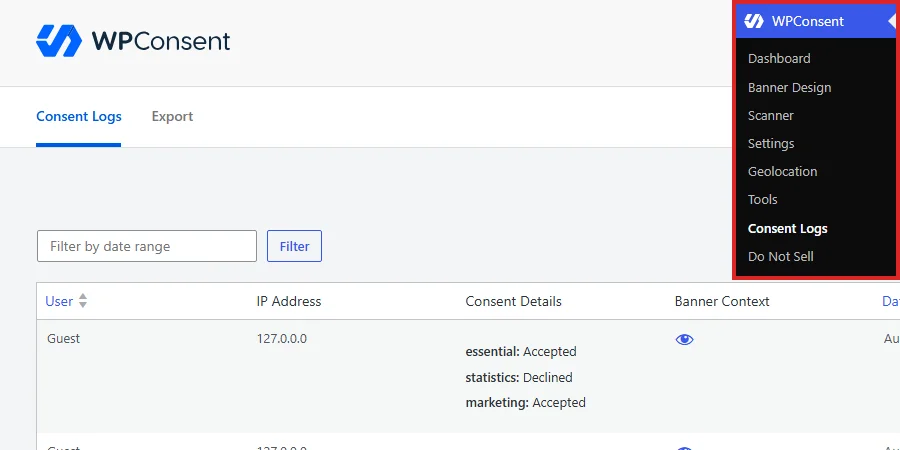
The page opens on the Consent Logs tab, listing your records newest first with a count of the total above the table.
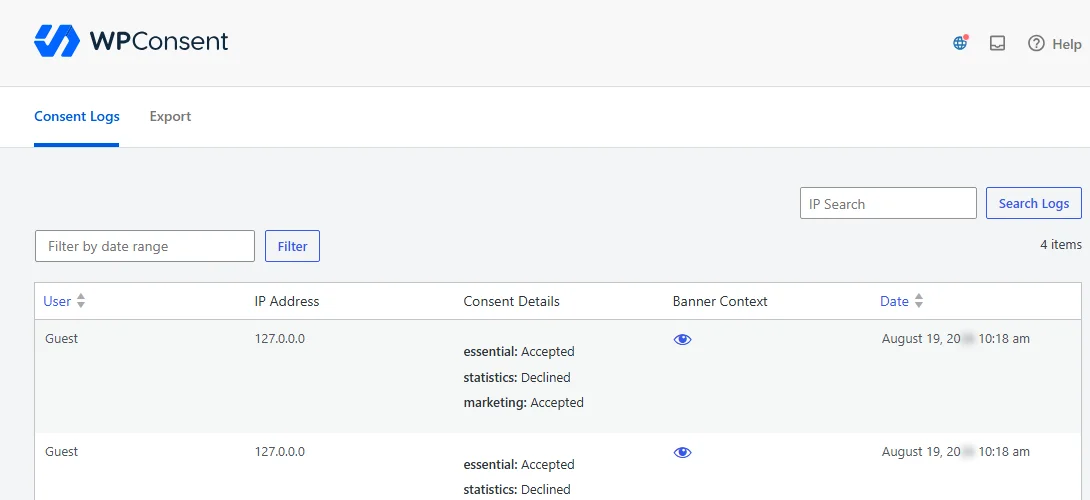
The table has five columns:
- User shows the WordPress username, or Guest for visitors who were not logged in.
- IP Address shows the anonymized address that was stored, with the visitor’s country flag beside it once WPConsent has resolved it.
- Consent Details breaks the decision down category by category, marking each one accepted or declined.
- Banner Context holds an eye icon that opens a snapshot of the banner that visitor saw, including its message, language, buttons, and categories. Records saved without a snapshot show Not available instead.
- Date shows when the interaction happened.
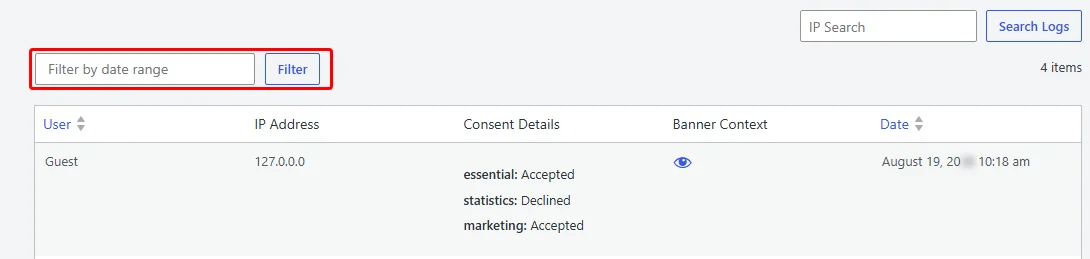
Reading a single row shows how those pieces fit together.

The Consent Details column is the part that matters for compliance. It records not just that someone answered the banner, but exactly which cookie categories they agreed to.
Filtering and Searching Logs
The table shows 20 records per page. Once you have more than that, the controls above it narrow the list down.
Filtering by Date Range
Above the table, click the Filter by date range field and pick a start and end date. Then click Filter. This is the control you want when a request concerns a particular period.
Searching by IP Address
In the IP Search box, enter a full or partial address. Then click Search Logs. Partial matching works, so entering the first part of an address wildcards the rest.

Stored addresses are already anonymized, and the search allows for that. WPConsent ignores the last part of whatever you type, so a visitor’s full address still finds their record.
Exporting Logs to CSV
For compliance reporting or a legal request, WPConsent exports your records as a CSV file. Each row covers one record, and the columns go beyond the table on screen to include the banner message, language, and policy page URL.
An export is also how you keep a copy of records before either of the cleanup controls below removes them. It is worth running one first.
On the Consent Logs page, select the Export tab.
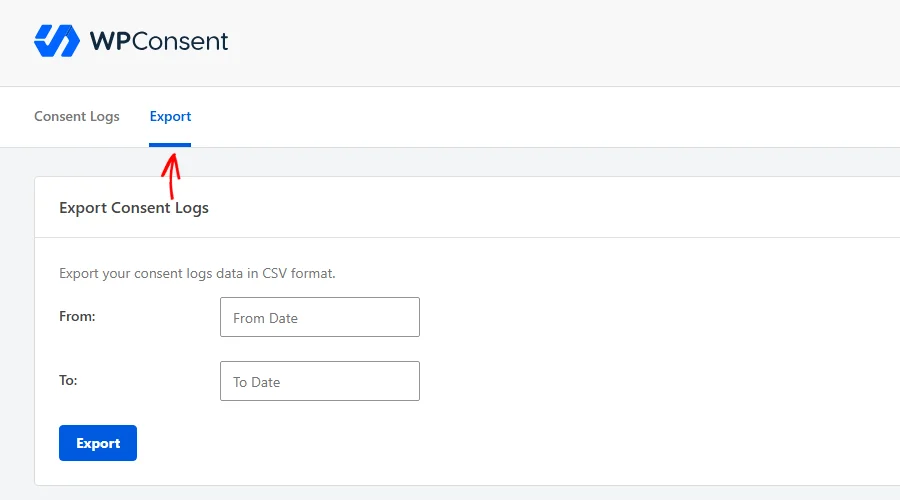
Next, set a From date and a To date. Both dates are required, so nothing happens until the range is complete.
With the range set, click Export.
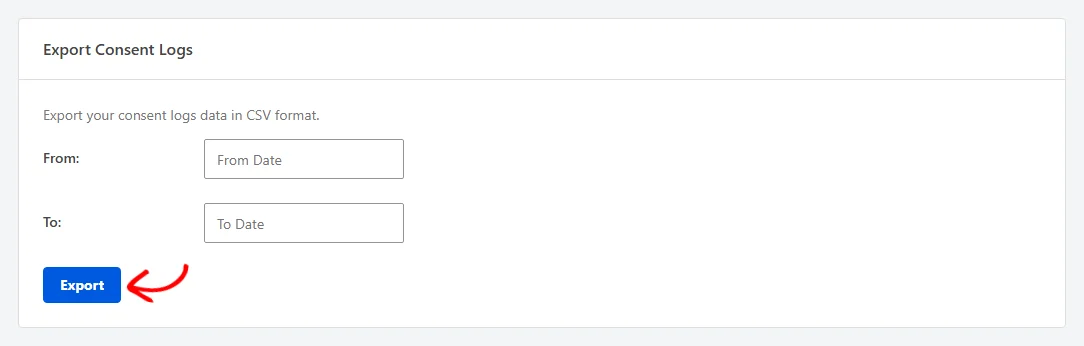
Exports are processed in batches of 1,000 records, so a large table does not time out partway through. A progress bar tracks the run, and the file downloads on its own once it reaches 100%.
Scheduling Automatic Log Cleanup
Consent logs build up, and a data retention policy usually sets a limit on how long you keep them. WPConsent can hold your table to that limit for you. A cleanup runs every week, so the oldest records drop off without you visiting the page.
This is off to begin with, so every record you collect stays in place until you remove it.
From your WordPress admin sidebar, go to WPConsent » Settings again, the same page that carries the toggle you switched on earlier. Next, scroll down to the Consent Logs rows and switch on the Automatic Cleanup toggle.
Switching it on reveals a Delete logs older than: dropdown, which sets how far back to keep records. The four windows are 3 months, 6 months, 1 year, and 2 years. New sites start at 1 year.

If your privacy policy names a retention period, match it here. If it does not, 1 year keeps a full year of records on hand for a request while still clearing out the oldest ones.
A cleanup is permanent. Deleted logs cannot be recovered, and WPConsent keeps no copy of them, so export anything you may need before you switch this on.
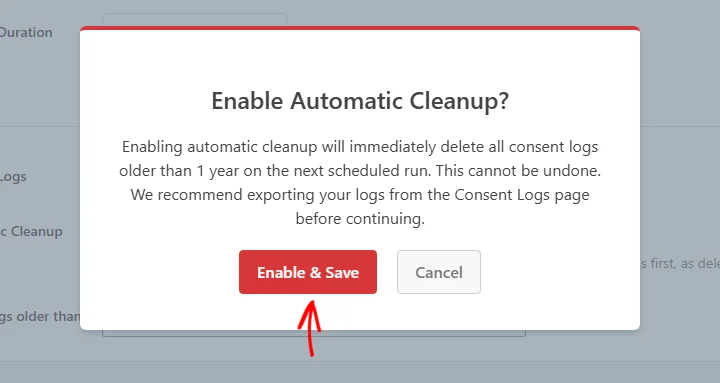
When the window is set, click Save Changes at the bottom of the page. WPConsent confirms the change before saving it, because the first run removes everything already older than the window you chose.
The overlay names that window. Where records are already older than it, the overlay also estimates how many the first run removes. Then click Enable & Save to store the change.
Once cleanup is running, the row below the dropdown reports the schedule. It gives the date and time of the next cleanup. After a run has finished, it also reports when it ran and how many records it removed.
Note: The weekly schedule runs on WordPress’s own scheduler, which is triggered by visits to your site. On a quiet site, a cleanup can begin a little after the time the status row gives.
Widening the window later, or switching Automatic Cleanup back off, saves without a prompt. Shortening it brings up a confirmation of its own, so there is always a chance to export first. With a retention window in place, your log table stays at the size your policy calls for.
Clearing Logs by Date Range
WPConsent has a control for a one-off clear-out at a moment of your choosing. It runs there and then rather than waiting for the weekly schedule.
From your WordPress admin sidebar, go to WPConsent » Tools. Then select the Database tab.
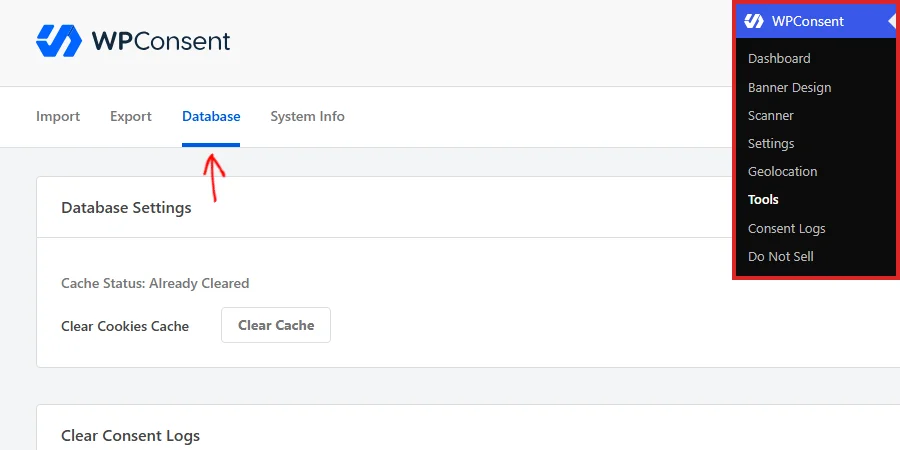
The Database tab holds three panels: Database Settings, Clear Consent Logs, and Clear Do Not Sell Logs. Clear Consent Logs is the middle panel, and the one that acts on your consent records. The panel below it covers Do Not Sell requests, which are a separate set of records.
In the Clear Consent Logs panel, open the Clear logs older than: dropdown and choose a window. The dropdown opens on 1 year each time the page loads, so set it to the window you want before you go on. Records older than that window are the ones removed, and everything newer stays in the table.
Note: This dropdown carries the same four windows as the scheduled cleanup plus an All time option, which covers every record in the table. All time is available here only.

Below the dropdown, click Delete Logs.
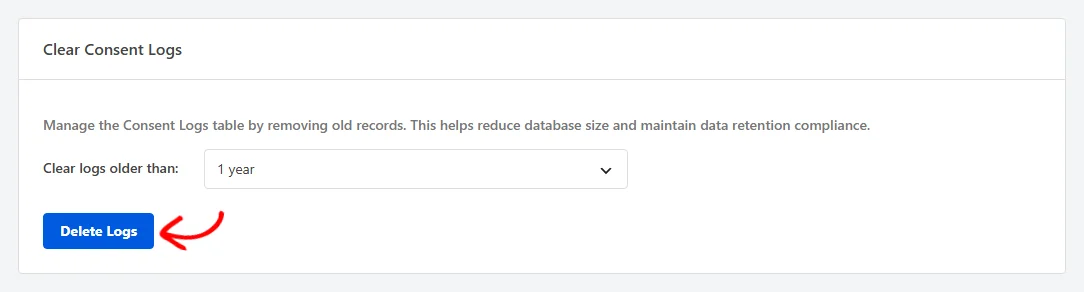
This clear is permanent in the same way, so export first if you may need the records later.
WPConsent confirms this one as well, naming the window you picked. Then click Delete Consent Logs to carry it out.
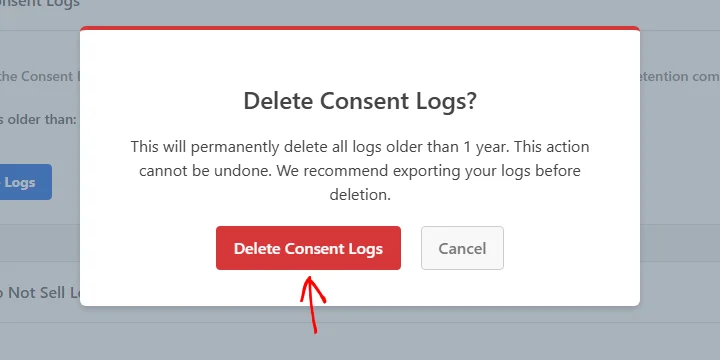
WPConsent works through the table in batches of 1,000 records and reports how many it removed once the run finishes.
Verifying Your Setup
It is worth confirming that logging works before you rely on it.
Testing a Consent Interaction
The quickest check is a visit from a private browsing window, where the banner appears as it does for a new visitor. Answering it there produces a fresh entry on the Consent Logs page, carrying your anonymized address, the choices you made, and the current time.
Confirming the Endpoint Is Live
Consent records reach WordPress through a REST endpoint at /wp-json/wpconsent/v1/log-consent. WPConsent registers that route only while consent logging is switched on. The route accepts POST requests only, so opening the address in a browser returns WordPress’s “no route was found” message rather than anything meaningful.
The check that does tell you something is your browser’s developer tools. With the Network tab open, answering the banner sends a single POST request to log-consent. A 200 response means the record reached your database.
That’s it! You now have a dated, category-by-category record of the consent your visitors have given. A retention window keeps that record to the size your policy calls for. Next, take a look at our guide on database and cache management to keep the tables behind those records tidy.
Frequently Asked Questions
Below, we’ve answered some of the most common questions about consent logs.
Why aren’t my consent logs appearing after I enabled the feature?
Start by checking that the toggle is still on at WPConsent » Settings and that you saved the page. If it is on, open your browser’s developer tools and watch the Network tab for requests to log-consent while you answer the banner. A request that never completes points at another plugin or a server firewall intercepting the REST route. See How to Check for WordPress Plugin Conflicts for a step-by-step way to narrow down which plugin is responsible.
Why are country flags missing from some entries?
The country comes from a geolocation lookup that happens after the record is stored. WPConsent saves XX first and fills the country in shortly afterwards. A brand-new entry can therefore show no flag for a short while.
Why isn’t the Export button responding?
Both a From and a To date are required. A From date later than the To date is turned down the same way, so the export waits until the range is valid. If the progress bar runs through but no file arrives, confirm that your uploads directory is writable. WPConsent builds the CSV in uploads/wpconsent/exports before handing it to your browser. See How to Fix File and Folder Permissions Error in WordPress if you need to correct those permissions.
Which cleanup control should I use?
Automatic Cleanup is the one to set once, because it holds your table to a retention window every week without further attention. The Clear Consent Logs panel under WPConsent » Tools is for a clear-out you want to run now. Its All time option can also empty the table completely, which is the one thing the scheduled control does not offer.
Can I recover consent logs after clearing them?
No. Both controls remove the rows from the wpconsent_consent_logs table, and WPConsent keeps no copy of them. A CSV export is the way to hold on to records you may need, so run one before you clear.
What happens to logs older than the retention period I choose?
They are removed on the next cleanup run. WPConsent asks you to confirm before saving. Where records are already older than the window you picked, the prompt estimates how many that first run removes. Shortening the window later brings up a confirmation of its own.
Why does the Consent Logs page show a notice instead of records?
That notice appears when logging is switched off. Follow the link it offers to reach the settings page, switch the Consent Logs toggle on, and save. The notice clears once logging is switched on.