
Need to block a third-party script or iframe that WPConsent doesn’t recognize automatically? With custom scripts, you can add blocking rules for any tracking code or embedded content so it only loads after visitors consent to the correct cookie category. Custom scripts and iframes give you full control over third-party resources that fall outside the built-in blocking list.
Pro Feature: This feature requires WPConsent Pro.
Table of contents
- Prerequisites
- Understanding when to use custom scripts
- Navigating to the custom scripts section
- Adding a new custom script or iframe
- Editing an existing script
- Deleting a script
- Understanding how custom scripts are blocked
- Working through practical examples
- Verifying your setup
- Troubleshooting
- FAQ
- Conclusion
Prerequisites
Before you begin, make sure you have:
- WPConsent Pro installed and activated
- Script blocking enabled in WPConsent >> Settings >> Settings tab
- At least 1 service created under the Statistics or Marketing cookie category (you can add services from the Cookies tab or use the service library)
Understanding when to use custom scripts
You’ll want a custom script rule when:
- Your site loads a tracking pixel or analytics script that WPConsent doesn’t block automatically.
- You embed third-party widgets (chat, maps, social feeds) using iframes that set cookies.
- You use a niche marketing or analytics service not included in the built-in blocking list.
- You add custom tracking code through a code snippets plugin or your theme’s custom code area.
If you’re unsure whether a script is already blocked, run the website scanner first. The scanner detects active scripts and iframes on your site and reports which ones WPConsent already handles.
Navigating to the custom scripts section
- Go to WPConsent >> Settings in your WordPress admin.
- Select the Advanced tab.
- Scroll down to the Custom Iframes/Scripts section.
This section shows an accordion with 2 categories: Statistics Scripts and Marketing Scripts. To view existing entries, click the arrow next to a category name to expand it.
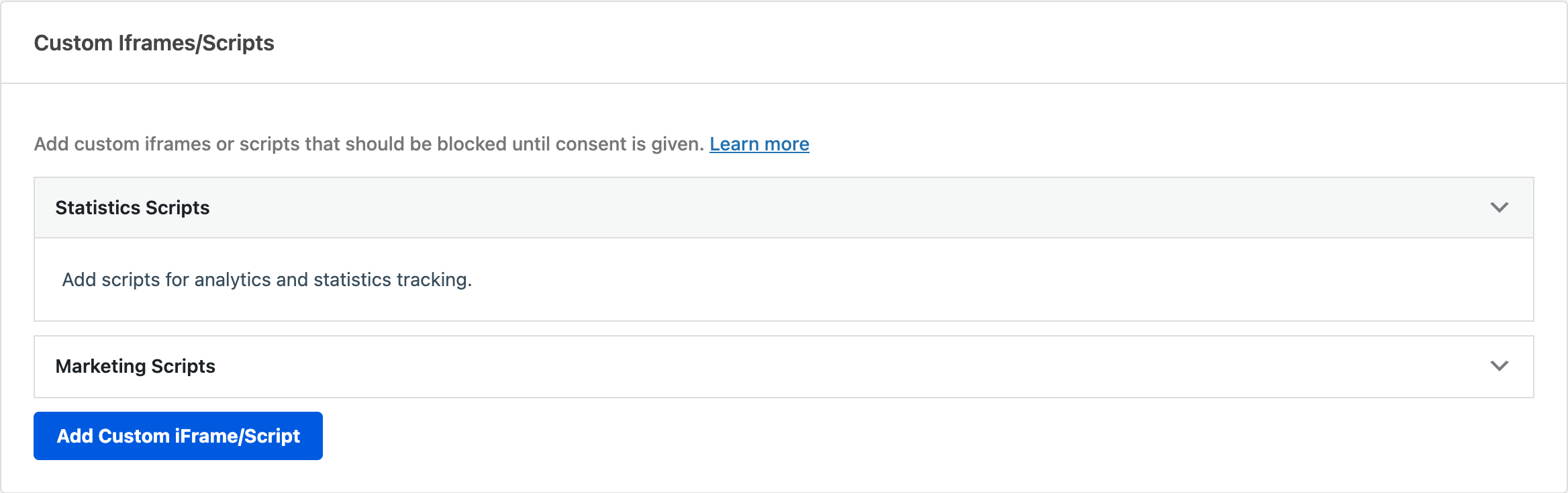
Each script entry displays the following columns:
| Column | Description |
|---|---|
| Service | The service this script belongs to |
| Type | Either Script or iFrame |
| Script | The identifier string used to match the script or iframe |
| Blocked Elements | Additional keywords (for scripts) or CSS selectors (for iframes) |
| Actions | Edit and delete buttons |
Adding a new custom script or iframe
- Click the Add Custom iFrame/Script button below the category accordions. This opens the Add New Script or iFrame modal.
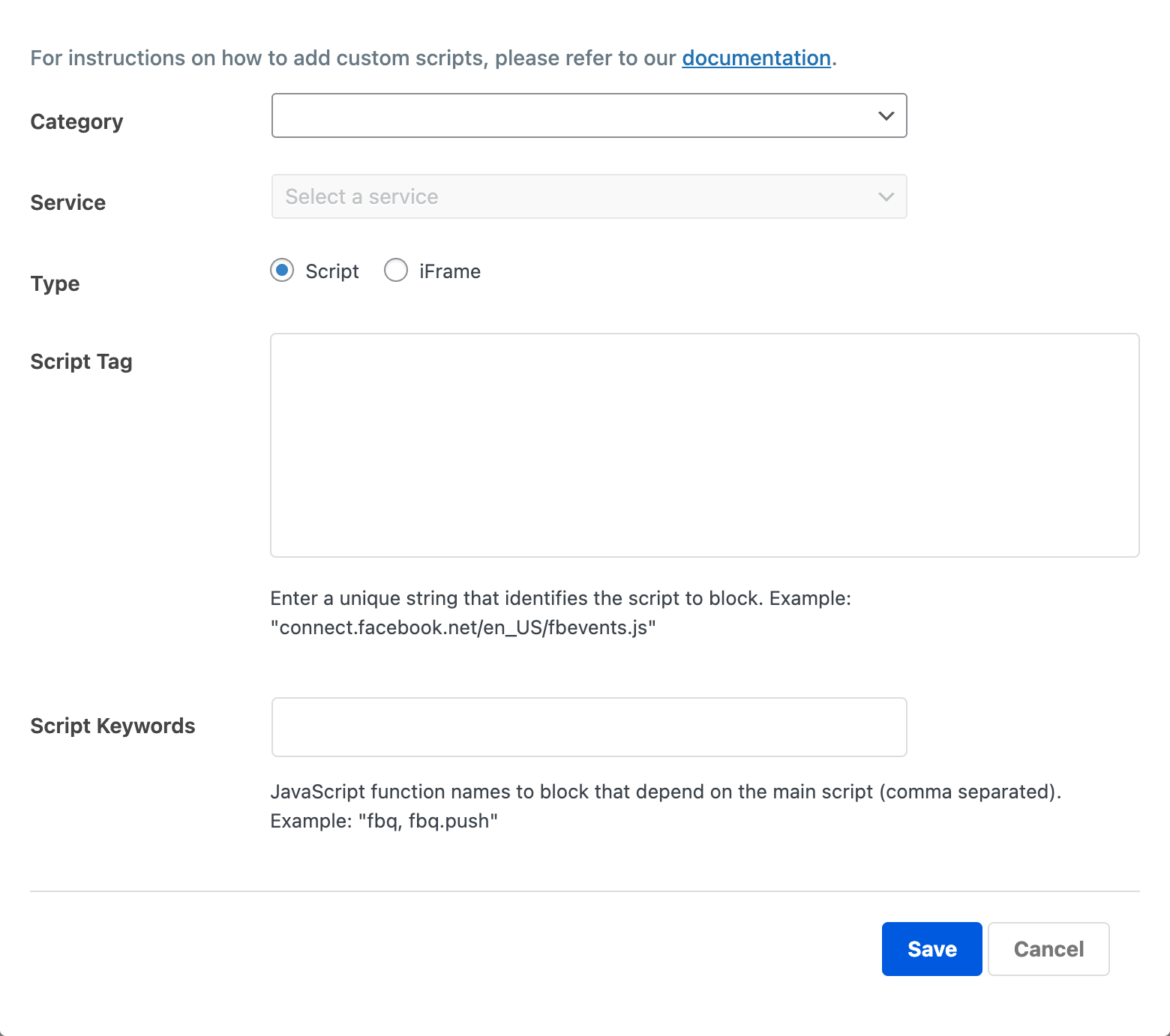
- Select a Category. Choose either Statistics or Marketing depending on the purpose of the script. The category determines which consent toggle controls the script in the visitor’s preferences panel.
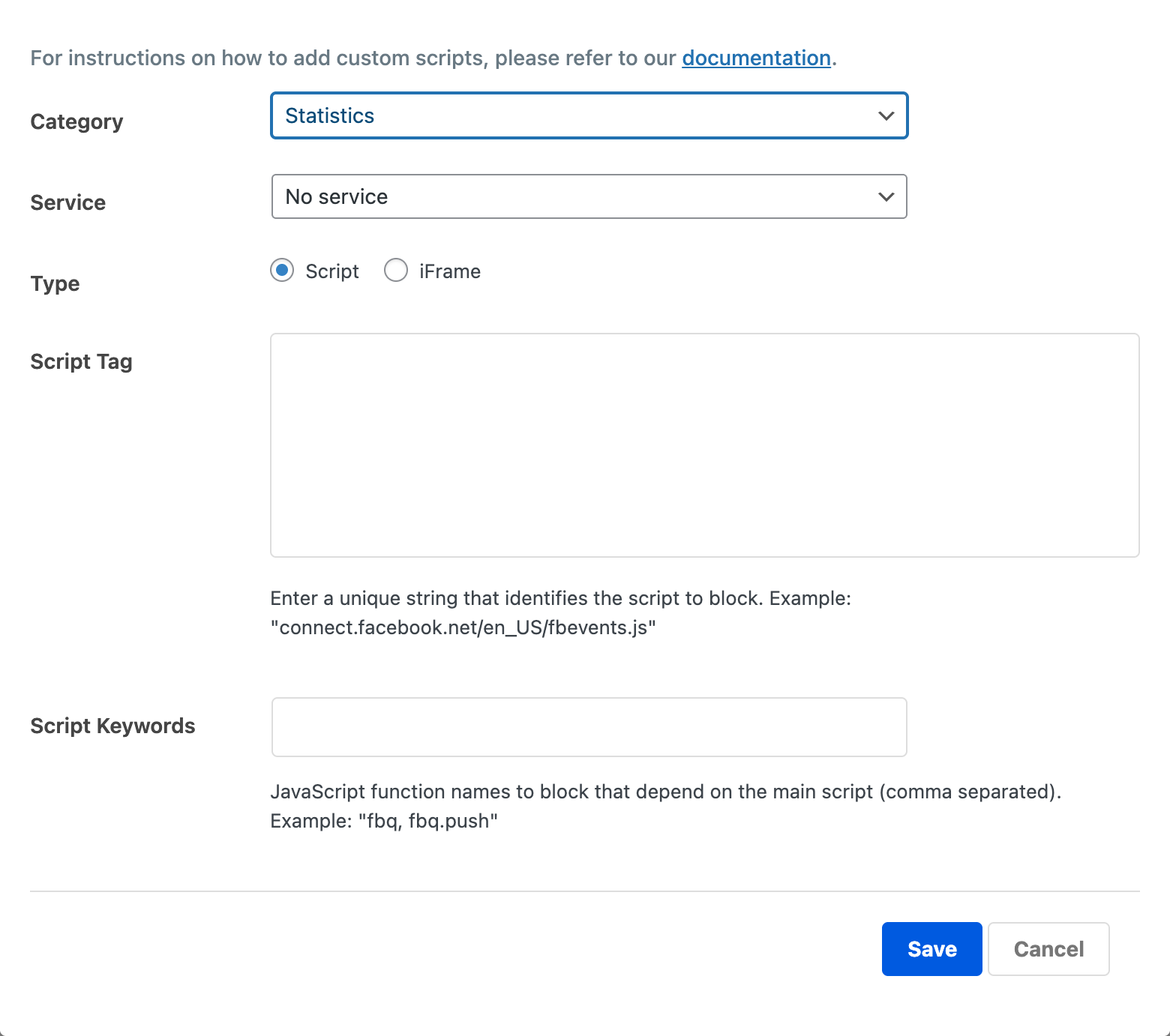
- Select a Service. The service dropdown updates based on the selected category and shows all services you’ve created under that category. If the dropdown is empty, go to the Cookies tab and create a service first.
- Choose a Type. Select Script for JavaScript tracking code or iFrame for embedded content. The form fields below change based on your selection.
Filling in script type fields
When you select Script, 2 fields appear:
- Script Tag: Enter a unique string that identifies the script you want to block. This is typically part of the script’s URL. For example, to block the Facebook Pixel you’d enter
connect.facebook.net/en_US/fbevents.js. WPConsent matches this string againstscripttags in the page HTML. - Script Keywords: Enter JavaScript function names that depend on the main script, separated by commas. For example,
fbq, fbq.push. WPConsent blocks inline scripts that reference these function names. This prevents errors from blocked scripts and ensures no data is sent before consent.
Filling in iframe type fields
When you select iFrame, 2 fields appear:
- iFrame Tag: Enter a unique string that identifies the iframe source you want to block. For example,
youtube.com/embed. WPConsent matches this string against thesrcattribute ofiframeelements. - Blocked Elements: Enter CSS selectors for HTML elements to hide and replace with a placeholder until consent is given, separated by commas. For example,
#my-chat-widget, .social-embed. This is useful when a third-party widget renders visible HTML elements alongside its iframe.
- Click Save. The new script appears in the matching category accordion immediately.
Editing an existing script
- First, expand the category accordion that contains the script.
- Click the edit icon (pencil) in the Actions column.
- The modal opens with the current values pre-filled. Make your changes.
- Click Save.
The script entry updates in the list without a page reload.
Deleting a script
- First, expand the category accordion that contains the script.
- Click the delete icon (trash) in the Actions column.
- Confirm the deletion in the browser dialog.
The script is removed from the list immediately.
Understanding how custom scripts are blocked
Custom scripts integrate directly with the same blocking engine that handles built-in services. When you save a custom script, WPConsent adds it to the internal list of blocked scripts. On the next page load:
For Script types: WPConsent searches the page HTML for script tags containing the string you entered in Script Tag. Matching scripts have their type attribute changed to text/plain and their src moved to data-wpconsent-src, which prevents the browser from executing them. If you provided Script Keywords, inline scripts containing those function names are also blocked.
For iFrame types: WPConsent searches for iframe elements whose src attribute contains the string you entered in iFrame Tag. The src is removed and stored in data-wpconsent-src. If you provided Blocked Elements, those CSS selectors hide additional elements and show a consent placeholder.
When the visitor accepts the relevant cookie category (Statistics or Marketing), WPConsent restores the blocked scripts and iframes so they load and execute normally.
Working through practical examples
Blocking a custom analytics pixel
If your marketing team added a niche analytics service that loads a script from tracker.example.com/pixel.js:
- Open the Add New Script or iFrame modal.
- Set Category to Statistics.
- Select the relevant service (or create one in the Cookies tab first).
- Set Type to Script.
- Enter
tracker.example.com/pixel.jsin Script Tag. - If the script defines a global function like
trackEvent, entertrackEventin Script Keywords. - Click Save.
Blocking a third-party chat widget iframe
If a chat widget loads in an iframe from chat.example.com/widget:
- Open the Add New Script or iFrame modal.
- Set Category to Marketing.
- Select the relevant service.
- Set Type to iFrame.
- Enter
chat.example.com/widgetin iFrame Tag. - Enter
#chat-widget-containerin Blocked Elements to hide the surrounding container and show a placeholder. - Click Save.
Verifying your setup
After adding a custom script, verify it’s working correctly:
- Open your website in a private or incognito browser window.
- Open browser developer tools (F12) and switch to the Network tab.
- Look for the script or iframe in the network requests. It shouldn’t appear before you interact with the banner.
- Accept the relevant cookie category in the consent banner.
- Check the Network tab again. The script or iframe now loads.
You can also check the Elements tab in developer tools. Before consent, look for script tags with type="text/plain" and data-wpconsent-src attributes. These are blocked scripts waiting for consent.
Troubleshooting
Script still loads without consent
The Script Tag string doesn’t match what’s in your page HTML. Open the page source (Ctrl+U) and search for the script URL. Copy the exact substring and paste it into the Script Tag field. The match is case-sensitive.
iFrame still loads without consent
Check that the iFrame Tag matches the src attribute of the iframe. Some iframes use protocol-relative URLs (starting with //) or include query parameters. Use only the domain and path portion as your identifier. For example, use youtube.com/embed instead of the full URL with parameters.
Script Keywords not working
Keywords block inline script tags that reference those function names. They don’t affect scripts loaded from external URLs. The Script Tag field handles external script blocking. Use Script Keywords only for inline code that depends on the external script.
Service dropdown is empty
The service dropdown populates based on the selected category. If no services exist in the chosen category, the dropdown is empty. Go to the Cookies tab and add a service to the Statistics or Marketing category first.
FAQ
Can I block a script that’s already in the built-in list?
You don’t need to. WPConsent automatically handles all scripts in the built-in list. Adding a duplicate custom rule won’t cause errors, but it’s unnecessary.
How do I know what string to use for the Script Tag?
Open your browser’s developer tools, go to the Network tab, and find the request for the script you want to block. Copy a unique portion of its URL. The string just needs to be specific enough to match that script without accidentally matching other resources.
Can I assign a custom script to the Essential or Functional category?
No. Custom scripts are limited to the Statistics and Marketing categories. Scripts in the Essential category are required for your site to function and shouldn’t be blocked. Functional cookies are managed separately.
Do I need to clear any cache after adding a custom script?
If you use a caching plugin, clear your page cache after adding or modifying custom scripts. WPConsent’s blocking happens during page rendering, so cached pages won’t reflect changes until the cache is refreshed.
Conclusion
Custom scripts let you extend WPConsent’s blocking capabilities to cover any third-party resource on your site. By creating rules with specific script tags and keywords, you ensure that every tracking script and iframe respects your visitors’ consent choices.
For more on how the built-in blocking engine works, see our guide on automatic script blocking. If you’re working with iframes and want to customize placeholder content, check out our guide on content blocking and placeholders.