
Want to know how visitors review and manage their cookie choices on your site? The preferences panel is a full-screen overlay where visitors explore cookie categories, read cookie details, and toggle consent for each one. This article explains what the WPConsent preferences panel is, how it works, and how you can customize it.
Table of contents
- What is the preferences panel
- Why it matters
- How the panel works
- Key concepts
- Customizing the panel text
- Opening the preferences panel
- Best practices
- FAQ
- Conclusion
What is the preferences panel
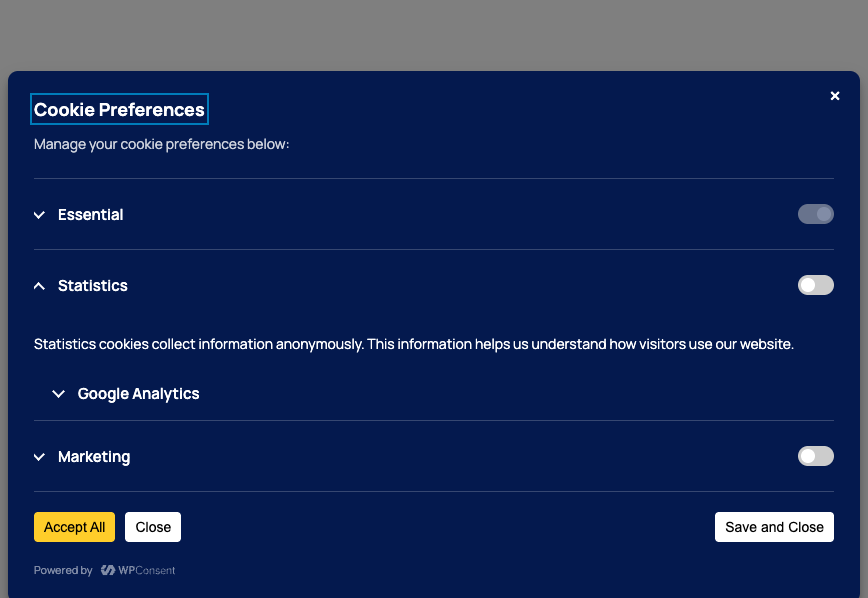
The preferences panel is a full-screen overlay that opens when a visitor clicks the Preferences button on the consent banner. It lists every cookie category on your site, each with a toggle and an expandable accordion. Inside each accordion, visitors see the category description, any associated services, and a cookie table showing name, description, and duration columns.
3 action buttons appear at the bottom of the panel: Accept All, Close, and Save and Close. Visitors use these to confirm or dismiss their choices.
Why it matters
Privacy regulations like GDPR and ePrivacy require websites to give visitors granular control over cookie consent. A generic “accept all” button isn’t enough. The preferences panel lets visitors make informed, category-level (or even service-level) decisions about which cookies they allow.
This transparency builds trust with your audience. It also keeps your site compliant by documenting that visitors had a real choice.
How the panel works
The preferences panel has 4 main sections from top to bottom.
Header
The header displays the panel title and a close button. If you’ve uploaded a logo in the Content tab of WPConsent >> Banner Design, the logo appears in the header alongside the close button.
Description
A short paragraph below the header introduces the panel to visitors. The default text reads:
Manage your cookie preferences below:
You can change this text in the admin settings (see Customizing the panel text below).
Cookie categories accordion
Each cookie category appears as a collapsible accordion item. The accordion header displays the category name and a toggle. The accordion body contains the category description, optional services, and a cookie table.
Categories with no cookies and no services are hidden from the panel automatically. The Essential category always appears, and its toggle is checked and disabled. Visitors can’t turn off essential cookies.
Only 1 category accordion stays open at a time. Clicking a new category closes the previously open one.
Action buttons
3 buttons appear at the bottom of the panel:
| Button | Default label | Behavior |
|---|---|---|
| Accept All | Accept All | Enables all cookie categories and saves preferences. |
| Close | Close | Closes the panel without saving changes. |
| Save and Close | Save and Close | Saves the current toggle states and closes the panel. |
Cookie policy section
If you’ve selected a cookie policy page in WPConsent >> Settings >> Cookie Policy, the preferences panel shows a Cookie Policy accordion at the bottom of the category list. This accordion contains text with links to your cookie policy page and (if configured) your WordPress privacy policy page.
The default text uses the {cookie_policy} and {privacy_policy} placeholders, which resolve to links automatically. For placeholder details, see the article on customizing banner content and text.
Saving preferences
When a visitor clicks Save and Close, WPConsent saves their toggle choices to a cookie so the site remembers their preferences on future visits.
If the visitor changes their preferences after previously saving, WPConsent clears existing cookies and reloads the page so the new preferences take effect immediately.
When a visitor reopens the panel later, WPConsent reads the wpconsent_preferences cookie and sets all toggles to match the saved state.
Accessibility
The preferences panel follows accessibility best practices:
- The panel has
role="dialog"andaria-modal="true"attributes. - A focus trap keeps keyboard focus inside the panel while it’s open.
- Pressing Escape closes the panel.
- The panel title receives focus when the panel opens, giving screen readers immediate context.
- All accordion toggle buttons use
aria-expandedto indicate their open or closed state. - Interactive elements include descriptive
aria-labelattributes for screen reader users.
Key concepts
Category-level toggles
By default, visitors control consent at the category level. Each non-essential category (such as Statistics or Marketing) has a toggle that the visitor can check or uncheck. The Essential category toggle is always on and disabled.
When a visitor returns to the panel after previously saving preferences, the toggles reflect the saved state from the wpconsent_preferences cookie.
Service-level toggles
If you enable Toggle Services in WPConsent >> Settings, each service within a category gets its own nested accordion and toggle.
With service-level toggles enabled:
- Each service appears as a nested accordion inside its parent category.
- Services have their own toggle, so a visitor can accept 1 analytics service but reject another.
- Toggling a category on or off also checks or unchecks all service toggles within that category.
- If a visitor unchecks all service toggles in a category, the parent category toggle unchecks automatically.
- If a visitor checks any service toggle, the parent category toggle checks automatically.
Services in the Essential category show as checked and disabled, matching the category behavior.
When service-level toggles are disabled, services still appear as nested accordions showing their description and cookies, but without individual toggles. Consent is controlled entirely at the category level.
For more on managing services, see the article on managing services.
Cookie tables
Inside each category or service accordion, a cookie table lists every cookie associated with that group. The table has 3 columns:
| Column | Default header | Description |
|---|---|---|
| Name | Name | The name of the cookie. |
| Description | Description | What the cookie does. |
| Duration | Duration | How long the cookie persists. Shows a dash if no duration is set. |
You can change the column header text in the Cookie Table Headers accordion on the Content tab of WPConsent >> Banner Design. For details, see the article on customizing banner content and text.
If a service has a URL configured, the panel shows a link labeled with the Service URL Label text (default: Service URL) followed by the domain name of the URL. The link opens in a new tab.
Customizing the panel text
All text strings in the preferences panel are editable in the WordPress admin. Navigate to WPConsent >> Banner Design and click the Content tab. Then scroll down to the Preferences Panel Settings section and expand the Preferences Panel accordion.
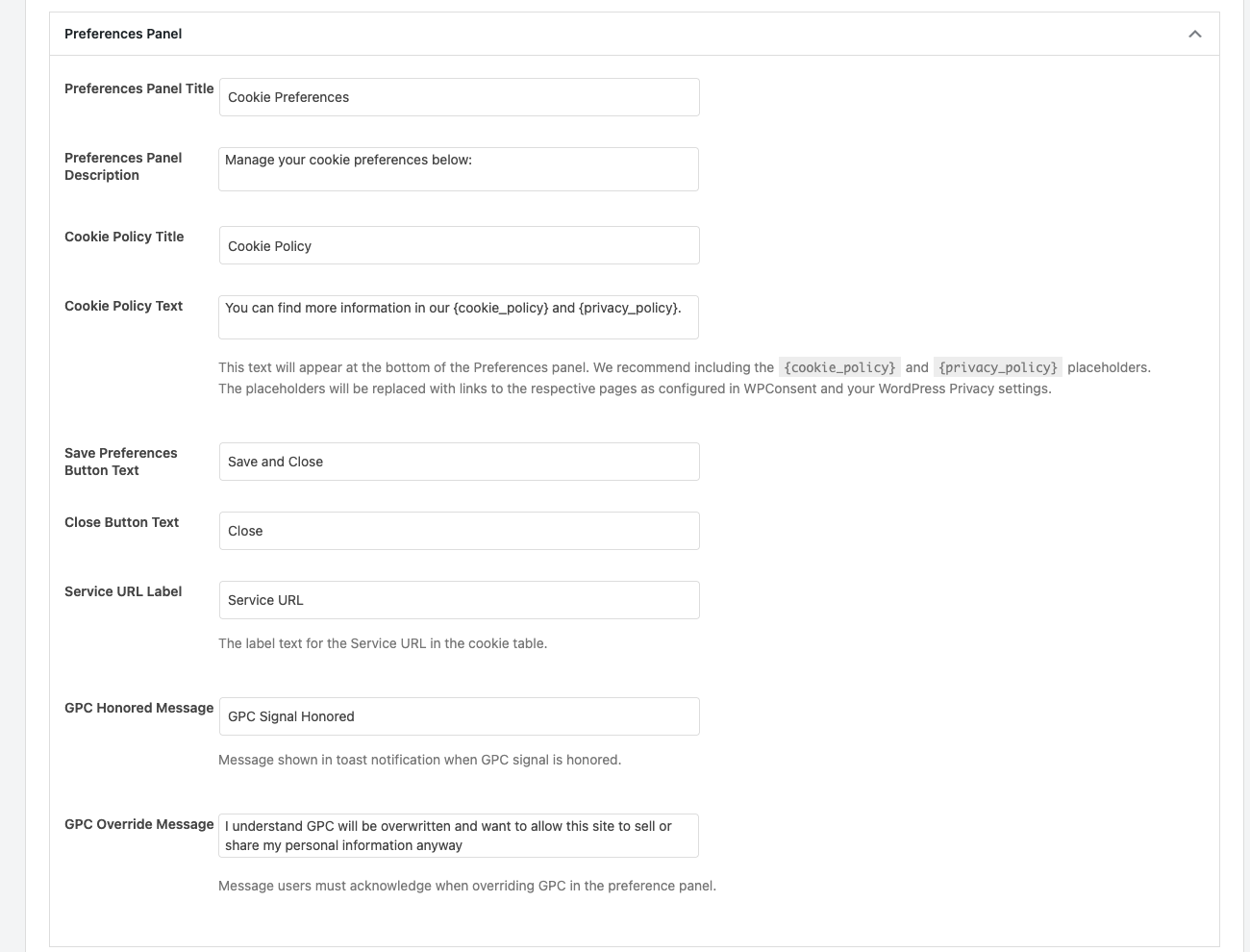
The following fields are available:
| Field | Default value | What it controls |
|---|---|---|
| Preferences Panel Title | Cookie Preferences | The heading at the top of the panel. |
| Preferences Panel Description | Manage your cookie preferences below: | The introductory paragraph below the title. |
| Cookie Policy Title | Cookie Policy | The heading of the cookie policy accordion item. |
| Cookie Policy Text | You can find more information in our {cookie_policy} and {privacy_policy}. | The text inside the cookie policy accordion. Supports {cookie_policy} and {privacy_policy} placeholders. |
| Save Preferences Button Text | Save and Close | The save button label at the bottom of the panel. |
| Close Button Text | Close | The close button label at the bottom of the panel. |
| Service URL Label | Service URL | The label shown before a service’s URL in the cookie table. |
After making changes, click Save. Text updates take effect immediately on the frontend.
Opening the preferences panel
There are 3 ways for visitors to open the preferences panel after they’ve dismissed the consent banner.
Using the floating consent button
The floating consent button is a small icon that appears in the corner of every page after a visitor saves their consent. Clicking it opens the preferences panel. To enable this button, turn on the Show Settings Button toggle in WPConsent >> Settings.
When enabled, you can customize the button icon on the Style tab of WPConsent >> Banner Design. For the toggle setting, see the article on general settings. For icon options, see the article on banner styling.
Using the shortcode
Place the shortcode anywhere in your content to add a preferences button. The shortcode renders a element that opens the preferences panel when clicked.
The shortcode accepts 2 optional attributes:
| Attribute | Default | Description |
|---|---|---|
text | Cookie Preferences | The button label text. |
class | (none) | Additional CSS classes to add to the button. |
Here’s an example:
The button automatically receives the wpconsent-open-preferences CSS class, which triggers the panel to open.
Using a CSS class on any element
Add the CSS class wpconsent-open-preferences to any link, button, or clickable element on your page. WPConsent listens for clicks on elements with this class and opens the preferences panel automatically.
For example, you can add a link in your site footer:
<a href="#" class="wpconsent-open-preferences">Cookie Settings</a>Or add a button in a widget:
<button class="wpconsent-open-preferences">Manage Cookies</button>This works on any element anywhere on the page. WPConsent prevents the default action (so href="#" links don’t scroll to the top) and opens the preferences panel.
Best practices
- Keep your category descriptions clear. Write short, plain-language descriptions so visitors understand what each category does.
- Enable service-level toggles for transparency. If your site uses multiple services per category, turning on service-level toggles gives visitors finer control and builds trust.
- Always set a cookie policy page. Linking your cookie policy in the preferences panel helps visitors find detailed information and strengthens your compliance posture.
- Customize button labels for your audience. Match the language and tone of your site. If your audience expects formal language, adjust accordingly.
- Test the panel on mobile devices. The preferences panel is a full-screen overlay, so verify it looks and works well on smaller screens.
FAQ
Can I change the text in the preferences panel?
Yes. Navigate to WPConsent >> Banner Design >> Content and expand the Preferences Panel accordion. All text fields are editable there.
How do I let visitors reopen the preferences panel?
There are 3 options: enable the floating consent button in WPConsent >> Settings, use the shortcode, or add the wpconsent-open-preferences CSS class to any HTML element.
Why don’t I see a particular cookie category in the panel?
WPConsent hides categories that have no cookies and no services. To make a category visible, add at least 1 cookie or service to it. The Essential category is the exception and always appears.
Can visitors disable essential cookies?
No. The Essential category toggle is always checked and disabled. Visitors can’t turn off essential cookies because your site needs them to function.
What happens when a visitor changes their preferences?
WPConsent clears existing cookies that no longer have consent and reloads the page. The new preferences take effect immediately.
How do I enable service-level toggles?
Turn on the Toggle Services setting in WPConsent >> Settings. Each service then gets its own toggle inside its parent category accordion.
Conclusion
The preferences panel gives your visitors full control over their cookie consent choices. It displays cookie categories, services, and individual cookies in an organized accordion layout with clear toggles and action buttons. You can customize all panel text from the Content tab of WPConsent >> Banner Design and offer multiple ways for visitors to reopen the panel at any time.
To learn how to customize the text and placeholders used throughout the banner and preferences panel, read the article on customizing banner content and text.