
Want to give visitors an easy way to update their cookie preferences after they dismiss the banner? WPConsent includes a floating consent button that stays visible on every page, letting visitors reopen the preferences panel at any time. This guide walks you through enabling and customizing the floating consent button.
Table of contents
- Prerequisites
- Enabling the floating consent button
- Choosing an icon for the button
- Understanding button colors
- Saving your changes
- Verifying your setup
- FAQ
- Conclusion
Prerequisites
Before you begin, make sure the following are in place:
- WPConsent is installed and activated on your WordPress site.
- You have administrator access to the WordPress dashboard.
- The Consent Banner toggle is enabled on the Settings page.
Enabling the floating consent button
To get started, navigate to WPConsent >> Settings. Scroll down to the Settings Button row and turn on the toggle. The description reads: “Show a floating button to manage consent after the banner is dismissed.”

Then, click Save Changes to apply the setting.
Choosing an icon for the button
Once you enable the Settings Button toggle, an icon picker appears on the Style tab of the Banner Design page.
First, navigate to WPConsent >> Banner Design and click the Style tab. Then, scroll to the bottom of the page to find the Floating Settings Button Design section.
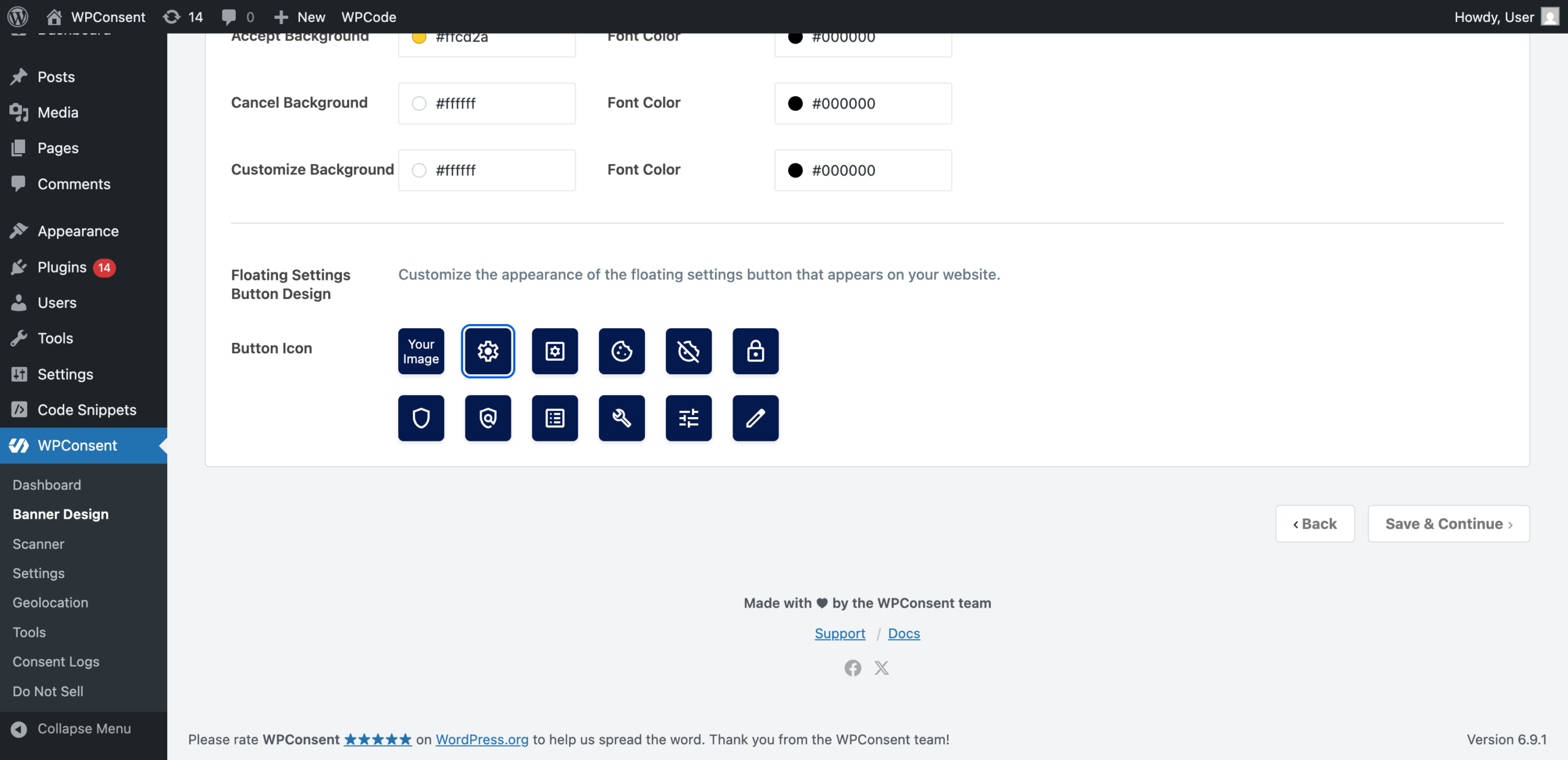
You’ll see a grid of icon options. Select the one you want to use:
| Icon | Description |
|---|---|
| Your Image | Upload a custom image from your media library. |
| Preferences | A sliders icon. This is the default. |
| Settings | A gear icon. |
| Cookie | A cookie icon. |
| Cookie Off | A cookie icon with a slash through it. |
| Lock | A padlock icon. |
| Shield | A shield icon. |
| Policy | A document/policy icon. |
| List | A list icon. |
| Wrench | A wrench/tool icon. |
| Tune | An adjustments/tuning icon. |
| Pencil | A pencil/edit icon. |
To upload a custom image, click the Your Image option. A media upload button appears. Click it, select or upload an image, and confirm your choice. Custom images display at 24 by 24 pixels.
Understanding button colors
The floating button automatically uses the same Background Color and Text Color as your banner. You can set these colors at the top of the Style tab under the Banner heading. When you change the banner colors, the floating button colors update to match.
For details on configuring banner colors, see the guide on customizing banner styles.
Saving your changes
After choosing your icon, click Save in the top-right corner of the Banner Design page. This applies both the icon selection and any color changes.
How visitors interact with the button
The floating consent button appears only after a visitor interacts with the banner. Here’s the typical sequence:
- A new visitor arrives on your site and sees the consent banner.
- The visitor clicks Accept, Reject, or saves preferences through the preferences panel.
- The banner disappears, and the floating consent button fades in at the bottom-left corner of the page.
- On future visits, the banner stays hidden because preferences are already saved. The floating button appears immediately so the visitor can change their choices.
- Clicking the floating button opens the preferences panel. The visitor adjusts categories and saves again.

Tip: You can also let visitors open the preferences panel from any link or button on your site. Add the CSS class
wpconsent-open-preferencesto any HTML element, and it becomes a trigger for the preferences panel.
Verifying your setup
Follow these steps to confirm the floating button works correctly:
- Enable the Settings Button toggle and save.
- Open your site in an incognito or private browser window.
- Accept or reject cookies on the consent banner.
- Confirm the floating button appears in the bottom-left corner after the banner is dismissed.
- Click the floating button and verify the preferences panel opens.
- Close the browser, reopen it, and visit your site again. The floating button appears immediately without the banner showing.
The floating button doesn’t appear
Make sure both the Consent Banner toggle and the Settings Button toggle are enabled on the Settings page. The floating button only appears after the visitor makes a consent choice, so you need to accept or reject cookies first.
The button colors don’t match my brand
The floating button inherits the banner’s Background Color and Text Color. Navigate to WPConsent >> Banner Design >> Style and adjust those 2 color pickers. The floating button preview in the icon grid reflects the current colors.
The icon picker isn’t visible on the Style tab
The icon picker only appears when the Settings Button toggle is enabled. Navigate to WPConsent >> Settings, enable the toggle, and save. Then return to the Style tab.
FAQ
Can I use my own image as the floating button icon?
Yes. Select the Your Image option in the icon picker grid, and upload any image from your media library. Custom images display at 24 by 24 pixels.
Can I change the position of the floating button?
The floating button appears in the bottom-left corner of the page by default. There’s no built-in setting to change its position, but you can move it with custom CSS. For details on adding custom styles, see our guide on customizing the WPConsent banner with CSS.
How do I let visitors open preferences from a regular link instead of the floating button?
Add the CSS class wpconsent-open-preferences to any HTML element on your site. Clicking that element opens the preferences panel, just like the floating button does.
Conclusion
The floating consent button gives your visitors a persistent, easy-to-find way to manage their cookie preferences. After enabling the toggle on the Settings page and choosing an icon on the Style tab, the button appears automatically on your frontend.
To learn how to customize the colors and overall appearance of your banner (which also control the floating button), read the guide on styling your consent banner.