
How do you find out which services on your site set cookies? WPConsent’s built-in scanner identifies known services across your pages automatically, then matches them to a comprehensive cookie database. Scanning your website is the first step toward a fully configured consent banner.
Table of contents
- Prerequisites
- Opening the scanner page
- Selecting pages to scan
- Understanding what the scanner detects
- Running the scan
- Reviewing the scan results
- Configuring detected services
- Re-scanning after site changes
- Verifying your setup
- FAQ
- Conclusion
Prerequisites
Before you begin, make sure you have:
- WPConsent installed and activated (see our guide on installing WPConsent)
- Administrator access to your WordPress site
Opening the scanner page
To get started, go to WPConsent >> Scanner in your WordPress admin menu. The page title is Website Scanner.
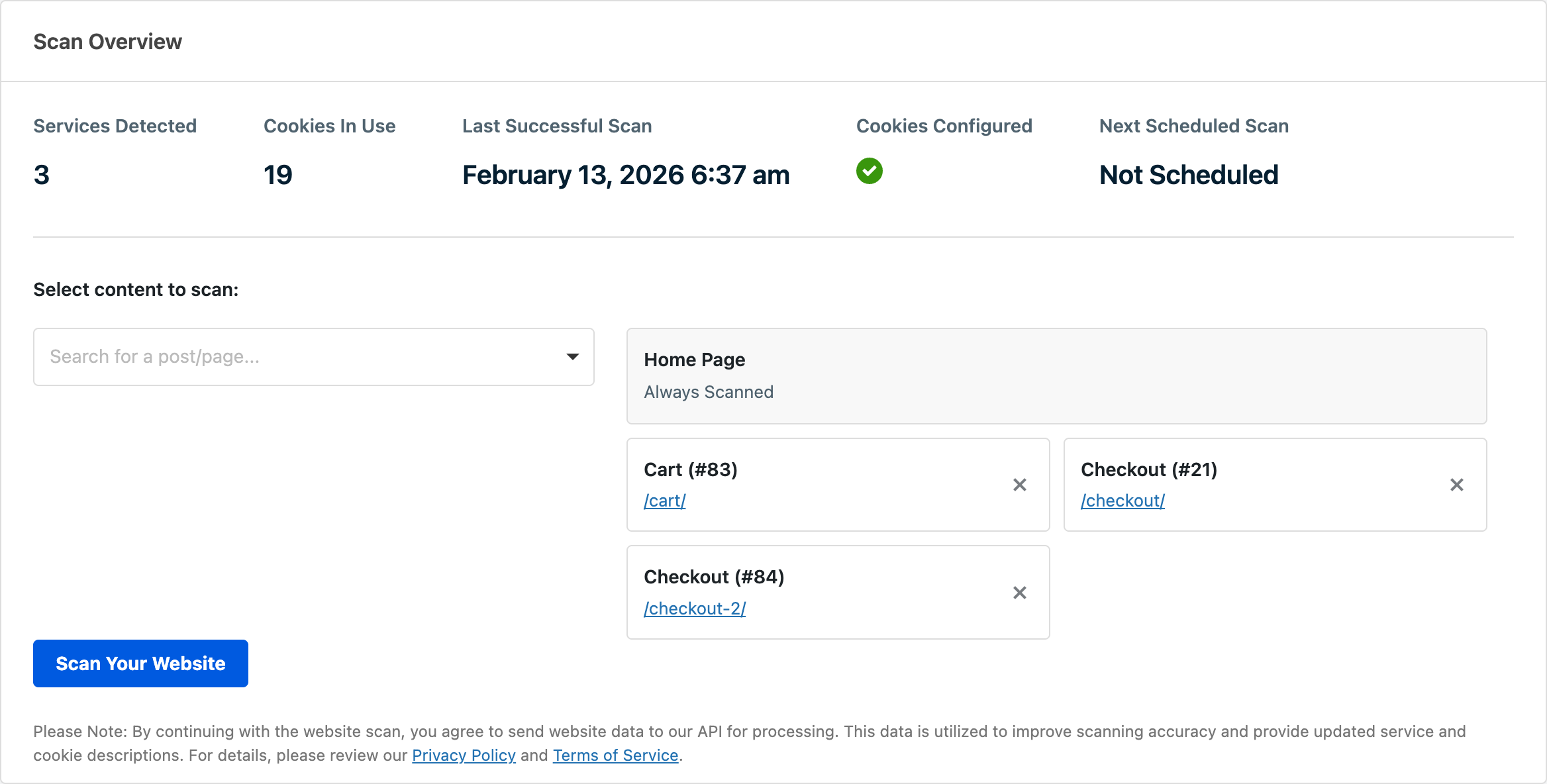
If you’ve run a scan before, the Scan Overview section at the top displays summary statistics:
- Services Detected: the number of known services found on your site
- Cookies In Use: the total number of cookies associated with those services in the WPConsent database
- Last Successful Scan: the date and time of your most recent scan
- Cookies Configured: whether you’ve applied the scan results
- Next Scheduled Scan: the date of the next automatic scan, or “Not Scheduled” if auto scanning is off
Selecting pages to scan
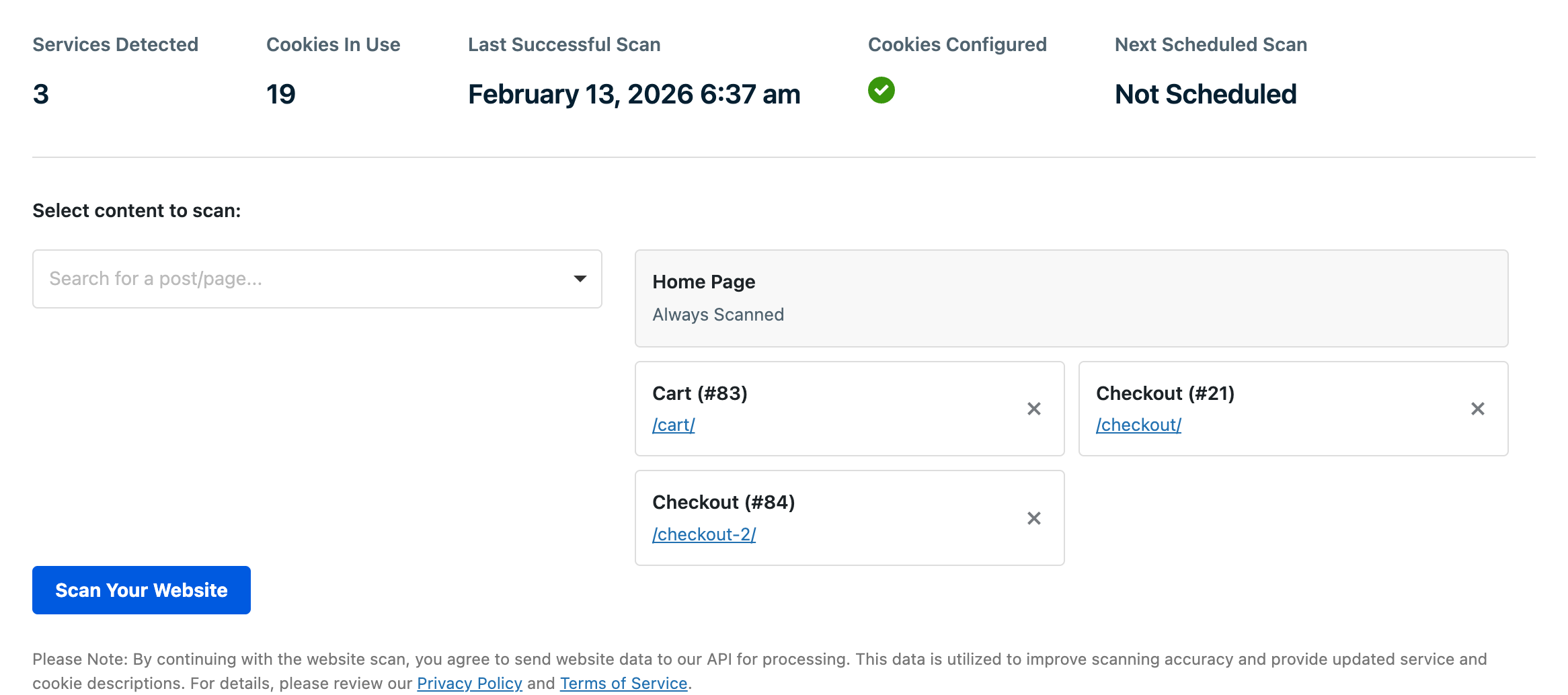
Below the overview statistics, you’ll find a Select content to scan section. Your homepage is always included and can’t be removed.
WPConsent automatically pre-populates important pages the first time you visit the scanner. It looks for published pages whose title or slug contains common keywords like “checkout”, “cart”, “contact”, or “videos”. This helps ensure pages that frequently load third-party scripts are covered without extra effort.
To add more pages:
- Open the Search for a post/page… dropdown to find any published post or page on your site.
- Select the page you want to add. It appears as a card in the selected items area.
- Repeat for each additional page you want in the scan.
To remove a page, click the X button on its card.
Understanding what the scanner detects
The scanner identifies services, not individual cookies. Cookies are set dynamically as visitors interact with your site, through actions like clicking buttons, submitting forms, or completing purchases. There’s no reliable way for a scanner to replicate all of those interactions. Instead, WPConsent analyzes your pages to detect known services and pulls in a comprehensive list of cookies for each one. This approach gives you accurate, complete cookie data for every recognized service.
The WPConsent team is constantly adding new services to the database and expanding coverage for WordPress plugins, so detection improves over time.
In the free version, the scanner detects common scripts loaded directly on the page. This includes widely used services like Google Analytics, Facebook Pixel, YouTube embeds, and similar marketing or statistics services.
Pro Feature: This feature requires WPConsent Pro.
In the paid version, the scanner provides extended detection. In addition to everything the free scanner finds, it also:
- Identifies WordPress plugins that set cookies by matching your active plugin list against the WPConsent database
- Detects scripts loaded through Google Tag Manager (GTM) that aren’t visible as direct page scripts
- Discovers additional services from the extended database that the free scanner doesn’t recognize
As a result, paid version users see a more complete list of detected services after a scan.
Running the scan
To start, click the Scan Your Website button.
A progress dialog appears while the scan runs. If you selected multiple pages, the dialog shows a progress bar indicating how many pages have been scanned out of the total.
The scanner processes each selected page 1 at a time:
- First, it fetches each page from your site.
- Then, it sends the page data to the WPConsent scanning API for analysis.
- Finally, results from all pages are aggregated and duplicate services are removed.
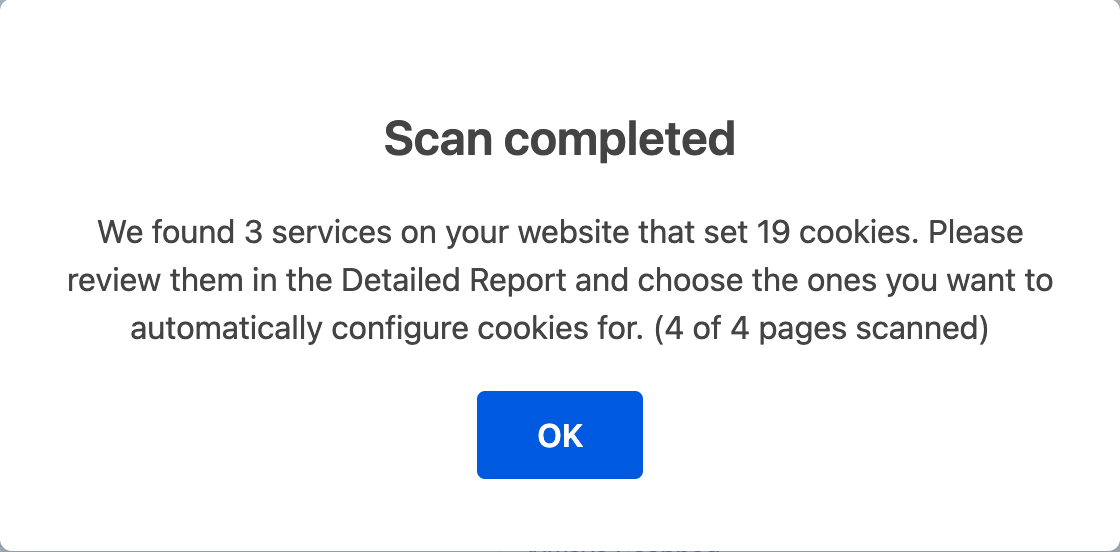
When the scan completes, a summary dialog displays the total number of services detected and their associated cookies. For example: “We found 5 services on your website that set 12 cookies.”
Click OK to dismiss the dialog. The page reloads to display the full results.
Important: By running a scan, you agree to send website data to the WPConsent API for processing. Review the WPConsent Privacy Policy and Terms of Service for details.
Reviewing the scan results
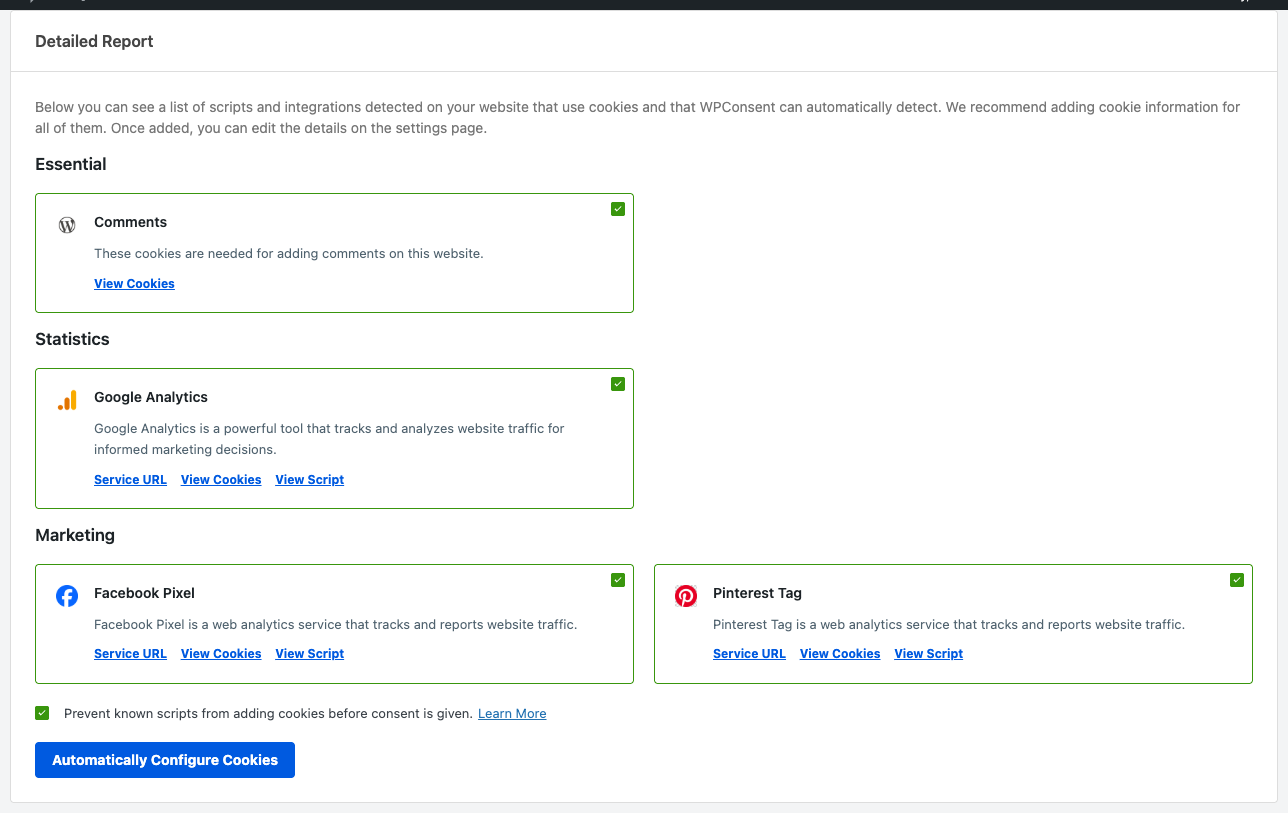
After a successful scan, a Detailed Report section appears below the overview. This report groups detected services by cookie category.
WPConsent uses 3 default categories:
- Essential: cookies necessary for basic site functionality
- Statistics: cookies that collect anonymous usage information
- Marketing: cookies used to track visitors for advertising
For each detected service, the report shows:
- Service logo and name: the recognized service
- Description: a brief explanation of what the service does
- Service URL: a link to the service’s website
- View Cookies: expands a list of cookies associated with the service in the WPConsent database
- View Script: expands a preview of the detected script snippet
- Checkbox: all services are selected by default for automatic configuration
Configuring detected services
At the bottom of the Detailed Report, you’ll find:
- A script blocking checkbox labeled “Prevent known scripts from adding cookies before consent is given.” This reflects your current script blocking setting and is enabled by default.
- The Automatically Configure Cookies button.
First, uncheck any services you don’t want to configure automatically. Then, click Automatically Configure Cookies. A confirmation dialog asks you to confirm. Click Yes to proceed.
WPConsent then creates the corresponding services and cookies in your cookie configuration. After completion, a success message confirms that services and cookies were added. The page reloads, and the Cookies Configured indicator in the overview updates to show a checkmark.
You can review and edit all configured services on the Settings >> Cookies tab. See our guides on managing services and managing cookies for details on editing service and cookie entries.
Re-scanning after site changes
When you install new plugins, add new integrations, or change which scripts run on your site, we recommend running a new scan to keep your cookie configuration accurate.
WPConsent doesn’t create duplicates when you re-scan. If a service was already configured, it skips that service and only adds newly detected ones. Services you added or edited manually aren’t overwritten.
Verifying your setup
After configuring your scan results, confirm everything is working:
- Go to WPConsent >> Scanner and check that the Cookies Configured indicator shows a checkmark.
- Navigate to WPConsent >> Settings >> Cookies to verify that the detected services and cookies appear in your configuration.
- Visit your site’s front end and open the consent banner. Confirm that the cookie categories match the services detected in the scan.
If any services are missing or incorrect, you can edit them directly from the Cookies tab.
FAQ
Why does my scan return “No known scripts were found on your website”?
This means the scanner didn’t match any known services on your pages. Try these steps:
- Add more pages to the scan. Some services only load on specific pages (for example, a payment provider on the checkout page).
- Make sure your site is publicly accessible. The scanner fetches your pages via an HTTP request, so firewall rules or maintenance mode plugins may block it.
- If you use a staging or local environment, verify the site URL is reachable from the server itself.
Why can’t the scanner endpoint be reached?
This error means the HTTP request to the WPConsent scanning API failed. Common causes include:
- A server firewall or security plugin blocking outbound HTTP requests.
- A request timeout. The scanner uses a 30-second timeout, but slow server connections may still cause issues.
- DNS resolution problems on your hosting provider.
Contact your hosting provider if the problem persists.
Why does my scan show fewer services than I expected?
The scanner can only detect services that are in the WPConsent database. The free version detects common scripts loaded directly on the page, while the paid version adds plugin-based and GTM detection. If a service isn’t in the database yet, the scanner won’t recognize it. The WPConsent team is continuously expanding the database with new services and plugins.
You can also manually configure cookie data for any service using the free CookieLibrary.org library.
Why does a service appear twice on the Cookies tab?
WPConsent prevents duplicate auto-configured services, but if you added a service manually and then scanned and auto-configured the same one, both entries will exist. You can safely delete the duplicate using the trash icon next to the service on the Cookies tab.
Do I need to run a scan every time I install a new plugin?
We recommend re-scanning whenever you add plugins or services that may set cookies. You can also enable automatic scanning in your settings to keep your cookie configuration up to date.
Why doesn’t the scanner detect cookies set by my custom code?
The scanner identifies known services from the WPConsent database rather than detecting individual cookies directly. Cookies are set dynamically through various visitor interactions, and there’s no reliable way to replicate all of those actions in an automated scan. For custom functionality that sets cookies, you can add services and cookies manually on the Cookies tab. See our guide on managing services for details. If you also need to block custom scripts from running before consent is given, see our guide on blocking custom scripts and iframes.
Conclusion
The website scanner gives you a clear picture of which known services are active on your site and what cookies they use. By selecting the right pages, running a scan, and applying the results, you’ll have an accurate cookie configuration ready for your consent banner. For services the scanner doesn’t recognize, you can always add them manually. To learn how WPConsent blocks scripts before visitors give consent, see our guide on automatic script blocking.