Short Answer
A Google Analytics 4 (GA4) drop after adding a cookie banner usually means the banner is working. Visitors who decline or ignore it send Google far less data, so GA4 counts fewer of them. Google can estimate some of them on busier sites, but it isn’t guaranteed. For most sites, the lower numbers are the new normal.
Key Takeaways
- Your visitors did not disappear. GA4 just can’t fully count the ones who don’t accept.
- You can check whether the banner caused the drop in a few minutes, with no developer tools.
- Google fills the gap with estimates only on busier sites, and even there it isn’t guaranteed.
- Google Consent Mode, free in WPConsent, decides whether visitors who don’t accept send Google any signals at all, and Google needs those signals before it can estimate them.
- You don’t need to weaken your banner to read your reports correctly.
You added a cookie banner to your WordPress site. A week later, you opened Google Analytics, and you noticed your metrics had dropped.
Sessions, users, maybe even conversions were all lower than the week before, and the banner was the only thing you’d added.
So the obvious worry kicks in: did I break something?
In this article, we’ll explain what a cookie banner changes in GA4 and how to confirm it caused your drop.
Then we’ll show you what you can do about it without weakening your banner.
Use the table of contents below to navigate this article.
What a Cookie Banner Changes in Google Analytics 4
Before the banner, GA4 set its cookies and recorded visitors without asking first.
Now each visitor makes a choice, and that choice decides how much Google gets to see.
There are three things a visitor can do with your banner:
- Accept. GA4 sets its cookies and records the visit just like before.
- Reject. GA4 doesn’t use cookies for this visitor.
- Ignore it. The visitor scrolls past or leaves without clicking. No choice means no consent, so on a banner that asks first (like WPConsent’s default), they’re treated the same as someone who rejected. Our guide to GDPR vs CCPA explains opt-in and opt-out.
On some sites, a large share of visitors never click the banner at all.
So what happens to the visitors who reject or ignore? That depends on one setting: Google Consent Mode.
Your banner affects Google Analytics whether it reaches your site through MonsterInsights, Site Kit, or a tag you pasted in.
Check out the diagram below to see what GA4 gets in each case.
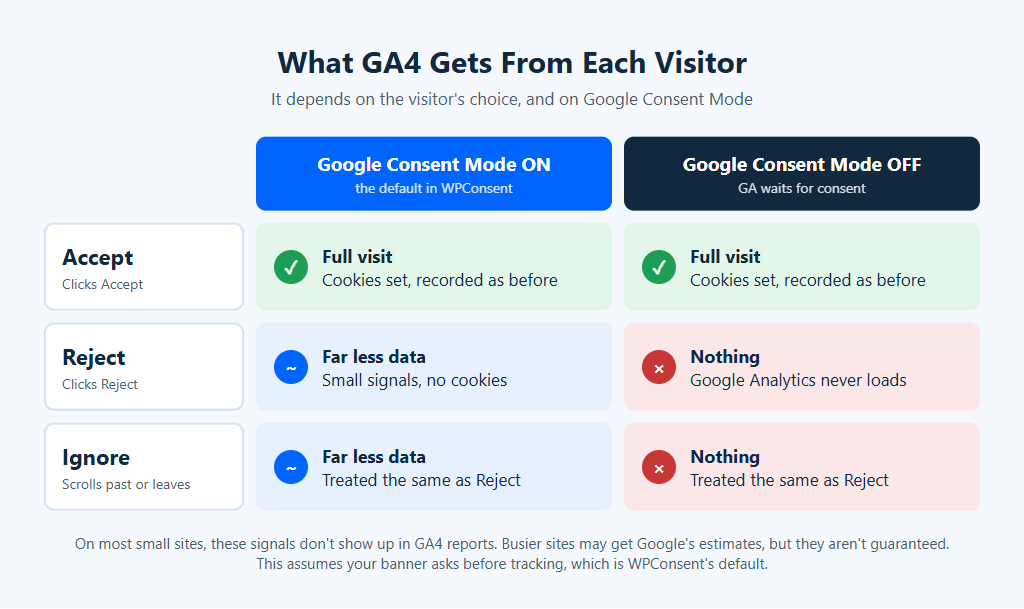
With Google Consent Mode on, Google Analytics still loads for these visitors. It just sends Google small signals with no cookies attached. Google calls this “advanced consent mode.”
When we tested a visitor who had opted out of tracking on our test site, that’s exactly what happened: a signal went to Google, and no cookies were set.
On most small sites, these signals don’t show up in your reports. Google only uses them for estimates once a site qualifies, which we cover below.
With Google Consent Mode off, WPConsent blocks Google Analytics until someone accepts. Visitors who reject or ignore the banner send it nothing.
Either way, your GA4 numbers fall, even when everything is set up right.
That’s the banner doing its job.
Our beginner’s guide to Google Analytics cookie consent explains why the banner has to hold Google Analytics back.
How to Tell If the Banner Caused the Drop
The best way to confirm if your banner caused the drop is to use your own numbers.
Here are four checks. None need a developer.
1. Does the Drop Start on the Banner Date?
In GA4, go to Reports » Acquisition » Traffic acquisition. Set the date range to cover a few weeks on either side, and find the day the banner went live.
Not sure of the date?
It helps to keep a note whenever you change something like this, so you can find it later.
On WPConsent Pro and up, the Banner Analytics trend chart also marks the last time you turned on or changed your banner.
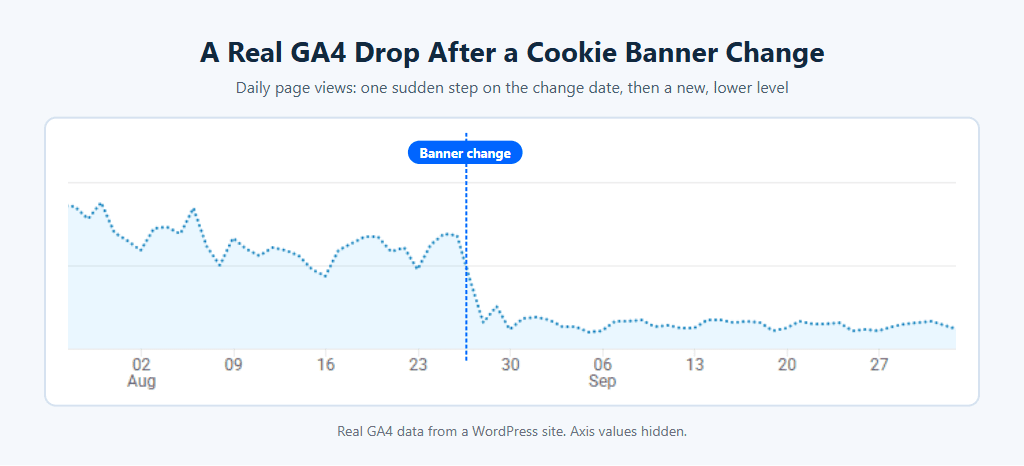
If the drop starts that day, or the day after, the banner is the likely cause.
Here’s what that looked like on a real WordPress site after a cookie banner change.
2. Is It a Cliff or a Slow Slide?
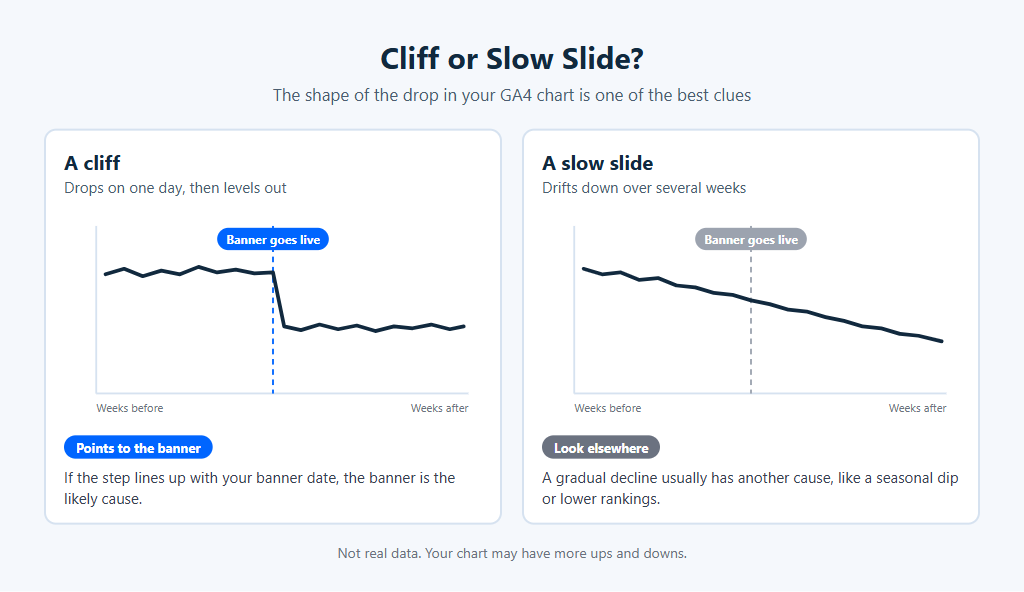
A banner usually causes a cliff: the line drops on one day, then levels out at a new, lower height.
A slow slide over several weeks points somewhere else, like a seasonal dip or a change in your search rankings.
Check out the illustration below to see the difference.
3. Did Your Search Console Clicks Hold Steady?
This check needs Search Console set up. If you don’t have it, skip to check 4.
Google Search Console’s Performance report counts the clicks you get from Google Search.
Those numbers come from Google’s own search records, not from cookies on your site. Your banner doesn’t affect them.
If Search Console clicks stayed flat while GA4’s Organic Search sessions fell, your visitors are still arriving. GA4 is just recording fewer of them.
You’ll find Organic Search as a row in the Traffic acquisition report.
If both fell, the banner isn’t the whole story. Check your search rankings next.
4. Are Orders and Form Entries the Same?
Check the numbers your site counts on its own, like WooCommerce orders or contact form entries, because your banner does not change how those are counted.
If those held steady, your real traffic probably did too.
⚠️ One Exception
If GA4 dropped close to zero on day one, take a second look.
Accept the banner yourself in a private browser window, then open Reports » Realtime in GA4 and give it a few minutes. If your own visit does not show up, Google Analytics may not be loading even for visitors who accept.
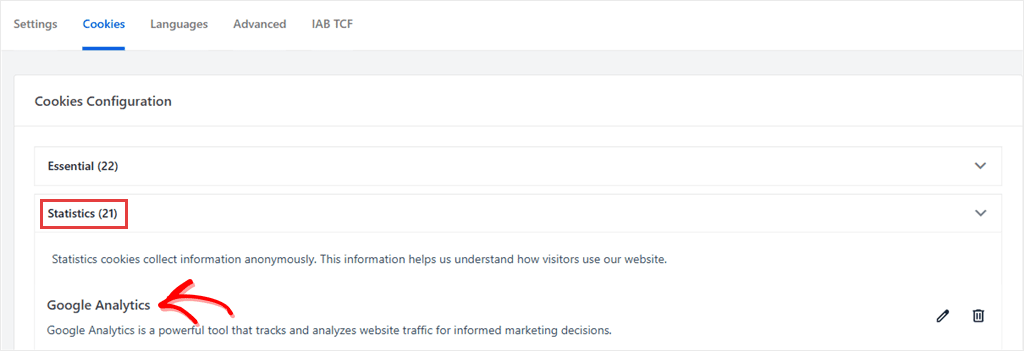
In that case, check that Google Analytics is listed in your cookie plugin as a statistics or analytics service, so it loads once a visitor accepts. In WPConsent, you’ll find this on the Cookies tab of WPConsent » Settings. Google Analytics should sit in the Statistics category.
Check out the screenshot below to see where Google Analytics should sit on the Cookies tab.
Why Google Isn’t Filling the Gap
You may have read that Google Consent Mode fills in the missing visitors. That is only partly true, and on most small sites it won’t happen.
GA4 can estimate the visitors it couldn’t fully record, which Google calls behavioral modeling. But a site has to qualify first.
As of October 2026, Google’s rules say your GA4 property needs all of these:
- At least 1,000 events a day from visitors who declined, for at least 7 days.
- At least 1,000 daily users who accepted, on at least 7 of the previous 28 days. Those days don’t have to be in a row.
- Consent Mode on every page, with the Google tag loading before the visitor makes a choice. WPConsent’s Google Consent Mode setting does this part for you.
Even when a site meets all of that, Google does not promise to model the missing visitors, because the data may still not be enough to build a reliable estimate.
Google changes these rules from time to time, so check its help page for the current version.
What does that mean in real numbers? Here’s a rough example, using our own math, not Google’s.
Say half your visitors accept the banner. To reach 1,000 accepting users a day, you would need around 2,000 visitors a day. If only a third accept, you would need around 3,000.
Most small sites won’t meet this.
For them, most of the gap stays. And on a site that doesn’t qualify, Google says it leaves the events from visitors who declined out of your reports entirely.
If your site does qualify, the estimates show up when your GA4 reporting identity is set to Blended. You’ll find it under Admin » Data display » Reporting identity.
The estimates only start from the date your property qualified. Past data is not filled in.
So why keep Google Consent Mode on if your site is small?
Because it is the only way to ever qualify.
If your traffic grows past Google’s thresholds, Consent Mode is what lets GA4 start estimating. Without it, visitors who don’t accept send Google Analytics nothing, at any size.
What to Do About a GA4 Drop After a Cookie Banner
You can’t get back the data from visitors who said no.
But you can make sure your setup is right, and read your reports the right way from here on.
We’ll show you the steps to follow in WPConsent.
If you use a different cookie plugin, look for a setting called Google Consent Mode or Consent Mode v2, and make sure your banner is switched on. Check its docs too: Google’s estimates only work if the plugin loads the Google tag before the visitor chooses (Google calls this advanced consent mode).
Switching to WPConsent from another plugin? Our Cookiebot migration guide shows the steps, and most apply whichever plugin you’re moving from.
1. Check Google Consent Mode Is On (Free)
This is the setting that decides whether visitors who don’t accept send Google anything at all. Google needs those signals before it can ever estimate them.
If you haven’t installed the free version of WPConsent yet, start there.
To check it, go to WPConsent » Settings in your WordPress dashboard. Near the top of that screen, you’ll see the Consent Banner setting.
If your banner isn’t set up yet, follow our guide on how to add a cookie consent banner in WordPress first.
Then scroll down to the Google Consent Mode section on the same screen.
Check out the screenshot below to see where they are.
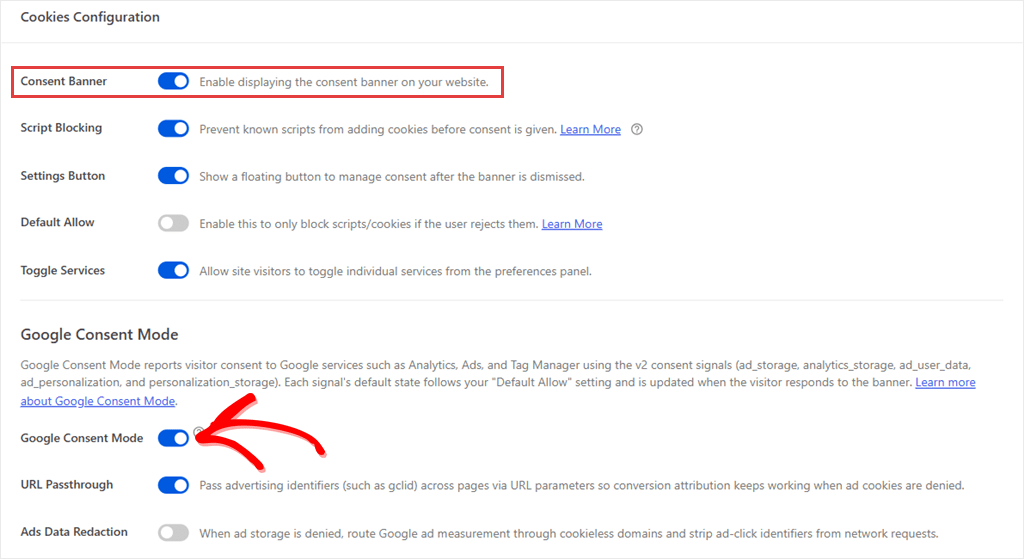
Both should be on.
If Google Consent Mode still needs attention, WPConsent’s Dashboard lists it under Site Consent Health.
The Google Consent Mode toggle is on by default, but it’s worth a look if you changed settings during setup.
Google Consent Mode will not load while your banner is turned off. The screen only tells you this if you hover over the ? icon next to the toggle.
Google Consent Mode also needs a Google service, like Google Analytics, in your WPConsent cookie list.
If Google Analytics runs on the pages it scans, WPConsent’s cookie scanner can detect it and add it to the list when you apply the results.
For those who use Site Kit by Google and have turned on Site Kit’s own consent mode, WPConsent leaves the Google consent signals to Site Kit. You don’t need to change anything.
WPConsent’s Google Consent Mode toggle won’t have any effect while Site Kit’s is on.
For a full walkthrough of these settings, see our guide on how to set up Google Consent Mode v2 in WordPress.
2. Make Your Banner Clear, Not Pushy (Free)
More visitors accepting means more data in GA4. The best way to get there is a banner people understand.
- Say plainly what analytics is for, in words a visitor would use, like “help us see which pages are useful to people like you.”
- Keep it short. Our help doc on banner content and text shows where to change the wording.
- Make Accept and Reject equally easy to find and click. Regulators in Europe, including France’s CNIL, have said rejecting should be as easy as accepting.
- Don’t pre-tick boxes, hide the reject button, or block the page until visitors click. Those tricks can cause the legal trouble the banner is there to avoid.
You might also spot a Default Allow setting on the Settings screen. It lets tracking start before a visitor chooses. Whether that’s allowed depends on where your visitors are, so treat it as a legal decision, not a fix for a GA4 drop.
3. See How Many Visitors Ignore Your Banner (Paid Plans)
GA4 can’t tell you how many visitors ignored your banner. Someone who ignores it never clicks anything, so to GA4 they look the same as someone who rejected it.
The only way to count them is to track banner views separately.
WPConsent’s Banner Analytics does that on paid plans, showing how many times your banner was seen, what share accepted, and what share ignored it.
Here is how that looks in the plugin.
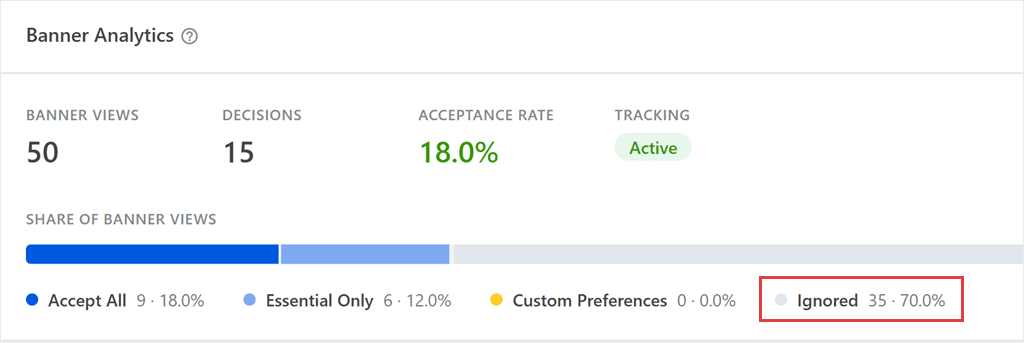
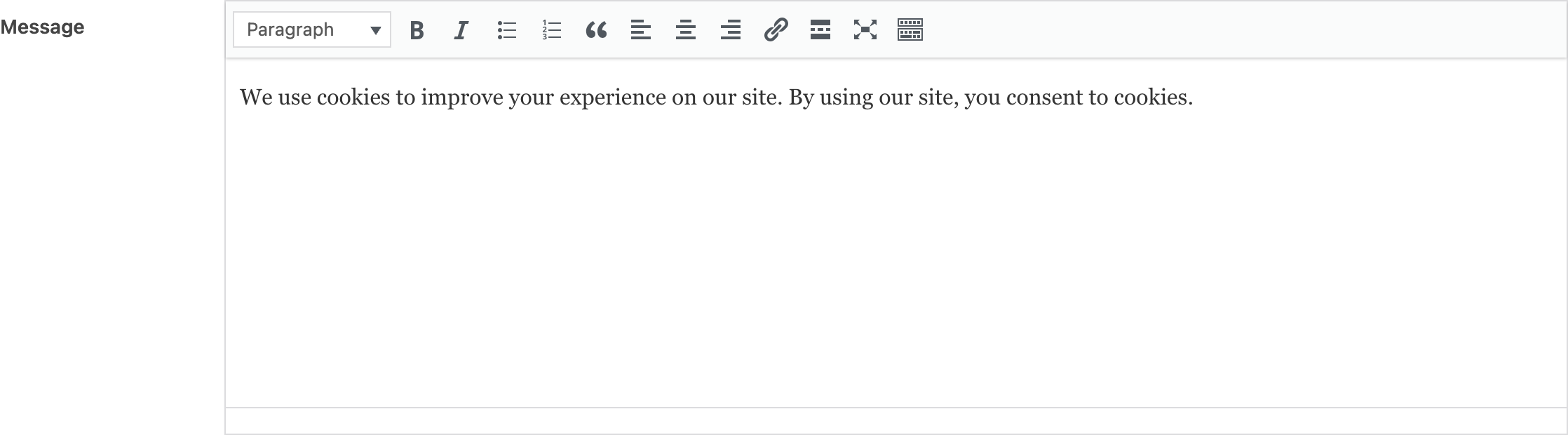
If a large share of visitors ignore your banner, customize your banner message with clearer wording under Banner Design » Content.
We walk through tracking your acceptance rate step by step in our guide on how to track your cookie banner acceptance rate in WordPress.
4. Mark the Banner Date and Compare Like With Like
Your GA4 numbers before and after the banner now measure different things. Don’t compare across that line.
Write the banner date down where you’ll see it, like a GA4 annotation or a note in your reporting doc. In GA4, you can add an annotation right on a report chart. You’ll need Analyst access or higher.
From now on, compare after-banner weeks to after-banner weeks. Skip year-over-year comparisons until a full year has passed since the banner went live.
If you report to a client or a boss, tell them about the date before they spot the drop themselves.
FAQs: GA4 Traffic Drop After a Cookie Banner
How big a drop is normal after adding a cookie banner?
There is no reliable number that fits every site. The size of the drop depends on where your visitors come from and how many of them accept your banner. Both vary a lot from one site to the next, so your own acceptance rate is the best guide.
Will my GA4 numbers come back?
You can’t get back the data from visitors who didn’t accept, so your new normal starts on the banner date. If your site qualifies for Google’s estimates, they only start from the date it qualified.
Can I show the cookie banner only where it’s required?
Yes. WPConsent’s paid plans include location-based rules, so you can show different banners, or no banner, depending on where a visitor is. Which regions need a banner is a legal question for your site. See our guide on location-based cookie consent.
Why did my conversion rate go up after adding a cookie banner?
It may just be the math. If you divide orders, which your store counts for everyone, by GA4 sessions, which dropped, the result goes up even if your sales stayed the same. And if your store sends purchases to GA4 from the server, GA4 keeps counting them while sessions fall, so its own conversion rate rises too. Those purchases may just lose where the visitor came from.
Keep the Data You Can, Without Weakening Your Banner
You now know why your GA4 numbers dropped, and how to check that it’s your banner doing its job.
Before you close this tab, open WPConsent » Settings and check that your banner and Google Consent Mode are both on.
Some of the gap will stay. That is normal, especially on a smaller site. But your setup will be ready if your traffic grows, and you’ll read your reports from the right starting line.
Want Google Consent Mode set up on your site for free?
Get WPConsent for free →
Not sure which plan has what? Our WPConsent Free vs Pro comparison lays it out.
Want to see how many visitors ignore your banner?
See WPConsent plans →
Additional Resources
Once your GA4 numbers make sense again, these guides help you take the next step.
- Smart Google Analytics Cookie Compliance Integration: how WPConsent handles Google Analytics consent for you.
- How to Set Up Google Consent Mode V2 in WordPress with Google Tag Manager: the next step if you manage your tags in Tag Manager.
- How to Audit Your WordPress Site for Cookie Compliance: a wider check of every cookie on your site, once the GA question is settled.