TL;DR:
WPConsent Free gives you a complete cookie banner, script blocking, Google Consent Mode v2, and a scanner. It’s enough for many single-site setups. Every paid plan adds consent records, geolocation rules, IAB TCF v2.3, and Do Not Sell request handling, starting at $49.50.
One of the most common questions we hear about WPConsent is which features are free and which ones need Pro.
WPConsent Free is a complete tool on its own, not a taste of the real thing.
WPConsent Pro builds on that foundation for sites that need more: consent records, regional rules, IAB TCF, and Do Not Sell request handling.
We put both versions side by side and tested every feature ourselves. Here’s what you actually get with each, whether you need to upgrade, and how to set up either one.
Key Takeaways
- WPConsent Free runs a full banner, script blocking, and Google Consent Mode v2 on its own, with no trial limits.
- Pro adds a searchable consent log, an audit trail of who accepted what and when.
- Free covers the core consent mechanism. Pro adds the compliance-management layer on top: records, regional rules, CCPA request handling and more.
- Upgrading from Free to Pro doesn’t mean starting over. Pro runs its own migration step that carries your existing settings across.
What Is WPConsent Lite?
WPConsent Lite, the free version, is one of the most popular cookie consent plugins for WordPress, with over 200,000 active installations and a 4.9-star rating on WordPress.org.
It adds a customizable cookie banner to your site and holds back tracking scripts until a visitor consents.
Plus, the free version of WPConsent works with tools like Google Analytics and Google Ads through Google Consent Mode v2, so your existing tracking setup keeps reporting without extra configuration.
What Is WPConsent Pro?
WPConsent Pro is the paid version of the same plugin, built for sites that need more than the core consent mechanism.
It adds: a searchable log of consent choices, region-specific banner rules for GDPR, CCPA, and LGPD, IAB TCF v2.3 for ad networks, CCPA Do Not Sell request handling, and automatic translations.
If your site needs to prove consent, treat visitors differently by region, or run ads through an ad exchange, this is the version built for that.
WPConsent Free vs Pro, Side by Side
Before we get into detail, check out the table below to see at a glance what the free and pro versions include.
| Feature | Free | Pro |
|---|---|---|
| Cookie banner and script blocking | Yes | Yes |
| Google Consent Mode v2 | Yes | Yes |
| Cookie scanner | Manual | Manual + scheduled |
| Consent logs (proof of consent) | No | Yes |
| Geolocation rules (GDPR/CCPA/LGPD) | No | Yes |
| IAB TCF v2.3 | No | Yes |
| Do Not Sell requests | No | Yes |
| Multi-language support | No | Yes |
| Automatic translations | No | Yes |
| Support | Community | Standard, Priority, or Premium, by plan |
| Starting price | Free | $49.50 |
| Get WPConsent Free → | See WPConsent Pro Pricing → |
On top of that, use the table of contents below to skip to any section you want to read.
- Cookie Banner and Script Blocking
- Google Consent Mode v2
- Cookie Documentation
- Blocking Third-Party Content
- Keeping Records
- Regional Rules
- Advertising Consent (IAB TCF)
- CCPA Requests (Do Not Sell)
- Multi-Language Support and Automatic Translation
- Support
- Which Plan Fits Your Site?
- How to Set Up WPConsent Free
- Upgrading to Pro: What Changes
- Frequently Asked Questions
- Ready to Decide?
Here’s what each version actually includes, feature by feature, starting with what they share.
Cookie Banner and Script Blocking
Free:
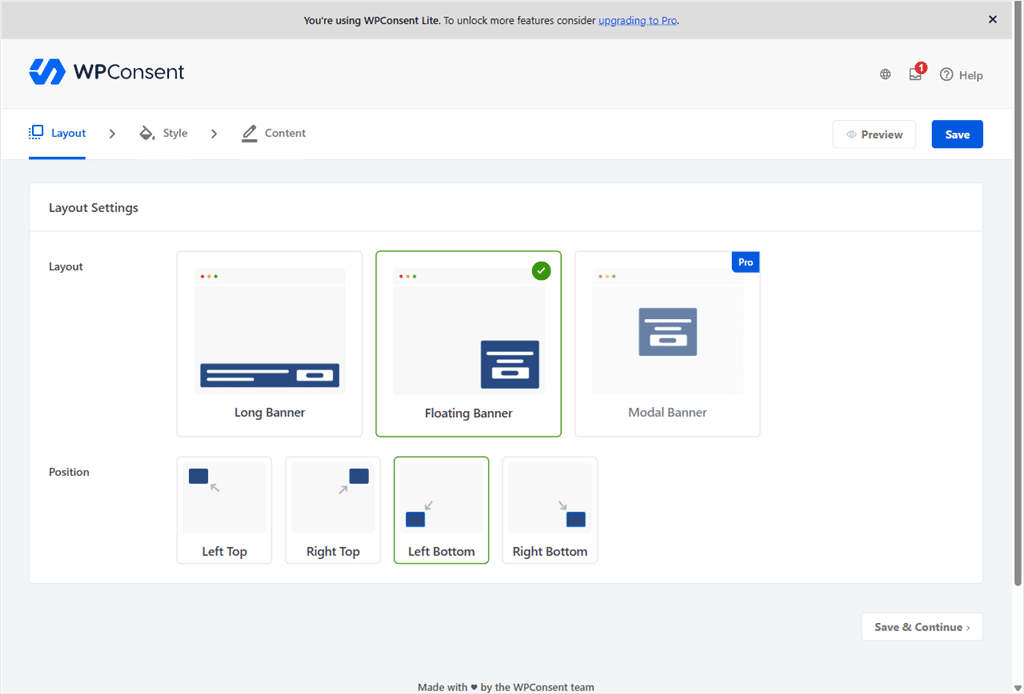
A customizable cookie banner, in a Long or Floating layout, with your own colors, positions, and button text. It automatically blocks third-party scripts from Google Analytics, Google Ads, Meta Pixel, Microsoft Clarity, Pinterest, and more until a visitor consents.
Pro:
The same banner and blocking, plus a Modal layout as a third option.
Instead of anchoring to an edge of the screen like Long or Floating, Modal shows the banner as a centered dialog that dims the rest of the page.
It forces visitors to make a decision before moving forward, rather than letting them scroll past a banner without acting.
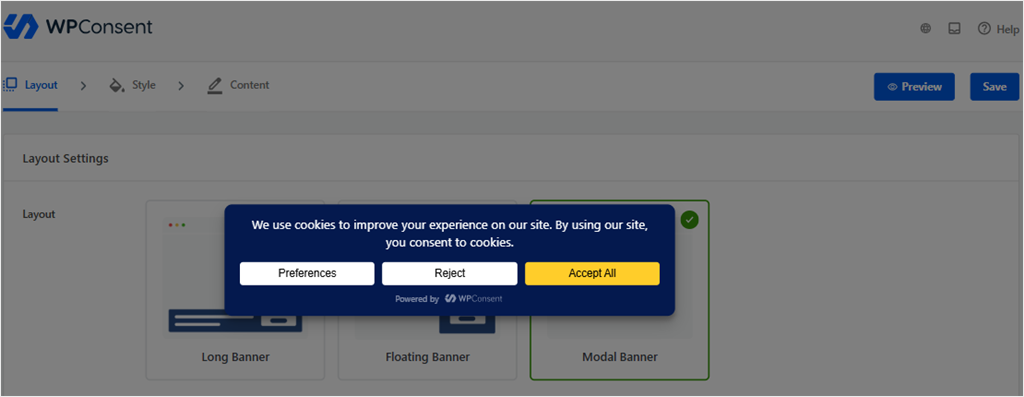
Check out this tutorial on how to create a consent banner with WPConsent.
Google Consent Mode v2
Both:
Both versions ship with Google Consent Mode v2 out of the box.
This lets Google tags keep working in consent-denied mode, instead of simply stopping when a visitor hasn’t granted consent. WPConsent sends the appropriate consent signals to Google based on the visitor’s choices.
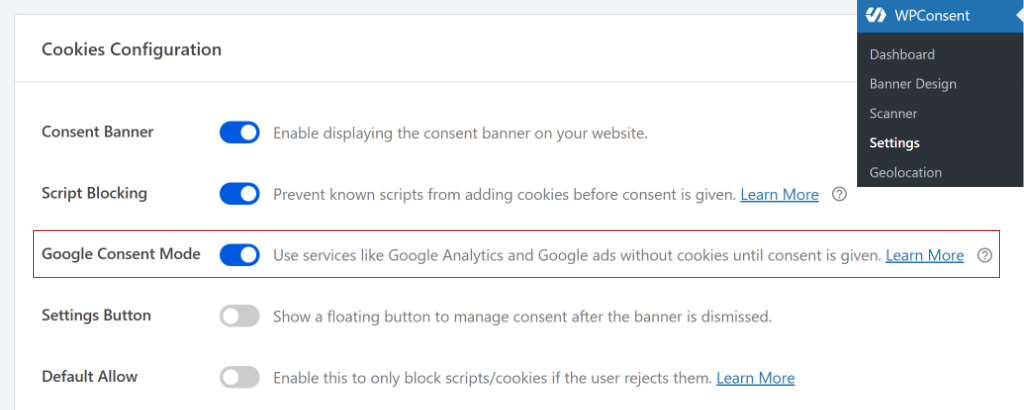
Here is how to set up Google Consent Mode v2 in WordPress. You can also set it up with Google Tag Manager.
Cookie Documentation
These are the tools WPConsent gives you to document known cookies and scripts running on your site.
Free:
A scanner and Cookie Inspector to see what cookies and tracking services are running on your site.
The scanner helps you identify services that may add cookies to your site. You see a short description of each script, and when you hit View Cookies, you get a detailed report.
WPConsent then uses this information to build your consent banner. If you don’t want to automatically configure any of them, simply uncheck its box.
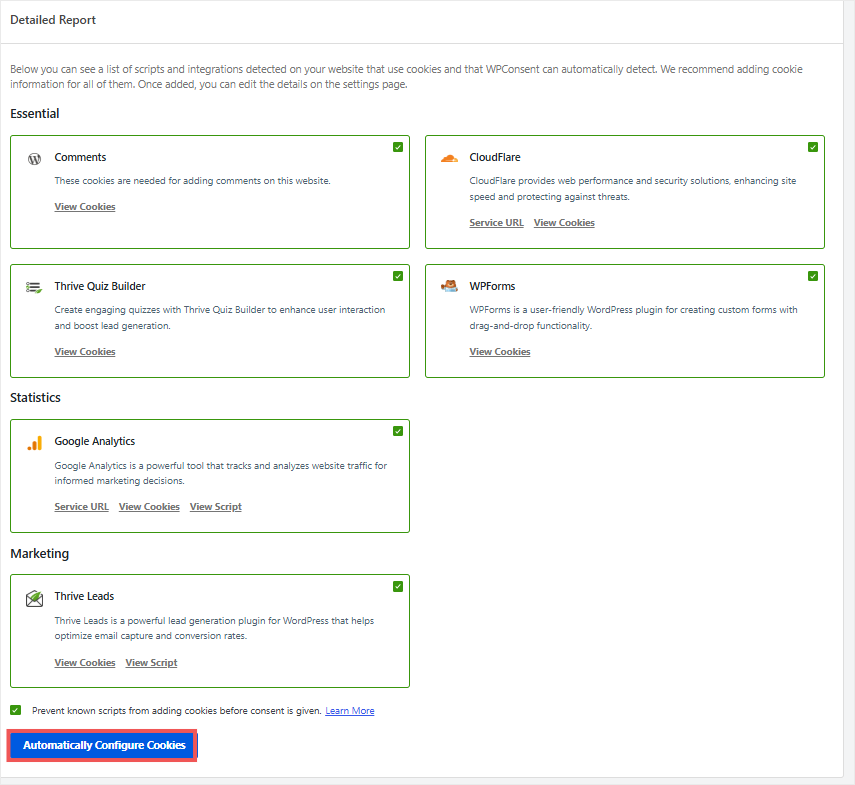
On top of that, the scanner is also part of the setup wizard. So you can have your banner set up by the end of the setup process. Check out this tutorial on how to set up WPConsent with the setup wizard.
If the scanner flags something it doesn’t recognize, you can configure that cookie’s data by hand using WPConsent’s own free library, CookieLibrary.org.
Cookie Inspector goes further:
It walks you through your site in a fresh-visitor session, just like a first-time visitor would experience it. As you browse, it traces every cookie back to the specific script that set it, so there are no more guessing games.
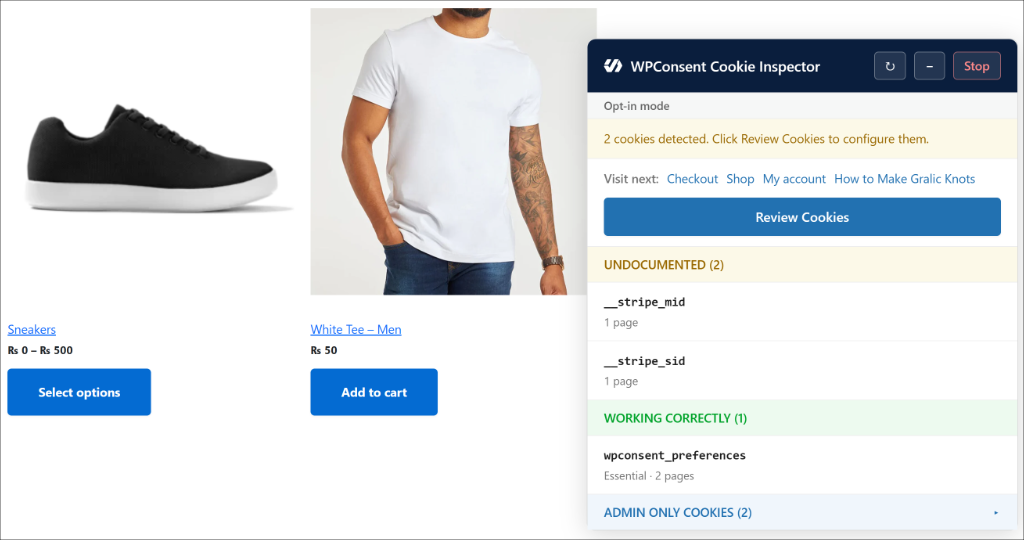
It turns cookie auditing into something you click through, instead of digging for it in browser dev tools.
Read more about what the cookie inspector does here.
Pro:
Adds scheduled automatic scanning and a scan history. This way, WPConsent re-checks your site on its own instead of you running scans by hand. You can set your scan schedule from a dropdown.
It can also email you when a scan finds something new, so you don’t have to keep checking manually.
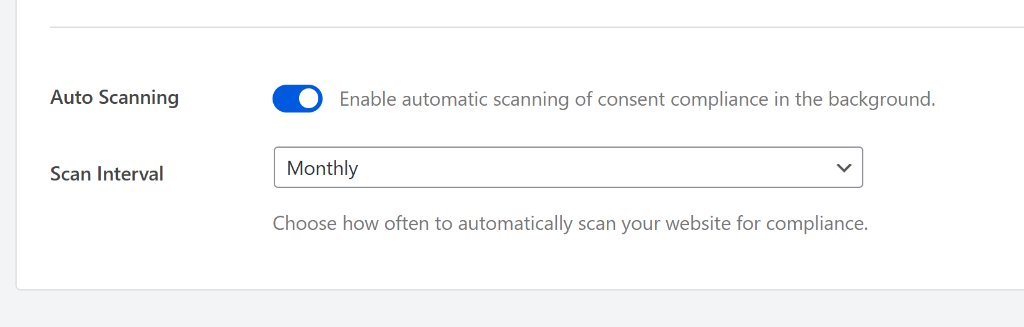
It also automatically configures cookie data for common plugins like WooCommerce and WPForms, instead of you filling that in by hand.
Check out this guide on how to audit your WordPress site for cookie compliance to learn more.
Blocking Third-Party Content
Both:
Holds back content that relies on third-party services, such as embedded YouTube videos and Google Maps, until the visitor gives consent. WPConsent shows a consent message in its place.
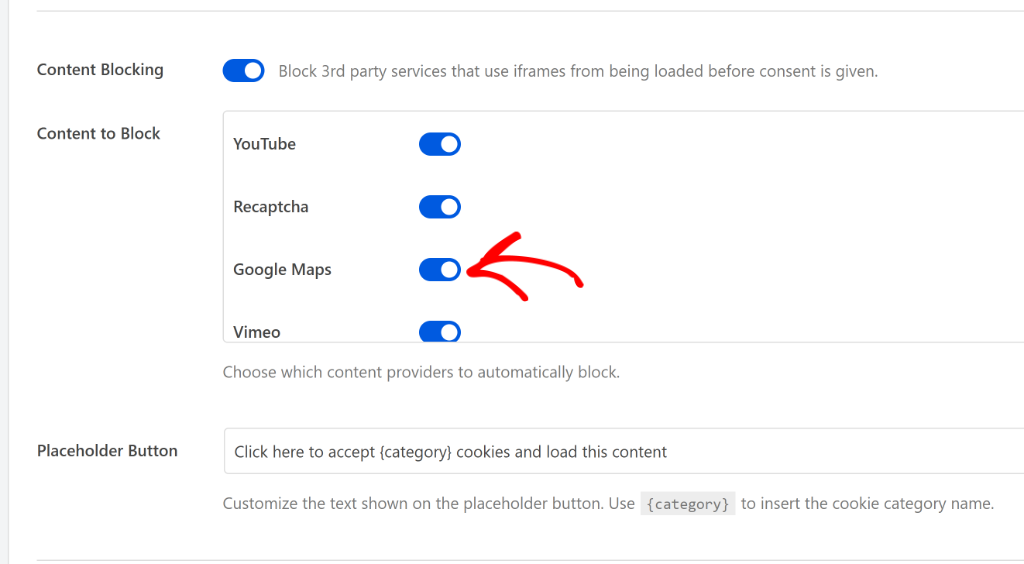
Both also include Global Privacy Control (GPC) support.
GPC is a browser-level signal that some visitors send automatically, saying they don’t want their data tracked or sold.
WPConsent detects that signal and respects it automatically, without you needing to build a separate opt-out flow.
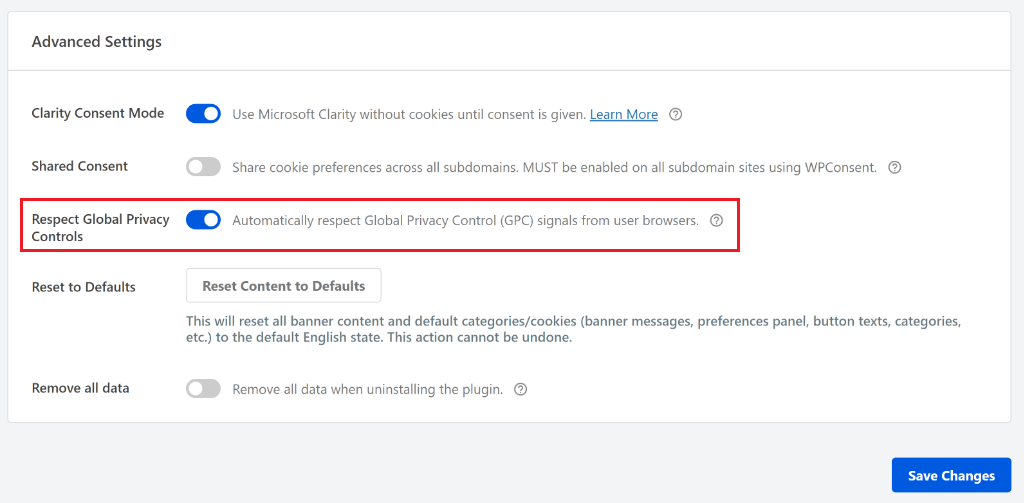
Our guide to GPC covers how the signal works in more depth.
Both also include a built-in cookie policy generator.
It pulls from the cookies and services the scanner has already found on your site, then drafts a policy page from that list.
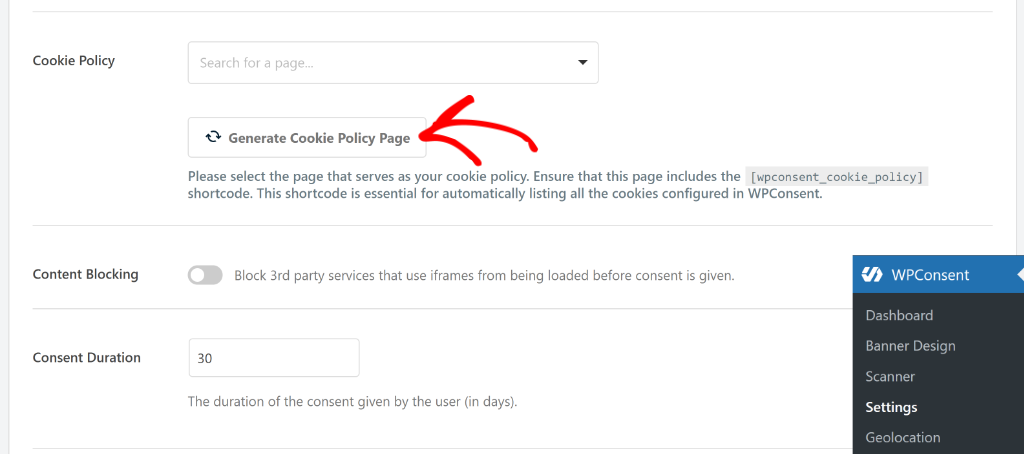
Instead of writing one from scratch, you start with a draft built from what’s actually running on your site. It’s scoped to cookies specifically, not a full privacy policy or terms-of-service generator.
Here is the full guide on how to create a cookie policy page in WordPress.
That covers what Free and Pro share. From here, these are the features that only come with the premium version of WPConsent.
Keeping Records
Free:
Handles the consent itself; it just doesn’t keep a log of it.
Pro:
Adds a searchable record of consent choices, including when each consent was given and the associated details. This can be useful if you need to keep a record of consent for your site’s compliance processes.
These records are self-hosted, stored in your own WordPress database instead of being sent to a third-party server. That keeps your compliance data under your control and avoids the added risk of exposing visitor information to an outside host.
Each log entry shows who made the choice, a WordPress username or “Guest” if they weren’t logged in. It also lists their IP address, what they accepted or declined by category, and the date.
Click through to expand it and see the same choices broken down by individual service, instead of just the category summary.
Each log entry also keeps a snapshot of the banner itself, not just the visitor’s choice.
It saves the exact message text, the Accept, Reject, and Preferences button labels, the name and description of every cookie category, and the language it was all shown in.
If you change your banner wording later, older entries still show exactly what that visitor agreed to, not your current text.
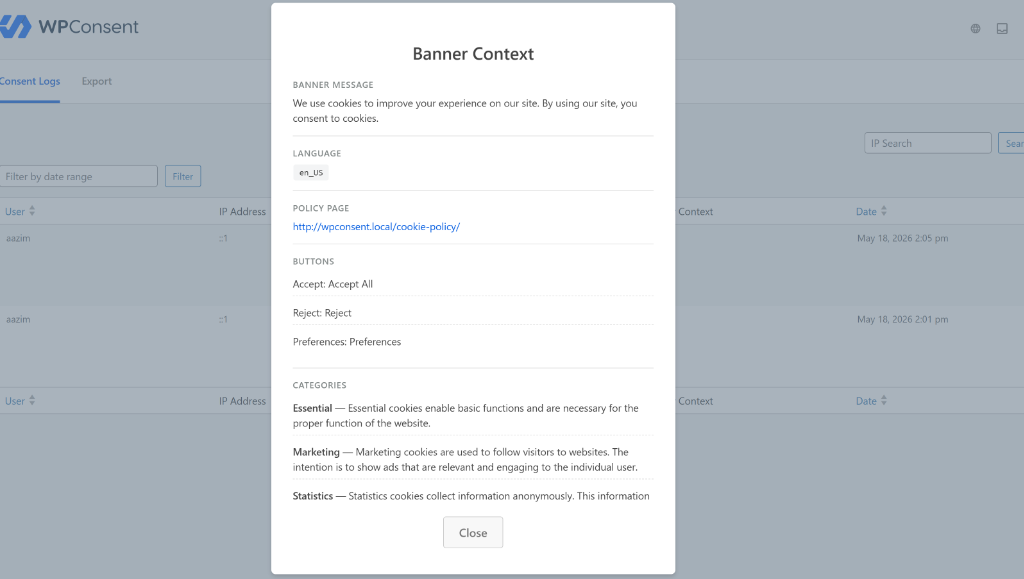
WPConsent anonymizes that IP before storing it. That keeps enough detail for regional analysis, without storing something that identifies one specific visitor.
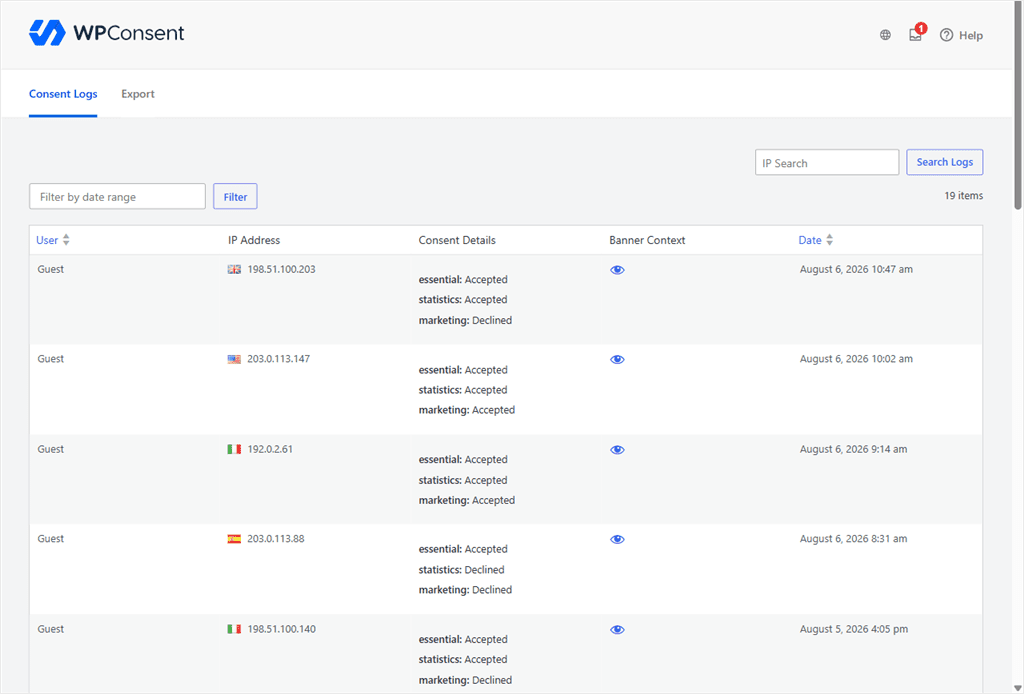
Here is a tutorial on how to manage your consent logs.
You can also automatically clean your logs. You set up a window between 3 months and 2 years, and WPConsent cleans them in batches of 1000.

Regional Rules
Free:
Every visitor sees the same banner and rules, wherever they’re located.
Pro:
Pro can serve different banners by region instead of one banner for everyone. For example, EU visitors see a GDPR-style banner while California visitors see a CCPA-style notice.
You also get ready-made GDPR, CCPA, and LGPD templates that you can still customize further.
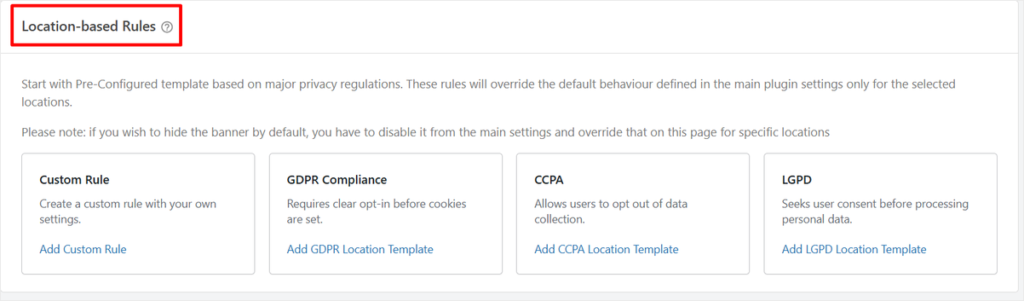
You don’t have to guess who’s covered by which law.
WPConsent detects each visitor’s region through an IP lookup, not their browser language or account settings. That means the right banner shows automatically, no matter what language a visitor is browsing in.
The lookup itself is privacy-respecting too: the visitor’s IP is anonymized before WPConsent’s geolocation service checks it.
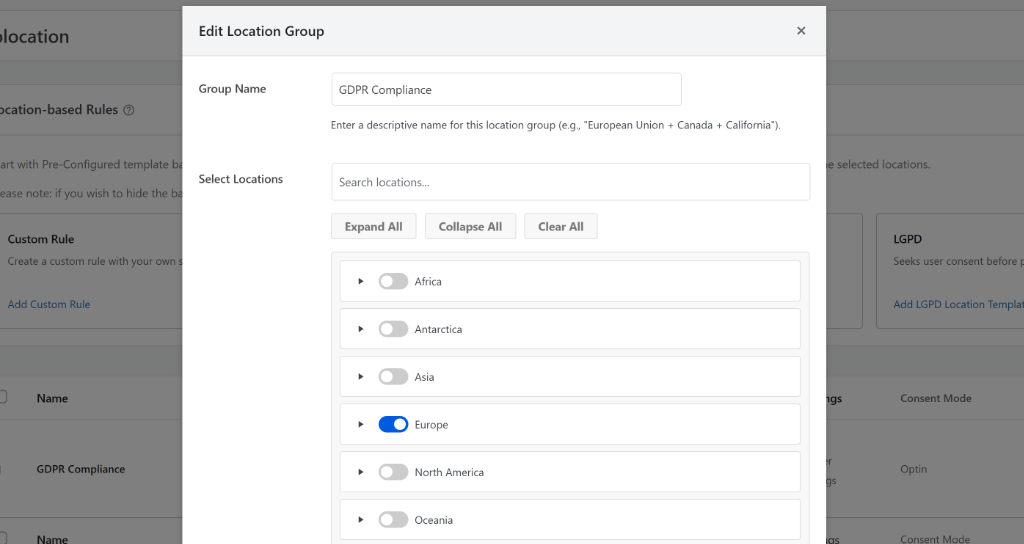
Each region can only belong to one rule. If a visitor’s location doesn’t match any of your rules, WPConsent falls back to your default banner settings instead of showing nothing.
This also covers cases where the geolocation lookup itself fails, so the banner still works even when a location can’t be detected.
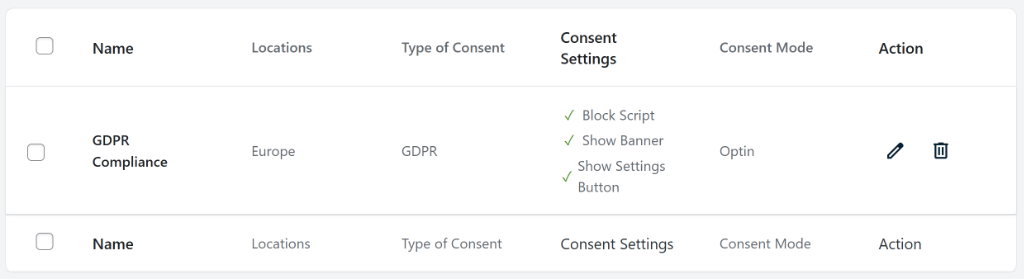
Our location-based cookie consent guide walks through setting one up.
Advertising Consent (IAB TCF)
Free:
Doesn’t include IAB TCF.
Pro:
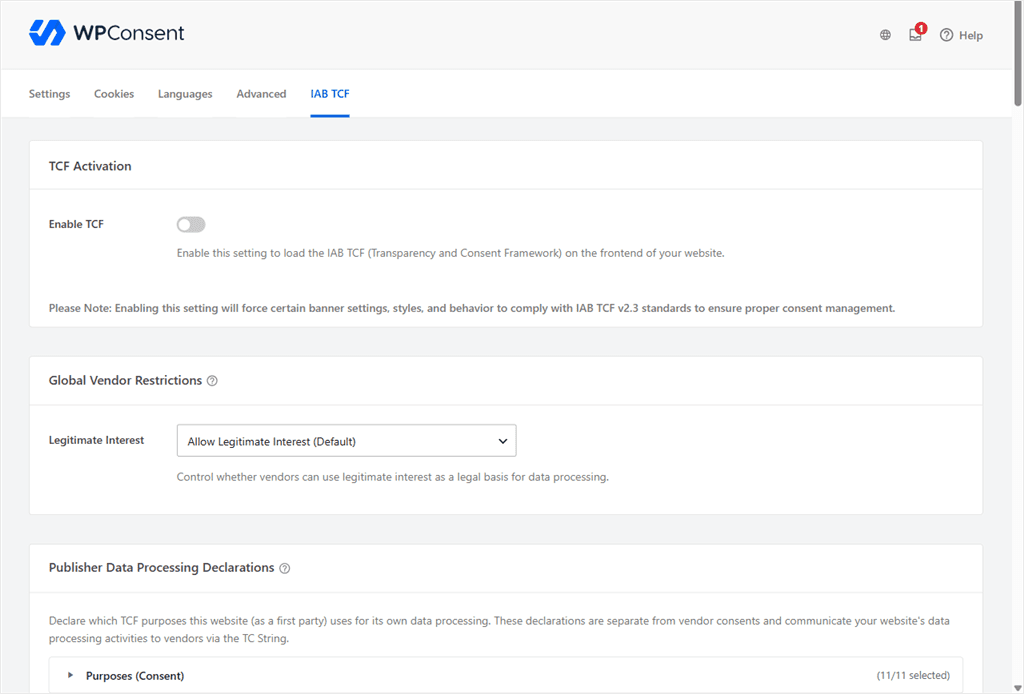
Adds IAB TCF v2.3, the integration ad networks use to read a visitor’s consent signal correctly. Without it, ad-funded sites risk lower fill rates because vendors can’t confirm consent the way they expect.
Turning it on changes the banner itself.
It switches to a fullscreen modal, since bar and corner layouts aren’t available under IAB TCF. Visitors see standardized language covering data-processing purposes, vendor counts, and legitimate-interest disclosures, instead of your own custom banner text.
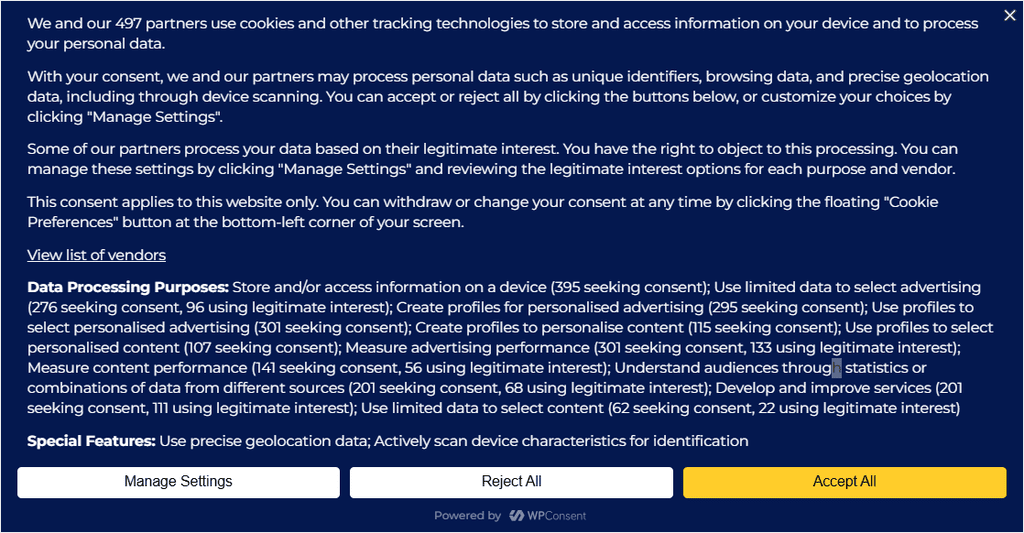
Behind the scenes, WPConsent encodes each visitor’s choices into a TC String, a standardized format that ad vendors can read automatically.
You get a searchable list of vendors from the IAB Global Vendor List. You can select which ones apply to your site, instead of exposing visitors to all of them by default.
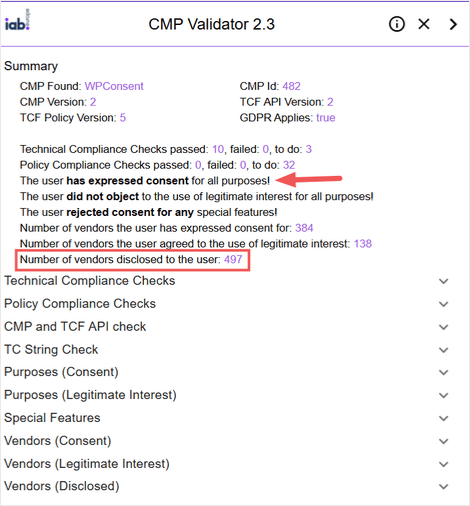
You can use the CMP Validator Chrome extension provided directly by IAB Europe to test IAB TCF’s setup with WPConsent. Check out our full test with the CMP Validator tool in this post.
CCPA Requests (Do Not Sell)
A quick clarification before we proceed with this section. This feature is available on Plus and higher plans. It’s not included on Basic or the free plan.
Free:
Doesn’t include Do Not Sell request handling.
Pro:
Adds a dedicated request form and management table for CCPA’s “Do Not Sell or Share My Personal Information” requirement, so those requests land somewhere trackable, instead of an inbox.
You can generate the form and set it up in minutes.
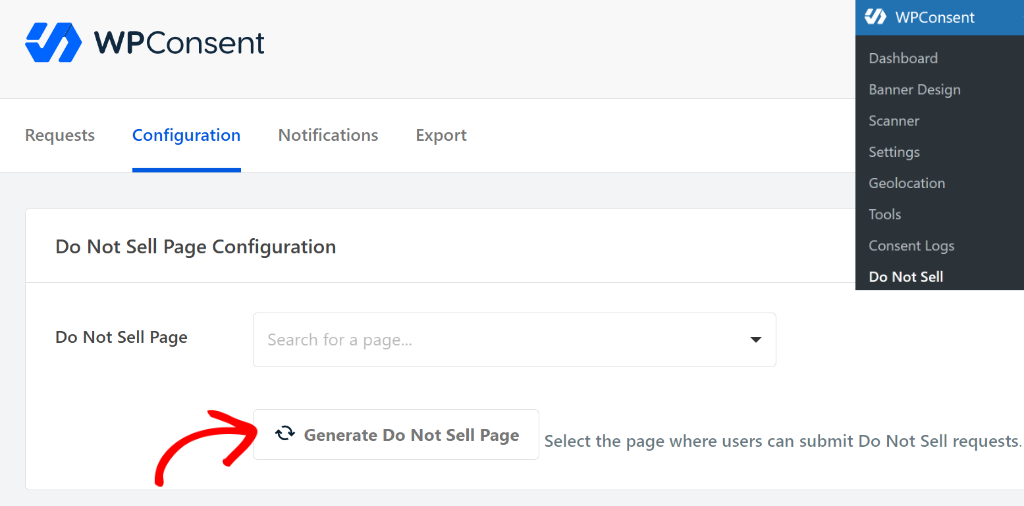
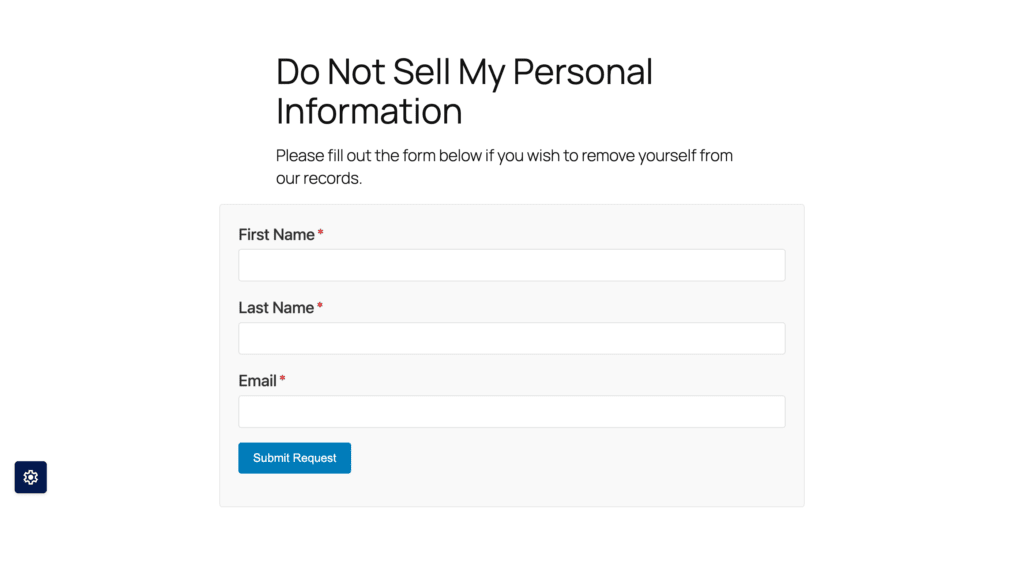
The form only requires a first name, last name, and email. Those three fields can’t be turned off. Everything else, like address or phone number, is optional and up to you.
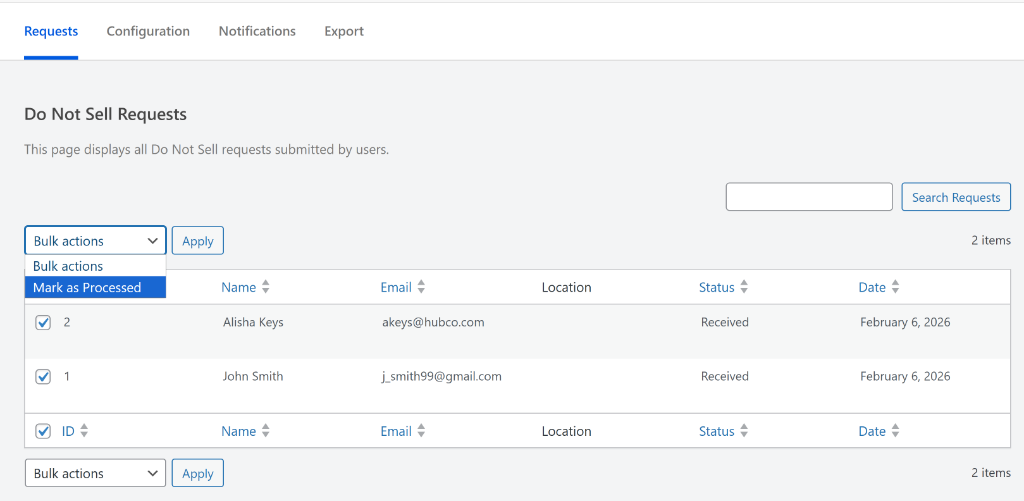
Each submission lands in a management table with the request ID, visitor details, submission date, and status. You can mark requests as processed individually or in bulk.
Requests are stored in your own WordPress database, not sent to an outside service. You can export them as a CSV when you need a record.
Check out our tutorial on how to handle Do Not Sell requests for more details.
Multi-Language Support and Automatic Translation
Free:
Doesn’t include a dedicated multi-language switcher, but manual translation through the free settings costs nothing.
Every text field in the banner settings is still fully editable. You can write your banner copy in French, Spanish, or whatever single language your site runs in, at no cost.
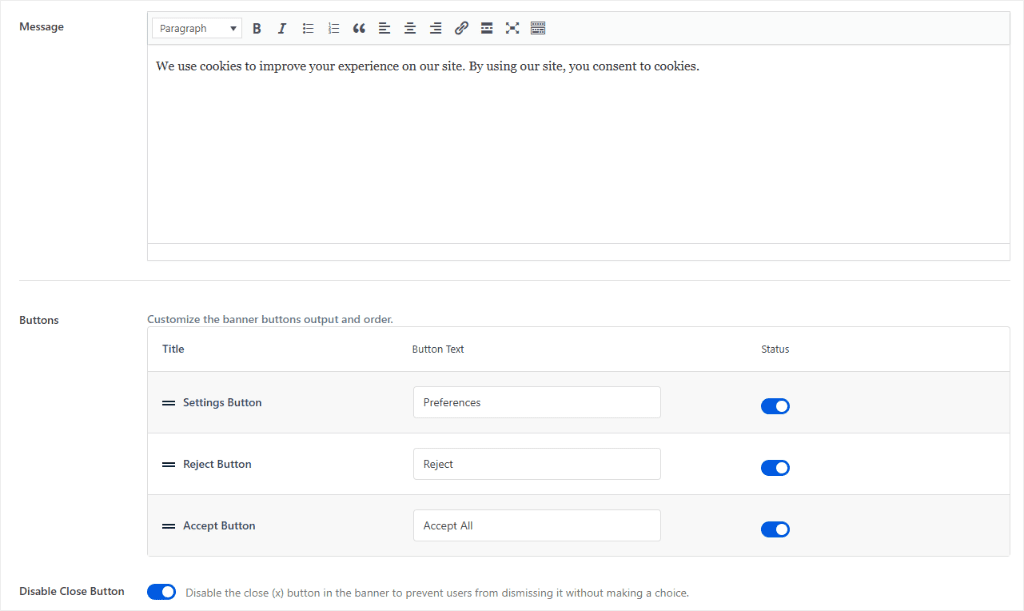
Pro:
Multi-language support starts on the Basic Plan.
You can add multiple languages to your banner and write the content for each one yourself.
Turn on the Language Picker toggle, and visitors get a globe icon on the banner to switch between available languages, not just the default language.
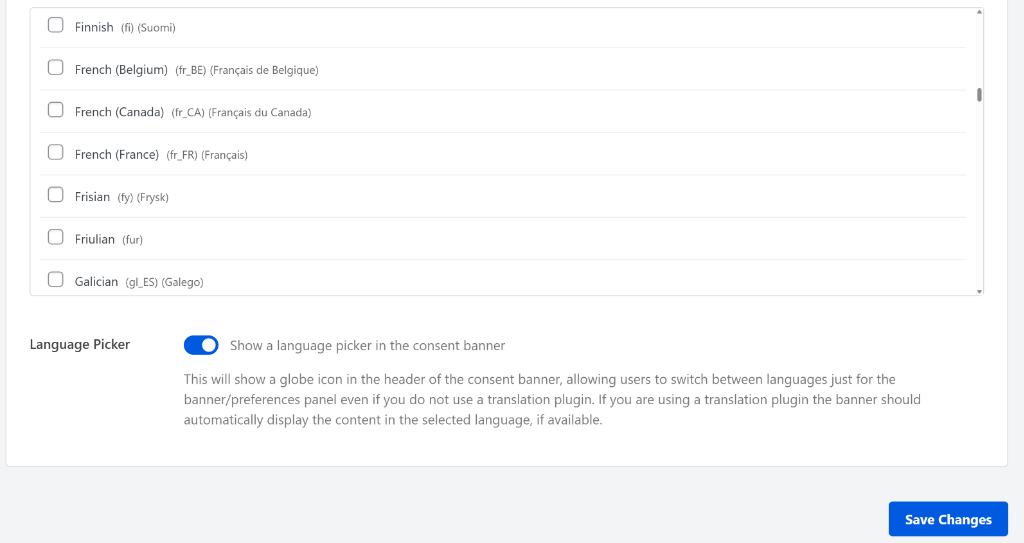
If you already run a translation plugin like WPML, Polylang, or TranslatePress, WPConsent syncs with it automatically. When a visitor switches your site’s language, the banner switches with it too.
Check out our guide on how to set up multi-language cookie consent banners to learn more.
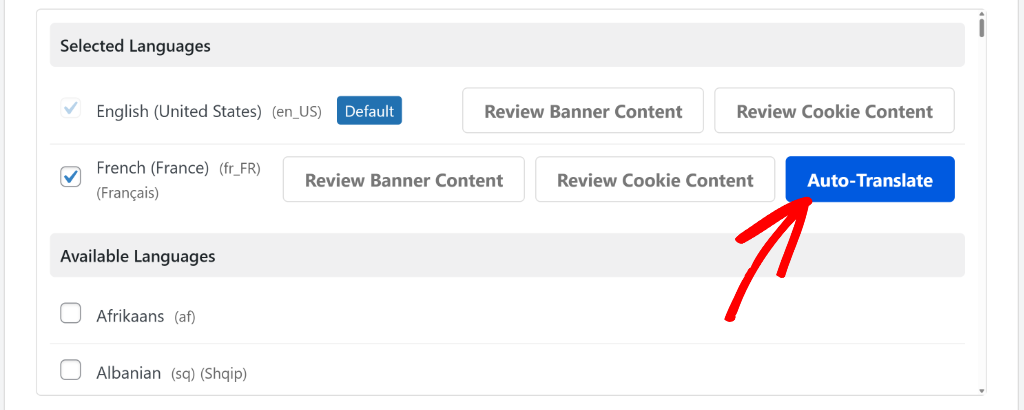
Automatic translation is the tier above that, available on Plus and higher. Instead of writing each language by hand, WPConsent’s AI does it for you.
One click starts the AI translation for a language, and you can watch it work through your banner and cookie text.
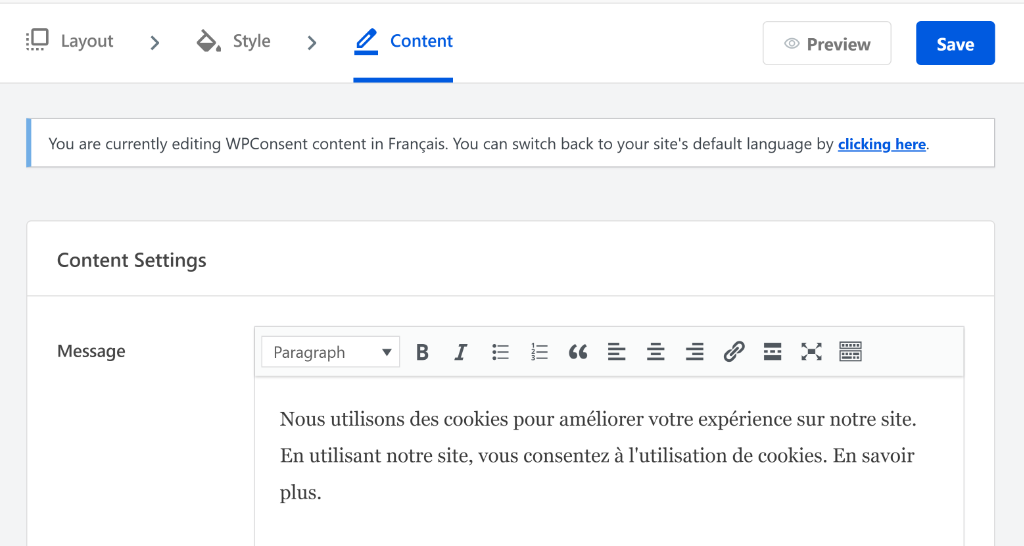
Once it finishes, WPConsent switches your admin view to that language so you can review what it wrote before it goes live.
Check out this post to learn more about AI-powered auto translations.
Marketing copy and legal wording are worth checking by hand.
The AI handles standard interface text and cookie descriptions well, but nuance is still worth a second look.
One thing to know: running the automatic translation again overwrites any manual edits you made to that language. Keep that in mind before you re-run it, so you don’t lose your corrections.
Support
Free: supported through the WordPress.org community forums.
Pro: Standard, Priority, or Premium support, depending on the plan.
Which Plan Fits Your Site?
As you have seen above, the free version of WPConsent (Lite) covers the core consent mechanism. While WPConsent Pro adds the management layer of consent.
Neither version makes your site legally compliant by itself. That depends on your specific site, audience, and how you use the plugin.
You probably don’t need Pro if:
- You run one straightforward site with no ad revenue
- You don’t need a record of who consented, and when
- All of your visitors face the same consent requirements
- You don’t run ads through the IAB framework
- You don’t need to manage Do Not Sell requests
Pro becomes relevant the moment:
- You need to show proof of consent
- Visitors in different regions need different consent experiences
- You run an ad-supported site through IAB TCF
- You get traffic from California and need Do Not Sell handling
- You’d rather WPConsent scan and translate automatically than do it by hand
| Your situation | What we’d choose |
|---|---|
| Personal site or small blog | Free |
| Small business site, no ads | Free |
| Site that needs consent records | Basic or higher |
| Visitors across different regions | Basic or higher |
| Ad-supported or programmatic site | Basic or higher |
| Managing several client sites | Plus, Pro, or Elite, by site count |
Every paid tier answers those needs identically. From there, it’s about site count and support speed, not features.
How to Set Up WPConsent Free
Install and activate WPConsent from your WordPress dashboard, same as any other plugin.
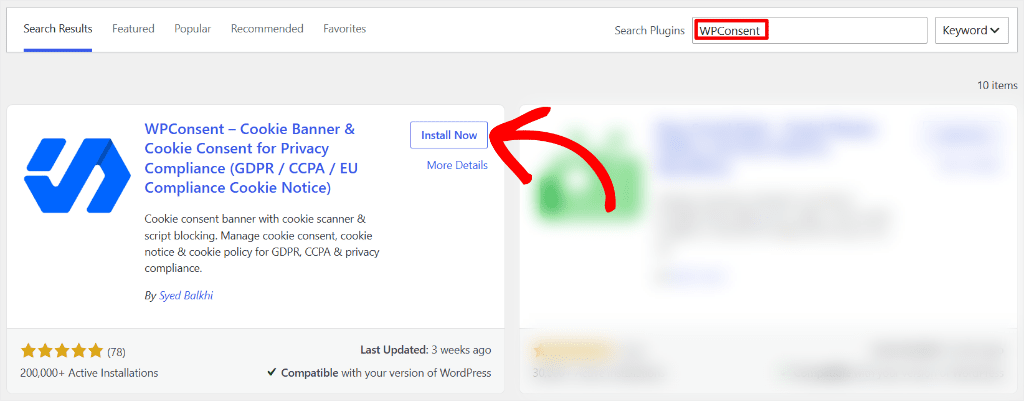
On first activation, WPConsent opens its own onboarding wizard instead of dropping you straight into settings.
The wizard scans your site for cookies and tracking scripts first.
Then it walks you through the services it finds, so you can confirm each one’s category: essential, statistics, or marketing. From there, you pick a banner layout and position, Long Banner or Floating Banner, and save your preferences.
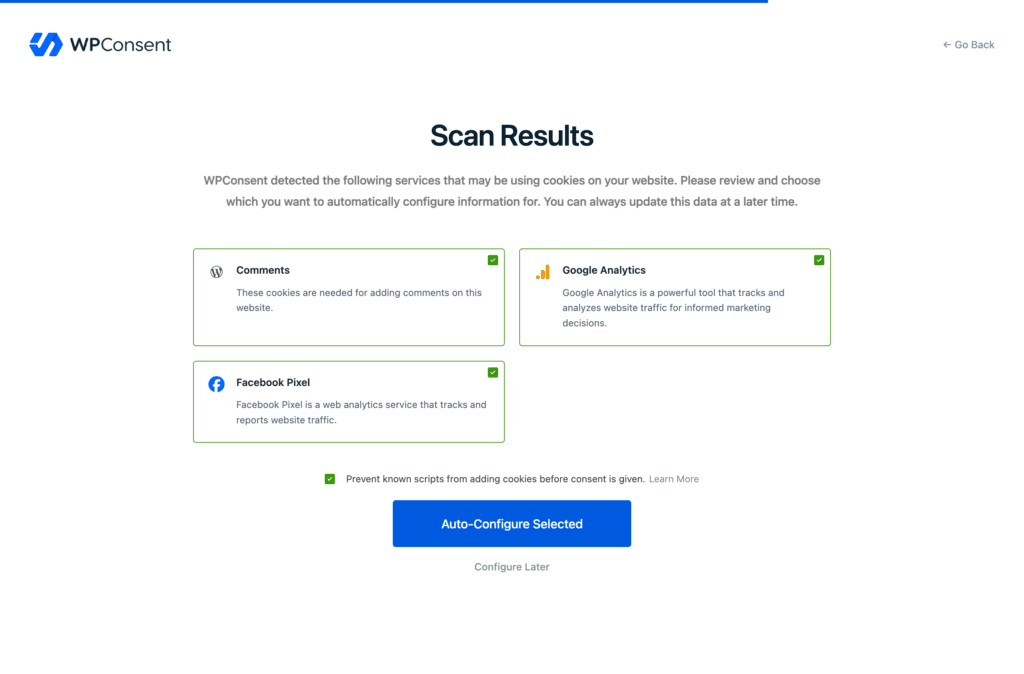
Once the wizard finishes, your banner and script blocking are live immediately.
You can revisit Banner Design any time to adjust layout, style, or content. Head back to Scanner whenever you add new tracking scripts, since nothing re-scans your site automatically on Free.
If you want the click-by-click version, we cover it here: a tutorial on how to install WPConsent Lite.
Upgrading to Pro: What Changes
WPConsent Pro runs as its own plugin, activated with your license after purchase. It’s not an addon that bolts onto Free.
When Pro activates, it runs its own migration step for existing settings, including your geolocation rules and scan history.
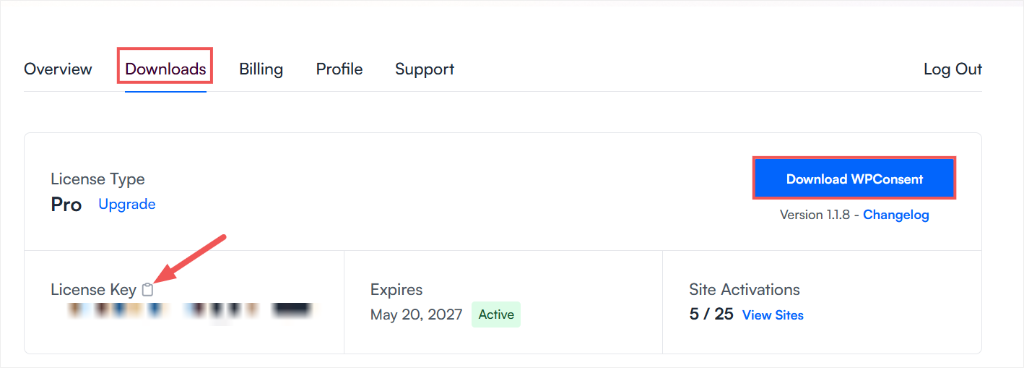
To activate, find your license key in your WPConsent account. Navigate to the “Downloads” tab and download the file and copy the License Key.
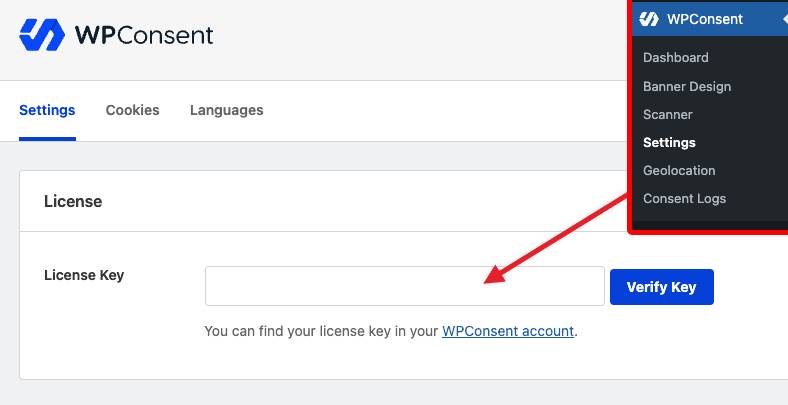
Then paste it into WPConsent’s “Settings” tab, under License Key, and click Verify Key.
WPConsent’s own installation guide covers the full activation flow if you’d rather follow it step by step.
Frequently Asked Questions
Is WPConsent actually free?
Yes. The free version includes a full cookie banner, automatic script blocking, Google Consent Mode v2, and a cookie scanner. It’s a complete plugin, not a trial.
What does WPConsent Pro include that Free doesn’t?
Consent logs, geolocation rules, IAB TCF v2.3, Do Not Sell requests (Plus and higher), automatic translations (Plus and higher), scheduled scanning, and more. See the full breakdown on our pricing page.
Do I need Pro just because my site needs to be GDPR-compliant?
Not necessarily. Free gives you the core consent tools you need for a typical GDPR setup: a banner, blocked scripts until consent, and Google Consent Mode v2. Pro adds proof-of-consent records and regional rules on top, which matter more once you have EU and non-EU visitors facing different requirements. Our beginner’s guide to WordPress and GDPR compliance covers the requirement itself in more depth.
Can I start with Free and upgrade to Pro later?
Yes. Pro installs as its own plugin and migrates your existing settings on activation, so you don’t start over.
How much does WPConsent Pro cost?
Plans start from $49.50 for one site. Higher tiers cover more sites and faster support, with the same full feature set at every paid level.
Ready to Decide?
WPConsent Free gives you the core tools to add a consent layer to a single WordPress site, including a cookie banner, script blocking, scanning, and Google Consent Mode v2. For many sites, that’s all you need.
Pro is there when your requirements go beyond the core setup. If you need to keep consent records, show different consent experiences by region, support IAB TCF, manage Do Not Sell requests, or automate more of the work, Pro adds those capabilities without changing the foundation you’ve already built.
Not sure which one you need? Start with Free. You can get your consent setup running today.
Get WPConsent Free →
Move to Pro when your site, audience, or compliance requirements call for it.
See WPConsent Pro Pricing →
Additional Resources
Now that you know which plan fits your site, these help you go further.
- WPConsent Review: our full hands-on review of every feature, tier by tier
- WPConsent vs Complianz: how WPConsent compares to another popular consent plugin
- How to Create a Cookie Policy Page in WordPress: the next step once your banner is live