
Would you like to get a cookie consent banner live on your site without hunting through settings pages first?
In this guide, we’ll walk you through every screen of the WPConsent setup wizard, from the first scan to the moment your banner goes live.
All you need is WPConsent and a site your visitors can reach.
Table of contents
- Starting the Setup Wizard
- Scanning Your Website
- Reviewing the Scan Results
- Choosing a Banner Layout
- Choosing a Banner Position
- Finishing the Setup
- Frequently Asked Questions
Before you get started, make sure WPConsent is installed and activated on your WordPress site.
Starting the Setup Wizard
To get started, we’ll open the wizard and move past its welcome screen.
The first time you activate WPConsent, it takes you straight to the setup wizard.
If you have activated it before, or you left the wizard partway through, you can open it again at any time. To do this, go to /wp-admin/admin.php?page=wpconsent-onboarding on your site.
The wizard runs across four screens: a welcome screen, a scan, the scan results, and the banner.
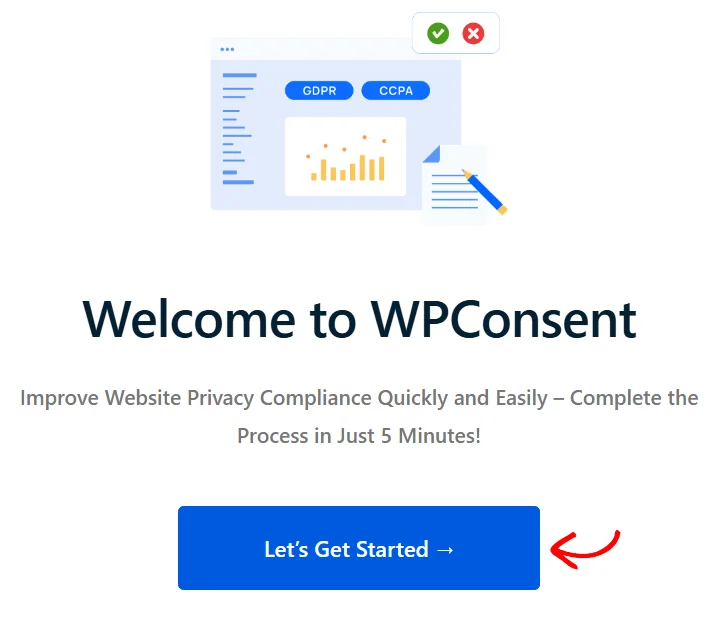
On the welcome screen, click Let’s Get Started.
The wizard then moves on to the second screen, where the scan runs.
Scanning Your Website
The second screen runs a privacy scan. WPConsent loads your home page along with the pages on its scan list. It reads the code on each one and matches what it finds against its library of known services and cookies.
The scan list is filled in for you the first time, using published pages whose title or slug contains “checkout”, “cart”, “contact”, or “videos”. Those pages tend to load extra scripts.
To change which pages get scanned, use the page selector on the Scanner page.
This screen also asks for one detail before the scan runs. The detail it asks for depends on your version.
On the free version, it asks for an email address so WPConsent can send you recommendations based on the results. On a paid version with no license key saved yet, it asks for your license key instead.
A Verify Key button sits beside the license key field. The key is saved only when you use that button. Once a valid key is stored, neither field appears.
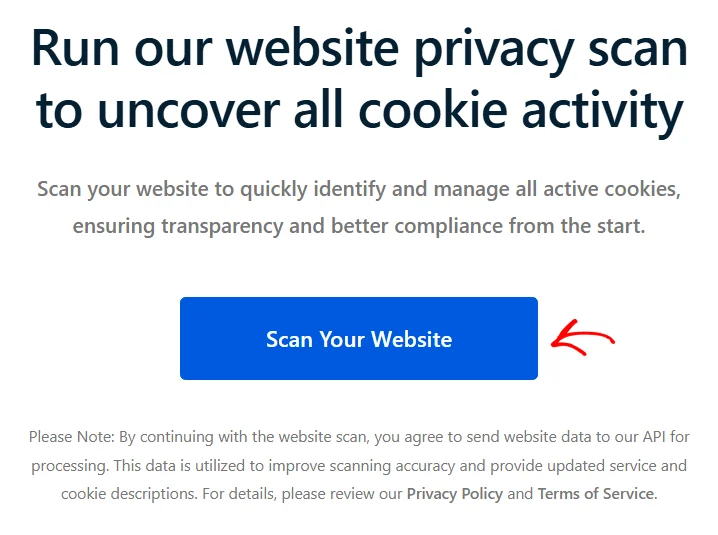
When you’re ready, click Scan Your Website. A progress overlay tracks each page as it finishes.
Note: WPConsent sends the content of each scanned page to its own scanning service, which does the matching and supplies the service and cookie descriptions. The note under the button says so and links to the privacy policy and terms.
The wizard moves you to the results screen on its own once the scan is done.
Reviewing the Scan Results
The results screen lists every service the scan detected. Each card shows the service logo, its name, and a short description of what it does.
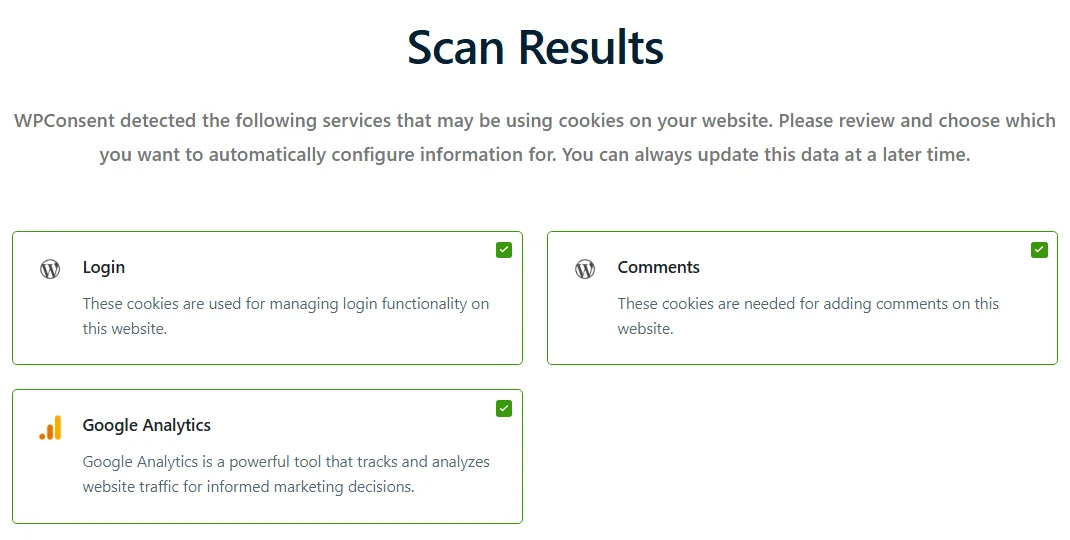
Every service starts selected. Clear the checkbox on any service you don’t want WPConsent to set up for you. Anything you clear here can still be added by hand later from WPConsent » Settings.
Under the list, leave the Prevent known scripts from adding cookies before consent is given checkbox selected, as it is by default. That turns on automatic script blocking, so the scripts behind those services wait for consent. Clearing the checkbox turns automatic script blocking off instead.
To set up everything you selected, click Auto-Configure Selected. WPConsent shows a “Configuring Selected Services” message while it works. It then moves on to the banner screen.
If you’d rather sort the details out yourself later, click Configure Later to skip straight to the banner screen.
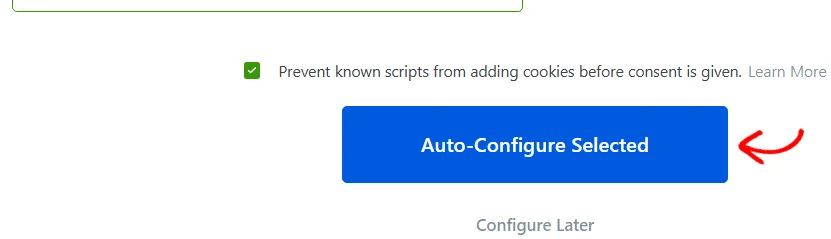
For each selected service, WPConsent files the service under its matching cookie category. It then adds the cookies that service is known to set, along with their descriptions and durations.
Auto-Configure Selected only ever adds. Anything you set up by hand is left exactly as it was.
Once the services are handled, the banner is all that’s left.
Choosing a Banner Layout
The last screen is where the consent banner takes shape. It opens on a Choose Layout section with three tiles. Long Banner is selected to begin with.
Long Banner is a full-width bar along the top or bottom of the page. Floating Banner is a smaller box that sits in one corner. Modal Banner is a centered overlay that sits in front of the page.
Long Banner gets noticed without hiding your content. Floating Banner takes up the least space, so more of your page stays in view. Modal Banner dims the page behind it, which makes it the hardest one to overlook.
If you’re not sure, start with Long Banner. You can switch layouts later from WPConsent » Banner Design.
Note: Modal Banner is available in the paid versions of WPConsent. On the free version it shows an upgrade prompt instead.
In that section, click the tile for the layout you want, such as Long Banner.
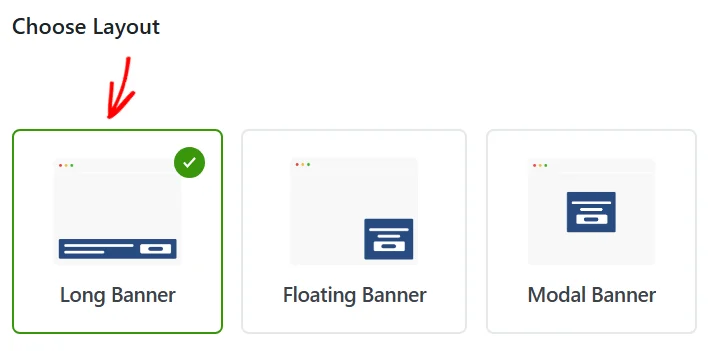
Picking a tile opens the position choices below it.
Choosing a Banner Position
The position choices you get depend on the layout you picked.
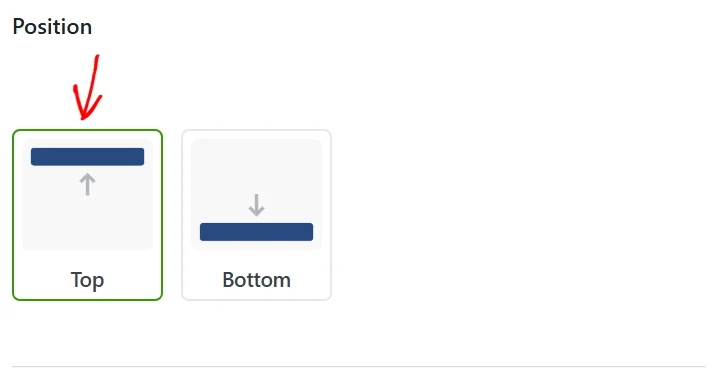
Long Banner offers Top and Bottom. Floating Banner offers Left Top, Right Top, Left Bottom, and Right Bottom. Modal Banner has no position choice, because it is always centered.
Top puts the banner in front of visitors as soon as the page loads. Bottom leaves the top of your page clear for your header and menu. The Floating Banner corners work the same way, so pick the one that covers the least of your design.
Note: On phones, the banner spans the full width of the screen. A Floating Banner then sits against the top or bottom edge, following the corner you chose.
In that section, click where you want the banner to sit, such as Top.
A live preview sits below the position choices. It redraws every time you change the layout or the position, so you can see the result before you commit to it.
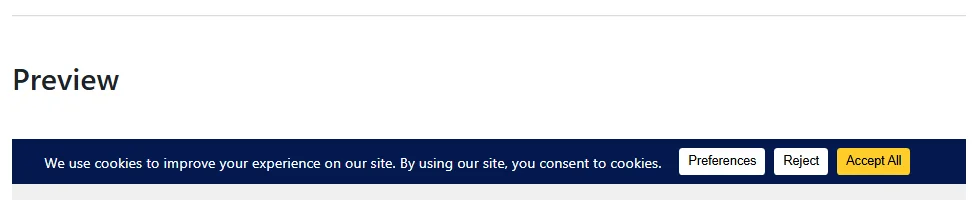
Once the preview looks the way you want it, you’re ready to close out the wizard.
Finishing the Setup
Two controls close out the wizard. Each one does something different.
When you’re happy with the preview, click Save & Complete Setup. This saves your layout and position and switches the consent banner on for your visitors. It also marks the wizard as finished and takes you to the WPConsent dashboard.
The Further Configure Banner Styles link below it marks the wizard as finished and takes you to the banner design page. That page holds the colors, text, and button styles.
The link does not save the layout and position you just chose. It does not switch the banner on either. That makes it the right choice when you want to keep working on the design rather than go live right away.
Note: To confirm the banner is switched on, go to WPConsent » Settings and check the Consent Banner toggle in the Cookies Configuration panel.
That’s it! Your services are configured and your consent banner is live. Next, take a look at our guide on banner styling to match the banner to your site design.
Frequently Asked Questions
Below, we’ve answered some of the most common questions about the setup wizard.
The wizard didn’t open when I activated WPConsent. Why?
WPConsent sets up that redirect once, on the very first activation. If the plugin has ever been active on the site before, activating it again goes to your usual admin screen instead. To reach it, open the wizard yourself at /wp-admin/admin.php?page=wpconsent-onboarding.
Can I leave the wizard and come back later?
Yes. Moving between the four screens changes nothing on your site on its own. Only the four buttons, Scan Your Website, Auto-Configure Selected, Save & Complete Setup, and Further Configure Banner Styles, save anything. Come back to the same address whenever you like.
Does running the wizard again undo my configuration?
Auto-Configure Selected only adds. It creates services and cookies that are not set up yet and leaves everything you added by hand alone. The banner screen is different: Save & Complete Setup replaces your saved layout and position with the ones on screen. On a second run, pick them deliberately.
My scan came back with nothing. What now?
The scan needs to reach your pages over the internet. It then needs to reach WPConsent’s scanning service. A site that is not publicly reachable, or a server that blocks outgoing connections, gives the scanner nothing to work with. To rule these out, check both with your host. Then run the scan again from WPConsent » Scanner. You can also check your site’s cookies yourself. See How to Know if Your WordPress Website Uses Cookies on WPBeginner.
Do I have to use the wizard at all?
No. Every screen in it has a full page of its own. You can scan from WPConsent » Scanner, manage categories and services from WPConsent » Settings, and choose a banner layout from WPConsent » Banner Design.
Why isn’t my banner showing after I finished the wizard?
The consent banner is switched off until something switches it on. Save & Complete Setup is the step in the wizard that does it. Leaving the wizard through Further Configure Banner Styles skips that. From your WordPress admin sidebar, go to WPConsent » Settings and turn on the Consent Banner toggle in the Cookies Configuration panel. Then click Save Changes to store it.