
Would you like to know at a glance whether your cookie consent setup is actually finished?
In this guide, we’ll walk you through every panel on the WPConsent dashboard and what each one is telling you about your site. All you need is WPConsent on your WordPress site.
Requirements: The Suggestions list, and the score items covering your license key, consent logging, and auto-scanning, come with a paid version of WPConsent.
Table of contents
- Reading Your Site Consent Health Score
- Working Through the Items That Improve Your Score
- Reviewing WPConsent’s Suggestions
- Seeing Which Items Are Already Complete
- Acting on the Alert Bar
- Previewing Your Consent Banner
- Browsing Recommended Plugins and Announcements
- Finding the Right Documentation
- Frequently Asked Questions
Before you get started, make sure WPConsent is installed and activated on your WordPress site.
Reading Your Site Consent Health Score
To get started, we’ll open the dashboard and read the panel that sums up your whole setup.
From your WordPress admin sidebar, go to WPConsent » Dashboard.
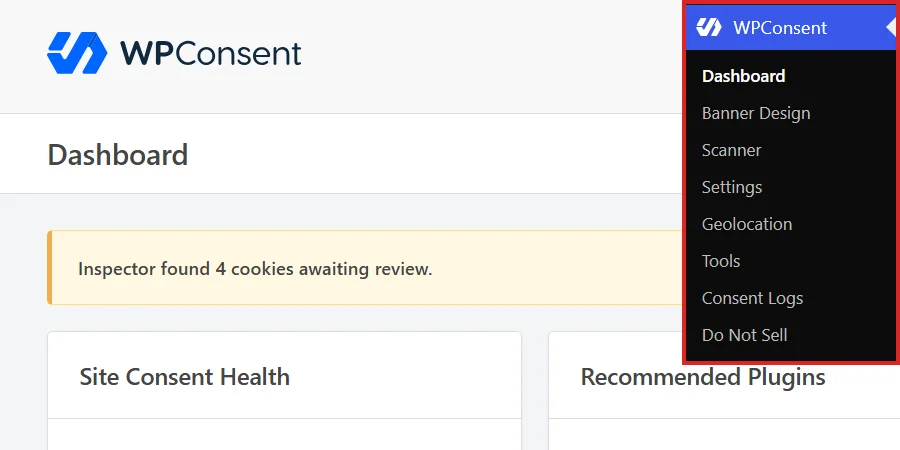
The row above the panels is the same on every WPConsent screen. It carries a language picker, a notifications inbox, and a Help button, with the name of the page you are on underneath.
The first panel, Site Consent Health, is the one worth reading first. The ring gives your setup a single percentage, and the sentence beside it puts that number into words.
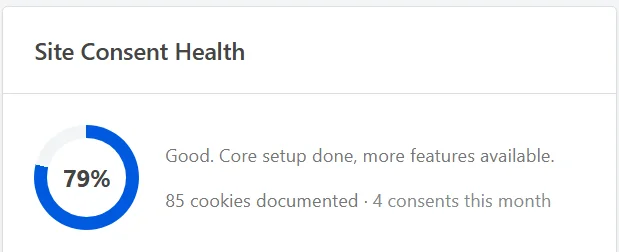
That percentage is a checklist score rather than a compliance rating. WPConsent gives each part of a complete setup a point value. It then adds up what you have done and divides that by the points available on your site. Turning on your consent banner is worth 20 points, for example, while running the Cookie Inspector is worth five.
Note: Your own dashboard will show a different percentage and a different list of items to ours. The panel is built from your site’s own setup, so the figures are meant to differ.
The sentence next to the ring changes at three thresholds.
- 90% and above reads “Excellent. All recommended features enabled.”
- 70% to 89% reads “Good. Core setup done, more features available.”
- 50% to 69% reads “Getting there. A few steps to complete.”
- Below 50% reads “Just getting started. Let’s set things up.” The panel also adds a button that opens the setup wizard, which is the fastest route through the items you have not started.
Underneath sits a line of running totals. The first is how many cookies you have documented. The second appears once consent logging is on, and counts the consent records your site has stored this month.
That second figure links straight to your consent logs.
Working Through the Items That Improve Your Score
Below the ring, everything you have not finished yet is gathered under the “To improve your score” heading. Each row names the item, explains in one line why it matters, and shows what it is worth.
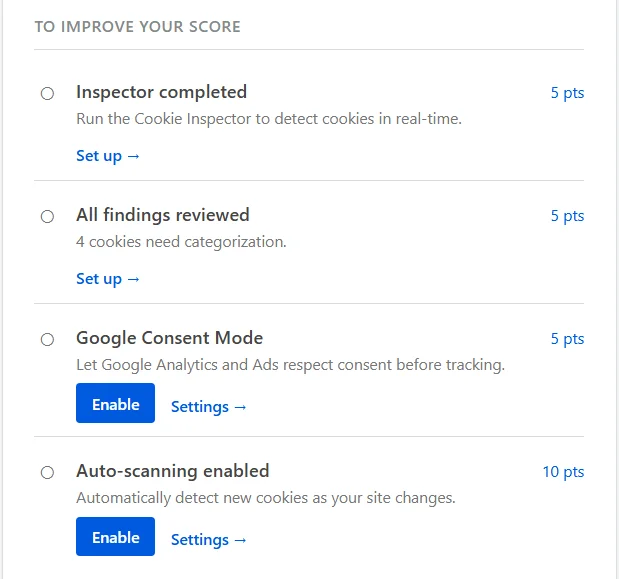
Those point values are the quickest way to decide what to do next. A five-point row is a refinement. The two 20-point rows, your consent banner and script blocking, are what a consent setup is actually made of.
Where a single setting is all that stands between you and the points, the row carries its own button. When you want to turn that setting on straight away, click Enable.
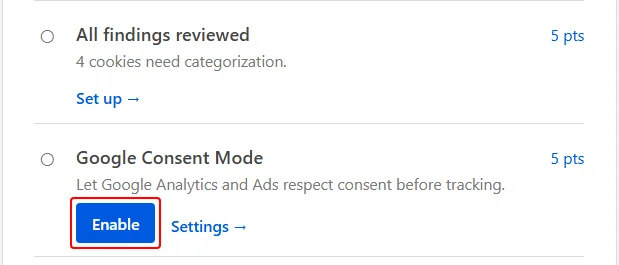
WPConsent stores the setting and reloads the page, and the row moves into your completed items. The Settings link beside it opens the same setting on the settings page. That is the better route when you want to read the surrounding options first.
Two rows offer a pair of links instead, because one click cannot finish them.
- Cookie policy configured offers Generate page, which builds a cookie policy page for you. Choose page takes you to the setting so you can point at a page you already have.
- Cookie categories configured offers Configure from scan, which drops you into your latest scan report. Configure manually opens your cookie categories instead. Take the scan route if you have already scanned, since it fills your list from what the scan found. Take the manual route when you want to add entries one at a time.
Every other row simply carries Set up, which opens the page where that piece of work happens.
Reviewing WPConsent’s Suggestions
Under the checklist sits a second list, Suggestions. These are features worth knowing about rather than steps you have missed, so none of them counts toward your score.
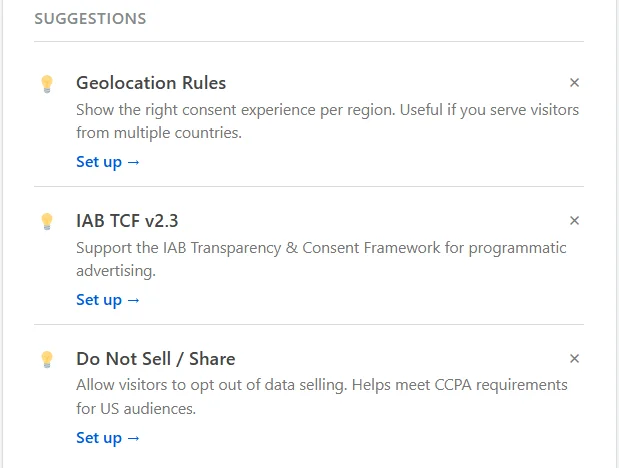
WPConsent offers three suggestions.
- Geolocation Rules serve a different consent experience per region. This matters once your visitors arrive from several countries with different rules.
- IAB TCF v2.3 supports the advertising industry’s shared consent framework. This is for sites running programmatic advertising.
- Do Not Sell / Share gives visitors an opt-out of data selling. This is part of meeting CCPA expectations for a United States audience.
Each one has a Set up link, and a small dismiss control in its top corner. Dismissing a suggestion is recorded against your own WordPress user account, so it stays dismissed. It also stays reachable: it moves into the details list covered in the next section, with its Set up link intact.
Seeing Which Items Are Already Complete
Completed items are folded away by default, so the panel stays about what is left. The line at the bottom counts them for you.
At the bottom of the panel, click Show details.
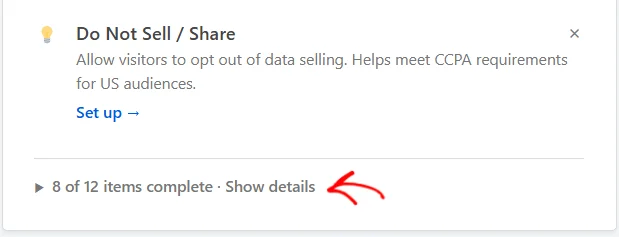
The list opens in place, with a green check and the points earned on every row.
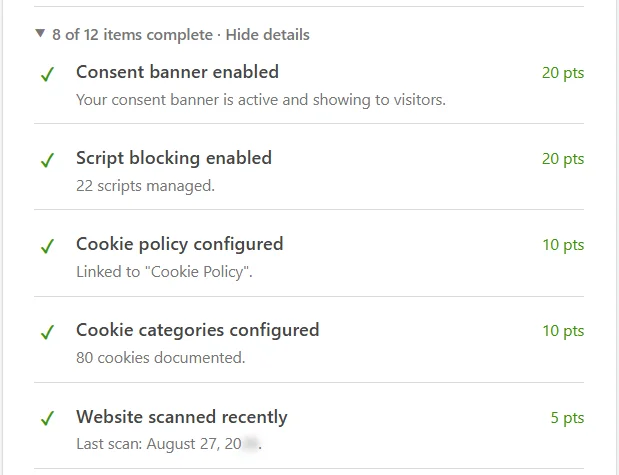
The line under each row is the part worth reading, because it reports real state rather than a label. It names how many scripts are being managed and which page your cookie policy points at. It also counts your documented cookies and dates your last scan.
That makes this list the fastest way to confirm the things you set up weeks ago are still doing their job. Any suggestions you dismissed are listed below the completed items.
Acting on the Alert Bar
Above both columns, WPConsent shows a colored bar when something is genuinely waiting on you. The bar is not a second copy of the checklist. It appears for two conditions only. Either the Cookie Inspector has found cookies nobody has categorized yet, or your last scan is more than 30 days old.
To act on an alert, click the button at the end of its row.
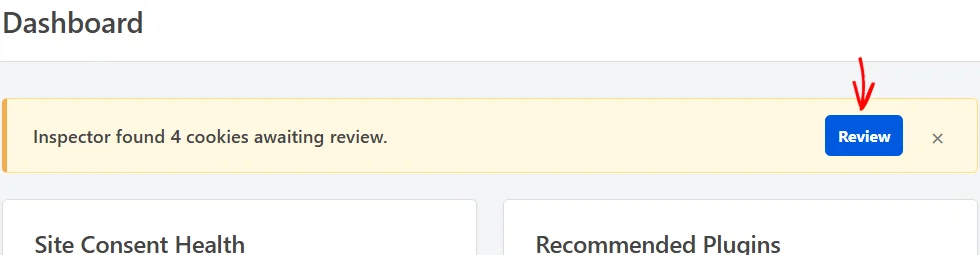
The button label matches the condition, so an inspector alert reads Review and an overdue scan reads Scan Now. Three alerts show at most, with a count of any others directly underneath them.
The dismiss control beside the button clears an alert from the page in front of you. It returns the next time you open the dashboard while the condition still holds.
Previewing Your Consent Banner
In the second column, Your Consent Banner shows the real banner rather than a picture of one. It is built from the same content and styling your visitors get, so the colors, the wording, the layout, and the buttons all match.
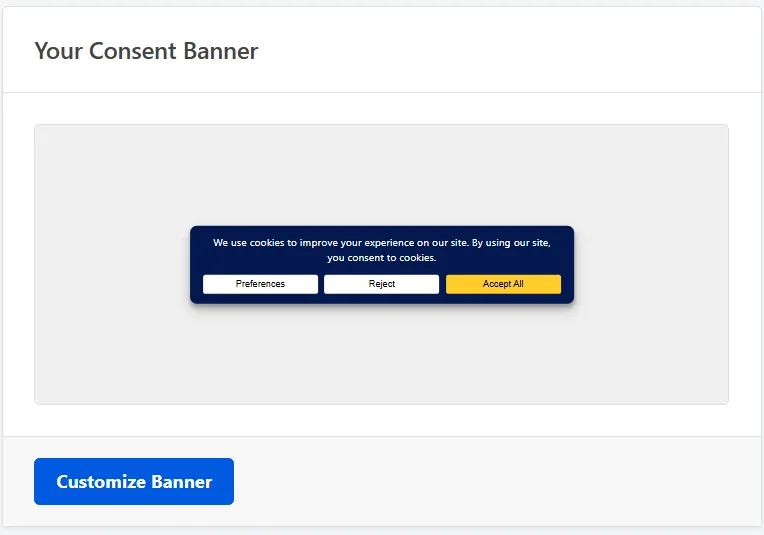
That makes it a quick way to see a design change without opening your site in another tab. The button underneath reads Customize Banner, and it opens the Banner Design page. If your banner is switched off, the preview is faded, the panel says the banner is not active, and the button reads Enable Banner instead.
Browsing Recommended Plugins and Announcements
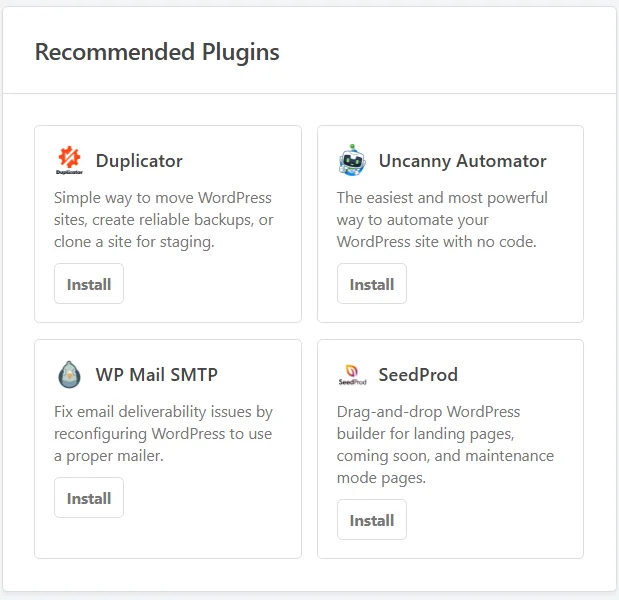
Recommended Plugins sits at the top of the second column and lists a handful of other WordPress plugins WPConsent recommends. Each one carries a short description and an Install button. Anything already on your site shows as Installed instead.
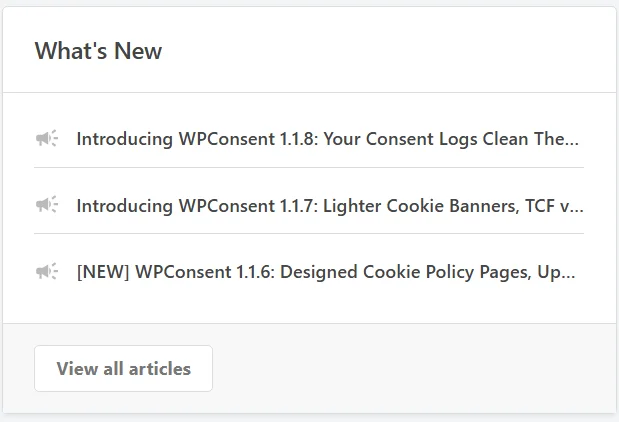
Below it, What’s New carries the most recent posts from the WPConsent blog, which is where each release and new feature is written up. The titles open in a new tab, and View all articles opens the blog itself.
Neither panel reflects anything about your own setup, so both are safe to skim past. The panel below them is the one that adapts to your site.
Finding the Right Documentation
The last panel, Help and Documentation, is the only one whose contents follow your own setup. Its Recommended for you list is picked from what you have not done yet.
- A banner that is switched off pulls in the banner guides.
- A site with no scan behind it pulls in the scanning guide.
- An empty cookie list pulls in the categories and services guides.
Once everything is set up, general guides fill the space instead. The list holds five articles either way.
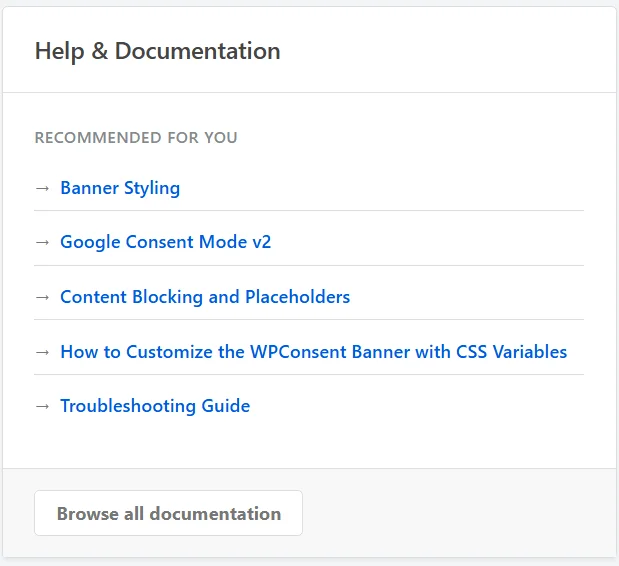
Browse all documentation opens WPConsent’s help panel over the page, where the full library is searchable.
Note: This panel moves across to the second column once five or more checklist items are outstanding, so a long list of items gets the room it needs.
That’s it! You now know how to read every panel on your WPConsent dashboard and act on what it tells you.
Next, work through the item most checklists start with. Our guide on scanning your website covers the scan that fills your cookie list in the first place.
Frequently Asked Questions
Below, we’ve answered some of the most common questions about the WPConsent dashboard.
What is the highest score I can reach?
In a paid version of WPConsent, a fully configured site reaches 100%, because every item on the list is scored. In the free version the same checklist tops out at 75%. The license key, consent logging, and auto-scanning items are still listed there so you can see what they do. They are held out of the calculation.
Does clicking Enable change my settings right away?
Yes. That button stores the setting for you and reloads the dashboard. The row then appears among your completed items with its points added to the ring. If you would rather see the setting in context before turning it on, use the Settings link beside the button instead.
Why does my checklist show different items than another site?
Because three items only appear when they apply to you. Google Consent Mode is listed once a Google service is registered on your site. Content blocking is listed once you have a service whose content can be embedded. Automatic translations are listed once a translation plugin is active. Your total available points move with them, so a shorter list does not mean a lower score.
Why am I seeing an alert bar on my dashboard?
One of two things put it there. Either the Cookie Inspector has cookies waiting to be categorized, or your last website scan ran more than 30 days ago. Anything else that needs attention is in the checklist rather than the bar. That is why the bar is empty on a site that is up to date.
Can I bring back a suggestion I dismissed?
It is still there. A dismissed suggestion moves under Show details, into its own group below your completed items, and it keeps its Set up link. Dismissing is stored per WordPress user, so your colleagues still see the suggestion in their own list.