TL;DR:
In this WPConsent review, we cover installation and setup, banner customization, the cookie scanner, ease of use, pricing, and how it stacks up against Complianz, CookieYes, and Termly, based on hands-on testing rather than the marketing page.
Staying compliant isn’t a one-time checkbox.
Rules change by region, cookie scripts get added without anyone updating the consent settings, and most site owners have no reliable way to check if they’re actually covered or just have a banner that looks the part.
We built WPConsent to close that gap.
So instead of writing another feature list, we ran WPConsent the way you would: fresh install, cold scanner run, every settings tab, both Free and Pro.
This review is what we found, section by section, including the parts that don’t make it onto our own marketing page.
What Is WPConsent?
WPConsent is the best WordPress plugin for handling cookie consent and privacy compliance without needing a developer or a separate SaaS subscription.
It adds a customizable consent banner to your site and scans for the cookies and third-party scripts already running. It helps prevent scripts that shouldn’t fire from firing until a visitor actually agrees to it.
This cookie compliance plugin covers GDPR, CCPA, and Google Consent Mode v2 out of the box and records the consent choice a visitor makes. Plus, it can generate a cookie policy page automatically from the scan results if you don’t have one already.
All of it runs inside your WordPress dashboard, not a separate account you have to manage on top of it.
It’s active on 100,000+ WordPress sites with a 4.8 out of 5 rating on WordPress.org, and the banner, scanner, and script blocking are all available in the free version, not locked behind a paywall.
The Story Behind WPConsent
WPConsent’s co-founder, Mircea Sandu, spent over 15 years building websites and WordPress plugins before this project. This includes running his own freelance business with more than 100 clients.
That client-facing work meant handling privacy compliance one site at a time: GDPR here, CCPA there, each with its own rules about who actually needs to see a consent banner.
One recurring problem stuck out. In his own words:
One of the challenging tasks my team faced when complying with data protection laws was to display a cookie banner only for residents in a particular country.
Getting that right, region-by-region banner logic, meant either fighting with a plugin’s settings or writing custom code for every client site.
That repeated friction is what WPConsent was built to remove.
Mircea Sandu also co-founded WPCode, now running on 3 million+ WordPress sites, built on the principle that powerful features shouldn’t require a developer to set up.
WPConsent follows the same principle: compliance shouldn’t need custom code just to get a banner to behave correctly.
WPConsent Review: The Full Breakdown
Now that you understand the history of WPConsent, why it was built, and by whom. Let’s review what this cookie consent plugin actually does.
To make it simple for you, use the table of contents below to skip to the section you want to read.
Let’s dive in.
Installation and Set Up
Live in Under 10 Minutes
Getting WPConsent onto a site takes two paths, and which one you take depends on whether you’re starting free or Pro. Both paths land you in the same setup wizard, so trying the free version first costs you nothing before deciding on Pro.
Plus, the pro version has four tiers so that you can purchase what you need and stay within your budget.
So which one should you actually start with? Here’s what each tier gets you, side by side:
| What You Get | WPConsent Free | WPConsent Pro |
|---|---|---|
| Custom cookie banner (colors, position, text) | Included | Included |
| Automatic script blocking | Included | Included |
| Cookie scanner | Included | Included |
| Google Consent Mode v2 | Included | Included |
| Automatic cookie policy generator | Included | Included |
| Site Consent Health dashboard | Included | Included |
| Consent logs (audit-ready records) | Not included | Included |
| IAB TCF v2.3 support | Not included | Included |
| Geolocation-based banner rules | Not included | Included |
| Scheduled auto-scanning | Not included | Included |
| Support | WordPress.org forum | Priority ticket queue |
| Sites per license | No limit, install free on as many sites as you like | 1 to 100 sites, depending on plan |
| Get started | Get WPConsent Lite → | Get WPConsent Pro → |
The free version of WPConsent covers everything a single WordPress site running standard analytics and marketing scripts needs. WPConsent Pro is about proof and scale: audit-ready logs, regional rules, and one license managing a whole client roster.
WPConsent Lite Version:
To get the free version of WPConsent, in your WordPress dashboard, head to Plugins » Add New Plugin, search “WPConsent,” click Install Now, then Activate.
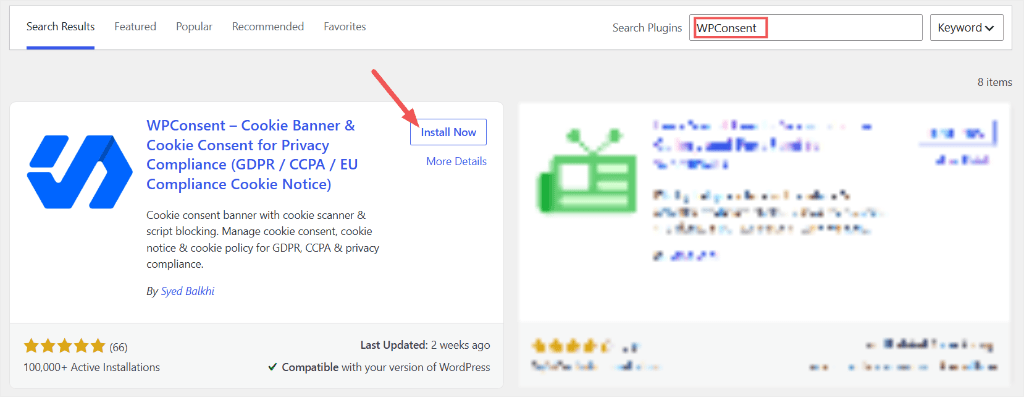
No account, no license key, nothing to configure before the plugin is technically live. A setup wizard opens right after activation and walks through the first scan.
WPConsent itself is purpose-built for WordPress, not a general SaaS compliance tool with a plugin bolted on as an afterthought.
Every consent record and cookie category lives in your own WordPress database. Nothing routes through a third-party server by default, which matters if you care where your visitors’ data actually sits.
WPConsent Pro version:
Once you purchase the plugin, head to your WPConsent dashboard and navigate to the “Downloads” tab. Here, copy your License Key and download the plugin ZIP file.
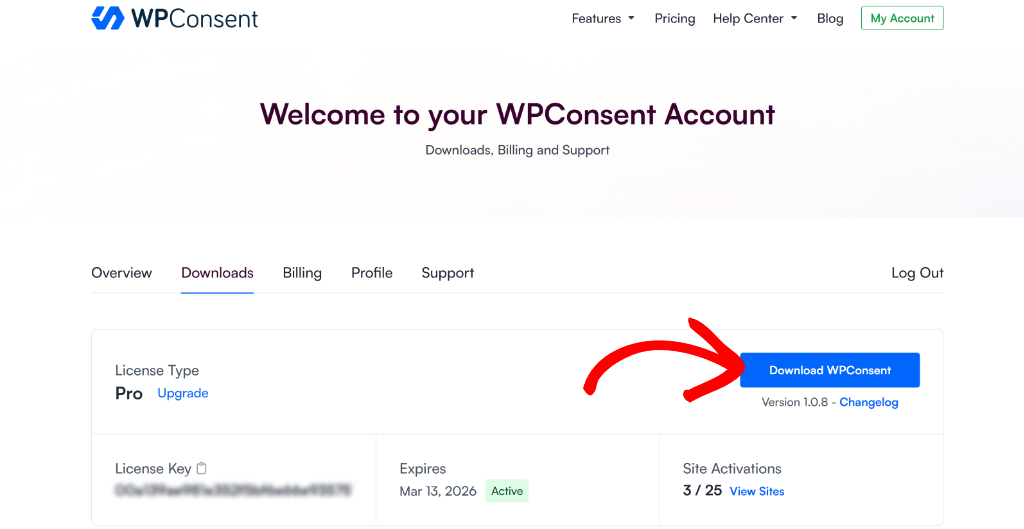
From there, go to your WordPress dashboard and navigate to Plugins » Add New Plugin » Upload Plugin. After this, install and activate the plugin like any other.
For help, you can check out this post on how to install WPConsent.
Once done, the Setup Wizard will pop up, which allows you to fully set up WPConsent in one smooth flow. All you have to do is hit “Let’s Get Started” and follow the steps.
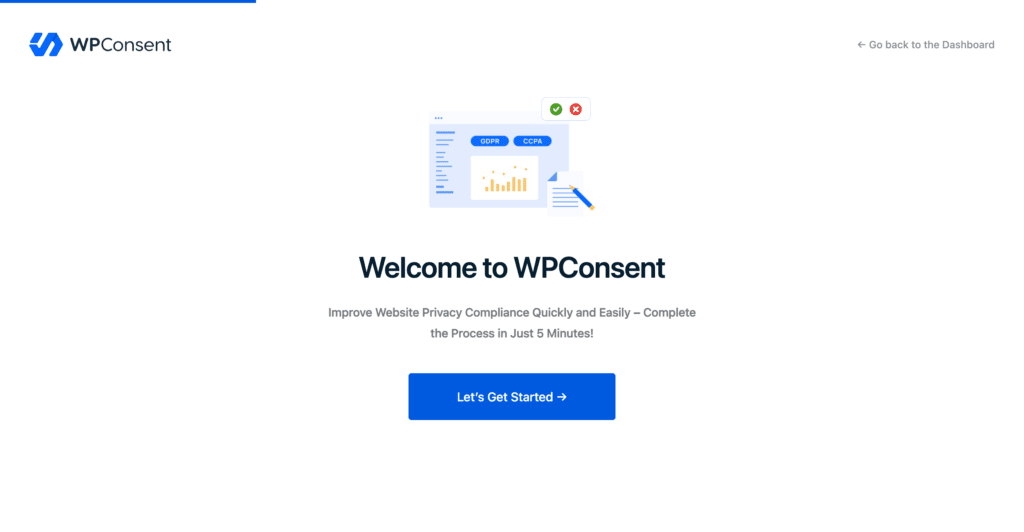
You will also add the License Key you copied earlier using the wizard so that nothing is left behind.
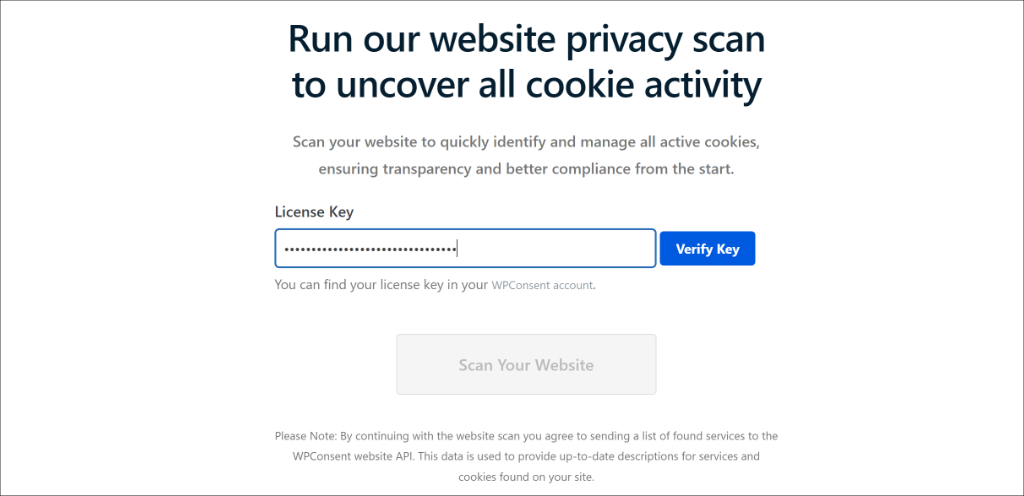
After adding your license (on the Pro Version only), the wizard will ask you to Scan your Website.
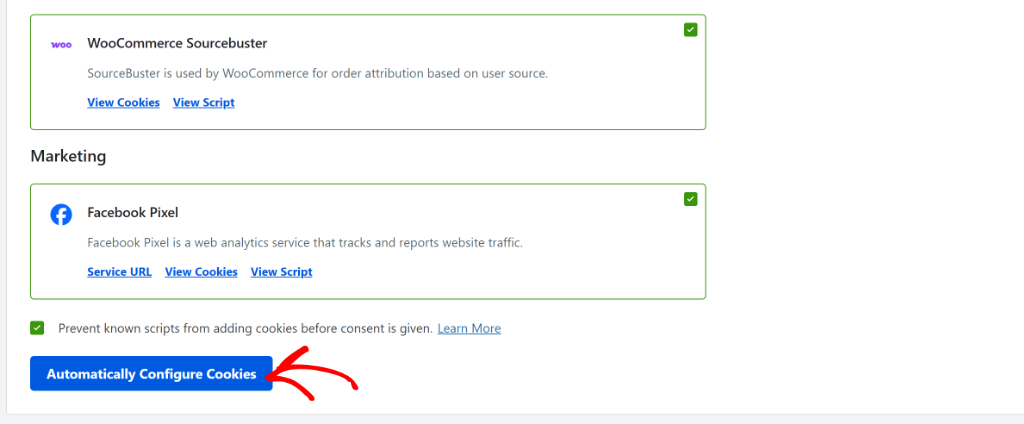
Once the scan finishes, WPConsent displays a list of detected services. Each service shows a logo, name, and description. Every service is selected by default. At this step, you can check or uncheck any services you don’t want to auto-configure.
WPConsent creates the corresponding cookie category entries, service records, and cookie descriptions automatically.
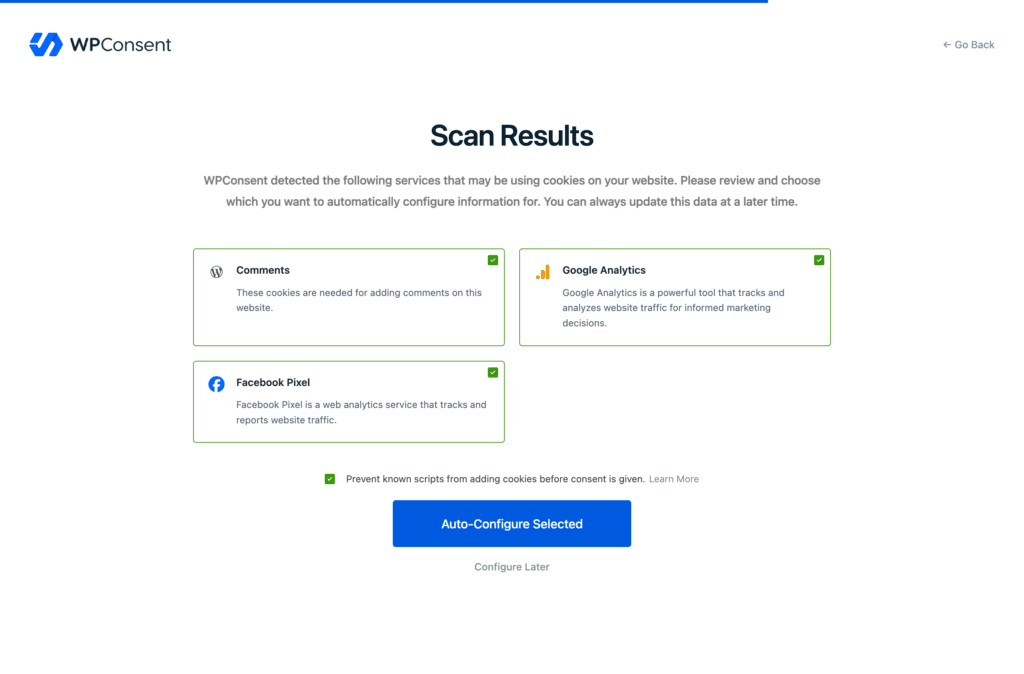
After this, you can also use the setup wizard to set up your first cookie consent banner. You can customize it, change the layout, and add your brand colors and logo. More of this in the customization section of this article.
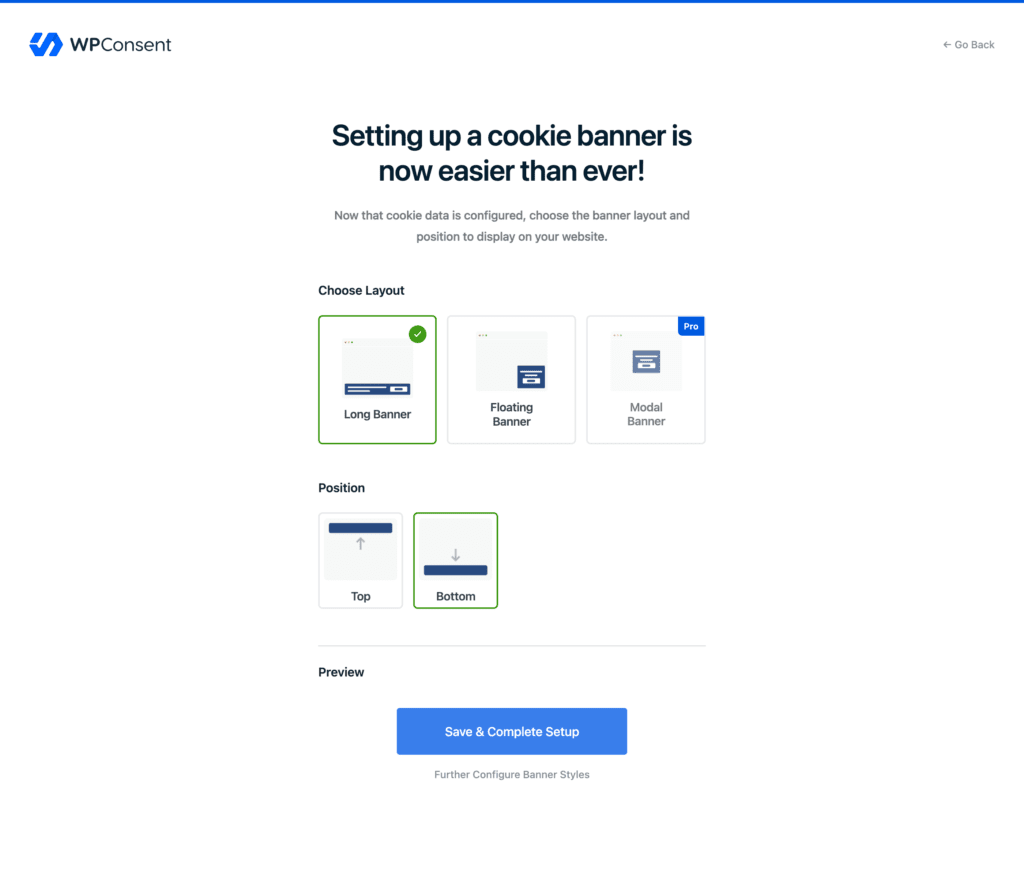
This means that by just following the steps in the setup wizard, you will know which scripts run on your site and have your consent banner live in minutes.
Check out this documentation on using the WPConsent setup wizard if you need assistance.
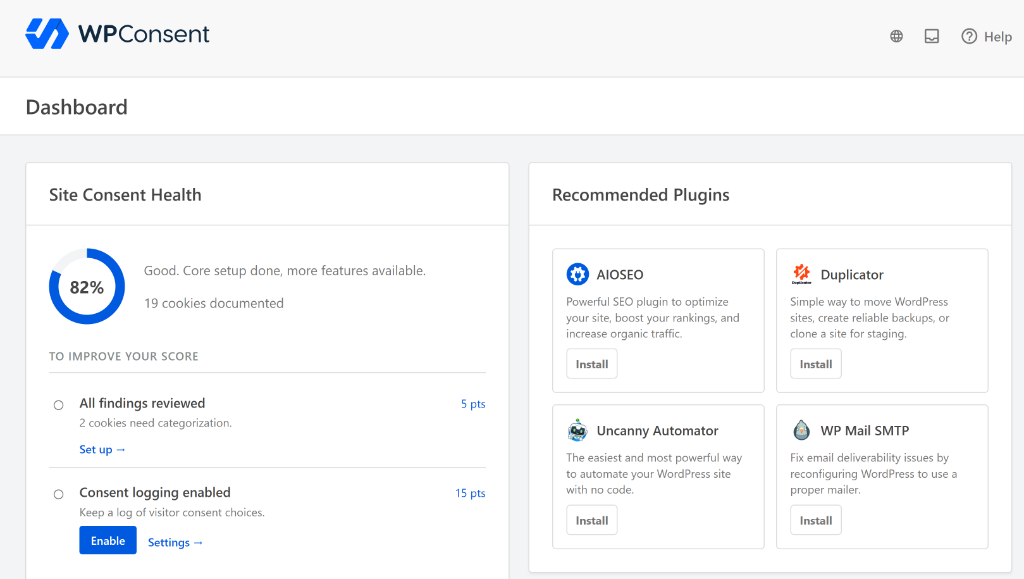
Once you complete the setup with the wizard, you will land on the WPConsent dashboard. The dashboard gives you an overview of everything at a glance.
Instead of a settings wall, activation drops you straight into a Site Consent Health score.
It starts at 0%, with a checklist underneath showing exactly what’s left.
You see your Site Consent Health points. Below you see the “To Improve Your Score” checklist, each with the number of points you get awarded.
The higher the priority, the more points you are awarded.
The best part is each checklist item has a link taking you directly to where you need to set it up, making it super simple to manage your WordPress consent right from your WPConsent dashboard.
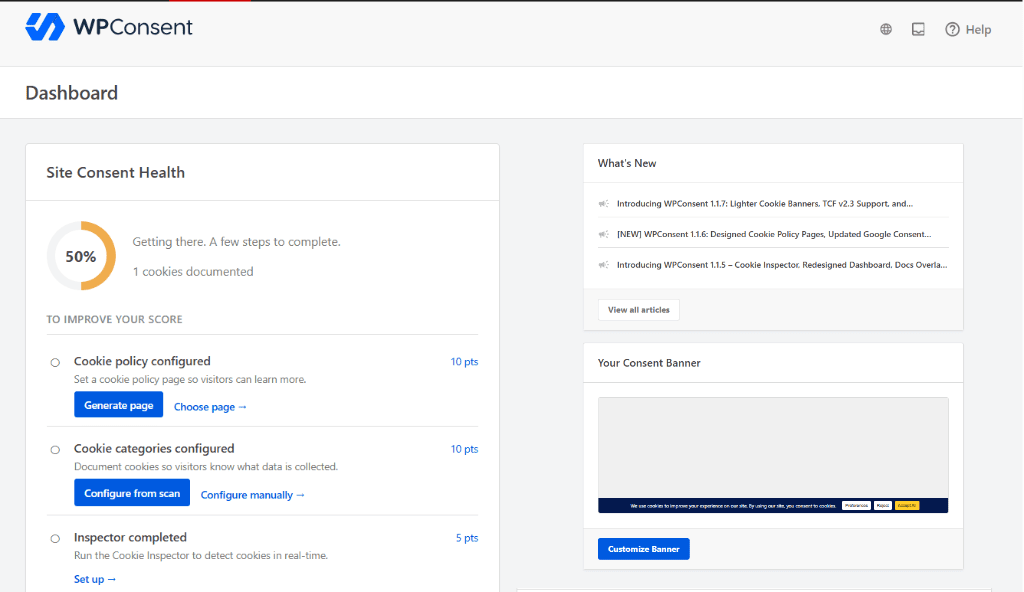
We timed the whole thing, license key included and everything in between: under ten minutes.
Now for the fun part: customizing your cookie consent banner. This comes next in your review.
Customization
No Custom CSS
Most cookie banners look like they were bolted onto a site five minutes before launch. WPConsent’s customizer is where you fix that.
You can customize colors, button text, and banner position, including the wording on every button: Accept, Reject, and Preferences.
Cookie categories can be renamed too, and this matters more than it sounds. Labels like “Necessary,” “Analytics,” and “Marketing” tell a visitor exactly what they’re agreeing to.
A lot of consent tools ship with generic labels like “Category 1,” “Category 2,” and “Category 3” instead. Visitors don’t recognize what those mean, so they just click Accept without reading. That defeats the entire point of asking.
So what does the actual styling panel look like?
In your WordPress dashboard, go to WPConsent » Banner Design to open the banner editor.
A breadcrumb menu across the top moves you through Layout, Style, and Content in order, and a Preview button in the corner shows exactly what your changes look like at each step.
Here’s what each screen does.
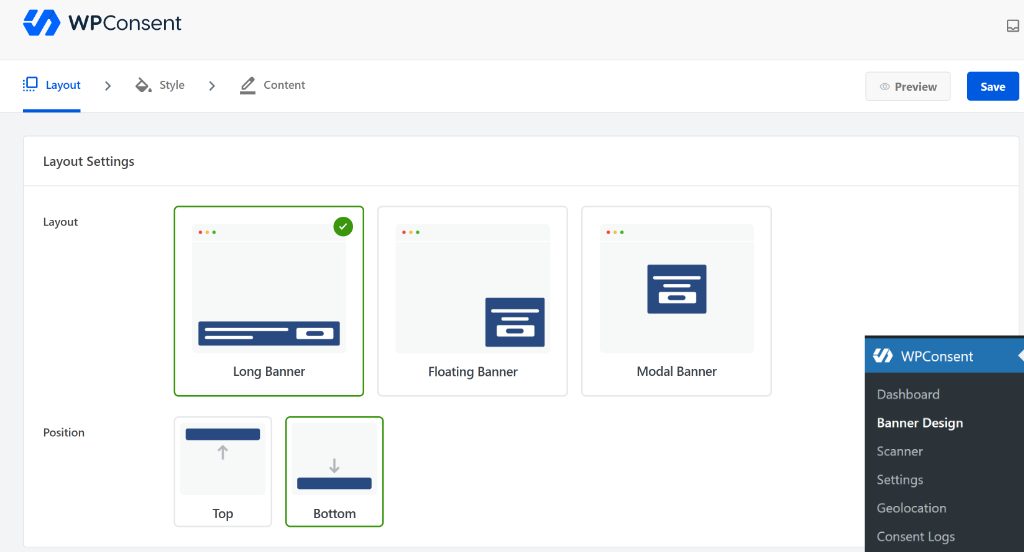
Layout:
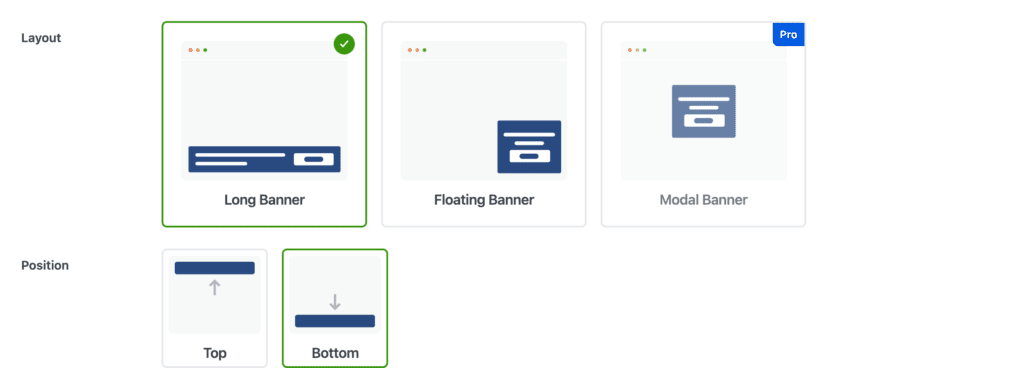
This screen sets the banner’s shape and position. Every site is different, so WPConsent lets you place the banner wherever it fits your layout instead of forcing one default spot.
Choose from a Long Banner, a Floating Banner, or a Modal Banner, then set the position to top or bottom.
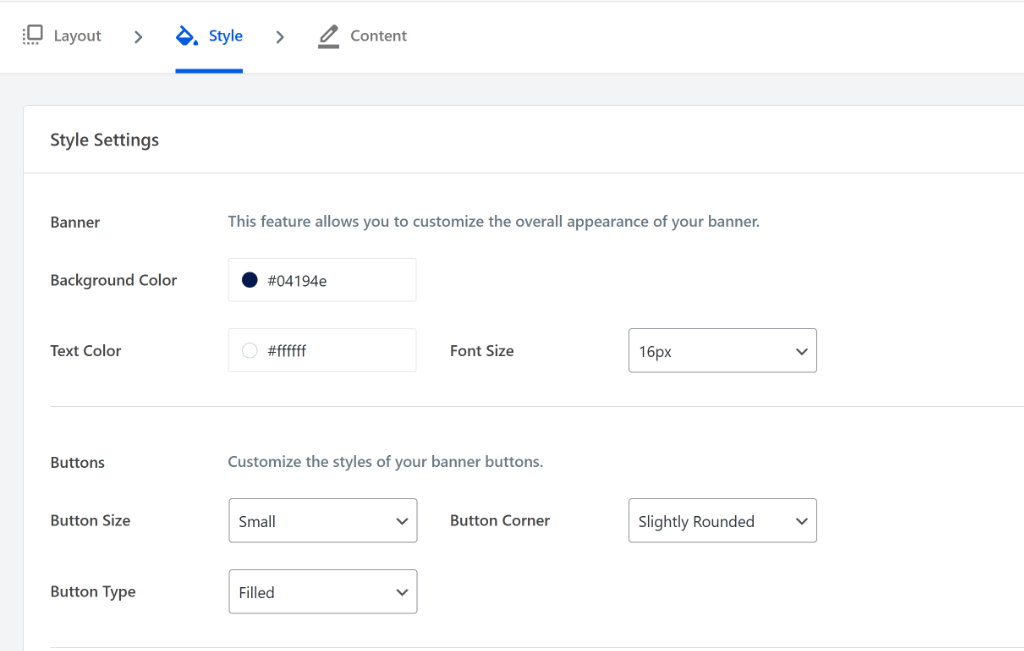
Style:
Next, open the Style tab. Here, you set the background color, text color, font size, and a separate color for each button: Accept, Reject, and Preferences. Button size, corner rounding, and fill style are editable too.
Every color field takes a hex value directly, not a locked swatch picker with a handful of preset options and nothing else.
Content:
The Content tab handles what the banner actually says. It’s all straightforward text fields, no code required.
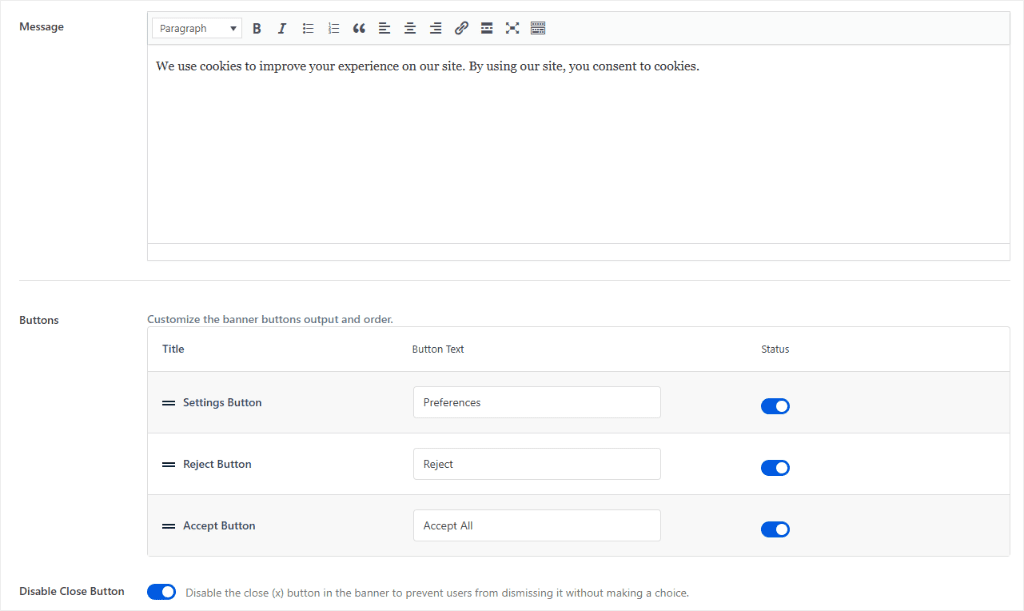
The Message field is a full rich-text editor, not a plain textbox, so you can bold key phrases, add a list, or drop in a link without touching HTML.
The default message reads “We use cookies to improve your experience on our site. By using our site, you consent to cookies,” and you can leave it as is. But you can rewrite it to match your site’s own tone.
Below that, the Buttons table lets you rename each one individually: the Settings Button (default text “Preferences”), the Reject Button (“Reject”), and the Accept Button (“Accept All”).
Drag any row by its handle to change the order they appear in, or flip its toggle off to hide that button entirely.
There’s also a Disable Close Button option, and it’s worth turning on. Leaving the banner closeable by the X counts as dismissing it without a decision, which isn’t a valid consent record under GDPR or CCPA.
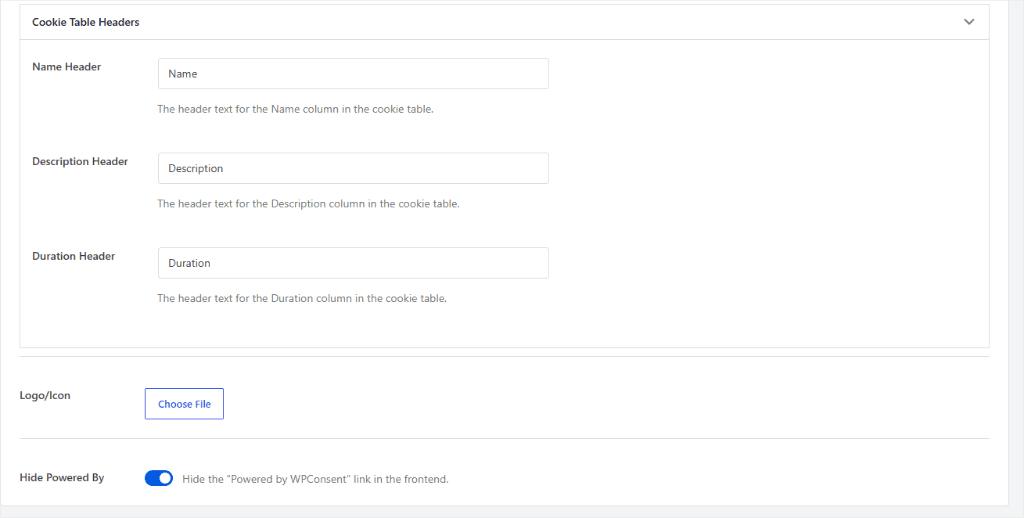
Scroll down, and you’ll find the Cookie Table Headers.
Here you find the Name, Description, and Duration. The column labels a visitor sees when they open the detailed cookie list.
Rename any of them, upload your own Logo or Icon to the banner, and use the Hide Powered By toggle if you don’t want the “Powered by WPConsent” credit showing on the frontend.
Add your logo so that your consent banner works as a brand asset for your business.
The Preferences Panel gets its own settings block.
Title and description text are editable (“Cookie Preferences” and “Manage your cookie preferences below:” by default), along with the Cookie Policy Title and the text underneath it.
That last field is worth noticing: it uses {cookie_policy} and {privacy_policy} placeholders, and WPConsent swaps those for live links to whichever pages you’ve already set in WPConsent and WordPress’s own Privacy settings.
This means no manually pasting a URL and hoping nobody changes the page later. Save Preferences Button Text, Close Button Text, and Service URL Label round out the panel, each one just as editable as everything above it.
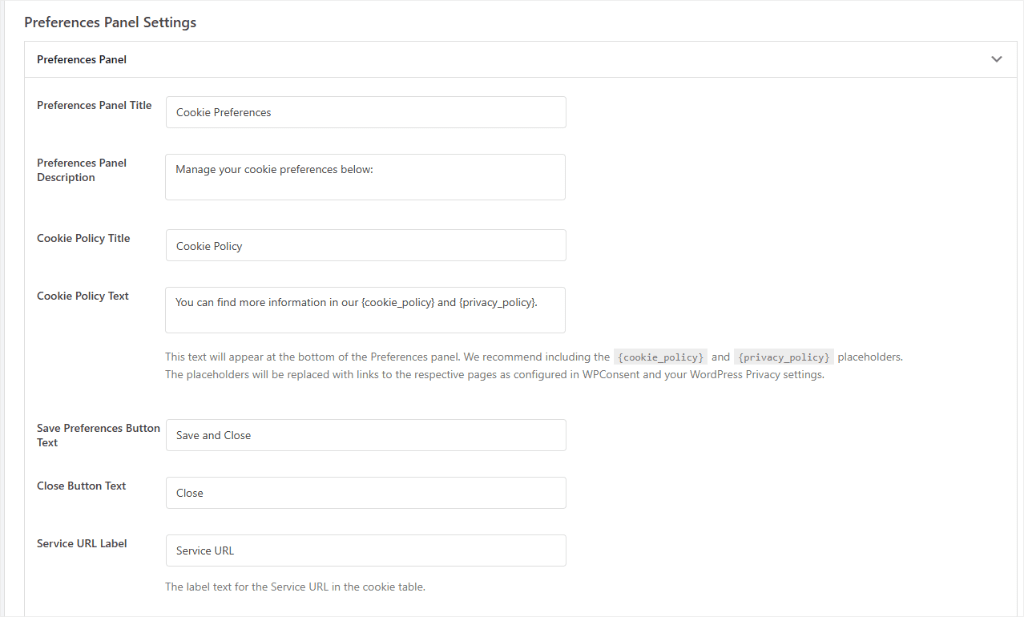
That default is a safe starting point, not the ceiling. Every value here is editable. What isn’t here: custom CSS. If a design needs to go further than colors, position, and button text, that’s a job for your own stylesheet, loaded separately.
Ease of Use
Manual Setup Required
To show you how the detection actually works, not just how it’s described, we installed a handful of plugins on a fresh test site.
Then ran WPConsent’s two detection tools against it: the Cookie Scanner and the Cookie Inspector. They both find cookies, but they work differently enough that it’s worth testing separately.
Cookie Scanner
The Cookie Scanner crawls your site’s pages and checks them against WPConsent’s own database of known scripts and services, flagging anything that sets a cookie so you can review and categorize it before script blocking goes live.
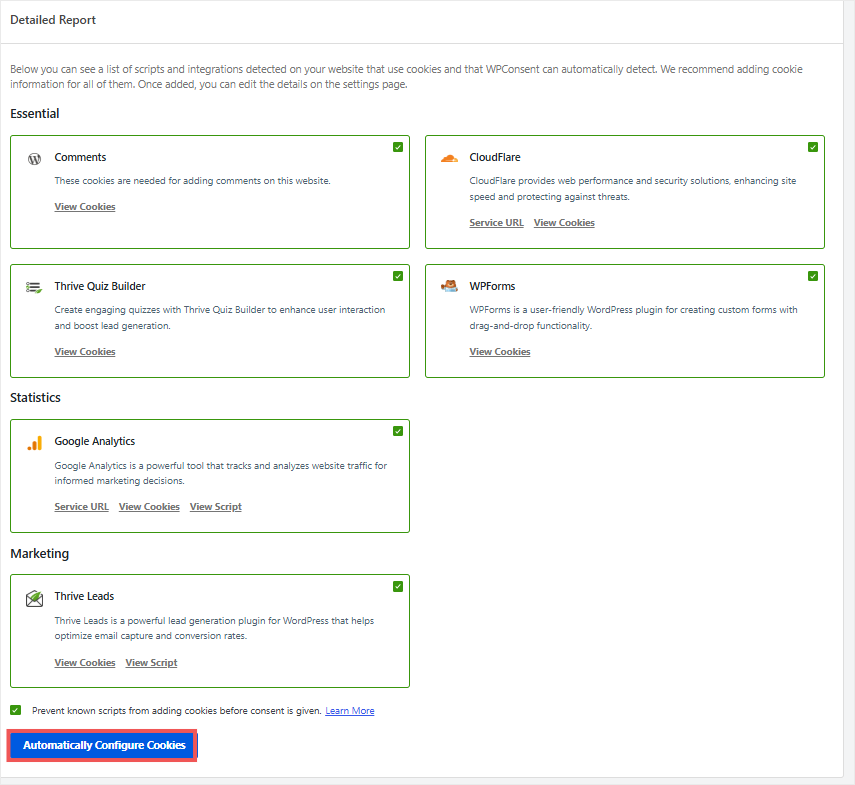
Six seconds after we hit Scan Your Website, it came back with 6 services detected and 42 cookies in use: Comments, Cloudflare, Thrive Quiz Builder, WPForms, Google Analytics, and Thrive Leads.
They were all sorted automatically into Essential, Statistics, and Marketing.
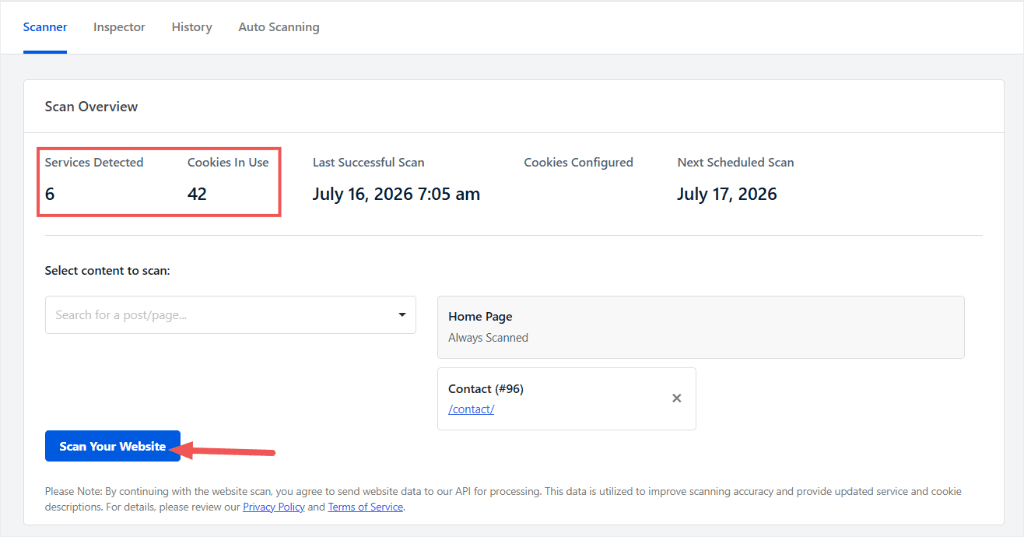
Each result comes with a plain-language description and a direct link to view the cookies it found. This way, “Thrive Leads” doesn’t stay a mystery label you have to look up yourself.
We had the option to scan a single page or post instead of the whole site. For our test, we scanned the entire site to see everything the scanner could surface at once.
You can uncheck any tool you don’t want WPConsent to automatically configure cookies for.
Then, one click on Automatically Configure Cookies assigns every detected service to its category in one pass, instead of configuring each one by hand.
Cookie Inspector
On the other hand, the Cookie Inspector goes further. Instead of crawling your pages ahead of time, it opens your live site in a floating panel and watches cookies land in real time as you browse, the way an actual visitor would.
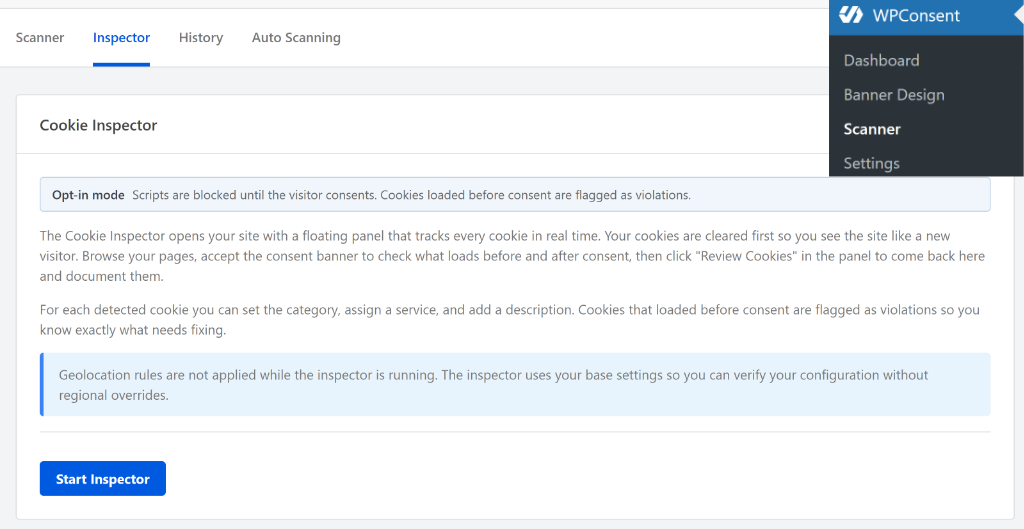
Start it and your existing cookies get cleared first, so you’re seeing the site fresh, the same as a new visitor. From there, you browse your own pages while the panel tracks what fires.
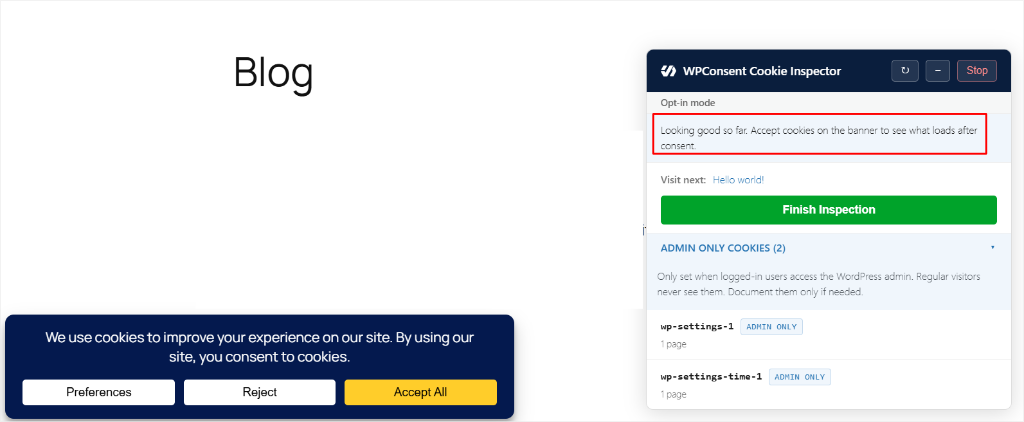
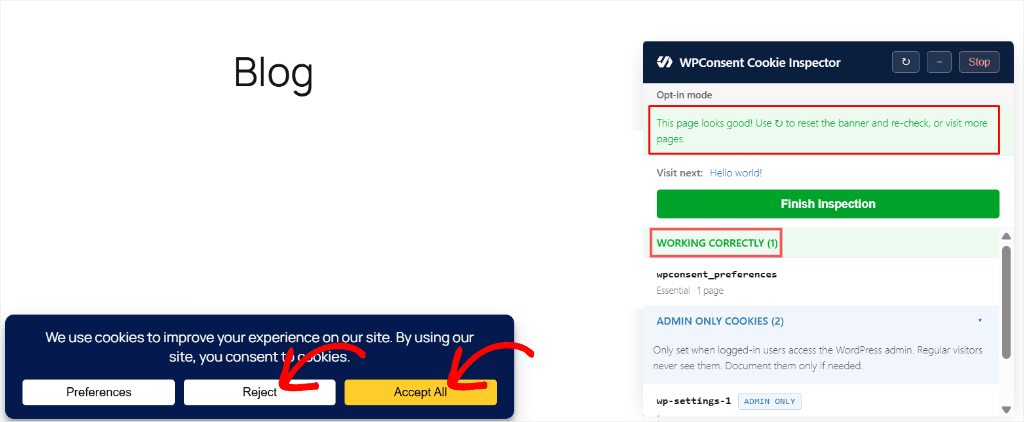
We ran it three times on the same page: once without touching the banner, once after clicking Reject, and once after clicking Accept All.
The screenshot below shows you how the Cookie Inspector acts before you click “Accept” or “Reject.”
All three passes came back identical: “This page looks good,” with one cookie flagged as Working Correctly. Clicking Reject or Accept All didn’t change the result, since this page doesn’t load any tracking scripts for the banner to block in the first place.
When a page comes back clean, Finish Inspection saves the pass, and the panel suggests the next unvisited page to check (in our case, it pointed us to “Hello world!” next).
That’s the actual workflow: work through a site page by page instead of guessing which ones still need a look.
Don’t get us wrong: none of this runs itself out of the box. You have to run the scan, review what it finds, and turn the key pieces on yourself.
Script blocking, the consent banner, and Google Consent Mode v2 are all off immediately after activation. Budget five to ten minutes to work through the Site Consent Health checklist and switch them on. Nothing here is automatic.
But nothing here is hidden either: every unchecked box tells you exactly what it does and where to go fix it.
Once that first pass is done, WPConsent stops asking for attention. The banner shows to new visitors, remembers saved preferences for returning ones, and re-blocks scripts automatically the moment someone withdraws consent.
Features
Google Consent Mode v2 Included
Even on the Free Plan
This is where WPConsent either backs up everything claimed so far or falls apart. Here’s what each feature actually does, not what the settings page says it does.
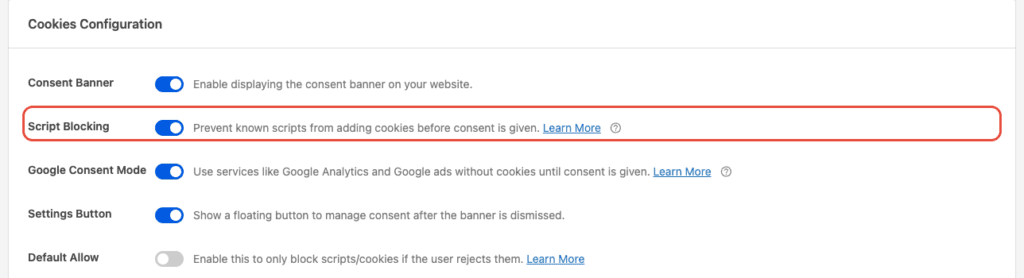
Automatic script blocking
Automatic script blocking is the feature every cookie consent plugin has to get right, and WPConsent does. Google Analytics, Meta Pixel, and hundreds of others in its detection list stay dark until a visitor responds to the banner.
Here’s why that specific mechanic matters more than it sounds: a banner alone doesn’t stop anything. It’s a decoration if the scripts behind it keep running regardless of what a visitor clicks.
That’s the actual gap between “we have a cookie notice” and “we have consent.” This is one of the main gaps regulators care about, not the banner’s existence.
Script blocking closes it without you touching a line of code or hunting down every tracking snippet buried in a theme, a plugin, or a marketing team’s pasted-in tag. All you need to do is activate it with a toggle button.
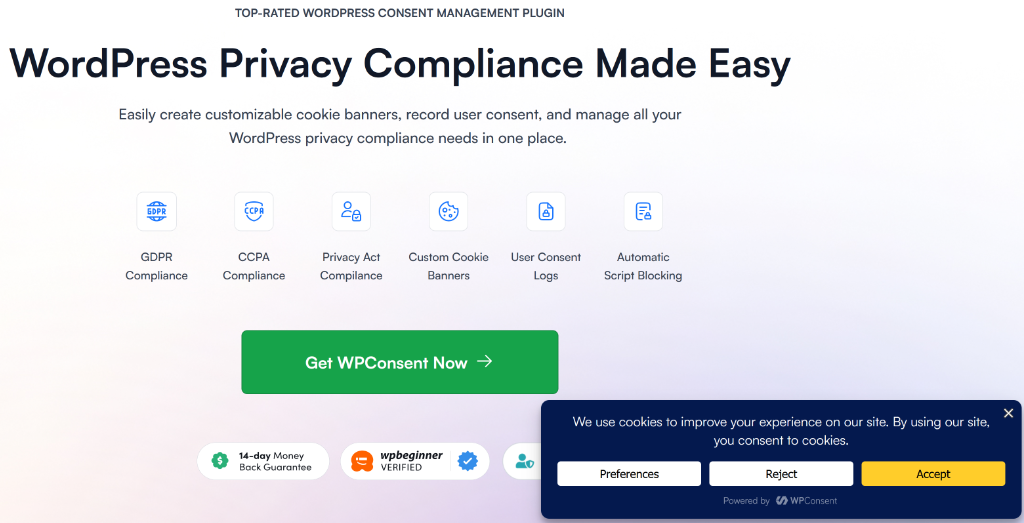
Here’s what that banner actually looks like, live, on default settings, once you’ve turned it on:
Self-Hosted: Your Consent Data Stays on Your Server
Before you pick a cookie consent plugin, ask yourself one question: do you want your visitors’ consent data running on your own server, or on a third party’s?
Both have their advantages.
A SaaS consent tool handles the infrastructure for you. No server load or database to maintain. Updates happen automatically. That convenience is real.
But it comes at a cost. Your visitors’ consent records live on someone else’s servers. Under someone else’s uptime, security practices, and pricing changes.
A self-hosting consent plugin offers more control. WPConsent runs on your own WordPress install, so your consent data stays exactly where your site already lives. No vendor relationship to manage or second point of failure.
This is one of the main differences between CookieYes and Termly, which are SaaS, and WPConsent, which is fully self-hosted.
The banner, the logs, the settings: all of it stays on your server, not a third-party cloud. So no one else holds your visitors’ consent records but you.
You can confirm this on WPConsent’s Database settings and the Consent Logs table. Your logs are exportable and clearable on your own terms.
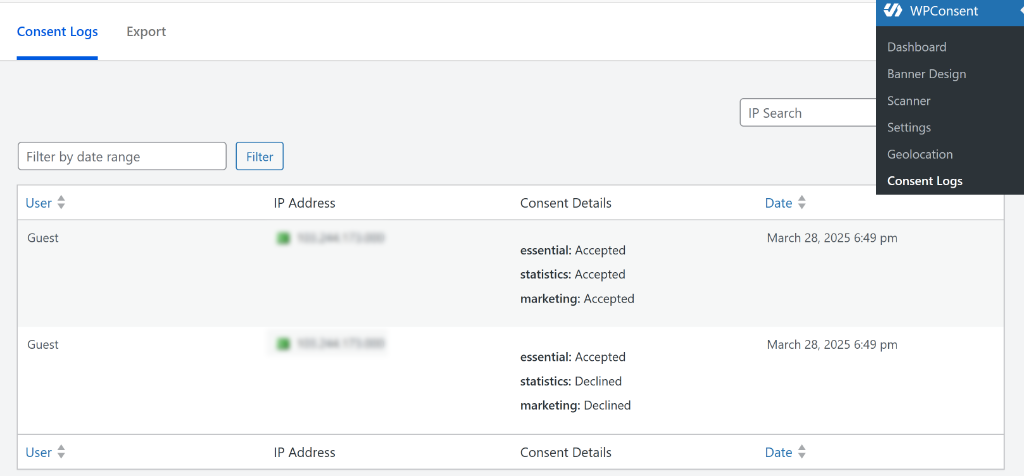
Check out this tutorial to see how to manage cookie consent data in WordPress with WPConsent.
Why does that matter? Three reasons.
- Security: your consent data is only as exposed as your own site, not your site plus a vendor’s platform.
- Compliance: when a regulator asks where consent records are stored, “in our own database” is a much simpler answer than mapping a third party’s data flows.
- Cost: SaaS tools charge by pageview or visitor volume because the data sits on their servers. Self-hosted means no pageview caps and no surprise overage bills as your traffic grows.
Google Consent Mode v2
Google Consent Mode v2 ships on the free version of WPConsent as well as the Pro version.
A lot of cookie consent plugins lock this feature behind a paid plan. We include it in WPConsent Lite because the cost of skipping it is easy to miss.
Without the right consent signal reaching Google Analytics and Google Ads, sites running ads or GA4 in the EEA and UK end up with broken attribution and wasted ad spend. That’s not a fine or a warning; it’s just quietly bad data that nobody traces back to the real cause.
The catch is the same one running through this whole review: it doesn’t turn on by itself. It’s a separate toggle in Settings, same as the banner and script blocking.
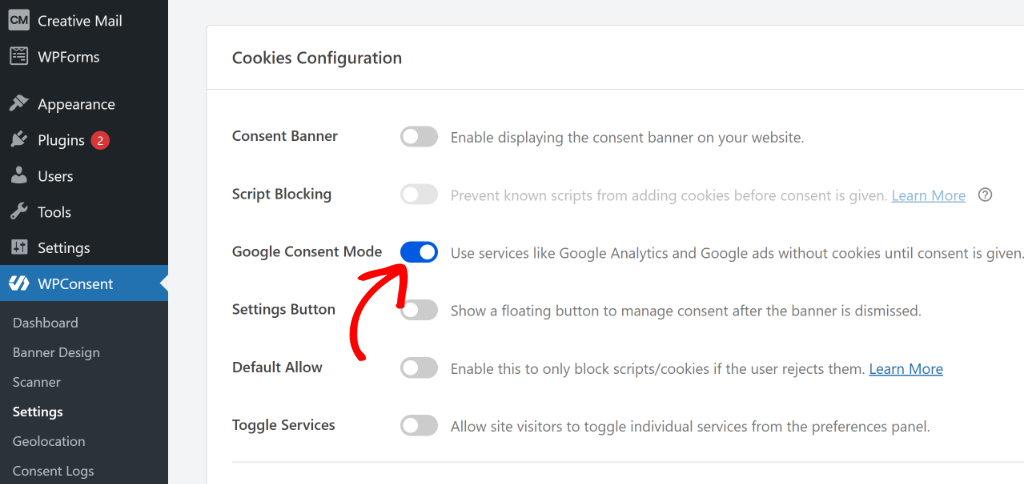
We’ve walked through the exact steps separately: how to set up Google Consent Mode v2 in WordPress if you’re configuring it directly. Or how to set it up with Google Tag Manager if that’s how your tags are managed.
Turning it on, not just having the plugin installed, is what actually protects your ad data.
Global Privacy Control (GPC)
Every compliance process covered so far in this review depends on a visitor clicking something: Accept, Reject, Preferences. Global Privacy Control breaks that assumption entirely.
It’s a browser-level signal that says “don’t sell or share my data” before a page even finishes loading. No banner, no click, no visible interaction. It’s built into Firefox, Brave, and DuckDuckGo and available as an extension for other browsers.
Under CCPA, honoring that signal isn’t optional. California’s attorney general has already enforced against companies that ignored it.
WPConsent handles it with a toggle in Advanced Settings: Respect Global Privacy Controls.
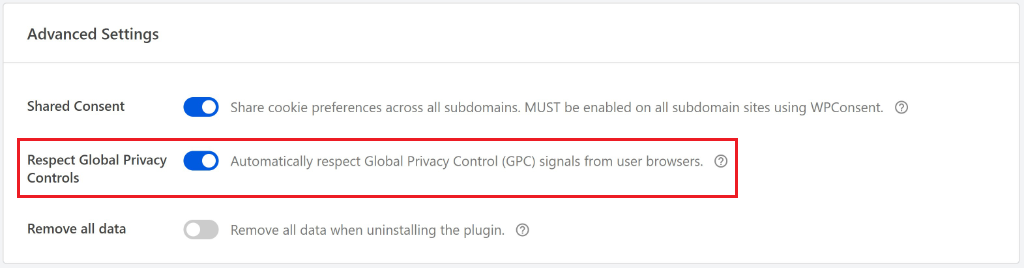
Once it’s on, WPConsent detects the browser signal automatically, treats that visitor as opted out, blocks the relevant scripts, and logs the preference. The visitor never has to click anything.
Here is a detailed post on how to set up Global Privacy Control Support in WordPress.
Transparency and Consent Framework (IAB TCF v2.3) -Pro
Google Consent Mode v2 handles Google’s own tools. Global Privacy Control handles a single browser signal. Transparency and Consent Framework (IAB TCF v2.3) handles exchanges and vendors that don’t route through Google.
The Transparency and Consent Framework is the ad industry’s own standard.
It is built by the Interactive Advertising Bureau (IAB) for passing a visitor’s consent choices to every vendor bidding on that page in real time.
If a site runs programmatic ad exchanges, header bidding, or works with an agency that requires a TCF consent string, this is the piece that makes those integrations legally usable.
Turning it on is one toggle with WPConsent. Enable TCF under Settings » IAB TCF.
But flipping it changes more than a setting. WPConsent says so directly in its own warning: enabling TCF “will force certain banner settings, styles, and behavior to comply with IAB TCF v2.3 standards.”
This isn’t an add-on layered quietly on top of your existing banner. It reshapes the banner to meet stricter specifications.
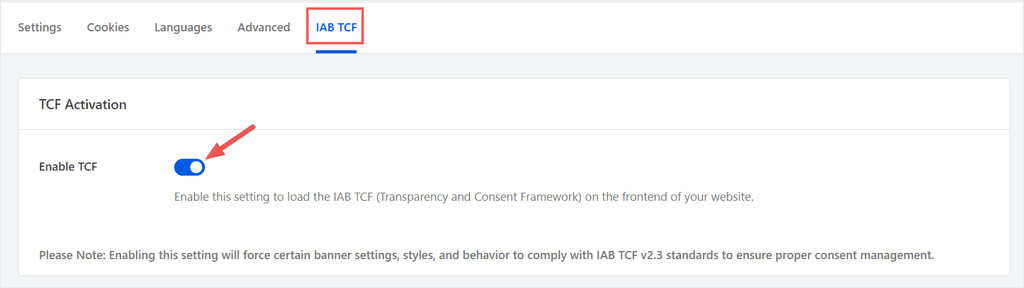
Turning it on unlocks two extra settings: which vendors can rely on Legitimate Interest instead of consent, and which data-processing purposes your own site declares. Most sites can leave both on their defaults.
What actually matters is the vendor list. Every ad and analytics vendor on the IAB’s registry shows up here, all selected by default, each with its own privacy policy.
When we ran our test, 497 vendors were listed. That’s the real reason TCF exists as its own standard. Few people read privacy policies to the end, so the framework checks them instead.
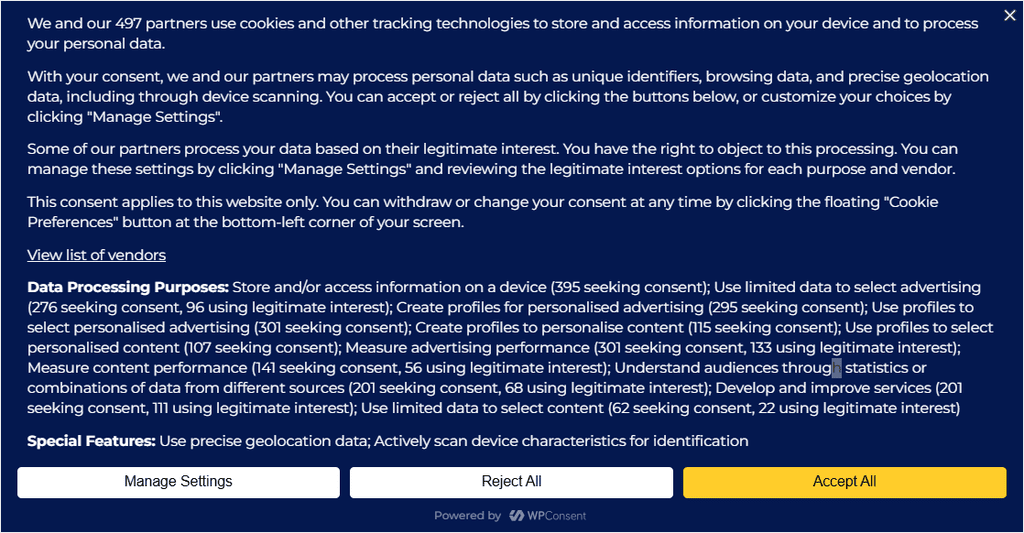
IAB TCF v2.3 is Pro-only, and it’s not a simple toggle. Turning it on changes how the banner itself works, built for sites that need to prove compliance to an ad exchange, not just look thorough.
Read about this in detail and see our actual tests in this announcement post on TCF v2.3 Support.
The cookie scanner
As you have seen above, the cookie scanner finds every cookie and tracking script already running on a site without needing a starting list from you.
Run it once after activation, then again down the line. A new plugin or tracking pixel added months later shows up on the next scan instead of slipping through unnoticed.
This solves a problem most site owners don’t realize they have until it’s a problem: nobody maintains a running inventory of every script touching their site by hand.
A developer adds a heatmap tool. A marketing hire connects a new ad pixel. You may have missed the announcement, or they simply did not tell you.
Six months later, there are three tracking scripts nobody’s consent banner ever accounted for. Re-running the scanner is the fix; it catches what changed since the last pass instead of assuming the site looks the same as the day you set it up.
🔍 Try It Without Installing Anything: Not ready to install the plugin yet? Run WPConsent’s free online cookie scanner against your site’s homepage first. It’s the same detection engine, no account and no plugin install required, just to see what’s actually running before you commit to setting anything up.
Cookie Policy Generator
The cookie policy generator builds a policy page from what the scanner actually finds on your site, not a generic legal template with placeholder text nobody updates.
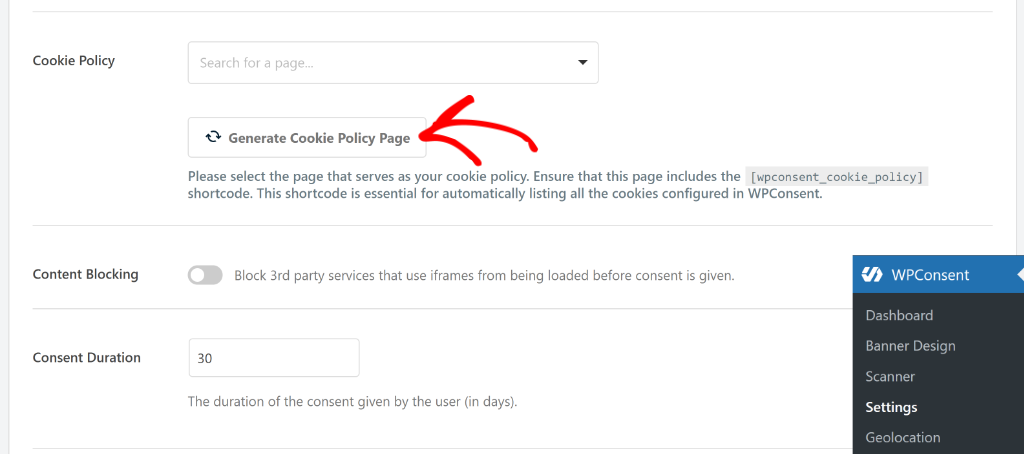
That makes it a real cookie policy page, not a static template nobody revisits. Run a new scan and the policy updates with it, so the page you show visitors always matches what’s actually running, not what was running the last time someone remembered to check.
Check out our article on how to create a cookie policy page in WordPress for free to get started.
Site Consent Health dashboard
Even though we have talked about it above, the Site Consent Health dashboard deserves its own callout.
This is because it solves a problem we didn’t expect a cookie plugin to solve at all: knowing whether you’re actually done. Most consent tools hand you a settings page and leave you to guess whether you’ve covered everything.
WPConsent turns that guesswork into a scored checklist. 100 points spread across the banner, script blocking, cookie policy, categories, scanning, and license activation, each with a direct “Set up” link.
Manual Cookie and Service Editing
WPConsent doesn’t force you to rely on the scanner alone.
Inside Settings » Cookies, each category, Essential, Statistics, Marketing, gives you an “Add a Cookie” button for a blank manual entry and an Add a Service option for a blank service template.
There’s also Add Service From Library, which pulls straight from WPConsent’s own list of recognized services instead of leaving you to write a description from scratch.
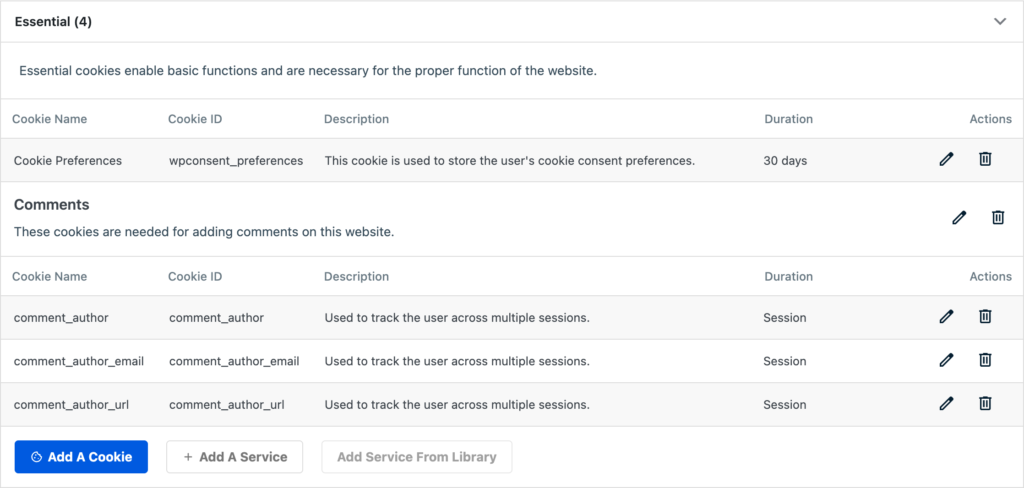
If the scanner missed something or filed it under the wrong category, this is where you fix it by hand instead of waiting for the next scan.
Here is a step-by-step tutorial on how to add a cookie consent banner on your WordPress website.
Import and Export
Managing WPConsent across more than one site gets tedious fast if every category and service has to be rebuilt by hand each time.
The WPConsent Import/Export tab solves that.
You can export your entire configuration, or just the banner design, cookie data, or custom scripts, as a single JSON file, then import it straight into another site.
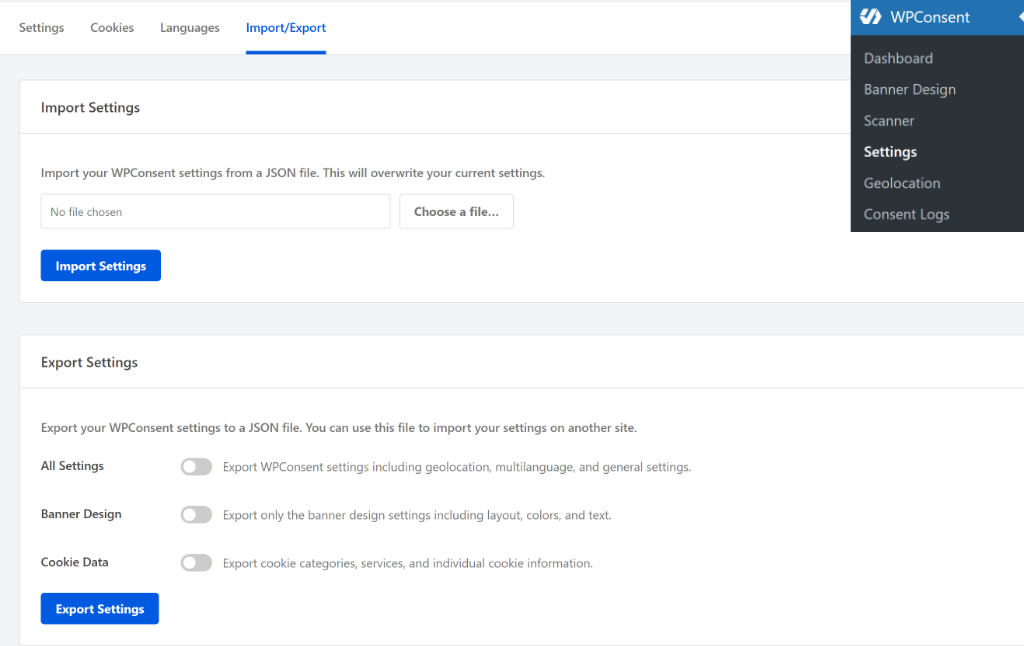
The same screen also exports Consent Logs and Do Not Sell Logs as CSV, both Pro features, for whenever you need the records outside WPConsent itself.
Here are even more features from WPConsent:
- Multi-language support: Translate the banner and preferences panel into another language with one click, no manual retyping needed.
- Hide Banner Rules: Turn the banner off entirely for logged-in users, specific user roles, or specific pages, useful for login, checkout, or admin-facing screens that don’t need a cookie prompt.
- Custom Iframes/Scripts: Manually add a script or iframe to the Statistics or Marketing blocking categories for anything the automatic scanner doesn’t catch on its own.
- Database tools: Clear the cookie cache or purge consent log records older than a set period, useful for keeping the database lean on a site that’s been running a while.
As you can see, WPConsent is feature-rich but practical. The aim is to ensure both small and large companies set up cookie consent on their WordPress sites conveniently.
💡 WPConsent Tip: Already using WPCode to manage tracking pixels and custom scripts on your site? WPConsent’s script blocking works alongside it. WPCode handles where a script loads, WPConsent handles whether it’s allowed to load yet.
WPConsent Integrations
No Manual Tagging
WooCommerce Safe
WPConsent doesn’t need you to tell it what’s running on your site. It recognizes the most common tracking tools out of the box and handles each one’s cookies automatically.
The big three, Google Consent Mode v2, IAB TCF, and Global Privacy Control, are covered in their own sections above. Beyond those:
- Google Analytics: Detected and blocked before consent, then activated instantly once a visitor accepts, with the consent signal passed through Google Consent Mode v2 so your GA4 data stays usable.
- Facebook Pixel: Same treatment. The Pixel stays dark until consent, then fires normally, no manual tagging or code changes needed.
- WooCommerce: The one that needs the most care, and gets it. Essential cart and session cookies stay untouched so checkout never breaks, while marketing and analytics cookies from the store and its extensions get blocked until consent.
- WordPress core, themes, and plugins: The scanner covers everything running on the site, not just third-party marketing scripts, so cookies set by your theme or a niche plugin don’t slip through.
What Laws Does WPConsent Actually Help With?
CCPA Do Not Sell
One Plugin, Both Models
Two regulations get dedicated tooling: GDPR and CCPA. They work differently, so WPConsent handles them differently, and it’s worth understanding why before you assume one banner covers both.
GDPR: Opt-In
GDPR runs on permission first.
Non-essential cookies stay blocked until a visitor actually agrees. The banner asks before anything loads; script blocking enforces whatever the visitor decides.
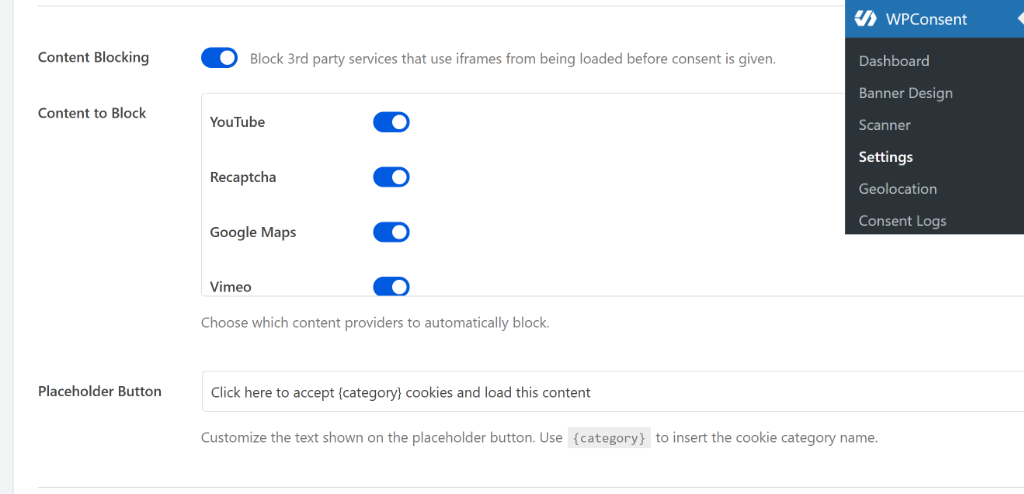
The WPConsent Logs keep a timestamped record that proves it actually happened that way.
Check out our beginner’s guide on WordPress and GDPR Compliance to learn more.
CCPA: Opt-Out
CCPA flips that. California visitors don’t have to agree to anything up front, but they do have the right to say “do not sell my data.”
Once they say it, you have an obligation to honor it and be able to prove you did. WPConsent covers this with a dedicated Do Not Sell system (Pro).
Setting your Do Not Sell page doesn’t take manual work either. Under Do Not Sell » Configuration, you can use the “Generate Do Not Sell Page” button to create the page for you and drop in the required shortcode automatically.
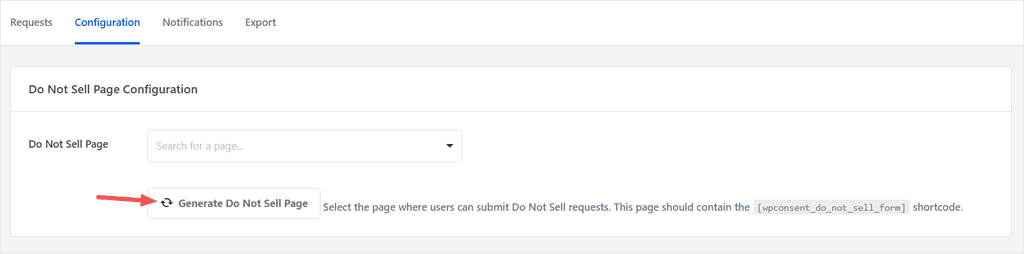
Already have a page you’d rather use instead? Pick it from the dropdown, and WPConsent adds the shortcode there. Either way, it’s a one-click setup.
Here is a full walkthrough on setting up a Do Not Sell page in WordPress if you want the step-by-step.
CCPA isn’t the only opt-out law the Do Not Sell system covers. Colorado, Connecticut, and Virginia have all passed similar privacy laws with their own opt-out requirements.
And the same form handles these requests too. You’re not setting up a separate system per state.
Check out this article to better understand the CCPA requirements and how to set it up.
Beyond the US, WPConsent’s own site also lists broader international support:
- LGPD (Brazil): Brazil’s GDPR equivalent, same opt-in logic, before a non-essential cookie fires, a visitor has to agree to it.
- PIPEDA (Canada): Canada’s federal privacy law covers how commercial sites collect and use personal information, cookie consent included.
- POPIA (South Africa): South Africa’s version of the same idea, consent and disclosure requirements for anyone collecting personal data.
- ePrivacy (EU): The EU’s cookie-specific rule that works alongside GDPR, the one that actually names cookies directly rather than personal data in general.
The best part is that WPConsent ships pre-built Location Templates for GDPR, CCPA, and LGPD.
One click adds a geolocation rule that targets the right region. It sets the correct consent mode, opt-in for GDPR and LGPD, and opt-out for CCPA. Plus, it pre-enables script and content blocking before you touch a single setting.
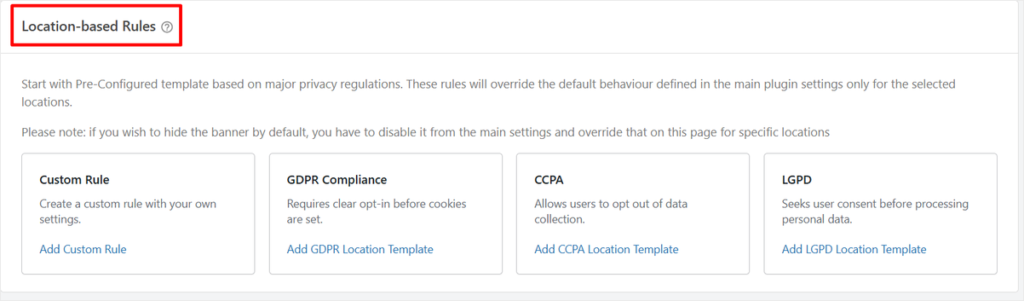
Each template also has optional toggles to customize the banner buttons or message if the defaults don’t fit your site.
You can also create custom rules with your own settings for locations without templates. You name the rule yourself, choose the target locations, and set opt-in or opt-out on your own.
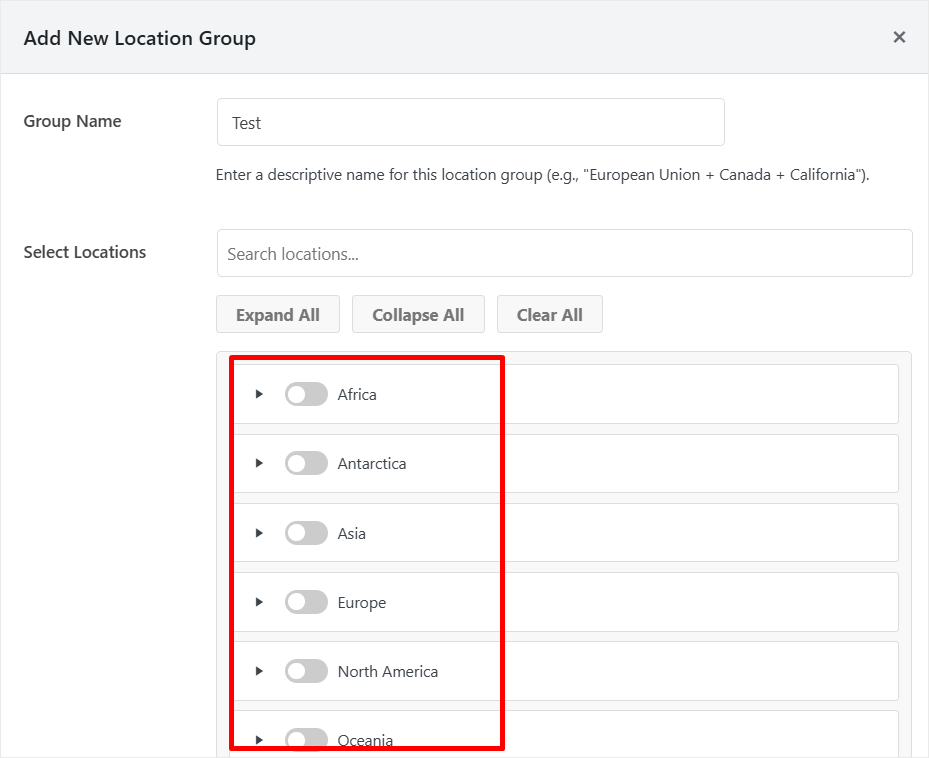
Here is a guide on the ultimate WordPress cookie consent requirements by country in 2026.
Documentation & Support
Forum Support for Lite
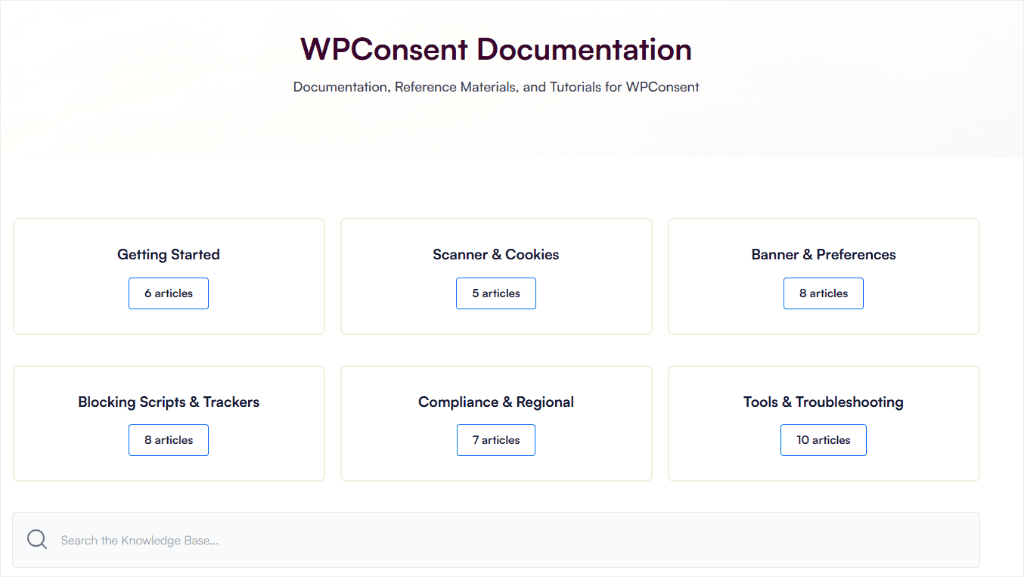
WPConsent’s help center is structured to make it easy for you to find what you are looking for fast and effectively.
It’s split into categories: Getting Started, Scanner & Cookies, Banner & Preferences, Blocking Scripts & Trackers, Compliance & Regional, and Tools & Troubleshooting.
This grouping ensures you find all the information you are looking for on one page.
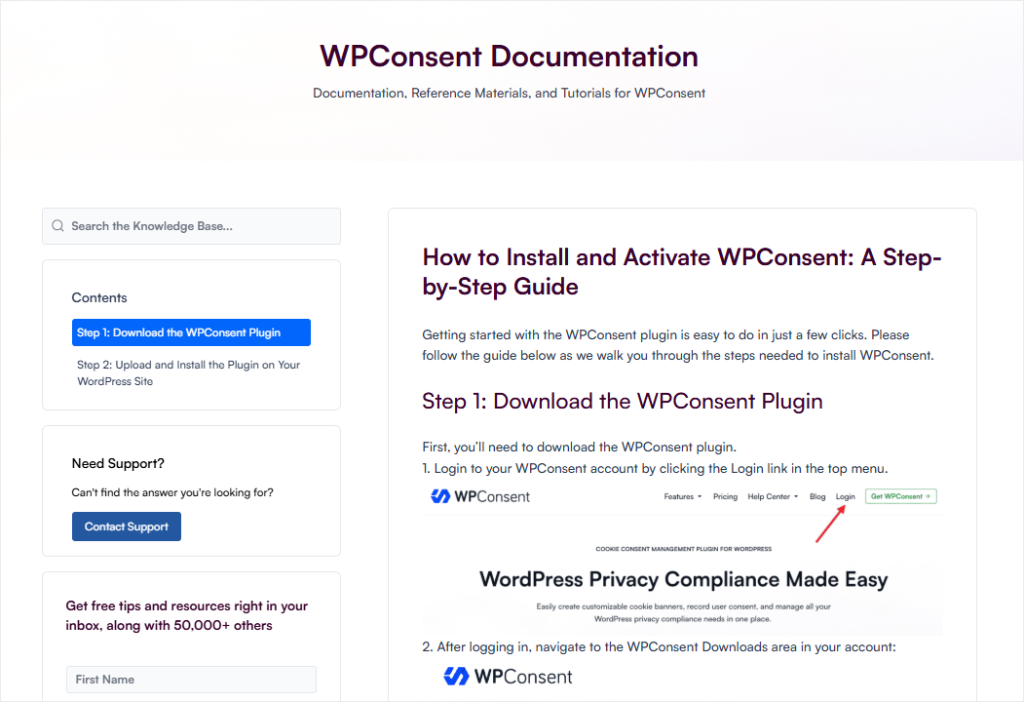
Open any individual article, and there’s a Contents sidebar running down the side. Plus, a Popular Articles list surfacing what other readers land on most.
This format ensures you get a direct answer, not a hunt through unrelated posts. Plus, the documentation itself is written in an easy-to-understand way with screenshots to help you visualize.
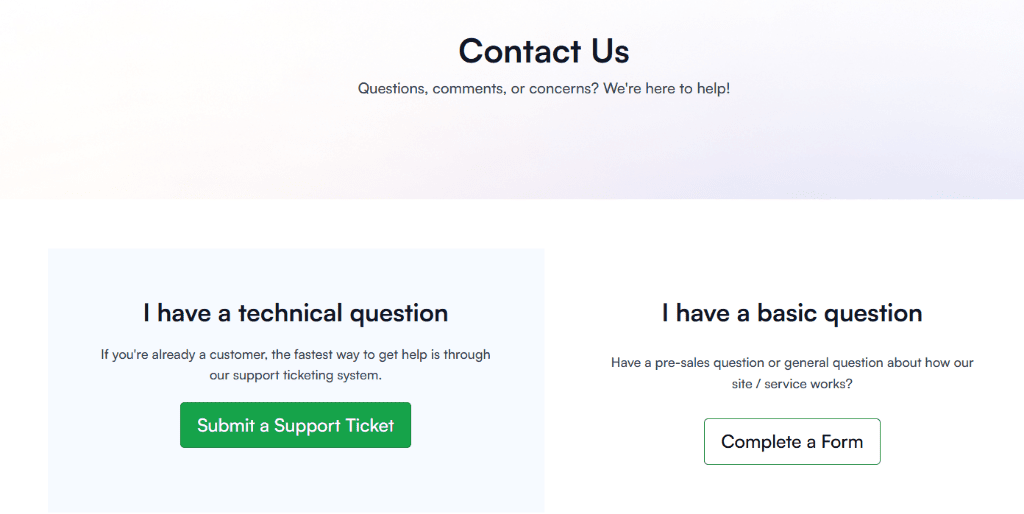
If the docs don’t cover your specific situation, there are two ways to reach an actual person. Which one you use depends on the question.
For basic or pre-sales questions, Contact Support opens a simple form: name, email, website URL, topic, and your message.
For anything technical (paying customers), the Support tab in your WPConsent account opens a ticket form with your account details already filled in. You just add the site URL, topic, and message.
Pricing
Best Multi-Site Value
WPConsent’s free version is not a stripped-down trial dressed up as a full product.
You get banner customization, script blocking, the cookie scanner, Google Consent Mode v2, the cookie policy generator, the compliance dashboard, all included. There is no pageview cap or time limit.
For a single WordPress site running standard analytics and marketing scripts, free covers the job completely.
Get the WPConsent Lite here →.
Paid plans add consent logs, IAB TCF v2.3, geolocation rules, scheduled scanning, and multi-site coverage:
| Plan | Sites | Price |
|---|---|---|
| Basic | 1 | $49.50/yr |
| Plus | 5 | $99.50/yr |
| Pro | 25 | $199.50/yr |
| Elite | 100 | $299.50/yr |
Now that you understand WPConsent’s pricing, see how it compares against other cookie consent plugins.
| Feature | WPConsent | Complianz | CookieYes | Termly |
|---|---|---|---|---|
| Free Plugin | ✅ | ✅ | ✅ | ✅ |
| Free plan limit | None | None (*see note on feature limits) | 5,000 pageviews/mo | 10,000 visitors/mo |
| Billing model | Per site, flat annual | Per site, flat annual | Per domain, monthly + overage | Monthly, visitor-based |
| Cheapest paid plan (1 site) | $49.50/yr | $59/yr | $10/mo | $10/mo |
| 25-site cost per year | $199.50 (100 sites: $299.50/yr) | $399 | Per-site pricing, no bulk rate | Per-site pricing, no bulk rate |
| Runs Without a Vendor Account | Yes | Yes | Yes | No, requires a Termly account |
| Full comparison | WPConsent vs. Complianz → | WPConsent vs. CookieYes → |
*Pricing and limits confirmed against each vendor’s own pricing page as of Jul 2026. According to users and reviews on WordPress.org, Complianz’s free tier no longer covers minimum legal requirements on its own.
Pros & Cons
🟢► Pros
- Google Consent Mode v2, included free: a feature several competitors gate behind a paid plan.
- The Site Consent Health checklist actually tells you what’s left: no guessing whether setup is finished. Every unchecked item says what it does and links straight to the fix.
- Script blocking that actually blocks, once you turn it on: set up so it does not fire before consent, no manual tagging required.
- No pageview cap on the free tier: unlike CookieYes, which quietly disables the banner at 5,000 monthly pageviews.
- Cheaper multi-site pricing than Complianz: $199.50/yr for 25 sites versus Complianz’s $399/yr for the same count.
- Per-cookie documentation through the Inspector: category, service, and description assigned individually, not lumped by type.
🔴► Cons
- Designed so nothing runs by default: the banner, script blocking, and Google Consent Mode v2 all sit off after activation.
Frequently Asked Questions
Is WPConsent free?
Yes. The free version on WordPress.org includes banner customization, automatic script blocking, the cookie scanner, Google Consent Mode v2, and a cookie policy generator with no pageview cap or time limit.
Does WPConsent support Google Consent Mode v2?
Yes, and it’s included in the free version at no extra cost. It isn’t on by default, though. It’s a toggle in Settings you switch on yourself, same as the banner and script blocking.
Does WPConsent slow down a site?
No, it doesn’t add a measurable load time of its own on a standard WordPress site. Script blocking runs before third-party scripts load, which is what stops them from firing early.
Is WPConsent GDPR compliant?
No plugin makes a site GDPR compliant by itself. That depends on what your privacy policy actually says, not just whether the plugin is installed. WPConsent gives you the technical pieces. For example, GDPR requires blocking, consent logging, and a cookie policy page. Setting them up correctly is still on you. If the whole category still feels fuzzy, our beginner’s guide to cookie consent covers the concepts this FAQ assumes.
Final Verdict: Should You Use WPConsent?
Yes, for most WordPress sites running standard analytics and marketing scripts, WPConsent is a strong option.
Google Consent Mode v2 ships free in the WPConsent plugin, which matters since it’s one of the most important pieces of the compliance picture. It’s a feature several competitors gate behind a paid plan.
Nothing here runs automatically. That’s by design, it’s not an oversight.
The banner, script blocking, and Consent Mode all sit off after activation. Budget ten to fifteen minutes to work through the Site Consent Health checklist, and the whole setup is handled.
WPConsent covers what a standard WordPress site actually needs: cookies blocked correctly until a visitor says yes, with the plugin updated as new consent regulations and standards come out.
Install it, run the checklist once, and you’re done in under fifteen minutes.
Get WPConsent for free →
See WPConsent pricing →
Additional Resources
Compliance is easier with the right setup. Here’s where to go next.
- 6 Best CookieYes Alternatives, Tested and Reviewed: if pageview caps or per-domain billing are what led you to look for an alternative
- 6 Best WordPress Cookie Consent Plugins Compared: see how WPConsent stacks up against the full field, not just Complianz and Termly
- Google Consent Mode v2: a closer look at the feature that carries most of this review’s recommendation