
Would you like to hold back a tracking script or an embedded widget that WPConsent doesn’t recognize on its own?
In this guide, we’ll walk you through building your own script and iFrame rules in the Custom Iframes/Scripts panel. All you need is WPConsent on your WordPress site.
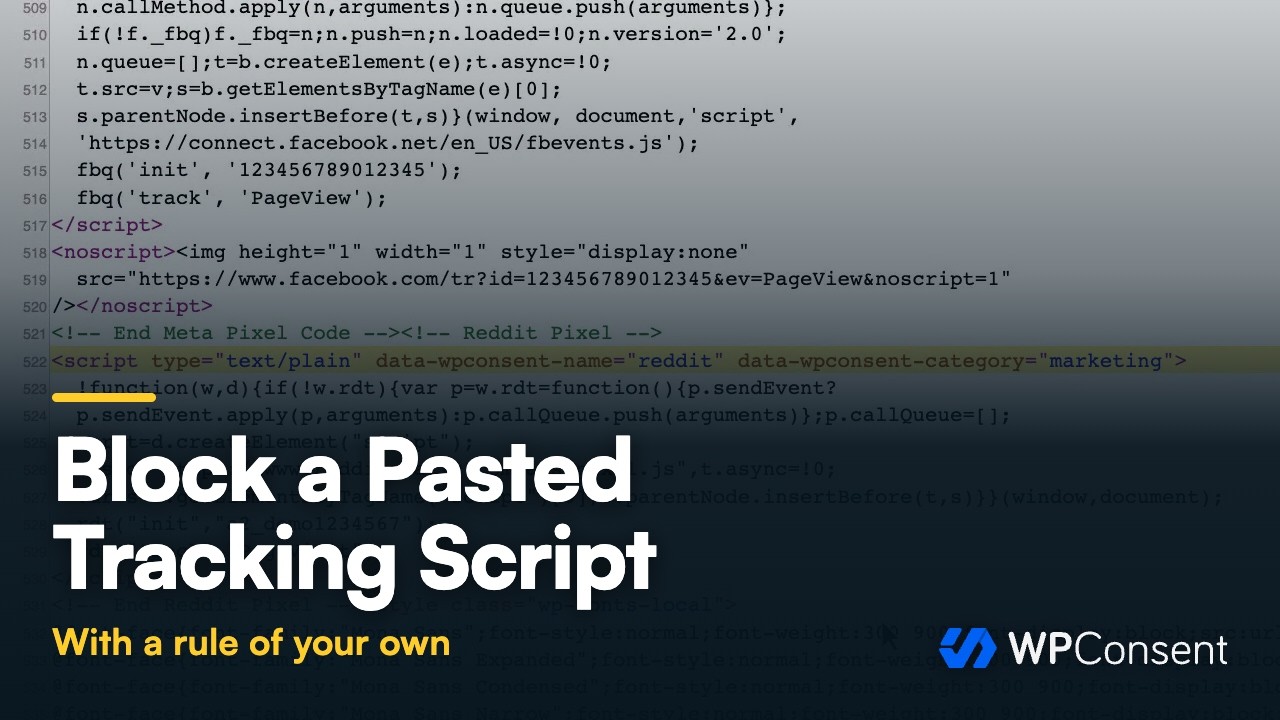
Requirements: The Custom Iframes/Scripts panel requires a paid version of WPConsent.
Table of contents
- Adding a Custom Script
- Adding a Custom iFrame
- Reviewing and Editing Your Entries
- Making Sure Your Rules Apply
- Frequently Asked Questions
Before you get started, make sure WPConsent is installed and activated on your WordPress site.
WPConsent keeps its own library of third-party services it already knows how to block, and refreshes that library automatically. A custom rule is for everything the library doesn’t cover. That might be an in-house analytics script, a widget from a niche provider, or an embed that loads from an address the library doesn’t match.
Adding a Custom Script
To get started, we’ll open the Advanced tab, which is where WPConsent keeps your custom script and iFrame rules.
From your WordPress admin sidebar, go to WPConsent » Settings. Then click the Advanced tab.
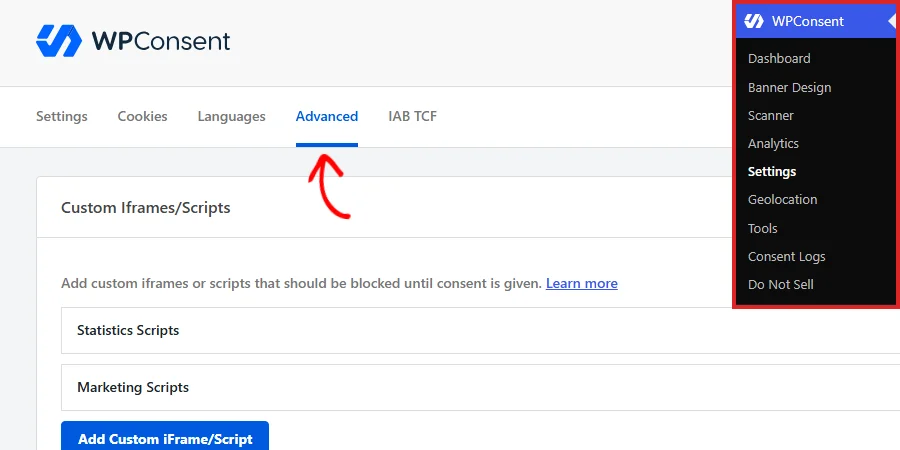
The tab opens on the Custom Iframes/Scripts panel. Your rules live in two groups here, Statistics Scripts and Marketing Scripts, which are the two consent categories a custom rule can belong to. Clicking a group’s title opens or closes it.
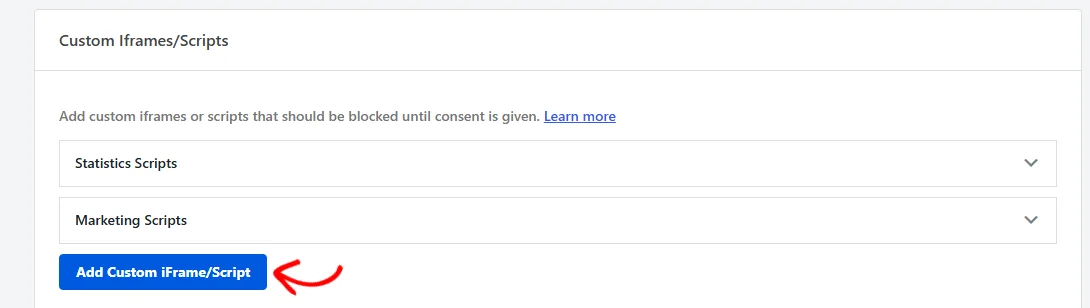
At the bottom of the panel, click Add Custom iFrame/Script.
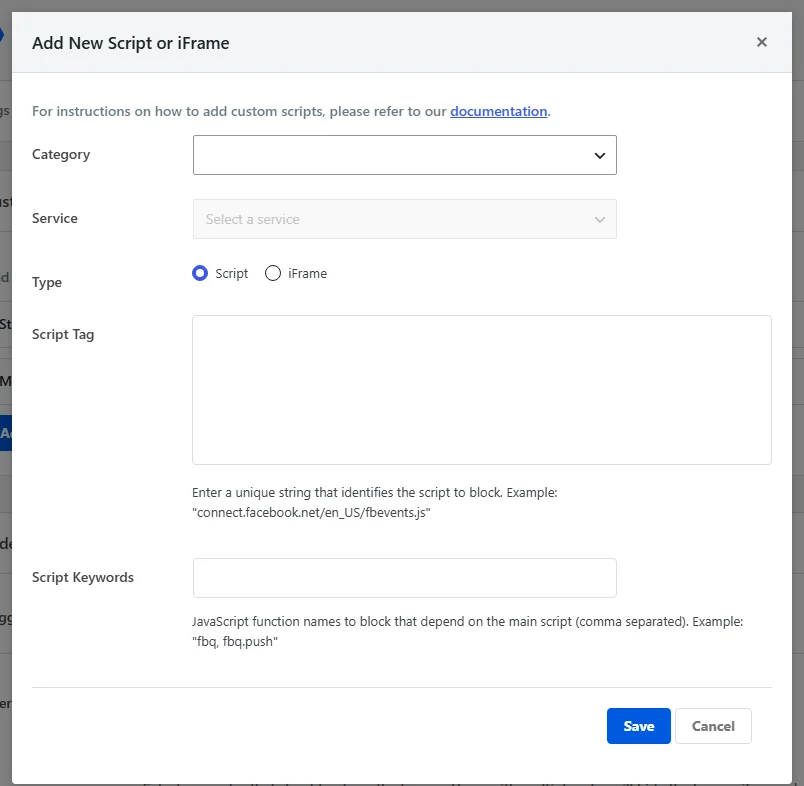
The Add New Script or iFrame form opens over the page. It asks for the consent category, the service, whether you’re blocking a script or an iFrame, and the text WPConsent matches it by.
Choosing the Category and Service
First, open the Category dropdown and pick the consent category this script belongs to. Statistics suits analytics and measurement scripts, and Marketing suits advertising, remarketing, and social scripts. Visitors who decline that category never load the script.

Next, open the Service dropdown and pick the service the script belongs to. The dropdown stays greyed out until you’ve chosen a category, because it lists the services inside the category you picked. WPConsent applies your rule through that service, so choose the real one rather than leaving it on No service.
If the service you need isn’t listed yet, our guide on managing services shows how to add it to a category.

Entering the Script Details
For Type, leave Script selected. The form opens with Script chosen, and it is the option for anything loaded by a <script> tag. That covers both a file hosted by a third party and a snippet written into your pages.

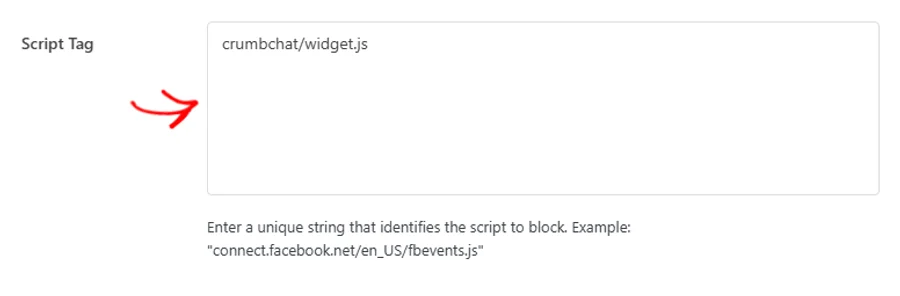
In the Script Tag box, enter a short piece of text that identifies the script. WPConsent looks for that text in each script’s address and in the contents of inline scripts, so part of the file path is enough. There’s no need to paste the whole tag.
The Script Keywords field is for the JavaScript function names that come with the main script, separated by commas. Many services load a single file and call its functions from small snippets throughout your pages. Listing those names holds the snippets back along with the file.

Saving the Entry
At the bottom of the form, click Save.

The form closes and your new rule joins the list. WPConsent stores it as soon as you click Save. The Save Changes button at the bottom of the Advanced tab belongs to the other panels on that tab.
Adding a Custom iFrame
An iFrame rule covers embedded content. That includes video players, maps, booking calendars, and chat windows loaded inside a frame by a third party. The steps are the same as for a script, with two different fields at the end.
To add one, click Add Custom iFrame/Script again and choose your category and service as before. Then, for the Type, select iFrame. The Script Tag and Script Keywords fields are replaced by iFrame Tag and Blocked Elements.

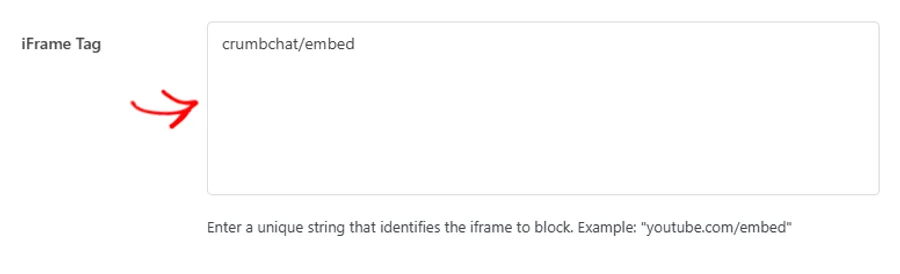
In the iFrame Tag box, enter a short piece of text from the address the frame loads from. WPConsent looks for that text in each frame’s address on your pages.
The Blocked Elements field takes CSS selectors, separated by commas. WPConsent adds a consent placeholder ahead of each matching element. A visitor then sees a covered panel with a button that accepts the category and loads the content.
This is useful when a widget builds its own frame after the page loads. The wrapper element is there from the start even when the frame isn’t.

When both fields are filled in, click Save.

Your iFrame rule is stored straight away, exactly as a script rule is.
Note: iFrame rules and their placeholders run through the Content Blocking switch on the Settings tab. The Making Sure Your Rules Apply section below covers it.
Reviewing and Editing Your Entries
Your rules are listed inside the group for their category.
To see what a group holds, click Marketing Scripts or Statistics Scripts.
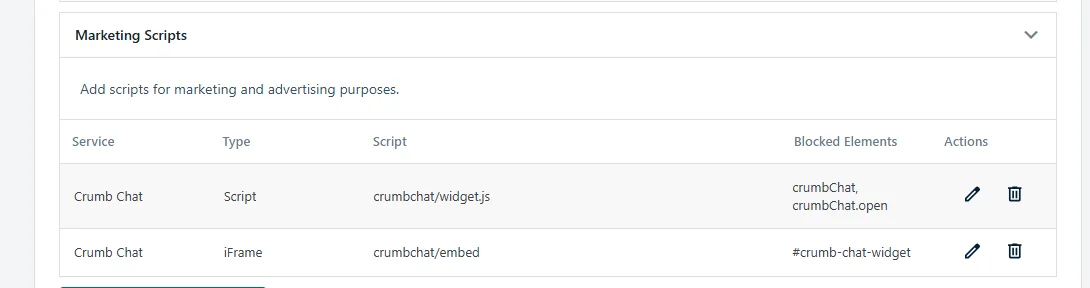
Each row shows the service, the type, the text WPConsent matches on, and the blocked elements or keywords you entered. That makes the list a quick way to check what a site is holding back, and under which category.
Two icons sit in the Actions column at the end of every row. The pencil reopens the rule for editing, and the bin removes it.
Removing a rule asks your browser to confirm first. It only affects the rule itself: your service, your category, and your cookies all stay exactly as they are.

With your rules in place, there are two switches worth checking so they take effect on your site.
Making Sure Your Rules Apply
Custom rules run through the same switches as WPConsent’s built-in blocking, and both of those switches live on the Settings tab beside the Advanced one. Script Blocking is the one that puts your script rules to work.
Content Blocking is the one that puts your iFrame rules and their placeholders to work. The Content to Block list beneath it is where each service is included.
Our guide on configuring WPConsent general settings covers both switches and the Content to Block list.
That’s it! You now know how to block any script or embed on your site until your visitors have given their consent.
Next, you might like to read our guide on WPConsent’s advanced settings, which covers the rest of the options on the Advanced tab.
Frequently Asked Questions
Below, we’ve answered some of the most common questions about custom scripts and iFrames.
Which categories can I add a custom rule to?
Statistics and Marketing. Those are the only groups the panel offers, and the only options in the Category dropdown. A script you have to block by hand is a measurement or an advertising script. Anything in your Essential category loads whatever a visitor chooses, so it needs no rule.
Do I need a rule for services WPConsent already knows?
No. WPConsent carries a library of common third-party services and keeps it up to date on its own. Those services are covered as soon as Script Blocking is on. Custom rules are for the scripts and embeds that library doesn’t match.
Do I also need to click Save Changes on the Advanced tab?
No. The Save button inside the Add New Script or iFrame form stores your rule by itself. Save Changes at the bottom of the tab belongs to the Hide Banner Rules and Advanced Settings panels below.
How much of the script address do I need to enter?
Enough to be unique to that script. WPConsent checks whether the text you entered appears anywhere in a script’s address or in an inline script’s contents. A file name, or a folder and file name, is enough. A shorter, more general piece of text will match more scripts than you intended.
What is the difference between Script Keywords and Blocked Elements?
Script Keywords are JavaScript function names, and they extend a script rule to the inline snippets that call those functions. Blocked Elements are CSS selectors, and they tell an iFrame rule which elements on the page get a consent placeholder. Each one belongs to its own type, which is why the fields swap when you change the Type.
Where do I change the wording on the placeholder?
On the Settings tab, in the Placeholder Button field, which our general settings guide covers. It sets the text on the button a visitor sees in place of blocked content. It also accepts a {category} tag, which WPConsent replaces with the name of the consent category involved.