
Would you like WPConsent to act on a visitor’s browser privacy setting without asking them to answer your banner? Global Privacy Control is a browser-level opt-out signal a visitor turns on themselves, and WPConsent can act on it for you. All you need is WPConsent on your WordPress site with the consent banner turned on.
This guide covers turning the setting on, wording the two messages it adds, and what a visitor who sends the signal sees on your pages.
Requirements: The consent banner needs to be turned on. WPConsent reads this signal as part of the banner’s own front-end scripts, which do not load without it.
Table of contents
- Turning On Global Privacy Control Support
- Wording the Two GPC Messages
- Seeing What a GPC Visitor Sees
- Letting a Visitor Override the Signal
- Checking the Signal on Your Own Site
- Frequently Asked Questions
Before you get started, make sure WPConsent is installed and activated on your WordPress site.
Turning On Global Privacy Control Support
A browser with Global Privacy Control turned on sends the signal on every page a visitor loads, as a standing request not to be tracked. There is nothing for you to install to receive it. A single setting decides whether WPConsent acts on it.
To get started, we’ll open the tab that holds that setting.
From your WordPress admin sidebar, go to WPConsent » Settings.
On that screen, open the Advanced tab.
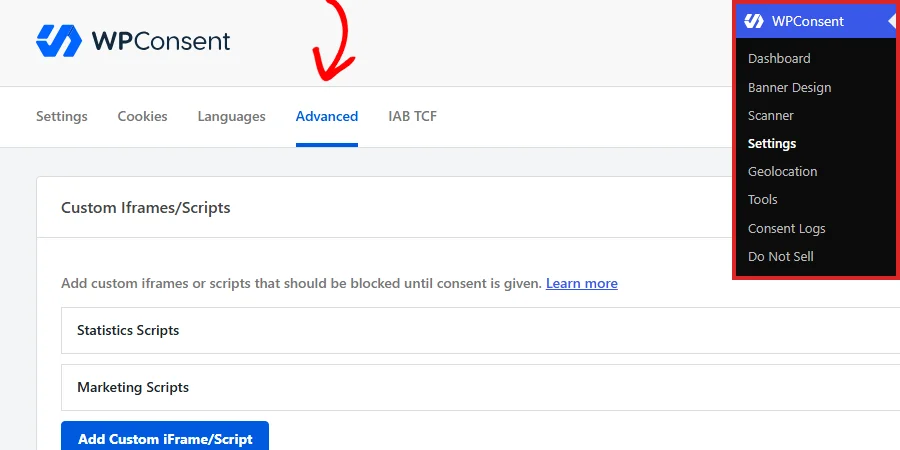
The tab ends with a panel called Advanced Settings, which is where this setting lives. WPConsent ships with it off, so the signal is ignored until you turn it on.
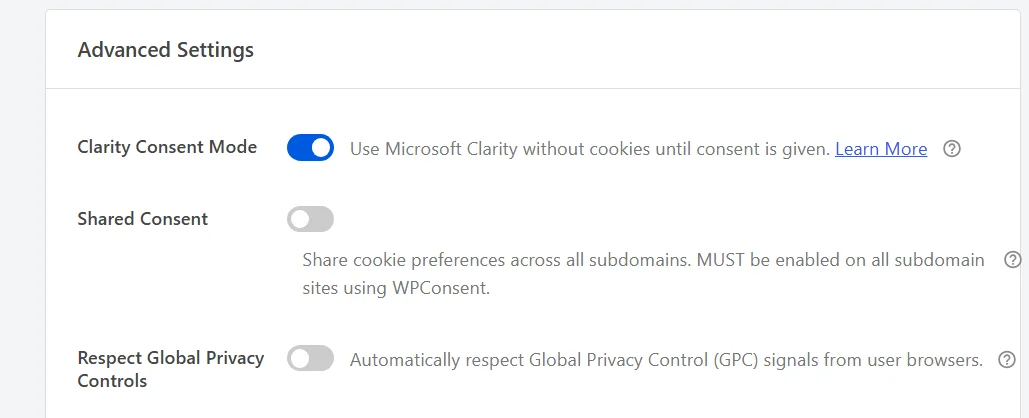
To act on the signal, switch on Respect Global Privacy Controls.
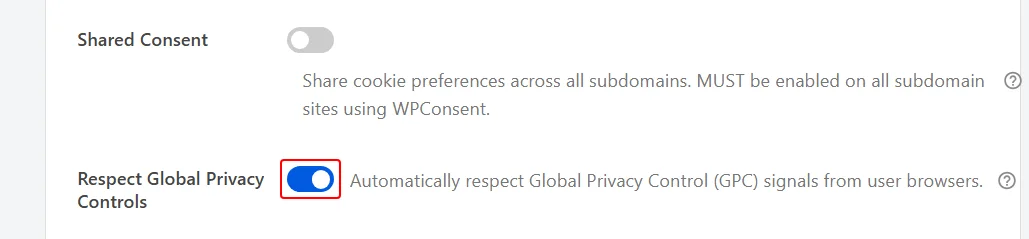
At the bottom of the page, click Save Changes.

WPConsent now checks every pageview for the signal. Nothing changes for visitors whose browsers do not send one. They see your banner exactly as before.
The other rows in that panel are covered in our guide on WPConsent advanced settings.
Wording the Two GPC Messages
Saving that setting adds two message fields to your banner content. Both are worth reading before you leave them at their defaults.
From your WordPress admin sidebar, go to WPConsent » Banner Design.
On that screen, open the Content tab.
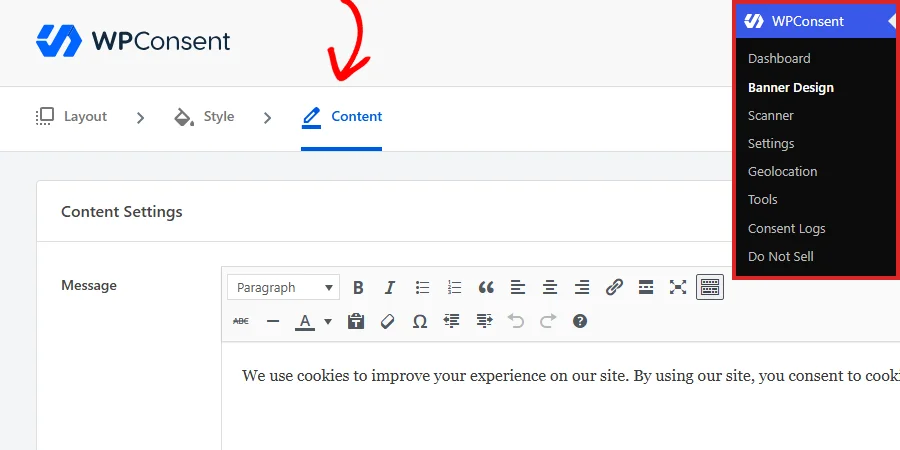
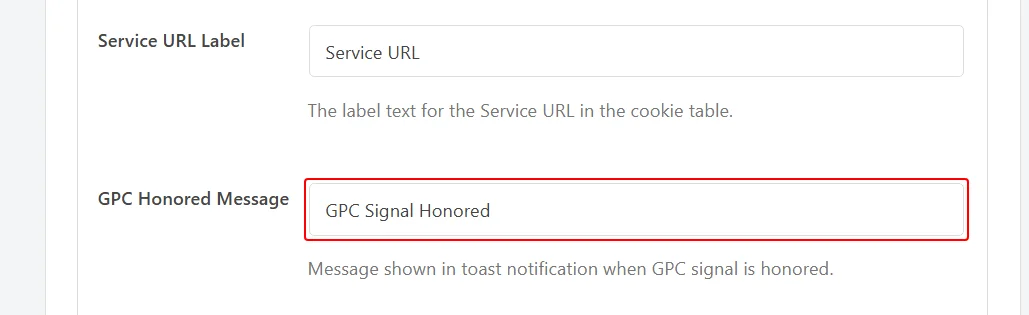
Next, scroll to the foot of the Preferences Panel section, where the two new rows sit below Service URL Label.
GPC Honored Message holds the wording of the short confirmation a visitor sees once WPConsent has acted on their signal. It ships as “GPC Signal Honored”. For a visitor who never sees your banner, that confirmation is the only message WPConsent shows them.
Note: In the paid version of WPConsent 1.1.8, the confirmation shows WPConsent’s own default wording, so this field’s text appears only on the free version. The GPC Override Message below applies to both.
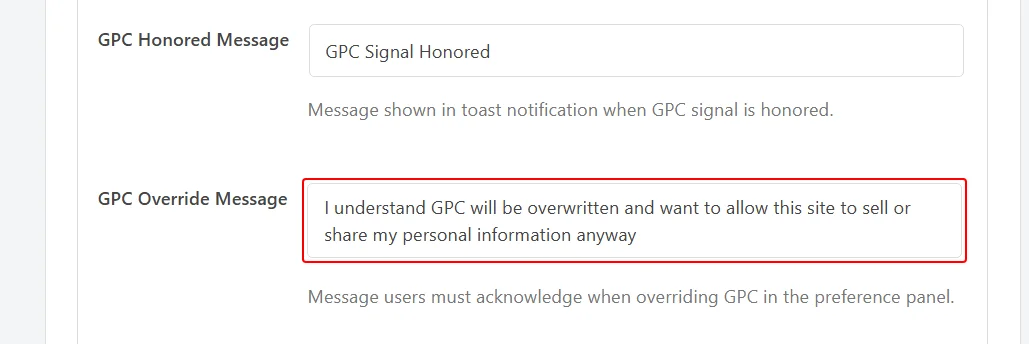
GPC Override Message holds the sentence a visitor acknowledges if they later decide to accept a category anyway. In that field, enter wording that spells out plainly what they are agreeing to, as the default does.
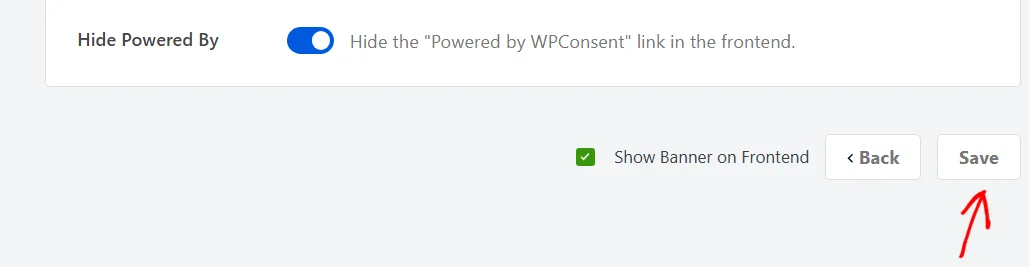
Once both messages read the way you want them to, click Save at the bottom of the page.
Every other field on this tab is covered in our guide on banner content and text.
Seeing What a GPC Visitor Sees
A visitor whose browser sends the signal never sees your banner. WPConsent declines every category except Essential for them and leaves the scripts in those categories held back. The confirmation appears in the corner of the page instead.
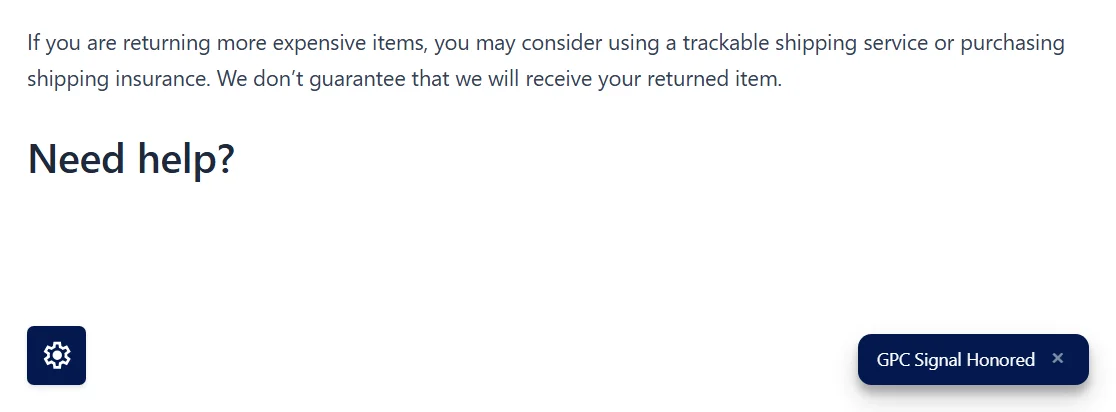
The confirmation clears itself after ten seconds, and it carries a close button so a visitor can dismiss it sooner. The floating consent button, if you have it turned on, stays available as usual. That is how these visitors reach their preferences.
Note: The confirmation takes the colors you set for your banner, so it will look different on a site with its own palette. On narrow screens it stretches across the bottom of the page instead of sitting in the corner.
Our guide on the floating consent button covers that setting.
WPConsent stores the same preferences cookie for these visitors that it stores for anyone who answers the banner by hand. Their choice carries from page to page and lasts as long as the consent duration you have set.
Our guide on WPConsent general settings covers changing that duration.
Letting a Visitor Override the Signal
A visitor can still change their mind. When they open the preferences panel, one extra row appears below the categories, carrying your GPC Override Message.
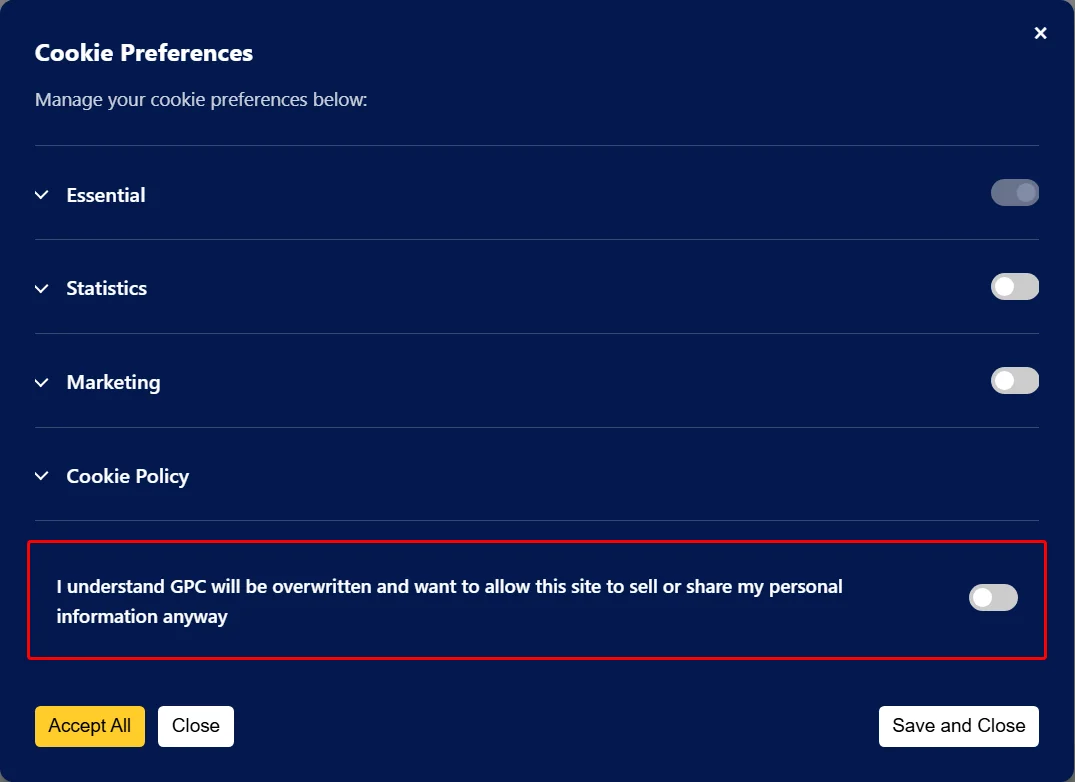
Turning a category on and saving does not go through on its own. WPConsent highlights the acknowledgment toggle beside the message and holds the save back until the visitor switches it on. That step is there so nobody undoes a browser-level choice without meaning to.
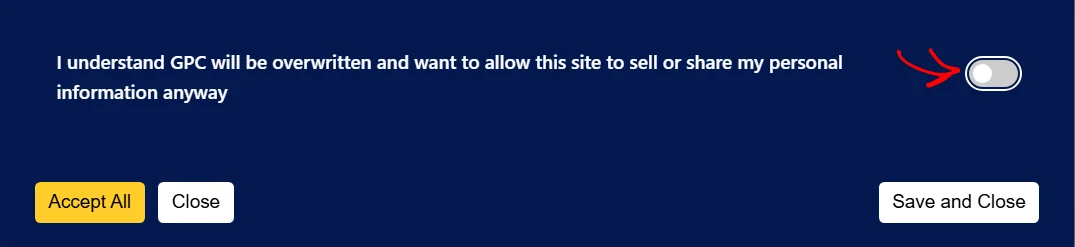
With the toggle on, the save completes and the visitor’s categories apply straight away. WPConsent then leaves that choice alone. The signal is not applied again on later visits, even though the browser keeps sending it.
Checking the Signal on Your Own Site
Once the setting is saved, the whole flow is worth confirming from a browser of your own.
To watch it happen, turn Global Privacy Control on in your own browser. Then open your site in a private window, so that no earlier consent cookie is in the way. With the setting saved and the signal reaching the page, your banner stays away and the confirmation appears.
Which browsers offer the setting, and where they keep it, changes over time. To find it, look through your browser’s own privacy settings, or a privacy extension you already trust, for a Global Privacy Control option.
WPConsent reads the setting from the visitor’s browser, so it has to be turned on in the browser you are testing with. A tool that only mimics the signal outside the browser does not produce the confirmation.
That’s it! WPConsent now acts on a visitor’s browser privacy setting on its own.
Next, take a look at our guide on understanding the preferences panel to see how visitors accept some categories and decline others.
Frequently Asked Questions
Below, we’ve answered some of the most common questions about Global Privacy Control support in WPConsent.
Do I need a paid license for this?
No. Respect Global Privacy Controls is part of WPConsent itself rather than a paid addon. It sits in the same place on the Advanced tab at every license level.
What happens to visitors who already answered my banner?
If their browser sends the signal, their stored answer is replaced by the opt-out set the next time they load one of your pages. The confirmation appears for them as well. The one exception is a visitor who has already overridden the signal through the preferences panel. Their own choice stands until their preferences cookie expires.
Why isn’t the confirmation showing when I test?
Three things stop it. The signal has to be turned on in the browser you are testing in, not mimicked by a tool outside it. The browser needs to arrive without a consent cookie from an earlier visit, which a private window takes care of. And the consent banner needs to be turned on in WPConsent settings, because WPConsent loads nothing on your pages without it.
What happens if a visitor clears their cookies?
WPConsent treats them as a first-time visitor again. With no stored answer to leave alone, the signal is acted on afresh, and the confirmation appears on their next pageview.
Does the signal show up in my consent logs?
Yes, if consent logging is turned on. That is part of the paid version of WPConsent, and with it running each of these visits is recorded like any other. The entry is marked as GPC Acknowledged. An entry made after a visitor overrides the signal is marked as GPC User Overridden instead. Our guide on consent logs covers reading them.
Does my analytics still count these visitors?
No. The scripts in your non-essential categories stay held back for them, exactly as they do for a visitor who rejects the banner. Our guide on automatic script blocking covers which scripts those are.