Short Answer
Your cookie banner acceptance rate is how many banner views end in Accept All. Every view counts, even when the visitor ignored the banner. WPConsent’s Banner Analytics feature counts this on your own server, on any paid plan. Open WPConsent » Analytics to see your rate for the last 30 days.
Key Takeaways
- Acceptance Rate = Accept All ÷ banner views. Visitors who ignore the banner stay in the count.
- Every paid plan shows the rate and what everyone else did, including the Ignored share.
- Pro and up adds date ranges, a before/after for your latest banner edit, a breakdown by location, and how much of your traffic each cookie category may measure.
- Collection is on by default. You can turn it off or delete the data at any time.
Your cookie banner shows up on almost every first visit to your site.
Some visitors accept, some decline, and many just keep scrolling.
But how many visitors land in each group? WordPress doesn’t tell you.
Google Analytics only shows part of the picture. With Consent Mode on, visitors who ignore the banner can still show up there, but with far less data. Plus, it doesn’t tell you how many people saw the banner in the first place.
In this guide, we’ll show you how to find your acceptance rate in WPConsent, what that number really measures, and how to test whether a banner change raises it.
Use the table of contents below to navigate this article.
- How to Track Your Cookie Banner Acceptance Rate in WordPress
- Troubleshooting: My Acceptance Rate Looks Wrong
- FAQs: Cookie Banner Acceptance Rate
- Start Tracking Your Cookie Banner Acceptance Rate
How to Track Your Cookie Banner Acceptance Rate in WordPress
WPConsent is the best free cookie consent plugin for WordPress.
The free version gives you a cookie banner, a cookie scanner, script blocking until visitors consent, and Google Consent Mode.
Paid plans start at $49.50 and build on that by showing how visitors respond to your banner.
Consent logs record every choice visitors save. Banner Analytics, used in this guide, adds the visitors who never chose.
Compare WPConsent Free and Pro to see the right plan for you.
Here’s what each paid plan shows in Banner Analytics:
- Basic and Plus: Banner Views, Decisions, Acceptance Rate, and the Share of Banner Views bar, for the last 30 days. Steps 1 to 3 cover these.
- Pro and Elite: everything above, plus date ranges, a day-by-day chart with your latest banner edit marked, Measurement Coverage, and a breakdown by location. Steps 4 and 5 cover these.
To see everything the plugin does, check out our WPConsent review.
Set Up WPConsent
Before you get started, you’ll need to buy a paid plan and install the plugin.
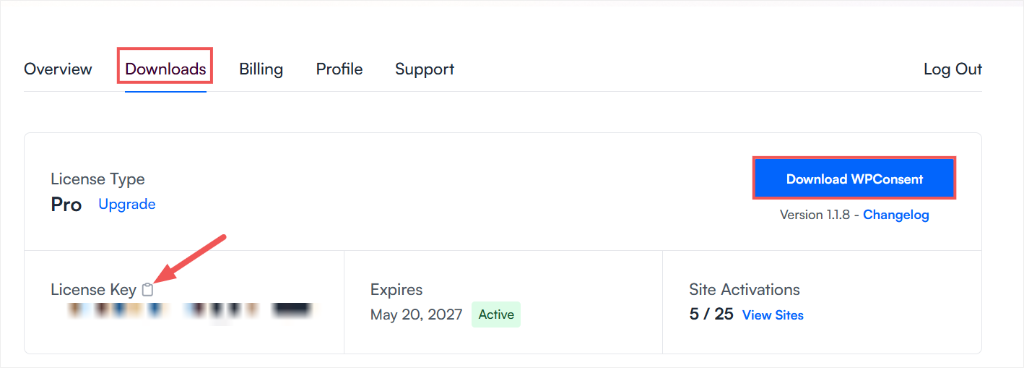
After you buy a plan, log in to your WPConsent account and open the Downloads tab. Download the plugin file and copy your License Key.
In WordPress, go to Plugins » Add New Plugin, click Upload Plugin, upload the file, and activate it.
Then use the setup wizard to paste your key into the License Key field, and verify it. It will also help you run a scan and set up your cookie banner.
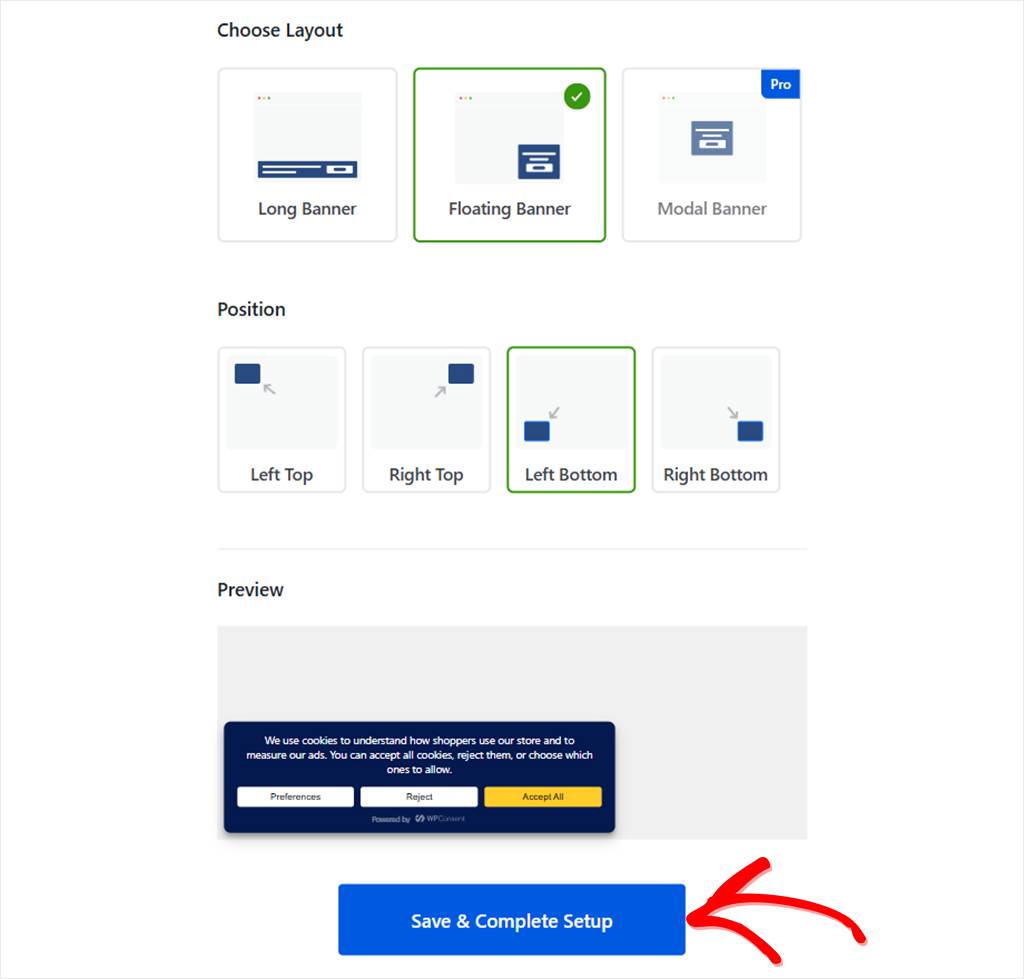
If you skip the setup wizard, you can verify your License Key under WPConsent » Settings. To set up and customize your banner, go to WPConsent » Banner.
If you run into any problems, check our documentation on setting up WPConsent.
Step 1: Check Banner Analytics Is Collecting (Paid Plans)
Banner Analytics is on by default in WPConsent 1.1.9 and later. If you haven’t yet, update WPConsent to the latest version.
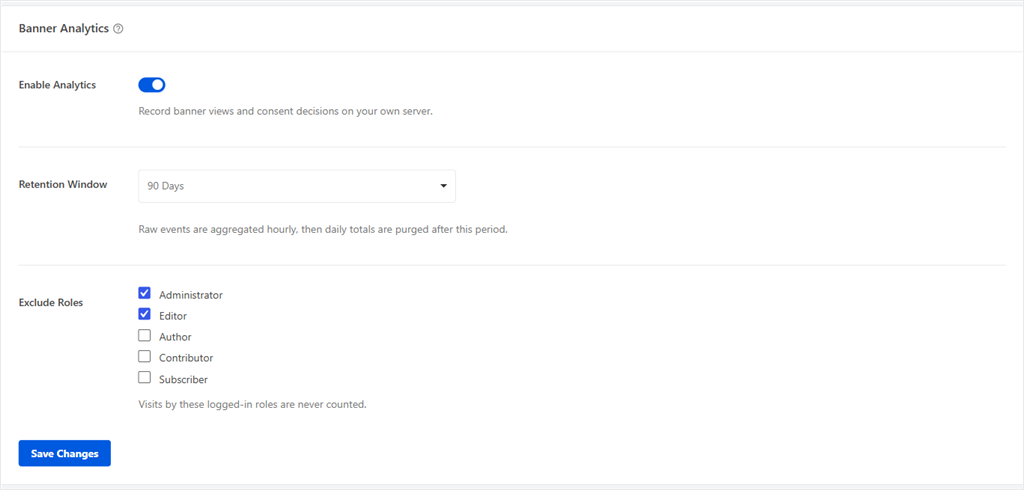
To check Banner Analytics, go to WPConsent » Analytics and click the Settings tab.
You will see three settings:
- Enable Analytics with a toggle button. When it is on, WPConsent records banner views and consent decisions on your own server.
- Retention Window sets how long the numbers are kept. The default is 90 days, and you can pick 30 Days, 90 Days, 180 Days, or 1 Year.
- Exclude Roles keeps your own team out of the numbers. Administrators and Editors are ticked by default, so your visits while you are logged in do not count.
Check the screenshot below to see the three settings.
If you change anything, click Save Changes.
Want to stop collecting? Turn Enable Analytics off and click Save Changes. What’s already stored stays until its purge date.
To wipe what is already stored, use the Delete All Analytics Data button in the Stored Data box on the same tab.
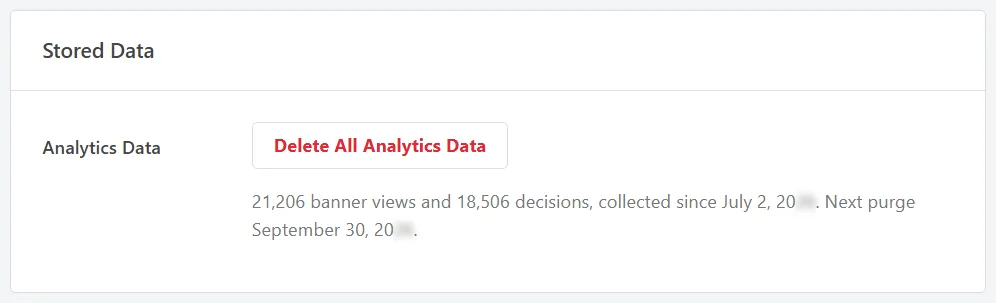
Counting starts from the moment Banner Analytics is on, and your first numbers should show up within the hour, once visitors start seeing your banner.
Is Banner Analytics More Tracking?
No. It counts what happens on your banner, not who your visitors are.
On your server, it stores only:
- the type of event (a banner view or a choice)
- the choice made and the cookie categories
- the visitor’s region group, if you use geolocation
- the time
It stores no IP addresses, and none of it leaves your server.
Step 2: Read Your Acceptance Rate
You can see your rate in two places. The quickest is the Banner Analytics box on WPConsent » Dashboard. It shows your last 30 days at a glance.
You will see three numbers:
- Banner Views: visits where your banner was shown (one per visit, not one per page)
- Decisions: visits where someone clicked a choice
- Acceptance Rate: visits that ended in Accept All, as a share of banner views
WPConsent compares Accept All against everyone who saw your banner, not just the people who clicked. Visitors who ignored it still count, and they lower your rate.
An Example From Our Test Site
The banner was shown 50 times. 15 visitors made a choice, and 9 of them clicked Accept All.
9 out of 50 is 18%. That is the rate WPConsent shows.
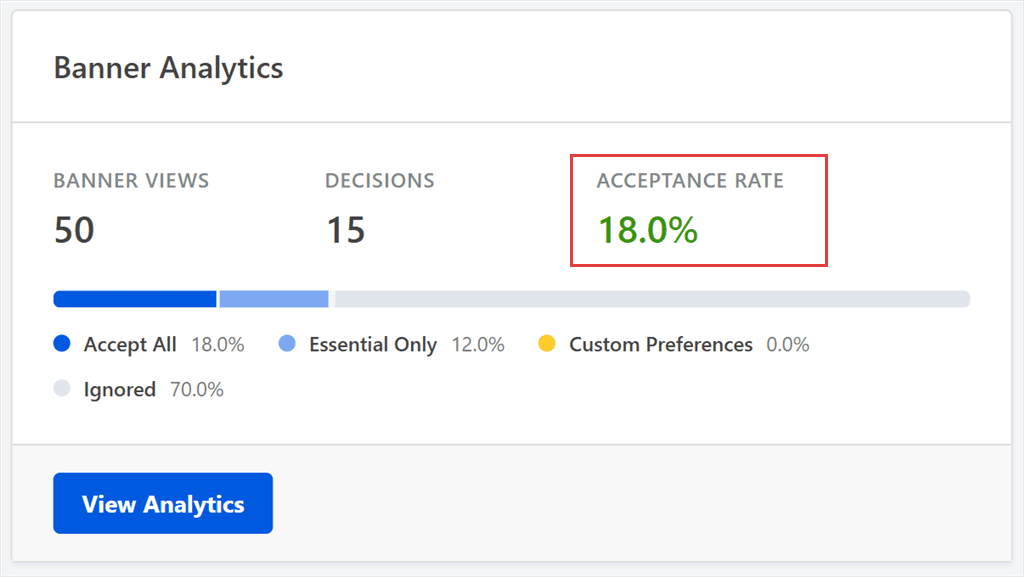
For the full report, click View Analytics, or go to WPConsent » Analytics. Both show the same last 30 days.
Why Some Consent Tools Show a Higher Acceptance Rate
Some tools work it out differently. They count only the 15 who clicked, which gives 9 out of 15, or 60%.
Neither number is wrong. They answer different questions:
- 60% shows how many people who made a choice picked Accept All.
- 18% shows how many people who saw your banner picked Accept All.
WPConsent shows the second one, so you also see visitors who ignore your banner.
So if another tool once gave you a higher rate, this may be why.
Step 3: See What Everyone Else Did
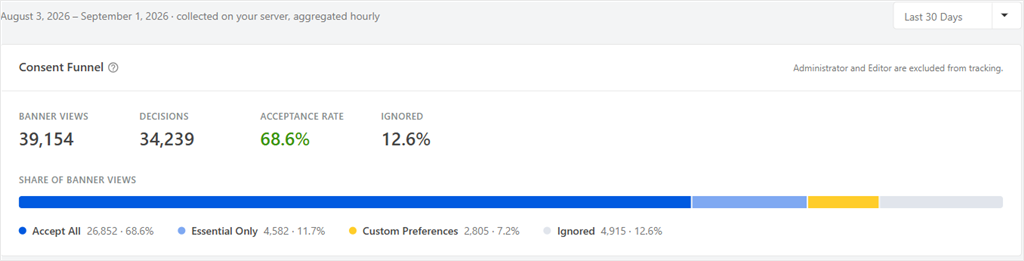
On the Analytics page, the Share of Banner Views bar shows what everyone else did.
It splits every banner view into four groups:
- Accept All: turned on every optional cookie category, either with the button or by ticking every box in your preferences panel
- Essential Only: turned every optional category off
- Custom Preferences: turned some categories on and some off
- Ignored: saw the banner and made no choice
Ignored is the group that the consent log doesn’t show you, because these visitors never saved a choice. On our test site, it was 70% of all views.
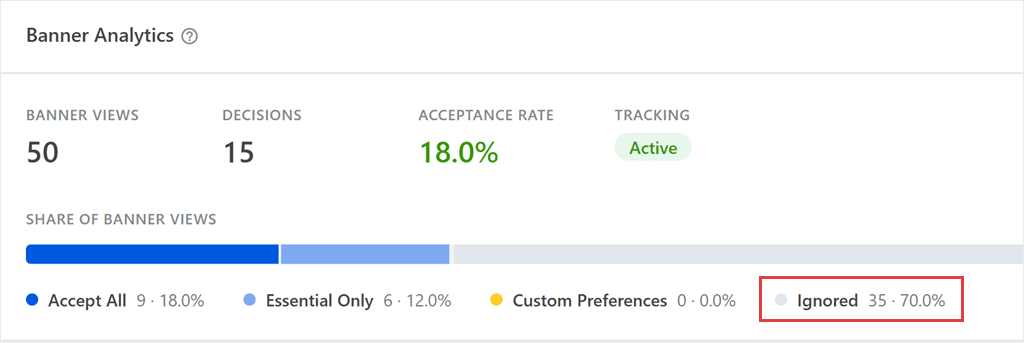
These are not rejections. These visitors just never answered.
So do optional cookies load for visitors who never answered? It depends on one setting, Default Allow, under WPConsent » Settings:
- Off: optional cookies wait for a choice, so they stay off.
- On: optional cookies load unless the visitor says no.
The Consent Funnel Card (Pro and Up)
On Pro and up, the Analytics page goes further. You can pick a date range and see how your rate changes over time. We cover this in detail in Steps 4 and 5 below.
You’ll find the same Share of Banner Views bar inside the Consent Funnel card.
That card also shows the Ignored share as its own number at the top, so you can spot it at a glance.
Step 4: See How Much of Your Traffic Your Tools Can Measure (Pro and Up)
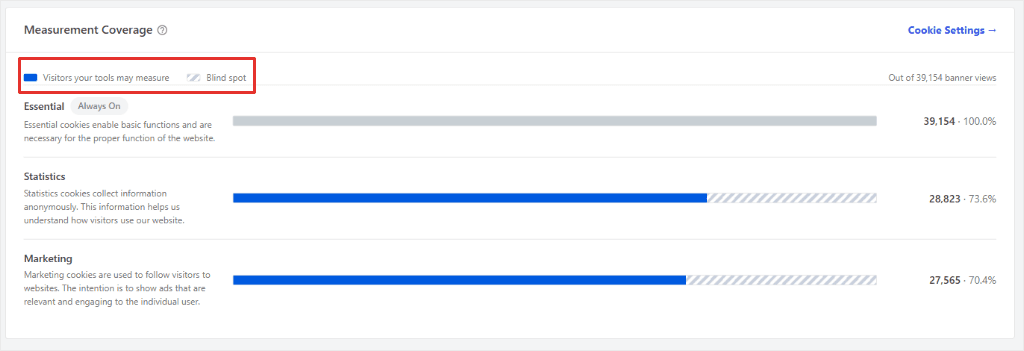
The Measurement Coverage card turns the same banner views into a different question: how many of those visitors each cookie category is allowed to measure.
Scroll down the Analytics page to the Measurement Coverage card.
It shows one bar for each cookie category on your site.
- The solid part of the bar is Visitors your tools may measure. Those visitors allowed that category.
- The striped part is the Blind spot. It represents banner views where visitors didn’t grant consent for that cookie category. Some declined, while others never answered the banner.
- Essential always reads 100%, because essential cookies are always on.
The Statistics row is the one to watch if you use Google Analytics. Its blind spot is roughly the share of banner views where your analytics can’t fully measure the visitor.
Google Analytics can still see those visitors, but only partly.
With Consent Mode on, WPConsent uses what Google calls Advanced mode. Google then gets limited signals from them, without cookies. So they still show up, just with far less data.
An Exception to the Blind Spot: Default Allow
There’s one case where the bar makes your blind spot look bigger than it is.
With Default Allow on, optional cookies load for visitors who ignore the banner. So your tools can measure them. But the card still counts them in the blind spot.
By Location Group (When Geolocation Is On)
Visitors in one country might accept far more often than visitors in another. A single rate for your whole site can hide that.
If you use location-based cookie consent, the By Location Group card shows each region separately. It sits below the Measurement Coverage card.
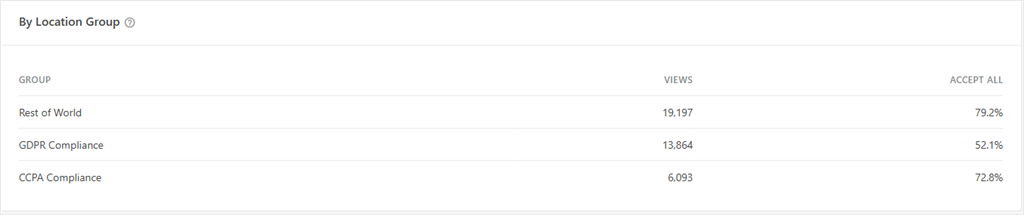
Each row shows banner views and the Accept All rate for one location group. Visitors outside every group show as Rest of World.
Step 5: Test One Banner Change at a Time (Pro and Up)
Now you know how much data you are missing. The next question is whether a change to your banner can win some of it back.
At the top of the Analytics page, pick a date range: Last 7 Days, Last 30 Days, Last 90 Days, or This Year (only shown when your Retention Window is 1 Year).
Then find the Acceptance Rate Over Time chart.
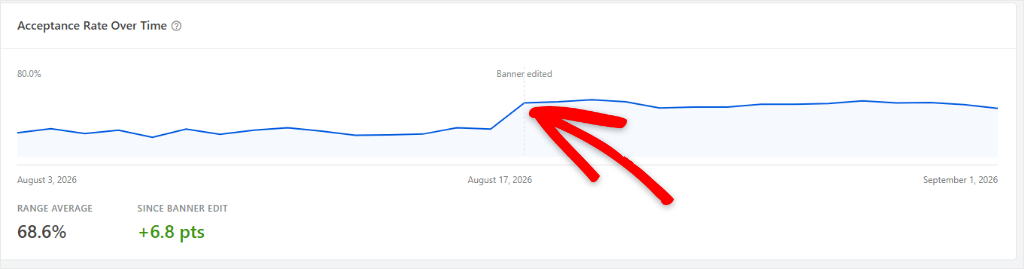
The line shows your acceptance rate day by day. A Banner edited line marks the last time you changed your banner.
Under the chart, Since Banner Edit shows how much your rate moved after that edit, in percentage points. So going from 20% to 25% shows as +5 pts.
Range Average is your average rate across the whole range.
To run a fair test, follow these steps:
- Pick one change. We recommend rewriting your banner message to fit your audience better. For example, say what you use cookies for in everyday words.
- Save it under WPConsent » Banner.
- Wait at least two full weeks, so weekdays and weekends both count. On a small site, wait longer. Two weeks might only bring a few dozen views.
- Come back and read Since Banner Edit.
Why only one change at a time? WPConsent keeps one marker. If you make a second change, the first change’s before/after is gone.
The marker moves when you change any of these: banner text, layout, position, button text, which buttons show, button order, Default Allow, or turning the banner on or off. Changing colors doesn’t move it.
Try not to change other parts of your site during the test. A busy season, like the holidays, can also move your rate on its own.
⚠️ Keep It Fair
Make the banner clearer, not harder to say no to. Never hide or shrink your Reject button.
CNIL’s digital innovation lab, LINC, has published a survey of user studies on dark patterns in consent banners, showing how banner design steers people’s choices. In December 2024, CNIL gave several website publishers one month to fix banners it found misleading.
Troubleshooting: My Acceptance Rate Looks Wrong
Here’s what to check if your numbers look off.
“It just says No Data Yet.”
Numbers are grouped once an hour, so your first ones should show up within the hour.
Nothing from before collection started can appear.
“My own visits aren’t showing up.”
That is on purpose. Administrators and Editors are excluded by default.
To test, use a private browser window while logged out.
“My banner views look low next to Google Analytics.”
WPConsent counts one banner view per visit, not per page. A visitor who ignores the banner across five pages counts once.
Returning visitors who already made a choice don’t see the banner, so they aren’t counted again, and the logged-in roles you excluded don’t count either.
Page caching does not affect the count.
“I can’t find This Year in the date ranges.”
This Year only shows when your Retention Window is set to 1 Year.
“I can’t see Since Banner Edit.”
It only shows when there are banner views both before and after your last edit, inside the date range you picked. Pick a longer range, like Last 90 Days.
“The chart says there aren’t enough days yet.”
The Acceptance Rate Over Time chart needs at least two days with banner views. Days with no views are skipped, so a quiet site can take a little longer.
“The Banner edited marker moved.”
Any later change to a tracked banner setting replaces it. That is why Step 5 says to make one change at a time.
“It doesn’t match my consent logs.”
Your consent logs keep every saved choice.
Banner Analytics counts differently. It counts one decision per visit, and only for visits where it also counted a banner view.
FAQs: Cookie Banner Acceptance Rate
What’s a good cookie banner acceptance rate?
There is no trustworthy single average. Rates swing a lot with banner design, the region your visitors are in, and whether your banner is opt-in. The most useful comparison is your own rate over time, which is what Step 5 is for.
Does Google Analytics show my acceptance rate?
No. Google Analytics doesn’t know how many people saw your banner, so it can’t work out the rate.
Visitors who ignore your banner can still show up there, with far less data. That’s because WPConsent runs Consent Mode in what Google calls Advanced mode. It’s also why GA4 traffic can drop with Consent Mode.
Google can estimate some of the missing visitors, but only on busier sites. It needs roughly 1,000 events a day from visitors who didn’t consent. On a smaller site, most of that data stays missing.
Do I need consent to track my acceptance rate?
We can’t answer that for every country, but here are the facts to check against your local rules.
Banner Analytics counts views and choices on your own server, stores no IP address, and sets no cookie.
It does keep one small flag in the browser’s session storage, so the same visit isn’t counted twice. The browser clears it when the visitor closes the tab.
If you’re unsure, you can turn Banner Analytics off under WPConsent » Analytics » Settings.
Is Banner Analytics on the free plan?
No. The free version of WPConsent shows a preview of the report, and counting starts once a paid plan is active. You can’t work the rate out from consent logs alone either, because visitors who ignore the banner never create a log.
Start Tracking Your Cookie Banner Acceptance Rate
Many visitors never answer your cookie banner. Until you count them, your acceptance rate only tells part of the story.
Now you know where to find your real rate, what your Ignored share means, and how to test a change.
Here’s a simple place to start. Open WPConsent » Analytics and note your rate and your Ignored share. Then make one change to your banner message.
On Pro and up, check Since Banner Edit after two weeks. On Basic and Plus, check back after 30 days, once your numbers only cover the new banner.
A clearer banner won’t win every visitor. But it can help more of them make a choice.
Ready to see how many visitors ignore your banner?
See WPConsent plans →
Not using WPConsent yet?
Get WPConsent for free →
Additional Resources
Four guides to help you get more from your consent setup:
- 6 Best WordPress Cookie Consent Plugins: how WPConsent compares if you’re still choosing a plugin.
- Facebook Pixel Consent Mode in WordPress: keep your Marketing cookies working for visitors who consent.
- How to Audit Your Site for Cookie Compliance: a step-by-step check of everything your site loads.
- How to Add a Cookie Consent Banner on WordPress: learn how to set up a consent banner for your website.