Short Answer
To let visitors change their cookie preferences in WordPress, install the free WPConsent plugin and turn on its floating Settings Button. You can also add a “Cookie Preferences” link to your footer or menu with one CSS class. Either one reopens the visitor’s saved choices, so they can switch categories on or off and save again.
Key Takeaways
- Once a visitor makes a choice, your cookie banner hides until that choice expires, 30 days by default in WPConsent.
- A floating button or a footer link lets them reopen their choices at any time.
- Every step in this guide works in the free version of WPConsent. There are no theme files to edit: you paste one class name.
- A changed choice clears the cookies on your site’s own domain and reloads the page.
Your cookie banner’s job is to ask visitors before your site sets cookies.
Most visitors click one of the buttons, and the banner goes away.
But what happens when someone changes their mind a week later?
Maybe they clicked Accept All without really reading it, and now they would rather not be tracked by the analytics and marketing tools running on your site.
On a lot of WordPress sites, there’s no way for them to change their cookie choices. The banner is gone, and nothing on the page brings it back.
In this article, we’ll show you how to give visitors a permanent way to reopen their preferences.
You’ll learn how to add a small floating button and a “Cookie Preferences” link in your footer or menu.
And you can do all of it with the free version of WPConsent.
Use the table of contents below to navigate this article.
- Why Do Visitors Need a Way Back to Their Cookie Choices?
- How to Let Visitors Change Their Cookie Preferences in WordPress
- Troubleshooting: My Cookie Settings Button Isn't Showing
- FAQs: Change Cookie Preferences in WordPress
- Give Visitors a Way to Change Cookie Preferences in WordPress
Why Do Visitors Need a Way Back to Their Cookie Choices?
Once a visitor answers your banner, it hides.
When they click Accept All, Reject, or save their Preferences, WPConsent stores that choice in their browser and the banner disappears.

The banner normally comes back only when that saved choice expires. In WPConsent, that is 30 days by default.
You can shorten that under Consent Duration in WPConsent’s settings. The banner then returns sooner, but still not when a visitor wants to change their answer.

So for up to a month, a visitor who changes their mind has no way to tell your site.
In the EU and UK, setting cookies is covered by the ePrivacy rules (PECR in the UK). Regulators read consent under those rules the way the GDPR defines it (the UK GDPR, in the UK).
And the GDPR is clear on taking consent back: “It shall be as easy to withdraw as to give consent” (Article 7(3)).
The UK’s data regulator, the ICO, applies this to cookies. It says a consent tool must let people withdraw consent as easily as they gave it.
Check out our guide on WordPress cookie consent requirements by country in 2026 to learn more.
Remember, a button doesn’t make your site compliant on its own. But it closes a gap that a lot of sites leave open.
Here’s how to close that gap on your site.
How to Let Visitors Change Their Cookie Preferences in WordPress
You’ll set this up in five short steps.
The floating button comes first, because it’s one switch that covers every page where your banner runs. Then you’ll add a text link for visitors who look in your footer or menu.
We recommend using both.
Step 1: Install WPConsent (Free)
WPConsent is the best cookie consent plugin for WordPress. It adds a cookie banner to your site, blocks tracking scripts until visitors agree, and remembers each visitor’s choice.
Already using WPConsent? Skip to Step 2.
Using a different cookie banner plugin? Set up WPConsent first, then deactivate the old plugin so visitors don’t see two banners.
Our guide to migrating from Cookiebot to WPConsent walks through it, and the steps work for other consent plugins too.
To install it, go to Plugins » Add Plugin in your WordPress dashboard.
Search for “WPConsent”, then click Install Now and Activate.
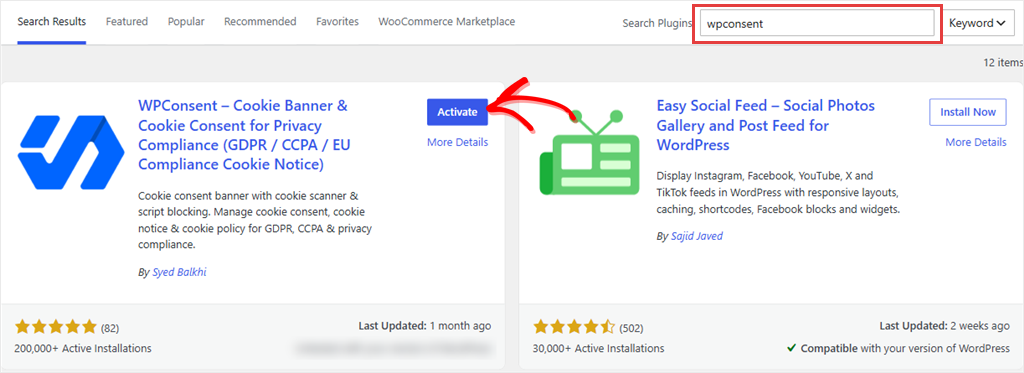
You can follow this guide on how to install WPConsent if you face any issues.
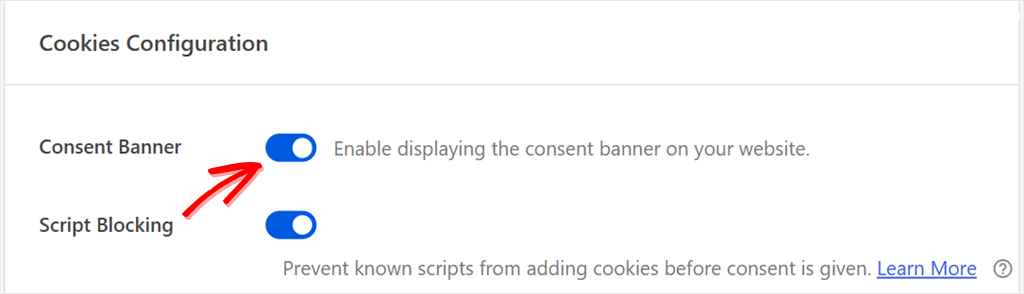
Next, make sure your cookie banner is turned on. The setup wizard turns it on when you finish it.
If you skipped the wizard, switch on Consent Banner in WPConsent » Settings, or follow our guide on how to add a cookie consent banner in WordPress for the full setup.
Step 2: Turn On the Floating Settings Button (Free)
The floating Settings Button is a small icon that sits in the corner of the screen once a visitor has made a choice, and one click on it reopens their cookie preferences.
It is off by default, so you’ll need to switch it on.
To do this, go to WPConsent » Settings and find the row labeled Settings Button.
Turn on the toggle that says “Show a floating button to manage consent after the banner is dismissed.”
While you’re on the Settings screen, you can also enable Toggle Services.
This lets visitors manage consent by service. They can switch single services on or off, like YouTube, not just whole categories.
It’s also a free WPConsent feature.
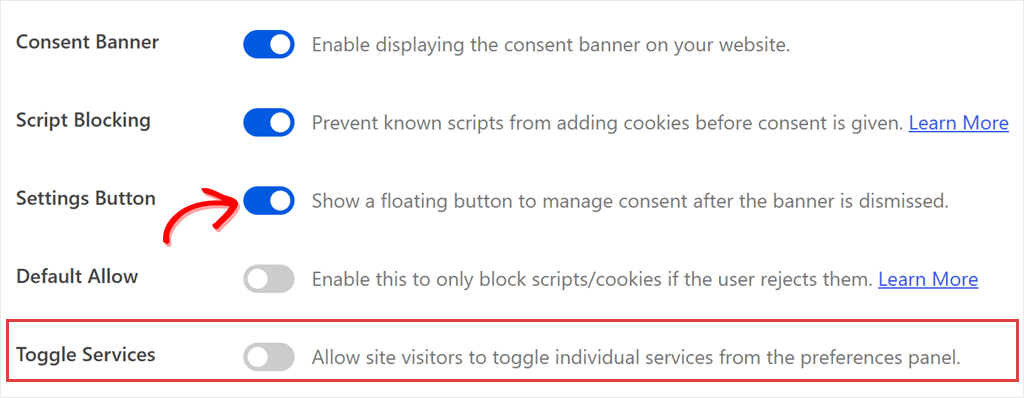
Then scroll down and click Save Changes.
After you save, the button only appears once you’ve answered your banner. We’ll show you how to test it in Step 5.
⚠️ Good to Know
WPConsent also uses the name “Settings Button” on the Banner Design » Content screen. That one is the Preferences button inside your banner, not the floating button, so you don’t need it for this guide.
Step 3: Choose an Icon That Fits Your Site (Free)
This only works once the floating Settings Button is on and saved (Step 2). Until then, the Floating Settings Button Design section doesn’t show.
To get started, go to WPConsent » Banner Design and open the Style tab.
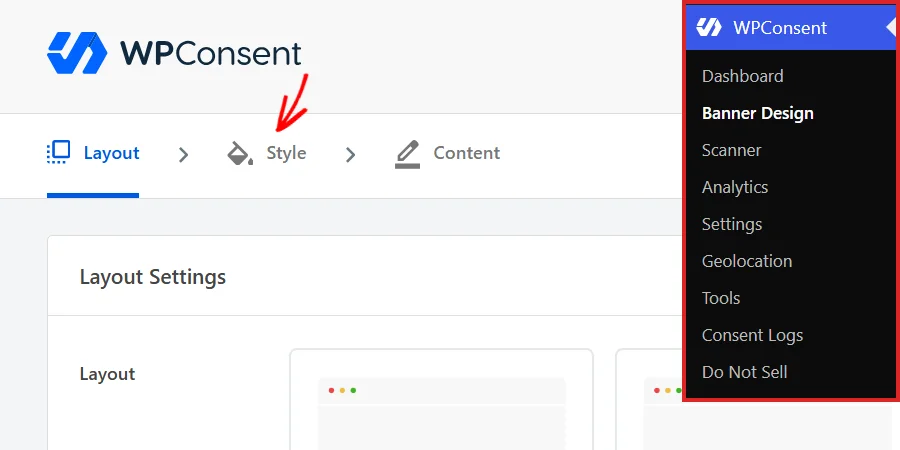
Scroll to the bottom, to the Floating Settings Button Design section.
Under Button Icon, you’ll see 11 icons plus a Your Image option for uploading your own.
The button uses a gear-style icon by default. If that does not suit your design, you can pick another one.
The button takes its colors from your banner’s background and text colors, so it matches without extra work. It sits in the bottom-left corner of the screen.
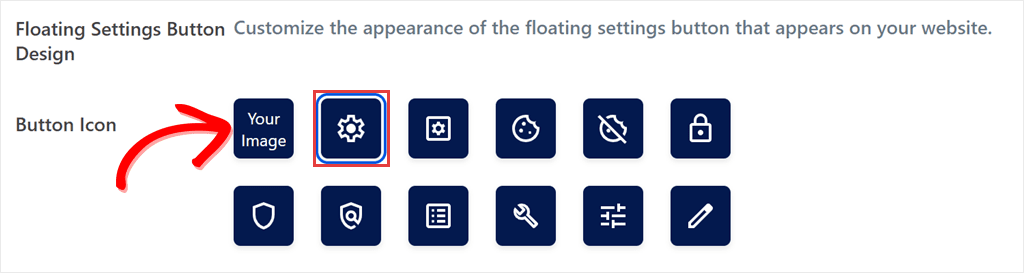
Pick one, then click Save & Continue at the bottom of the screen to save it.
Step 4: Add a Cookie Preferences Link to Your Footer or Menu (Free)
Some visitors won’t spot a small icon.
Others look for a “Cookie Preferences” link at the bottom of the page, next to your privacy policy.
You can add that link without touching any theme files. It takes one CSS class, which you copy and paste:
wpconsent-open-preferences
Any link, button, or block with this class opens the visitor’s cookie preferences when clicked. Our doc on opening the preferences panel with a custom link has more examples.
In Your Block Theme Footer
Go to Appearance » Editor, click Patterns, and open your Footer template part.
Click where you want the link, for example, next to your privacy policy link, and add a Paragraph block. Type “Cookie Preferences”.
Select those words, click the link icon in the toolbar, and type # as the link.
The # won’t send visitors anywhere: WPConsent catches the click and opens their preferences instead. Linking the words just makes them look like your other footer links.
With the block still selected, open the Settings sidebar (the square icon at the top right, if it’s closed), then open the Advanced panel at the bottom.
Paste wpconsent-open-preferences into the Additional CSS class(es) field.
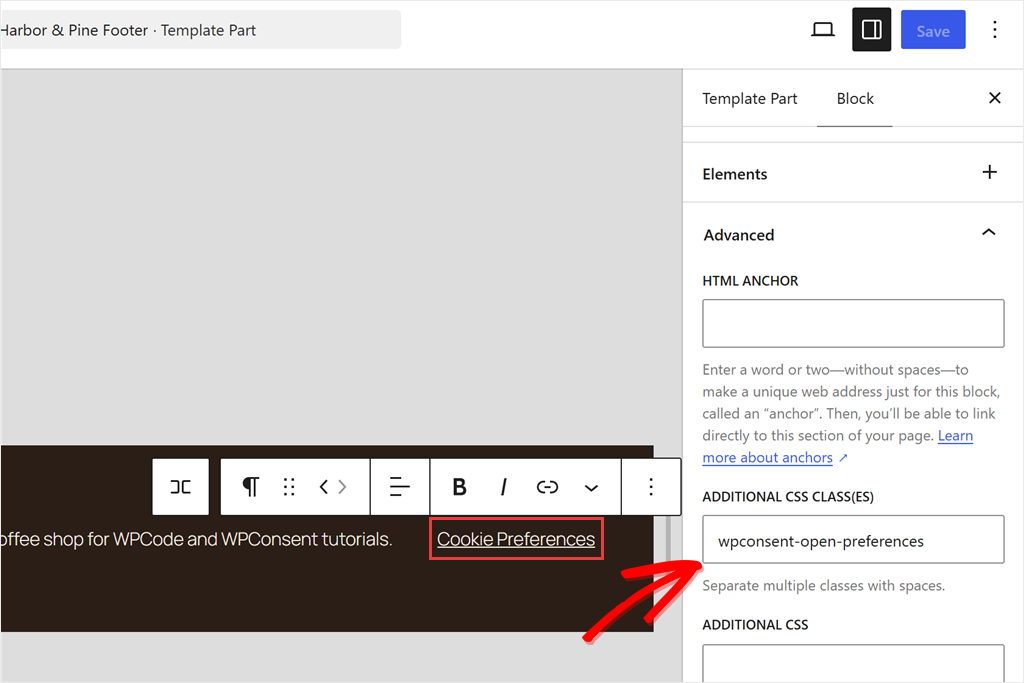
Click Save. If WordPress asks which changes to save, keep the footer ticked and click Save again.
Check out the screenshot below to see the link on a live footer.
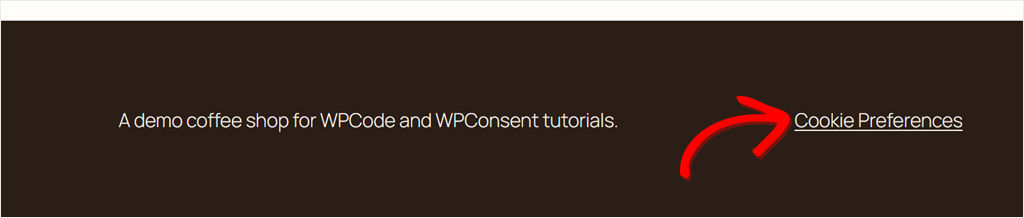
Would you rather put it in a menu? Add a link to your theme’s Navigation block, use # as its URL, and paste the class into the same Additional CSS class(es) field.
In a Classic Menu
On a classic theme, go to Appearance » Menus.
Click Screen Options at the top right and check CSS Classes. WordPress hides this field until you turn it on.
Next, add a Custom Link to your menu.
Use # as the URL and “Cookie Preferences” as the link text.
Open the menu item and paste wpconsent-open-preferences into its CSS Classes field. Then click Save Menu.
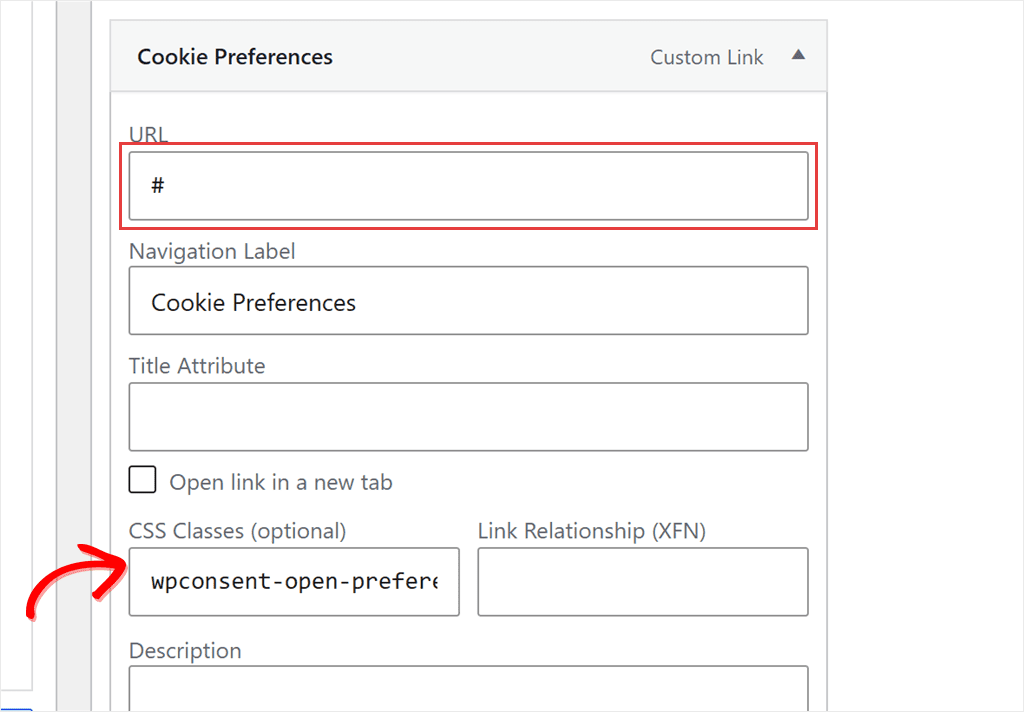
As in the footer, the # won’t send visitors anywhere.
With a Shortcode
Using a page builder or a widget area that takes shortcodes? Add this instead:
[wpconsent_preferences_button]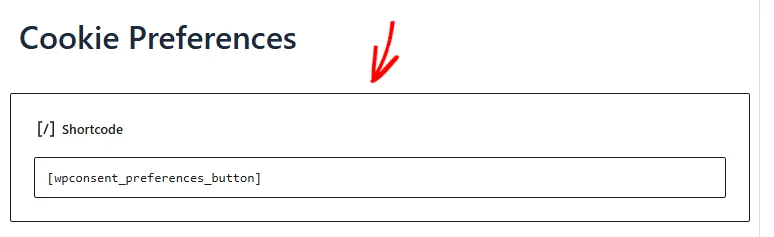
It adds a button labeled “Cookie Preferences”. It carries the standard button class, so themes that style that class will style it too. Some block themes don’t, so it may look like a plain button.

You can change the label too:
[wpconsent_preferences_button text="Manage cookies"]
This example changes the label to “Manage cookies”. Swap in your own wording.
Whichever option you pick, the link or button works with or without the floating icon.
So you can keep the link and remove the icon by switching off the floating Settings Button (see Step 2).
Step 5: Test Cookie Preferences as a Visitor
Now test both routes: the floating button and your Cookie Preferences link.
Your own browser already has your choice saved, so open a private or incognito window and visit your site.
You should see your cookie banner. Click Accept All.
The banner goes away, and the floating button appears in the bottom-left corner.
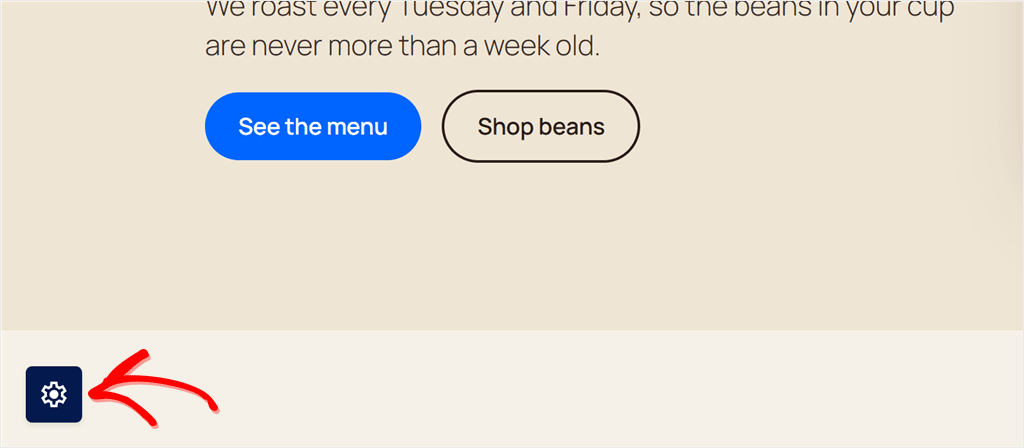
When we ran this test on our demo coffee shop site, that small icon was the only cookie control left on the screen.
It’s easy to miss, which is why we recommend the footer link too.
Click the button, and the Cookie Preferences panel opens with the visitor’s saved choice already filled in. After Accept All, every category is switched on.
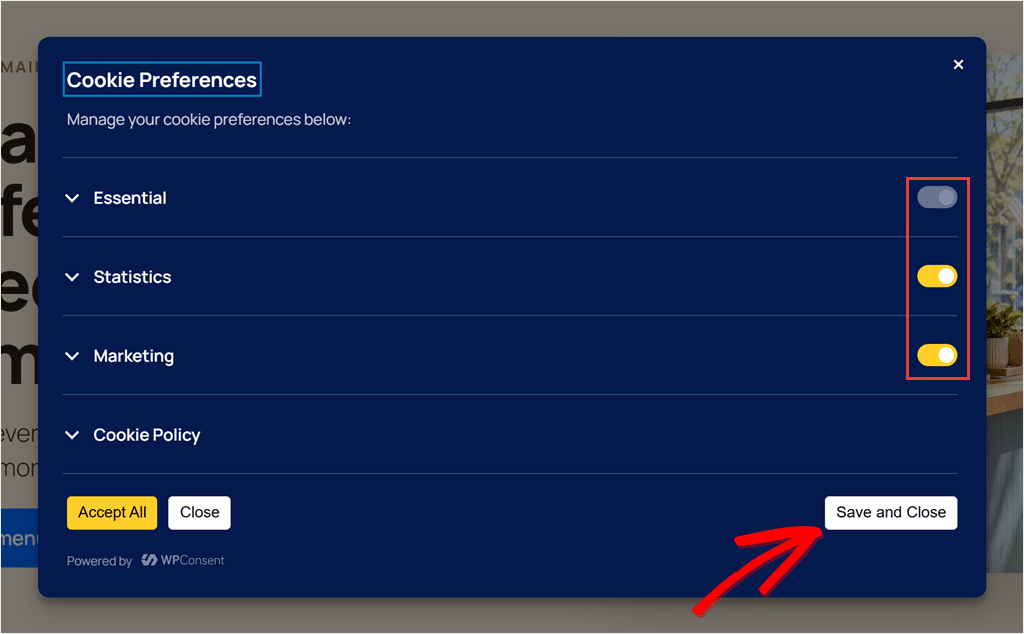
Essential cookies stay on, because your site needs them to work.
There’s no Reject button in this panel.
To turn everything else off, a visitor switches off the other categories and clicks Save and Close. On a default setup, that’s Statistics and Marketing.
Now try it as a visitor: switch Marketing off and click Save and Close.
Because the choice changed, WPConsent deletes the cookies set on your site’s own domain, like Google Analytics’ _ga cookie, and reloads the page.
Cookies stored on other companies’ domains, like an ad network’s, are outside its reach.
WordPress login cookies are protected from this, so a logged-in visitor stays logged in.
When the page reloads, click the floating button again. Marketing should now be switched off, which means your change was saved.
Finally, scroll to your footer and click your Cookie Preferences link. The same panel should open.
Troubleshooting: My Cookie Settings Button Isn’t Showing
If your test did not go as planned, it is usually one of these.
“I don’t see the banner in the private window.”
Check that the banner is turned on, as in Step 1. If it is, clear your page cache and try again.
“I saved the setting, but I don’t see the button.”
You haven’t answered the banner in that browser yet, and the button only appears after a visitor accepts, rejects, or saves their preferences. Click any banner button first.
“It’s missing on some pages.”
If you’re on a paid plan, check your Hide Banner Rules.
On pages or for user roles where the banner is hidden, the floating button is hidden too, and your Cookie Preferences link stops opening the panel.
“I changed the icon, but the old one is still there.”
Your page cache is probably serving an older copy, so clear the cache in your caching plugin or hosting dashboard, then reload.
“The link just jumps to the top of the page.”
The class is missing or misspelled.
Check that the element has exactly wpconsent-open-preferences, with no extra spaces or capital letters.
If the class is right, check whether that page is covered by your Hide Banner Rules. The panel isn’t loaded where the banner is hidden, so the link has nothing to open.
FAQs: Change Cookie Preferences in WordPress
Does opening the cookie preferences panel change a visitor’s consent?
No. Opening the panel only shows the saved choice. Consent changes only when the visitor clicks Save and Close or Accept All.
How often does the cookie banner come back?
When the visitor’s saved choice expires, 30 days by default. You can change it under Consent Duration in WPConsent » Settings.
Can I move the floating cookie button?
Not from the settings. You can move it with a short CSS rule, which our floating consent button doc shows.
Do logged-in users see the button?
Yes, in the free version. Logged-in users see the banner like everyone else, so they get the button and link too. If you use the Hide Banner Rules on WPConsent’s paid plans to hide the banner for logged-in users, the floating button disappears for them too. Your Cookie Preferences link still shows, but it won’t open anything for them. Our guide to cookie consent for membership sites explains why logged-in members still need to give consent.
Give Visitors a Way to Change Cookie Preferences in WordPress
You now have a way for visitors to change their cookie choices whenever they want, on any page where your banner runs.
Run the private-window test from Step 5 again whenever you change your theme, footer, or menu. It takes a minute.
Keep in mind this is one part of handling consent.
Your banner, your cookie policy page, and blocking scripts before consent all matter too. Not sure how a cookie policy differs from a privacy policy? Our guide explains the difference.
Don’t have WPConsent on your site yet?
Get WPConsent for free →
Want location-based banner rules and records of every consent choice?
See WPConsent plans →
Additional Resources
These guides help you check the rest of your consent setup.
- How to Audit Your WordPress Site for Cookie Compliance: find the gaps beyond the preferences button
- How to Manage Cookie Consent Data in WordPress: see and export the choices visitors make (paid plans)
- How to Set Up Location-Based Cookie Consent in WordPress: show the banner only where you need it
This article is for general information and does not constitute legal advice. Consult a licensed attorney about the rules that apply to your site. No tool, WPConsent included, can by itself guarantee compliance.