Short Answer
Sometimes a script loads before a visitor makes a choice, even with your cookie banner showing. If so, it’s either loading on purpose or it isn’t passing through your consent plugin. In WPConsent, start with a clean test in a private window. Then check that Script Blocking is on, and that Google Consent Mode or Default Allow isn’t letting the script load by design. If neither explains it, check that WPConsent recognizes the script. Tracking added by Google Tag Manager, another plugin’s loader, or your server needs a fix in that tool.
Key Takeaways
- Test in a private window while logged out to rule out saved consent and caching.
- Use the WPConsent Inspector to see which cookies load before consent.
- With Google Consent Mode on, WPConsent uses Google’s Advanced consent mode, so Google tags can load with consent denied.
- Custom rules handle scripts WPConsent doesn’t recognize.
- Google Tag Manager, other plugins’ loaders, and server-side tracking need consent set up in those tools.
A cookie banner and script blocking do two different jobs. The banner asks visitors for their choice. Script blocking holds tracking scripts back until they make a choice.
So your banner can show on every page while Google Analytics or the Meta pixel still loads in the background.
Some scripts load on purpose. Others may not be passing through your consent plugin at all.
In this article, we’ll show you how to find out why a script loads before a visitor makes a choice, and how to fix it.
Most checks take a few minutes and work with the free version of WPConsent. You will need a paid plan for custom script rules and the PixelYourSite integration.
Use the table of contents below to navigate this article.
How to Fix a Cookie Banner That’s Not Blocking Scripts
Every step below uses WPConsent, the best free cookie consent plugin.
Its Inspector lets you test your site like a first-time visitor. If you don’t have it yet, install it for free from the WordPress plugin directory.
Step 1: Test Like a First-Time Visitor (Free)
Before changing any settings, set up a clean test. Three things can throw it off, and each one has a quick fix:
- Clear every cache. Your caching plugin, host, or CDN may serve an older copy of the page that doesn’t include your latest settings. Clear your caching plugin’s cache, plus your host’s cache or CDN if you have one. WPConsent doesn’t clear these for you when you save its settings.
- Open a private (incognito) window. Your browser remembers consent choices, so scripts you already accepted keep loading for you. A private window starts with no saved choices.
- Stay logged out. Some plugins behave differently when you’re logged in. Visit your site in the private window without logging in.
Check a Script in the Page Source
Next, find out whether the script you’re worried about is actually being held back.
To do this, right-click the page in your private window and choose View Page Source.
Then press Ctrl+F (or Cmd+F on a Mac) and search for the tracker’s name, like facebook or gtag.
A script WPConsent is holding back carries type="text/plain" and a data-wpconsent-name label.
The browser treats it as plain text, so it doesn’t run until the visitor consents.
Here’s the Meta pixel on our demo coffee shop site, held back exactly like that.

If your script shows up without those labels, WPConsent isn’t holding it back. That isn’t always a problem. Google tags, for example, can load with consent denied (Step 3 explains when). The Inspector below helps you find out which step to check.
Run the Cookie Inspector
WPConsent’s Cookie Inspector is a built-in way to check which cookies your site sets in your WordPress dashboard with no code reading at all.
Use your normal, logged-in browser window for this part. Go to WPConsent » Scanner and click the Inspector tab.
The line at the top of that tab names the mode the Inspector is running in. Check it before you start:
- Discovery mode means script blocking is switched off. That might explain why scripts load early, so skip the Inspector for now and go to Step 2. Then come back and run the Inspector.
- Opt-out mode means the Default Allow setting is on, so scripts load until a visitor rejects them. Go to the Default Allow part of Step 3. Switch it off, then come back and run the Inspector.
- Opt-in mode means script blocking is on and working the normal way. Run the Inspector to see which cookies still load early.
Here’s the Inspector tab in Opt-in mode.
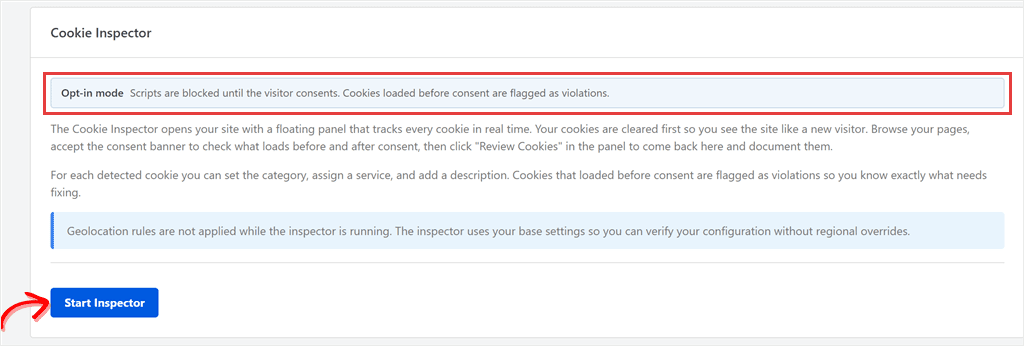
Click Start Inspector to open your site with a floating Inspector panel.
It clears your cookies first, so you see the site the way a new visitor would.
Now browse a few pages.
The panel counts the cookies set before you gave consent and lists the ones that need your attention.
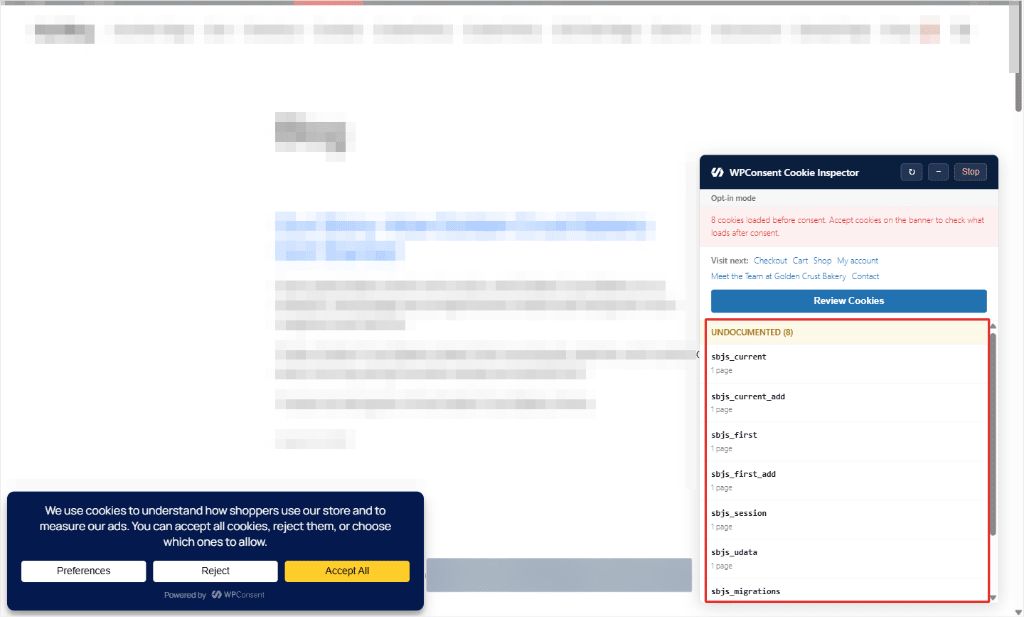
The Inspector shows cookies, not scripts. If a script runs without setting a cookie, check the page source as well.
Found a cookie that loads before consent? Not every one is a problem. Cookies your site needs to work, like a shop or donation session cookie, can be set before consent too.
For any others, go to Step 3 to check whether they’re loading on purpose.
Step 2: Make Sure Script Blocking Is On (Free)
A cookie banner and script blocking are two separate settings. If script blocking is off, visitors still see the banner, but your scripts load anyway.
To check that script blocking is on, go to WPConsent » Settings. Look for the Script Blocking toggle in the Cookies Configuration box.
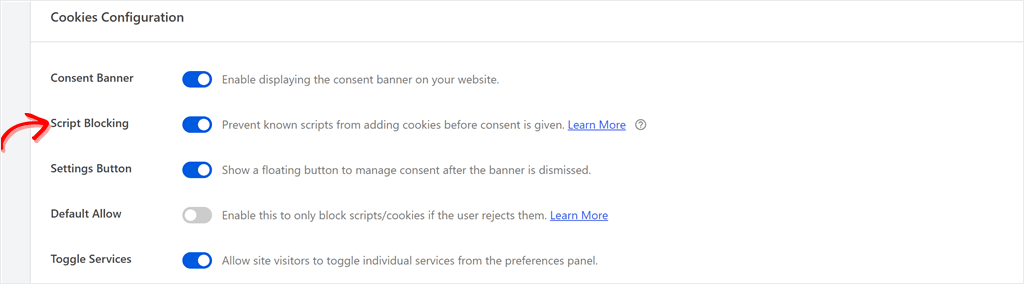
The setup wizard enables script blocking for you. So if you finished the wizard, it’s probably on already.
Once you turn it on or confirm it is on, check that the Consent Banner toggle above it is on, too. Script Blocking only saves as on while the Consent Banner setting is on.
Then click Save Changes.
After that, clear your cache again and repeat the private-window test from Step 1.
Step 3: Check Whether the Script Is Loading on Purpose (Free)
If blocking is on and you can still see Google Analytics, there’s a good chance WPConsent is letting it load on purpose.
Google Analytics and Google Ads
WPConsent turns on Google Consent Mode by default. You’ll find the toggle under WPConsent » Settings, in the Google Consent Mode section.
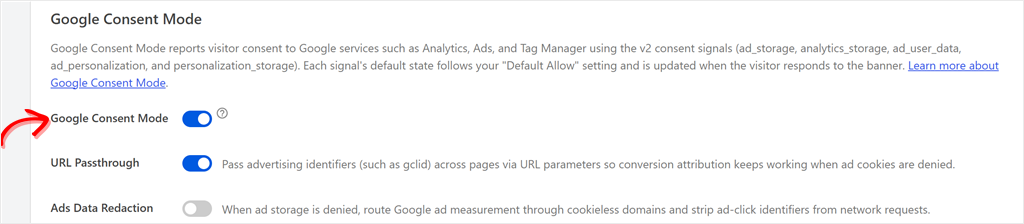
With Google Consent Mode on, WPConsent doesn’t block Google Analytics or Google Ads.
Instead, Google’s tags load right away with a “denied” signal for visitors who haven’t said yes. If Default Allow is on, the signal starts as granted instead. Google calls this Advanced consent mode.
When a visitor accepts, WPConsent updates the signal.
So seeing Google’s tag in your page source can be exactly what should happen.
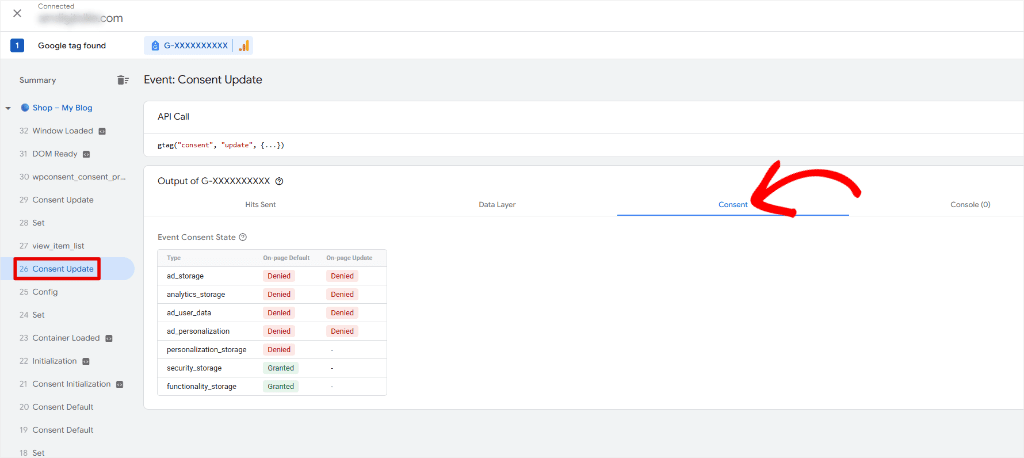
The screenshot above shows Google Consent Mode working the way it should. The Google tag has loaded, but its ad and analytics signals say Denied because the visitor hasn’t accepted. We ran this check while testing a declined and an accepted WooCommerce order.
Google Analytics still hears from visitors who haven’t consented, through cookieless pings that carry far less data. If your numbers dropped after adding a banner, our guide on GA4 traffic drops explains why.
Would you rather block Google’s tags completely until a visitor consents?
Switch off Google Consent Mode and save. WPConsent then holds Google Analytics back until consent, like any other tracking script.
In this case, Google tags in your page send nothing until a visitor consents, so your reports will show fewer visitors. That’s closer to what Google calls Basic consent mode. Tags you load through Tag Manager need the fix in Step 5.
Make Sure Google Is on Your Cookie List
WPConsent only sends that “denied” signal when a Google service is on your cookie list. That’s the list of services on the Cookies tab of WPConsent’s settings.
Without one, the Google tag loads with no “denied” signal in front of it. Unless another plugin, like Site Kit, sets that signal, the tag sets cookies and collects data as if there were no banner at all.
To check yours, search your page source for gtag('consent', 'default'. If that line appears above your Google tag, the signal is in place. If it’s missing, your cookie list needs a Google service.
Faster check on WPConsent 1.2.1 or later: WPConsent can run this check for you. Add ?wpconsent_consent_debug=1 to the end of any page address in your private window. Then right-click the page, choose Inspect, and open the Console tab.
WPConsent prints a report that shows whether the consent line loaded before your Google tag. See how the Consent Mode debug report works.
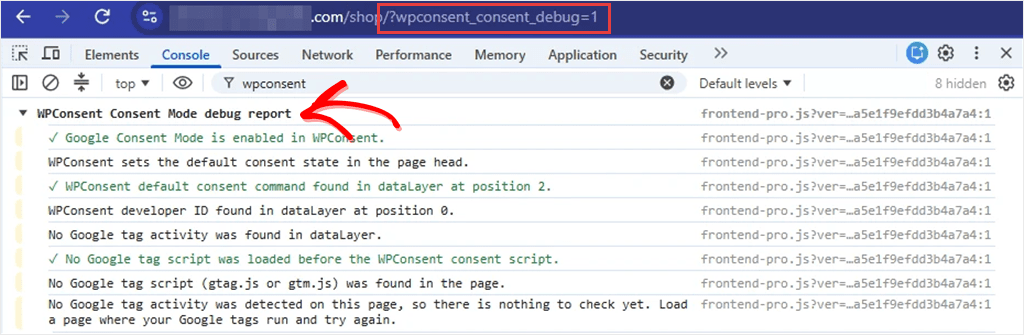
Use the full parameter name. The shorter ?wpconsent_debug switches script blocking off for that page instead.
Using Google Site Kit?
If Site Kit’s own consent mode is turned on, Site Kit sets the starting consent signal instead of WPConsent. WPConsent still updates it when a visitor makes a choice.
To check the list itself, go to WPConsent » Settings and click the Cookies tab, then open the Statistics section and look for Google Analytics.

If it isn’t there, you can add it in one of two ways:
- Go to WPConsent » Scanner and click Scan Your Website. The scan lists the services it detects on the pages it scans. Make sure Google Analytics is selected, then click Automatically Configure Cookies. Leave the Prevent known scripts from adding cookies before consent is given box ticked on that screen, or it switches blocking off.
- Or click Add A Service in the Statistics category and name it Google Analytics. On paid plans, Add Service From Library fills in the details for you.
Microsoft Clarity
Microsoft Clarity has a similar setting.
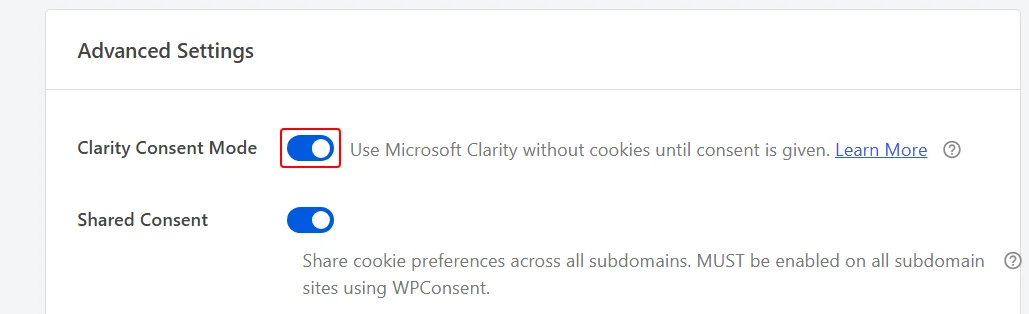
With Clarity Consent Mode on, WPConsent lets Clarity load and passes it each visitor’s choice, so Clarity can run without cookies until consent. You’ll find it under WPConsent » Settings, on the Advanced tab.
Default Allow
Now look at the Default Allow toggle. You find it in the same Cookies Configuration box as Script Blocking.
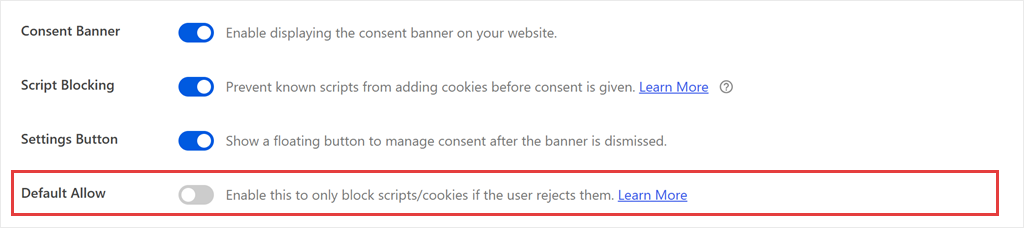
When Default Allow is on, scripts load for every visitor by default and only stop if that visitor clicks Reject.
So with Default Allow on, scripts are meant to load before anyone clicks. Want scripts to wait for consent instead? Switch it off. Then save.
Step 4: Check Whether WPConsent Recognizes the Script
If none of that explains it, check whether WPConsent knows the script at all.
WPConsent recognizes popular trackers by itself, like Google Analytics, the Meta pixel, Google Ads, and the TikTok pixel.
Any script that isn’t on its list runs normally.
Next, think about where the script came from:
- It’s printed in your page, for example, a tracking code in your theme’s header, a WPCode snippet, a pixel from WPCode’s Conversion Pixels addon, or a plugin that adds a tag. Stay in this step.
- It’s added later or sent from your server, for example, a tag inside Google Tag Manager, a plugin with its own loader, or the Meta Conversions API. Go to Step 5.
Not sure which one yours is? Use the page source from Step 1. If you find the tracking code in the page source, it’s printed in your page. If the tracker works but its code is not there, another tool may be adding it later. Check Step 5.
WPConsent Knows the Script, but It Still Loads
One common cause is a speed or optimization plugin.
Plugins that combine, delay, or defer JavaScript can change script tags before WPConsent sees them, or stop WPConsent’s own script from working. If a combined file now holds the tracker’s code, WPConsent can’t match it there.
To check, turn off your speed plugin’s options for combining and delaying JavaScript for a moment.
Then clear the cache and look at the page source again in a private window. If the script now has type="text/plain", WPConsent knows it, and the speed plugin was the problem. Turn the options back on and add the exclusions below.
To fix it, open your speed plugin’s JavaScript settings. Exclude your tracking scripts and WPConsent from combining and delaying, then clear the cache and test again.
If the script still has no type="text/plain" label with those options off, your speed plugin isn’t the cause. Turn its options back on.
That means WPConsent doesn’t know this script yet. To hold it back, add a custom rule for it, as shown below.
WPConsent Doesn’t Know the Script (Paid Plans)
Solve this by using Custom rules, which are on WPConsent’s paid plans.
WPConsent’s list grows as users report trackers. But a tracker that isn’t on the list yet, like a script from a newer ad platform, loads straight away until you add a rule.
To add one, go to WPConsent » Settings and click the Advanced tab. In the Custom Iframes/Scripts box, click Add Custom iFrame/Script.
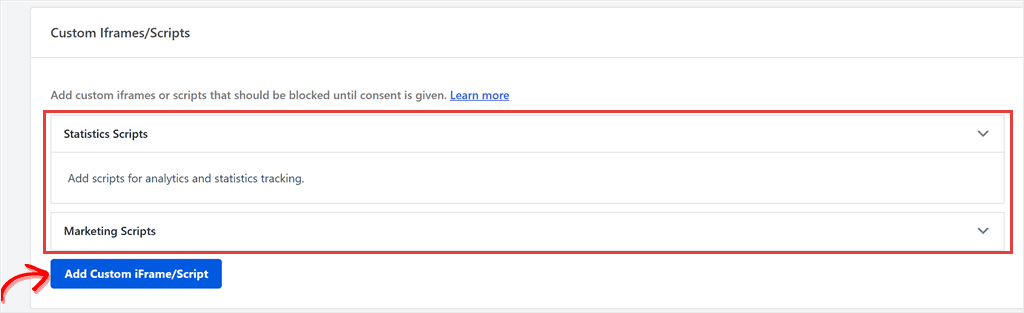
In the window that opens, pick the Category the script belongs to, like Statistics or Marketing, and the Service it’s from. Set Type to Script.
Then, in Script Tag, add a piece of text WPConsent can spot.
Use part of the script’s web address, like cdn.example-tracker.com.
If the code is pasted straight into your page, a unique bit of the code itself works too.
We walk through each field in our guide to blocking custom scripts and iframes.
Embeds Like YouTube and Google Maps (Free)
Is what is loading early an embed, like a YouTube video or a Google Map?
Embeds use a separate free setting called Content Blocking. It’s further down the WPConsent » Settings page, below the Cookie Policy section. Turn it on, then pick the services to block under Content to Block.
Step 5: Check Scripts Added by Google Tag Manager and Other Tools
WPConsent can hold back scripts it recognizes in your page’s original code. But it can’t automatically stop every tool that adds tracking later or sends data straight from your server.
In those cases, you need to set up consent in the tool that’s sending the data.
Google Tag Manager
With Google Consent Mode on, WPConsent lets the GTM container load, and the tags inside it then fire on GTM’s own triggers.
To make those tags wait for the visitor’s choice, set them up in Tag Manager so they only fire after consent is given. We show you how in our guide to firing GTM tags after consent.
Plugins with Their Own Loader
Some tracking plugins, like PixelYourSite, load their pixels their own way. WPConsent’s paid plans include a PixelYourSite integration that holds those pixels until consent.
On the free plan, check that plugin’s settings for a consent option, or for support for the WP Consent API, which is how WPConsent shares each visitor’s choice with other plugins.
This needs the free WP Consent API plugin installed alongside WPConsent. After that, plugins that support it can wait for consent.
No consent option at all? Add that pixel to your page directly instead.
You can paste its code into a free WPCode header snippet, or use WPCode’s Conversion Pixels addon on WPCode’s Plus plan and up.
WPConsent can then hold it back, as long as it’s a pixel WPConsent recognizes, like the Meta pixel or the TikTok pixel. If it isn’t, add a custom rule (Step 4).
Server-Side Tracking
Tools like the Meta Conversions API send data from your server, not from the visitor’s browser.
A cookie banner can’t hold those back.
The plugin that sends them has to check consent first.
Step 6: Confirm the Fix
Once you’ve made a change, confirm it the same way you started.
- Clear your caches.
- Open a fresh private window, logged out.
- View the page source and search for the script again. It should now have
type="text/plain". (Fixed a Google tag under Consent Mode? Check for the consent line instead. See the list below.) - Before you click anything, check the cookies your browser has stored for your site. In Chrome, click the icon to the left of the web address, then Cookies and site data. The tracker’s cookie, like
_fbpfor the Meta pixel, shouldn’t be there yet. - Click Accept All, then check again. The tracker’s cookie should now appear.
The page source doesn’t change after you accept. The held-back copy stays in the source, and WPConsent releases the script in the browser once the visitor consents.
A few fixes need their own check:
- Google tags under Consent Mode: look for the
gtag('consent', 'default'line from Step 3, or run the Consent Mode debug report. Don’t look fortype="text/plain". - GTM tags: use Tag Manager’s Preview mode to see when each tag fires.
- Server-side tracking: check the sending plugin’s own logs.
Troubleshooting: Scripts Still Loading After All Six Steps
Worked through every step and a script still loads early?
Look in your theme’s header and footer settings, or your theme files, for tracking code pasted in directly. If WPConsent doesn’t recognize it, add a custom rule for it (Step 4).
Still stuck? Our Troubleshooting Guide covers more cases. You can also reach out to the WPConsent support team to assist you.
FAQs: Cookie Banner Not Blocking Scripts
Why does a tracking script appear in the page source before consent?
Finding a script in your page source does not mean it is running. WPConsent changes recognized scripts to type="text/plain", so the browser doesn’t run them until the visitor consents. Google tags under Google Consent Mode are different: WPConsent uses Advanced consent mode, so they load with consent denied.
Why does Google Analytics still show up after I reject cookies?
If Google Consent Mode is on, WPConsent lets Google Analytics load with a “denied” signal instead of blocking it (Google calls this Advanced consent mode). Google Analytics then gets much less data from that visitor. Make sure Google Analytics is on your cookie list, or the signal isn’t sent.
Does WPConsent block scripts added by other plugins?
Yes, as long as the script appears in your page and WPConsent recognizes it. Google tags are the exception while Google Consent Mode is on: they load with a consent signal instead. Scripts a plugin loads later, or sends from your server, need that plugin’s own consent setting.
Do I need the paid version to block scripts?
No. Script Blocking, Google Consent Mode, Content Blocking, and the Inspector are all free. Paid plans add custom rules for scripts WPConsent doesn’t recognize by itself, plus the PixelYourSite integration.
Why do scripts load when I’m logged in?
You’ve probably accepted cookies in that browser already, so your scripts load for you. Some plugins also add scripts only for logged-in users. Test in a private window while logged out.
Can a cookie banner stop server-side tracking?
No. Server-side tools, like the Meta Conversions API, send data from your server instead of the visitor’s browser. The plugin that sends that data has to check consent itself.
Test, Fix, and Confirm Your Cookie Banner Is Blocking Scripts
You now know how to tell the difference between a script that’s loading on purpose and one that’s slipping past your cookie banner.
Start with a clean private-window test, then use the Inspector to find what needs fixing.
Remember, a cookie banner doesn’t make your site compliant on its own. Holding scripts until visitors choose is one part of it.
Want to stop tracking scripts from loading before visitors consent?
Get WPConsent for free.
Need to block a script WPConsent doesn’t recognize yet?
See WPConsent’s paid plans.
Additional Resources
These guides help you go further once your scripts wait for consent.
- Black Friday Cookie Consent: 10 Quick Checks Before Your Holiday Ads Go Live: check your banner, pixels, and Consent Mode before a big campaign
- How to Block Third Party Cookies on Your WordPress Website: hold back cookies from the services your site uses
- How to Let Visitors Change Their Cookie Preferences in WordPress: give visitors a way to update their choice later