
Would you like to know exactly which services are setting cookies on your website?
In this guide, we’ll walk you through running WPConsent’s website scanner and turning what it finds into a working set of cookie settings.
All you need is WPConsent and a site your visitors can reach.
Table of contents
- Reading the Scan Overview
- Choosing What to Scan
- Running a Scan
- Reading the Detailed Report
- Applying the Results
- Checking Where the Results Landed
- Re-scanning After Site Changes
- Reviewing Past Scans
- How Does the Scanner Find Services?
- Reviewing Cookies With the Inspector
- Frequently Asked Questions
Before you get started, make sure WPConsent is installed and activated on your WordPress site.
Reading the Scan Overview
To get started, we’ll open the Scanner and read what the last scan reported.
From your WordPress admin sidebar, go to WPConsent » Scanner.
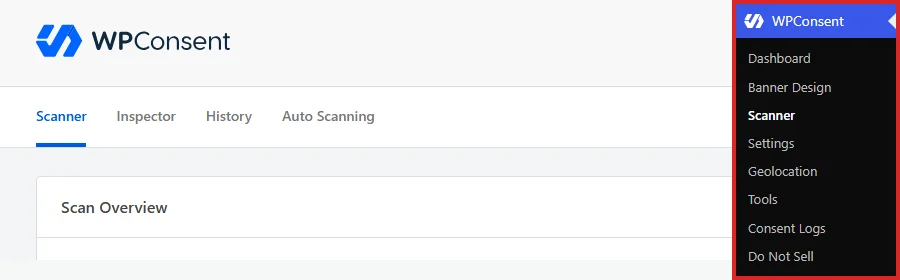
The page opens on the Scanner tab. Beside it sit the Inspector, History, and Auto Scanning tabs. We cover Inspector and History further down.
The Scan Overview at the top summarizes your most recent scan.

Services Detected and Cookies In Use report what the last scan found. Last Successful Scan gives its date and time. Next Scheduled Scan shows when the next unattended scan is due, or Not Scheduled if you have not set one up.
Cookies Configured tracks whether those results have been added to your cookie settings. That is the step we come to further down.
On a site that has never been scanned, this row is not there at all. That is the gap the rest of this guide closes.
Choosing What to Scan
WPConsent scans a list of pages rather than your whole site. The first decision is which pages belong on that list.
Your home page is on it permanently. To add another page, use the Search for a post/page field under “Select content to scan”. Typing three or more characters starts a search across your published posts and pages.

Each page you pick appears as a card next to the field. The Home Page card is labeled Always Scanned and has no remove icon.
To take a page off the list, click the remove icon on its card.

The list saves itself as soon as you add or remove a card. There is no separate save step here.
Pages may already be listed the first time you open the Scanner. On its first run, WPConsent looks for published pages whose title or slug contains “checkout”, “cart”, “contact”, or “videos” and adds them for you. Those pages tend to load the most third-party scripts.
Note: Pages that load different scripts from the rest of your site are the ones worth adding. A checkout page, an embedded video page, or a page with a booking widget often reveals services your home page never loads.
Running a Scan
A scan fetches every page on your list in turn and reports what it finds on them.
Once your page list looks right, click Scan Your Website.

The note under the button explains what happens to the data. WPConsent fetches each page on your list and sends its markup to the WPConsent API. That service matches the scripts it finds to known services and returns their cookie details.
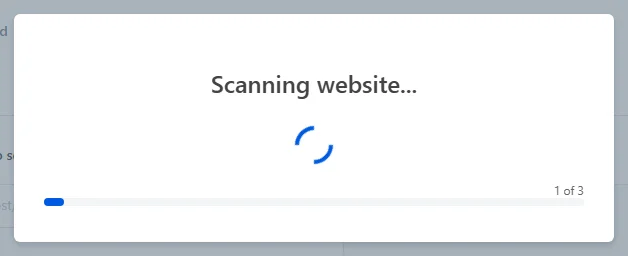
A progress overlay opens and reports how many pages have finished. Pages are fetched one at a time, so a longer list takes longer. The scan runs from this page, so keep it open until the summary appears.
When the run finishes, WPConsent replaces the overlay with a summary of what it found. Closing that overlay reloads the page with your results.
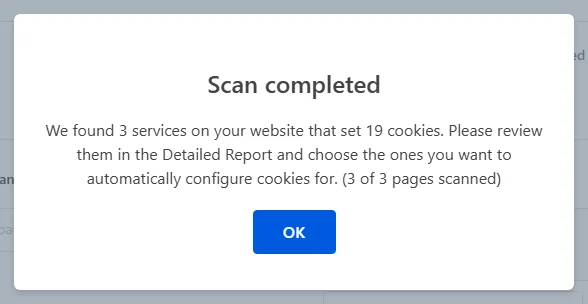
The page reloads with the Detailed Report filled in, which is where you decide what to do with the findings.
Reading the Detailed Report
The Detailed Report lists everything the scan recognized, grouped by cookie category.
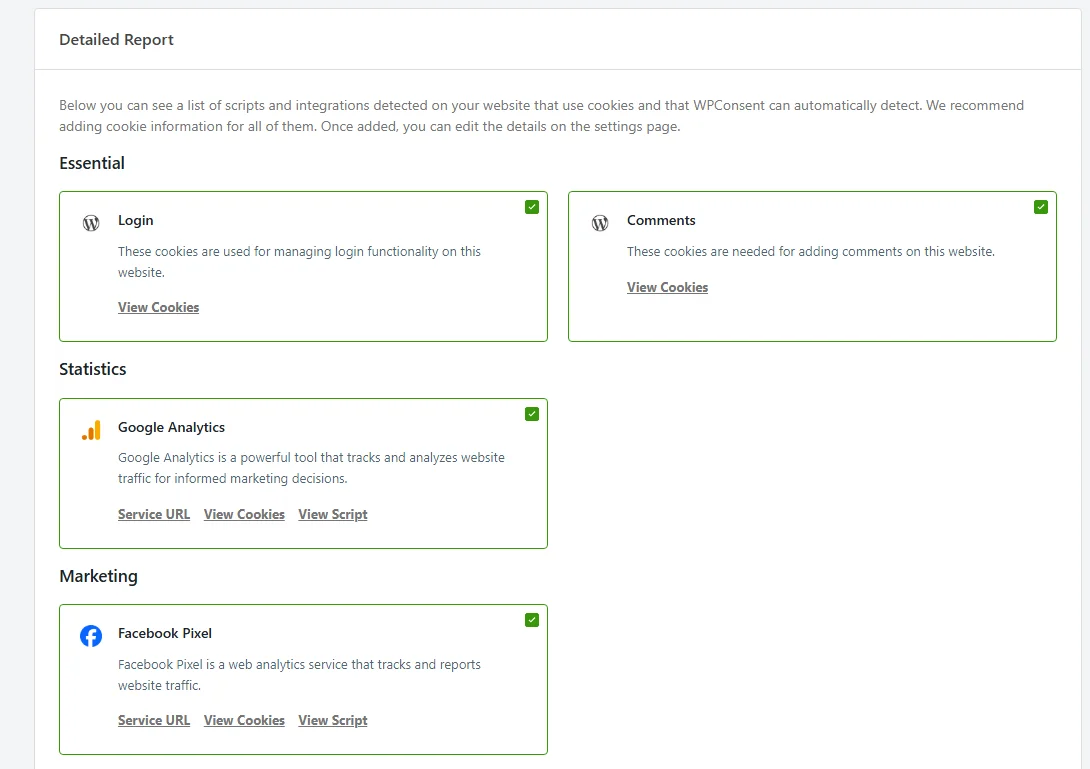
The category each service sits under comes back with the scan results. WPConsent has already decided where Google Analytics belongs before you see the report.
If you have renamed or added categories, adjust the grouping later on the cookie categories screen.
Every service arrives selected. The checkbox in the top corner of each card controls whether it gets set up. Leaving them all selected is the usual choice, because anything you skip has to be described by hand later on the Cookies tab.
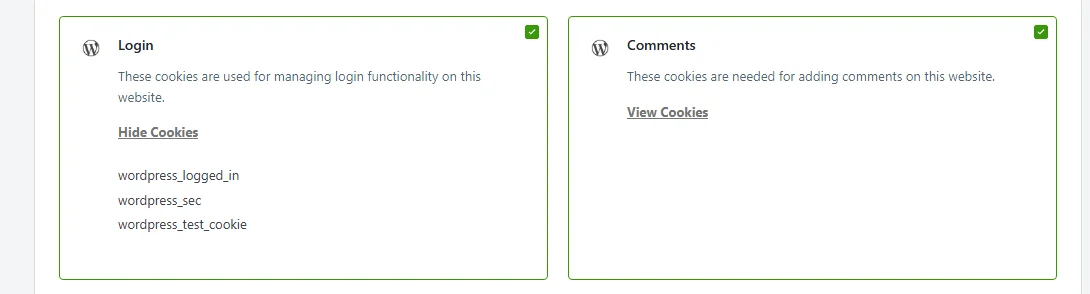
To see which cookies a service sets, click View Cookies on its card.

The cookie names appear inside the card. The link becomes Hide Cookies.
Some cards carry extra links. Service URL opens the vendor’s own page. View Script shows the exact script tag WPConsent matched.
View Script is the quickest way to confirm why a service was detected, since it shows you the markup that triggered the match.
Applying the Results
Nothing in the report reaches your consent banner until you apply it. The controls for that sit at the bottom of the report.
A checkbox there arrives selected, labeled “Prevent known scripts from adding cookies before consent is given”. It starts on, because documenting a cookie in your settings does not stop it from being set.
Leaving it selected turns on automatic script blocking, which holds the detected scripts back until a visitor consents. Clearing it leaves those scripts loading exactly as they do now.

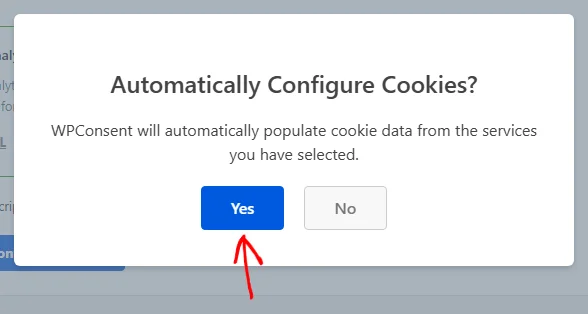
When your selections look right, click Automatically Configure Cookies.

WPConsent asks you to confirm before it writes anything. Then click Yes to continue.
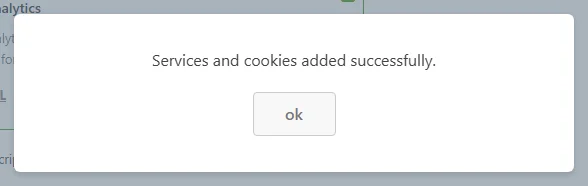
A short confirmation follows once the services and their cookies are in place. Closing it reloads the page with the report and your cookie settings back in step.
Your detected services are now part of your cookie settings, and the next section shows where they live.
Checking Where the Results Landed
Applied results become real entries in your cookie settings.
In your WordPress admin sidebar, go to WPConsent » Settings. Then select the Cookies tab.
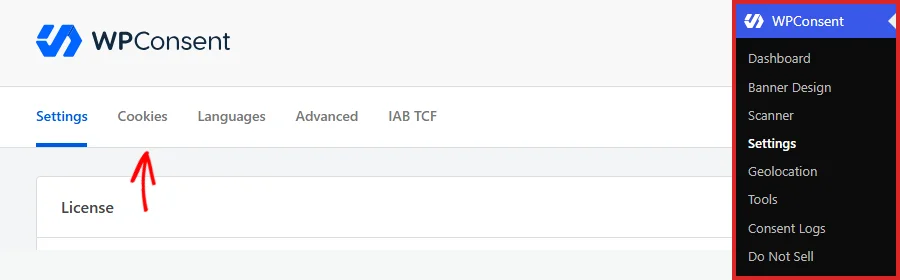
From here, expand the category you want to look at.
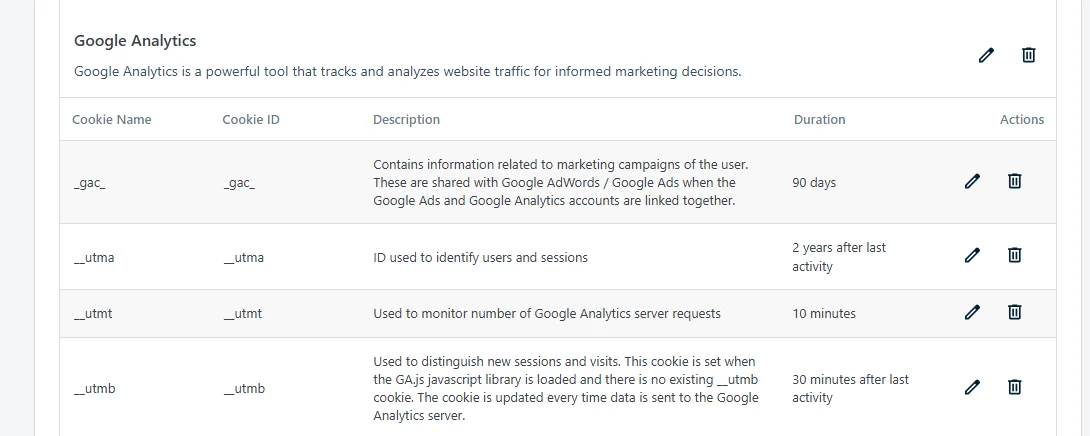
Each detected service now has its own block with a full cookie table: name, ID, description, and duration. These are ordinary entries you edit like any others.
For more, see the docs on managing services and managing cookies.
You can also add a service and its cookies here by hand, so your settings cover everything you want documented.
Re-scanning After Site Changes
Your cookie footprint changes whenever you add a plugin, embed a video, or drop in a tracking script. A scan is worth repeating after any of those.
Re-scanning is safe to do as often as you like. Applying the results only ever adds services that are not already set up. Your existing entries are left alone, including any wording you have edited yourself.
A service can also live on a page outside your scan list, so a report that leaves one out is not proof it has gone. When you have retired a service for good, delete it on the Cookies tab.
WPConsent can also run scans for you on a daily, weekly, or monthly schedule, set up from the Auto Scanning tab.
For full details, see automatic scheduled scans.
Reviewing Past Scans
Every scan is recorded, whether you started it yourself or WPConsent ran it on a schedule.
To see the record, select the History tab.
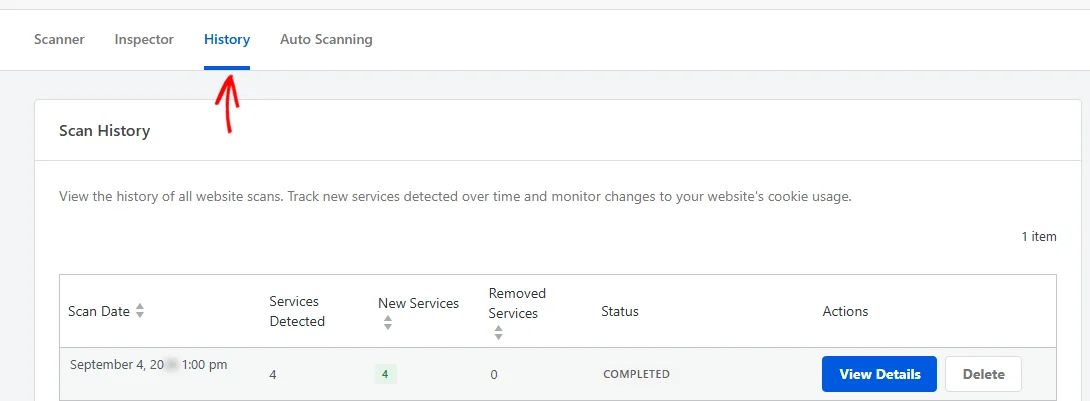
Each row gives the scan date, the number of services detected, and how many were new or have disappeared since the previous scan.
The Status column reads Completed for a scan you ran yourself. Scheduled scans can show an Auto-Updated or Email Sent badge here instead.
View Details opens the full result for that scan. Delete takes that scan back out of the history.
A site that has only been scanned once has a single row here. The table fills up as you scan again. Each new row is compared against the one before it.
The New Services column is the useful one to watch. A number above zero means something started setting cookies on your site since the last scan. That is your cue to review the report and apply it.
Note: The History and Auto Scanning tabs need a Basic license level or higher.
How Does the Scanner Find Services?
Now that you have run a scan and applied the results, it helps to know how WPConsent decides what to report.
WPConsent requests each page on your list the same way a visitor’s browser does. It sends the returned markup to its scanning service, which compares that markup against a library of known services.
What comes back is a list of services, plus the cookies WPConsent holds on record for each one. That shapes what appears in the report:
- The pages you selected, and no others. A script that loads only on a page outside your list stays invisible.
- The markup your server returns. A script that another script adds later may not appear.
- Services in WPConsent’s library. A custom or in-house script is one you document yourself on the Cookies tab.
Because the report is service-based rather than cookie-based, a single detection can bring in several cookies at once. That is why a scan that finds only a few services can still add a long list of cookie entries.
Reviewing Cookies With the Inspector
The Inspector picks up where the scan leaves off. Instead of reading page markup, it opens your own site with a floating panel attached and tracks every cookie as it is set.
To open it, select the Inspector tab.
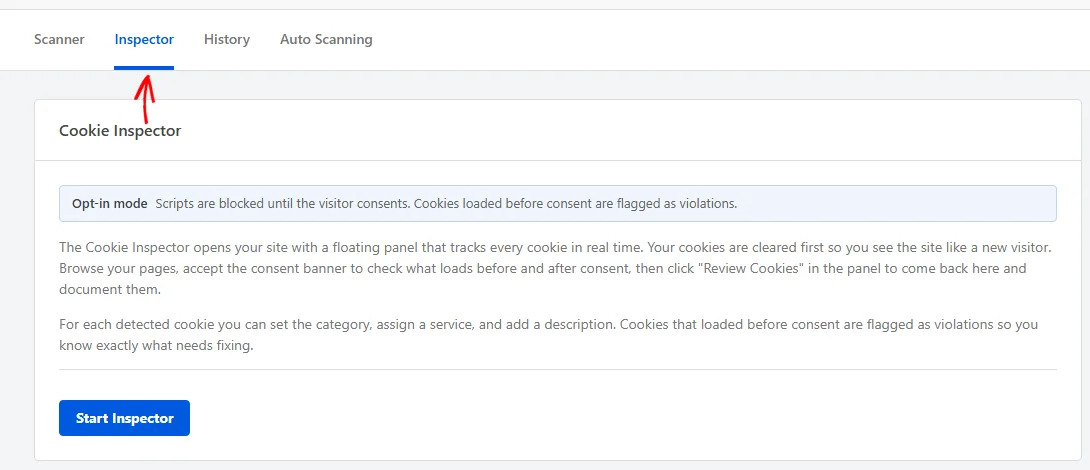
The badge at the top names the mode the Inspector will run in, which follows your script blocking settings. Opt-in mode means scripts are held until a visitor consents, so the Inspector flags any cookie that appears before that as a violation.
Two other badges are possible. Opt-out mode means scripts are allowed by default, so the Inspector flags cookies that survive a visitor rejecting consent. Discovery mode means script blocking is off, so the Inspector records cookies without checking whether blocking works.
When you are ready to walk your site, click Start Inspector.

Start Inspector takes you straight to your home page with the panel attached. WPConsent clears your existing cookies first, so you browse the site the way a first-time visitor does. Your WordPress login is kept, so you stay signed in.
The floating panel tracks what loads before you answer the banner separately from what loads after. It appears only for you, so visitors see the site as usual. Its Review Cookies link returns you to this tab with the results.
Back here, the Inspector works through the cookies it found one at a time. Each entry shows the cookie name and where on your site it turned up.
For each one, you set a category, which is what lists that cookie in your consent banner and privacy policy. You also assign a service, write a description, and record how long the cookie lasts.
A category is the one thing every cookie needs. Descriptions and durations are optional, so a cookie you know little about still gets documented. Everything you document here joins your scan results on the Cookies tab.
Running a scan first makes the Inspector far more useful. Everything the scan documented is already accounted for, so only genuine gaps are left to review.
That’s it! You now know how to scan your site, read the report, and apply what it finds. Next, take a look at automatic scheduled scans so WPConsent keeps checking on its own.
Frequently Asked Questions
Below, we’ve answered some of the most common questions about scanning your website.
Why is a service I know about missing from the report?
The scan reads the markup of the pages on your list, so those pages are its scope. A service that loads somewhere else sits outside it. So does one that appears only after a visitor interacts with the page, or one you have written yourself.
Add the relevant page and scan again. Then add anything still missing by hand on the Cookies tab. To look up a cookie’s name and duration yourself, see How to Know if Your WordPress Website Uses Cookies on WPBeginner.
Does a scan send my site data anywhere?
Yes. WPConsent sends the markup of each scanned page to its own scanning API. That service performs the matching and supplies the service and cookie descriptions. The note under the Scan Your Website button says so and links to the privacy policy and terms.
How long does a scan take on my site?
It depends on how many pages you selected and how quickly your server returns each one, because WPConsent fetches them one at a time. The progress overlay shows how many have finished.
Will re-scanning remove services I no longer use?
No. Applying scan results only adds services that are not set up yet, and it never deletes an existing one. Remove a retired service yourself on the Cookies tab.
Can I take the home page off the scan list?
No. The home page is always scanned, which is why its card is labeled Always Scanned and carries no remove icon.
Why were pages already on my scan list?
WPConsent fills the list in once, the first time you open the Scanner. It looks for published pages whose title or slug contains “checkout”, “cart”, “contact”, or “videos”, since those pages commonly load extra scripts. Remove any you do not want scanned.
Will WPConsent email me when a scan finds something new?
It can, for scheduled scans that turn up new services. Email notifications stay off until you switch them on. Both the switch and the recipient addresses live on the Auto Scanning tab. Scans you start yourself never send email.