
Would you like Microsoft Clarity to keep running on every page while still hearing each visitor’s cookie choice? Clarity Consent Mode has WPConsent report that choice to Clarity through Clarity’s own consent call. All you need is WPConsent on your WordPress site, with the consent banner turned on and Clarity already running on your pages.
This guide covers where the setting lives, the two consent parameters WPConsent sends to Clarity, and when it sends them. It also covers the one setting on Microsoft’s side that decides whether Clarity holds its cookies back.
Table of contents
- Enabling Clarity Consent Mode
- Checking Clarity’s Own Cookie Setting
- Reading the Two Consent Parameters
- How the Consent Call Reaches Clarity
- Keeping Clarity Out of Script Blocking
- Checking the Consent Call in Your Browser
- Frequently Asked Questions
Before you get started, make sure WPConsent is installed and activated on your WordPress site.
Requirements: Microsoft Clarity’s tracking script must already be running on your site for WPConsent to report consent to it.
Enabling Clarity Consent Mode
To get started, we’ll open the tab that holds the setting.
From your WordPress admin sidebar, go to WPConsent » Settings.
From here, click Advanced in the row of tabs across the top of the page.
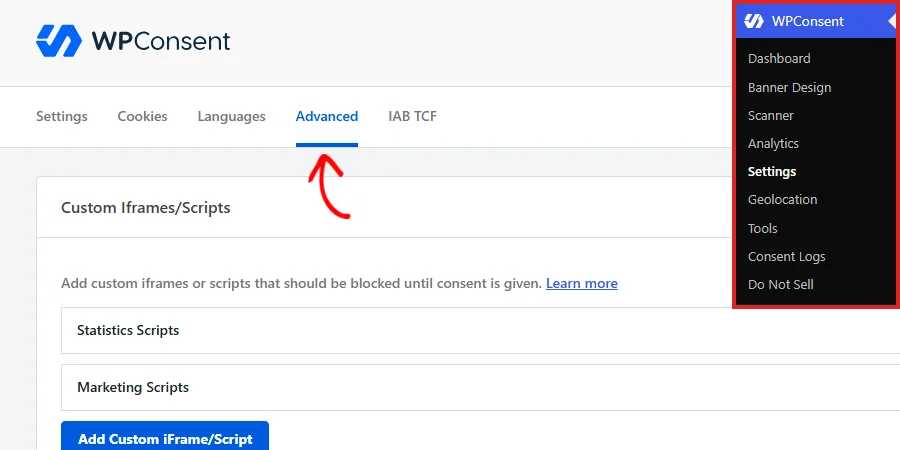
Next, scroll down the Advanced tab to the Advanced Settings panel. Clarity Consent Mode is the first row in it.
Take a look at Clarity Consent Mode, which WPConsent turns on for you so Clarity keeps working from the first page a visitor loads.
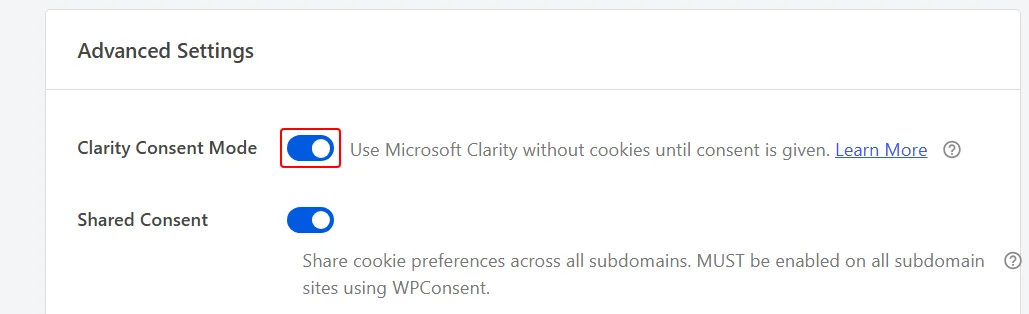
If Clarity Consent Mode is off on your site, click its toggle to turn it on.
The row’s own description sums the arrangement up: “Use Microsoft Clarity without cookies until consent is given.”
With this on, WPConsent leaves Microsoft Clarity out of script blocking. The Clarity script then loads on every page rather than waiting for a visitor to answer.
WPConsent reports each visitor’s answer to Clarity through Clarity’s own consent call, at the moment the visitor makes it.
With Clarity Consent Mode off, Clarity is treated like any other Statistics script and waits until a visitor accepts that category.
Note: Clarity Consent Mode runs only on pages where the consent banner loads, because the banner is how a visitor’s choice is made.
At the bottom of the page, click Save Changes.
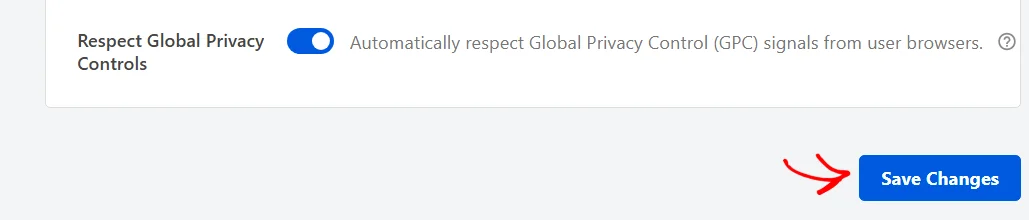
Your setting takes effect on the next page a visitor loads.
One setting on Microsoft’s side decides whether Clarity holds its cookies back.
Checking Clarity’s Own Cookie Setting
Clarity decides for itself whether to write cookies. It takes that decision from a setting in your Clarity project rather than from anything in WordPress. While that project setting has cookies switched off, Clarity holds its own cookies back and waits for a consent signal.
Microsoft applies the waiting behavior on its own for visitors from the European Economic Area, the United Kingdom, and Switzerland. Visitors from elsewhere follow whatever the project setting says. With cookies switched on there, Clarity writes its own cookies for those visitors rather than waiting for a signal.
A site with an audience beyond those three regions gets the most from Clarity Consent Mode once cookies are switched off for everyone.
The setting sits in your Clarity project under Settings, on the Setup page. Microsoft’s guide on Clarity Consent Mode shows that screen and what switching cookies off does.
Note: This is the one setting in this guide that lives in Microsoft’s dashboard. Everything else happens in your WordPress admin.
With that in place, it helps to know exactly what WPConsent sends Clarity when a visitor answers the banner.
Reading the Two Consent Parameters
Clarity describes consent as two named parameters, each one either granted or denied. WPConsent sends both, and each follows one of your cookie categories:
- analytics_Storage follows the Statistics category
- ad_Storage follows the Marketing category
The capital S in each name is Clarity’s own spelling, and that is exactly how WPConsent sends them.
A visitor who accepts everything sends both parameters as granted, and a visitor who rejects sends both as denied. A visitor who accepts Statistics and declines Marketing sends analytics_Storage as granted and ad_Storage as denied.
Every saved choice sends a fresh call. That holds for the Accept All button, the Reject button, and the Save Preferences button inside the preferences panel.
Our guide on understanding the preferences panel covers that third route.
Which categories a visitor chooses from is set on the same Settings screen.
Our guide on managing cookie categories covers that list.
How the Consent Call Reaches Clarity
WPConsent watches for one moment, which is a visitor saving a choice. It looks for Clarity on the page at that moment and makes the consent call.
The look happens at that moment rather than at page load. A Clarity tag that finishes loading a little after the rest of the page still receives the call.
What matters is that Clarity is running by the time the visitor answers the banner. That holds for a tag loaded with a defer attribute as much as for one a performance plugin injects later on.
The console check further down this guide confirms that directly. Reading typeof window.clarity before you answer the banner tells you Clarity is already running and ready for the call.
From there, each saved choice carries its own call. WPConsent sends nothing further on that visitor’s later pages, since the call goes with a saved choice rather than a page load. Microsoft keeps a declined state in place until a new signal grants consent.
For any of that to happen, Clarity has to load in the first place, which is where script blocking comes in.
Keeping Clarity Out of Script Blocking
Script blocking normally holds a tracking script back until a visitor accepts the category it belongs to. Clarity sits in the Statistics category in WPConsent’s blocking library, so script blocking holds it there alongside your other analytics scripts.
Clarity Consent Mode changes that one script’s treatment. While the setting is on, WPConsent recognizes Clarity and leaves it out of script blocking. The script loads on every page and receives the consent call instead of being held back.
Nothing else needs setting up for this to happen.
WPConsent recognizes Clarity by the clarity.ms address the tag loads from, wherever that tag sits on the page. Clarity’s standard snippet in your theme header and the same snippet added through a code plugin both match. The match is on the address rather than on where the tag lives.
The exemption belongs to that recognized Clarity entry. A custom blocking rule you write yourself is applied through the service you attach it to. Script blocking treats the rule as that service and holds it for that service’s category.
Any rule filed under a different service keeps the treatment you chose for it. Clarity Consent Mode covers the Clarity that WPConsent recognizes on its own.
Our guide on custom scripts and iframes covers writing rules of your own.
Our guide on blocking scripts and embedded content before consent covers that side of the setting.
Our guide on configuring WPConsent advanced settings covers the rest of the Advanced tab.
Checking the Consent Call in Your Browser
The call is visible in your own browser, so the setup confirms itself without waiting for reporting to catch up.
A private browsing window is the easiest place to look, since no earlier choice is stored there.
Next, open your site in that window, then open your browser’s developer tools console.
Typing typeof window.clarity in the console tells you whether Clarity itself has loaded on the page. It reads function once Clarity is running.
To watch the call as it happens, wrap Clarity in a logger before you answer the banner. Paste this into the console: const real = window.clarity; window.clarity = (...args) => { console.log(args); return real(...args); };
When the banner appears, click Accept All.
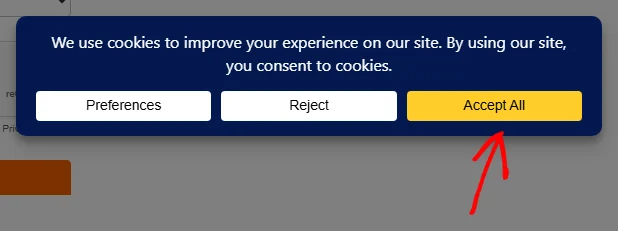
The console logs a consentv2 call carrying ad_Storage and analytics_Storage, both set to granted. Clicking Reject instead logs the same call with both set to denied.
That’s it! Microsoft Clarity now hears each visitor’s cookie choice as they make it.
Next, take a look at our guide on setting up Google Consent Mode v2 to see how WPConsent reports the same choices to Google’s tags.
Frequently Asked Questions
Below, we’ve answered some of the most common questions about Clarity Consent Mode.
Do I need to turn Clarity Consent Mode on myself?
No. WPConsent arrives with the row already on, so a new site needs no change here. The Advanced tab is where you turn it off if you want Clarity treated like any other Statistics script.
Is there anything to set up in my Clarity dashboard?
Yes, one setting. Clarity writes cookies according to your Clarity project’s own cookie setting. Switching that off is what has Clarity wait for the signal WPConsent sends. See the Checking Clarity’s Own Cookie Setting section above for where that setting sits and which sites it matters most for.
What does Clarity record before a visitor accepts?
Clarity keeps running and collecting without setting its own cookies. Microsoft calls that no-consent mode, where the tracking is limited. Each page view gets its own ID rather than being joined into one session for that visitor. Once the visitor accepts, Clarity sets its cookies and follows the session across pages from there. Microsoft’s consent API reference describes both states.
Do I need a Clarity service in my cookie list for this to work?
No. WPConsent’s front-end script listens for a saved choice and reports it to Clarity whenever Clarity is running on the page. Your cookie list plays no part in that. No service slug has to match. The call goes out even on a site whose cookie list names Clarity nowhere. Adding Clarity to your cookie list is still worth doing, so visitors see it named in your preferences panel and your cookie policy page.
Our guide on scanning your website covers the scan that finds the services your pages use. Our guide on managing services covers adding one by hand.
Which of my cookie categories does Clarity belong to?
Statistics. That is where Clarity sits in WPConsent’s blocking library, and it is the category the analytics_Storage parameter follows.
What happens if I turn Clarity Consent Mode off?
Clarity goes back under script blocking, so its script waits until a visitor accepts the Statistics category. That is the treatment every other Statistics script gets, and nothing else about your setup changes.
Does Clarity Consent Mode work if I turn the consent banner off?
The two work as a pair. WPConsent loads its front-end script only on pages where the banner loads, since the banner is what produces the visitor’s answer. Consent Banner therefore stays on alongside Clarity Consent Mode.
Our guide on configuring WPConsent general settings covers the Consent Banner row.
Do my returning visitors send the call again?
The call goes out with each saved choice rather than on every page load. A visitor who accepts on their first page sends one call. The next call from that visitor arrives when they change their choice in the preferences panel.
How is this different from Google Consent Mode v2?
Google’s tags read a starting consent state that WPConsent prints near the top of the page. Once the visitor answers, an update follows carrying five named signals. Clarity works through a single call carrying two parameters, which WPConsent sends when the visitor saves a choice.
Can I use Clarity Consent Mode and Google Consent Mode together?
Yes. They are separate settings on separate tabs, and neither depends on the other. WPConsent sends each service the signals that service understands, from the same set of category choices.
Do my visitors with Global Privacy Control turned on send a call to Clarity?
Yes, when Respect Global Privacy Controls is on. WPConsent records the declined choice for that visitor without showing them the banner. That counts as a saved choice, so the call goes out with both parameters denied.
Our guide on Global Privacy Control covers that setting.