
Would you like to catch every cookie your site sets, including the ones your consent banner doesn’t list yet?
In this guide, we’ll walk you through running the WPConsent Cookie Inspector, reading its panel, and adding what it finds to your cookie settings.
All you need is WPConsent and an administrator account on your site.
Table of contents
- Checking the Inspector Mode
- Starting an Inspection
- Reading the Inspector Panel
- Checking What Loads After Consent
- Minimizing the Panel While You Browse
- Sending Cookies for Review
- Reviewing Each Cookie
- Creating Blocking Rules During Review
- Fixing Cookies That Need Attention
- Frequently Asked Questions
Before you get started, make sure WPConsent is installed and activated on your WordPress site.
Checking the Inspector Mode
To get started, we’ll open the Inspector and see which mode it runs in on your site.
The Cookie Inspector watches cookies being set in your own browser while you browse your site. That makes it a good partner for the scanner, which reads page markup instead. Between them, they cover the services a scan recognizes and any other cookie your pages set, including ones from your own scripts.
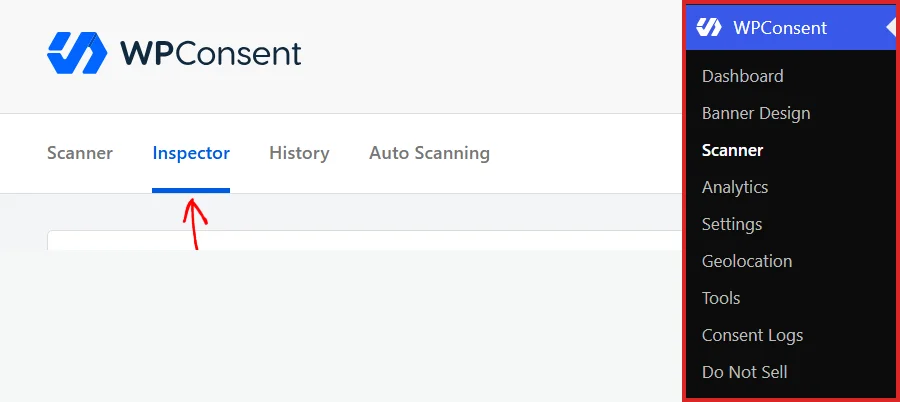
From your WordPress admin sidebar, go to WPConsent » Scanner. Then select the Inspector tab.
The tab opens on the Cookie Inspector panel. It explains what an inspection does and holds the button that starts one.
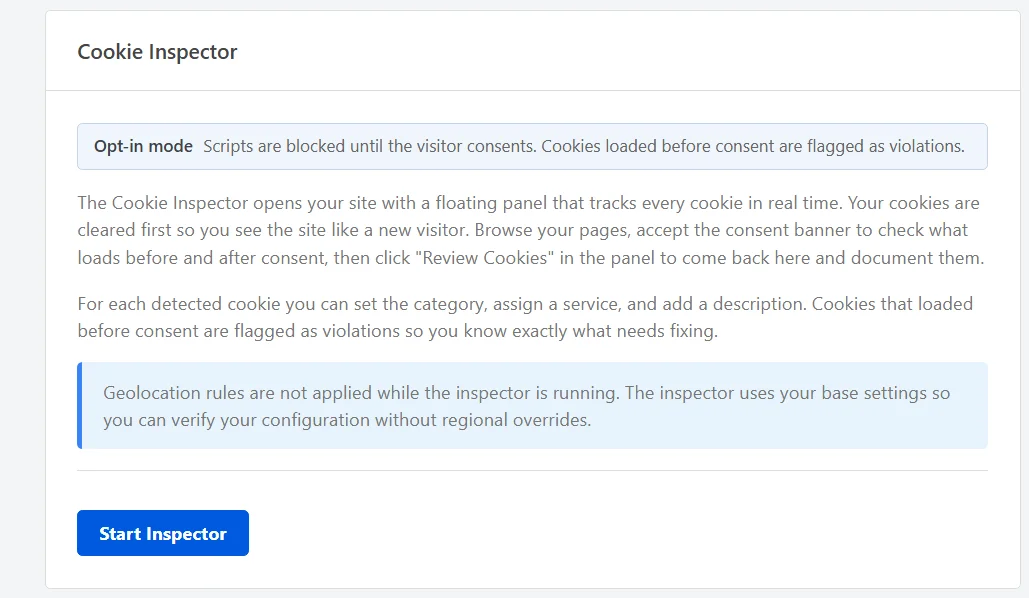
The badge at the top names the mode the Inspector will run in. The mode comes from two of your settings, Script Blocking and Default Allow, so you don’t pick it here:
- Opt-in mode applies when script blocking is on and Default Allow is off. Scripts wait for consent, so a known non-essential cookie set before consent is flagged.
- Opt-out mode applies when script blocking and Default Allow are both on. Scripts run by default, so a known non-essential cookie set after a visitor rejects is flagged.
- Discovery mode applies when script blocking is off. The Inspector lists cookies without checking whether they were blocked.
To change the mode, adjust those settings before you start. Script Blocking is covered in automatic script blocking, and Default Allow in configuring WPConsent general settings.
When geolocation rules are set up, a notice on the panel explains that they are paused during an inspection. That way you’re testing your base settings.
Note: If your site has never been scanned, the panel also recommends running a scan first. A scan adds the services it recognizes to your cookie settings, so the Inspector is left with only the real gaps.
Starting an Inspection
An inspection runs in your own browser, on your live site.
When you’re ready, click Start Inspector.
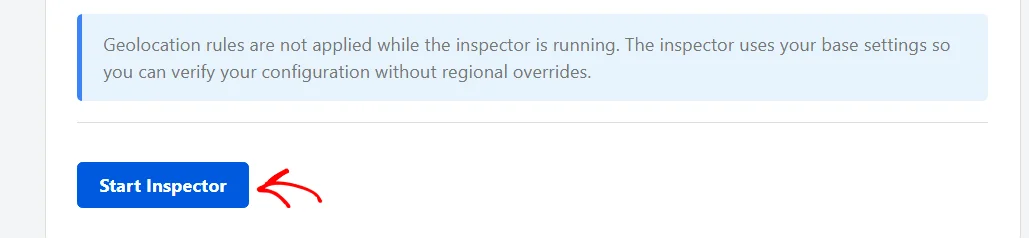
WPConsent takes you to your home page with the Inspector panel attached.
On that first load, it clears the cookies in your browser and reloads the page. You then see the site the way a first-time visitor does. Your WordPress login cookies are kept, so you stay signed in.
The inspection stays active for 30 minutes. Only you see the panel, because it loads only for a signed-in administrator during an active inspection. Your visitors see the site as usual.
Reading the Inspector Panel
The panel sits in the bottom corner of the page and updates as cookies are set. Before you answer the consent banner, it shows everything set so far.
Note: If your banner is a bar along the bottom of the screen, the panel sits just above it. If your banner floats in the bottom-right corner, the panel moves to the left so the two don’t overlap.
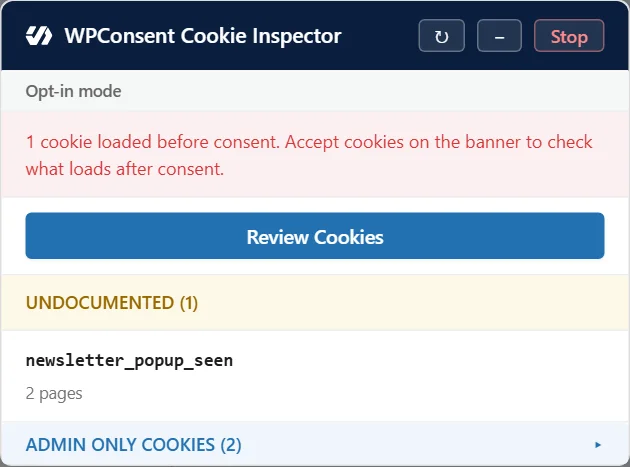
Below the mode label, a message tells you what the Inspector sees and what to do next. In this example, one cookie was set before consent. The message suggests accepting the banner to see what loads after it.
Cookies are sorted into groups:
- Needs Attention lists cookies that are already in your cookie settings but were set at the wrong moment for your mode.
- Undocumented lists cookies that aren’t in your cookie settings yet. These are the ones you can review and add.
- Working Correctly lists cookies that are documented and behaving as your settings expect.
- Admin Only Cookies lists cookies WordPress sets for signed-in users, which regular visitors never receive.
Each cookie shows how many pages it appeared on. The header carries three controls:
- The reset arrow clears your cookies and shows the banner again, so you can repeat a test from the start.
- The minus sign minimizes the panel while you browse.
- Stop ends the inspection without saving anything.
It is worth browsing a few different pages while the panel is open, since some pages load scripts that others don’t. Under “Visit next”, the panel suggests pages worth checking, such as the pages on your scan list and your privacy policy page. Each one drops off the list once you have visited it.
Checking What Loads After Consent
Many cookies only appear once a visitor agrees to them, so the Inspector tracks the two sides of that moment separately.
On the consent banner, click Accept All.
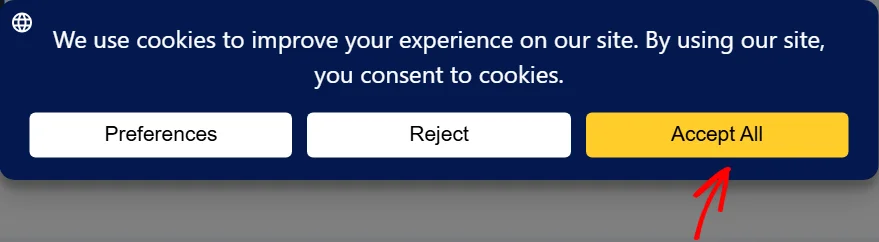
Your choice is saved just as a visitor’s choice is. The scripts it unblocks then load and set their cookies, and the panel updates.
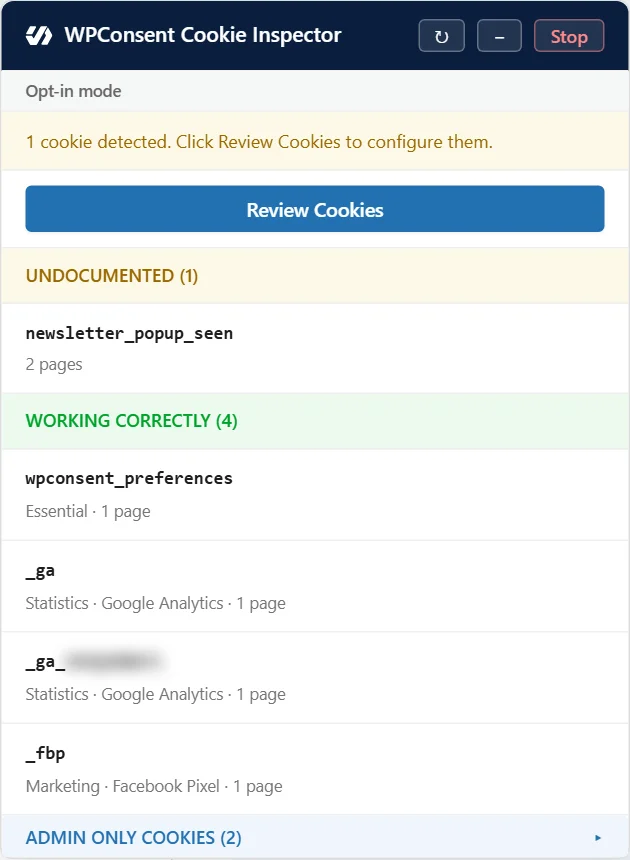
The cookies under Working Correctly now show the category and service they belong to in your settings. In this example, the Google Analytics and Facebook Pixel cookies only appeared after consent, which is what opt-in mode expects.
In opt-out mode, the panel asks you to reject cookies on the banner instead. That mode checks which cookies are still set after a visitor says no.
At the bottom of the list, click Admin Only Cookies to expand the group.
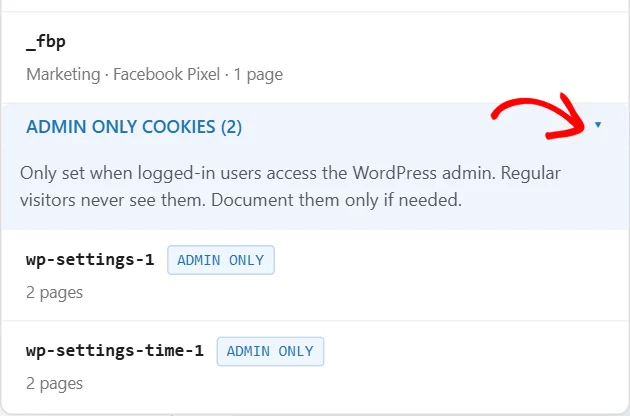
These cookies come from WordPress itself and are only set while you’re signed in. They are never counted as problems, and you only need to document them if you want to.
Minimizing the Panel While You Browse
The panel covers part of each page. You can tuck it away and keep browsing. The Inspector keeps recording in the background.
In the panel header, click the minus sign.
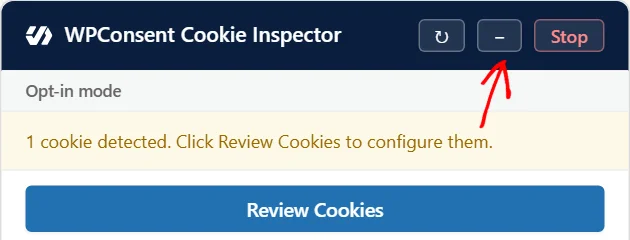
The panel shrinks to a round WPConsent icon. Its red badge counts the cookies that need a look, which are the undocumented ones plus any that need attention.
To bring the panel back, click the WPConsent icon.
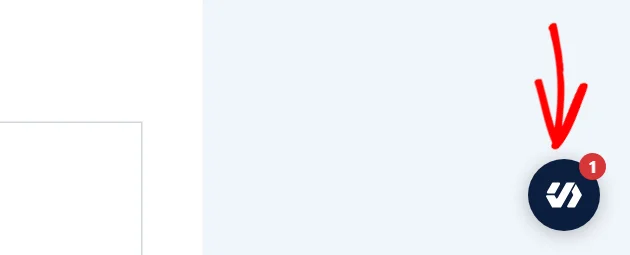
The panel opens again with everything it has recorded so far, ready for the next step.
Sending Cookies for Review
When you have browsed enough of your site, the next step is to document what the Inspector found.
In the panel, click Review Cookies.
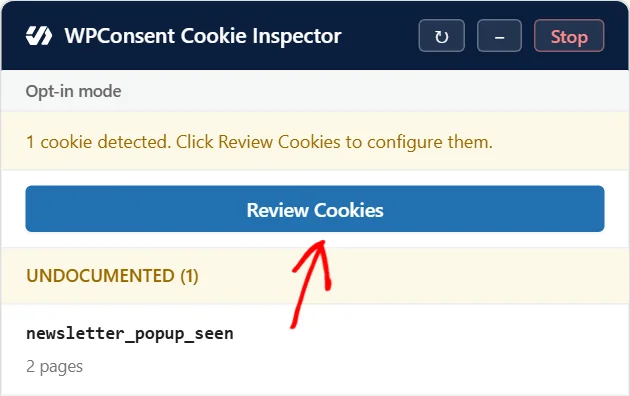
WPConsent saves the undocumented cookies to a review list, ends the inspection, and takes you back to the Inspector tab.
The Review Cookies button only appears while there are undocumented cookies. When everything is already documented, the panel shows a Finish Inspection button instead, which simply ends the inspection.
Reviewing Each Cookie
Back on the Inspector tab, the panel is now titled Review Cookies. It walks you through the cookies one at a time. The badge beside the title shows your progress.
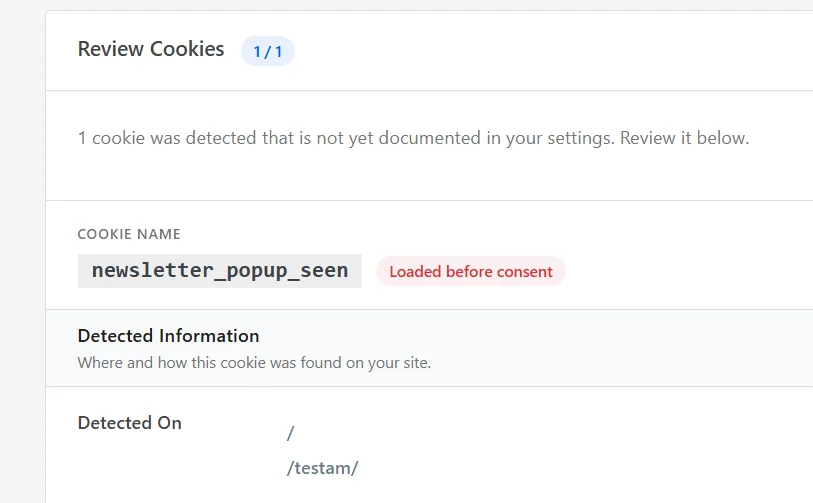
The top of each entry shows the cookie name. A Loaded before consent badge appears when the cookie was set before the banner was answered. Detected On lists the pages where it turned up.
Under Cookie Settings, open the Category dropdown and choose where this cookie belongs.
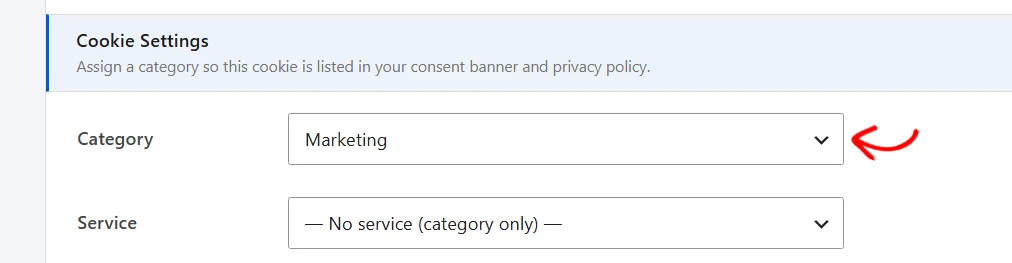
The category is the one field every cookie needs, because it decides where the cookie is listed in your consent banner and cookie policy.
For help choosing, see managing cookie categories.
Next, use the Service dropdown to say which tool sets the cookie.

The dropdown lists the services already set up under the category you chose. It also offers three other choices:
- No service (category only) files the cookie directly under its category, which suits a cookie that doesn’t come from any particular tool.
- Create new service opens a form for adding a service of your own.
- Add from Library opens WPConsent’s library of known services.
If the cookie comes from a tool you haven’t set up yet, choose Create new service. A form opens with the category already filled in.
Give the service a name, and optionally a description and a link to its privacy policy. Then click Save.
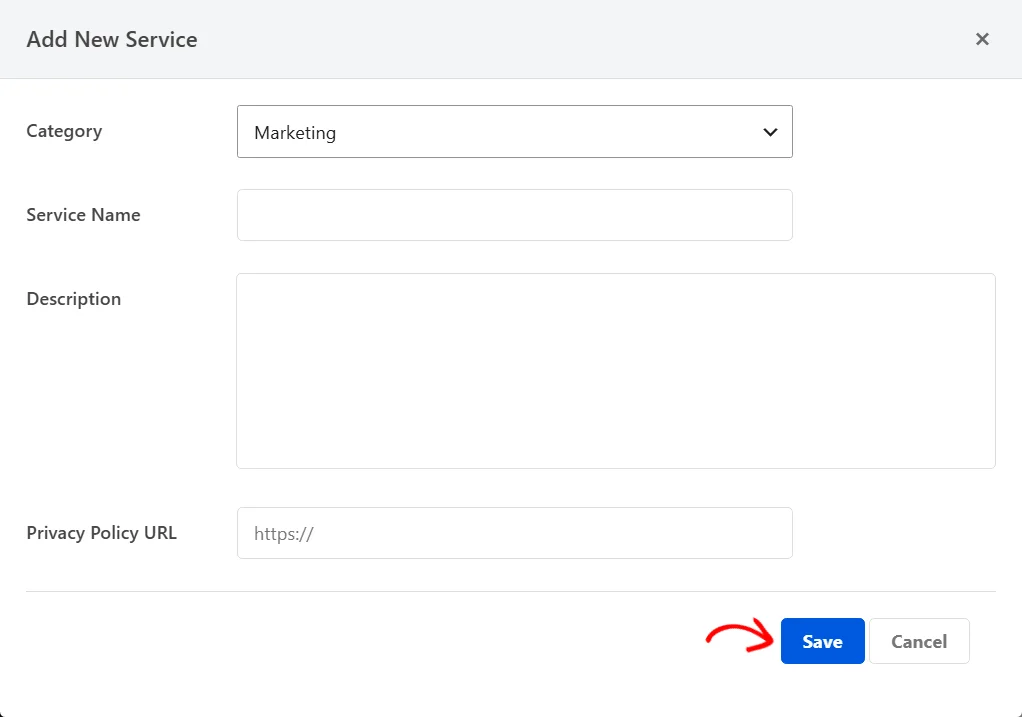
The new service is created and selected for this cookie.
For more on services, see managing services.
Requirements: Adding a service from the library is available in the paid versions of WPConsent.
If the tool is a well-known one, choose Add from Library instead. A window opens with WPConsent’s library of services.
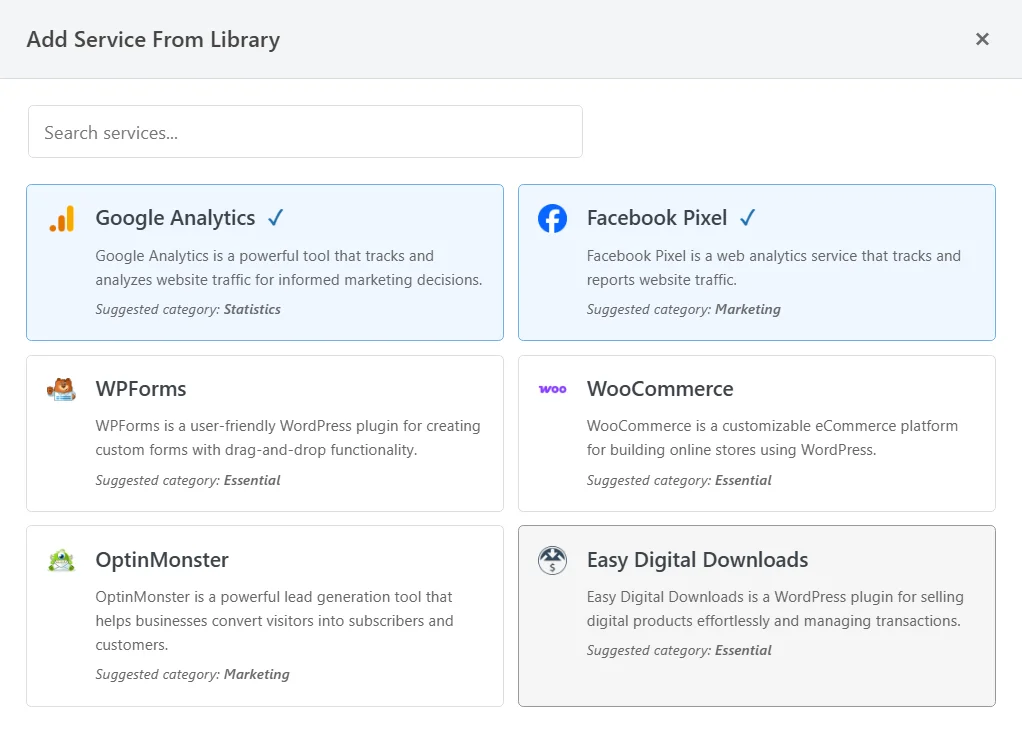
Selecting a service’s card adds it under the category you chose and selects it for this cookie. The service arrives with the description and cookie details WPConsent holds for it. Services you already have are marked with a check, and the search field narrows a long list.
Finally, describe what the cookie does in the Description field. Then check the Duration.
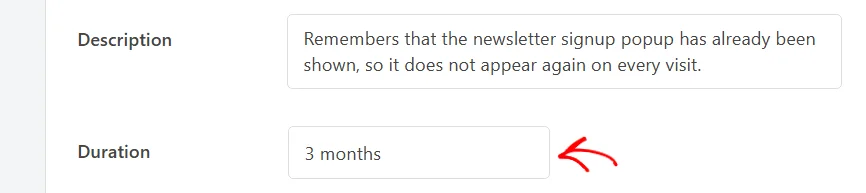
Both fields are optional. Your visitors read the description in your cookie details, so plain language works best.
The Duration field is filled in for you when the Inspector saw the cookie’s expiration being set, as it did for this cookie. You can change it if it’s wrong.
When the entry looks right, click Save & Next. To leave a cookie for later, use the Skip link beside the button instead.
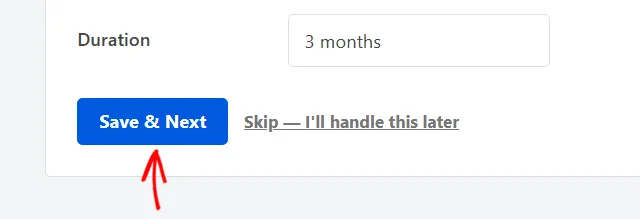
The cookie is added to your cookie settings and the next one appears. A skipped cookie comes off the review list without being added.
When the next cookie’s name starts the same way as the one you just saved, WPConsent fills in the same category and service for you. Related cookies, which often share a prefix, go quickly.
After the last cookie, a summary shows how many pages you inspected and how many cookies you documented or skipped.
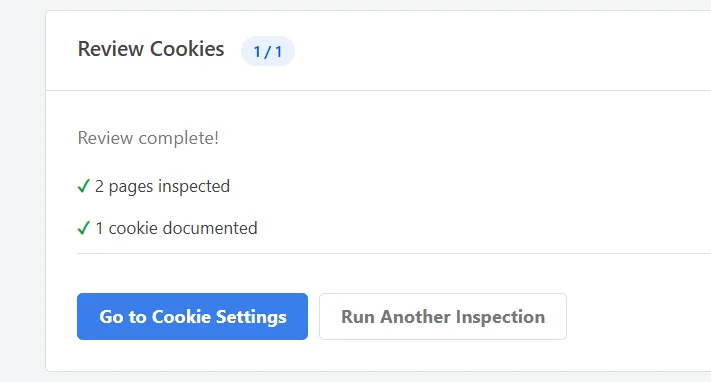
In the summary, Go to Cookie Settings opens your WPConsent settings. The cookies you documented are on its Cookies tab, alongside the rest. Run Another Inspection starts a fresh inspection straight away.
For more on editing entries, see managing cookies.
Creating Blocking Rules During Review
Requirements: Script tracing and blocking rule creation are available in the paid versions of WPConsent.
Documenting a cookie lists it in your banner, but it doesn’t stop the script that sets it. The review can do both in one step for cookies set by scripts from other websites.
During an inspection, WPConsent traces each cookie back to the script that set it. When that script loads from another domain, the review entry shows a Likely Source row with the domain and the script’s address. A Script Blocking section also appears below the cookie fields.
If the script is already covered by one of your blocking rules, the section says which one. Otherwise it offers a Block Script switch, which starts switched on, with the Script Tag field filled in from the traced domain. You can also list Script Keywords, which are the function names the script uses.
With the switch on, the cookie needs a service before it can be saved. Save & Next then saves the cookie and creates a blocking rule, so the script waits for consent to the cookie’s category. The summary at the end counts the rules you created.
The trace skips scripts served from your own domain. The cookie in our example came from a small script on the site itself, so its entry had no Script Blocking section. Scripts like that need a rule of their own, set up in custom scripts and iframes.
Fixing Cookies That Need Attention
A cookie under Needs Attention is already documented, so it doesn’t go to the review list. It carries a short warning instead, telling you a blocking rule may be missing.
In opt-in mode, the cookie loaded before consent. In opt-out mode, it was still set after you rejected cookies. Either way, the script behind it isn’t being held back.
The fix is for automatic script blocking to cover that service. For a script outside that list, a custom rule in custom scripts and iframes holds it back. A fresh inspection then shows whether the cookie has moved to Working Correctly.
That’s it! You now know how to run the Cookie Inspector, read its panel, and turn what it finds into documented cookies. Next, take a look at our guide on automatic script blocking, so the scripts behind those cookies wait for consent.
Frequently Asked Questions
Below, we’ve answered some of the most common questions about the Cookie Inspector.
Can my visitors see the Inspector panel?
No. The panel only loads for a signed-in administrator during that administrator’s own inspection, as covered in Starting an Inspection. Other administrators on your site don’t see it either unless they start an inspection themselves.
How long does my inspection last?
An inspection stays active for 30 minutes after you click Start Inspector. It ends sooner if you click Review Cookies, Finish Inspection, or Stop. To keep going after it ends, start a new one from the Inspector tab.
Will starting an inspection clear my visitors’ cookies?
No. The Inspector only clears cookies in your own browser, at the start of the inspection and whenever you use the reset arrow. It keeps your WordPress login cookies, so you stay signed in.
How is the Inspector different from my scans?
A scan sends the markup of the pages on your scan list to WPConsent’s scanning service, which matches it against known services. The Inspector watches cookies actually being set in your browser as you browse. That lets it list every cookie your pages set, including ones from your own scripts.
For more, see scanning your website.
Why are my geolocation rules not applied during an inspection?
WPConsent pauses geolocation rules for you during an inspection, so the Inspector tests your base settings without regional overrides. Your visitors still get their regional rules as usual.
For more on those rules, see setting up geolocation rules.
What happens to a cookie I skip?
It comes off the review list without being added to your cookie settings. Because it is still undocumented, it appears again the next time an inspection detects it.
What if I leave before reviewing every cookie?
The remaining cookies stay on the review list. The Inspector tab opens on the review the next time you visit it, and your dashboard shows an alert until the list is empty.
Does the Inspector show up on my WPConsent dashboard?
Yes. While cookies are waiting for review, an alert at the top of the dashboard links back to the Inspector tab. Two items in the dashboard score also track the Inspector. One is earned by running it at least once, the other by having no findings left to review.
For how the score works, see the dashboard overview.
Why is the Duration field empty for some of my cookies?
The Inspector fills in the duration when it sees a script set the cookie’s expiration. A cookie that was already in place when the page loaded, such as one your server sends, arrives without that detail. In that case, type the duration in yourself if you know it.