
Short Answer
To block Hotjar until visitors give consent in WordPress, install the free WPConsent plugin and turn on its consent banner and Script Blocking. WPConsent recognizes Hotjar’s tracking code and holds it until the visitor accepts Statistics cookies, and a quick scan adds Hotjar to your cookie preferences. If Hotjar loads through Google Tag Manager, or you’ve switched to the Contentsquare tag, you need one extra step.
Key Takeaways
- Once its code runs, Hotjar can set a cookie that recognizes returning visitors for a year.
- Free WPConsent already knows Hotjar’s tracking code, so there is no address or rule to type in.
- You can check it yourself in a private window: Hotjar doesn’t load until someone accepts Statistics cookies, for example by clicking Accept All.
- Hotjar added through Google Tag Manager needs a consent trigger in GTM. The Contentsquare tag needs a custom blocking rule (paid plans), or a GTM consent trigger if you added it through GTM.
Hotjar shows you how people use your website.
Its heatmaps and session recordings show where people click, scroll, and get stuck, and its surveys ask them why.
But Hotjar’s tracking code can start collecting visitor data as soon as it runs, even before a visitor has made a cookie choice.
Hotjar’s own documentation explains how its cookies work and points site owners toward consent tools, but leaves the implementation to their website developer or platform.
If you’re running a WordPress site, you don’t need to hire a developer to handle this.
In this guide, we’ll show you how to block Hotjar until visitors accept Statistics cookies using the free WPConsent plugin.
Then we’ll test the setup to confirm Hotjar stays blocked before consent, remains off when visitors reject cookies, and loads only after they accept.
Use the table of contents below to navigate this article.
- What Does Hotjar Store in Your Visitors' Browsers?
- How to Block Hotjar Until Visitors Give Consent in WordPress
- What Happens When a Visitor Changes Their Mind?
- If Hotjar Loads Through Google Tag Manager or the Contentsquare Tag
- Does Hotjar Need Cookie Consent?
- FAQs: Hotjar Cookie Consent
- Keep Hotjar Behind Consent as Your Site Changes
What Does Hotjar Store in Your Visitors’ Browsers?
Hotjar’s tracking code saves a handful of small files called tracking cookies in each visitor’s browser, and Hotjar lists them on its own cookie page.
The two that matter most are:
_hjSessionUser_plus your site ID. Gives each visitor a Hotjar ID that helps recognize them when they come back. It lasts 365 days._hjSession_plus your site ID. Keeps track of the visitor’s current session. It lasts 30 minutes and renews while they’re active.
It also uses a few short test cookies, some survey cookies, and browser storage.
All of Hotjar’s cookies are first-party, which means they’re saved under your domain, not Hotjar’s. But that doesn’t automatically mean they’re exempt from consent requirements. The data they help collect still goes to Hotjar.
Learn the difference between first-party and third-party cookies here.
Whether you need consent depends on where your visitors are and how you use Hotjar.
Under the EU’s ePrivacy rules, analytics cookies like these generally need consent. The UK has a narrow exception for certain statistical cookies, which we cover below.
Hotjar itself tells site owners to ask their own legal counsel how to classify its cookies.
Blocked means Hotjar’s code doesn’t run until the visitor says yes.
If the code never runs, it can’t set these cookies or send requests to Hotjar. That’s what you’ll check in Step 4.
How to Block Hotjar Until Visitors Give Consent in WordPress
The setup takes four steps, and you can do all of them with the free version of WPConsent. You can install it from WordPress.org or in your WordPress dashboard.
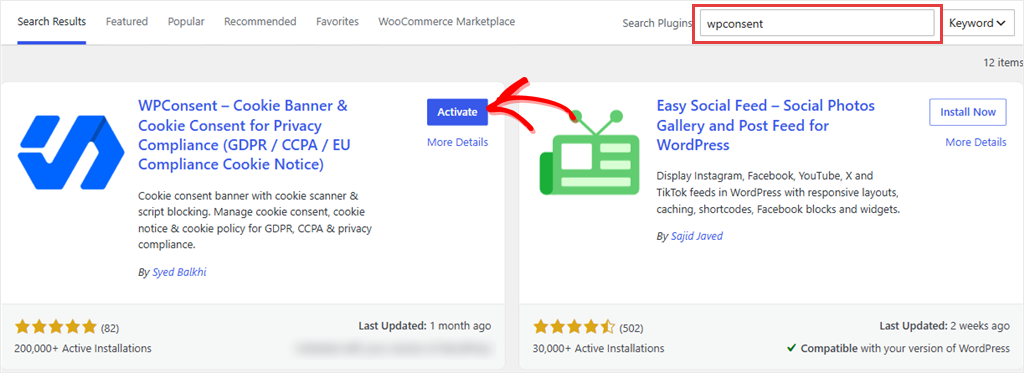
Check the difference between WPConsent Free and Pro to see what is right for you.
Read the full review of WPConsent to see everything this consent plugin can do.
Step 1: Check How Hotjar Is Added to Your Site
How you set up Hotjar on your site decides how it gets blocked.
So it’s worth two minutes to check this first. There are four common ways. The first two show up in your WordPress dashboard. For the other two, you check inside the tool itself:
- The Hotjar WordPress plugin. If you installed Hotjar this way, you’ll see it on your Plugins page. Its settings are under Settings » Hotjar, where you enter your Site ID.
- A pasted tracking code. You copied Hotjar’s code from your Hotjar account and pasted it into your site’s header. That’s often done with a header tool like WPCode, under Code Snippets. Look for a snippet that mentions
hotjar. - Google Tag Manager. Your site loads GTM, and Hotjar is a tag inside your container. Sign in at tagmanager.google.com, open Tags, and look for the one named Hotjar or using Hotjar’s template.
- The Contentsquare tag. Hotjar is now part of Contentsquare. If you’ve moved to Contentsquare’s free plan, you installed a new tag whose code mentions
t.contentsquare.net.
The Hotjar plugin adds the same tracking code to your page as manually pasted code. It doesn’t matter whether that code is in your header or footer. WPConsent can detect it anywhere on the page and block it before it runs. For these methods, continue with Steps 2 to 4. You don’t need any extra configuration.
If Hotjar loads through Google Tag Manager or the Contentsquare tag, follow Steps 2 to 4 as well. They set up the consent banner and preferences, but you’ll also need an extra step to block the tag.
We’ll cover that later in this guide.
Step 2: Turn On the Consent Banner, Script Blocking and Toggle Services (Free)
Once you install and activate WPConsent, its setup wizard scans your site and adds a cookie banner with what it detects. The wizard can also turn on Script Blocking to hold back known tracking scripts until visitors agree.
If you skip the wizard, you will need to set up your banner and activate these settings manually.
Either way, once done, go to WPConsent » Settings and stay on the Settings tab. Then, under Cookies Configuration, make sure these three switches are on.
- Consent Banner. This shows the banner on your site.
- Script Blocking. This holds known scripts back until the visitor gives consent. The switch won’t stay on unless the banner is on too, so turn the banner on first. It works on every script on WPConsent’s known list, so other trackers on your site wait for consent too, not only Hotjar.
- Toggle Services. This lets visitors switch individual services on or off inside the preferences panel. It is off by default. Hotjar gets its own switch there once the scan in Step 3 adds it.
Leave Default Allow off. Turning it on lets scripts run until a visitor clicks Reject, which is the opposite of what you want here. With it off, your setup is opt-in: Hotjar waits for a yes.
Here’s what the switches look like when they’re on. The Settings Button in between comes up later in this guide.
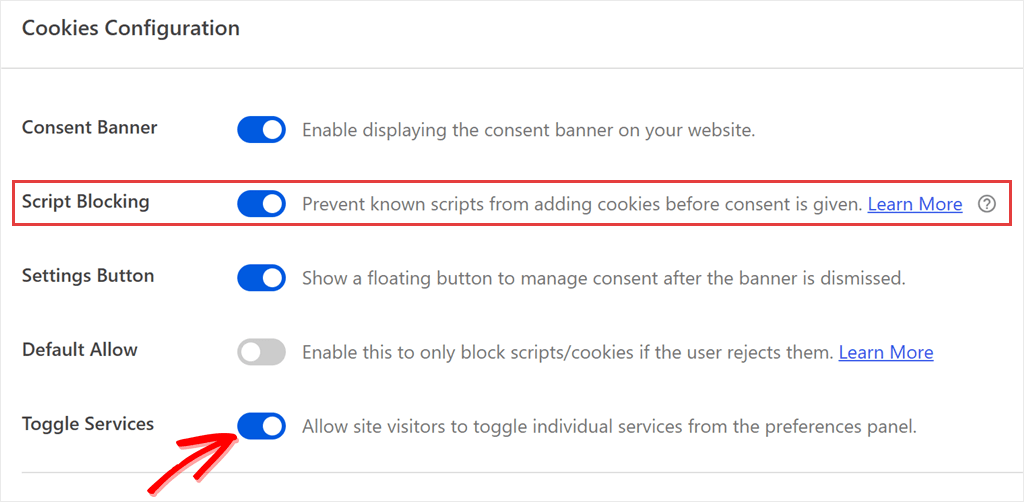
Then click Save Changes at the bottom of the page.
That’s the blocking done.
You do not type in Hotjar’s address anywhere, because Hotjar is already on WPConsent’s list of known scripts, filed under Statistics.
Step 3: Scan Your Site So Hotjar Appears in Your Cookie Preferences (Free)
Hotjar is now blocked, but it hasn’t been added to your visitors’ cookie preferences yet.
When visitors click Preferences on your cookie banner, they can open a settings panel to choose which types of cookies and tracking services they allow.
Hotjar should appear there so visitors can see what they’re agreeing to and choose whether to allow it.
A scan of your site by WPConsent adds Hotjar to these preferences for you.
Go to WPConsent » Scanner.
Under Select content to scan, your home page is already listed. If Hotjar only runs on certain pages, search for one of them and add it to the list.
After that, click Scan Your Website.
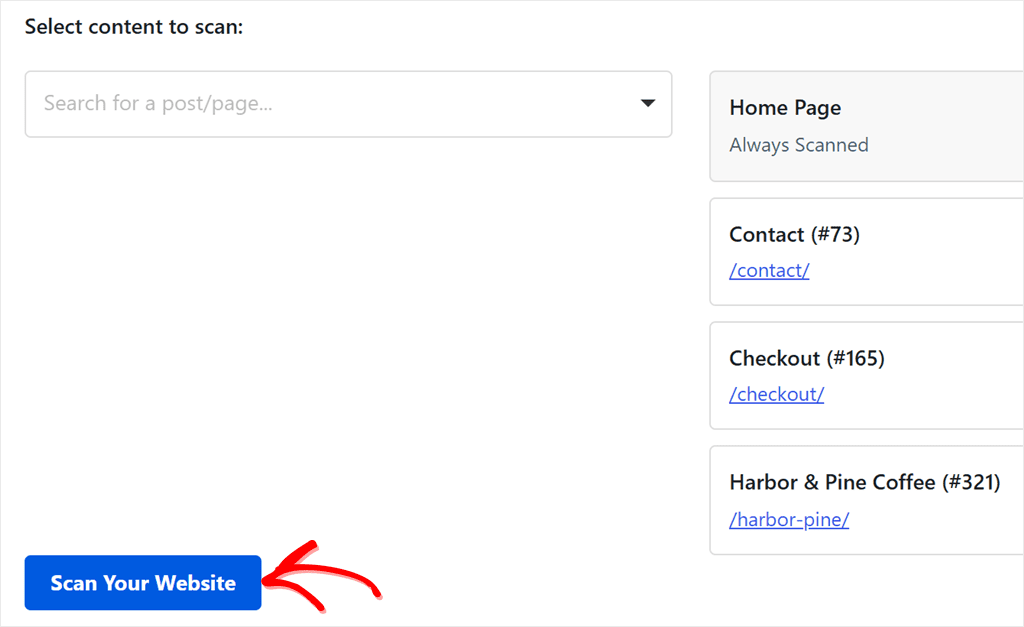
The scan can take a few minutes.
Ours took a little over two minutes.
When it finishes, scroll down to the Detailed Report. You should see a Hotjar card under Statistics, already ticked.
Click View Cookies on the card if you want to see every Hotjar cookie the scanner knows about.
Below the cards, click Automatically Configure Cookies.
In the screenshot below, you can see the Hotjar card and the button.
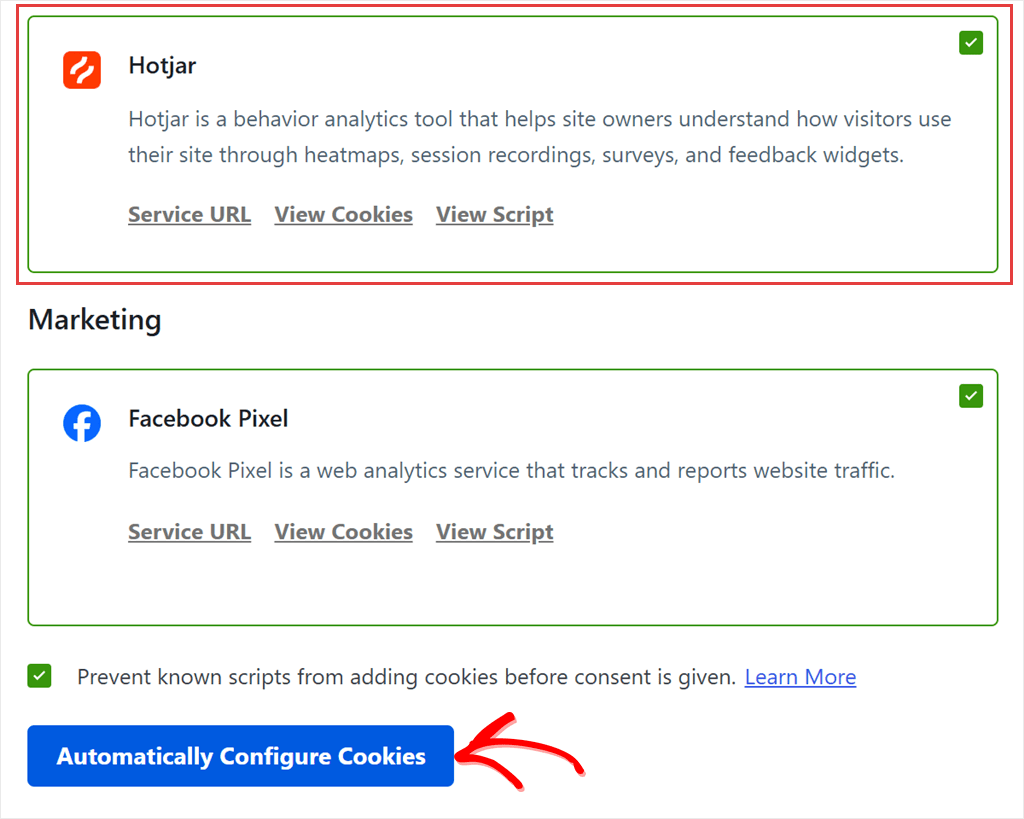
A box asks you to confirm. Click Yes, and you’ll see “Services and cookies added successfully.”
To check the result, go to WPConsent » Settings and open the Cookies tab.
Hotjar now sits under Statistics, with its cookies listed underneath, and each one has a short description and how long it lasts.
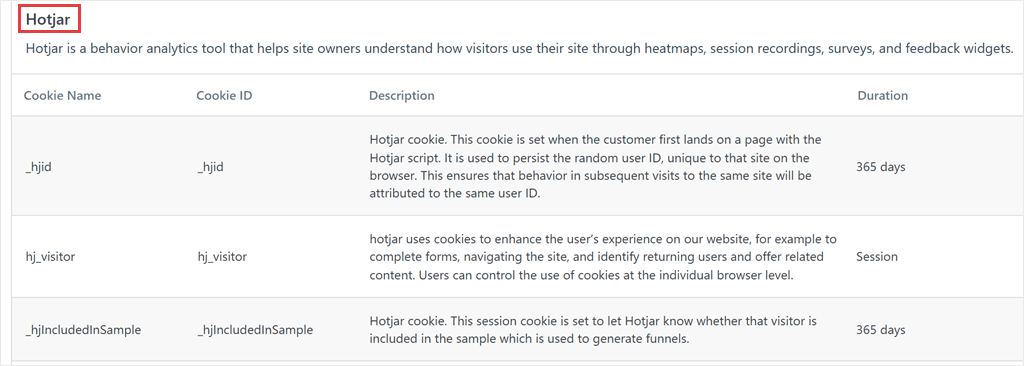
Those details also feed your cookie policy page, if you use WPConsent’s cookie policy generator.
Tip: On Plus plans and up, you can also create your privacy policy and cookie policy with WPConsent’s Legal Documents feature.
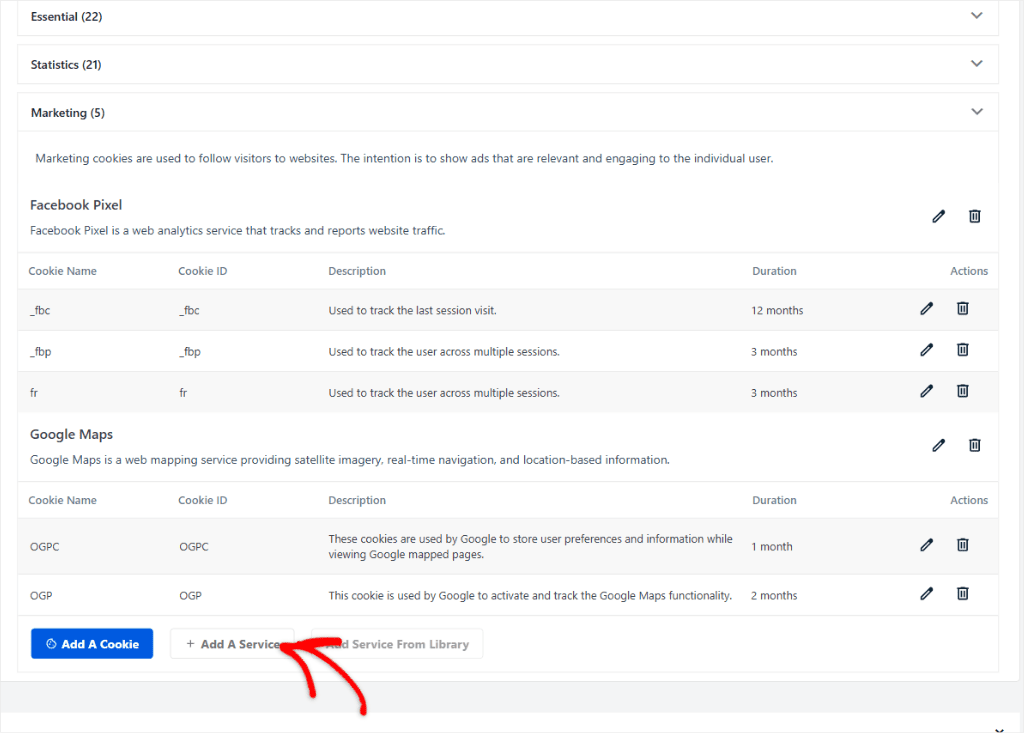
If the scan doesn’t find Hotjar, for example, because it only runs on a page you didn’t scan, add it by hand.
To do this, go to the Cookies tab, click Add A Service in the Statistics section, and name it Hotjar. On paid plans, Add Service From Library fills in Hotjar’s cookies for you.
Step 4: Test That Hotjar Waits for Consent
To see if Hotjar waits, open your site in a private or incognito window (Ctrl+Shift+N in Chrome and Edge, Ctrl+Shift+P in Firefox, Cmd+Shift+N in Safari). This way, you visit your site like a new visitor.
You should see your cookie banner, with Preferences, Reject, and Accept All buttons. Don’t click anything yet.
Next, right-click the page and choose View Page Source.
Press Ctrl+F (Cmd+F on a Mac) and search for hotjar.
You’ll find Hotjar’s tracking code, but it starts with <script type="text/plain" data-wpconsent-name="hotjar" data-wpconsent-category="statistics">.
That text/plain label is the block.
It tells the browser this is plain text, not code, so the browser doesn’t run it.
Here’s the held-back code on our demo coffee shop.
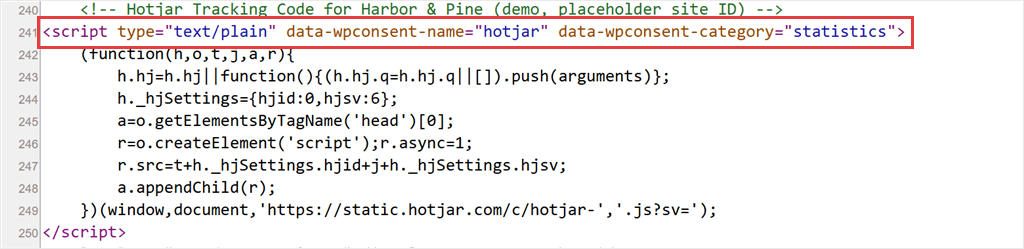
The page source shows the code is parked. To watch it actually stay off, and then switch on, use your browser’s network list.
Press F12 (Cmd+Option+I on a Mac) to open the developer tools, and click the Network tab. Type hotjar in its filter box, then reload the page.
Before you click anything on the banner, the list should stay empty. That means your browser hasn’t sent any requests matching Hotjar in this test.
⚠️ Hotjar loads before you click?
Go back to Step 2. Consent Banner and Script Blocking should both be on, Default Allow off, and the changes saved. Then check that Hotjar isn’t also added through Google Tag Manager, because that copy needs the GTM step below.
Now click Reject and load another page. If the list stays empty, Hotjar’s tracking code hasn’t started.
Then close every private window, open a new one, repeat the steps, and click Accept All. A request to static.hotjar.com appears straight away, without a reload. That’s Hotjar loading.
That’s exactly what we saw on our demo coffee shop: nothing before a choice, nothing after Reject, and Hotjar loading right after Accept All.
We tested with a placeholder Hotjar ID, which doesn’t set cookies, so we checked requests instead. With a real Hotjar account, you can also open the Application tab (Storage in Firefox), then Cookies. The _hj cookies from the list above should only appear after Accept All.
View Page Source still says text/plain after you accept. That’s normal: WPConsent turns the code on in the visitor’s browser, not in the page source.
Using location rules? On paid plans, you can show the banner only in certain regions. If you test from somewhere else, you may not see a banner. Test from one of the regions you picked.
💡 Tip
If Hotjar’s Verify installation check says “Tracking code not found”, accept the banner on your site in that browser, then check again. With WPConsent, Hotjar’s code only runs after consent.
What Happens When a Visitor Changes Their Mind?
Visitors can change their cookie choices at any time, and Hotjar should respond to those changes.
First, they need a way back to their choices.
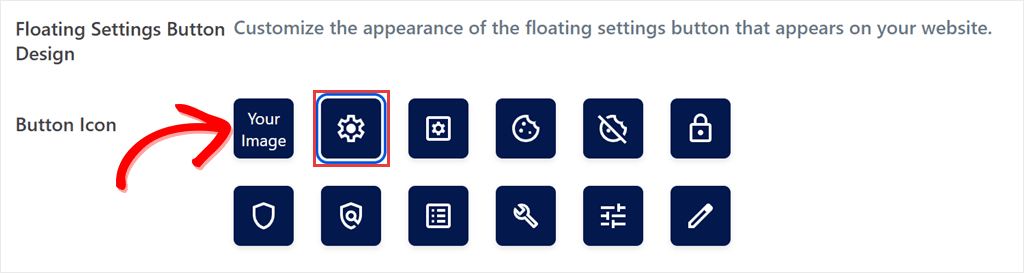
You can turn on the Settings Button on the same Settings tab as before. It adds a small floating button that reopens the preferences panel. It’s free and off by default.

Once you do that, a new option appears in Banner Design » Style where you can choose the button icon from the options or your logo.
You can also add a link that opens the preferences panel in your footer or on your cookie policy page. Our guide to letting visitors change their cookie preferences shows you how to set up both.
Toggle Services lets visitors accept or reject individual services within a cookie category. When it’s off, their choice applies to the entire category. When it’s on, visitors can open Statistics and turn off specific services without disabling the rest of their analytics.
For example, they can accept Hotjar while keeping Google Analytics disabled.
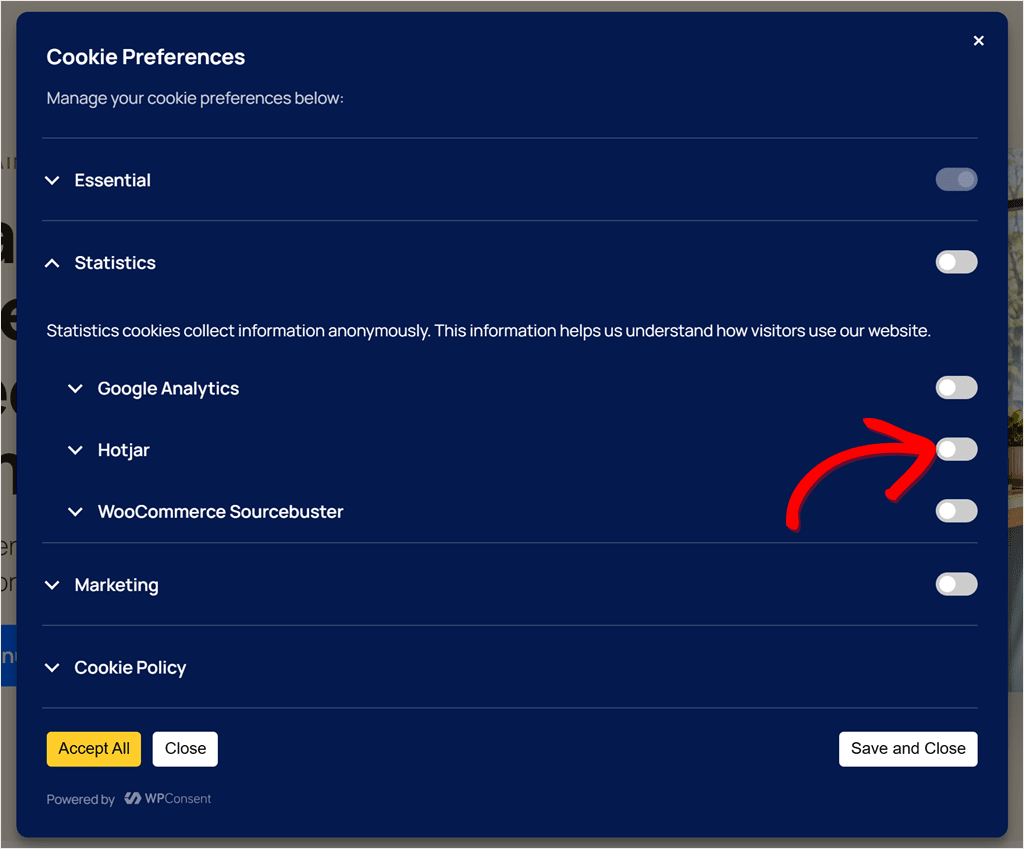
Once they click Save and Close, WPConsent applies the new choice, clears the cookies it can reach on your site, and reloads the page. After the reload, Hotjar runs or stays off to match the new choice.
We tried both on our demo site, switching off all of Statistics and switching off only Hotjar, and Hotjar stopped each time.
If Hotjar Loads Through Google Tag Manager or the Contentsquare Tag
These two setups need one more step, because WPConsent’s automatic blocking doesn’t catch Hotjar here.
Google Tag Manager
WPConsent checks your page before it is sent to the visitor.
Google Tag Manager adds Hotjar later, inside the visitor’s browser, so WPConsent never sees Hotjar’s code in the page.
Instead, you make the Hotjar tag wait for consent inside GTM.
WPConsent sends a consent event to Google Tag Manager whenever a visitor makes a choice. The event is called wpconsent_consent_processed, and it carries a value called wpconsentPreferences.statistics.
You can use that value to build a GTM trigger that fires Hotjar only when Statistics consent is true. Remove the Hotjar tag’s old All Pages trigger too, or it will still fire before anyone chooses.
Our guide to firing Google Tag Manager tags only after consent walks through the trigger and the data layer variable step by step.
On paid plans, WPConsent’s scanner can also look inside your GTM container, identify Hotjar, and suggest it for your cookie preferences. The blocking itself still happens with the GTM trigger.
The Contentsquare tag
As of November 2026, Hotjar is inviting Hotjar Free users to Contentsquare’s free plan in waves. You don’t have to switch, and Hotjar Free keeps working if you don’t.
If you’ve switched, Contentsquare’s tag loads from a different address, and that address isn’t on WPConsent’s list of known scripts yet.
So you add a custom blocking rule. Custom blocking rules are on all paid plans.
Here’s how:
- On the Cookies tab, click Add A Service under Statistics and add Contentsquare. This part is free. It puts Contentsquare in your banner so visitors know what they’re agreeing to.
- Go to WPConsent » Settings, open the Advanced tab, and in the Custom Iframes/Scripts box, click Add Custom iFrame/Script.
- Set Category to Statistics and Service to Contentsquare.
- Leave Type on Script. In Script Tag, enter
t.contentsquare.net. - Click Save.
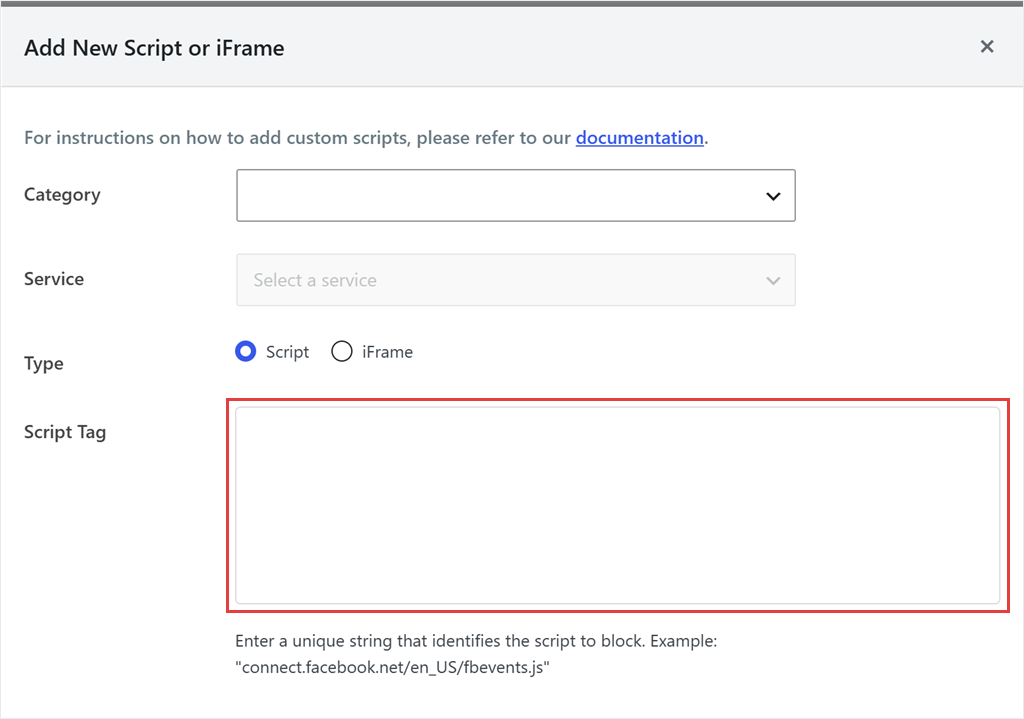
WPConsent then holds any script whose address or code contains that piece of text.
We checked this rule against Contentsquare’s own install code, which loads its tracking script from t.contentsquare.net.
Once the rule is saved, run the test from Step 4 and filter your browser’s Network tab for contentsquare. No matching requests should appear before a visitor accepts.
If you added the Contentsquare tag through Google Tag Manager, you don’t need the custom rule. Use a GTM consent trigger instead, the same way as Hotjar above. That route works with free WPConsent.
Does Hotjar Need Cookie Consent?
Under the EU’s ePrivacy rules, analytics cookies like Hotjar’s generally need the visitor’s consent first. Our guide to cookie consent requirements by country covers other regions.
The UK has been different since February 5, 2026. The Data (Use and Access) Act 2025 added an exception for statistics cookies, and it only applies when all five of these are true:
- The site provides an online service.
- The only purpose is to collect statistics on how the site is used, to improve it.
- The information isn’t shared with anyone, except to help make those improvements.
- Visitors get clear and full information about it.
- Visitors get a simple, free way to object, and they don’t object.
Condition 3 matters most for a third-party tool like Hotjar. The provider can receive the information when it’s helping you improve your site, but the arrangement and how the provider uses the data both matter.
This exception only covers the UK rule on storing or reading information on a visitor’s device. It doesn’t remove your other data protection duties.
Whether Hotjar fits all five on your site is a question for your legal counsel. Hotjar also tells site owners to ask their own legal counsel about its cookies.
FAQs: Hotjar Cookie Consent
Does blocking Hotjar reduce my recordings?
Yes. Hotjar can only record visitors who accept Statistics cookies, so you’ll get far less data than before, but not none. Your heatmaps and recordings will now reflect visitors who agreed to tracking, not everyone who visited. Keep that in mind before you compare Hotjar’s numbers with your overall traffic.
Is Hotjar GDPR compliant?
That depends on how you set it up and use it, not only on Hotjar. Consent is one part. Hotjar’s compliance FAQs and its sample privacy policy wording cover others, like what you tell visitors and how long data is kept. Your legal counsel can tell you what applies to your site.
Are Hotjar surveys and feedback widgets blocked too?
Yes, the ones that appear on your site. Hotjar says on-site surveys need its tracking code on the page, so they wait for consent along with everything else. Link surveys you send by email or URL don’t run on your site, so they are not affected.
Keep Hotjar Behind Consent as Your Site Changes
You’ve now got Hotjar waiting for consent, with its own entry in your cookie preferences. Visitors can change their minds later without needing to contact you.
Run a new scan whenever you add a tracking tool or switch from Hotjar to the Contentsquare tag. Then repeat the private-window test from Step 4.
Expect fewer Hotjar recordings from now on, since Hotjar can only record visitors who accept.
And remember, a banner doesn’t make your site compliant on its own. Hotjar also asks you to explain in your privacy policy how you use Hotjar, and it publishes sample wording you can start from.
Want to block Hotjar, analytics scripts, and other trackers until visitors give consent?
Get WPConsent for free
Want custom blocking rules for tags like Contentsquare, plus consent logs and more?
See WPConsent pricing
Additional Resources
Three guides for keeping other trackers on your site behind consent:
- How to Audit Your WordPress Site for Cookie Compliance: check your banner, scripts, and cookie policy in one pass.
- Beginners Guide to Google Analytics Cookie Consent in WordPress: the same idea for Google Analytics.
- How to Set Up Microsoft Clarity Consent Mode in WordPress: for another heatmap and recording tool.
This article is for general information and does not constitute legal advice. For advice on your specific situation, consult a licensed attorney.
No tool, WPConsent included, can by itself guarantee compliance. Proper configuration and legal review of your specific site both matter.