TL;DR:
A scan shows which services your site runs, but only a real visit shows the cookies it actually sets. So you need both. Run WPConsent’s free scan or the free plugin’s Scanner to find your services. Then open your site in a private window, click Accept All, and check your browser’s developer tools. The free Cookie Inspector helps you document each cookie.
You added Google Analytics. Maybe a contact form, an embedded video, a Facebook pixel for ads, or other third-party services to your WordPress site.
Now your cookie banner is asking you to list the cookies your site uses, and you have no idea what that list should say.
Maybe you’ve already scanned your site with a tool you found, hoping for answers.
It gave you names like _ga and fr, but you don’t know what they mean, whether the scan found everything, or if you can trust it.
The reliable way to find out which cookies your WordPress site uses is to use both a scan and a fresh visit.
The scan shows which services and known cookies your site may use. A fresh visit, with everything accepted, shows which cookies are set during that visit.
The visit finds the cookies. The scan tells you what they are.
We’ll walk through both methods, starting with the fastest.
Key Takeaways
- A scan matches known services to their known cookies, and it doesn’t watch your site live.
- Only a real visit, with every category accepted, shows you the cookies actually set.
- Checking while logged in misses cookies, because some plugins skip tracking for admins.
- WPConsent’s free Cookie Inspector documents the cookies your own pages can read, and labels the ones you saved from your scan. Your browser’s tools also show cookies from other domains and cookies hidden from scripts.
- Tracing some cookies back to the script that set them is a paid feature. Finding them is free.
Find Out Which Services and Cookies Your Site Uses With WPConsent
WPConsent is a free cookie consent plugin for WordPress. It gives you two ways to see which services your site runs, and the cookies they’re known to set.
The free online scan tool needs no install but only checks your homepage. The Scanner in the free plugin checks your homepage, pre-selected pages, and any pages you pick.
Use the table of contents below to jump to any section of the article.
Method 1: Run a Free Scan, No Install Needed
The fastest way to start is WPConsent’s free online scan tool.
There is no account and no plugin to set up first. It checks your homepage for tracking services and lists the tracking cookies each one is known to set.
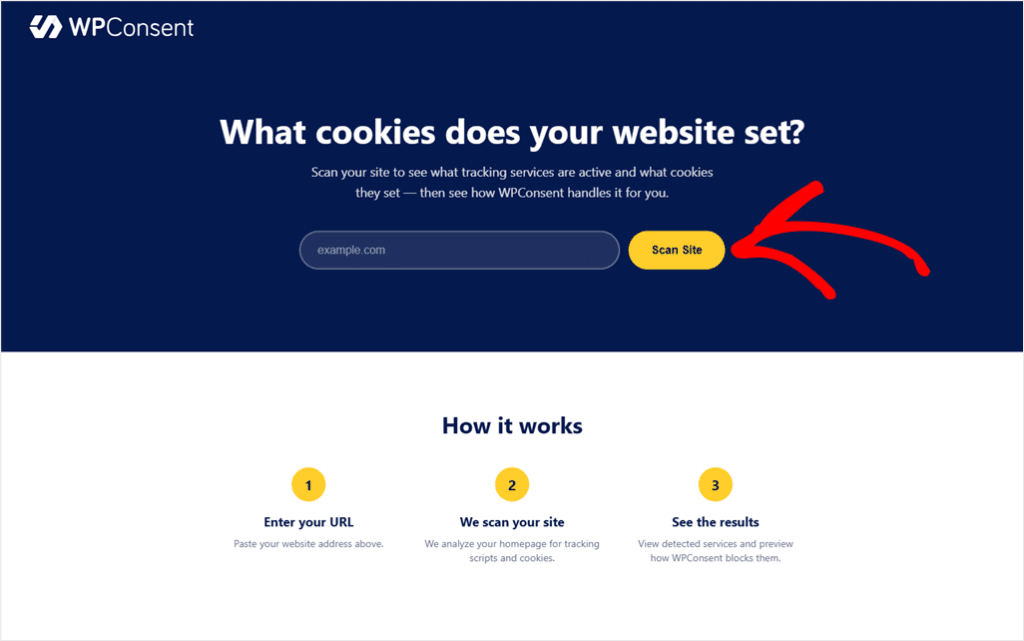
To use this tool, go to wpconsent.com/scan/. Paste your site’s URL and click Scan Site.
You will get a results page listing Detected Services, grouped by category. A red Not blocked label means that service runs before visitors consent. Checking your blocking is a separate job, covered at the end.
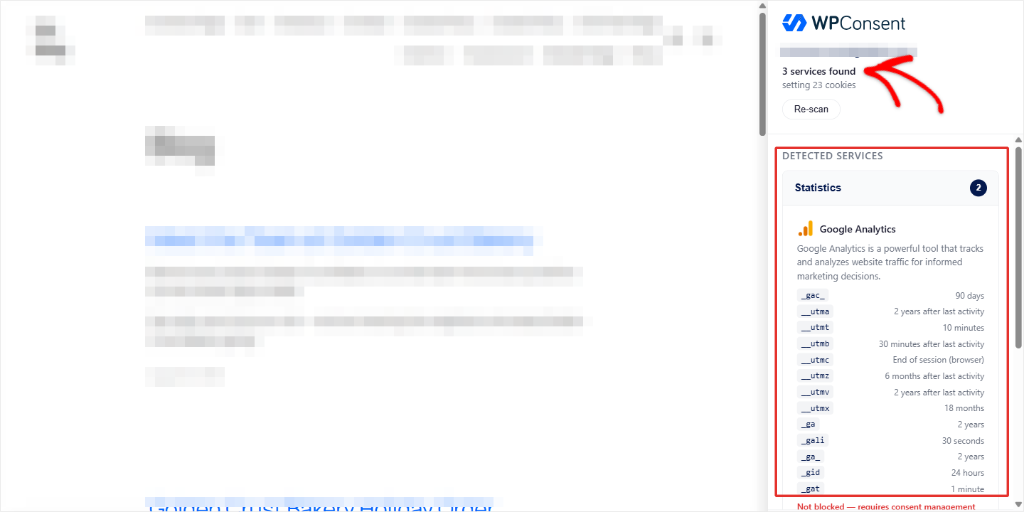
It only checks your homepage, and only for services it already knows. For example, if your contact form or checkout page loads something the homepage doesn’t, this scan will not see it.
So how do you find the cookies on other pages?
Method 2: Choose Which Pages to Scan With the Free WPConsent Plugin
For a fuller picture, install the free WPConsent plugin like you would any other plugin.
Using a different cookie banner plugin? The free scan tool and your browser’s developer tools work with any banner. The steps below use WPConsent’s own banner.
Want to switch? Turn off your other banner first, so visitors don’t see two. Our guide to migrating from Cookiebot to WPConsent shows the order to do it in.
Once you have it set up, in your WordPress dashboard, open WPConsent » Scanner.
It works like the online scan tool, but you choose which pages it checks.
Run a Scan on Your Homepage and Pre-Selected Pages
Your homepage is always scanned. The first time you open the Scanner, WPConsent also pre-selects any published page with checkout, cart, contact, or videos in its title or slug.
On our test site, that meant the homepage and the Contact page were checked before we touched anything.
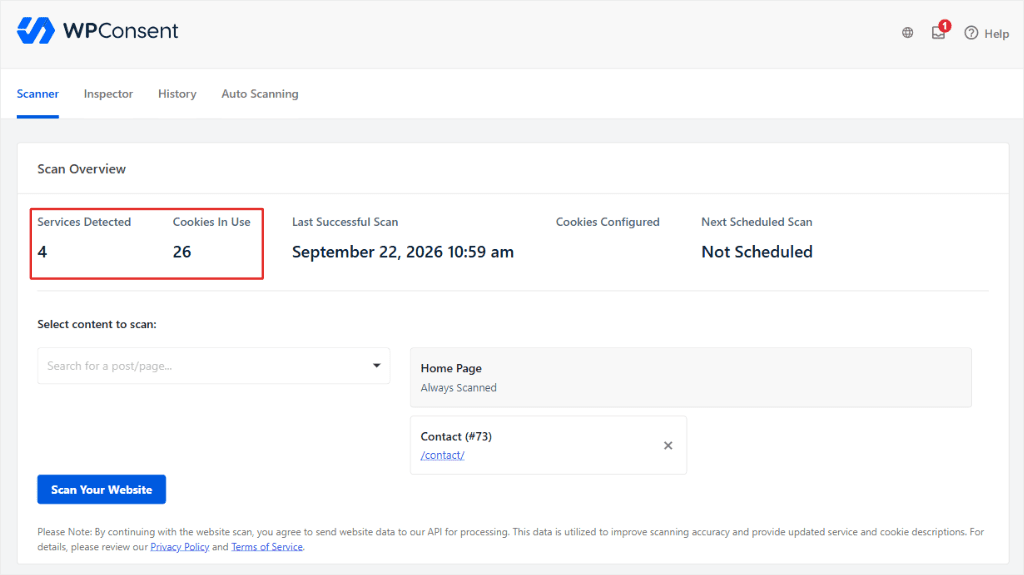
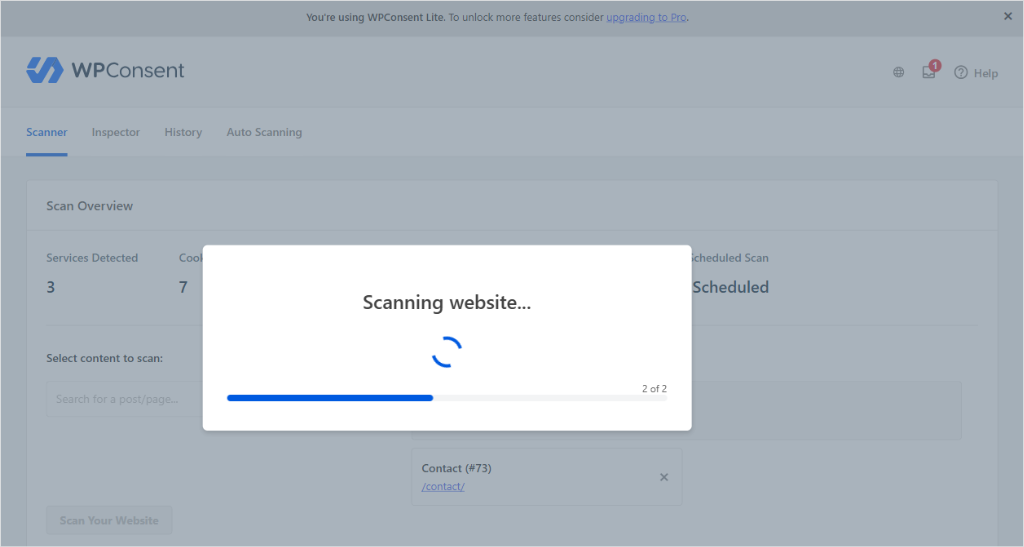
Click Scan Your Website and let it run.
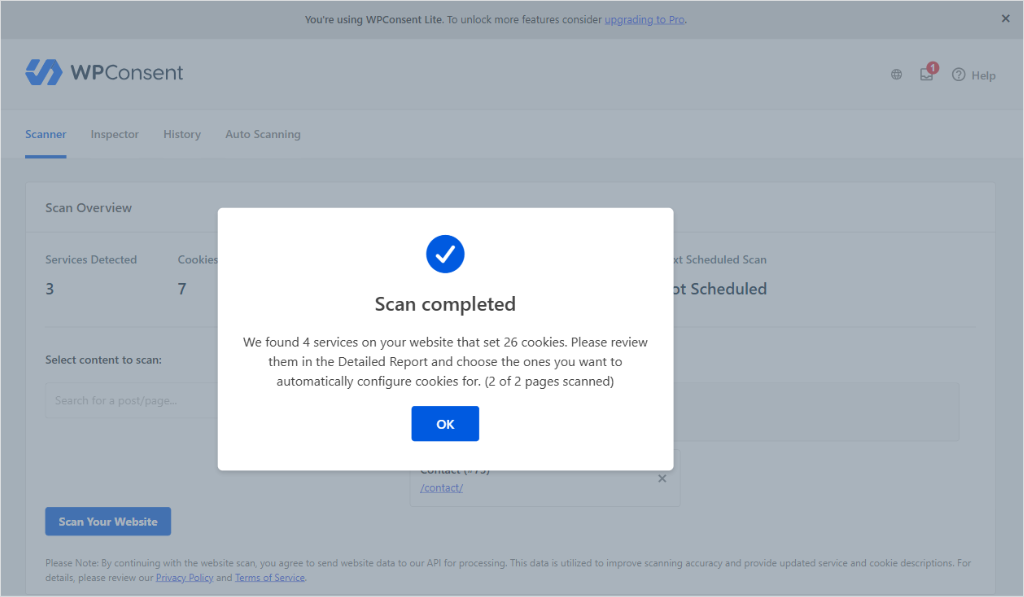
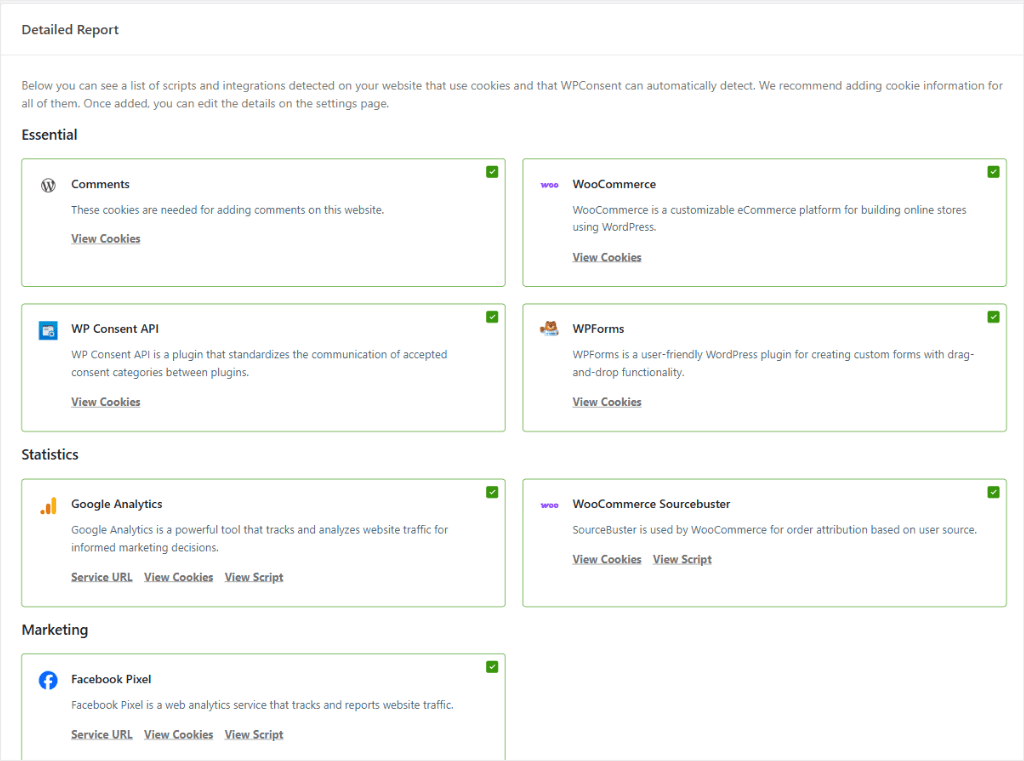
When it finishes, you will see a summary like “We found 4 services on your website that set 26 cookies.”
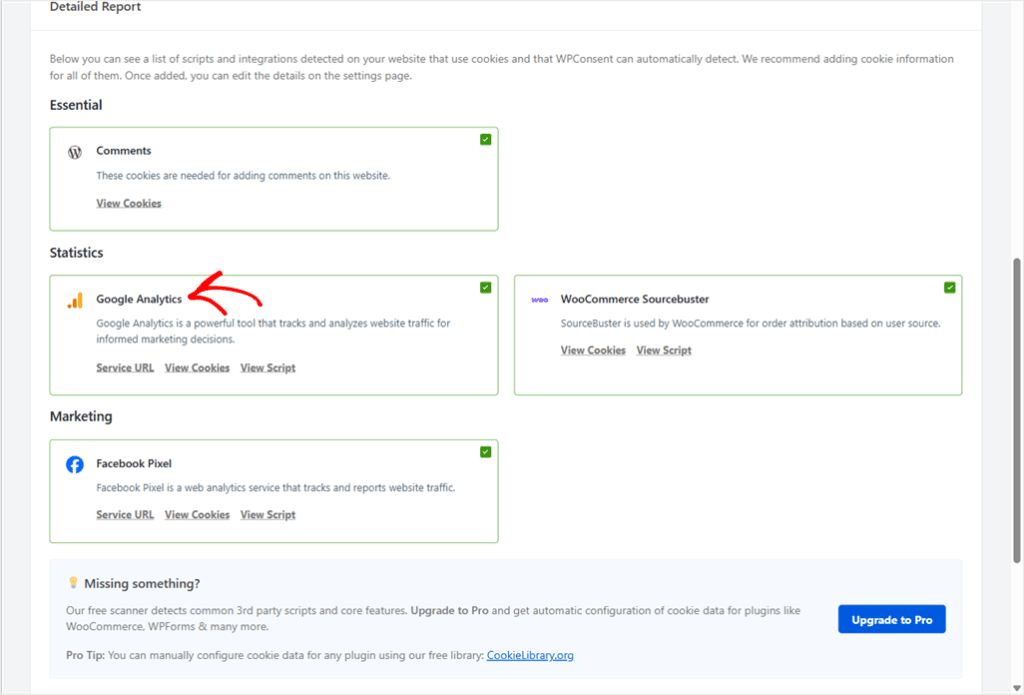
Once you close the popup, the full report breaks that number down service by service. Click View Cookies under any service to see the cookies it’s known to set.
Add More Pages and Scan Again
Pre-selection only happens the first time you open the Scanner. Pages you create later aren’t added, and pages without checkout, cart, contact, or videos in their title or slug aren’t added either.
To add more pages, pick them in the Select content to scan dropdown. Then click Scan Your Website again.
If you run a store, check that your cart and checkout pages are in the list. They’ll be missing if you set up your store after your first visit to the Scanner.
These pages can load scripts the rest of the site doesn’t, like a payment provider. If they load nothing new, your count may stay the same.
Our guide to WooCommerce cookie consent covers the cookies a store adds.
Also add pages with embeds, like a map or a video, and landing pages built around an ad pixel.
On our test site, we added an event page with a Google Maps embed. The scan picked up Google Maps as a new service, bringing the total to 5 services and 28 cookies.
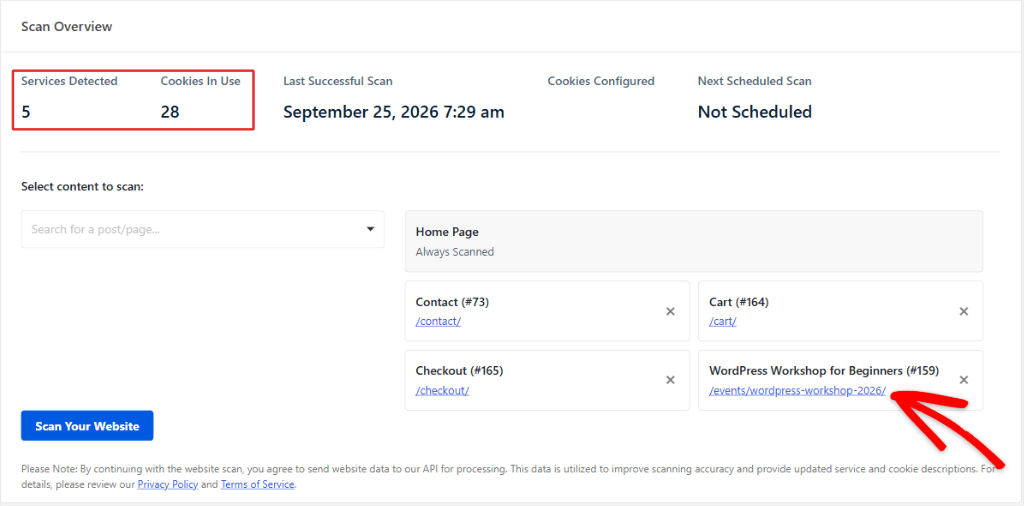
Keep in mind a scan lists every cookie a service can set, not what your site actually sets.
Our final scan gave us 5 services and 28 cookies. We opened the site in a private window, clicked Accept All, browsed the pages we’d scanned, and checked what the browser stored.
| Service | What the final scan listed | What the browser stored |
|---|---|---|
| Google Analytics | _ga, _gid, _gat, and cookies from Google’s retired ga.js tracking code, like __utma and __utmz | Only _ga and _ga_ cookies. No _gid, _gat, or __utm cookies. |
| WooCommerce Sourcebuster (WooCommerce’s record of where shoppers came from) | 7 sbjs_ cookies | The same 7. These matched. |
| Google Maps | OGPC and OGP | NID and SEARCH_SAMESITE, on google.com. No OGPC or OGP. |
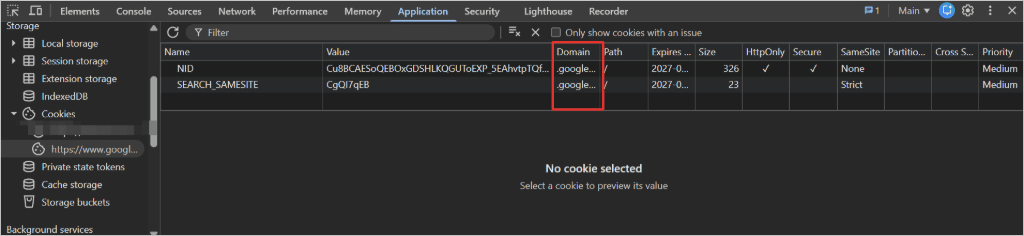
Some cookies matched, like the seven sbjs_ cookies. Others, like __utma, were listed but never stored.
The final scan found Google Maps once we added the map page. But the browser still stored NID and SEARCH_SAMESITE, which the scan didn’t account for.
That’s why a scan is where your cookie list starts, not the list itself.
Save What the Scan Found
When you’ve scanned every page you need, save the results. To do this, scroll below the report.
Leave Prevent known scripts from adding cookies before consent is given checked. It’s on by default, and it stops those services from setting cookies until a visitor accepts your banner.
Then click Automatically Configure Cookies and confirm.
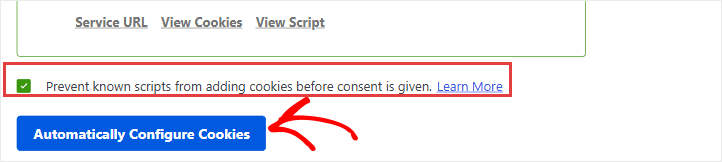
This saves every ticked service in the report, and its known cookies, to your cookie settings. WPConsent uses them to build your cookie banner and your cookie policy page. The Cookie Inspector also uses them to label the cookies it finds.
What Paid Plans Add to Your Scan
On the free plan, you can document anything the Scanner doesn’t match with the Cookie Inspector, covered below. You can also add a plugin’s cookies by hand, using free data from CookieLibrary.org.
Paid plans detect more for you automatically, including cookies set by other plugins, such as WooCommerce, and scripts loaded inside Google Tag Manager.
On our test site, a paid-plan scan found 7 services and 35 cookies.
To keep your banner and cookie policy current, the paid plans also add scheduled scans that run automatically. You activate this with a toggle button and set the scan interval.
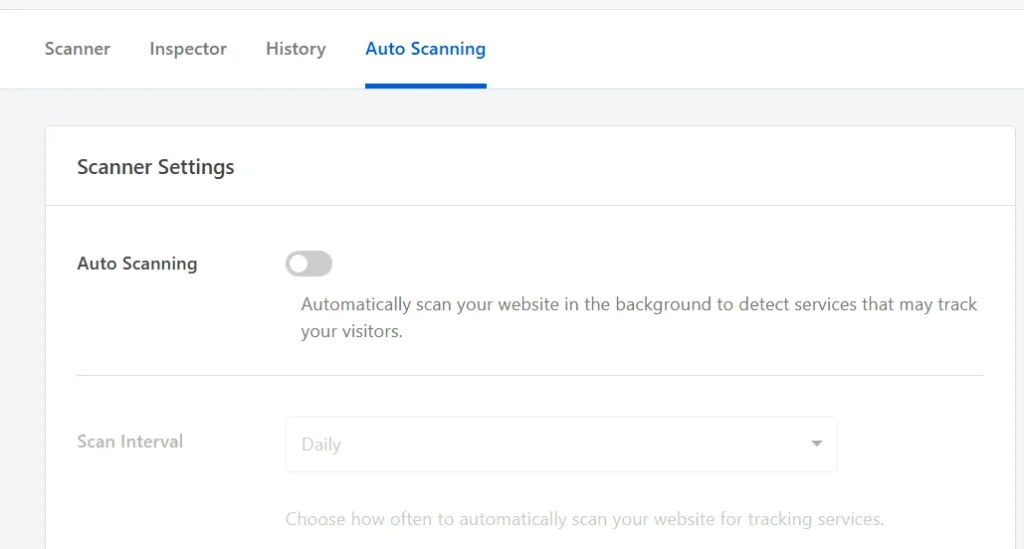
Our docs show how to set up automatic scheduled scans.
Our WPConsent Free vs Pro guide compares everything each plan includes.
Confirm What Cookies Actually Get Set
The scan lists what a service is capable of setting. Next, let’s confirm what actually got set on your site.
There are two ways to check, and the full list needs both.
Your browser’s developer tools show the cookies your browser receives during a visit. WPConsent’s Cookie Inspector is the faster way to label and document the cookies your own pages can read.
See Website Cookies Using Browser Tools
Open a private or incognito window to see your site as a first-time visitor does.
This matters because some plugins quietly skip tracking for logged-in admins. Check while logged in, and their cookies never show up, so the count would be wrong.
Load your homepage and click Accept All on your cookie consent banner. Any script your banner blocks will not set its cookie until you accept.
If you accept only some categories, cookies from the categories you declined won’t appear.
Now open your browser’s developer tools. In Chrome, right-click anywhere on the page and choose Inspect.
Then open the Application tab and expand Cookies in the left sidebar.
Note: In Firefox, open the Storage tab instead. The rest of the steps work the same way.
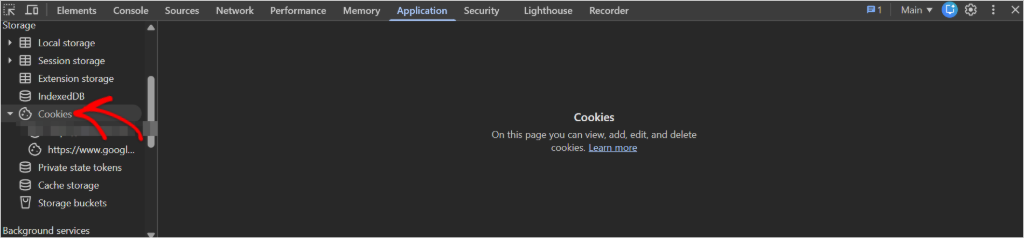
Click your site’s address to see a table of its cookies, one row each. Other entries, like https://www.google.com, hold cookies from embeds such as a map.
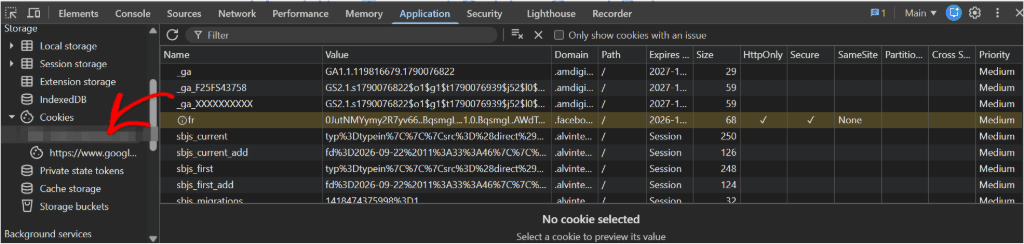
Look at the Domain column. A cookie whose domain matches your own site is first-party. One whose domain points somewhere else is third-party.
On our test site, _ga and fr showed up in the same table. _ga sat under our own domain, so it’s first-party. fr sat under Facebook’s, so it’s third-party.
The label comes from the domain, not the company. Google Analytics is a Google service, but its cookie can still count as first-party.
Check out this post to see in detail the difference between first-party and third-party cookies.
Click any row to see that cookie’s full value. The Expires / Max-Age column shows how long it lasts.
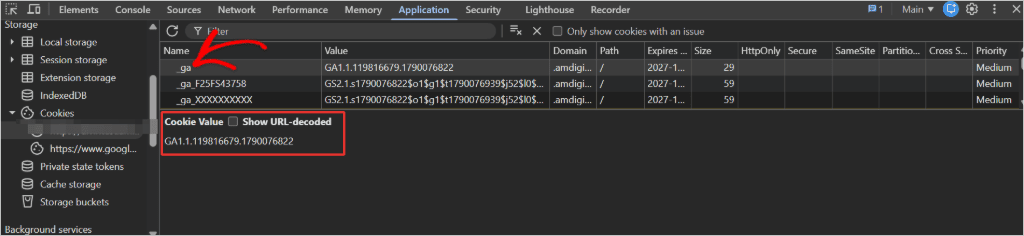
This method is free, but it labels nothing and saves nothing. You match each row name to a service, and write the list down by hand.
Document Your Cookies With the Cookie Inspector
WPConsent’s free Cookie Inspector watches your site while you browse it, then helps you add each cookie it finds to your cookie list.
Before you start, run the Scanner and click Automatically Configure Cookies, as shown above. Cookies from those services then show up as already documented, so you only have to deal with the new ones.
Step 1: Start the Inspector
Go to WPConsent » Scanner and open the Inspector tab. Click Start Inspector.
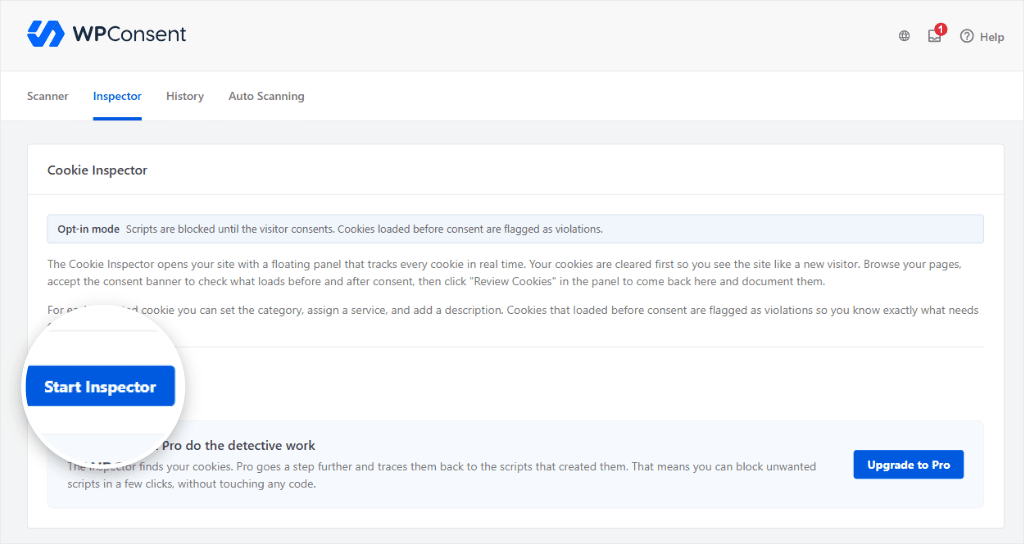
The Inspector clears your site’s cookies (you stay logged in) and opens your homepage with a floating panel on the right.
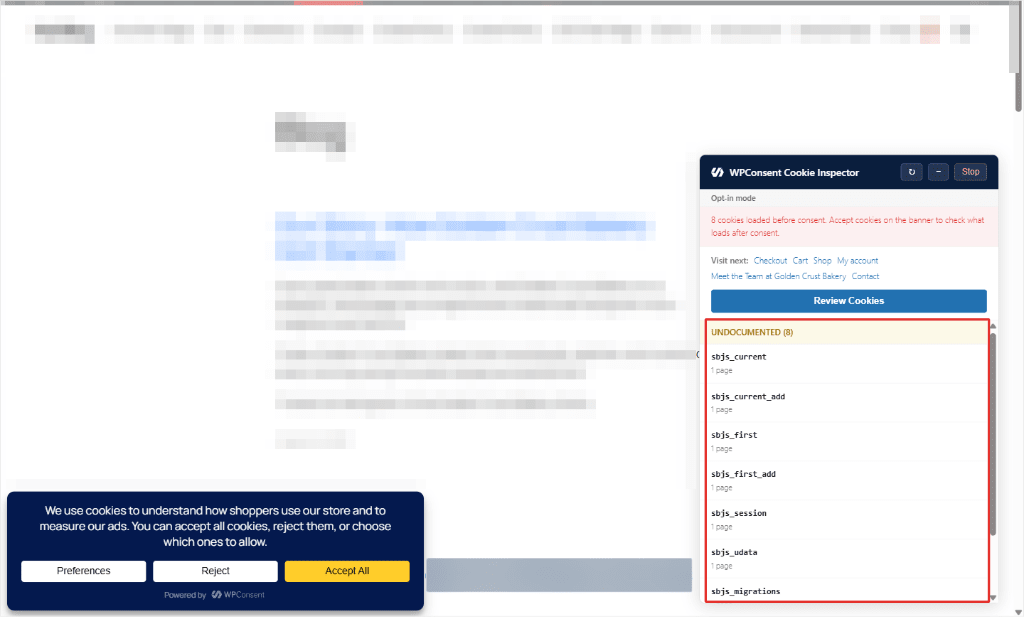
The panel sorts cookies into lists.
- Working Correctly holds cookies already in your cookie settings.
- Undocumented holds the ones that aren’t yet.
- Admin only cookies are set when logged-in users open the WordPress admin, so regular visitors never see them.
With script blocking on, the panel shows Opt-in mode. Cookies from your saved services that loaded before you accepted the banner appear under Needs Attention.
If you’re building your cookie list, don’t worry about Needs Attention yet. That’s about blocking, not finding cookies. Our guide on how to audit your WordPress site for cookie compliance covers it.
Step 2: Accept Your Banner
Click Accept All on your cookie banner. The scripts your banner was holding back start running, and their cookies appear in the panel.
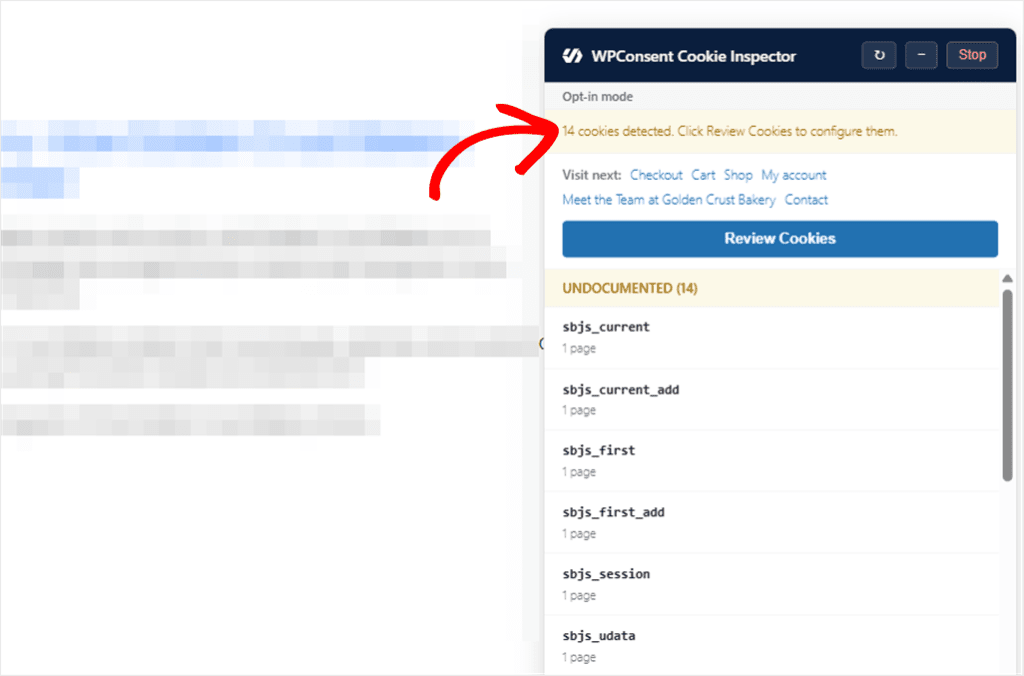
Step 3: Browse the Pages That Matter
The panel’s Visit next list links to pages worth checking, usually your checkout, cart, and contact pages. Click through each one. The panel keeps its list as you move.
If you run a store, do what a shopper would: add a product to your cart, then open the cart and checkout pages. Some store cookies are only set once there’s something in the cart.
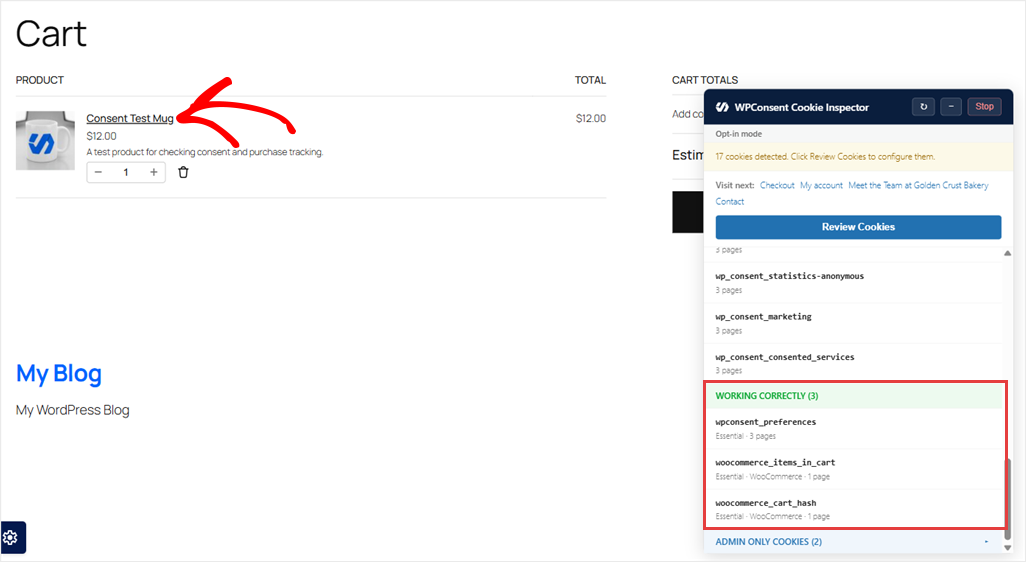
On our test site, the two WooCommerce cart cookies showed up under Working Correctly because we’d already saved the WooCommerce service.
That service is detected on paid plans. On the free plan, these two appear under Undocumented, and you document them in the next step.
Step 4: Document Each Cookie
When you’ve finished browsing, the Cookie Inspector lists anything not yet in your cookie settings under Undocumented, for you to document.
On the free plan, that includes the two WooCommerce cart cookies from Step 3.
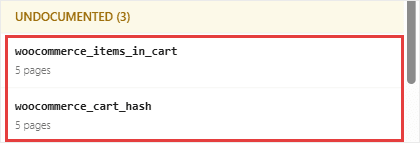
To document these cookies, click Review Cookies in the panel. WPConsent walks you through each undocumented cookie, one at a time.
For each one:
- Check Detected On to see which page it appeared on.
- Pick a Service if you know it, or leave No service (category only).
- Click Save & Next.
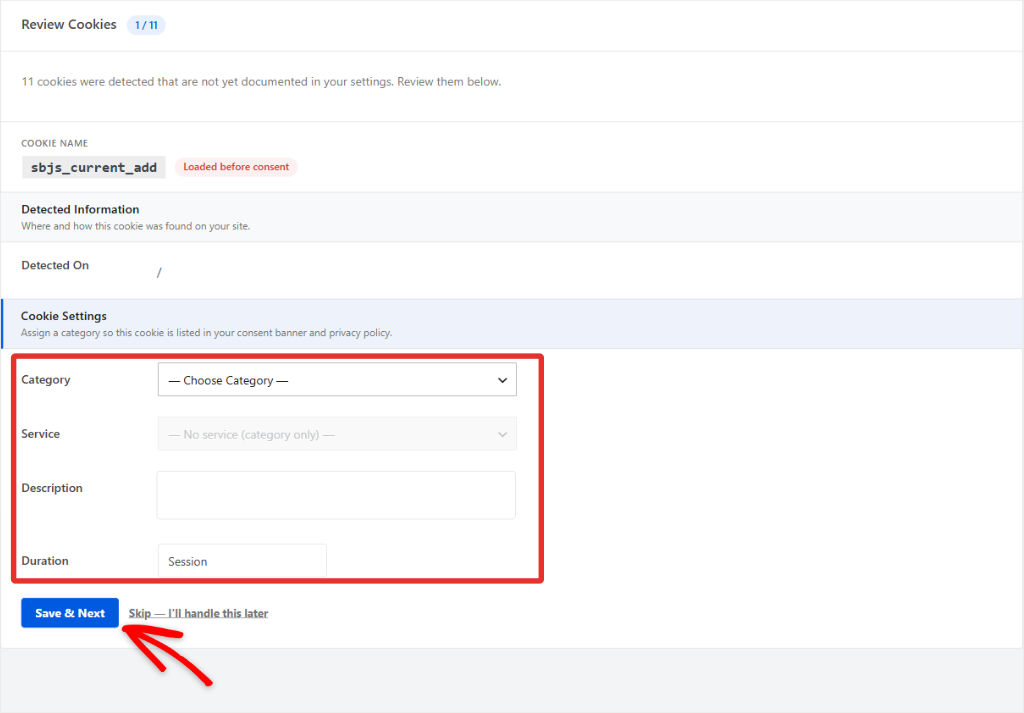
Not sure about one? Click Skip — I’ll handle this later. That drops it from this review, so add it later with Add A Cookie in WPConsent » Settings » Cookies.
Reviewing ends the Inspector session. To end it without reviewing, click Stop in the panel. It also switches itself off after 30 minutes.
⚖️ Good to know
The Inspector reads the cookies your site’s own pages can see. Cookies set by other domains, like Facebook’s fr, and cookies your server hides from scripts only show up in your browser’s tools.
You can spot the hidden ones by the tick in the HttpOnly column of your browser’s cookie table. Add both kinds by hand with Add A Cookie in WPConsent » Settings » Cookies.
It also runs while you’re logged in as an admin, so plugins that skip tracking for admins won’t set their cookies during the session. Run the private-window check too for the full list.
Finding and documenting cookies with the Inspector is free.
Sometimes you’ll spot a cookie and not know which plugin or script created it. On paid plans, the Inspector can show you the script behind some cookies. From there, you can block that script in a few clicks.
What to Do With Your Cookie List
Once you have documented your cookies, head to WPConsent » Settings » Cookies to see them all in one place, organized by category.
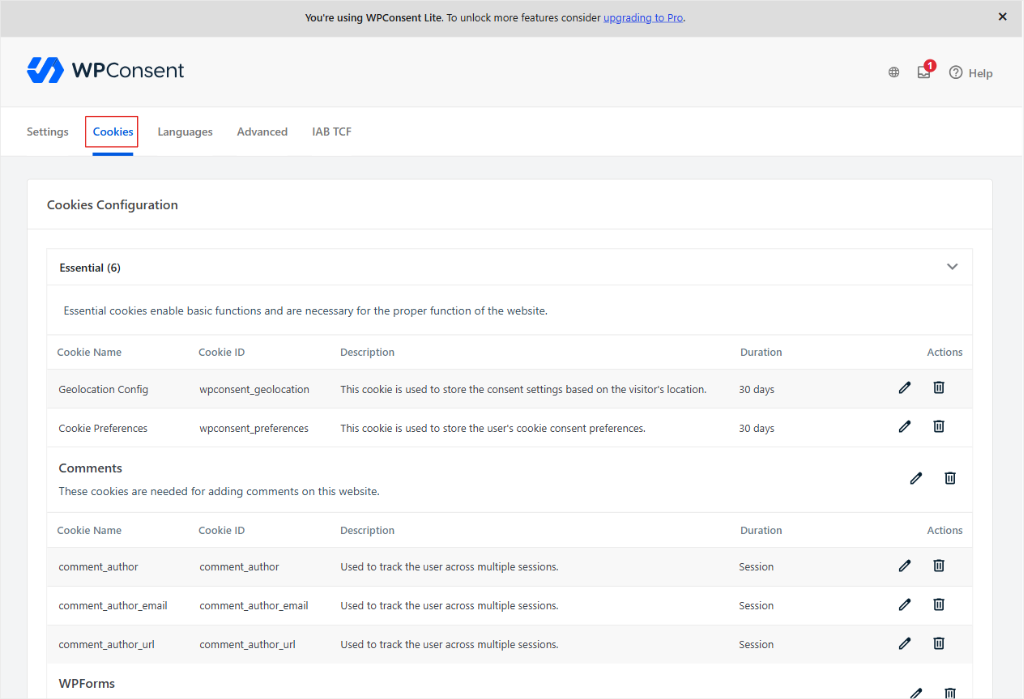
Each entry fills the cookie tables your visitors see in your banner and cookie policy. So it’s worth checking that each description is clear and accurate.
To change a cookie’s details, open its category and click the pencil icon next to it.

You can also add a cookie by hand with Add A Cookie, or remove one with the trash icon. Not sure what to put in each field? Our guide to managing cookies explains what each one means and where your visitors see it.
From there, three things keep your list working for you:
- Rescan after major site changes. A new plugin, embed, or ad script can add cookies you haven’t documented yet. After each rescan, click Automatically Configure Cookies again to save what’s new.
- Keep your cookie policy page current. If you use WPConsent’s cookie policy page, it lists the cookies saved in your settings, so it updates with your list. If you wrote yours by hand, make it match what you actually found. Our guide shows how to create a cookie policy page in WordPress.
- Check that your banner blocks what it should. Your list says what each cookie is. A cookie compliance audit checks whether your banner holds back the ones that should wait for consent.
FAQs: How to Find Which Cookies Your WordPress Site Is Using
How do I know which plugin set a specific cookie?
Check the cookie’s name and domain first. Many follow a pattern, like _ga for Google Analytics or _fbp for the Facebook Pixel. If it’s still not clear, WPConsent’s Cookie Inspector shows you where each cookie was detected, and paid plans can trace some cookies back to the script that set them.
Can I check my site’s cookies without installing a plugin?
Yes. WPConsent’s free scan tool at wpconsent.com/scan/ checks your homepage with no install. Your browser’s developer tools work too, though you will check one page at a time by hand.
Does every WordPress site use cookies?
Most do. A basic WordPress site may use very few cookies. Adding analytics, ads, forms, embeds, and other services can add many more.
How often should I check my site’s cookies?
Check again any time you install a new plugin, ad script, or embed. Do a full pass every few months, too, even if nothing obvious changed. Plugin updates sometimes add cookies quietly.
Why do the scanner and my browser show different cookie counts?
The scanner lists every cookie a matched service can set, so some will never appear on your site, like the old __utma cookie from Google’s retired ga.js tracking code. It can also miss cookies that other plugins set. Your browser only shows what a real visit set. The two lists overlap, but they won’t match exactly.
Start Your Cookie List With a Free Scan
You now have a way to build a cookie list from both scan results and real visits, rather than relying on a scan alone.
Not ready to install anything? Start with the free online scan, then use the plugin to check more pages.
Both the Scanner and the Cookie Inspector are in the free plugin. It’s the best free consent plugin for a job like this, so start there.
Get WPConsent free and run your first scan →
Want your list to stay current without checking by hand? Paid plans run your scans on a schedule and pick up cookies set by other plugins.
See WPConsent pricing →
Additional Resources
Take your cookie list further with these guides: