
Is your consent banner missing, or are tracking scripts still running before anyone has answered it?
In this guide, we’ll answer the questions we hear most often about WPConsent, grouped by the part of the plugin they concern.
All you need is WPConsent on your WordPress site and a few minutes to work through the checks.
Table of contents
- Getting the Banner to Appear
- Getting Scripts and Embeds Blocked
- Getting More Out of a Scan
- Working Alongside Your Other Plugins
- Testing Your Setup
Before you get started, make sure WPConsent is installed and activated on your WordPress site.
Most of the answers here point at one screen. To open it, go to WPConsent » Settings in your WordPress admin sidebar.
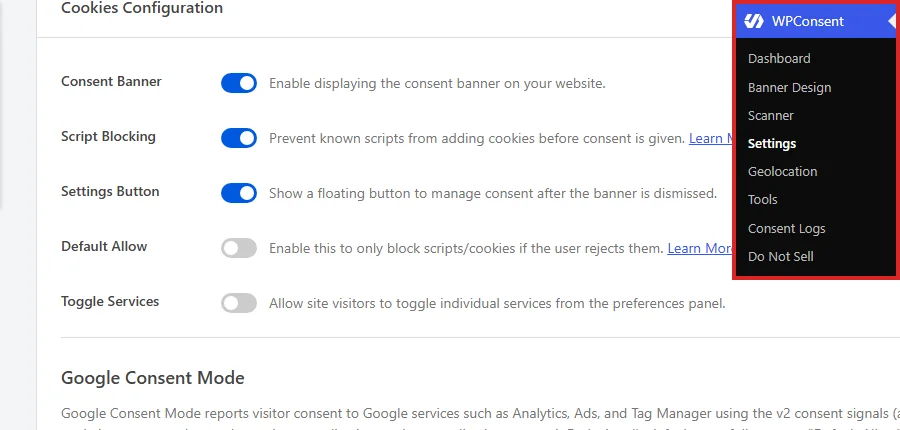
The page opens on the Settings tab. Its Cookies Configuration panel holds most of the switches named in this guide.
Getting the Banner to Appear
This section covers three cases: a banner that never appears, one that appears but looks wrong, and one that appears more often than you expect.
Why isn’t my banner showing?
Start with the switch that controls it. On the Settings tab, the Consent Banner row is the master control, and the banner only renders while it is on.
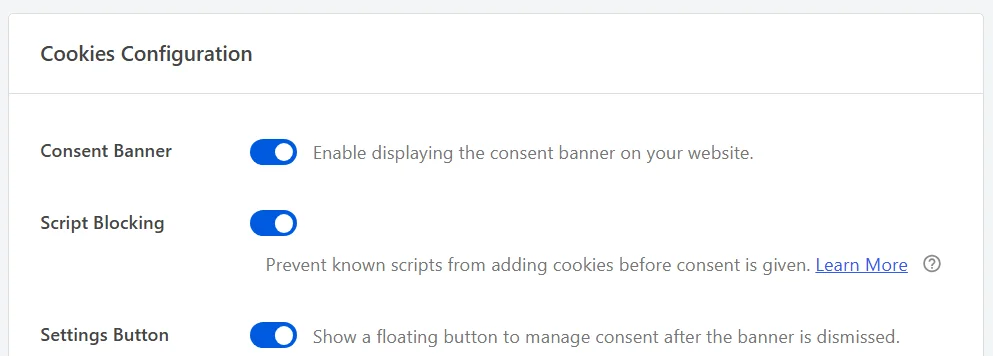
The two rows beneath it are covered further down: Script Blocking decides whether tracking scripts wait for consent, and Settings Button shows a floating button that reopens the preferences panel.
Banner Design carries a Show Banner on Frontend checkbox next to its own Save button, which writes the same setting. That checkbox always draws itself ticked, whatever the setting is currently set to. So the Settings tab row is the one to trust when you are checking.
If that switch is already on, work through the rest of these:
- You have already answered it. Your choice is stored in a cookie named
wpconsent_preferenceson your own domain. The banner stays away until that cookie expires or is deleted. A private window is the quickest way to see it as a first-time visitor does. - A cached copy is being served. A page cached before you switched the banner on has no banner in it. Caches need purging after any change here.
- You are inside a page builder editor. WPConsent stays out of the Bricks, Divi, and Avada visual editors on purpose, so the banner never covers what you are building. Previewing the page or opening it on the front end shows it.
- You are in the Customizer preview. The banner is left out of that preview for the same reason.
- The request isn’t a normal page view. The banner is added in the footer of standard front-end pages. REST API responses, AJAX responses, and feeds never carry it.
- The visitor’s browser sends a Global Privacy Control signal. With Respect Global Privacy Controls switched on, those visitors have their choice recorded automatically and never see the banner.
Our guide on Global Privacy Control covers that last setting in full.
Why does my banner flash or look unstyled?
WPConsent builds the banner inside a shadow root, which walls its styles off from your theme so neither one can affect the other. The stylesheet for that shadow root is fetched by JavaScript after the page loads, and the banner stays hidden until it arrives. That is what keeps an unstyled flash off the screen on a slow connection.
If the stylesheet cannot be fetched at all, WPConsent tries once more. Rather than leave the banner hidden, it then falls back to a small set of built-in styles and shows it anyway.
So a banner in plain, unfamiliar styling means the stylesheet request is being turned away. Your browser console names the file in that case, which tells you what to look at. The usual culprits are a security plugin, a firewall rule, or a CDN sitting in front of the plugin’s build directory.
Why does the banner come back after someone accepts?
Every answer is stored for a fixed number of days, and the Consent Duration field on the Settings tab sets how many. It arrives set to 30, so a visitor who accepted five weeks ago is asked again.
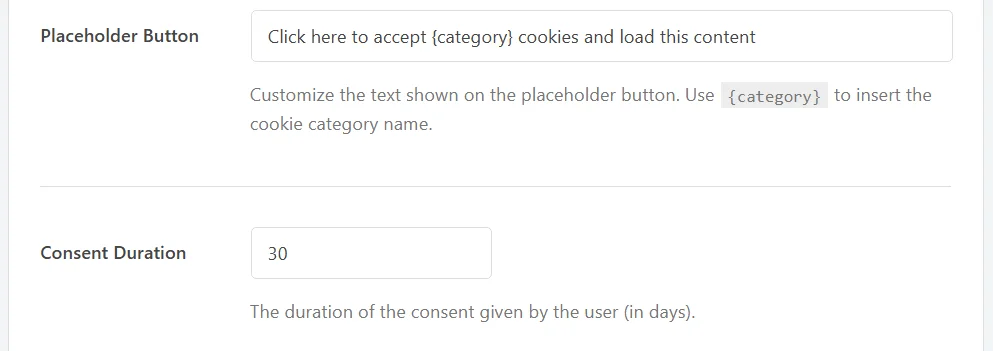
Raising that number keeps each answer in force for longer. Setting it to 0 has a particular effect worth knowing: the stored choice becomes a session cookie. It then lasts for the rest of that browsing session and is gone once the browser closes.
Two other things can clear the stored answer between visits:
- A plugin or server rule is stripping cookies. Some security and performance tools remove cookies they don’t recognize. Whatever list of allowed cookies you keep needs
wpconsent_preferenceson it. - Your visitors move between subdomains. By default the stored answer belongs to the exact domain it was given on. Shared Consent on the Advanced tab widens it to cover your subdomains, and it has to be switched on for every subdomain site running WPConsent.
Once the banner behaves, the next thing to check is what it actually holds back.
Getting Scripts and Embeds Blocked
WPConsent rewrites known tracking script tags in your page before your visitor’s browser receives them. It then restores the ones each visitor allows.
Our guide on automatic script blocking covers the mechanism in full.
Why are my tracking scripts still running?
Take these in order. The first two are settings, and the rest are limits worth knowing about.
- Script Blocking is switched off. It sits directly under Consent Banner on the Settings tab. It also depends on the banner: with the banner off, WPConsent stores script blocking as off when you save.
- A consent mode is handling that service instead. Google Consent Mode and Clarity Consent Mode each take their own service out of blocking. They report the visitor’s choice to it instead.
- The script isn’t one WPConsent recognizes. Blocking works from a list of known services that WPConsent maintains, and your site refreshes that list about once a day. Anything outside it passes through untouched.
- Another script loads it after the page arrives. WPConsent works on the HTML your server sends. A script that a tag manager adds later isn’t in that HTML, so there is nothing to rewrite.
- A cached copy is being served. A page cached before you switched blocking on still holds the original tags. Caches need purging after any change here.
- The URL carries the debug parameter. Blocking is switched off for any request whose URL includes
wpconsent_debug. Removing it from the URL restores normal blocking.
Clarity Consent Mode lives on the Advanced tab, alongside Shared Consent and the Global Privacy Control setting.
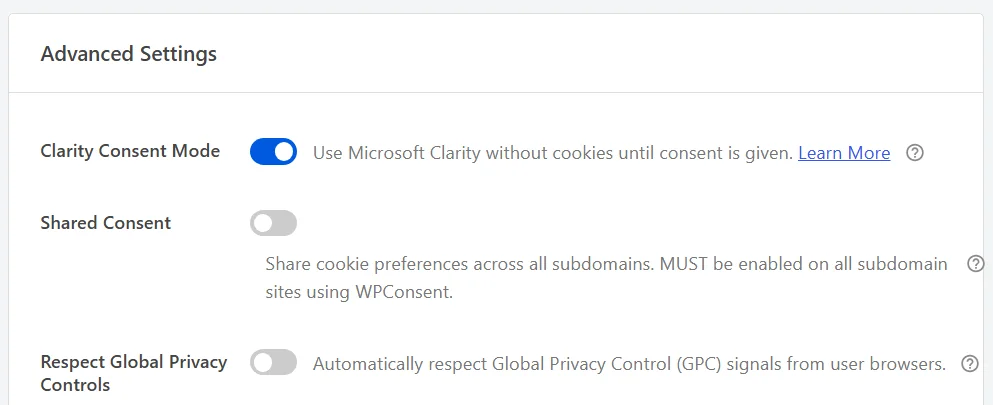
Switching Clarity Consent Mode off puts Microsoft Clarity back under ordinary blocking, so it waits for consent like any other tracker.
Our guide on Microsoft Clarity Consent Mode covers that choice, and our guide on advanced settings covers the rest of the panel.
What does Google Consent Mode change?
Google Consent Mode reports each visitor’s answer to Google’s own tags using the five v2 consent signals, rather than holding those tags back. The setting sits in its own section on the Settings tab, and it arrives switched on.
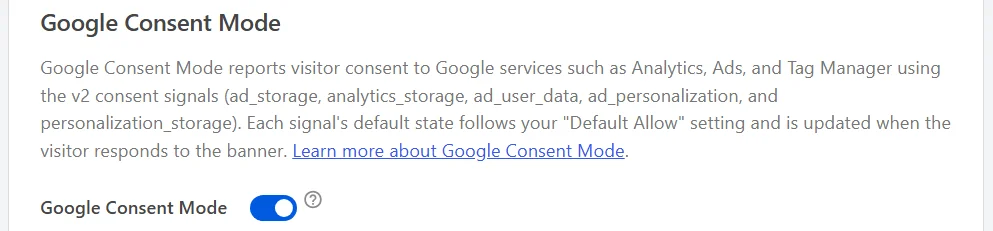
While it is on, Google Analytics and Google Ads are left out of script blocking and receive the consent signals instead. Switching it off puts both back under ordinary blocking, so they wait for consent like any other tracker.
Google Tag Manager is a separate case. Your Tag Manager container loads normally whichever way this setting is left, so the container itself is never held back. What the tags inside it do is decided by the consent signals they receive and by the triggers you set on them.
Our guide on triggering GTM tags based on consent covers wiring those triggers up.
Our guide on Google Consent Mode v2 covers the setting itself and the two rows beneath it.
How do I block a script WPConsent doesn’t recognize?
Requirements: Custom scripts and iFrames are part of the paid version of WPConsent.
The Custom Iframes/Scripts panel on the Advanced tab takes rules of your own. You give it a fragment of the script’s URL or tag to match on, then file it under a service and a cookie category. From then on it is held back like any other entry in that category.
Our guide on custom scripts and iFrames walks through adding one.
The list of recognized services is maintained by WPConsent and refreshed on your site automatically. Services get added to it over time without you doing anything.
If something common is missing from that list, let our team know and we can look at adding it.
Why are my embeds still loading?
Embedded content has a switch of its own. Content Blocking on the Settings tab turns it on, and the Content to Block list underneath is where you choose which providers it applies to.
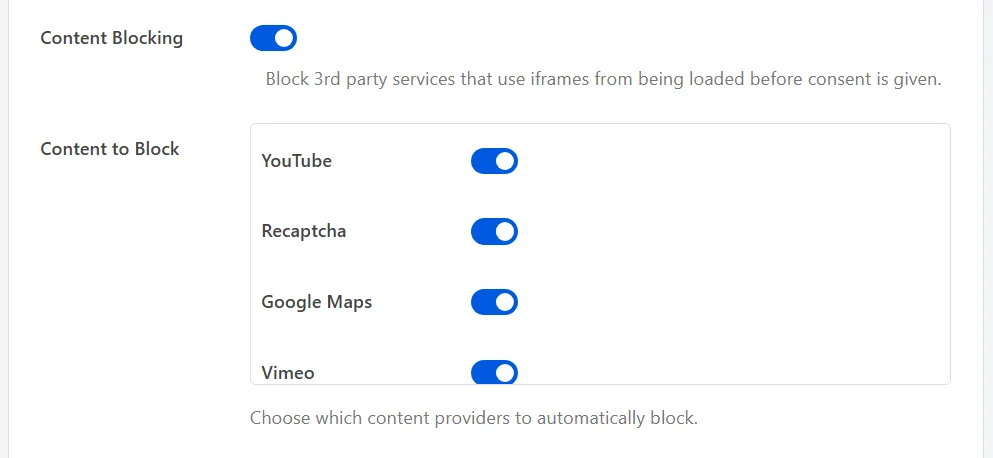
The list holds the providers WPConsent knows the embed patterns for, so an embed from a service outside it loads as usual. A blocked embed is replaced with a short placeholder. The placeholder explains what is missing and offers to load it, rather than leaving a gap on the page.
Our guide on content blocking and placeholders covers the switch, the list, and the placeholder wording.
Getting More Out of a Scan
The scanner fetches pages of your site, reads the HTML your server sends, and reports the services it recognizes in it.
Our guide on scanning your website covers running one.
Why didn’t my scan find everything?
The most common reason is which pages were fetched. A scan always covers your home page, and everything else is whatever you have added to the list on the Scanner page.
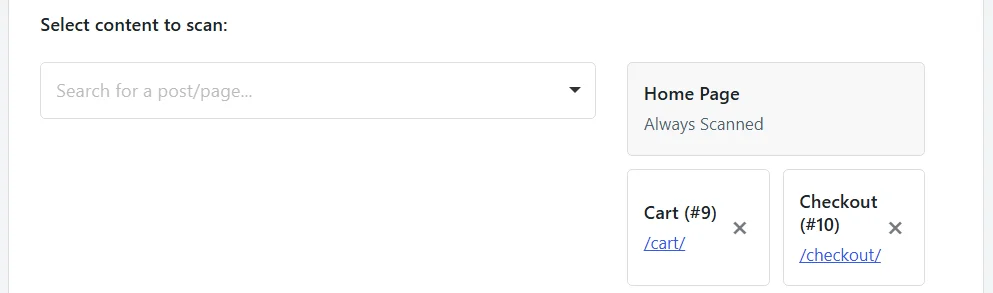
If a tracker only loads on your checkout, your contact page, or one landing page, add those pages here and scan again. There is no limit on how many you add.
Three other things account for most of the rest:
- The script is added by a tag manager. The scanner reads the HTML your server sends, and a script that a tag manager adds afterwards is not in it. With a paid license the scan also carries the list of plugins active on your site, which lets it recognize services arriving that way.
- The service isn’t in the WPConsent database yet. Newer or more specialized services take time to appear. You can add one yourself on the Cookies tab, using the cookie details from cookielibrary.org. Our guides on managing services and managing cookies cover adding both.
- The page couldn’t be fetched. The scan works by requesting your own pages over HTTP, and your admin login travels with that request. A firewall that turns away requests coming from your own server leaves the scan with nothing to read. The message on the Scanner page after a scan says what came back.
Can I scan again after making changes?
Yes, and it is worth doing whenever your site’s tracking changes. Adding or removing a plugin, switching themes, and pasting in a new tracking snippet are all worth a fresh scan.
With a paid license you can also have WPConsent scan on a schedule and email you when something new turns up.
Our guide on automatic scheduled scans covers setting that up.
Working Alongside Your Other Plugins
WPConsent works on the HTML your site sends and on cookies in the visitor’s browser. The plugins it meets most often are the ones that cache pages or build them.
Does WPConsent work with my caching plugin?
Yes, and it is worth knowing how the two fit together. WPConsent rewrites your page as PHP produces it. A caching plugin stores the finished page and serves that stored copy afterwards, without running PHP again.
So the first, uncached view of a page goes through WPConsent, and the rewritten version is what gets cached. Every visitor served from that cache gets the rewritten version too. The banner itself runs in the browser, so it works the same either way.
Two things follow from that:
- Caches need purging after any change here. A page cached before you switched blocking on still holds the original tags. That is the single most common cause of a plugin looking like it isn’t working.
- The consent cookie must survive. If your caching or security layer strips
wpconsent_preferences, every visit looks like a first visit.
WPConsent also ships a small piece of WP Rocket compatibility. It keeps the banner container out of that plugin’s lazy rendering, so there is nothing to configure there.
Does WPConsent work with my page builder?
Yes. WPConsent runs on standard front-end page views, which is not what a builder’s editing canvas is. So builders and WPConsent stay out of each other’s way.
Bricks, Divi, and Avada go a step further. WPConsent recognizes their visual editors and switches itself off inside them, so neither the banner nor script blocking runs while you are building. Both behave normally on the published page.
Elementor, Beaver Builder, WPBakery, and the rest need no configuration.
Does WPConsent work with the WP Consent API?
Yes. With the WP Consent API plugin active, WPConsent registers itself as the consent plugin on your site. It then passes each visitor’s answer through, so other plugins that read the API can act on it.
The categories line up like this: Essential is reported as functional, Statistics as statistics, and Marketing as marketing. Any category you have added yourself is reported as marketing, which is the most protective of the available buckets. Those services therefore wait for consent rather than running by default.
Our guide on the WP Consent API integration covers the pairing in full.
Testing Your Setup
Once everything is configured, you can confirm it from the visitor’s side of the site in a few minutes.
How do I check that blocking is working?
A private browser window is the right place to start, because no stored answer is in play there. With your site open in one, open your browser’s developer tools and work through these four checks.
- In the Elements tab, search for
data-wpconsent-src. Blocked script tags carry that attribute along withtype="text/plain", which is how WPConsent neutralizes a tag while keeping its original source. - In the Network tab, look for requests to your tracking services before you answer the banner. They are absent, apart from any service a consent mode is handling.
- On the banner itself, choose Accept All, then look at the Network tab again. The requests appear as the scripts are restored and run.
- In the Application tab, under Cookies,
wpconsent_preferencesnow holds each category with a value of true or false.
To check the other direction, reopen the preferences panel, turn a category off, and save. The stored answer changes and the scripts in that category go back to being held.
Our guide on opening the preferences panel with a custom link covers the ways to reach it, including the floating button.
Is there a debug mode?
Yes. Adding ?wpconsent_debug to any URL on your site turns script blocking off for that one page view. That makes it useful for telling a blocking problem apart from a script problem.
The scanner uses the same parameter when it fetches your pages, which is how it sees the tags in their original form.
Note: Debug mode applies only to the page view whose URL carries the parameter, and it affects script blocking alone. The banner still appears as usual.
Does saving consent reload the page?
Not for a first-time visitor. Someone answering the banner for the first time has their scripts released on the spot, with no reload.
A reload does happen when someone changes an answer they gave earlier. Scripts that were already running have to be stopped, and the cookies they set are cleared at the same time.
It also happens on any save that leaves a category switched off while Default Allow is on, for the same reason.
Does WPConsent handle compliance for me?
No, and we want to be direct about that. WPConsent gives you the tools to gather and act on consent. It makes no representation or warranty that your site will comply with any data privacy law or regulation, and complying is your responsibility.
We also don’t provide legal advice. For anything touching on what your site needs to do, talk to a lawyer who knows your jurisdiction and your business.
Our Terms of Service set this out in full.
That’s it! You now know how to work through the most common WPConsent questions, from a banner that won’t appear to scripts that won’t stay blocked. Next, take a look at our guide on what WPConsent is for the wider picture of how its pieces fit together.